
fxcss



A testing toolkit for userChrome.css Firefox themes.
Edit your CSS and see it live, click any part of the UI to get its selector,
and screenshot-test changes in CI.
Three ways in:
| You are… | Start with |
|---|---|
| Building a theme | fxcss new my-theme scaffolds one; fxcss watch shows edits live in ~50ms; fxcss pick names any element you click. |
| Trying someone's theme | fxcss try owner/repo — test-drive it in a throwaway profile; close the window and nothing remains. Sure about it? fxcss install owner/repo puts it in your real profile, with a backup. |
| Maintaining a theme repo | fxcss init — before/after screenshots on every pull request, on macOS, Windows and Linux. |
Your first ten minutes
pipx install "fxcss[images]"    # no pipx? brew install pipx / sudo apt install pipx

# See it work on a real theme before touching your own:
fxcss try AdamXweb/WhiteSurFirefoxThemeMacOS

# No theme yet? Start from a small working one:
fxcss new my-theme

# Point it at your theme (the folder containing chrome/) and edit live:
cd my-theme && fxcss watch

# Can't name the element you want to style? Click it:
fxcss pick

# Happy? Give the repo CI previews:
fxcss init && git add .github && git commit -m "ci: theme previews"
Every one of these runs in a throwaway profile. Looking for themes to try?
Browse firefoxcss-store.github.io or
r/FirefoxCSS — anything with a
userChrome.css on GitHub works with fxcss try owner/repo.
Description
Working on a Firefox theme normally means: edit CSS, restart Firefox, squint, repeat — and guessing at element names, because the browser's own UI isn't in any page inspector you're used to.
fxcss removes both problems. It installs your theme into a throwaway profile, drives Firefox over Marionette (Firefox's built-in automation protocol), and gives you a live-reload loop, an element picker, and a screenshot differ.
Your real Firefox profile is never touched — except by the one command whose
job that is: fxcss install, which backs up what it replaces and keeps a
manifest so fxcss uninstall can put everything back.

Three saves in fxcss watch — the window updates in ~50ms.
Every image in this README was generated by fxcss itself.
Requirements
- Python 3.9+
- Firefox (any recent release; the toolkit finds it automatically on macOS,
Windows and Linux, or set
FIREFOX_BIN) pillow, only forcatalogue,compareandtweaks— every other command is standard library. Added later withpipx inject fxcss pillow.
Installation
fxcss is on PyPI. Install it with pipx,
which gives it its own environment and puts fxcss on your PATH:
pipx install "fxcss[images]"
No pipx yet? brew install pipx (macOS), sudo apt install pipx (Debian and
Ubuntu), or python3 -m pip install --user pipx elsewhere.
Why not plain pip? On current Homebrew, Debian and Ubuntu Pythons,
python3 -m pip installrefuses witherror: externally-managed-environment— that's PEP 668 protecting your system Python, not fxcss being broken. pipx is the intended answer for installing an application. pip still works fine inside a virtual environment:python3 -m venv ~/.venvs/fxcss && ~/.venvs/fxcss/bin/pip install "fxcss[images]"
For CI, or anywhere a surprise upgrade would be unwelcome, pin the release — the releases page has the latest. CI runners' Pythons are not externally managed, so plain pip is fine there:
pip install "fxcss[images]==0.14.0"
Either gives you an fxcss command. To hack on it, clone and install editable:
git clone https://github.com/AdamXweb/fxcss.git
cd fxcss && python3 -m pip install -e ".[images]"
And if you would rather install nothing at all, the repo runs as-is:
python3 -m fxcss <command>
Run commands from your theme's root (the folder containing chrome/), or point
at it with --theme /path/to/theme.
Commands
| Command | What it's for |
|---|---|
new |
Start a theme from a small, working scaffold |
try |
Download a theme from GitHub and test-drive it |
install |
Install a theme into your real Firefox profile |
uninstall |
Remove it again, restoring what was there |
watch |
Edit CSS and see it live, no restart |
pick |
Click any part of the UI to get its CSS selector |
inspect |
Look up a selector you already have |
init |
Add PR previews and CI checks to your theme repo |
tweaks |
Screenshot every install option into a committable doc |
audit |
Find every selector that no longer matches, and suggest fixes |
changelog |
Diff two Firefox builds to see what chrome changed |
snapshot |
Record a Firefox's chrome names, to diff against later |
catalogue |
Build a directory of themeable UI parts |
shot / compare |
Screenshot and diff two versions |
doctor |
Report what your Firefox supports |
fxcss try
fxcss try adamXweb/WhiteSurFirefoxThemeMacOS
fxcss try github.com/owner/theme --with compact-tabs
fxcss try owner/theme --info            # report what's there, launch nothing
Test-drive a theme before committing to it. Downloads it, installs it into a throwaway profile, and opens Firefox so you can actually use it. Your own profile is never touched — close the window and nothing remains.
It reports what it found before doing anything:
  adamxweb/whitesurfirefoxthememacos  ★614  MIT
    MacOS Big Sur like theme for Firefox on MacOS & Windows.
    latest release   v1.6.3  (2025-07-26)
    latest commit    b10c574  (2025-07-26)  Merge pull request #167 …

  fetching release v1.6.3 …
  theme found at the repository root  (39 stylesheets, 134 KB)

  This theme ships install.sh. fxcss does not run it —
  it installs the files itself, which is all those scripts do.

  Options its README documents:
    -c     Left hand side tab close button
    -p     Makes tabs height compact like current Safari
    …

  Optional stylesheets you can layer on with --with:
    compact-tabs, hideextension, noidentity, tabs-swapclose, …
Releases are preferred over branch tips, since that is what the author blessed;
--commit takes the latest commit instead, and --ref takes any tag, branch or
SHA. --with name,name layers on the theme's optional stylesheets so you can see
a variant without hunting through install flags. --shot dir captures the
standard screenshots instead of opening a window, and --keep dir leaves the
download behind so you can start editing it with watch.
It does not run the theme's install script
That is deliberate, and worth being plain about: fetching a shell script from a
URL and executing it to preview a stylesheet is a bad trade. Those scripts are,
in substance, cp -r chrome/ <profile>/ plus flipping a pref — which fxcss
already does. So it finds the script, tells you it exists, parses the options its
README documents, and then installs the files itself.
What is left is the theme's own content: CSS, SVG, and occasionally a .js file.
Firefox does not execute a .js file sitting in a profile's chrome folder; that
requires an autoconfig hook in the application directory, which fxcss does not
create. Archives are size-capped and path-checked on extraction, and symlinks in
them are skipped.
If you decide you want the theme permanently, fxcss install is the same
resolution and the same file copying — pointed, deliberately, at your real
profile.
fxcss install
fxcss install owner/theme                      # into your default profile
fxcss install owner/theme --with compact-tabs  # optional sheets, permanently
fxcss install ~/src/my-theme                   # a local checkout works too
fxcss install --list-profiles                  # see what it found first
fxcss uninstall                                # put everything back
Put a theme into the Firefox profile you actually use — the cross-platform
replacement for each theme's own install.sh (and the answer for themes whose
install script never covered Windows). Resolution is the same as try:
a GitHub owner/name or URL with --ref/--commit, or a local directory.
As with try, the theme's own install script is never executed.
It finds your real profiles by parsing profiles.ini in the platform's
Firefox directory (macOS ~/Library/Application Support/Firefox, Windows
%APPDATA%\Mozilla\Firefox, Linux ~/.mozilla/firefox plus the snap and
flatpak locations) and installs into the profile Firefox itself would open.
--profile <name-or-path> overrides; with several profiles and no clear
default, interactive runs get a picker and scripts get an error — CI is never
prompted. Profiles kept somewhere unusual can be added to the search with
FXCSS_PROFILE_ROOTS=/path/to/dir, mirroring FXCSS_FIREFOX_ROOTS.
The picker and --list-profiles say which Firefox each profile belongs to,
because default-release and dev-edition-default are one word apart in a
list of hashed directory names — and installing into the wrong one looks
exactly like the theme not working:
Several Firefox profiles exist:
  1. default-release        [Release]              …/Profiles/8f2b1a.default-release  (Enter)
  2. dev-edition-default    [Developer Edition]    …/Profiles/c41d9e.dev-edition-default
  3. work                   [unrecognised]         …/Profiles/7ab3.work
The label comes from the directory suffix Firefox itself assigns, so a profile
you named yourself reads [unrecognised] rather than being guessed at.
Run it without --with and it offers the theme's optional stylesheets rather
than leaving you to find them in the repository:
  This theme ships optional stylesheets:
    1. compact-tabs
    2. theme-dracula
    …
    Numbers separated by commas, `all`, or Enter for none.
  Include:
When the theme's default branch has moved on since its newest release, that choice is put to you as well — a tag can be a year behind a fix you are looking for, and equally the branch can be mid-rewrite, so neither is right to assume:
  The default branch has moved on since the latest release:
    1. release v2.0                 2025-01-03  what the author last published  (Enter)
    2. latest commit on master      2026-08-14  newer than the release — fix tab colours
  Install [1-2]:
Scripts and CI never see any of these prompts: without a terminal the release
wins, as before, with a one-line note that --commit exists.
The install is what a theme's install script does, done carefully:
- your existing
chrome/is moved to a timestampedchrome.backup-*sibling first — nothing is overwritten in place; - the theme's
chrome/is copied in, along with any--withoptional sheets (placed where the theme's own@imports expect them); toolkit.legacyUserProfileCustomizations.stylesheetsis enabled inuser.js— inside a clearly marked block, so it can be removed cleanly — together with anyconfiguration/user.jsthe theme ships;- a manifest (
chrome/fxcss-install.json) records every file written.
fxcss uninstall reads that manifest, removes exactly the files it lists,
restores the backup, and strips the user.js block. Files it cannot prove
fxcss wrote are never deleted — they are kept, or moved aside, never removed.
Restart Firefox after either command; it reads userChrome.css at startup.
Changed in 0.13: before 0.13,
fxcss installwas an alias fortryand touched nothing real. The throwaway test-drive lives on, unchanged, asfxcss try.
fxcss completions
eval "$(fxcss completions bash)"     # add to ~/.bashrc
eval "$(fxcss completions zsh)"      # add to ~/.zshrc
fxcss completions fish | source      # add to config.fish
Tab-completes subcommands, the flags each one takes, --firefox channel names
— and, reading the theme in front of it, the names of its optional stylesheets:
$ fxcss install ~/src/whitesur --with theme-mat<TAB>
theme-material-ocean  theme-material-palenight
Comma-separated lists complete element by element, and values already chosen
are not offered twice. The candidates are read off the real argument parser, so
a command or flag becomes completable the moment it exists rather than when
someone remembers to update a shell script. Completion never touches the
network: sheet names for a remote owner/repo are not known locally, and a Tab
that pauses to talk to GitHub would be worse than no completion at all — the
picker during install covers that case instead.
fxcss watch
fxcss watch
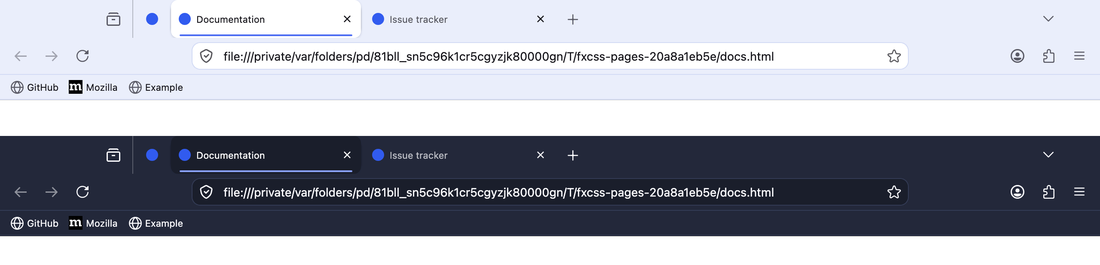
Opens Firefox with your theme applied and watches chrome/ and custom/. Save
a file in your editor and the running window updates in about 50ms.
The window is yours to drive — open menus, resize it, type in the address bar, right-click things. Nothing is scripted.
| flag | effect |
|---|---|
--dark |
start in dark mode, for testing prefers-color-scheme rules |
--native-menus=false |
make right-click menus themeable (see Context menus) |
--shot out.png |
write a screenshot after every reload |
--no-devtools |
don't enable the Browser Toolbox |
fxcss pick
fxcss pick
The answer to "what is this thing called?" Move the mouse over the browser window and the element under the cursor is outlined, with its selector shown in a label:

Click it and your terminal prints everything you need:
  toolbarbutton  →  #back-button
  classes   toolbarbutton-1 chromeclass-toolbar-additional
  box       32×36 at (88, 8)
  styles
    color: rgba(46, 52, 54, 0.35)
    border-radius: 8px
    list-style-image: url("chrome://browser/skin/back.svg")
  styled by 11 rules in this theme
    chrome/parts/buttons-fixes.css:5    :root:not([uidensity=compact]) #back-button {
    chrome/parts/custom-icons.css:6     #nav-bar #back-button .toolbarbutton-icon {
    chrome/parts/headerbar.css:76       #nav-bar #back-button:not(#hack) {
That last section is the useful part: not just what the element is, but which of your files already style it, with line numbers. Keep clicking to pick more; Esc in the browser or Ctrl-C in the terminal stops.
fxcss inspect
fxcss inspect '#urlbar'
fxcss inspect '.tab-close-button' --dark
The same report, for a selector you already have. Useful for checking whether a selector still matches anything after a Firefox update — a common cause of themes quietly breaking.
If it matches nothing, it says so:
$ fxcss inspect '#urlbar-background'
no elements match '#urlbar-background' in this Firefox
That is a real example, not a contrived one: this repo's own example theme
styled #urlbar-background by id, which many older themes still do. The id was
replaced by a class, so the rule silently did nothing and the address bar
rendered unstyled. One command found it; the fix was .urlbar-background.
fxcss init
fxcss init                       # before/after previews on every PR
fxcss init --watch --showcase    # plus the weekly Firefox audit and
                                 # release screenshots
fxcss init --previews            # plus README screenshots that keep themselves
                                 # current: every view and variant, re-rendered
                                 # on each change and pushed to a previews branch
Turn any theme repository into one with CI. Run it from your theme's root
and it writes the preview workflows into .github/workflows/, ready to commit:
every pull request then gets a comment showing the browser chrome before and
after the change, with changed pixels highlighted — rendered on macOS, Windows
and Linux, across sixteen views and every variant stylesheet you ship.
The generation is the point, not a convenience: the fxcss version is pinned to
the one doing the generating, and the publish allowlist is enumerated from
your theme's variant folder — the two things that had to be hand-edited, and
the second one silently drops views when forgotten. Existing files are never
overwritten without --force, and the output tells you the things that
otherwise surprise people (the comment starts after the workflows reach your
default branch; first-time contributors need one approval click).
If you'd like people to know:

fxcss tweaks
fxcss tweaks
fxcss tweaks --combo compact-tabs+tabs-swapclose
Document your install options with screenshots. Themes describe their
optional stylesheets in prose — accordions of flags, install.sh -c -n -s
incantations — and a user assembles their preferred setup in their head. This
renders the answer instead: the base theme, every optional stylesheet, and any
combination you bless with --combo, each with a labelled before/after crop
of the region it actually changes and how much of the chrome it touches.
The output is a folder of PNGs plus TWEAKS.md, written to be committed:
relative links, and a <details> accordion per option so a long list stays
scannable on GitHub. If your README documents installer flags, they are parsed
and included as a table.
A tweak that changes nothing is reported as exactly that — "changes nothing on current Firefox, possibly stale". Optional sheets rot at least as fast as selectors do, and nobody notices because nobody has them enabled.
fxcss audit
fxcss audit
fxcss audit --patch fix.diff     # write the confident fixes as a patch
fxcss audit --strict             # exit non-zero if anything needs attention
Upgrading a theme after Firefox moved on. inspect answers the question one
selector at a time; audit does the whole theme at once. It walks every id and
class your CSS mentions, resolves each against a running Firefox, and shows what
to change — with the real line from your file and the replacement applied:
  14 selectors need attention

  RENAMED  #urlbar-background  →  .urlbar-background
           same name, now a class rather than an id

    chrome/parts/headerbar-urlbar.css:52
    - #urlbar-background {
    + .urlbar-background {

  SIMILAR  #appMenu-fullscreen-button  →  #appMenu-fullscreen-button2
           no exact match; closest live name is #appMenu-fullscreen-button2

    chrome/parts/icons.css:198
    - #appMenu-fullscreen-button {
    + #appMenu-fullscreen-button2 {
That output is real — it is what this finds in a long-running theme. The
…-button2 pattern is how Firefox has been versioning app-menu controls, and it
breaks menu styling silently.
Findings come in three kinds:
| meaning | |
|---|---|
| RENAMED | The same name exists, but as a class instead of an id, or the reverse. The suggestion is exact. |
| SIMILAR | No exact counterpart, but a close name exists. Usually a Firefox suffix change, or a typo in your CSS. |
| unresolved | Nothing close. Listed separately with --all and not counted as a problem — normally an element that only appears in a state fxcss cannot reach, not one that was removed. |
That last distinction is the point. Reporting every unmatched selector as broken would be noise; a theme legitimately styles things that only exist in private windows, on other platforms, or inside popups.
Suggestions are inferred from the live browser, not from a hardcoded list of Firefox versions, so they keep working for releases that came out after this tool did.
--patch writes a unified diff of the RENAMED findings only — the ones where
the replacement is certain. Review it, then git apply. SIMILAR findings are
deliberately excluded: they are usually right, but "usually" is not good enough
to rewrite your CSS unattended.
fxcss changelog
fxcss changelog --firefox /path/to/old/firefox --against /path/to/new/firefox
What actually changed between two Firefox releases. Collects every chrome id and class from both builds, diffs them, and tells you which of the removals your theme depends on:
  Firefox 140.13.0 → 153.0.3
    52 chrome names gone, 221 new

  2 of them are used by this theme:
    #urlbar-background          chrome/parts/headerbar-urlbar.css:52
    #urlbar-go-button           chrome/parts/buttons-fixes.css:202
Point it at an ESR build and current release to see what a year of Firefox did
to your theme, or at a Beta to find out what is about to break before your users
do. --show-all lists every name that changed, not just the ones you use.
You do not need to keep an old browser around. fxcss snapshot --out baseline.json records what a Firefox has; commit that file and compare later
with --baseline:
fxcss snapshot --out .fxcss/firefox-140.json     # once
fxcss changelog --baseline .fxcss/firefox-140.json
Watching Firefox for breakage
Firefox ships every few weeks, and a theme does not break loudly when it renames something. A scheduled job can audit each channel and tell you before your users find out — Beta and Nightly give weeks of warning.
examples/firefox-watch.yml is a working workflow that does this: it downloads
release, beta and nightly, audits the theme against each, opens a pull
request when the fixes are ones --patch is certain about, opens an issue
when they are not, and closes the issue once the channel is clean again.
Unused and unreachable code
audit also reports housekeeping, in its own section, separate from breakage:
- Stylesheets nothing imports. Files under
chrome/unreachable by following@importfromuserChrome.css. Sheets in acustom/oroptional/folder are excluded — being opt-in is the point of those. - Custom properties used but never set, where an unthemed Firefox does not
provide them either. These are usually typos: the
var()silently falls back. - Custom properties set but read nowhere. Reported cautiously — setting
--arrowpanel-backgroundexists precisely so Firefox's own rules pick it up, so this section excludes every name an unthemed Firefox resolves.
That last check is why audit briefly starts a second, unthemed browser: asked
of the themed one, every name resolves, because the theme set it.
Pass --no-unused to skip the section.
Should it gate CI? Report it, don't fail on it. --strict covers selectors
that no longer match, which is real breakage. Unused code is tidiness, and a
tidiness check that blocks merges gets disabled. The example CI here runs
audit --strict and lets the unused section be advisory.
fxcss catalogue
fxcss catalogue --open
Builds an HTML directory of the UI parts a theme can target. For each one: a cropped screenshot of the real element in light and dark, its selector, the styles in effect, and every rule in your theme that targets it. Plus an annotated overview screenshot with each part numbered.
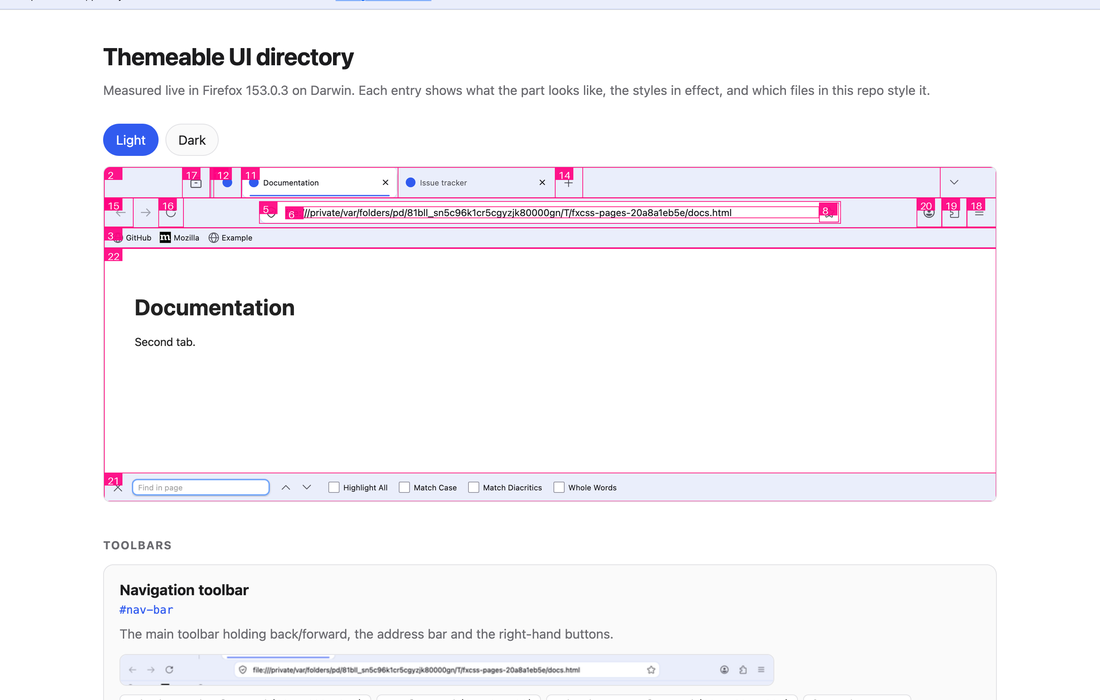
Everything is measured from a running browser rather than hardcoded, so it stays honest as Firefox changes — an element that no longer exists is reported as missing rather than quietly documented.
Add --self-contained to also get a single catalogue.html with the images
inlined, for attaching to an issue.
fxcss shot
fxcss shot --out shots/before
Captures the standard set of views as PNGs: browser window, focused address bar and find bar in light and dark, then a tab playing audio, the same tab muted, container tabs, an overflowing tab strip, a private window, compact density, the sidebar, right-to-left chrome, and customize mode.
The captures land flat in --out, one file per view (shots/before/light-01-window.png);
--url captures go to <out>/live/. This is the directory to publish from if
you want plain screenshots — fxcss compare writes a different shape, below.
fxcss shot --out shots --variants all
--variants additionally captures one view per optional stylesheet the theme
ships (custom/, optional/, variants/…), each loaded on its own and removed
again — so tabs-swapclose or compact-tabs are checked by CI without a
separate install. Name specific ones (--variants a,b) or take them all.
Against real websites
fxcss shot --out shots --url https://github.com/AdamXweb/WhiteSurFirefoxThemeMacOS
fxcss shot --out shots --only-live --url https://example.com --url https://news.ycombinator.com
Captures the theme against live sites, light and dark, for showing it off — README screenshots, release notes, an issue thread.
These land in <out>/live/ and are never part of a comparison. That is the
whole point of keeping them separate: someone else's page can change its
content, title or favicon between two runs, and a theme pull request should not
be blamed for it. compare only looks at PNGs at the top level, so they are
excluded by construction rather than by a rule someone has to remember.
examples/showcase.yml automates it — regenerate on every release, publish to a
showcase branch, and link stable raw URLs from your README.
fxcss compare
fxcss compare --base shots/before --head shots/after --out diff/
Diffs two sets and writes one stacked before / after / changed-pixels image per view that differs. Views that render identically are reported rather than pictured, so you only look at what actually changed.
--out therefore holds comparison images for changed views only, plus a
summary.json and a full/ directory carrying a normalised copy of every
head capture, changed or not. So <out>/full/ is what a preview comment shows
when nothing differs — and shot's own --out (flat, no full/) is what to
read when you just want the screenshots.
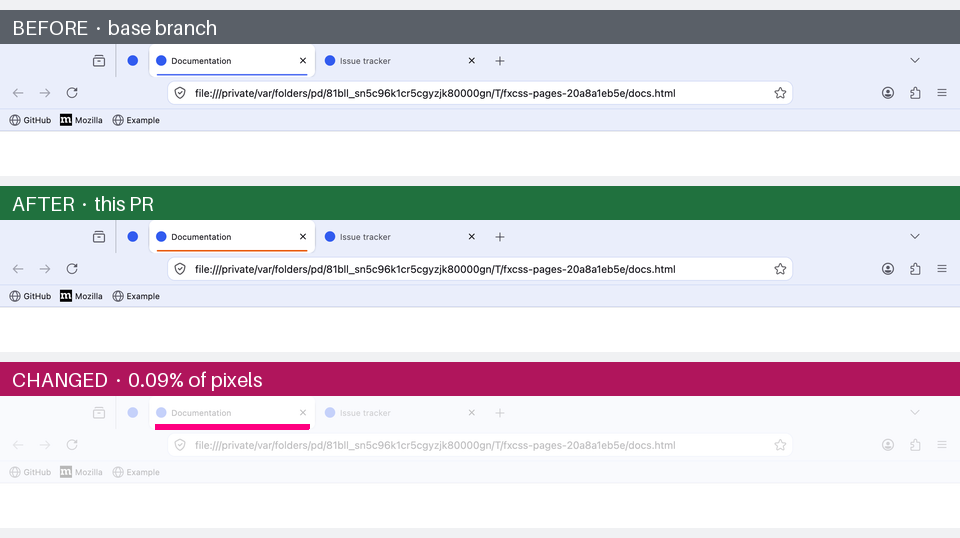
One changed value — the accent colour behind the active tab. The bottom panel highlights the 0.09% of pixels that moved.
This is what makes it useful in CI: render your theme at the base commit and at a pull request, and the diff shows a reviewer exactly what the change does. See Using it in CI.
fxcss doctor
fxcss doctor
Reports your Firefox version, whether userChrome.css is enabled, whether
context menus are themeable on your platform, how many stylesheets your theme
has — and every Gecko build installed on the machine, with versions. Start
here if something isn't behaving.
Browser states it captures
fxcss shot renders 18 views, so a change is judged against the states people
actually use rather than one idle window: light and dark, the focused address
bar, the find bar, audio and muted tabs, container tabs, an overflowing tab
strip, a private window, compact density, right-to-left chrome, Customize
mode — and three that a theme is most likely to have never been tested in:
- Sidebar — bookmarks and history. Both panels, with their trees expanded, because a fresh profile shows them collapsed and a collapsed panel has almost nothing in it to style.
- Vertical tabs. Firefox 133+ does not restyle the tab strip here, it
moves it:
#tabbrowser-tabsleaves#TabsToolbarfor#vertical-tabs, so every#TabsToolbar > …rule a theme owns silently stops matching while its unscoped.tabbrowser-tabrules keep applying horizontal geometry to a vertical column. Older builds without vertical tabs skip the view. - Customised toolbar. The nav bar with widgets moved into it — by default including the new tab button, which is the rearrangement plenty of theme READMEs ask users to make by hand and which nothing could test until now.
Set your own arrangement with --toolbar, on shot, watch or try:
fxcss watch --toolbar "new-tab-button>nav-bar, -downloads-button"
fxcss shot  --toolbar "home-button>nav-bar@0" --out shots/
widget>area moves a widget (optionally @position), -widget removes one.
Areas are nav-bar, TabsToolbar, PersonalToolbar, vertical-tabs,
unified-extensions-area. A widget id Firefox does not recognise is reported
rather than ignored — Firefox itself accepts any string and then quietly
renders nothing.
Testing against Nightly, Developer Edition, ESR — or a fork
Every command that opens a browser takes a channel name as well as a path:
fxcss watch --firefox nightly
fxcss audit --firefox dev          # what will break before it ships
fxcss shot  --firefox esr --out shots/esr
Recognised names: stable, beta, dev, nightly, esr, and the Gecko
forks theme users actually run — librewolf, floorp, waterfox, zen.
They resolve against what is installed in the usual places; a build kept
somewhere unusual can be added with FXCSS_FIREFOX_ROOTS=/path/to/dir.
With several builds installed and no --firefox given, interactive
commands show a picker — press Enter for stable, or a number for another
build. CI and scripts are never prompted: non-interactive runs keep the old
behaviour exactly.
Inspecting the UI with devtools
Firefox's normal inspector only sees page content. The Browser Toolbox is
the version that can inspect the browser's own UI, and it's off by default
behind four prefs. fxcss turns them on in its throwaway profile, so in watch
and pick you can just press:
- macOS —
Cmd+Opt+Shift+I - Windows / Linux —
Ctrl+Alt+Shift+I
You get a full inspector over the browser chrome: hover to highlight, read
computed styles, and live-edit rules to try things before committing them to
your CSS. fxcss pick is the fast path for "what is this called"; the Browser
Toolbox is the thorough one for "why is this rule not winning".
Using it in CI
shot and compare are designed to run on a hosted runner. The shape is:
check out the base revision and the pull request revision, render both, compare,
and publish the result.
- run: pip install "fxcss[images]==0.14.0"   # pin: your CI, your upgrades
- run: fxcss shot --theme base --out shots/base
- run: fxcss shot --theme head --out shots/head
- run: fxcss compare --base shots/base --head shots/head --out out/ --platform ${{ runner.os }}
Two things to know before wiring this up:
- Don't use headless mode. Firefox headless renders no browser chrome at
all, so a headless screenshot is an empty window. Runners need a real display;
macOS and Windows runners have one, Linux needs
xvfb-run. - Pull requests from forks get a read-only token. If you want the result
posted as a comment, build the images in the
pull_requestjob (no write permissions, no secrets) and publish from a separateworkflow_runjob.
Don't copy workflow files by hand — fxcss init generates them for your theme,
allowlist and version pin included. examples/README.md
explains the shape of what it writes, most importantly why the preview is two
workflows (fork PRs get a read-only token, so the half that runs their code
cannot be the half that posts the comment). This repo's own CI runs the full
pipeline against the packaged starter theme on macOS, Windows and Linux.
Things worth knowing
Context menus are native on macOS
Firefox sets widget.macos.native-context-menus to true by default, which
means macOS draws right-click menus itself and CSS cannot style them at all.
menupopup and menuitem rules have no effect there. They do apply on Windows
and Linux.
fxcss doctor reports the setting for your platform, and
fxcss watch --native-menus=false switches Firefox to XUL menus so you can work
on that styling from a Mac.
Popups can't be screenshotted
Menus and the app menu are separate OS-level windows, so they appear in neither
a Marionette chrome screenshot nor a drawWindow rasterisation of the browser
window. Capturing the whole screen instead is worse: it depends on window
stacking and picks up whatever else is on your desktop. Every view shot
captures is therefore an in-document surface.
You can still look at popups in watch, and inspect them with the Browser
Toolbox. They just can't be captured.
Why not Selenium?
Marionette is plain TCP with length-prefixed JSON, so the client here is about a hundred lines of standard library. No geckodriver to keep in step with your Firefox version — a common source of CI breakage — and no dependency to install for the core commands.
More importantly, screenshots are taken in Marionette's chrome context, which captures the browser window's own document. An ordinary WebDriver screenshot only captures page content, so toolbars and tabs would never appear at all.
Reproducibility
Screenshot comparison only works if an unchanged theme renders identically twice. The throwaway profile pins what would otherwise drift: first-run tours, telemetry prompts, update checks and animations are off; pages are local files rather than live sites; and Nimbus/Normandy are disabled so Mozilla can't switch a toolbar feature on remotely between two runs.
Two CSS rules hide artifacts of the harness itself — the robot icon Firefox shows in automated sessions, and the rollout-gated IP Protection button. Neither is part of your theme.
Each session also picks its own Marionette port. Firefox's fixed default of 2828 means a browser leaked by an earlier run would silently accept the next session's connection, which shows up as your theme mysteriously not applying.
Contributing
Issues and pull requests welcome — particularly landmark definitions for UI parts the catalogue doesn't cover yet, and reports of selectors that changed in a new Firefox release.
How this was built
fxcss was written with the assistance of Claude (Anthropic's Claude Opus 5), working alongside @AdamXweb. Every change was reviewed by a human before it landed.
Which commits are which is recorded in the history rather than asserted here:
| Author | |
|---|---|
adamXbot |
AI-assisted. Every one carries a Co-Authored-By: Claude trailer. |
AdamXweb |
Adam. |
Both halves of that are checkable:
git log --format='%an'                        # who authored each commit
git log --format='%b' | grep Co-Authored-By   # which were AI-assisted
Behaviour is not taken on trust either. CI runs on macOS and Windows on every push and asserts the comparison in both directions: an unchanged theme must render identically across runs, and an obvious CSS change must be detected. That check found most of the real bugs in this tool — a random temp path leaking into the address bar, Firefox flashing the find bar yellow as it opens, a scrollbar appearing in one private-window capture and not the next — none of which review had caught.
Credits
Built while adding visual PR previews to WhiteSurFirefoxThemeMacOS, and generalised so it works for any userChrome theme.
License
1 maintainer

Download files
Download the file for your platform. If you're not sure which to choose, learn more about installing packages.
Source Distribution
Built Distribution
Filter files by name, interpreter, ABI, and platform.
If you're not sure about the file name format, learn more about wheel file names.
Copy a direct link to the current filters
File details
Details for the file fxcss-0.14.0.tar.gz.
File metadata
- Download URL: fxcss-0.14.0.tar.gz
- Upload date:
- Size: 142.7 kB
- Tags: Source
- Uploaded using Trusted Publishing? Yes
- Uploaded via:
twine/7.0.0 CPython/3.13.14
File hashes
| Algorithm | Hash digest | |
|---|---|---|
| SHA256 |
99d0d9b9520aa38b7a1742cb2e47b801ae9e55a851887beff017b79b9a094c8d
|
|
| MD5 |
9addba6928017a4de44065d5ff894d4e
|
|
| BLAKE2b-256 |
7fdeca6c8b021ff4cfe639c1d151862f48e88b42831155ee04b9d1cb9181375b
|
Provenance
The following attestation bundles were made for fxcss-0.14.0.tar.gz:
Publisher:
publish.yml on AdamXweb/fxcss
-
Statement:
-
Statement type:
https://in-toto.io/Statement/v1 -
Predicate type:
https://docs.pypi.org/attestations/publish/v1 -
Subject name:
fxcss-0.14.0.tar.gz -
Subject digest:
99d0d9b9520aa38b7a1742cb2e47b801ae9e55a851887beff017b79b9a094c8d - Sigstore transparency entry: 2488328339
- Sigstore integration time:
-
Permalink:
AdamXweb/fxcss@07517772ccf1e39286b9a8e25b5dce86b9383d12 -
Branch / Tag:
refs/tags/v0.14.0 - Owner: https://github.com/AdamXweb
-
Access:
public
-
Token Issuer:
https://token.actions.githubusercontent.com -
Runner Environment:
github-hosted -
Publication workflow:
publish.yml@07517772ccf1e39286b9a8e25b5dce86b9383d12 -
Trigger Event:
push
-
Statement type:
File details
Details for the file fxcss-0.14.0-py3-none-any.whl.
File metadata
- Download URL: fxcss-0.14.0-py3-none-any.whl
- Upload date:
- Size: 112.9 kB
- Tags: Python 3
- Uploaded using Trusted Publishing? Yes
- Uploaded via:
twine/7.0.0 CPython/3.13.14
File hashes
| Algorithm | Hash digest | |
|---|---|---|
| SHA256 |
f53a6c14b8f79722550dd7fafd98bf1aec7b273043da7cddc983ddd100b7fcb8
|
|
| MD5 |
8da90fb9472265db4bc464accd3b3d93
|
|
| BLAKE2b-256 |
8c7ecd96ee2eb2aea2a756f5e4d66d62808a5b43cc68981b35b6dd8e8d816f5f
|
Provenance
The following attestation bundles were made for fxcss-0.14.0-py3-none-any.whl:
Publisher:
publish.yml on AdamXweb/fxcss
-
Statement:
-
Statement type:
https://in-toto.io/Statement/v1 -
Predicate type:
https://docs.pypi.org/attestations/publish/v1 -
Subject name:
fxcss-0.14.0-py3-none-any.whl -
Subject digest:
f53a6c14b8f79722550dd7fafd98bf1aec7b273043da7cddc983ddd100b7fcb8 - Sigstore transparency entry: 2488328574
- Sigstore integration time:
-
Permalink:
AdamXweb/fxcss@07517772ccf1e39286b9a8e25b5dce86b9383d12 -
Branch / Tag:
refs/tags/v0.14.0 - Owner: https://github.com/AdamXweb
-
Access:
public
-
Token Issuer:
https://token.actions.githubusercontent.com -
Runner Environment:
github-hosted -
Publication workflow:
publish.yml@07517772ccf1e39286b9a8e25b5dce86b9383d12 -
Trigger Event:
push
-
Statement type:







