
GALAssify
A Python package for visually classifying astronomical objects
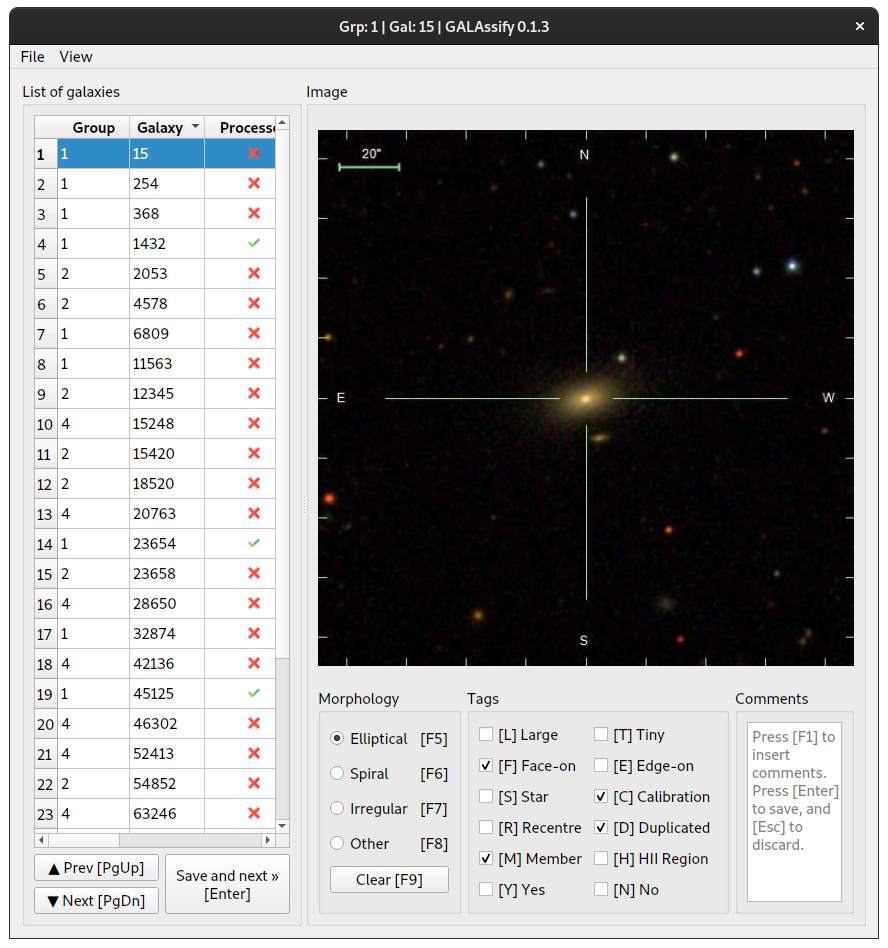
| Project |    |
|---|---|
| Support |      |
| Testing |   |
| Package |    |
| Meta |   |
We also provide help tools to:
- Download images from SDSS and DESI catalogues.
- Create an instructions pdf.
The main tool can be customized with the config file. See Customizing the tool for more information.
Documentation
The official documentation is hosted on GitLab Pages.
Requirements
GALAssify is written in Python. The following requirements are mandatory:
- Python
>=3.9 - pandas
- pyqt5
- matplotlib
- Pillow
- astropy
- pyds9 (to open fits files directly form the tool)
- requests (used by the help tool to download sdss images)
Should work with python >= 3.9. Feel free to try for lower versions.
Installation
Creating a virtual environment
Using a virtual enviroment is recommended to execute this tool:
cd DIR_GALAssify
python -m venv .env
source .env/bin/activate
Now, you can choose installing GALAssify by using PIP or by cloning this repository for installing from source.
Installing from PIP
Install and update using pip:
-
Install with pyds9 support:
- From PyPI:
$ pip install galassify[ds9]- or from repository:
$ pip install "galassify[ds9] @ git+https://gitlab.com/astrogal/GALAssify.git" -
For standard installation:
- From PyPI:
$ pip install galassify- or from repository:
$ pip install git+https://gitlab.com/astrogal/GALAssify.git
Installing from source
First, clone the repository:
git clone https://gitlab.com/astrogal/GALAssify.git
cd galassify
Then, install GALAssify with pyds9 support:
pip install .[ds9]
or without it:
pip install .
Installation troubleshooting
X11/Intrinsic.h: No such file or directory
The installation could fail with the next message if the package libxt-dev is not found in your OS:
xtloop.c:9:10: fatal error: X11/Intrinsic.h: No such file or directory
    9 | #include <X11/Intrinsic.h>
      |          ^~~~~~~~~~~~~~~~~
To solve that, you can install it with the following commands:
- openSUSE:
sudo zypper install libXt-devel - Debian / Ubuntu:
sudo apt-get install libxt-dev - Fedora:
sudo dnf install libXt-devel
Then, try installing GALAssify again using you prefered method.
MacOS and Python > 3.9 installation issues with pyQT 5.15
Installation of pyqt5-tools==5.15 on macOS is problematic (see issue 13). Until the package is updated, one can address this problem with the following instructions:
-
Upgrade pip (just in case).
pip install --upgrade pip
-
Install
pyQT5Related to: https://stackoverflow.com/questions/76113859/unable-to-install-pyqt5-on-macos
brew install qt5
Follow the instructions for installation; the last instructions show you how to update the .zshrc file.
-
Create virtual environment. See instructions in the installation section.
-
Install the package with the command:
pip install git+https://gitlab.com/astrogal/GALAssify.git --config-settings --confirm-license= --verbose
When asked about the license, type
yes. Installation can take some time because everything is compiled from scratch.
Usage
Once installed, it is possible to initialise a blank project or to use an included example. In both cases it is recommended to do it in an activated python environment and in a new empty folder because new files will be created.
The next steps can be done via the interactive CLI menu or with command
arguments. To invoke the interactive menu, navigate to the project folder and
execute galassify without arguments. The next menu will appear:
GALAssify: A tool to manually classify galaxies.
->INIT (--init):        Generate a basic config file, and the basic folder structure.
  EXAMPLE (--example):  Generate a files with a galassify example
  EXIT
Initialising a new blank project
This option creates a basic folder structure and necessary files (with headers but without any content) to be filled by the user. In a terminal, navigate to the desired project folder and execute:
galassify --init
Also, this can be made interactively. Executing galassify without arguments
will let the user to select this option in the interactive menu. Now, you can
populate the input object CSV list,
download images, modify the configuration
and/or run the blank project.
Initialising an example project
This option creates a folder structure and necessary files already filled with different configurations. In a terminal, navigate to the desired project folder and execute:
galassify --example <EXAMPLE>
Where <EXAMPLE> can be one of the followings:
basic: Example of basic image classification.click: Same asbasic, where displayed images allows zooming and annotating points with double-click. Marks can be removed by clicking them with right mouse button. The points will be saved in a new column in output file calledimg_points.fitsimg: Example of displaying both FITS and bitmap image for classification. FITS images can also be marked and the mark coordinates will be saved in a new column in output file calledfits_coords.onlyfits: Classification displaying only FITS image (also allows markings).
After selecting an example, the files will be generated. Now, you can run the project.
Running a project
Once the necessary files were created, you can run GALAssify for the first time. By default, GALAssify expects the following folders and files structure:
files/
└── galaxies.csv : List of objects to be classified.
img/             : Folder with the images of the objects.
└── fits/        : (optional) Folder with FITS images of the objects.
config           : GUI configuration file (JSON).
If this file structure is found in the project folder, you can run galassify
without arguments. The tool will recognise this structure an will open without
problems. If you decide to rename any file or folder, you can specify it in the
command arguments. Example:
galassify -i files/galaxies.csv -s files/output.csv -p img/ -c config
-i: Specify the list of objects (in CSV format)-s: Specify the output file, where the classification will be saved.-p: Specify the folder where images are stored. If you have no images yet, you can download them by populating the list of objects and then runningget_imagestool (included with GALAssify).-c: Specify configuration file, where the user can customise the GUI. See Customizing the tool section.
For additional options for the main tool check:
galassify --help
Input data
Minimum required columns:
galaxy: identifier or name of the galaxy
Additional columns:
ra: Right ascension coordinate of the object.dec: Declination coordinate of the object.group: identifier or name of the group/person to which the galaxy was assigned. Used to filter the galaxies when executing the tool.filename: name of the image file to be displayed in the tool. Relative to the image path specified on execution.fits: name of the fits file to be displayed in the tool. Relative to the image path specified on execution.
Example: galaxies.csv
group,galaxy,ra,dec,filename
1,15,210.927048,-1.137346,img_1_15_.jpeg
1,254,211.020782,0.998166,img_1_254.jpeg
...
Downloading images
Users can download images from SDSS and DECaLS catalogue using the included tool
get_images. This tool can read the input file, connect to SDSS
or DECaLS web services and download JPEG images of the survey. To download the
images it is neccesary to specify R.A. and declination coordinates columns for
each object in the input file. If this information exists, one can download the
images bu executing the following command:
get_images -i files/galaxies.csv -p img/ -r SDSS -dr 12
-i: Specify the list of objects (in CSV format).-p: Specify the path where images will be downloaded.-r: Specify the survey (SDSS or DESI). Default:SDSS.-dr: Specify the Data Release (DR) of the survey. Default:12.
For additional options for the image downloader tool check:
galassify --help
Customizing the tool
GALAssify tags can be customized to meet users needs. The default config file
provides the configuration used to perform the galaxy sample selection in the
CAVITY (Calar Alto Void Integral-field Treasury
surveY) project.
Configuration file structure
The configuration file consist in a JSON file. All fields in this file are
optional, and it will default in runtime to predefined values if not found. The
file have two main sections: display and form:
{
  "display":{
    "bitmap":"static",
    "fits":{"cmap":"viridis"}
  },
  "form":[{
      "id":"morphology",
      "name":"Morphology",
      "type":"radiobutton",
      "ncolumns":1,
      "add_clear":true,
      "clear_shortcut":"F9",
      "elements":[{
          "id":"elliptical",
          "name":"Elliptical",
          "shortcut":"F5",
          "description":"<b>Elliptical</b> or <b>lenticular</b> galaxies."
        },
        ...
        ,{
          "id":"other",
          "name":"Other",
          "shortcut":"F8",
          "description":"<b>Star</b> or <b>HII region</b> for instance."
        }
      ]
    },
    ...
    {
      "id":"comment",
      "name":"Comments",
      "type":"text",
      "shortcut":"F1",
      "save":"Enter",
      "discard":"Esc"
    }
  ]
}
Display section
The "display" section allows users to configure the bitmap and the FITS
display widgets:
-
"bitmap": Configure the bitmap display to show a still image ("static"), or use a interactive widget ("clickable") to allow zooming in/out and making annotations marks that will be saved in the output file as a new column calledimg_points. See the "clickable" example. Users can delete marks by clicking them with right mouse button. -
"fits": Configure the FITS display, which allows zooming and mark annotations as well. Marks in the image will be saved in a new column calledfits_coords. Due to widget use matplotlib.pyplot.imshow, the options specified in this value field will be passed to the Matplotlib API. For example, you can change the colormap of the FITS display by writing:{"cmap":"plasma"}.
Form section
The "form" section configures the formulary presented in the GUI that users
will interact with in order to perform the classification of the displayed
image. This section consist in a list of tag groups, where each group can
consist in radio buttons (only one option can be selected), checkboxes
(multiple options are allowed) and comment boxes (text boxes where the users
can leave their comments, for example, if the image presents artifacts and
cannot be classified).
Tag groups
Tags are grouped depending on the needs, each of this groups correspond to one type. The available types are:
radiobutton: group of elements were only one element can be selected.checkbox: group of elements were each element can be checked independetly.text: a textbox to add comments.
Tag group options
Each group type mentioned above has options that can (or must) be changed.
Options marked as optional are not required but provide a better customization and user experience.
Common options for all group types:
id: group identifier. Must be unique as it will be used on the output csv file.name(optional, default: id is used): Text to be used on the tool.type: Type to be used to initalize the group (one of the above).
Options that only apply for the text type group:
shortcut(optional, default: None): Key press to be used to focus on the comment-box. Must be unique, and not used in other groups/group-elements.save(unimplemented, [Enter] is used currently): Key press to be used to save the content, only used if focus is set on the group.discard(unimplemented, [Esc] is used currently): Key press to be used to discard the content, only used if focus is set on the group.
Options that only apply for the radiobutton type groups:
add_clear(optional, default: false): Boolean indicating to add a clear button to the group. Not added by default.clear_shortcut(optional): Key press to be used to clear on the radiobutton group. Must be unique, and not used in other groups/group-elements.
Options that apply for the radiobutton and checkbox type groups:
ncolumns(optional, default: 2): number of columns to be used to display the elements.elements: list of elements to be included.
Tag element options
Each element has the following options:
id: element identifier. Must be unique as it will be used on the output csv file.name(optional, default: id is used): Text to be used on the tool.shortcut(optional, default: None): Key press to be used to check on the element.description(optional, default: None): Short text to be displayed when the mouse is over the element.
Related projects
Galaxy Zoo [1] is a crowdsourced astronomy project which invites people to assist in the morphological classification of large numbers of galaxies [2]. Galaxy Zoo 1 and 2 are also based on Sloan Digital Sky Survey (SDSS) data [3]. In comparison with GALAssify, while Galaxy Zoo is a well-established citizen science project, GALAssify is data and project agnostic, and aims to be the user interface for this kind of projects. We expect users to modify GALAssify (not only the configuration but also the source code) in order to adjust the tool for their requirements.
astroML [4] is a Python module built within the framework of Python’s Scipy ecosystem, designed as a repository for fast and well-tested code for the analysis of astronomical data [5]. AstroML gives a direct access to several datasets such as SDSS spectra and photometric data for rapid prototyping and data mining. GALAssify, on the contrary, is intended to be a friendly GUI to speed up the process of creating custom datasets, that can be later analysed using astroML algorithms.
DeepGalaxy [6] is a Deep Convolutional Network focused on the automatic classification of galaxy mergers (the dynamical process during which two galaxies collide). In their supervised learning approach they use their own dataset of mergers using Bonsai [7],[8] labeling data using N-body simulations. In the unsupervised learning approach, they use Galaxy Zoo data. GALAssify fits in this kind of Machine Learning / Deep Learning projects building large datasets when automatic labeling of training data is not available.
Several image tagging tools are available (not only for astronomical data) such as Label Studio. A list of labeling tools can be found here, not only for images, but also for other media such as video or text. In comparison with these tools, GALAssify only supports images (png, jpeg, and other image files among FITS) and can be operated using only the keyboard for fast operation without mouse intervention.
1 maintainer

Metadata
1 maintainer
Release files for galassify 2.0.0
For a detailed explanation of source distributions (sdists) and built distributions (wheels), please see the package formats documentation.
Source distribution (sdist)
| File | Size | Uploaded | |
|---|---|---|---|
| galassify-2.0.0.tar.gz | 5.9 MB | Details |
Built distribution (wheel)
| File | Interpreter | ABI | Platform | Reset |
|---|---|---|---|---|
| galassify-2.0.0-py3-none-any.whl | Python 3 | none | any | Details |
Total release size: 9.1 MB
Release files / galassify-2.0.0.tar.gz
| Download URL | galassify-2.0.0.tar.gz |
|---|---|
| Size | 5.9 MB |
| Tags | Source |
|
SHA-256 checksum How to use checksums |
0ae7dd50dded393dd5092fe814cea5b82900bfb77216f0023bb05f847bad3e3b
|
|
BLAKE2b-256 checksum How to use checksums |
108df7b7338becfc6f452d6b9ab08bdf8403c3c7b0dc9be069ffa42f8f1f2f0e
|
| Upload date | |
|
Uploaded using Trusted Publishing? What is trusted publishing? |
No |
| Uploaded via |
twine/6.2.0 CPython/3.11.14
|
Release files / galassify-2.0.0-py3-none-any.whl
| Download URL | galassify-2.0.0-py3-none-any.whl |
|---|---|
| Size | 3.2 MB |
| Tags | Python 3 |
|
SHA-256 checksum How to use checksums |
4aa25fa0c641884976186aff1edfe7ac3ba2946507326d55562845aa582b3ead
|
|
BLAKE2b-256 checksum How to use checksums |
38931f42c18754169699437b74d758a5464d0a9bb120692c3853e987373e75f9
|
| Upload date | |
|
Uploaded using Trusted Publishing? What is trusted publishing? |
No |
| Uploaded via |
twine/6.2.0 CPython/3.11.14
|














