
Find the nearest DNA-flagged relatives in a GEDCOM family tree

Project description
GEDCOM Navigator
Who is this for?
This application is for genealogists who manage large GEDCOM files, particularly with tags for DNA matches.
What does it do?
This application provides useful ways to rapidly explore a GEDCOM file exported from genealogy services like Ancestry, MyHeritage, Geni, and Family Tree Maker:
- Find the closest tagged people (e.g. DNA match) to any other person in a family tree
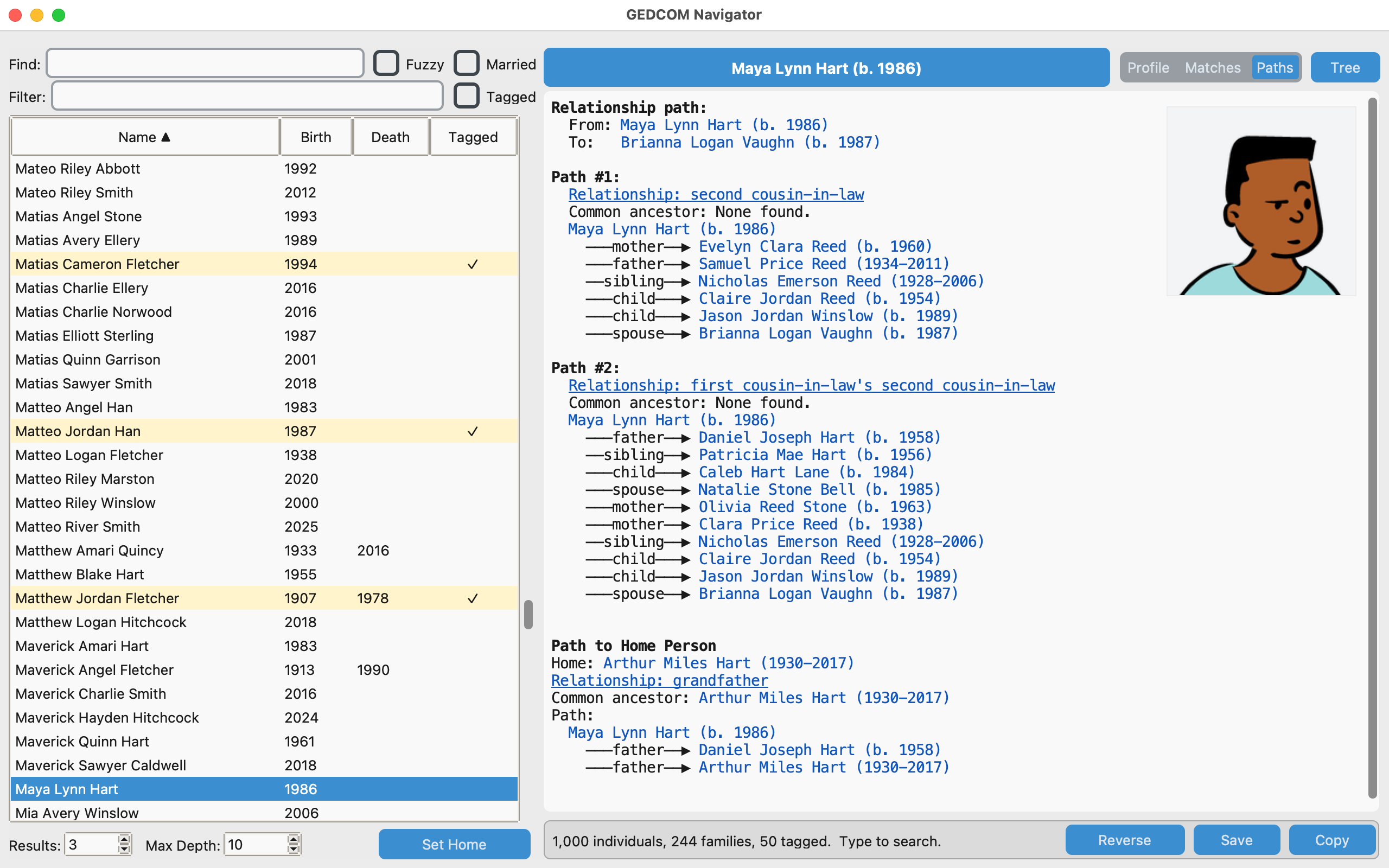
- Show multiple relationship paths between any two people in your tree
- Search your tree for variations on names (maiden/married name, alternate names, fuzzy matching, and Hebrew/Cyrillic transliterations) and filter on other information like geographical locations or occupation
- Rapidly explore names and connections, even in a very large tree with very distant connections
- Generate custom images of parts of your tree, expanding or collapsing the connections you want to see and saving them to your clipboard or an image file
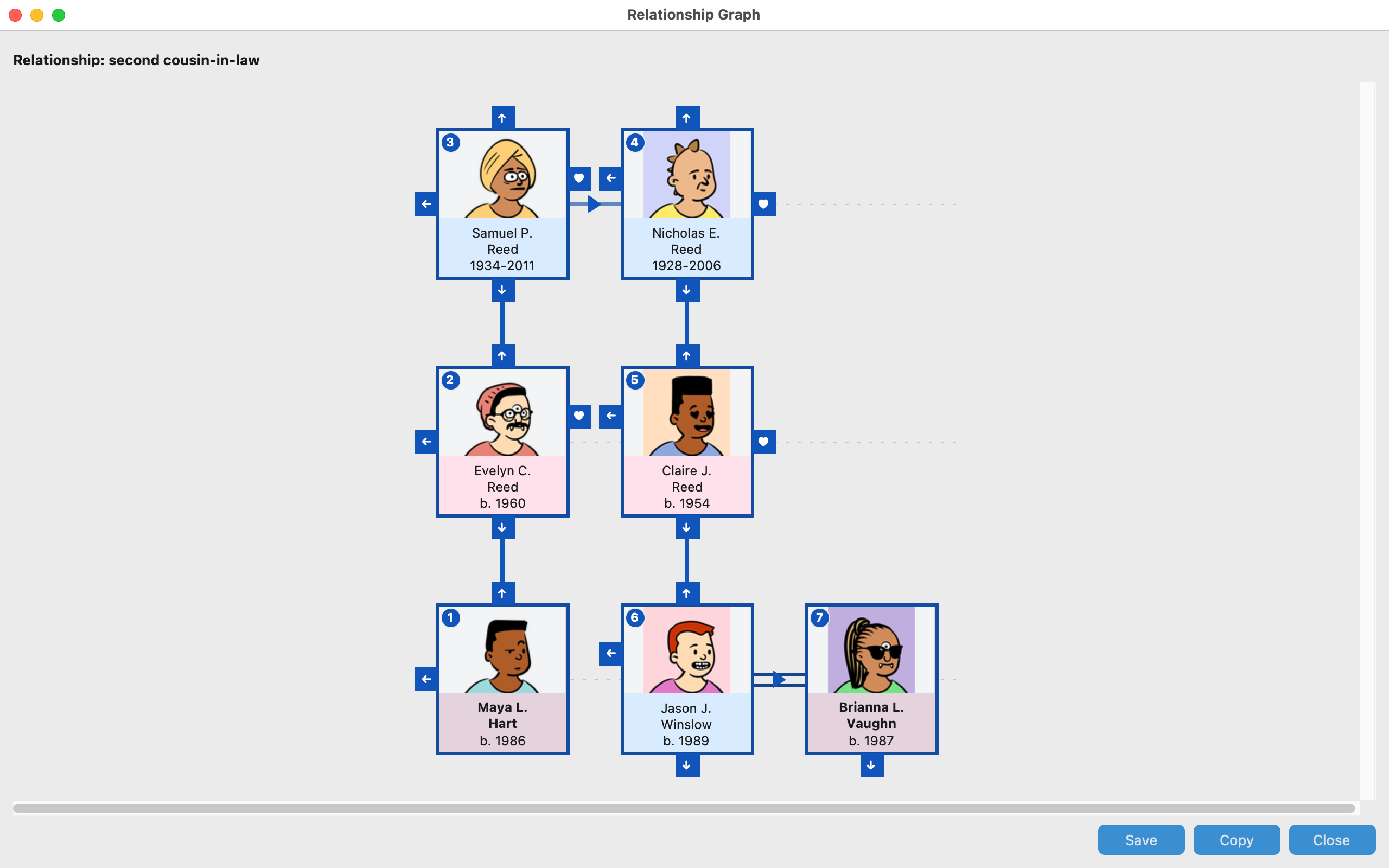
- Visualize relationships between any two people graphically
- If you have photos in your GEDCOM that are stored locally, they will appear in your tree as well
The tool does not modify your GEDCOM. It is used for exploring connections.
In addition to the GUI, this application also includes a command-line tool for fast queries or incorporating into other programmatic workflows.
Downloads
- Mac
- App Store (easiest install)
- ZIP Download (see security note).
- Linux x86-64
- Windows
- App Store (easiest install)
- Portable Version (see security note).
- Installer
- Windows Package Manager (WinGet):
winget install --id AdamKessel.GEDCOMNavigator
Testing
This is a beta release. If you are interested in experimenting with a "dummy" GEDCOM file rather than your own, here are a couple of options:
- Use the Fictional Genealogy sample file I built for testing this application. It contains 1,000 fictional people and illustrates various complicated family connections. If you want to download it from github for use with this tool, use the raw ZIP version. This file is released under the Unlicense, which means you can do anything you want with it.
- The FindMyPast Github Repository has several real and fictional family trees. I often use the Game of Thrones family tree to avoid any privacy issues and also to show why it gets complicated when siblings marry one another.
The problems this solves

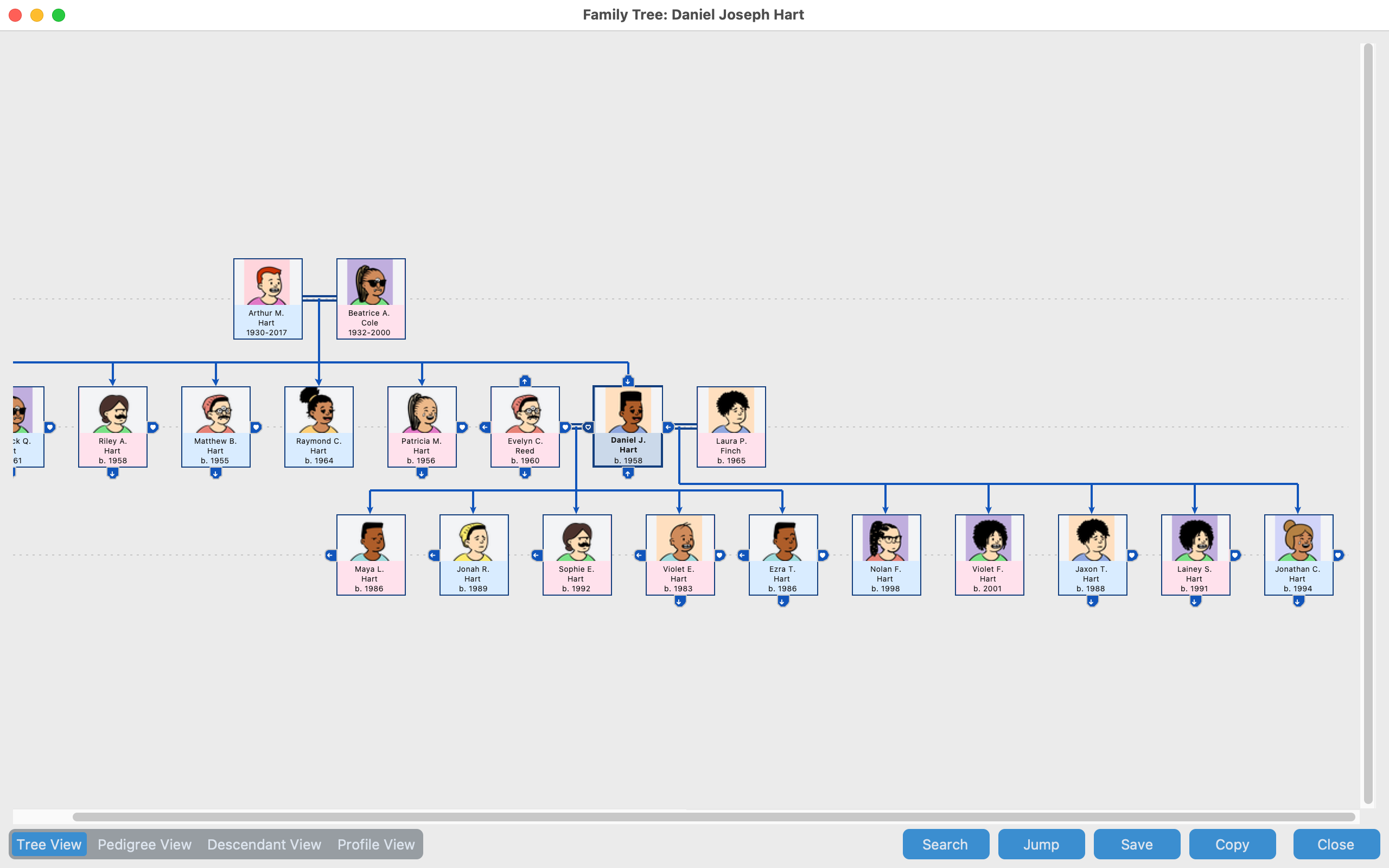
Many genealogists working with autosomal DNA add unfamiliar people to their family tree based on DNA matches and then build out those people's lines, hoping to find the most recent common ancestor between the match and themselves. After accumulating thousands of these speculative additions, you often end up looking at a person in your tree and thinking: why is this person here? which DNA match did this branch come from?
Ancestry, Family Tree Maker, and other standard GEDCOM viewers show you a flat list of everyone you've tagged as a DNA match, but none of them will, given an arbitrary person in the tree, walk outward through the relationship graph and tell you the nearest tagged relative. That is the main purpose of this tool.
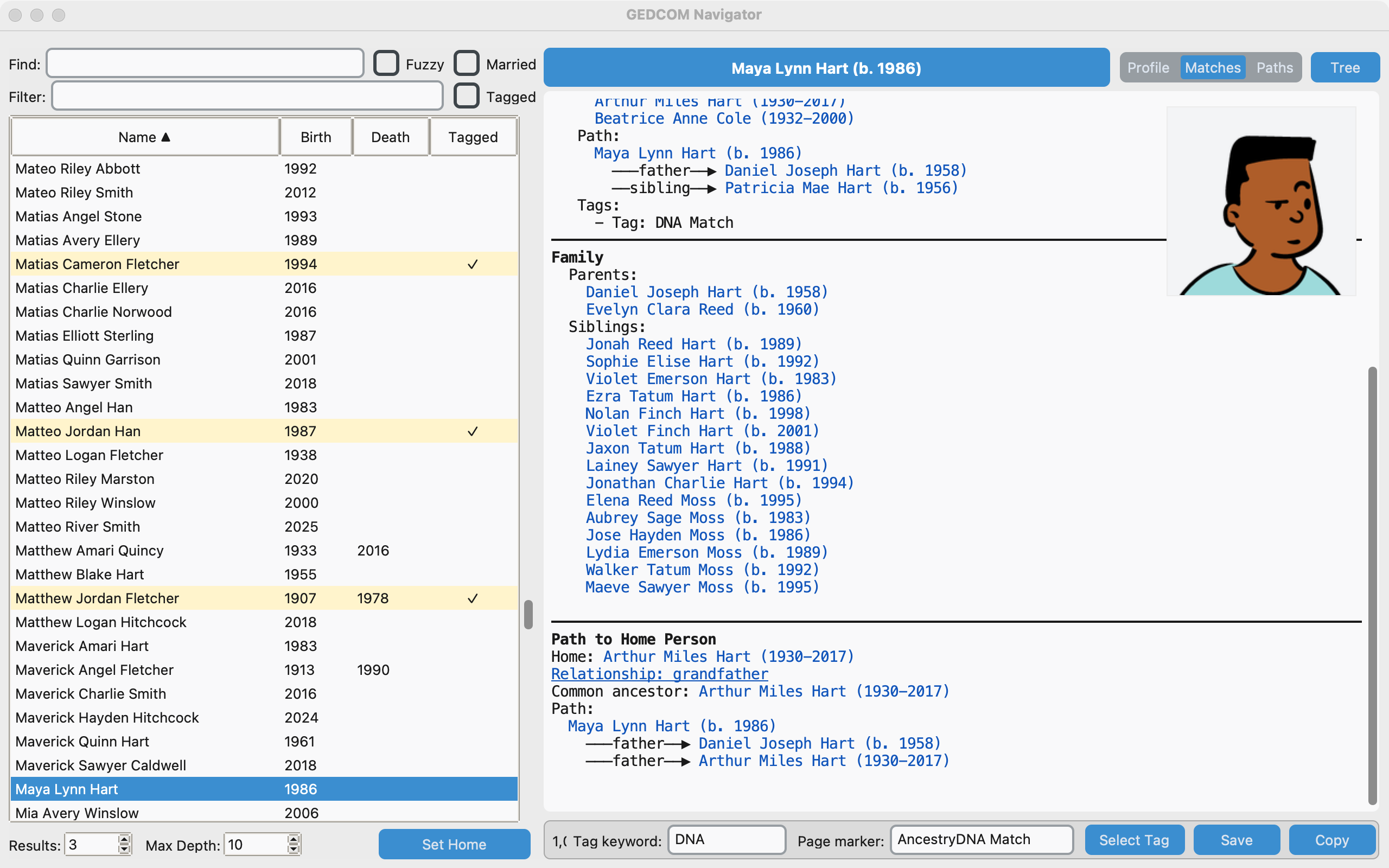
You can also use this tool to find multiple paths between any two people in your tree and also view individual records from your tree. For example, if your grandfather's maternal cousin married your grandfather's paternal cousin, you will have multiple paths to their descendants. Most applications only show one path; this tool can find as many paths as you like. If you set the application to cast a wide net by setting the "max depth" to a high value, you can discover unexpected links between your relatives. This will take longer to process in a large tree but can yield interesting information.
Any relationship description can be clicked to see a graphical representation of that relationship, which you can then copy and use as you like.
When GEDCOM parentage metadata identifies step, adopted, foster, or half-sibling relationships, the Profile view labels those relatives and graph views distinguish them with alternate line styles. Ordinary biological/default relatives are shown without a "biological" qualifier.
If you set a person as the "Home Person" using the "Set Home" button, the Display Pane will include the path from the selected person to the Home Person in Profile, Matches, and Paths mode. When the Home Person is selected in the list, the button changes to "Unset Home"; clicking it clears the Home Person.
Finally, if you have a large tree, you may find it difficult to search for specific individuals in other tools. Ancestry, for example, only searches on the person's "preferred name" and not any of the alternate names, and neither Ancestry nor Family Tree Maker allow fuzzy matching searches. Ancestry also does not allow you to easily search on multiple fields simultaneously, like name, location, and occupation. With this tool, you can search for a name with fuzzy matching (e.g. "John Smith" in the "Find:" box) and then further limit the results by a term that appears anywhere in the person's record (e.g. "Chicago" and "tailor" in the "Filter" box). If you have multiple names in a person's record (e.g. maiden name, married name, nicknames), this tool will match any of them. When fuzzy matching is enabled, Hebrew and Cyrillic names also get approximate English-letter aliases generated locally when the GEDCOM is parsed and cached, so they can be found from an English-language keyboard (e.g., searching for "shlomo" should return someone named שְׁלֹמֹה even if their GEDCOM entry lacks any English version of their name; likewise with "Vladimir" for Владимир). This search method avoids the clumsy workarounds people use to label people in their tree, for example, by packing all the person's different surnames into the surname field. You can create a separate "name" record for each name the person has, and then find them easily using this tool's search functionality.
I've also sought to make all actions accessible from the keyboard. See the keyboard shortcuts list for guidance. This makes it very fast to search for and compare people, even in a very large tree.
For more details including the command-line tool, see technical details
Images
GEDCOM Navigator displays profile images if they exist in your GEDCOM file. You will also see a "Gallery" button if your records have other images associated with people. A few tips for images:
- Images can be enable or disabled in Preferences.
- The path to images in your GEDCOM files may not be correct if you've moved the GEDCOM file from its original environment. The first time you view a person with an associated image record, if the path to the image is not valid, the application will ask you to find the folder where images related to the GEDCOM file are stored. This mapping will then be remembered and work for all other images in your GEDCOM file.
- Ancestry provides no built-in mechanism to export media. If you have images in your Ancestry tree and want to see them in GEDCOM Navigator, the easiest option is first to sync your tree with Family Tree DNA. A GEDCOM file exported from Family Tree DNA will include the paths to all the images, which should then appear when you open the Family Tree DNA exported GEDCOM file in GEDCOM Navigator.
License
This application is released under the BSD 2-Clause License.
Recent changes
Contributing
Bug reports, feature suggestions, and pull requests are welcome. If you encounter a GEDCOM file whose tag format is not recognized, please open an issue and include the relevant excerpt (with personal names redacted) so the parser can be extended.
Release history Release notifications | RSS feed


Download files
Download the file for your platform. If you're not sure which to choose, learn more about installing packages.
Source Distribution
Built Distribution
Filter files by name, interpreter, ABI, and platform.
If you're not sure about the file name format, learn more about wheel file names.
Copy a direct link to the current filters






