
AI-powered geolocation analysis using Google Gemini 2.5 Flash

Project description
GeoIntel

Python tool using Google's Gemini API to uncover the location where photos were taken through AI-powered geo-location analysis.
Installation
# Basic installation
pip install geointel
Usage
Web Interface (NEW!)
Launch the interactive web interface with a modern UI:
- Standard:
$ geointel --web

- Custom host and port:
$ geointel --web --host 0.0.0.0 --port 4000

Then open your browser to http://127.0.0.1:5000
Features:
- Drag-and-drop image upload
- In-browser API key configuration
- Interactive 3D Google Maps
- Real-time AI analysis with detailed explanations
Command Line Interface
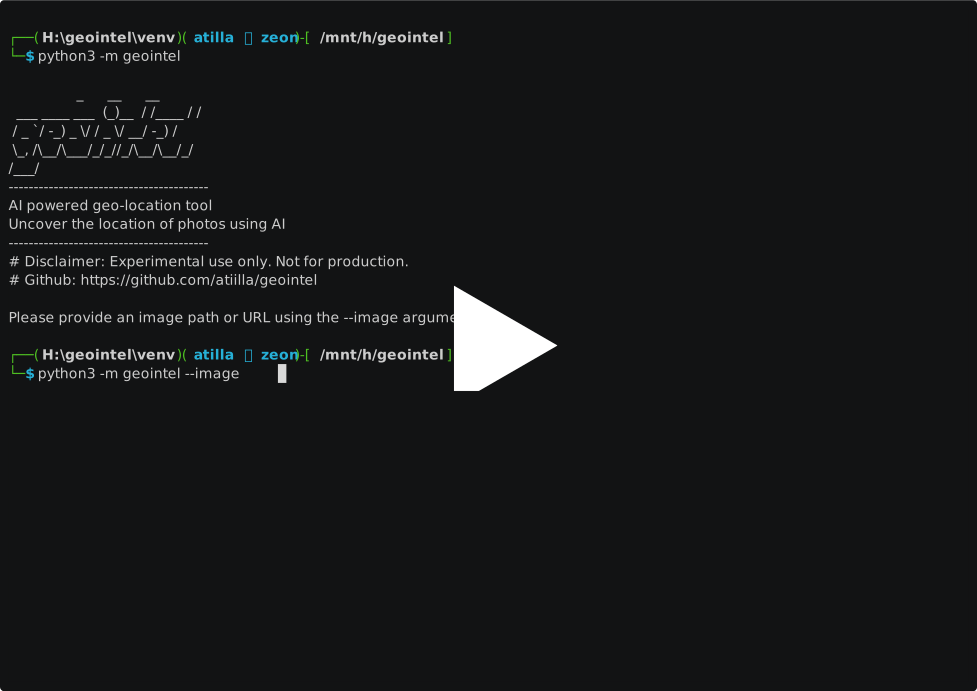
geointel --image path/to/your/image.jpg
Available Arguments
Argument Description
--web	Launch web interface (no --image required)
--host	Host address for web interface (default: 127.0.0.1)
--port	Port number for web interface (default: 5000)
--image	Required for CLI mode. Path to the image file or URL to analyze
--context	Additional context information about the image
--guess	Your guess of where the image might have been taken
--output	Output file path to save the results (JSON format)
--api-key	Custom Gemini API key
Examples
Launch web interface:
$ geointel --web

Basic CLI usage:
$ geointel --image vacation_photo.jpg

With additional context:
$ geointel --image vacation_photo.jpg --context "Taken during summer vacation in 2023"

With location guess:
$ geointel --image vacation_photo.jpg --guess "Mediterranean coast"

Saving results to a file:
$ geointel --image vacation_photo.jpg --output results.json

Using a custom API key:
$ geointel --image vacation_photo.jpg --api-key "your-api-key-here"
API Key Setup
GeoIntel uses Google's Gemini API. You can:
- Set the API key as an environment variable: GEMINI_API_KEY=your_key_here

- Use the --api-key parameter in the command line
Get your Gemini API key from Google AI Studio.
SDK
from geointel import GeoIntel

# Initialize GeoIntel
geointel = GeoIntel()

# Analyze an image and get JSON result
result = geointel.locate(image_path="image.jpg")

# Work with the JSON data
if "error" in result:
    print(f"Error: {result['error']}")
else:
    # Access the first location
    if "locations" in result and result["locations"]:
        location = result["locations"][0]
        print(f"Location: {location['city']}, {location['country']}")

        # Get Google Maps URL
        if "coordinates" in location:
            lat = location["coordinates"]["latitude"]
            lng = location["coordinates"]["longitude"]
            maps_url = f"https://www.google.com/maps?q={lat},{lng}"
Features
-
AI-powered geolocation of images using Google's Gemini API
-
Generate Google Maps links based on image coordinates
-
Provide confidence levels for location predictions
-
Support for additional context and location guesses
-
Export results to JSON
-
Handles both local image files and image URLs
Response Format
-
The API returns a structured JSON response with:
-
interpretation: Comprehensive analysis of the image
-
locations: Array of possible locations with:
-
Country, state, and city information
-
Confidence level (High/Medium/Low)
-
Coordinates (latitude/longitude)
-
Detailed explanation of the reasoning
Disclaimer:
GeoIntel is intended for educational and research purposes only. While it uses AI models to estimate the location of where an image was taken, its predictions are not guaranteed to be accurate. Do not use this tool for surveillance, stalking, law enforcement, or any activity that may infringe on personal privacy, violate laws, or cause harm.
The author(s) and contributors are not responsible for any damages, legal issues, or consequences resulting from the use or misuse of this software. Use at your own risk and discretion.
Always comply with local, national, and international laws and regulations when using AI-based tools.
Contributing
-
Fork the repository
-
Create a new branch (git checkout -b feature/new-feature).
-
Commit your changes (git commit -am 'Add new feature').
-
Push to the branch (git push origin feature/new-feature).
-
Create a pull request.
License
This project is licensed under the MIT License - see the LICENSE file for details.


Download files
Download the file for your platform. If you're not sure which to choose, learn more about installing packages.
Source Distribution
Built Distribution
Filter files by name, interpreter, ABI, and platform.
If you're not sure about the file name format, learn more about wheel file names.
Copy a direct link to the current filters
File details
Details for the file geointel-0.1.12.tar.gz.
File metadata
- Download URL: geointel-0.1.12.tar.gz
- Upload date:
- Size: 30.9 kB
- Tags: Source
- Uploaded using Trusted Publishing? No
- Uploaded via: twine/6.2.0 CPython/3.11.9
File hashes
| Algorithm | Hash digest | |
|---|---|---|
| SHA256 |
859f8f74bb8c1a31ce9abdd349596cab5e491c39d4e27e25cd5dd2120f3c77af
|
|
| MD5 |
ae7c7561d1708247709e2c78c8278067
|
|
| BLAKE2b-256 |
c8e902f0dba3cdabf867707a97358c163f13ecc967f228b3ea3aa4b030269ab2
|
File details
Details for the file geointel-0.1.12-py3-none-any.whl.
File metadata
- Download URL: geointel-0.1.12-py3-none-any.whl
- Upload date:
- Size: 32.0 kB
- Tags: Python 3
- Uploaded using Trusted Publishing? No
- Uploaded via: twine/6.2.0 CPython/3.11.9
File hashes
| Algorithm | Hash digest | |
|---|---|---|
| SHA256 |
ce081f879b9f746e2b99db3fb4bca2122d285a8e479d239ae3ae0aa4bf689941
|
|
| MD5 |
fc553ca165628d4bd7cf88d35307c14a
|
|
| BLAKE2b-256 |
e2d5308e841d06f6e8b747c65720cbfe4bac35fb65224e14b750c2060abf851e
|






