
Simulate Git commands on your own repos by generating an image (default) or video visualization depicting the command's behavior.

Project description
git-sim
Visually simulate Git operations in your own repos with a single terminal command.
This generates an image (default) or video visualization depicting the Git command's behavior.
Command syntax is based directly on Git's command-line syntax, so using git-sim is as familiar as possible.
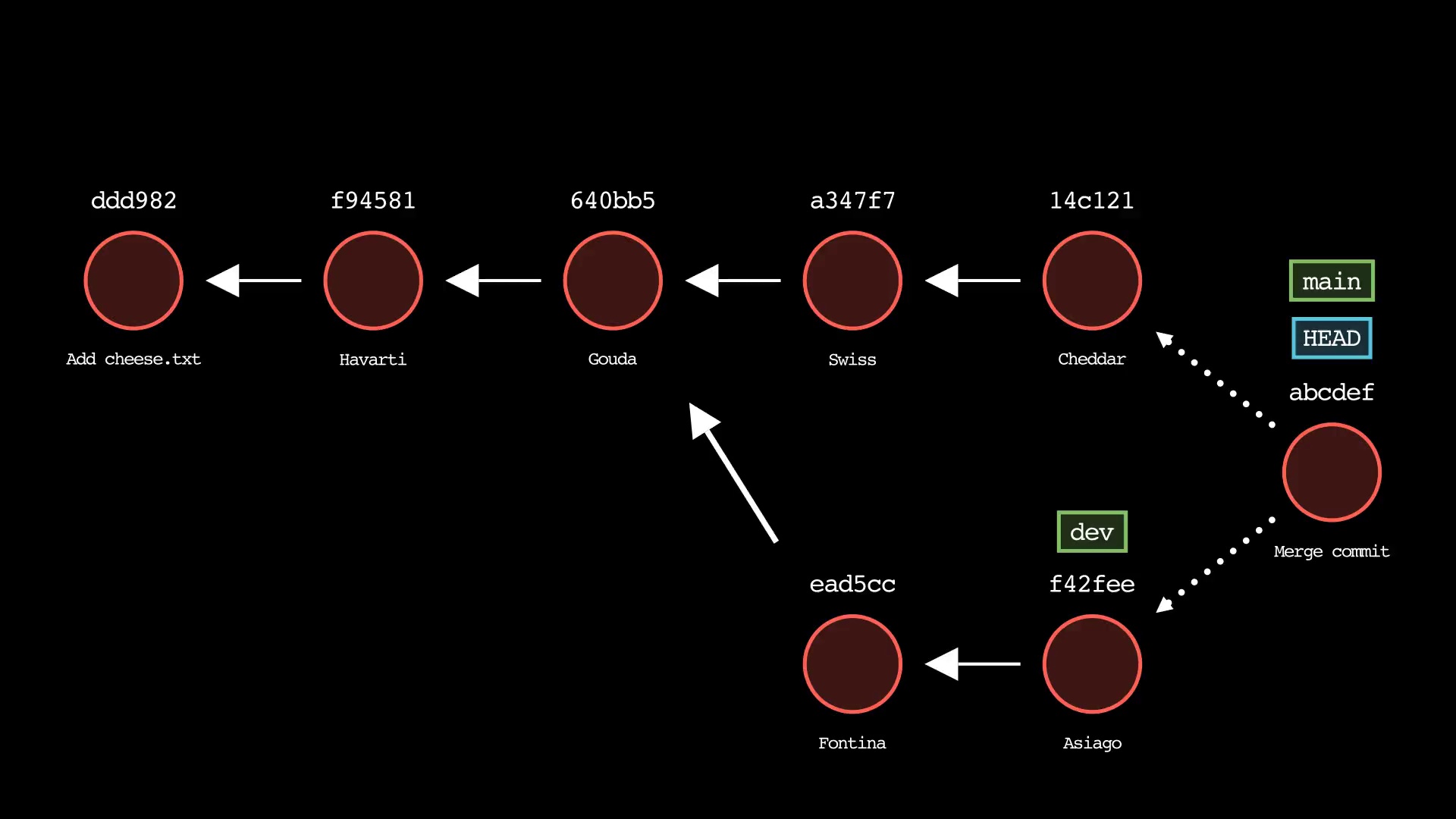
Example: $ git-sim merge <branch>
Use cases
- Visualize Git commands to understand their effects on your repo before actually running them
- Prevent unexpected working directory and repository states by simulating before running
- Share visualizations (jpg image or mp4 video) of your Git commands with your team, or the world
- Save visualizations as a part of your team documentation to document workflow and prevent recurring issues
- Create static Git diagrams (jpg) or dynamic animated videos (mp4) to speed up content creation
- Help visual learners understand how Git commands work
Features
- Run a one-liner git-sim command in the terminal to generate a custom Git command visualization (.jpg) from your repo
- Supported commands:
log,status,add,restore,commit,stash,branch,tag,reset,revert,merge,rebase,cherry-pick - Generate an animated video (.mp4) instead of a static image using the
--animateflag (note: significant performance slowdown, it is recommended to use--low-qualityto speed up testing and remove when ready to generate presentation-quality video) - Choose between dark mode (default) and light mode
- Animation only: Add custom branded intro/outro sequences if desired
- Animation only: Speed up or slow down animation speed as desired
Quickstart
-
Install
git-sim:
$ pip3 install git-sim
Note: For MacOS, it is recommended to NOT use the system Python to install Git-Sim, and instead use Homebrew to install a version of Python to work with Git-Sim. Virtual environments should work too.
- Browse to the Git repository you want to simulate Git commands in:
$ cd path/to/git/repo
- Run the program:
$ git-sim [global options] <subcommand> [subcommand options]
-
Simulated output will be created as a
.jpgfile. Output files are named using the subcommand executed combined with a timestamp, and by default are stored in a subdirectory calledgit-sim_media/. The location of this subdirectory is customizable using the command line flag--media-dir=path/to/output. Note that when the--animateglobal flag is used, render times will be much longer and a.mp4video output file will be produced. -
See global help for list of global options/flags and subcommands:
$ git-sim -h
- See subcommand help for list of options/flags for a specific subcommand:
$ git-sim <subcommand> -h
Requirements
- Python 3.7 or greater
- Pip (Package manager for Python)
- Manim (Community version)
Commands
Basic usage is similar to Git itself - git-sim takes a familiar set of subcommands including "log", "status", "add", "restore", "commit", "stash", "branch", "tag", "reset", "revert", "merge", "rebase", "cherry-pick", along with corresponding options.
$ git-sim [global options] <subcommand> [subcommand options]
The [global options] apply to the overarching git-sim simulation itself, including:
--light-mode: Use a light mode color scheme instead of default dark mode.
--animate: Instead of outputting a static image, animate the Git command behavior in a .mp4 video.
--reverse: Display commit history in the reverse direction.
Animation-only global options (to be used in conjunction with --animate):
--speed=n: Set the multiple of animation speed of the output simulation, n can be an integer or float, default is 1.
--low-quality: Render the animation in low quality to speed up creation time, recommended for non-presentation use.
--show-intro: Add an intro sequence with custom logo and title.
--show-outro: Add an outro sequence with custom logo and text.
--title=title: Custom title to display at the beginning of the animation.
--logo=logo.png: The path to a custom logo to use in the animation intro/outro.
--outro-top-text: Custom text to display above the logo during the outro.
--outro-bottom-text: Custom text to display below the logo during the outro.
The [subcommand options] are like regular Git options specific to the specified subcommand (see below for a full list).
The following is a list of Git commands that can be simulated and their corresponding options/flags.
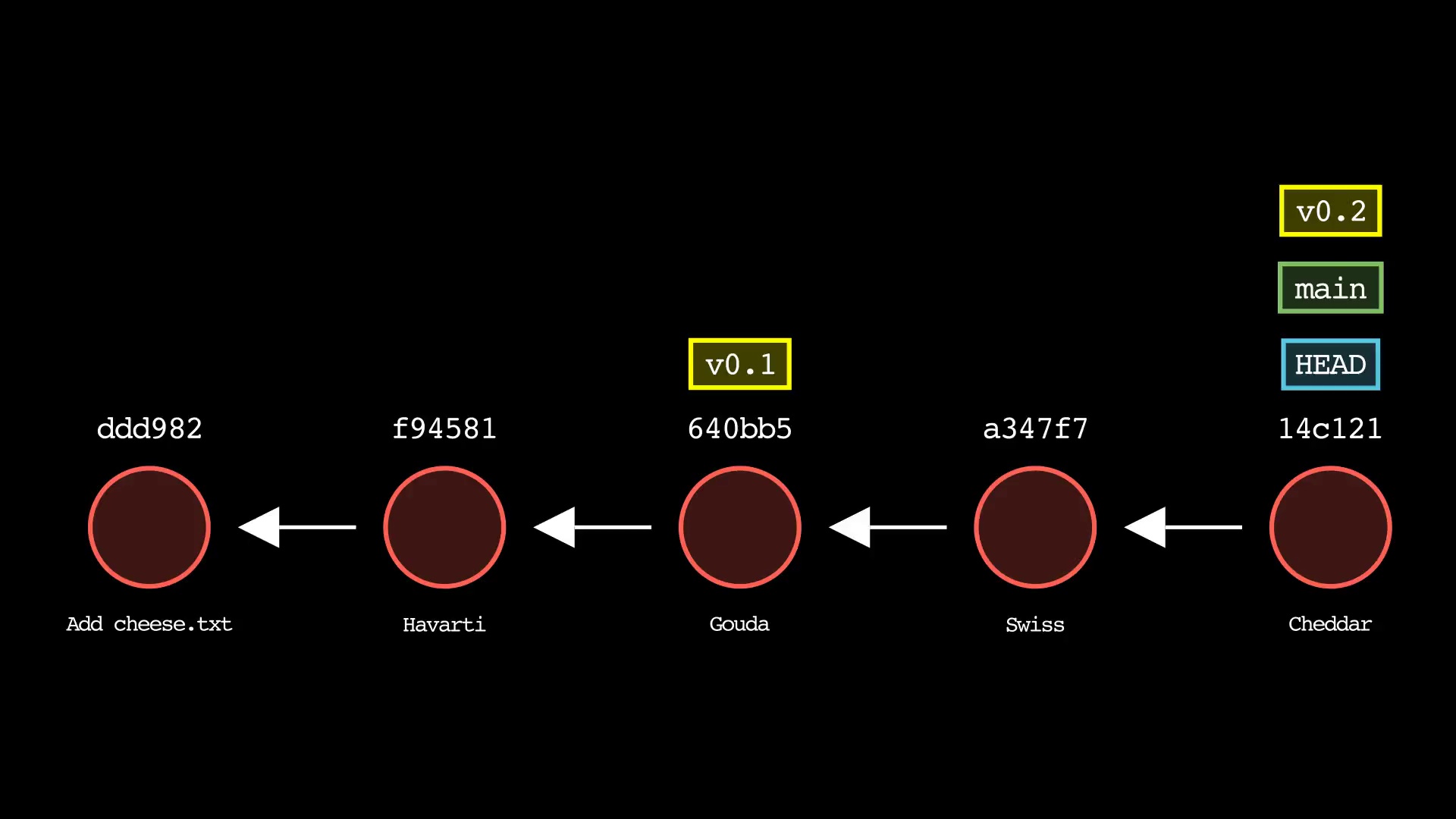
git log
Usage: git-sim log
- Simulated output will show the most recent 5 commits on the active branch by default
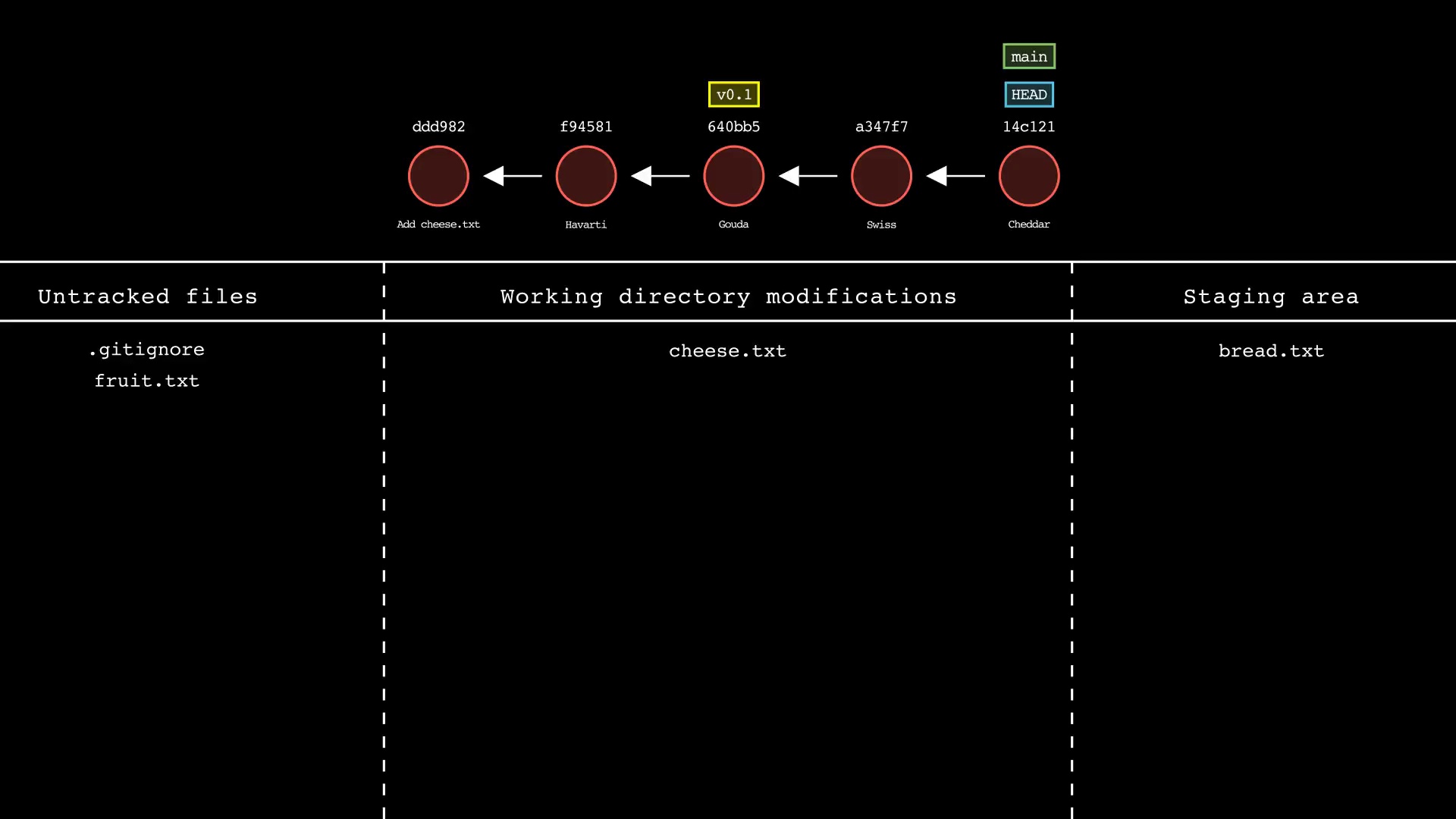
git status
Usage: git-sim status
- Simulated output will show the state of the working directory, staging area, and untracked files
- Note that simulated output will also show the most recent 5 commits on the active branch
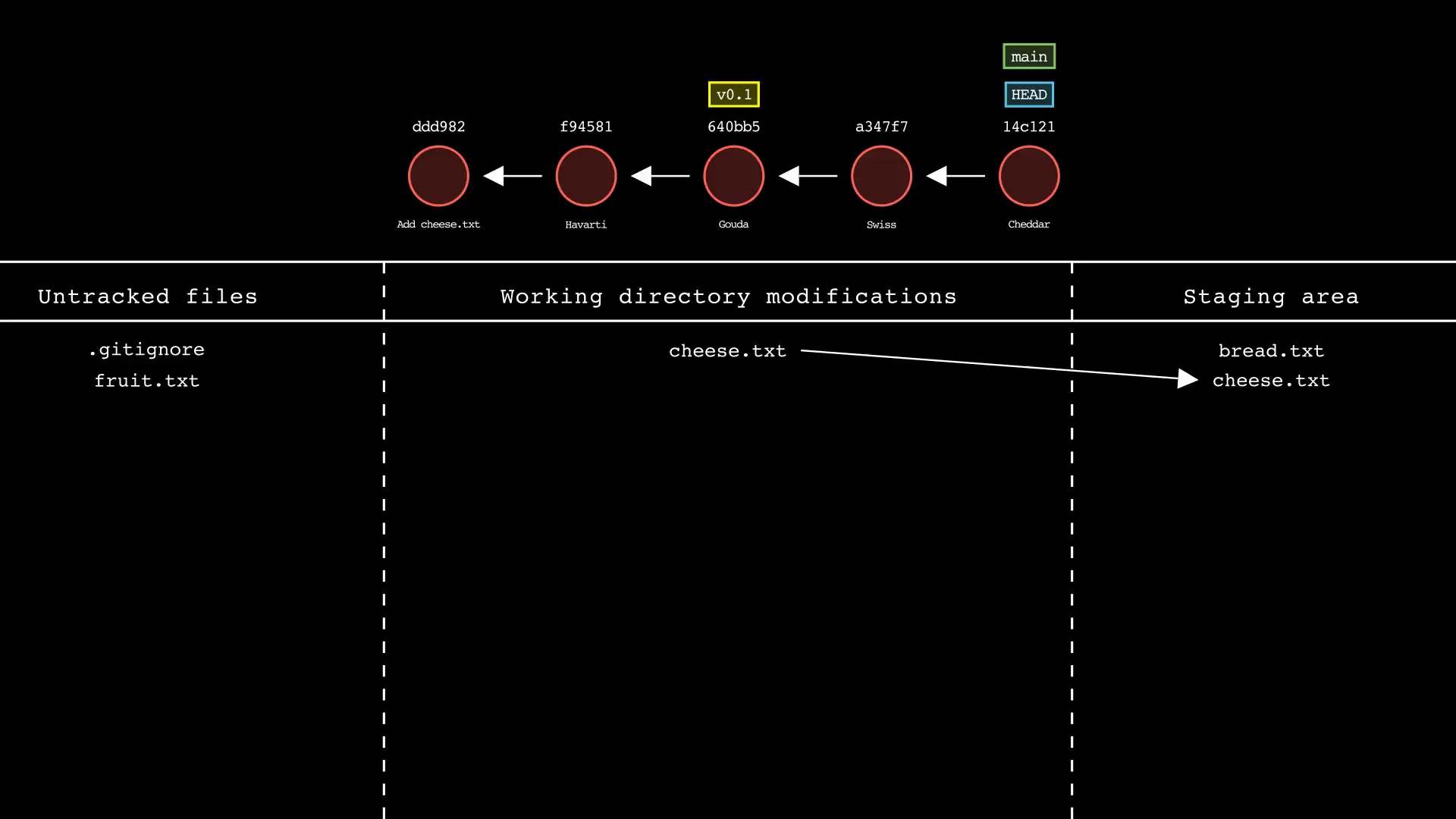
git add
Usage: git-sim add <file 1> <file 2> ... <file n>
- Specify one or more
<file>as a modified working directory file, or an untracked file - Simulated output will show files being moved to the staging area
- Note that simulated output will also show the most recent 5 commits on the active branch
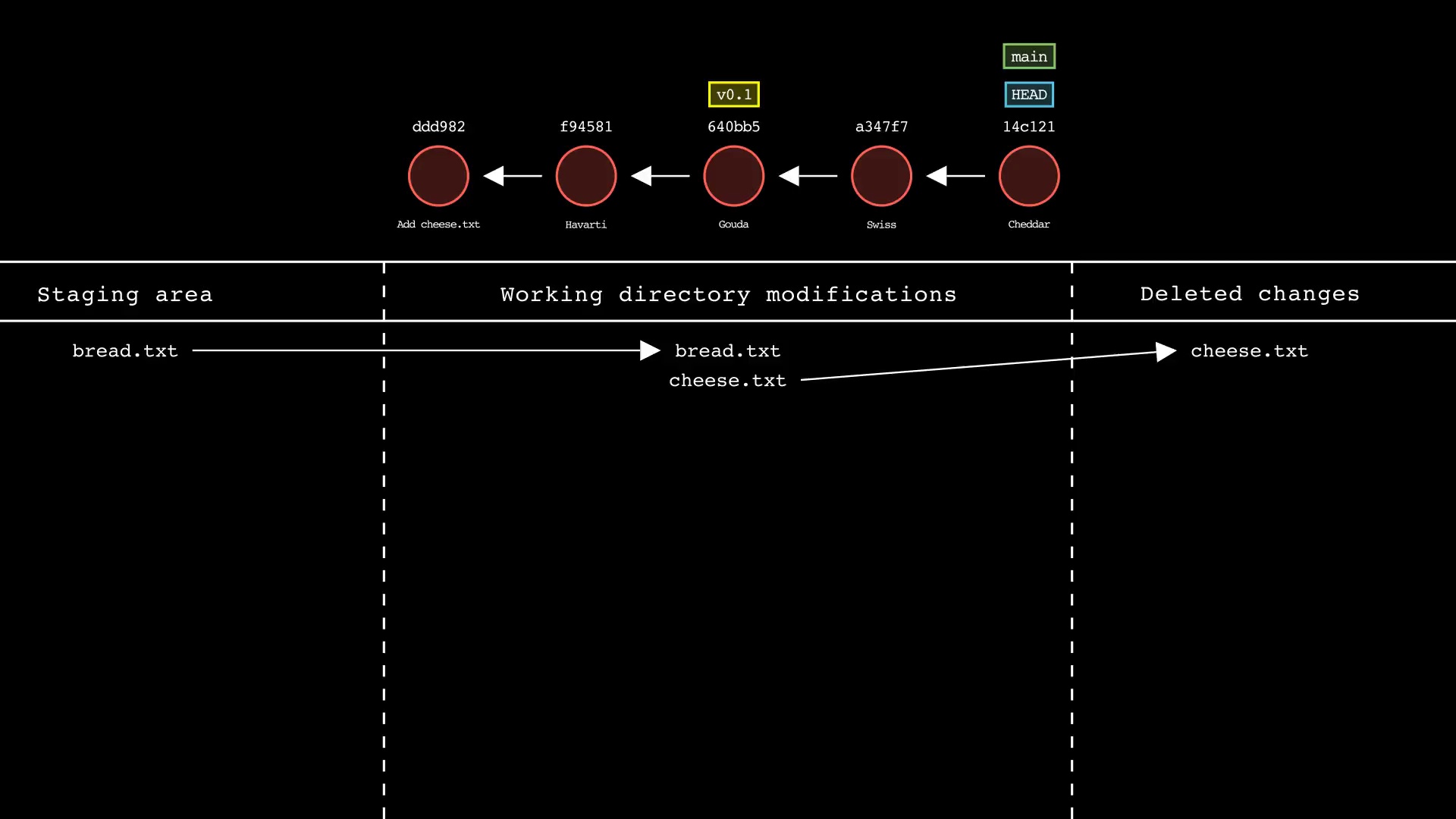
git restore
Usage: git-sim restore <file 1> <file 2> ... <file n>
- Specify one or more
<file>as a modified working directory file, or staged file - Simulated output will show files being moved back to the working directory or discarded changes
- Note that simulated output will also show the most recent 5 commits on the active branch
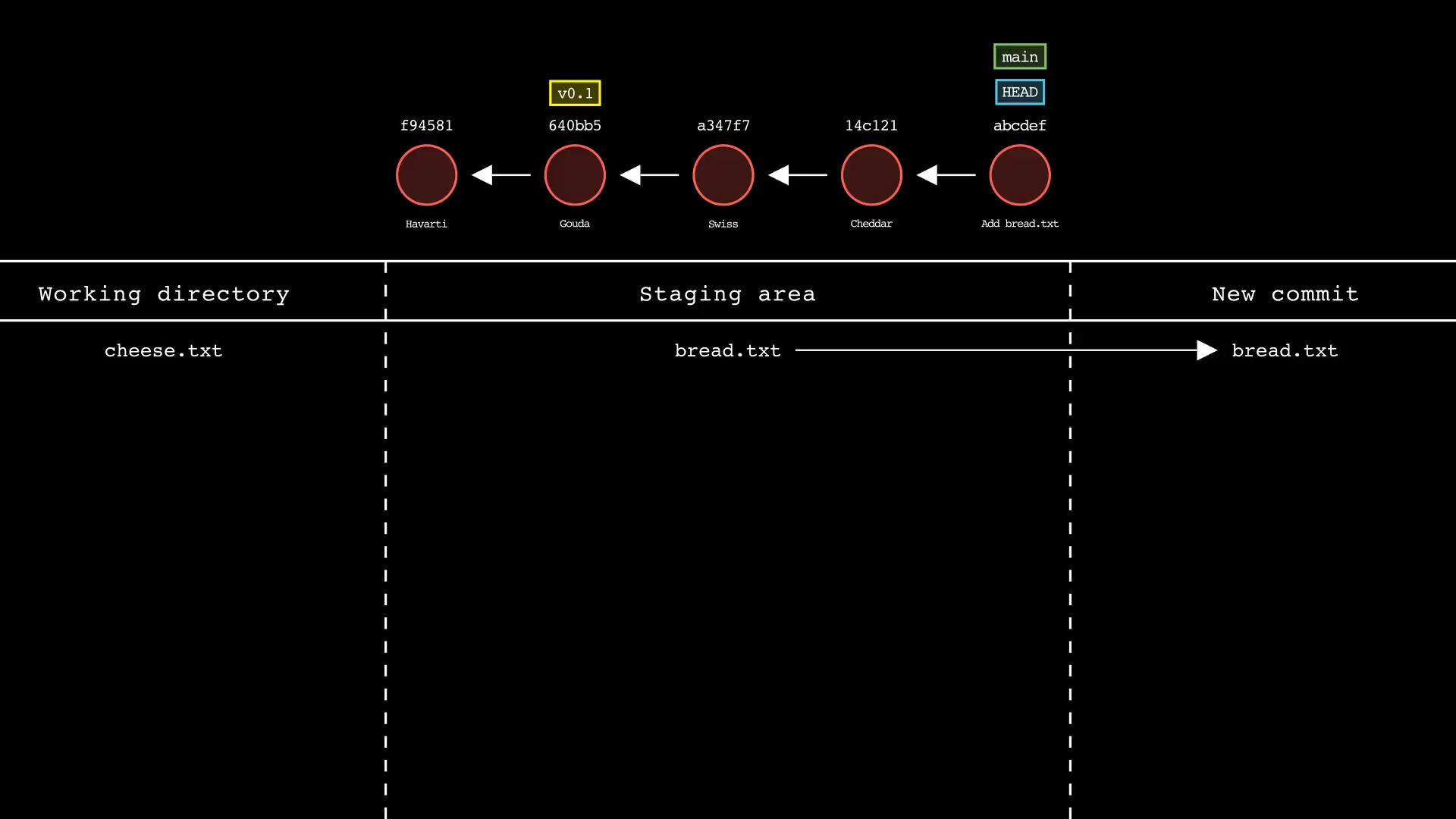
git commit
Usage: git-sim commit -m "Commit message"
- Simulated output will show the new commit added to the tip of the active branch
- Specify your commit message after the -m option
- HEAD and the active branch will be moved to the new commit
- Simulated output will show files in the staging area being included in the new commit
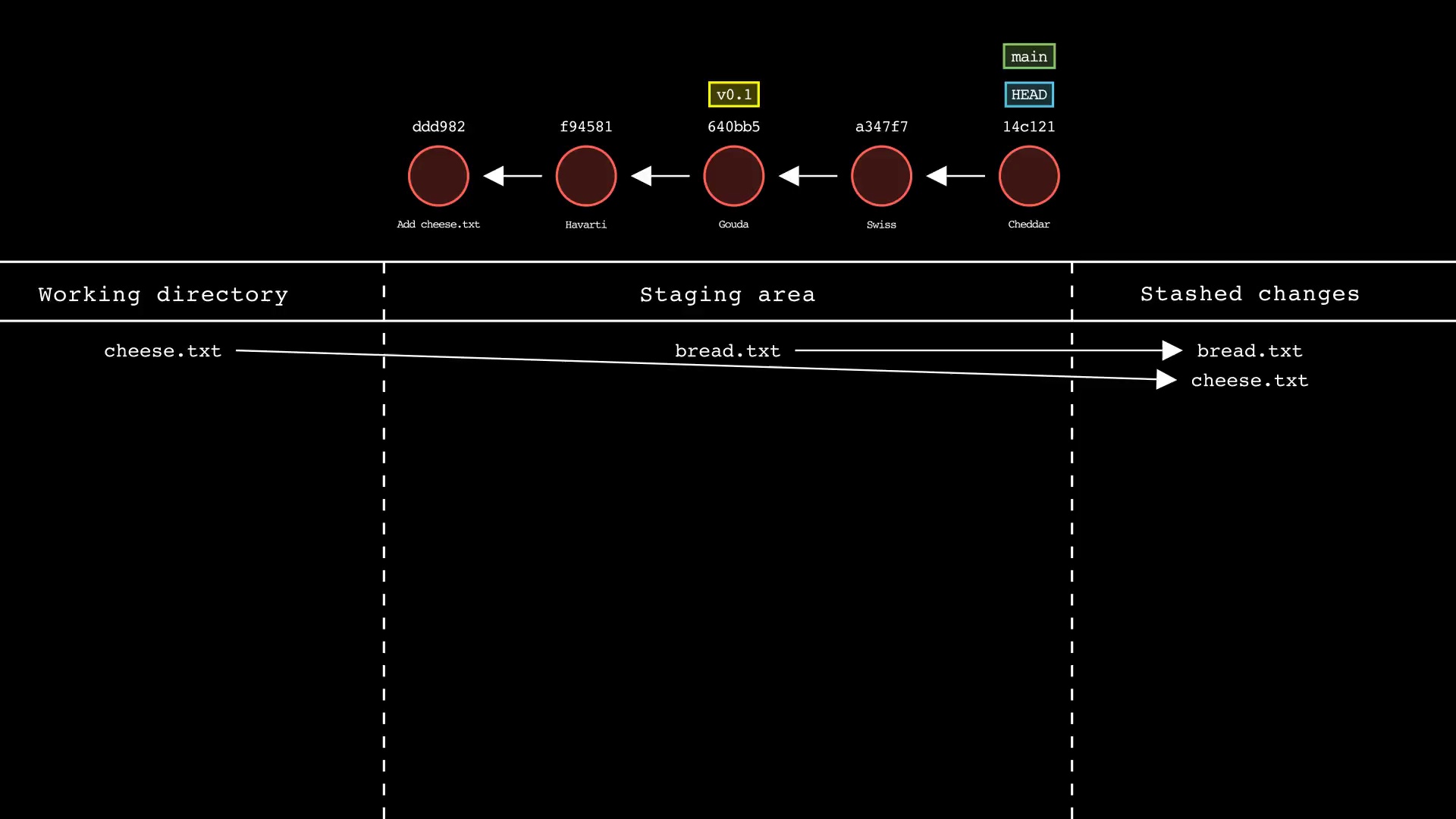
git stash
Usage: git-sim stash <file>
- Specify one or more
<file>as a modified working directory file, or staged file - If no
<file>is specified, all available working directory and staged files will be included - Simulated output will show files being moved to the Git stash
- Note that simulated output will also show the most recent 5 commits on the active branch
git branch
Usage: git-sim branch <new branch name>
- Specify
<new branch name>as the name of the new branch to simulate creation of - Simulated output will show the newly create branch ref along with most recent 5 commits on the active branch
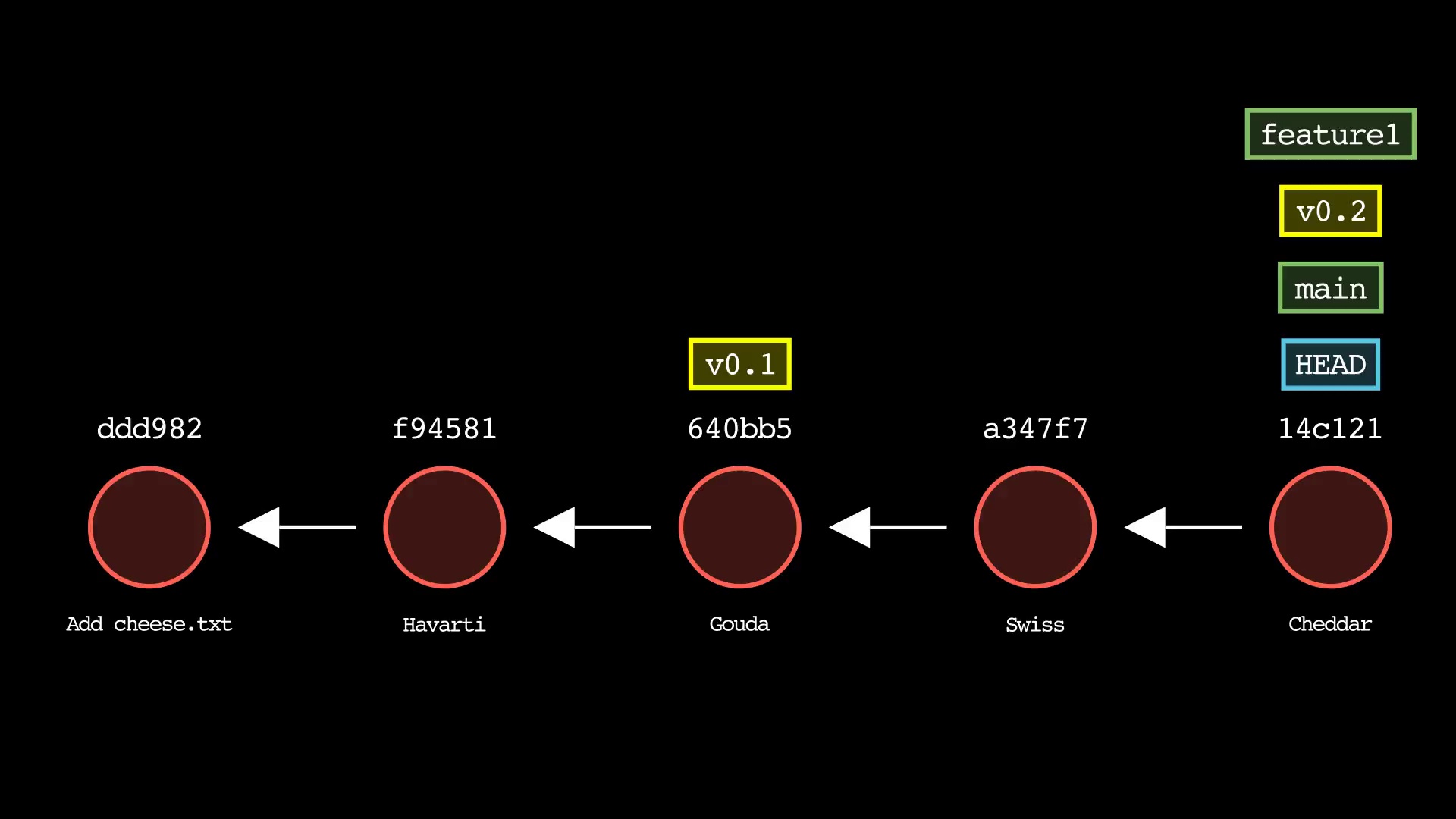
git tag
Usage: git-sim tag <new tag name>
- Specify
<new tag name>as the name of the new tag to simulate creation of - Simulated output will show the newly create tag ref along with most recent 5 commits on the active branch
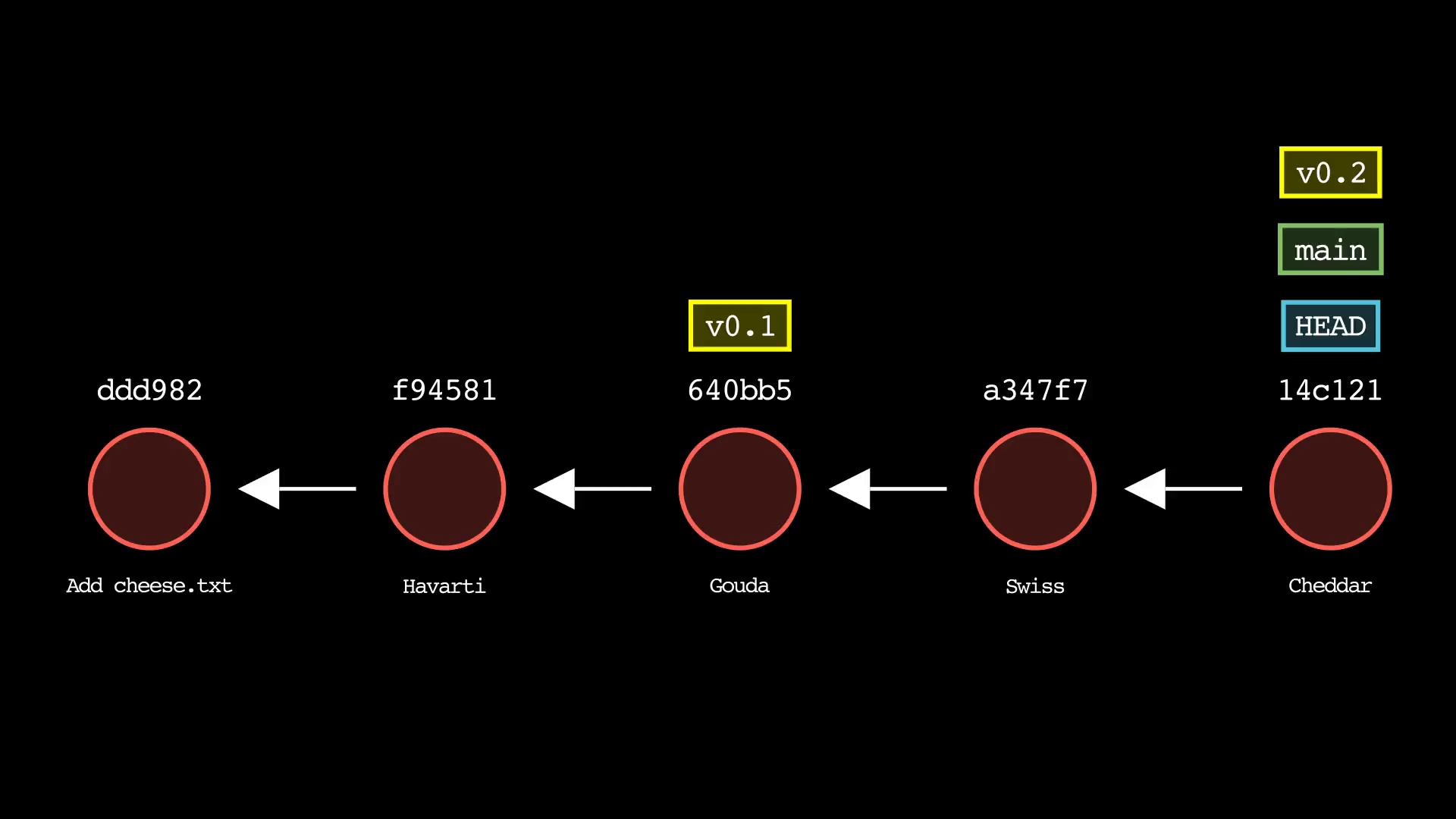
git reset
Usage: git-sim reset <reset-to> [--mixed|--soft|--hard]
- Specify
<reset-to>as any commit id, branch name, tag, or other ref to simulate reset to from the current HEAD (default:HEAD) - As with a normal git reset command, default reset mode is
--mixed, but can be specified using--soft,--hard, or--mixed - Simulated output will show branch/HEAD resets and resulting state of the working directory, staging area, and whether any file changes would be deleted by running the actual command
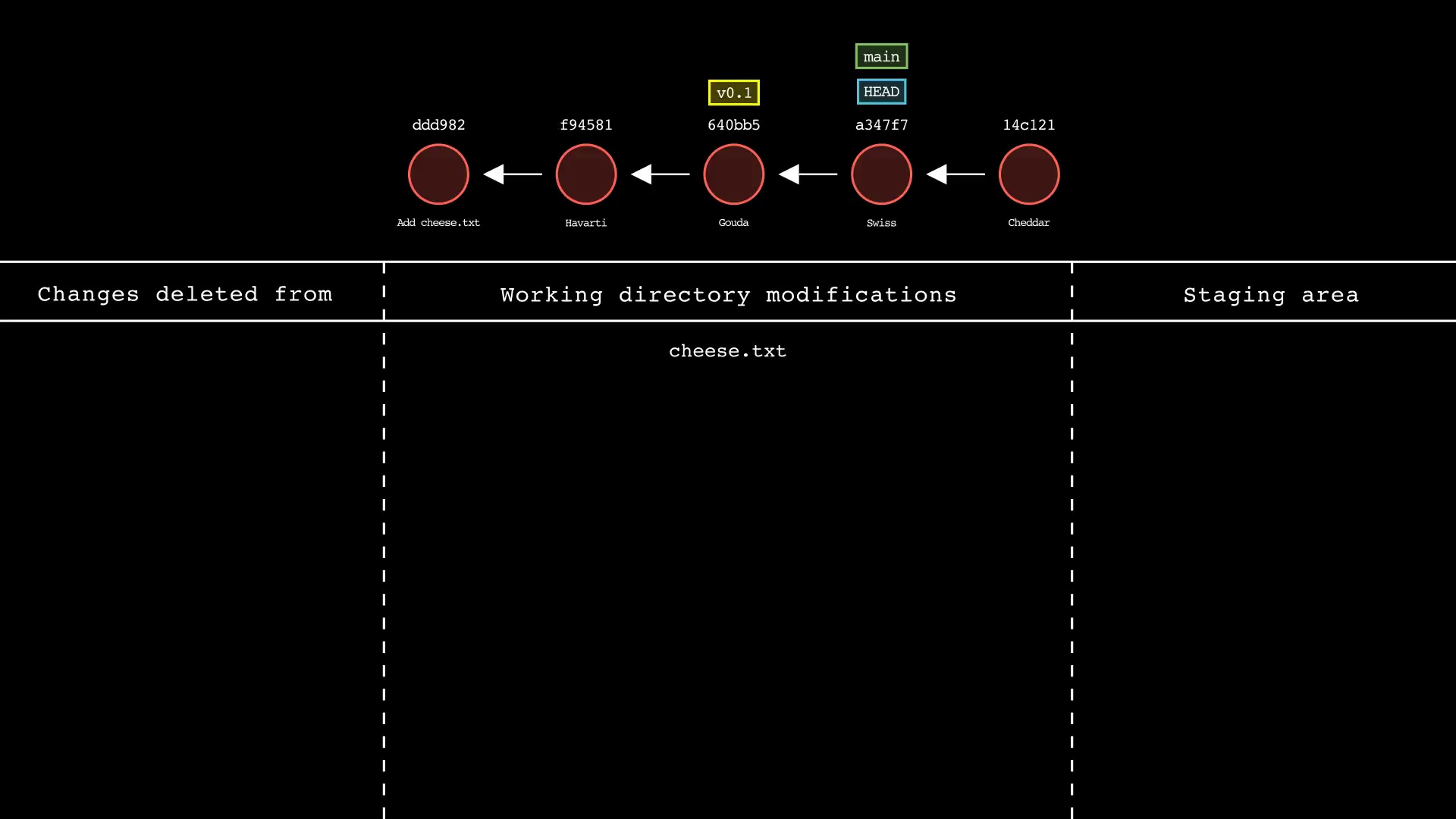
git revert
Usage: git-sim revert <to-revert>
- Specify
<to-revert>as any commit id, branch name, tag, or other ref to simulate revert for - Simulated output will show the new commit which reverts the changes from
<to-revert> - Simulated output will include the next 4 most recent commits on the active branch
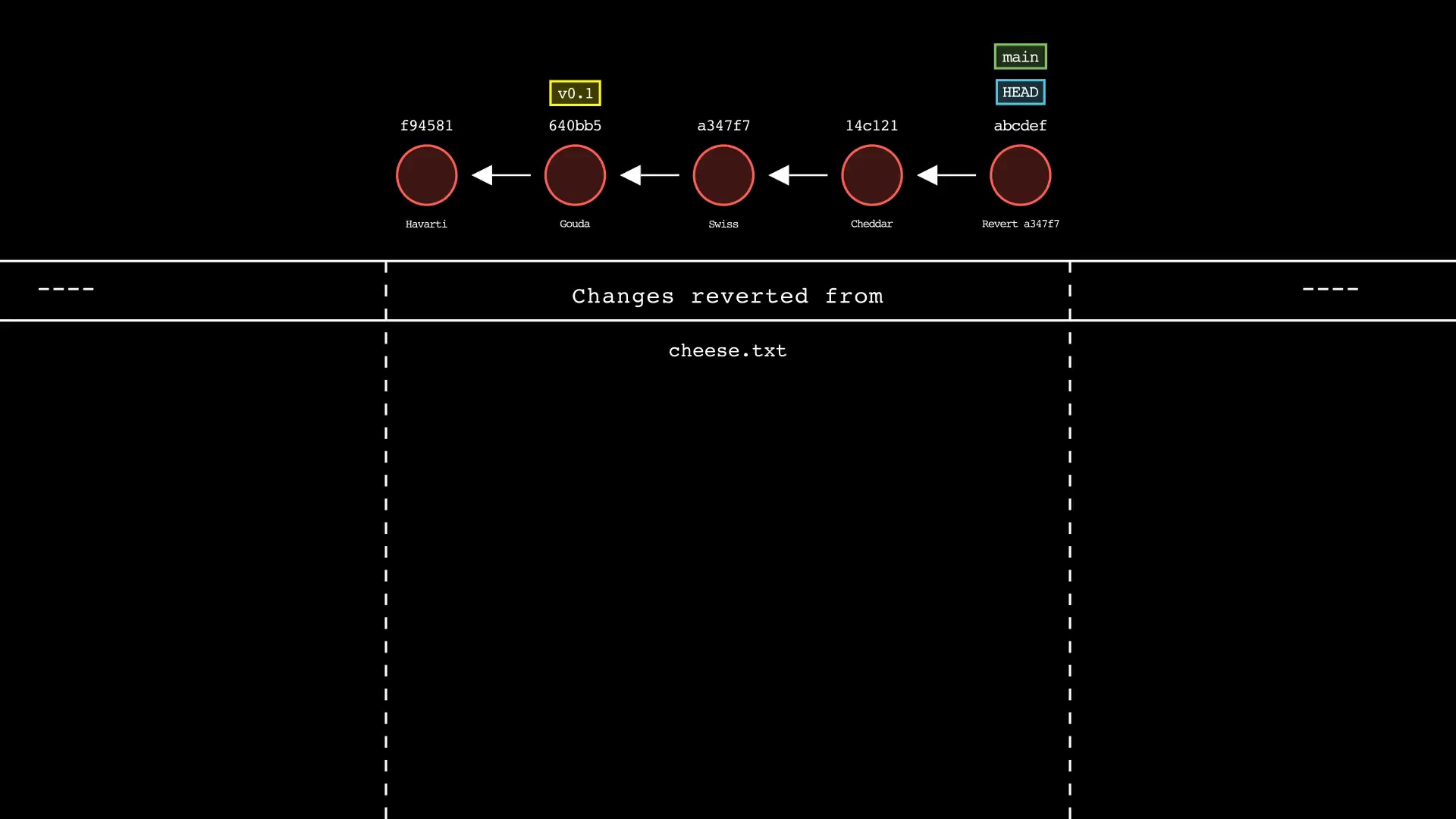
git merge
Usage: git-sim merge <branch>
- Specify
<branch>as the branch name to merge into the active branch - Simulated output will depict a fast-forward merge if possible
- Otherwise, a three-way merge will be depicted
- To force a merge commit when a fast-forward is possible, use
--no-ff
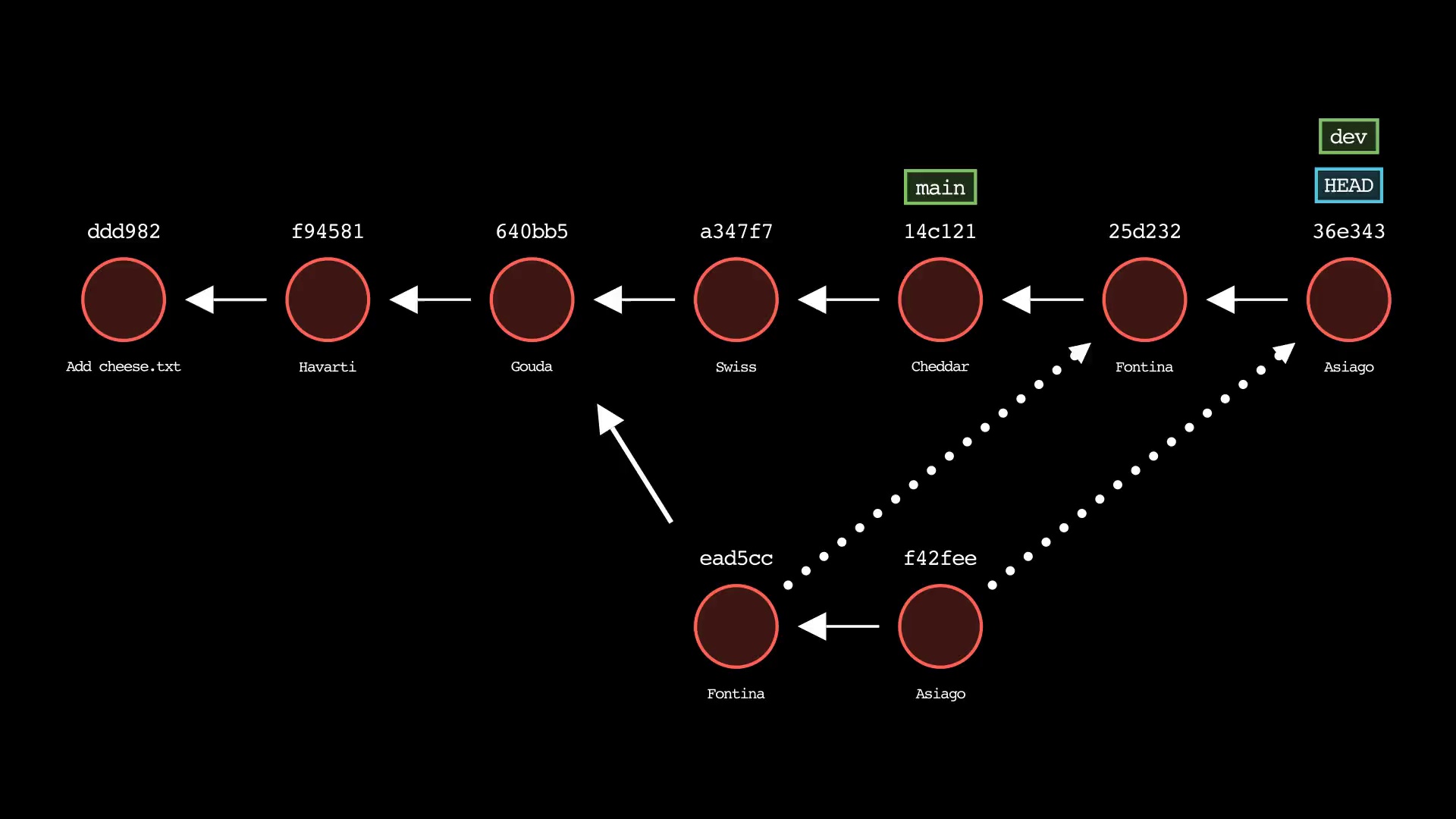
git rebase
Usage: git-sim rebase <new-base>
- Specify
<new-base>as the branch name to rebase the active branch onto
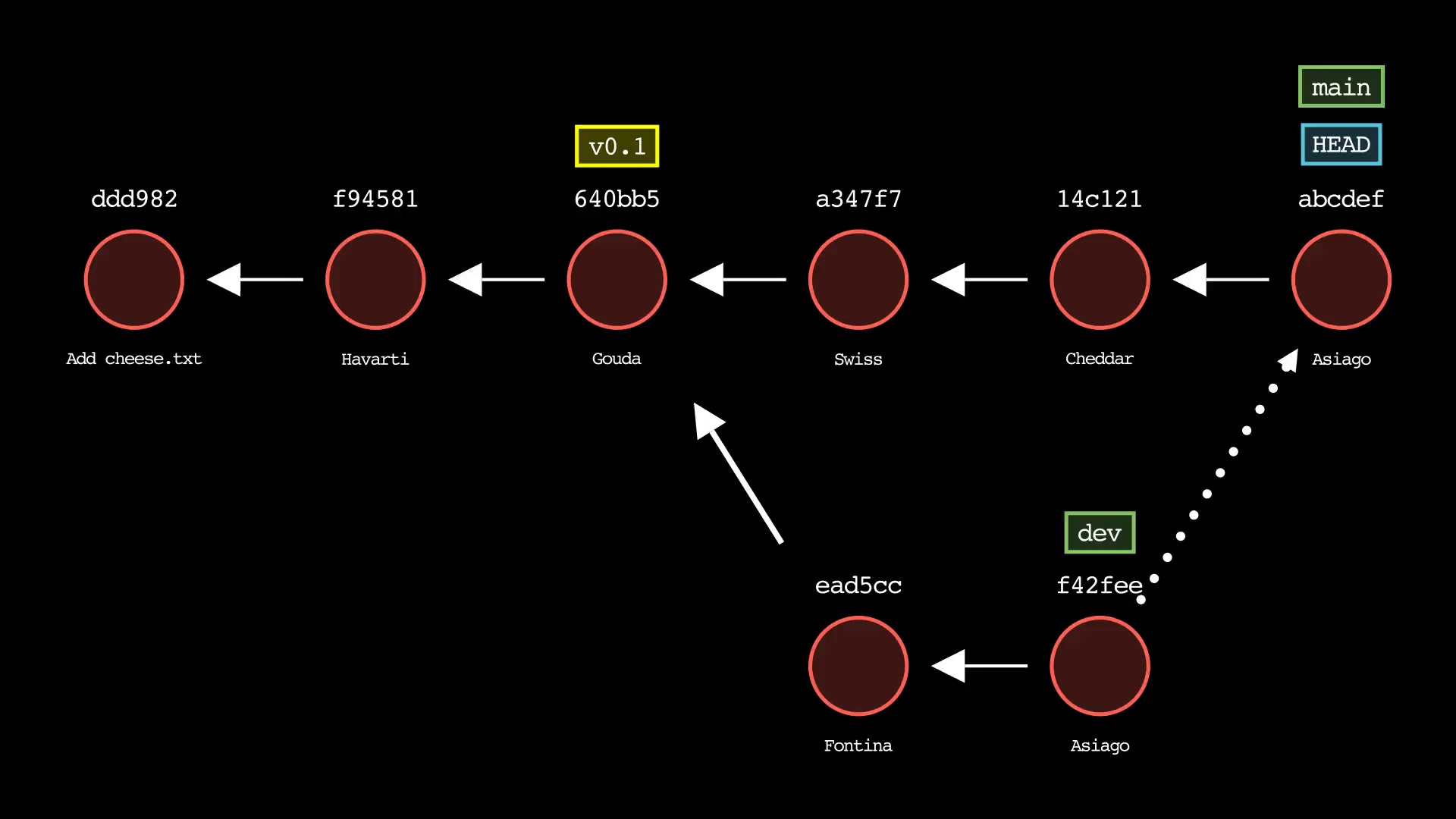
git cherry-pick
Usage: git-sim cherry-pick <commit>
- Specify
<commit>as a ref (branch name/tag) or commit ID to cherry-pick onto the active branch
Video animation examples
$ git-sim --animate reset HEAD^
$ git checkout main
$ git-sim --animate merge dev
$ git checkout dev
$ git-sim --animate rebase main
$ git checkout main
$ git-sim --animate cherry-pick dev
Basic command examples
Simulate the output of the git log command:
$ cd path/to/git/repo
$ git-sim log
Simulate the output of the git status command:
$ git-sim status
Simulate adding a file to the Git staging area:
$ git-sim add filename.ext
Simulate restoring a file from the Git staging area:
$ git-sim restore filename.ext
Simulate creating a new commit based on currently staged changes:
$ git-sim commit -m "Commit message"
Simulate stashing all working directory and staged changes:
$ git-sim stash
Simulate creating a new Git branch:
$ git-sim branch new-branch-name
Simulate creating a new Git tag:
$ git-sim tag new-tag-name
Simulate a hard reset of the current branch HEAD to the previous commit:
$ git-sim reset HEAD^ --hard
Simulate reverting the changes in an older commit:
$ git-sim revert HEAD~7
Simulate merging a branch into the active branch:
$ git-sim merge feature1
Simulate rebasing the active branch onto a new base:
$ git-sim rebase main
Simulate cherry-picking a commit from another branch onto the active branch:
$ git-sim cherry-pick 0ae641
Command examples with extra options/flags
Use light mode for white background and black text, instead of the default black background with white text:
$ git-sim --light-mode status
Animate the simulated output as a .mp4 video file:
$ git-sim --animate add filename.ext
Add an intro and outro with custom text and logo (must include --animate):
$ git-sim --animate --show-intro --show-outro --outro-top-text="My Git Repo" --outro-bottom-text="Thanks for watching!" --logo=path/to/logo.png status
Customize the output image/video directory location:
$ git-sim --media-dir=path/to/output status
Generate output video in low quality to speed up rendering time (useful for repeated testing, must include --animate):
$ git-sim --animate --low-quality status
Installation
See Quickstart section for details on installing manim and other dependencies. Then run:
$ pip3 install git-sim
Learn More
Learn more about this tool on the git-sim project page.
Authors
Jacob Stopak - on behalf of Initial Commit
Release history Release notifications | RSS feed


Download files
Download the file for your platform. If you're not sure which to choose, learn more about installing packages.
Source Distribution
Built Distribution
Filter files by name, interpreter, ABI, and platform.
If you're not sure about the file name format, learn more about wheel file names.
Copy a direct link to the current filters
File details
Details for the file git-sim-0.1.5.tar.gz.
File metadata
- Download URL: git-sim-0.1.5.tar.gz
- Upload date:
- Size: 86.1 kB
- Tags: Source
- Uploaded using Trusted Publishing? No
- Uploaded via: twine/4.0.2 CPython/3.11.1
File hashes
| Algorithm | Hash digest | |
|---|---|---|
| SHA256 |
4946582e3a61e3f1a51fa3691e05d29250f602df88ac226df1082a39cd310c6f
|
|
| MD5 |
a42a20ca6e360b17a69c393120b39bc2
|
|
| BLAKE2b-256 |
5552bcd54da65f9ffdfb9a0c8e2060feb694dfb5cb8ec71ca2ed964a8a506ad6
|
File details
Details for the file git_sim-0.1.5-py3-none-any.whl.
File metadata
- Download URL: git_sim-0.1.5-py3-none-any.whl
- Upload date:
- Size: 89.2 kB
- Tags: Python 3
- Uploaded using Trusted Publishing? No
- Uploaded via: twine/4.0.2 CPython/3.11.1
File hashes
| Algorithm | Hash digest | |
|---|---|---|
| SHA256 |
2102e619de46582f906c8e581420ce03ee7ccd2ab7d8945e6a880a5aa99d3ba6
|
|
| MD5 |
2d683882ed7d629cba7d7f9119aa201c
|
|
| BLAKE2b-256 |
17c785b9acdb00ea54817a973d8ca6dc59b8574684efccf78f09f1b99f7ccfdd
|






