
Service to share GitLab scheduled job statuses with badges

Project description
GitLab Schedule Badge
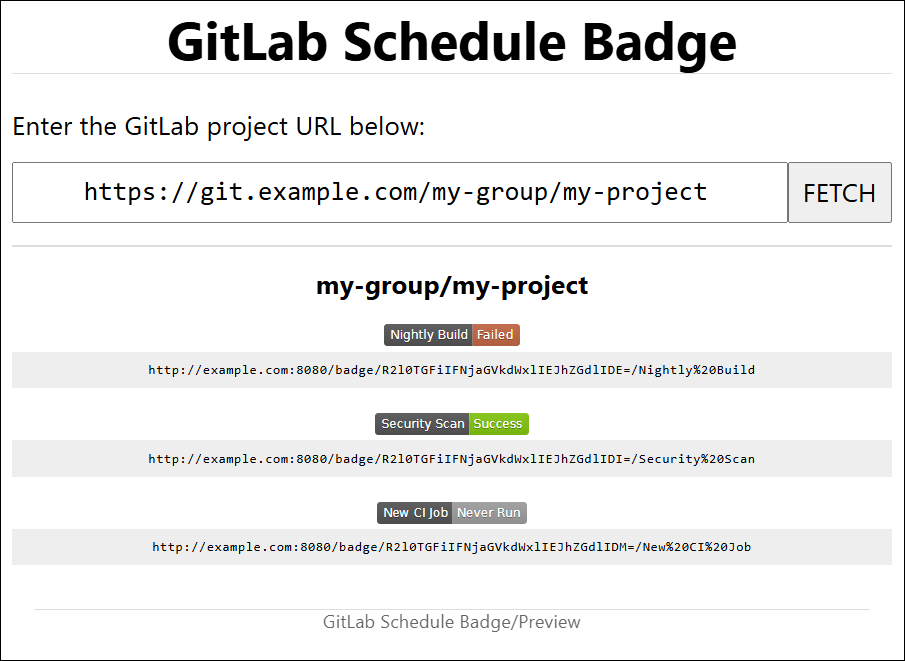
The following project provides the means to generate badges based on the status of a GitLab project's scheduled job. This tool can be used to host a website that presents users the option to pass in a GitLab project URL. Users can then request available scheduled pipelines for the project and the page will provide badge links that can be used in other documentation.
Requirements
Installation
Manual
This tool can be installed using pip:
pip install gitlab-schedule-badge
 (or)
python -m pip install gitlab-schedule-badge
For an initial setup/testing, users can start the application from the command line:
gitlab-schedule-badge --help
 (or)
python -m gitlab_schedule_badge --help
Running the instance will require a configuration to be prepared (discussed below).
When looking to deploy this tool for production use, there are various ways to use this application. This application uses the following for WSGI startup:
- Module:
gitlab_schedule_badge.wsgi - Call:
main
For example, users can use Gunicorn as follows:
gunicorn --bind 0.0.0.0 "gitlab_schedule_badge.wsgi:main()"
Docker
This project supports multiple ways to use this utility inside a Docker environment. A recommended choice is to use a pre-built image available from GitLab's container registry.
Pre-built image
A pre-built image can be acquired using the following command:
docker pull registry.gitlab.com/gitlab-schedule-badge/gitlab-schedule-badge:0.4.0
Prepare a configuration for this container by creating a file
/etc/gitlab-schedule-badge.toml with the contents defined in the
configuration template (users can use any path or
filename they desire, as long as the following docker run command
points to this file). Adjust these options to the configuration desired.
The container than can be run using the following command:
docker run \
    --name gitlab-schedule-badge \
    --detach \
    --publish 8080:8000 \
    --restart unless-stopped \
    --volume /etc/gitlab-schedule-badge.toml:/etc/gitlab-schedule-badge.toml \
    registry.gitlab.com/gitlab-schedule-badge/gitlab-schedule-badge:0.4.0
Feel free to change the value of 8080 to a more preferred port value.
Self-managed Docker Compose
Users can also take advantage of the Docker compose definition. First, copy
the contents in this repository's docker/ folder to a desired location.
Next, load up the container using docker compose from within the folder:
docker compose build
docker compose up --detach
Both Docker build calls will by default load a container with the
PyPI version of gitlab-schedule-badge. Users wanting to use the local
implementation in their container can do so by performing a Docker
build with the --build-arg local argument.
For example:
docker compose build --build-arg BUILD_MODE=local
docker compose up --detach
Configuration
Configuration is performed using a gitlab-schedule-badge.toml file.
An example of a bare minimum configuration is as follows:
[[gitlab-schedule-badge-instance]]
url = 'https://git.example.com/'
token = 'glpat-value'
- Define a GitLab instance with the
[[gitlab-schedule-badge-instance]]section. - Specifies the GitLab instance that API requests will be made to.
- Specifies the token used to authenticate API requests.
The token can be either a personal access token, a project access token
or a group access token. Only projects which the token has access to can
query the scheduled pipeline information for said projects. A token only
requires the read_api scope. For project/group access tokens, only the
Guest role is required if the project is public. For private
projects/groups, a role of Reporter may be required.
Multiple instances can be added by adding additional instance sections. For example, the following configuration supports querying projects from two GitLab self-hosted instances:
[[gitlab-schedule-badge-instance]]
url = 'https://git.example.com/'
token = 'glpat-value1'

[[gitlab-schedule-badge-instance]]
url = 'https://git.example.org/'
token = 'glpat-value2'
Users can also define group or project-specific keys to apply on an instance:
[[gitlab-schedule-badge-instance]]
url = 'https://git.example.com/'
namespace = 'group-a'
token = 'glpat-value1'

[[gitlab-schedule-badge-instance]]
url = 'https://git.example.com/'
namespace = 'group-b'
token = 'glpat-value2'
With a configuration prepared, a user can validate this tool can query configured GitLab instances using the following command:
gitlab-schedule-badge --api-check
See the configuration template for more details.
Troubleshooting
"Project Not Found"
If GitLab reports that a project cannot be found, this is either two things:
- The project does not exist. Sanity check that the project path is valid.
- Access to the project is not permitted with the provided token. Verify the token created is done by a user who has access to the specific project, or is created for project (or container group) being queried.
Reverse Proxy with NGINX
If running this tool behind an NGINX reverse proxy, ensure that:
- Ensure appropriate
X-Forwarded-*headers are set. - Configure both the
server-nameandreverse-proxy-chainentries in configuration file (gitlab-schedule-badge.toml).
Release history Release notifications | RSS feed


Download files
Download the file for your platform. If you're not sure which to choose, learn more about installing packages.
Source Distribution
Built Distribution
Filter files by name, interpreter, ABI, and platform.
If you're not sure about the file name format, learn more about wheel file names.
Copy a direct link to the current filters
File details
Details for the file gitlab_schedule_badge-0.4.0.tar.gz.
File metadata
- Download URL: gitlab_schedule_badge-0.4.0.tar.gz
- Upload date:
- Size: 55.7 kB
- Tags: Source
- Uploaded using Trusted Publishing? No
- Uploaded via: twine/6.1.0 CPython/3.12.0
File hashes
| Algorithm | Hash digest | |
|---|---|---|
| SHA256 |
47d1f344b769e9c261f6ad69d64f7ec7e10eefba11fa87a44ec24e143660f4a1
|
|
| MD5 |
75b895983619ae695d9b20d5372b8eaf
|
|
| BLAKE2b-256 |
078946835d5270b7f0801ff44eaf9e1d657f3278820ee16e6f2ccf6a51196f52
|
File details
Details for the file gitlab_schedule_badge-0.4.0-py3-none-any.whl.
File metadata
- Download URL: gitlab_schedule_badge-0.4.0-py3-none-any.whl
- Upload date:
- Size: 60.6 kB
- Tags: Python 3
- Uploaded using Trusted Publishing? No
- Uploaded via: twine/6.1.0 CPython/3.12.0
File hashes
| Algorithm | Hash digest | |
|---|---|---|
| SHA256 |
f4a2f6fecf9f5975410e4bfe8adb46024d05c99b05cd512f234369ddcbd3671c
|
|
| MD5 |
3c5465f47b0d14c5c47cea9844ba3c5c
|
|
| BLAKE2b-256 |
26c81999020f543d275fbfe81c7b5cfc04bb4fb11e3af35cca0fbcbb5fcea8ca
|






