
GlintBar







GlintBar turns the empty gap in your Windows taskbar into a live hardware monitor: no window to keep open, no screen space given up. CPU, RAM, GPU, temperatures, disk, and network sit there at a glance, each with a 60-second sparkline and a hover-to-expand graph. Temperature, CPU, RAM and VRAM spikes raise an alert tile, and with clock and power on-screen you can catch a GPU clock collapse or power dropout, the fingerprint of a driver hang, before it turns into a stutter or a crash.
What it shows
A single row of up to twelve metrics, each with a value and a 60-second sparkline. Hover a metric to pop out a bigger live graph with the session min, max and average.
| Tile | Source | Watch for |
|---|---|---|
| GPU Temp | nvidia-smi | amber >80 °C, red >87 °C |
| GPU Load | nvidia-smi / perf counters | sustained 100% |
| VRAM | nvidia-smi | red >95 % |
| GPU Power | nvidia-smi | sudden dropouts under load |
| GPU Clock | nvidia-smi | dropping to idle mid-load can mean a TDR hang |
| SYS Temp | ACPI thermal zone | red >97 °C |
| CPU Temp | HWiNFO or LibreHardwareMonitor | real CPU package temp (needs a helper, see below) |
| Fan | HWiNFO or LibreHardwareMonitor | fan RPM (needs a helper, see below) |
| CPU | psutil | red >95 % |
| RAM | psutil | red >95 % |
| Network | psutil | MB/s in+out |
| Disk | psutil | MB/s read+write |
Everything comes from first-party or open-source sources and runs without admin rights. The bar only shows tiles your machine can actually provide (details below).
Supported hardware and platforms
Windows 10 and 11 only. It's built on Win32 APIs (the taskbar, DPI, and sensors), so there is no macOS or Linux build.
CPU, RAM, disk and network work on any Windows PC, via psutil.
GPU support is detected at launch:
| GPU | Load | VRAM | Temp | Clock | Power | Source |
|---|---|---|---|---|---|---|
| NVIDIA | ✅ | ✅ | ✅ | ✅ | ✅ | nvidia-smi (driver) |
| AMD / Intel / other | ✅ | — | — | — | — | Windows GPU perf counters |
| No GPU / headless | — | — | — | — | — | GPU tiles hidden |
AMD and Intel GPUs get load only. Temp, clock, power and VRAM need NVIDIA. The settings panel greys out anything your hardware can't provide.
Privilege levels: it works without admin, and does more with it
GlintBar always runs unprivileged and never needs admin. As a normal user you get CPU, RAM, disk, network, GPU (per the table above), and the SYS Temp tile: everything except real CPU temperature and fan speed. Those two need kernel-level access, so they come from a separate helper that has admin (see below); GlintBar just reads what it exposes and stays unprivileged itself.
The SYS Temp tile reads the ACPI thermal zone through a Windows performance counter, so it needs no admin. It's a generic zone though, so treat it as a rough system-heat reading, not the exact CPU-package sensor, and some machines block it.
Real per-core CPU temperature and fan RPM need kernel-level access, which no no-admin tool can do. For those, run a helper that already does the low-level reads with admin, and GlintBar reads from it while staying at normal privilege. It picks up the extra CPU Temp and Fan tiles automatically when one is present. Two options, whichever you already use:
HWiNFO (via shared memory): in HWiNFO, open Settings and tick Shared Memory Support. That's it. GlintBar reads the shared-memory block directly (no network at all). This is easiest if you already run HWiNFO.
LibreHardwareMonitor (open source, via a local web server): in its Options
menu turn on Remote Web Server (default port 8085). GlintBar reads only from
http://127.0.0.1:8085 on your own machine, never the internet. Use
GLINTBAR_LHM_PORT if you change the port.
Either way, start the helper before GlintBar (or restart GlintBar) and the tiles appear on their own. HWiNFO is preferred if both are running.
Requirements
Python 3.10+ and the WebView2 runtime, which already ships with Windows 11;
Windows 10 usually has it via Edge, but may need the free Evergreen runtime. No
admin, no compiled binaries, just Python source. The only dependencies are
pywebview, psutil, and taskbargap (taskbar-gap detection and placement,
extracted from this project), installed automatically.
Install and run
The simplest install (adds a glintbar command):
pip install glintbar
glintbar
Or with pipx for a fully isolated install: pipx install glintbar.
From a clone, for hacking on it:
pip install -e .
python -m glintbar
Contributor tooling (lint + tests) installs with pip install -e .[dev]; then
run ruff check . and pytest.
For a launch with no console window, use the installed glintbar command; from a
clone, double-click start_glintbar.cmd. To start it on login, drop a shortcut to
the glintbar command into shell:startup (Win+R, then shell:startup).
Controls sit on the right: the gear opens settings and ✕ closes. While CSV logging is recording, a small red dot flashes on the bar; starting/stopping it and opening the logs folder are in settings.
Settings and logs live in %LOCALAPPDATA%\GlintBar (config.json and logs\),
so they survive reinstalls and stay out of the install folder.
Settings
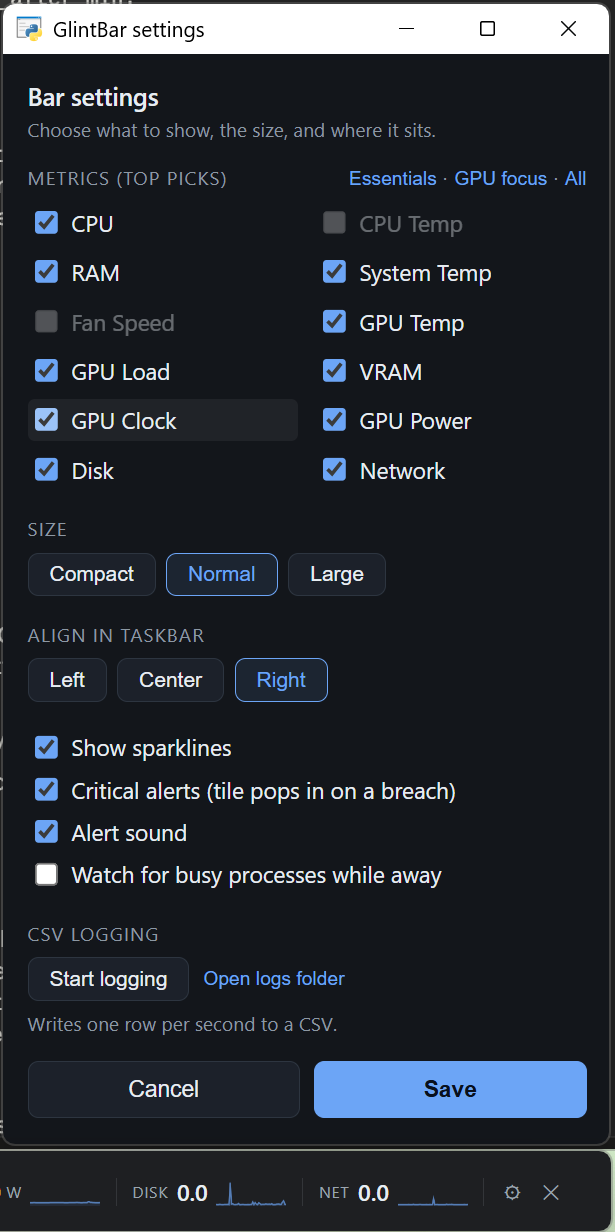
Open the gear to change:
- Metrics: pick the ones you want, with presets for Essentials, GPU focus, or All. The bar rebuilds and resizes to fit only what you keep.
- Size: Compact, Normal, or Large.
- Align: Left, Center, or Right within the taskbar gap.
- Sparklines, critical alerts, alert sound, and away watch: on or off.
- CSV logging: start or stop it, and open the logs folder.
Your choices are saved to config.json in %LOCALAPPDATA%\GlintBar. A few
options have no toggle and live only in that file: temp_unit ("C" or "F",
default "C") to show temperatures in Fahrenheit, and hotkey (the hide/show
shortcut, default "ctrl+alt+g", "" to disable).
Placement
Set DOCK at the top of glintbar/monitor.py:
"taskbar"(default) floats a topmost bar over the empty part of the taskbar, between your app buttons and the system tray. It's a normal top-level window that sits above the Windows 11 taskbar's input layer, so its hovers and clicks work and it uses no extra screen space. A small background thread keeps it fitted to the gap and on top as apps open and close. On Windows 11 the gap is measured from the buttons the taskbar actually draws (Start, Search, every app, Widgets), read through the taskbar's own accessibility tree, so the bar never sits on one of them. The bar is sized to the tiles you picked, and when the gap is too short for all of them it takes what is free and the tiles scroll sideways instead: move the mouse across them (or use the wheel) and they follow, with a fade at whichever edge has more. The bar appears once, at its final size, rather than at a placeholder width first."bottom"is a thin full-width strip just above the taskbar."top"is a thin full-width strip at the top of the screen.
It lives on your primary monitor's taskbar (the one Windows treats as primary), and expects that taskbar along the bottom. On a multi-monitor setup with different scaling per monitor it stays correctly placed and sized, since the app is per-monitor-DPI aware. Only one copy runs at a time; launching it again while it is open just exits without doing anything, so close the running bar first if you want to restart it. Letting you pick a different monitor is on the roadmap.
When a video, game, or slideshow goes fullscreen on the same screen, the bar hides itself so it's not in the way, and it comes back when you exit fullscreen.
If the taskbar fills up and the gap gets too small to fit even a minimal bar, it
steps aside on its own rather than cover your app buttons, and returns when
there's room. To hide or show it yourself at any time, press Ctrl+Alt+G
(change the combo or disable it with hotkey in config.json). On Windows 10,
or if the Windows 11 taskbar's accessibility tree can't be read, the app-button
edge is a corroborated estimate rather than a measurement; the bar then keeps
extra distance from it and anchors right, and the hotkey is there if it still
ends up over something.
Hover to expand
Hover a metric and a bigger popup appears just above it with a full 60-second graph, the current value, and min/max/avg. It disappears when you move off.
Critical alerts
When a metric crosses a critical threshold (a temperature past its red line, or CPU, RAM or VRAM over 95%), an extra tile appears at the end of the bar. It's added rather than swapped in, so your other tiles don't move, and it stays until things settle (about two seconds to appear, with a short cooldown before it clears). There's an optional beep on a new alert so you notice without watching. Both are toggles in settings.
Away watch
If you step away and the machine keeps working hard, GlintBar figures out what was
responsible and tells you when you get back. It counts you as away as soon as the
screen is locked, or after a few minutes with no keyboard or mouse activity. While
you're away and the CPU stays high, it records which processes are behind it. When
you return it shows a short summary (how long you were away, the peak CPU and
temperature, and the busiest processes) and appends a line to away.csv in the
logs folder. If nothing unusual happened, it stays quiet.
Toggle it in settings. The idle delay and CPU threshold are in config.json
(away_after_min, away_cpu_pct), defaulting to 5 minutes and 25%.
CSV logging
Start CSV logging from settings to write one row per second, with every metric, to
a timestamped file in %LOCALAPPDATA%\GlintBar\logs. The bar shows a flashing red
dot while it records. Open the CSV in pandas or Excel and line it up against a
workload timeline to see how throttling, thermal drift or power dropouts track
with load.
import pandas as pd
df = pd.read_csv("logs/glintbar_<timestamp>.csv", parse_dates=["timestamp"])
df.set_index("timestamp")[["gpu_temp", "gpu_clock", "gpu_power"]].plot()
Notes
- It adapts to any resolution and display scaling; DPI is read at runtime.
- Light footprint: CPU, RAM, disk and network update every second, while the GPU
(which means spawning
nvidia-smi) is polled every two seconds and cached in between, so the monitor itself stays cheap. - Thresholds live in the
METAmap at the top ofglintbar/ui.html, so they're easy to change. - Ideas that aren't built yet (attention rotation, anomaly detection, toast notifications, AMD/Intel temperatures) are written up in ROADMAP.md.
Security
GlintBar is meant to be easy to review. It's plain Python with no binaries and no
obfuscation, it needs no admin, and it makes no internet connections: no
telemetry, no update checks, nothing. The only network use is optional and local:
reading LibreHardwareMonitor on 127.0.0.1 if you turn that integration on. It
only reads system metrics and writes config.json, logs, and its WebView2
browser profile (kept persistent so it doesn't leak a fresh copy into %TEMP%
on every launch) to %LOCALAPPDATA%\GlintBar.
CI runs ruff and bandit on every push, and a CodeQL workflow runs semantic
static analysis of the Python, the UI JavaScript, and the workflows themselves.
GitHub Actions are pinned to commit SHAs. Dependabot keeps those and the pinned
dev tools up to date; the three runtime dependencies sit at minimum-tested floors in
pyproject.toml. An
OpenSSF Scorecard
grades the repo's security posture (badge above). See the repo's Security tab, and
SECURITY.md for exactly what the app touches.
License
MIT. See LICENSE.
1 maintainer

Metadata
1 maintainer
Release files for glintbar 1.3.1
For a detailed explanation of source distributions (sdists) and built distributions (wheels), please see the package formats documentation.
Source distribution (sdist)
| File | Size | Uploaded | Provenance | |
|---|---|---|---|---|
| glintbar-1.3.1.tar.gz | 63.5 kB | With provenance | Details |
Built distribution (wheel)
| File | Interpreter | ABI | Platform | Reset |
|---|---|---|---|---|
| glintbar-1.3.1-py3-none-any.whl | Python 3 | none | any | Details |
Total release size: 123.3 kB
Release files / glintbar-1.3.1.tar.gz
| Download URL | glintbar-1.3.1.tar.gz |
|---|---|
| Size | 63.5 kB |
| Tags | Source |
|
SHA-256 checksum How to use checksums |
48337961e8d62f362818081456c22d231f76936830fa25ca122028a09f31a5a7
|
|
BLAKE2b-256 checksum How to use checksums |
23cc43093431a198b02a24e36aaa3242289f4c6ef8434fd88fb17a5df6cdca92
|
| Upload date | |
|
Uploaded using Trusted Publishing? What is trusted publishing? |
Yes |
| Uploaded via |
twine/7.0.0 CPython/3.13.16
|
Provenance
Provenance describes where a file came from. On PyPI, provenance is shared via attestations, which provide a verifiable record of the build or publishing details. View details, limitations and caveats.


PyPI Publish Attestation
PyPI verified that this artifact, at this checksum, originated from the publisher listed below.
Signed by GitHub Actions, verified by PyPI on Oct 23, 2026.
Transparency logRelease files / glintbar-1.3.1-py3-none-any.whl
| Download URL | glintbar-1.3.1-py3-none-any.whl |
|---|---|
| Size | 59.8 kB |
| Tags | Python 3 |
|
SHA-256 checksum How to use checksums |
11fbef144c424ec8b45b1b35e00c8c979fb06b3ca407d8e9464f617f9fbba3a7
|
|
BLAKE2b-256 checksum How to use checksums |
1d1901838340310d3025209e9915d80556cb18e20a6e5343233979afde0b7377
|
| Upload date | |
|
Uploaded using Trusted Publishing? What is trusted publishing? |
Yes |
| Uploaded via |
twine/7.0.0 CPython/3.13.16
|
Provenance
Provenance describes where a file came from. On PyPI, provenance is shared via attestations, which provide a verifiable record of the build or publishing details. View details, limitations and caveats.
PyPI Publish Attestation
PyPI verified that this artifact, at this checksum, originated from the publisher listed below.
Signed by GitHub Actions, verified by PyPI on Oct 23, 2026.
Transparency logSecurity for glintbar 1.3.1
Provenance
Provenance describes where a file came from. On PyPI, provenance is shared via attestations, which provide a verifiable record of the build or publishing details. View details, limitations and caveats.
Full provenance
All 2 files in this release have been uploaded with provenance metadata.
Attestation for glintbar-1.3.1.tar.gz
PyPI Publish Attestation
PyPI verified that this artifact, at this checksum, originated from the publisher listed below.
Signed by GitHub Actions, verified by PyPI on Oct 23, 2026.
Transparency logA note on package security
PyPI is a repository for distributing packages, not a service for auditing them. While third-party security researchers and our staff do their best to detect and remove malicious packages, PyPI cannot guarantee the quality, security or suitability of any given package.
To learn more about protecting yourself from malicious actors, visit our package security documentation.














