
AWS SAA 시험 대비를 위한 멀티모달 Q&A CLI 도구

Project description
gonagi-saa



AWS SAA (Solutions Architect Associate) 시험 대비를 위한 멀티모달 Q&A CLI 도구
✨ 주요 기능
- 멀티모달 Q&A: 텍스트 질문뿐만 아니라 이미지(스크린샷, 다이어그램 등)를 함께 입력하여 답변 생성
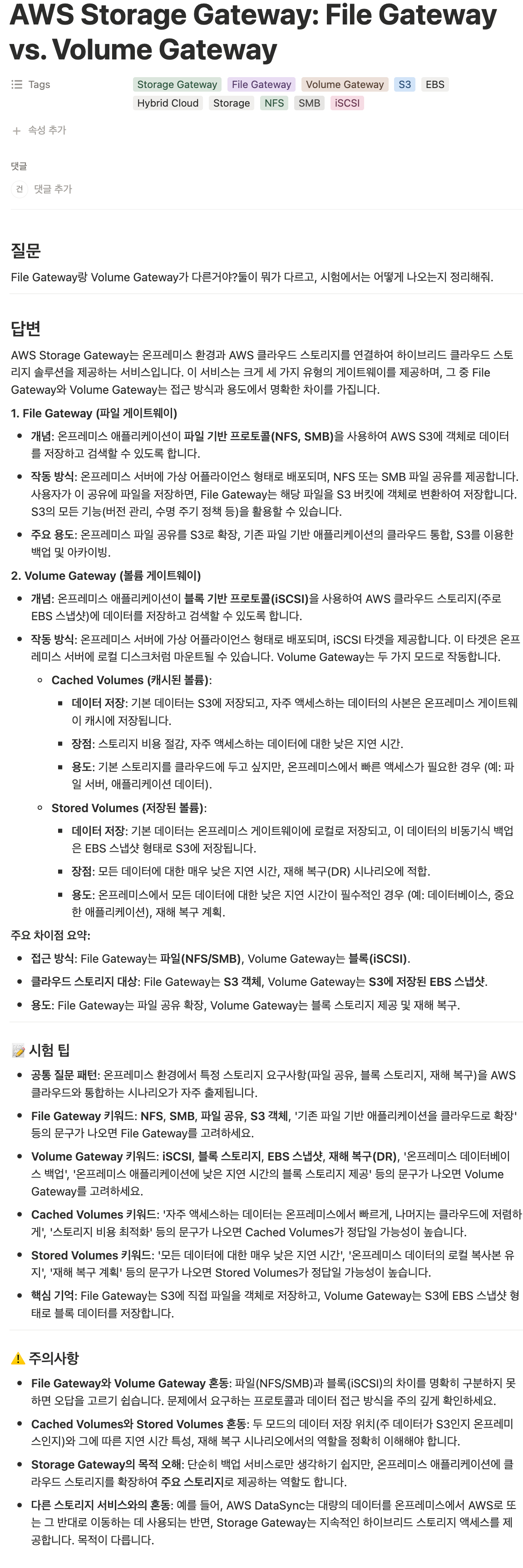
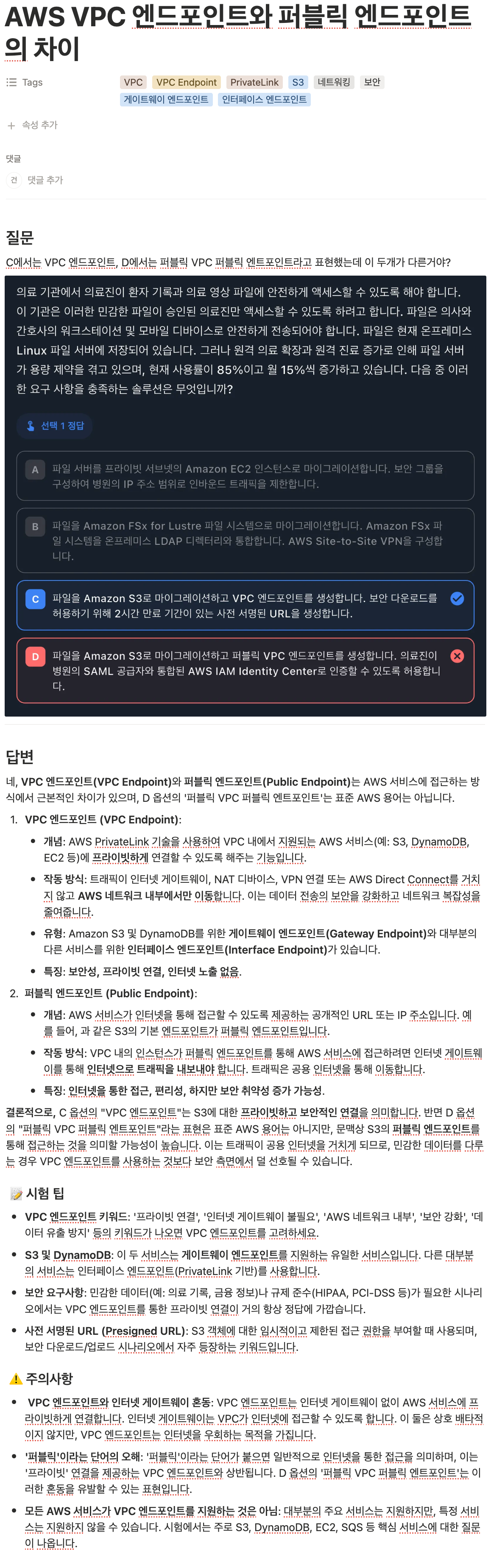
- 시험 대비 구조화된 답변: 핵심 답변 + 시험 팁 + 주의사항(함정) 자동 생성
- LLM 통합: OpenAI GPT, Anthropic Claude, Google Gemini 모델 지원
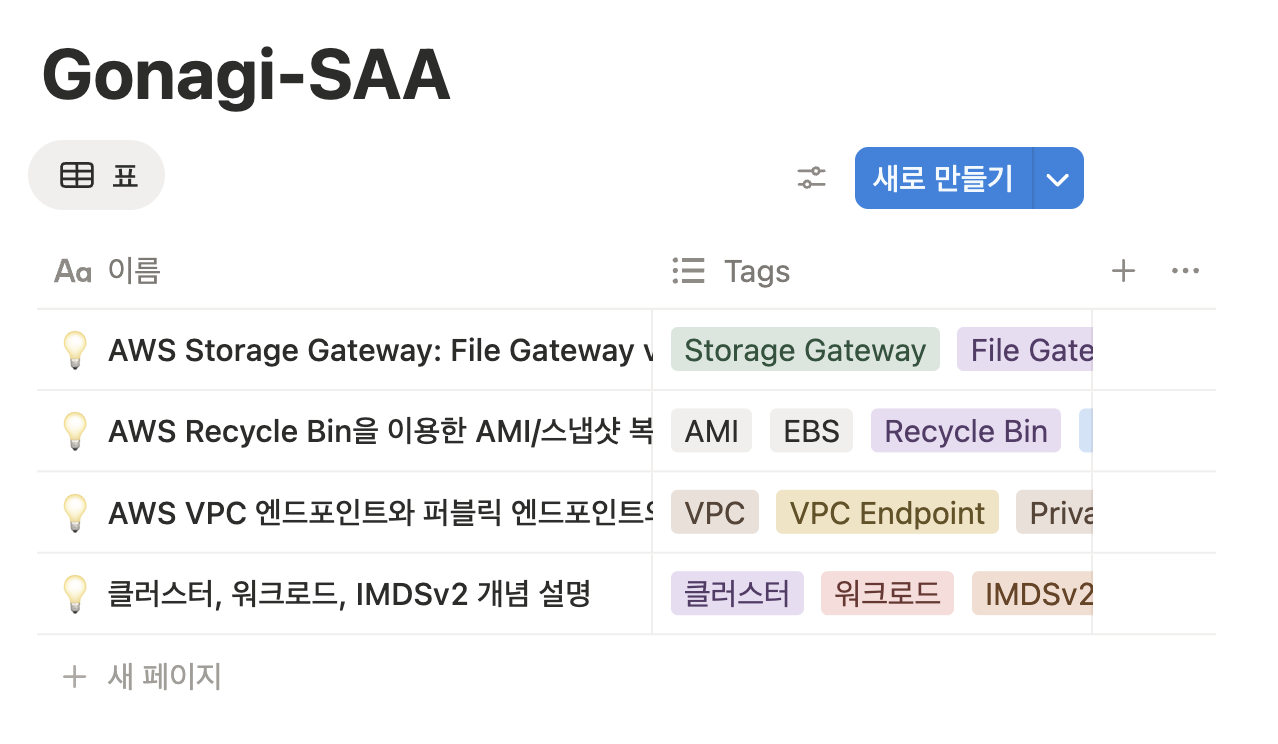
- 자동 태그 추출: AI가 답변에서 주요 기술/서비스/개념을 자동으로 태그로 추출
- Notion 연동: 질문, 답변, 시험 팁, 주의사항을 Notion 데이터베이스에 자동 저장
- 파일 경로 자동완성: 이미지 경로 입력 시 Tab 키로 자동완성 지원
- 비전 모델 자동 감지: 이미지 미지원 모델 사용 시 자동으로 텍스트만 처리
📸 실행 화면
📦 설치 방법
PyPI에서 설치 (권장)
가장 간단한 방법입니다:
# uvx 사용 (설치 없이 일회성 실행)
uvx gonagi-saa

# uv tool install (영구 설치 - 권장)
# 설치 후 바로 gonagi-saa 명령어 사용 가능
uv tool install gonagi-saa

# 또는 pip으로 설치
pip install gonagi-saa
uv가 없다면:
# macOS, Linux
curl -LsSf https://astral.sh/uv/install.sh | sh

# Windows
powershell -ExecutionPolicy ByPass -c "irm https://astral.sh/uv/install.ps1 | iex"
다른 운영체제는 uv 공식 문서 참고
개발용 설치 (GitHub)
코드를 수정하거나 최신 개발 버전을 사용하려면:
git clone https://github.com/YOUR_USERNAME/Gonagi-SAA.git
cd Gonagi-SAA
uv sync
⚙️ 설정
처음 사용하기 전에 설정 파일을 생성해야 합니다.
gonagi-saa config init
에디터가 열리면 다음 항목을 설정하세요:
{
  "default_model": "gemini-2.5-flash",
  "notion_database_id": "YOUR_NOTION_DB_ID",
  "notion_api_key": "YOUR_NOTION_API_KEY",
  "anthropic_api_key": "",
  "openai_api_key": "",
  "google_api_key": "YOUR_GOOGLE_API_KEY",
  "imgbb_api_key": "YOUR_IMGBB_API_KEY"
}
설정 항목
- default_model: 답변 생성에 사용할 모델 (예:
gpt-4o,claude-3-5-sonnet-20241022,gemini-2.5-flash) - notion_database_id: 답변을 저장할 Notion 데이터베이스 ID
- notion_api_key: Notion API 통합 키 (발급 방법)
- anthropic_api_key: Claude 모델 사용 시 필요
- openai_api_key: GPT 모델 사용 시 필요
- google_api_key: Gemini 모델 사용 시 필요
- imgbb_api_key: 이미지 업로드용 (발급 방법)
설정 관리 명령어
# 설정 파일 수정
gonagi-saa config init

# 설정 파일 위치 확인
gonagi-saa config path
# 출력: ~/.config/gonagi-saa/config.json

# 설정 파일 삭제
gonagi-saa config clean
💡 팁: VS Code를 기본 에디터로 사용하려면:
export EDITOR="code --wait"
💡 사용 방법
💡 설치 방법별 실행:
- uv tool install / pip 설치:
gonagi-saa바로 실행 - uvx 사용: 매번
uvx gonagi-saa입력 - GitHub 설치:
uv run gonagi-saa또는 아래 alias 설정
GitHub 설치 시 alias 추천:
# ~/.bashrc 또는 ~/.zshrc에 추가
alias gonagi-saa='uv run gonagi-saa'
# 또는 더 짧게
alias gsaa='uv run gonagi-saa'
기본 사용 (텍스트만)
gonagi-saa
- 편집기가 열리면 질문 입력 후 저장
- AI가 답변 생성
- 답변 확인 후 Notion 저장 여부 선택
이미지 포함 질문
gonagi-saa
- 질문 입력 후 저장
- "이미지를 추가하시겠습니까?" →
Y - 이미지 파일 경로 입력 (Tab 키로 자동완성, 최대 3개)
- AI가 텍스트 + 이미지 분석하여 답변 생성
- Notion 저장 여부 선택
예시 워크플로우
$ gonagi-saa

💡 질문을 입력하고 저장하세요!
# 편집기에서 질문 작성: "VPC와 Subnet의 차이점이 무엇인가요?"

📸 이미지를 추가하시겠습니까? [Y/N]: Y
이미지 경로를 입력하세요 (1/3, 종료하려면 Enter): ./vpc-diagram.png
# Tab 키로 파일명 자동완성 가능
✅ 이미지 추가됨: vpc-diagram.png

🔥 질문에 대한 답변을 생성합니다...

============================================================
📌 제목: AWS VPC와 Subnet의 핵심 차이점
============================================================

💡 답변:

VPC(Virtual Private Cloud)와 Subnet은 AWS의 네트워킹 구성 요소입니다...

📝 시험 팁:
  - VPC는 논리적으로 격리된 네트워크 공간
  - Subnet은 VPC 내부의 IP 주소 범위
  - '프라이빗 통신'이 나오면 Private Subnet 고려

⚠️  주의사항:
  - VPC와 서브넷을 혼동하지 말 것
  - 퍼블릭/프라이빗 서브넷 구분에 주의

🏷️  태그: VPC, Subnet, 네트워킹, AWS

============================================================

💾 Notion에 저장하시겠습니까? [Y/N]: Y

🔥 Notion에 저장합니다...
📤 이미지를 imgbb에 업로드 중: vpc-diagram.png
✅ 업로드 완료: https://i.ibb.co/xxxxx/vpc-diagram.png
✅ Notion에 저장되었습니다!
📊 Notion 저장 형식
Notion에 저장되는 페이지 구조:
질문
<질문 내용>

<이미지가 있는 경우>
---
답변
<핵심 개념 설명>

---
📝 시험 팁
- 시험에 자주 나오는 유형
- 정답 키워드
- 중요 특징

---
⚠️ 주의사항
- 헷갈리기 쉬운 개념
- 흔한 실수
- 함정 선택지
이미지 포함 질문 저장 예시:
🔧 Notion 설정
Notion API Key 발급
- Notion Integrations 페이지 접속
- + New integration 클릭
- 이름 입력 후 생성
- Internal Integration Token 복사
Notion 데이터베이스 설정
-
Notion에서 새 데이터베이스 페이지 생성
-
다음 필드 추가:
- title (제목): 기본 제목 필드
- Tags (다중 선택): AI가 추출한 태그 저장
-
데이터베이스 우측 상단
...→Connections→ 생성한 Integration 추가 -
데이터베이스 ID 복사 (URL에서 확인)
https://notion.so/<workspace>/DATABASE_ID?v=...
📸 imgbb API Key 발급
이미지를 Notion에 저장하려면 imgbb API Key가 필요합니다.
- imgbb 계정 생성 (이미 있다면 로그인)
- imgbb API 페이지 접속
- Get API Key 버튼 클릭
- API Key 복사
gonagi-saa config init실행 후 설정 파일에 추가
imgbb 이미지 업로드 정보
- 무료 제한: 무제한 (합리적 사용 범위 내)
- 파일 크기: 최대 32MB
- 저장 기간: 영구 저장
- Privacy: 비공개 (URL을 아는 사람만 접근)
- 장점: API Key 발급 간단, 안정적인 서비스
📝 지원 모델
이미지 지원 모델
- OpenAI:
gpt-4o,gpt-4o-mini,gpt-4-turbo - Anthropic:
claude-3-5-sonnet-20241022,claude-3-opus-20240229 - Google:
gemini-2.5-flash,gemini-1.5-pro,gemini-1.5-flash
텍스트 전용 모델
- OpenAI:
o1,o3-mini,gpt-4.1등 - 기타 모든 텍스트 모델
이미지를 입력했지만 모델이 이미지를 지원하지 않으면 자동으로 텍스트만 처리합니다.
🛠️ 개발
프로젝트 구조
gonagi_saa/
├── __init__.py
├── cli.py          # CLI 엔트리포인트
├── constants.py    # 상수 정의
├── models.py       # Pydantic 데이터 모델
├── services.py     # 비즈니스 로직
├── settings.py     # 설정 관리
└── utils.py        # 유틸리티 함수
로컬 개발
# 의존성 설치
uv sync --group dev

# 코드 포매팅
ruff format .

# 타입 체크
pyright
📄 라이선스
🔗 관련 프로젝트
이 프로젝트는 prepsaa를 기반으로 멀티모달 기능을 추가하여 재구성되었습니다.


Download files
Download the file for your platform. If you're not sure which to choose, learn more about installing packages.
Source Distribution
Built Distribution
Filter files by name, interpreter, ABI, and platform.
If you're not sure about the file name format, learn more about wheel file names.
Copy a direct link to the current filters
File details
Details for the file gonagi_saa-0.2.0.tar.gz.
File metadata
- Download URL: gonagi_saa-0.2.0.tar.gz
- Upload date:
- Size: 70.0 kB
- Tags: Source
- Uploaded using Trusted Publishing? No
- Uploaded via: uv/0.10.2 {"installer":{"name":"uv","version":"0.10.2","subcommand":["publish"]},"python":null,"implementation":{"name":null,"version":null},"distro":{"name":"Ubuntu","version":"24.04","id":"noble","libc":null},"system":{"name":null,"release":null},"cpu":null,"openssl_version":null,"setuptools_version":null,"rustc_version":null,"ci":true}
File hashes
| Algorithm | Hash digest | |
|---|---|---|
| SHA256 |
f31174e3b3f42b04b28aef074c3ad99c80f3212fa7136eba4c34994c970a24bf
|
|
| MD5 |
7cd4329b91dcc5211d114ab3f2d294c8
|
|
| BLAKE2b-256 |
47bcdb4c752bb18c19acf1868b8b78fa1c04600cff597fbbe0ffb51ff340e72f
|
File details
Details for the file gonagi_saa-0.2.0-py3-none-any.whl.
File metadata
- Download URL: gonagi_saa-0.2.0-py3-none-any.whl
- Upload date:
- Size: 16.3 kB
- Tags: Python 3
- Uploaded using Trusted Publishing? No
- Uploaded via: uv/0.10.2 {"installer":{"name":"uv","version":"0.10.2","subcommand":["publish"]},"python":null,"implementation":{"name":null,"version":null},"distro":{"name":"Ubuntu","version":"24.04","id":"noble","libc":null},"system":{"name":null,"release":null},"cpu":null,"openssl_version":null,"setuptools_version":null,"rustc_version":null,"ci":true}
File hashes
| Algorithm | Hash digest | |
|---|---|---|
| SHA256 |
fe18b381976f4792fed3dd2c99df65aa9ca3909a415c827522a2ebdd137de98b
|
|
| MD5 |
5bb92008d0a9f98992a60b448bd48120
|
|
| BLAKE2b-256 |
5cfab8559fc9bdc7a89202f306a850ea088739f12d2f0e5ef7207c3c23763f04
|






