
gpt_jupyterlab

GPT JupterLab is a JupyterLab extension to use OpenAI’s GPT models for text and code completion on your notebook cells.
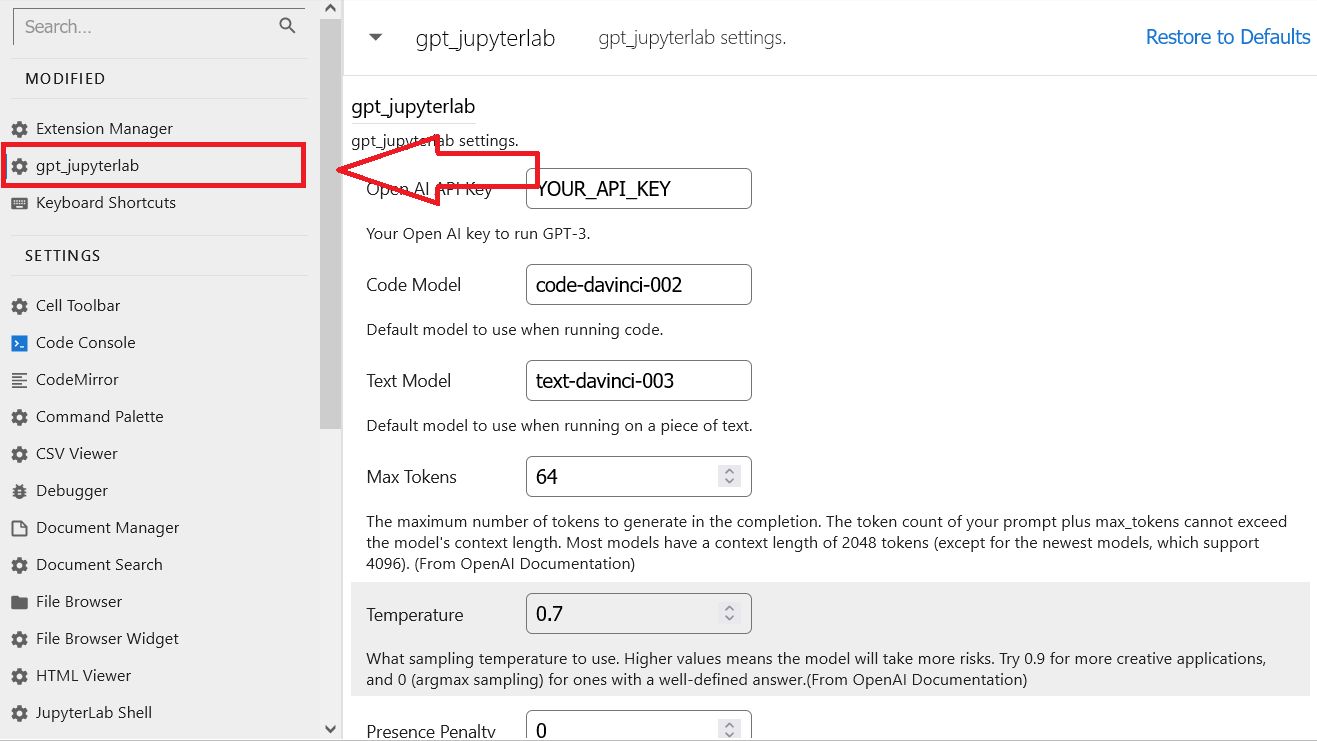
This extension passes your current notebook cell to the GPT API and completes your code/text for you. You can customize the GPT parameters in the Advanced Settings menu.
This extension is composed of a Python package named gpt_jupyterlab
for the server extension and a NPM package named gpt_jupyterlab
for the frontend extension.
Note: You will need your own OpenAI API Key to use this extension. You can get them in the API Key page, which requires an OpenAI account.
https://user-images.githubusercontent.com/1387307/214353795-d867d9d1-caee-4494-a2ee-14d5f12005e7.mp4
Install
To install the extension, execute:
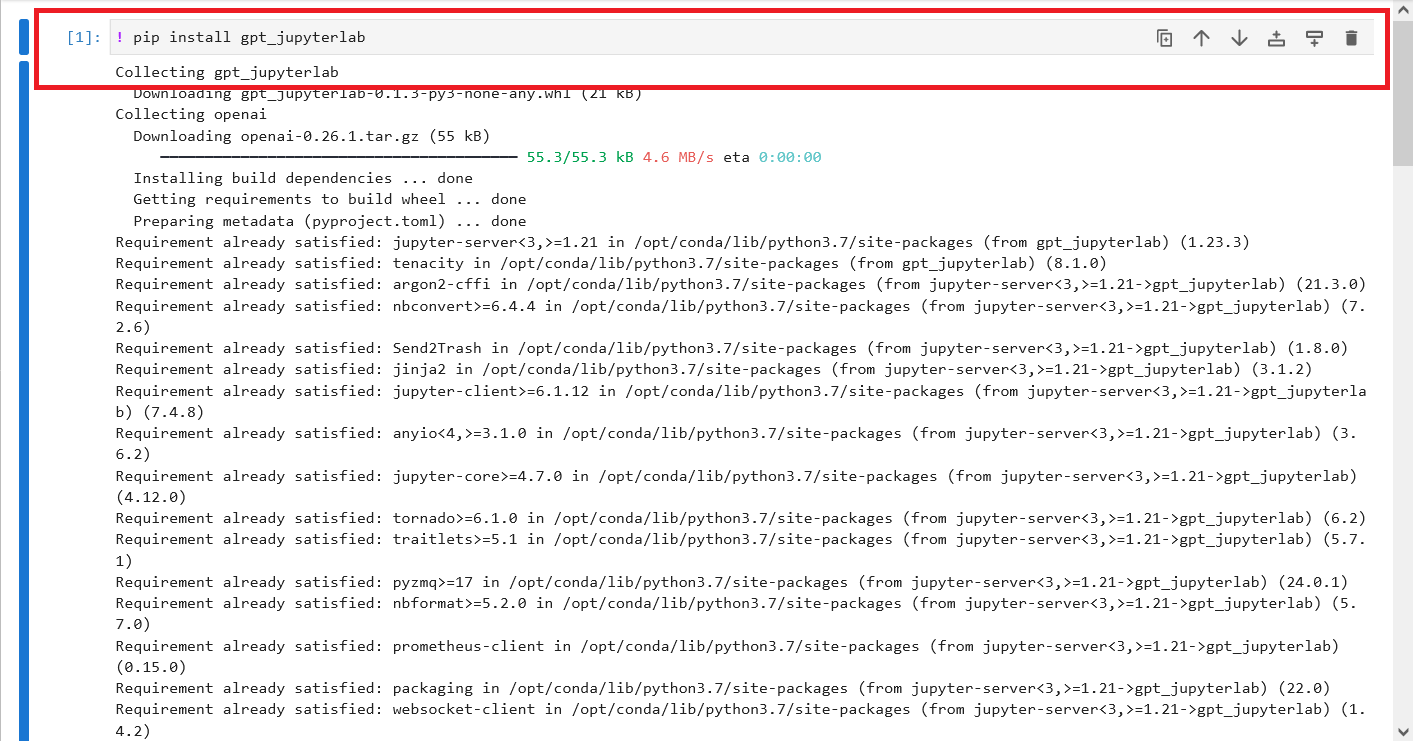
pip install gpt_jupyterlab
It should now appear on your installed extensions list.
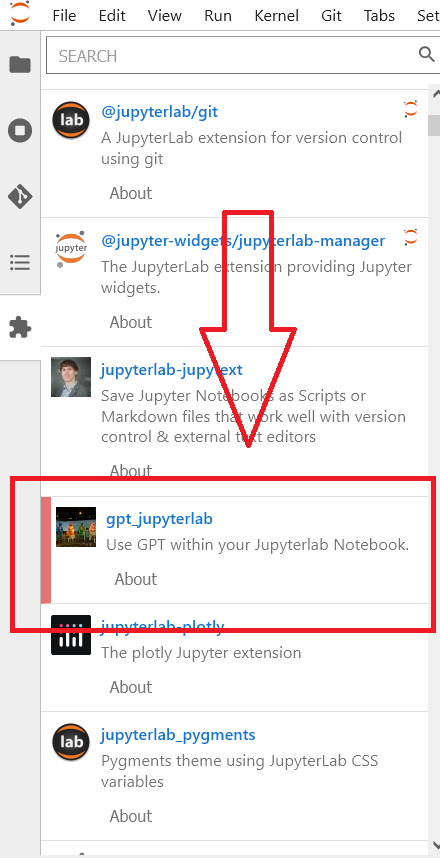
Note: Make sure that you have enabled extensions. You may also need to restart the server(not the kernel) to make sure that it runs properly.
Installing in GCP Vertex Workbench
1. Create new notebook
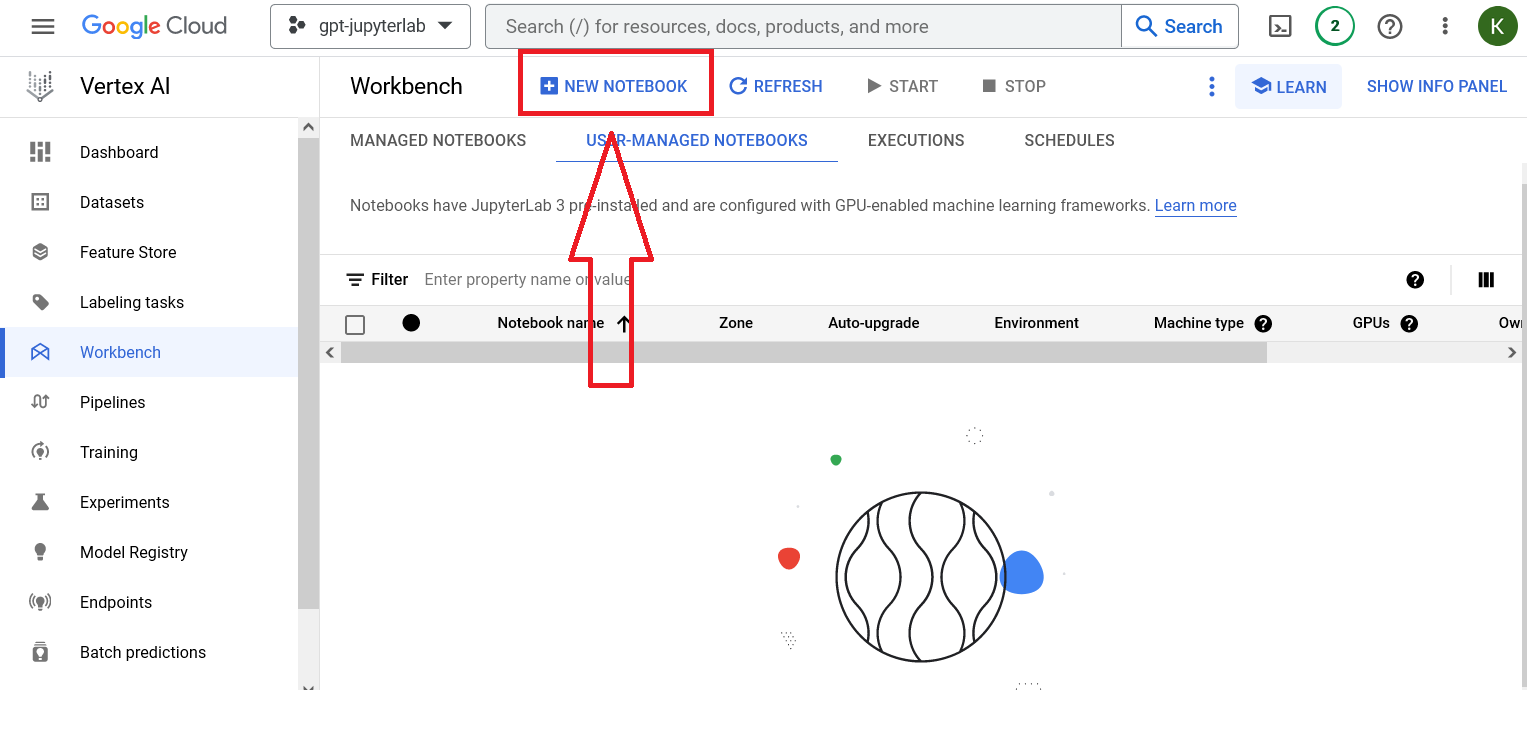
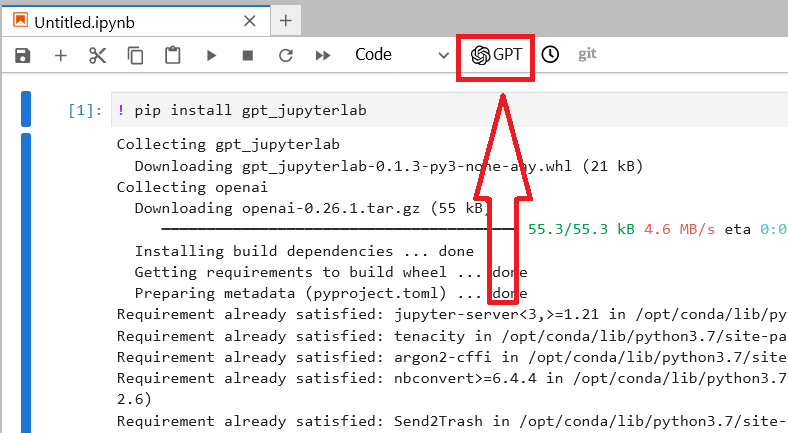
2. Run pip install gpt_jupyterlab
3. Enable extensions
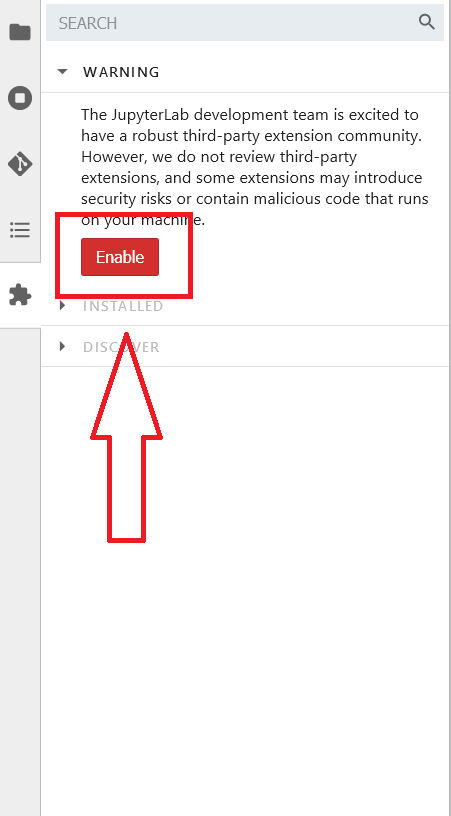
You should see gpt_jupyterlab installed, but you need to restart the server to make
4. Restart the notebook
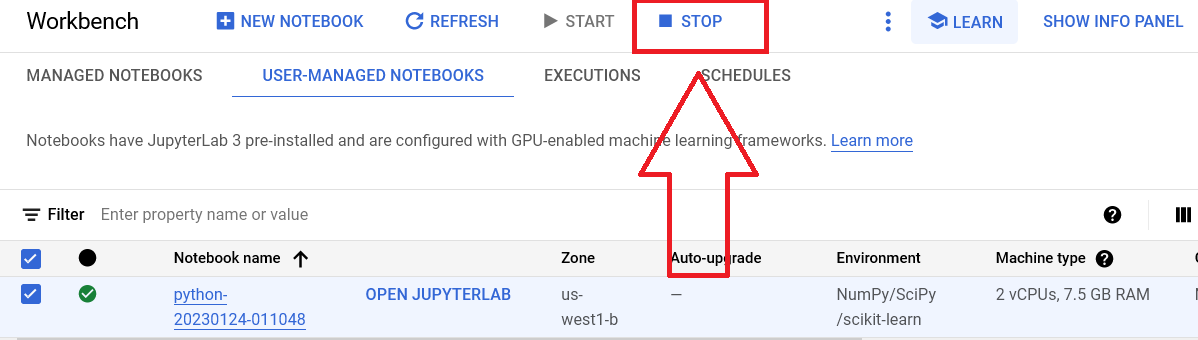
Stop the notebook
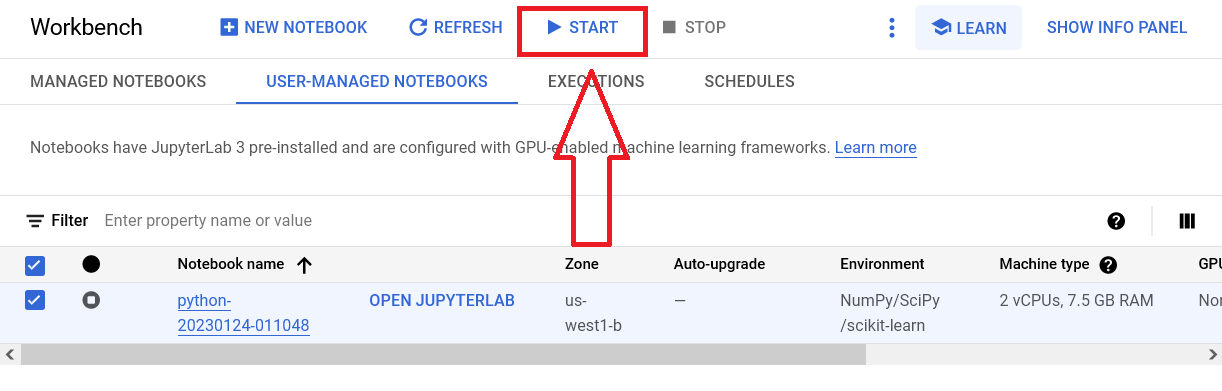
Start the notebook
You should be able to see the GPT button and be able to make queries.
Uninstall
To remove the extension, execute:
pip uninstall gpt_jupyterlab
Getting Started
There are three ways to prompt the GPT API.
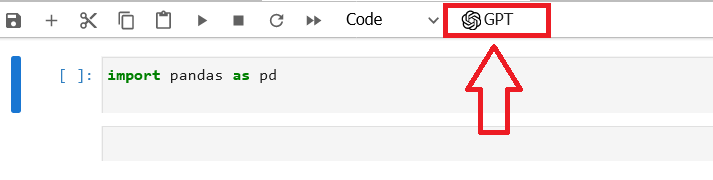
1. Use the GPT Button in the Toolbar
2. Click GPT Completion under the Edit Menu
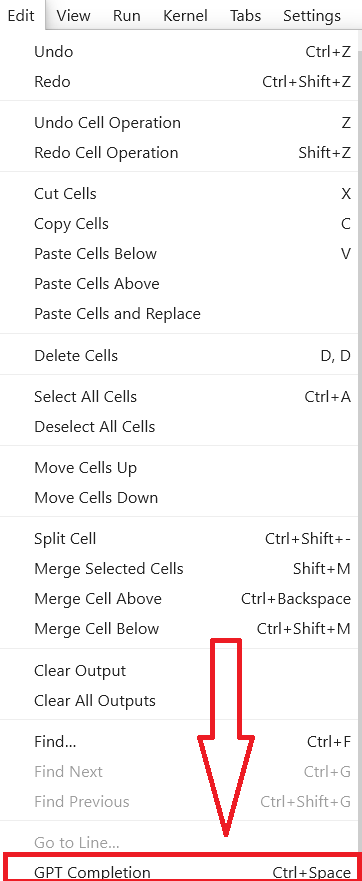
3. Use the Ctrl+Space(Windows)/Cmd+Space(Mac) Keyboard Shortcut
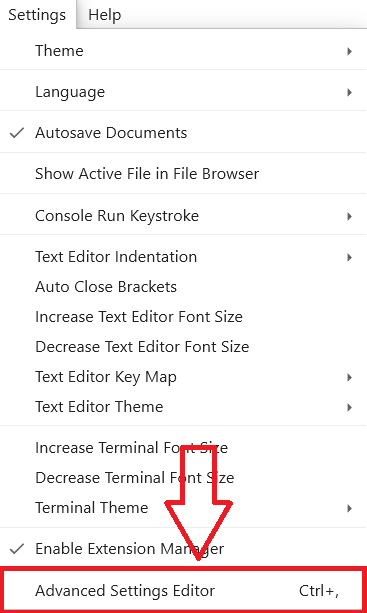
How to Change Your Settings
Go to the Settings Menu and click Advanced Settings Editor
Click gpt_jupyterlab in the left sidebar
Troubleshoot
If you are seeing the frontend extension, but it is not working, check that the server extension is enabled:
jupyter server extension list
If the server extension is installed and enabled, but you are not seeing the frontend extension, check the frontend extension is installed:
jupyter labextension list
Contributing
Development install
Note: You will need NodeJS to build the extension package.
The jlpm command is JupyterLab's pinned version of
yarn that is installed with JupyterLab. You may use
yarn or npm in lieu of jlpm below.
# Clone the repo to your local environment
# Change directory to the gpt_jupyterlab directory
# Install package in development mode
pip install -e ".[test]"
# Link your development version of the extension with JupyterLab
jupyter labextension develop . --overwrite
# Server extension must be manually installed in develop mode
jupyter server extension enable gpt_jupyterlab
# Rebuild extension Typescript source after making changes
jlpm build
You can watch the source directory and run JupyterLab at the same time in different terminals to watch for changes in the extension's source and automatically rebuild the extension.
# Watch the source directory in one terminal, automatically rebuilding when needed
jlpm watch
# Run JupyterLab in another terminal
jupyter lab
With the watch command running, every saved change will immediately be built locally and available in your running JupyterLab. Refresh JupyterLab to load the change in your browser (you may need to wait several seconds for the extension to be rebuilt).
By default, the jlpm build command generates the source maps for this extension to make it easier to debug using the browser dev tools. To also generate source maps for the JupyterLab core extensions, you can run the following command:
jupyter lab build --minimize=False
Development uninstall
# Server extension must be manually disabled in develop mode
jupyter server extension disable gpt_jupyterlab
pip uninstall gpt_jupyterlab
In development mode, you will also need to remove the symlink created by jupyter labextension develop
command. To find its location, you can run jupyter labextension list to figure out where the labextensions
folder is located. Then you can remove the symlink named gpt_jupyterlab within that folder.
Testing the extension
Server tests
This extension is using Pytest for Python code testing.
Install test dependencies (needed only once):
pip install -e ".[test]"
# Each time you install the Python package, you need to restore the front-end extension link
jupyter labextension develop . --overwrite
To execute them, run:
pytest -vv -r ap --cov gpt_jupyterlab
Frontend tests
This extension is using Jest for JavaScript code testing.
To execute them, execute:
jlpm
jlpm test
Integration tests
This extension uses Playwright for the integration tests (aka user level tests). More precisely, the JupyterLab helper Galata is used to handle testing the extension in JupyterLab.
More information are provided within the ui-tests README.
Packaging the extension
See RELEASE
1 maintainer

Metadata
1 maintainer
Release files for gpt-jupyterlab 0.1.4
For a detailed explanation of source distributions (sdists) and built distributions (wheels), please see the package formats documentation.
Source distribution (sdist)
| File | Size | Uploaded | |
|---|---|---|---|
| gpt_jupyterlab-0.1.4.tar.gz | 202.2 kB | Details |
Built distribution (wheel)
| File | Interpreter | ABI | Platform | Reset |
|---|---|---|---|---|
| gpt_jupyterlab-0.1.4-py3-none-any.whl | Python 3 | none | any | Details |
Total release size: 225.0 kB
Release files / gpt_jupyterlab-0.1.4.tar.gz
| Download URL | gpt_jupyterlab-0.1.4.tar.gz |
|---|---|
| Size | 202.2 kB |
| Tags | Source |
|
SHA-256 checksum How to use checksums |
4f03ac5b1145a0836d75313f65f5fe2bc687f8a638ff7a82a55894320c735e5a
|
|
BLAKE2b-256 checksum How to use checksums |
cd87a19d1e526879e80aa477e543cb1d8c38f58efa14b8110955929af4f0ea91
|
| Upload date | |
|
Uploaded using Trusted Publishing? What is trusted publishing? |
No |
| Uploaded via |
twine/4.0.2 CPython/3.10.9
|
Release files / gpt_jupyterlab-0.1.4-py3-none-any.whl
| Download URL | gpt_jupyterlab-0.1.4-py3-none-any.whl |
|---|---|
| Size | 22.8 kB |
| Tags | Python 3 |
|
SHA-256 checksum How to use checksums |
a454f1051bbf5752f3007ad8e396c767d31293d088fd0b505946443f47d4565f
|
|
BLAKE2b-256 checksum How to use checksums |
418e7a52c186489d6f387dc5c9ed51b2af1a1fe7408ad1245ea35884f9f7c1c6
|
| Upload date | |
|
Uploaded using Trusted Publishing? What is trusted publishing? |
No |
| Uploaded via |
twine/4.0.2 CPython/3.10.9
|














