
Access the Tables of your Google Sheets as Pandas Dataframes and write them to a database

Project description
Google Sheets Tables extraction
Use Google Spreadsheet Tables (only Tables) as Pandas Dataframes or save them to a SQL database.
pip install gsheetstables
PyPi page: https://pypi.org/project/gsheetstables/
In case you want your distribution’s dependencies, here are what’s needed in Fedora:
dnf install -y \
    python3-unidecode \
    python3-dotmap \
    python3-pandas \
    python3-google-auth-oauthlib \
    python3-google-api-client \
    python3-jinja2 \
    python3-sqlalchemy
Command Line tool
The tool does one thing and does it well: Makes database tables of all the Google Sheets Tables (only Tables) found on the spreadsheet. On any database; tested with SQLite, MariaDB and PostgreSQL. Just make sure you have the correct SQLAlchemy driver installed. Simplest example with SQLite:
gsheetstables2db -s 1zYR...tT8
This will create the SQLite database on file tables.sqlite with all tables
from GSheet 1zYR...tT8.
Execute some SQL queries after (or before, with --sql-pre) the tables were loaded/created:
gsheetstables2db -s 1zYR...tT8 \
    --table-prefix _raw_tables_ \
    --sql-split-char § \
    --sql-post "{% for table in tables %}create index if not exists idx_snapshot_{{table}} on _raw_tables_{{table}} (_gsheet_utc_timestamp) § create view if not exists {{table}} as select * from _raw_tables_{{table}} where _gsheet_utc_timestamp=(select max(_gsheet_utc_timestamp) from _raw_tables_{{table}}) § {% endfor %}"
Prepend “mysheet_” to all table names in DB, keep up to 6 snapshots of each table (after running it multiple times) and save a column with the row numbers that users see in GSpread:
gsheetstables2db -s 1zYR...tT8 \
    --table-prefix mysheet_ \
    --append \
    --keep-snapshots 6 \
    --row-numbers
Write it to a MariaDB/MySQL database accessible through local socket:
pip install mysql-connector-python
gsheetstables2db -s 1zYR...tT8 --db mariadb://localhost/marketing_db
Run it regularly via cron or a systemd timer
I have the following in my personal ~/.config/systemd/user/gsheetstables.service:
[Unit]
Description=Sync tables from Investment Dashboard Google Sheet into MariaDB

[Service]
Type=oneshot
ExecStart=%h/.local/bin/gsheetstables2db \
    --sheet 1i…so \
    --db mariadb://localhost/my_db \
    --table-prefix raw__ \
    --append \
    --keep-snapshots 100 \
    --sql-split-char § \
    --sql-post "\
        {% for table in tables %} \
            CREATE INDEX IF NOT EXISTS idx_snapshot_{{table}} \
            ON raw__{{table}} (_gsheet_utc_timestamp) § \
            DROP VIEW IF EXISTS {{table}} § \
            CREATE VIEW {{table}} AS \
                SELECT * FROM raw__{{table}} \
                WHERE _gsheet_utc_timestamp=( \
                    SELECT max(_gsheet_utc_timestamp) FROM raw__{{table}} \
                ) § \
        {% endfor %} \
    " \
    --rename ' \
        { \
            "table_1": { \
                "Original column name": "new_name1", \
                "Other original column name/tag": "new_name2" \
            }, \
            "table_2": { \
                "Once more an original column name": "another_new_name1", \
                "And again another original/nice column name": "new_name2" \
            } \
        } \
    ' \
    --service-account gsheets-access@my-app.iam.gserviceaccount.com \
    --service-account-private-key "MII…F4c="
And my personal ~/.config/systemd/user/gsheetstables.timer contains:
[Unit]
Description=Run Google Sheets sync frequently

[Timer]
OnCalendar=*:0/20

[Install]
WantedBy=timers.target
Every 20 minutes, it will try to sync and update my DB tables with the Google Sheets Tables.
Database tables will only be updated if its correspondent GSheets Table has been modified.
I’m connecting to a local MariaDB server configured to accept authenticated connections via UDP socket (mariadb://localhost/…), which eliminates the need for passwords.
This single command contains everything thats is needed for a successful run, no external config file is needed.
The …very long private key… is computed and displayed to you when you run gsheetstables2db -i SERVICE_ACCOUNT_FILE -vv.
Grab that long string, use it in the command line, along with --service-account, and then you can discard the service account JSON file.
This command writes and logs up to 100 versions the my GSheets Tables into my DB with prefix raw__ and then create views without that prefix with only the last snapshot of that table.
Data consumers should use the view, not the raw table. The raw tables contains the time-tagged history of changes to each table.
Test it before scheduling it:
systemctl --user daemon-reload;
systemctl --user start gsheetstables.service;
systemctl --user status gsheetstables.service
When you are happy with results in your DB, enable the scheduler:
systemctl --user enable --now gsheetstables.timer
SQLAlchemy Drivers Reference
Here are SQLAlchemy URL examples along with drivers required for connectors (table provided by ChatGPT and then edited a bit):
| Database | Example SQLAlchemy URL | Driver / Package to install | Notes |
|---|---|---|---|
| MariaDB via local socket | mariadb://localhost/sales_db |
dnf install python3-mysqlclient or pip install mysqlclient |
Unix user must match a MariaDB user configured with unix_socket |
| MariaDB with regular user | mariadb://dbuser:dbpass@mariadb.example.com:3306/sales_db |
dnf install python3-mysqlclient or pip install mysqlclient |
Native MariaDB driver |
| MariaDB (alt) | mysql+pymysql://dbuser:dbpass@mariadb.example.com:3306/sales_db?charset=utf8mb4 |
pip install pymysql |
Pure Python |
| PostgreSQL via local socket | postgresql+psycopg:///analytics_db (note the 3 slashes) |
dnf install python3-psycopg3 python3-sqlalchemy+postgresql or pip install psycopg[binary] |
Recommended |
| PostgreSQL | postgresql+psycopg://dbuser:dbpass@postgres.example.com:5432/analytics_db |
dnf install python3-psycopg3 python3-sqlalchemy+postgresql or pip install psycopg[binary] |
Recommended |
| PostgreSQL (legacy) | postgresql+psycopg2://dbuser:dbpass@postgres.example.com:5432/analytics_db |
pip install psycopg2-binary |
Legacy |
| Oracle | oracle+oracledb://dbuser:dbpass@oracle.example.com:1521/?service_name=ORCLPDB1 |
pip install oracledb |
Thin mode (no Oracle Client) |
| AWS Athena | awsathena+rest://AWS_ACCESS_KEY_ID:AWS_SECRET_ACCESS_KEY@athena.us-east-1.amazonaws.com:443/my_schema?s3_staging_dir=s3://my-athena-results/&work_group=primary |
pip install sqlalchemy-athena |
Uses REST API |
| Databricks SQL | databricks+connector://token:dapiXXXXXXXXXXXXXXXX@adb-123456789012.3.azuredatabricks.net:443/default?http_path=/sql/1.0/warehouses/abc123 |
pip install databricks-sql-connector sqlalchemy-databricks |
Token-based auth |
API Usage
Initialize and bring all tables (only tables) from a Google Sheet:
import gsheetstables

account_file = "account.json"
gsheetid = "1zYR7Hlo7EtmY6...tT8"

tables = gsheetstables.GSheetsTables(
    gsheetid             = gsheetid,
    service_account_file = account_file,
    slugify              = True
)
This is done very efficiently, doing exactly 2 calls to Google’s API. One for table discovery and second one to retrieve all tables data at once.
See bellow how to get the service account file
Tables retrieved:
>>> tables.tables
[
    'products',
    'clients',
    'sales'
]
Use the tables as Pandas Dataframes.
tables.t('products')
| ID | Name | Price |
|---|---|---|
| 1 | Laptop | 999.99 |
| 2 | Smartphone | 699.00 |
| 3 | Headphones | 149.50 |
| 4 | Keyboard | 89.90 |
Sheet rows that are completeley empty will be removed from resulting dataframe.
But the index will always match the Google Sheet row number as seen by
spreadsheet users. So you can use loc method to get a specific sheet row
number:
tables.t('products').loc[1034]
Another example using data and time columns:
tables.t('clients')
| ID | Name | birthdate | affiliated |
|---|---|---|---|
| 1 | Alice Silva | 1990-05-12T00:00:00-03:00 | 2021-03-15T10:45:00-03:00 |
| 2 | Bruno Costa | 1985-11-23T00:00:00-03:00 | 2019-08-02T14:20:00-03:00 |
| 3 | Carla Mendes | 1998-02-07T00:00:00-03:00 | 2022-01-10T09:00:00-03:00 |
| 4 | Daniel Rocha | 1976-09-30T00:00:00-03:00 | 2015-06-25T16:35:00-03:00 |
Notice that Google Sheets Table columns of type DATE (which may contain also time) will be converted to pandas.Timestamps and the spreadsheet timezone will be associated to it, aiming at minimum loss of data.
If you want just naive dates, as they are probably formated in your sheets, use Pandas like this:
(
    tables.t('clients')
    .assign(
        birthdate  = lambda table: table.birthdate.dt.normalize().dt.tz_localize(None),
        affiliated = lambda table: table.affiliated.dt.normalize().dt.tz_localize(None),
    )
)
| ID | Name | birthdate | affiliated |
|---|---|---|---|
| 1 | Alice Silva | 1990-05-12 | 2021-03-15 |
| 2 | Bruno Costa | 1985-11-23 | 2019-08-02 |
| 3 | Carla Mendes | 1998-02-07 | 2022-01-10 |
| 4 | Daniel Rocha | 1976-09-30 | 2015-06-25 |
Remember that the complete concept of universal and portable Time always includes date, time and timezone. Displaying as just the date is an abbreviation that assumes interpretation by the reader. Information that seems to contain just a date, is actually stored as the starting midnight of that day, in the timezone of the spreadsheet. If that date is describing a business transaction, it probably didn't happen at that moment, most likely closer to the mid of the day.
Your spreadsheet must display timestamps as date and time to reduce ambiguity.
Example of ambiguity is Alices‘s birthday as it is actually stored by your spreadsheet: 1990-05-12T00:00:00-03:00 (not just 1990-05-12 as spreadsheet formatting shows).
This timestamp is a different day in other timezones, for example, it is the same moment in Time as timestamp 1990-05-11T23:00:00-04:00 (late night of the previous day of another time zone).
If you hide time and timezone from users, specially the ones that input data, you are increasing the chance of ambiguity. Data processing must always, ALWAYS, consider and handle time and timezone.
Column names normalization
People that edit spreadsheets can get creative when naming columns.
Pass slugify=True (the default) to:
- transliterate accents and international characters with unidecode
- convert spaces,
/,:to_ - lowercase all characters
So a column named Column with strange chars/letters will become column_with_strange_chars_letters.
Still pretty long and annoying for your later SQL, so in addition, you can pass a dict for custom column renaming as:
tables = gsheetstables.GSheetsTables(
    ...
    column_rename_map = {
        "table_1": {
            "Column with strange chars/letters": "short_name",
            "Other crazy column name": "other_short_name",
        },
        "table_2": {
            "Column with strange chars/letters": "short_name",
            "Other crazy column name": "other_short_name",
        }
    },
    ...
)
Pass only the columns you want to rename.
Combine with slugify=True to have a complete service.
Your column_rename_map dict will have priority over slugification.
What are Google Sheets Tables
Tables feature was introduced in 2024-05 and they look like this:
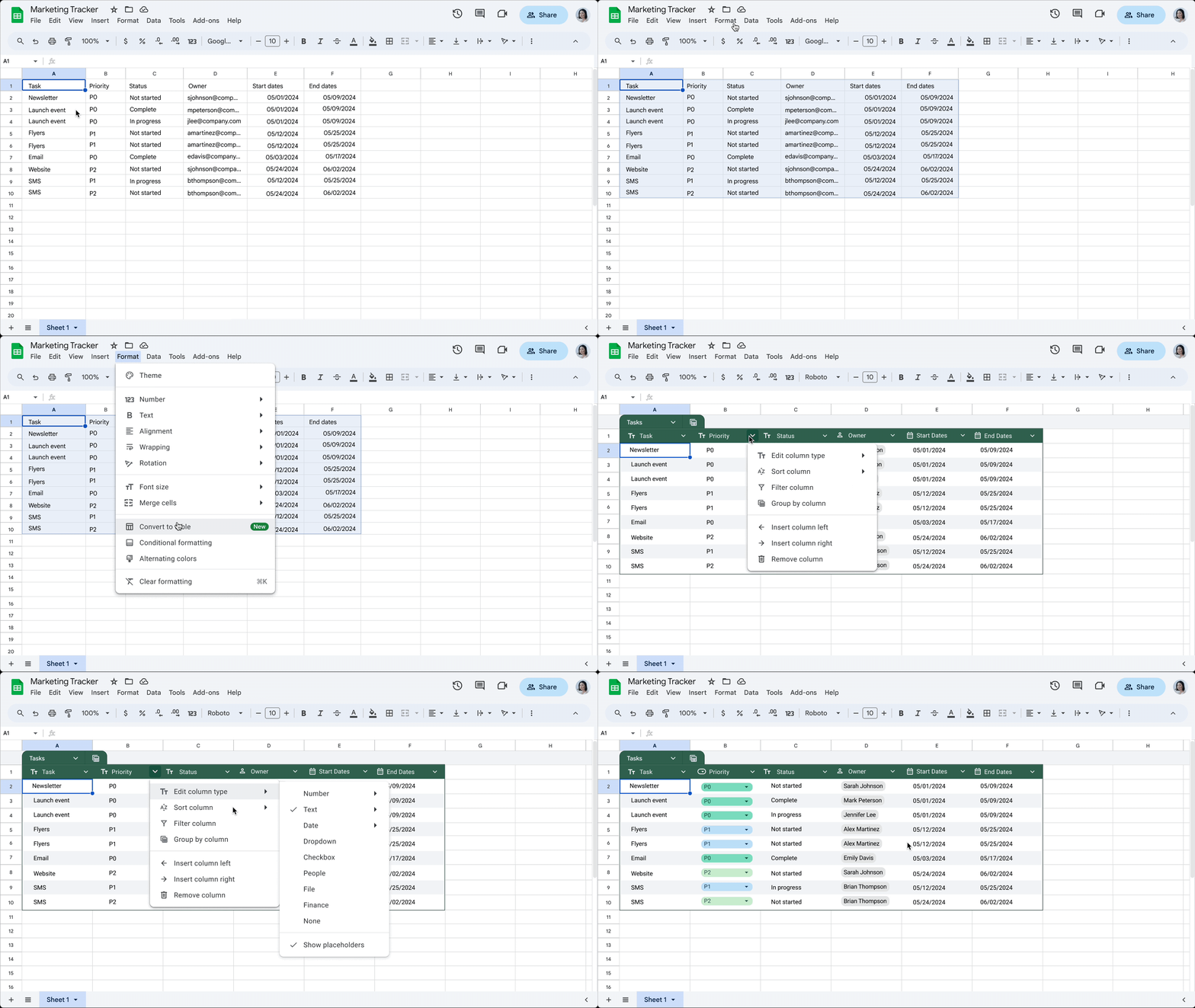
More than looks, Tables have structure:
- table names are unique
- columns have names
- columns have types as number, date, text, dropdown (kind of categories)
- cells have validation and can reference data in other tables and sheets
These are features that make data entry by humans less susceptible to errors, yet as easy and well known as editing a spreadsheet.
This Python module closes the gap of bringing all that nice and structured human-generated data back to the database or to your app.
Get a Service Account file for authorization
- Go to https://console.cloud.google.com/projectcreate, make sure you are under correct Google account and create a project named My Project (or reuse a previously existing project)
- On same page, edit the Project ID to make it smaller and more meanigfull (or leave defaults); this will be part of an e-mail address that we’ll use later
- Activate Sheets API and Drive API (Drive is optional, just to get file modification time)
- Go to https://console.cloud.google.com/apis/credentials, make sure you are in the correct project and select Create Credentials → Service account. This is like creating an operator user that will access your Google Spreadsheet; and as a user, it has an e-mail address that appears on the screen. Copy this e-mail address.
- After service account created, go into its details and create a keypair (or upload the public part of an existing keypair).
- Download the JSON file generated for this keypair, it contains the private part of the key, required to identify the program as your service account.
- Go to the Google Sheet your program needs to extract tables, hit Share button on top right and add the virtual e-mail address of the service account you just created and copied. This is an e-mail address that looks like operator-one@my-project.iam.gserviceaccount.com
Release history Release notifications | RSS feed


Download files
Download the file for your platform. If you're not sure which to choose, learn more about installing packages.
Source Distribution
Built Distribution
Filter files by name, interpreter, ABI, and platform.
If you're not sure about the file name format, learn more about wheel file names.
Copy a direct link to the current filters
File details
Details for the file gsheetstables-3.0.8.tar.gz.
File metadata
- Download URL: gsheetstables-3.0.8.tar.gz
- Upload date:
- Size: 33.4 kB
- Tags: Source
- Uploaded using Trusted Publishing? No
- Uploaded via: twine/6.2.0 CPython/3.14.2
File hashes
| Algorithm | Hash digest | |
|---|---|---|
| SHA256 |
ee54e627520d1e77f273b3bf4323db88eb679d76d11961a3ede02c4d34c38497
|
|
| MD5 |
2760105672626fdeebd9d11fd867eae6
|
|
| BLAKE2b-256 |
89ab3e6f82b8d2d6dd654935a80a8763fadc4dc07dab414b43d40056ebcedd93
|
File details
Details for the file gsheetstables-3.0.8-py3-none-any.whl.
File metadata
- Download URL: gsheetstables-3.0.8-py3-none-any.whl
- Upload date:
- Size: 28.3 kB
- Tags: Python 3
- Uploaded using Trusted Publishing? No
- Uploaded via: twine/6.2.0 CPython/3.14.2
File hashes
| Algorithm | Hash digest | |
|---|---|---|
| SHA256 |
82b9a73101bf01ccc41d5ad4fca6624a11320cb1b35f8335154cc679881c6d93
|
|
| MD5 |
429ee3f859df463166fd1b2171653fd1
|
|
| BLAKE2b-256 |
36a629d94c1ca204a4f358cd0084a1f04bf17d1fac09333b8b91e4ea33bce7fb
|






