
Automated pipeline to generate custom outfit textures for Haydee using Gemini API.
Verified details
These details have been verified by PyPIProject links
GitHub Statistics
Maintainers

Project description
Haydee Outfit Generator (Powered by Gemini)








Automated Python pipeline to generate custom outfit textures for the game Haydee using the Google Gemini API.
[!TIP] Not a fan of the command line? Check out the Haydee AI Outfit Generator GUI! It's a modern, ready-to-use graphical interface that lets you easily generate custom outfits without messing with terminals or environment variables. Download the latest release to get started instantly!
✨ Generation Examples
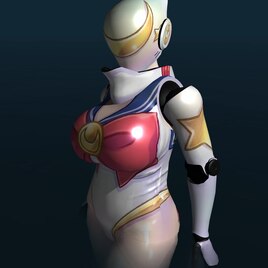
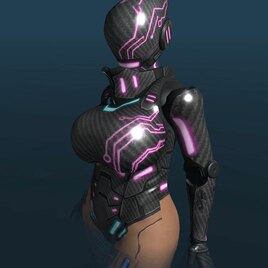
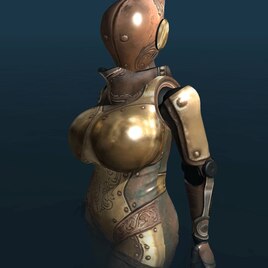
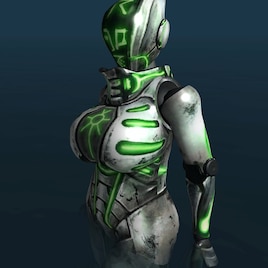
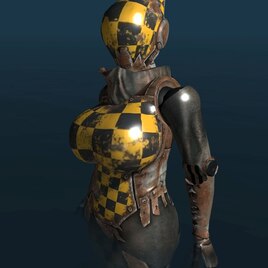
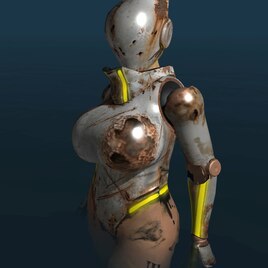

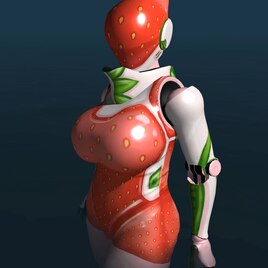
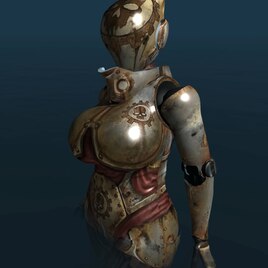
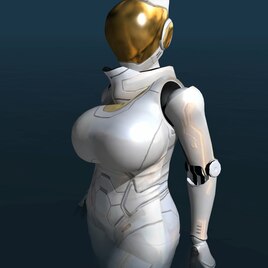
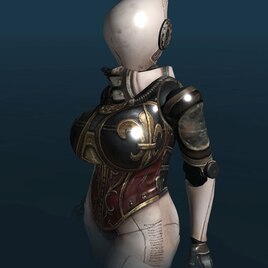
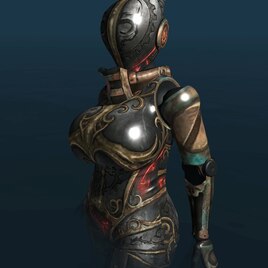
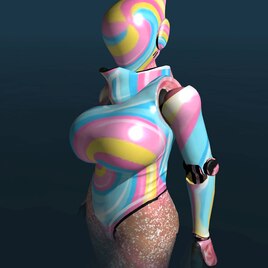
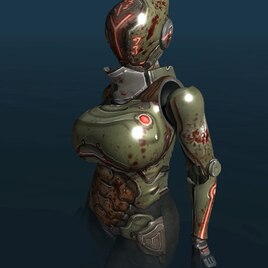
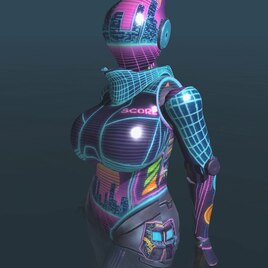
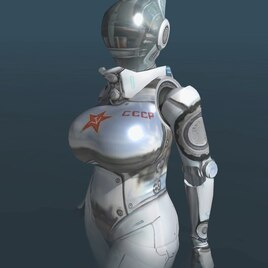
📋 Prerequisites
- Python 3.12+
🔑 Getting a Gemini API Key
- Go to Google AI Studio.
- Sign in with your Google account.
- Click the "Create API key" button.
- If prompted, read and accept the terms of service.
- Click on "Create API key in new project" (or use an existing project).
- Copy the generated key. You will need it for the
.envfile in the setup steps below.
💻 Setup (Local)
Install via pip (Recommended)
The easiest way to install the generator is directly from PyPI:
pip install haydee-outfit-generator
Install from Source
-
Clone the repository.
-
Install dependencies:
pip install .
-
Copy
.env.exampleto.env(or create one) and configure your variables:
GEMINI_API_KEY: Your Google Gemini API Key.HAYDEE_PATH: Absolute path to your Haydee installation directory.IMAGE_RESOLUTION: (Optional) Output resolution. Default is4K. Can be set to2K(2048x2048) if needed.
🐳 Setup (Docker)
If you prefer to run the project without installing Python locally, you can use Docker.
- Install Docker Desktop.
- Create your
.envfile and setGEMINI_API_KEYandHAYDEE_PATH.- Note:
HAYDEE_PATHin.envmust be the absolute path on your host Windows machine (e.g.,C:\Program Files (x86)\Steam\steamapps\common\Haydee).
- Note:
🚀 Usage
Running Locally
1. Generating a Single Outfit
Run the generate command by providing the mod name, the desired style description, and optionally an author:
haydee-gen generate --name "NeonSurge" --style "cyberpunk neon lights with dark carbon fiber armor" --author "TheGamerBay"
(Tip: You can omit the generate keyword for a shorter command: haydee-gen --name ...)
The script will automatically read the base texture, contact the Gemini API, convert the formats, and generate the mod inside your Haydee/Outfits folder.
2. Grouping Outfits into a Multi-Mod If you have generated multiple outfits and want to group them into a single mod with switchable variations (e.g., in a single "Rainbow" outfit with different colored slots):
haydee-gen group --name "Rainbow" --mods red green blue --slot-category "color" --author "TheGamerBay" --delete-sources
--delete-sourcesis an optional flag that will remove the original single-mod folders and configs after successfully grouping them.
Running with Docker
You can use Docker Compose to automatically mount your Haydee directory and run the commands:
docker-compose run --rm generator generate --name "NeonSurge" --style "cyberpunk neon lights with dark carbon fiber armor"
📤 Publishing to Steam Workshop
When you are ready to share your generated outfit, you can upload it directly to the Steam Workshop using the game's built-in tools.
1. Prepare a Thumbnail
- Create a preview image for your mod (
preview.pngorpreview.jpg). - The image should be square (e.g., 512x512 or 256x256).
- Place this image in your mod folder.
2. Launch Edith Editor
The upload tools are located in the game's editor, not the game itself:
- Go to your Haydee root installation folder.
- Run
Edith.exe. - In the top menu bar, select Tool -> Workshop Uploader.
3. Fill in the Uploader Data
In the uploader window, fill out the following fields:
- Mod Content: At the very top of the upload form, there is a text field with a Browse button beneath it. You will use this to build the list of files to upload:
- Click Browse and add your mod's main folder (for example, select
Outfits/NeonSurge). - Click Browse again and add your
.outfitdefinition file (for example, selectOutfits/NeonSurge.outfit). (This ensures you include the full set of files required for the mod to work).
- Click Browse and add your mod's main folder (for example, select
- Title: The name of your outfit (this will be displayed on Steam).
- Description: A short description of the mod (what it is, special features, etc.).
- Visibility: It is recommended to set this to Private first to verify how everything looks on the Steam page, and change it to Public later.
- Preview Image: Select the thumbnail image you prepared in step 1.
Once filled out, click Upload. If everything goes well, the status at the bottom will show "Success".
🧪 Testing
This project uses pytest for automated testing.
- Install the development dependencies:
pip install -r requirements-dev.txt
- Run the test suite with coverage:
pytest
Note: Valid API Keys or a real Haydee installation are not required to run the tests, as external dependencies and the filesystem are safely mocked.
📄 License
This project is licensed under the MIT License - see the LICENSE file for details.
Project details
Verified details
These details have been verified by PyPIProject links
GitHub Statistics
Maintainers
Release history Release notifications | RSS feed


Download files
Download the file for your platform. If you're not sure which to choose, learn more about installing packages.
Source Distribution
Built Distribution
Filter files by name, interpreter, ABI, and platform.
If you're not sure about the file name format, learn more about wheel file names.
Copy a direct link to the current filters
File details
Details for the file haydee_outfit_generator-1.1.1.tar.gz.
File metadata
- Download URL: haydee_outfit_generator-1.1.1.tar.gz
- Upload date:
- Size: 20.4 kB
- Tags: Source
- Uploaded using Trusted Publishing? Yes
- Uploaded via: twine/6.1.0 CPython/3.13.7
File hashes
| Algorithm | Hash digest | |
|---|---|---|
| SHA256 |
a8838987a952f8ee6d2205085d8e4026c608a4c2a9650217ac141de71003367d
|
|
| MD5 |
643706afba5deddd145468d53115c9da
|
|
| BLAKE2b-256 |
72696a9d67b8abfd4ffecfaa92ecf7e7ba34d8bdfcaf633dfae4d159f9febc39
|
Provenance
The following attestation bundles were made for haydee_outfit_generator-1.1.1.tar.gz:
Publisher:
publish.yml on thegamerbay/haydee-ai-outfit-generator
-
Statement:
-
Statement type:
https://in-toto.io/Statement/v1 -
Predicate type:
https://docs.pypi.org/attestations/publish/v1 -
Subject name:
haydee_outfit_generator-1.1.1.tar.gz -
Subject digest:
a8838987a952f8ee6d2205085d8e4026c608a4c2a9650217ac141de71003367d - Sigstore transparency entry: 1003859048
- Sigstore integration time:
-
Permalink:
thegamerbay/haydee-ai-outfit-generator@ce637f640ae09f486cbfb22d10ab5753c4f1aa00 -
Branch / Tag:
refs/tags/v1.1.1 - Owner: https://github.com/thegamerbay
-
Access:
public
-
Token Issuer:
https://token.actions.githubusercontent.com -
Runner Environment:
github-hosted -
Publication workflow:
publish.yml@ce637f640ae09f486cbfb22d10ab5753c4f1aa00 -
Trigger Event:
release
-
Statement type:
File details
Details for the file haydee_outfit_generator-1.1.1-py3-none-any.whl.
File metadata
- Download URL: haydee_outfit_generator-1.1.1-py3-none-any.whl
- Upload date:
- Size: 14.6 kB
- Tags: Python 3
- Uploaded using Trusted Publishing? Yes
- Uploaded via: twine/6.1.0 CPython/3.13.7
File hashes
| Algorithm | Hash digest | |
|---|---|---|
| SHA256 |
013b17bbb74e25cc67cb71638a0b35440bf97c9326bf74ccc0699b17458c25d1
|
|
| MD5 |
6d6d20bac1dff45b2a790e14a6e0f3c3
|
|
| BLAKE2b-256 |
29fc2b458d5ca890faa791ab82c8cf6ba04fbe8dc74576f9f73fe69695288bce
|
Provenance
The following attestation bundles were made for haydee_outfit_generator-1.1.1-py3-none-any.whl:
Publisher:
publish.yml on thegamerbay/haydee-ai-outfit-generator
-
Statement:
-
Statement type:
https://in-toto.io/Statement/v1 -
Predicate type:
https://docs.pypi.org/attestations/publish/v1 -
Subject name:
haydee_outfit_generator-1.1.1-py3-none-any.whl -
Subject digest:
013b17bbb74e25cc67cb71638a0b35440bf97c9326bf74ccc0699b17458c25d1 - Sigstore transparency entry: 1003859074
- Sigstore integration time:
-
Permalink:
thegamerbay/haydee-ai-outfit-generator@ce637f640ae09f486cbfb22d10ab5753c4f1aa00 -
Branch / Tag:
refs/tags/v1.1.1 - Owner: https://github.com/thegamerbay
-
Access:
public
-
Token Issuer:
https://token.actions.githubusercontent.com -
Runner Environment:
github-hosted -
Publication workflow:
publish.yml@ce637f640ae09f486cbfb22d10ab5753c4f1aa00 -
Trigger Event:
release
-
Statement type:






