
This project has been archived by its maintainers, and is no longer receiving any updates.

heiFIP stands for Heidelberg Flow Image Processor. It is a tool designed to extract essential parts of packets and convert them into images for deep learning purposes. heiFIP supports different formats and orientations. Currently, we only support offline network data analysis. However, we plan to adapt our library to support online network data too to enable live-probing of models.
| Live Notebook |

|
| Latest Release |

|
| Supported Versions |


|
| Project License |

|
| Continuous Integration |



|
Table of Contents
Motivation
The idea to create heiFIP came from working with Deep Learning approaches to classify malware traffic on images. Many papers use image representation of network traffic, but reproducing their results was quite cumbersome. As a result, we found that there is currently no official library that supports reproducible images of network traffic. For this reason, we developed heiFIP to easily create images of network traffic and reproduce ML/DL results. Researchers can use this library as a baseline for their work to enable other researchers to easily recreate their findings.
Main Features
- Different Images: Currently, we support plain packet to byte representation, and flow to byte representation with one channel each. An image is created with same width and height for a quadratic representation.
- Flow Images converts a set of packets into an image. It supports the following modifications:
- Max images dimension allows you to specify the maximum image dimension. If the packet is larger than the specified size, it will cut the remaining pixel.
- Min image dimesion allows you to specify the minimum image dimension. If the packet is smaller than the specified size, it fills the remaining pixel with 0.
- Remove duplicates allows you to automatically remove same traffic.
- Append each flow to each other or write each packet to a new row.
- Tiled each flow is tiled into a square image representation.
- Min packets per flow allows you to specify the minimum number of packets per flow. If the total number of packets is too small, no image will be created.
- Max packets per flow allows you to specify the maximum number of packets per flow. If the total number of packets is too great, the remaining images are discarded.
- Packet Image converts a single packet into an image.
- Markov Transition Matrix Image: converts a packet or a flow into a Markov representation.
- Flow Images converts a set of packets into an image. It supports the following modifications:
- Header processing allows you to customize header fields of different protocols. It aims to remove biasing fields. For more details look into header.py
- Remove Payload options allows you to only work on header data.
- Fast and flexible: We rely on Scapy for our sniffing and header processing. Image preparation is based on raw bytes.
- Machine learning orientation: heiFIP aims to make Deep Learning approaches using network data as images reproducible and deployable. Using heiFIP as a common framework enables researches to test and verify their models.
Examples
| Image Type | Description | Example |
|---|---|---|
| Packet | Converts a single packet into a square image. Size depends on the total length |  |
| Flow | Converts a flow packet into a square image | 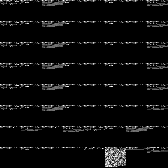 |
| Markov Transition Matrix Packet | Converts a packet into a Markov Transition Matrix. Size is fixed to 16x16. |  |
| Markov Transition Matrix Flow | Converts a flow into a Markov Transition Matrix. It squares the image based on the number of packets |  |
Getting Started
Install our package using PyPi
pip install heifip
Now, you can use the integrate CLI:
> fip
Usage: fip [OPTIONS] COMMAND [ARGS]...

Options:
  --version   Show the version and exit.
  -h, --help  Show this message and exit.

Commands:
  extract
To extract images from PCAPs, we currently split the command into flow and packet:
> fip extract
Starting FlowImageProcessor CLI
Usage: fip extract [OPTIONS] COMMAND [ARGS]...

Options:
  -h, --help  Show this message and exit.

Commands:
  flow
  packet

# Show help information
> fip extract [flow/packet]-h
Starting FlowImageProcessor CLI
Usage: fip extract flow [OPTIONS]

Options:
  -w, --write PATH            Destination file path, stores result  [required]
  -r, --read PATH             [required]
  -t, --threads INTEGER       Number of parallel threads that can be used
                              [default: 4]
  --preprocess [NONE|HEADER]  Applies a preprocessing to the input data: none:
                              No preprocessing payload: Only payload data is
                              used header: Preprocesses headers
                              (DNS,HTTP,IP,IPv6,TCP,UDP supported) to remove
                              some biasing data  [default: NONE]
  --min_im_dim INTEGER        Minimum dim ouput images need to have, 0=No
                              minimum dim  [default: 0]
  --max_im_dim INTEGER        Maximum dim ouput images can have, 0=No maximum
                              dim  [default: 0]
  --remove_duplicates         Within a single output folder belonging to a
                              single input folder no duplicate images will be
                              produced if two inputs lead to the same image
  --min_packets INTEGER       Minimum packets that a FlowImage needs to have,
                              0=No minimum packets per flow  [default: 0]
  --max_packets INTEGER       Minimum packets that a FlowImage needs to have,
                              0=No minimum packets per flow  [default: 0]
  --append
  --tiled
  --width INTEGER             [default: 128]
  -h, --help                  Show this message and exit.

> fip extract flow -r /PATH/PCAPs -w /PATH/IMAGES
Import FIPExtractor to run it inside your program:
extractor = FIPExtractor()
img = extractor.create_image('./test/pcaps/dns/dns-binds.pcap')
extractor.save_image(img, './test/pcaps/dns/dns-binds.pcap')
Building from source
Simply run:
pip install .
Publications that use heiFIP
- [A Generalizable Approach for Network Flow Image Representation for Deep Learning] - CSNet 23
- [Explainable artificial intelligence for improving a session-based malware traffic classification with deep learning] - SSCI 23
Credits
NFStream for the inspiration of the README.md and workflow testing.
Authors
The following people contributed to heiFIP:
- Stefan Machmeier: Creator
- Manuel Trageser: Header extraction and customization.
License
This project is licensed under the EUPL-1.2 License - see the License file for details
1 maintainer

Metadata
1 maintainer
Release files for heifip 1.1.1
For a detailed explanation of source distributions (sdists) and built distributions (wheels), please see the package formats documentation.
Source distribution (sdist)
| File | Size | Uploaded | |
|---|---|---|---|
| heifip-1.1.1.tar.gz | 32.6 kB | Details |
Built distribution (wheel)
| File | Interpreter | ABI | Platform | Reset |
|---|---|---|---|---|
| heifip-1.1.1-py3-none-any.whl | Python 3 | none | any | Details |
Total release size: 68.7 kB
Release files / heifip-1.1.1.tar.gz
| Download URL | heifip-1.1.1.tar.gz |
|---|---|
| Size | 32.6 kB |
| Tags | Source |
|
SHA-256 checksum How to use checksums |
ac1e75993dc3e7823afe72faaa9e8b6bd80741e058af46462e08d8b3c7787fd8
|
|
BLAKE2b-256 checksum How to use checksums |
4eef922b6b6da62a307cda3498c146e55ca4c1057f9eff0a4c02c3989f7a8047
|
| Upload date | |
|
Uploaded using Trusted Publishing? What is trusted publishing? |
No |
| Uploaded via |
twine/4.0.2 CPython/3.9.18
|
Release files / heifip-1.1.1-py3-none-any.whl
| Download URL | heifip-1.1.1-py3-none-any.whl |
|---|---|
| Size | 36.1 kB |
| Tags | Python 3 |
|
SHA-256 checksum How to use checksums |
38dd83515b435c82e6c2f2df6265bdd124af94998fcea1830320b1b559b1f16d
|
|
BLAKE2b-256 checksum How to use checksums |
4f0d685dadba58168f0de9050f463c420953fa733cc93ca19082d67860b7bfbf
|
| Upload date | |
|
Uploaded using Trusted Publishing? What is trusted publishing? |
No |
| Uploaded via |
twine/4.0.2 CPython/3.9.18
|














