
HaloInfiniteGetter




A simple way to get live Halo data straight from Halo Waypoint.
Note: This project is in a public alpha, and as such, many features are not complete.
Disclaimer:
HaloInfiniteGetter is in no way associated with, endorsed by, or otherwise affiliated with the Microsoft Corporation, Xbox Game Studios, or 343 Industries. Depending on how you use it, use of this app may or may not be considered abuse by the aforementioned parties.
Other Documents:
Table of Contents
About:
HaloInfiniteGetter is a GUI application written using Qt for Python that allows you to easily view data hosted on HaloWaypoint API endpoints.
You can view both Image and Text output, with these results being cached in the user's .cache/hi_getter/cached_requests directory,
to eliminate unnecessary API calls.
How to Use:
Installation:
- First, install Python 3.10 using this link
- Then, open command prompt (Win + R -- type in "cmd") and type
pip install hi_getter- Optionally, to install the latest unstable version, type
pip install git+https://github.com/Cubicpath/HaloInfiniteGetter.git
- Optionally, to install the latest unstable version, type
- And you are done! To launch the program simply type
hi_getter- Once launched, you can create a desktop shortcut by using the
Create Desktop Shortcuttool under theToolscontext menu
- Once launched, you can create a desktop shortcut by using the
Authentication:
As this app is unofficial, you must use your own API key, which you can get by logging in to HaloWaypoint and either getting data from the authentication headers, or from the website's cookies.
Guide:
- Sign in to www.halowaypoint.com using your xbox account
- Navigate to the Cookies for www.halowaypoint.com
- On Firefox -- F12 > Move to the "Storage" tab > Under "Cookies" select https://www.halowaypoint.com
- Double-click the "wpauth" cookie value and copy with CTRL + C
- Open the Settings window, unlock the input by pressing the "Edit Auth Key" button, then paste the copied value.
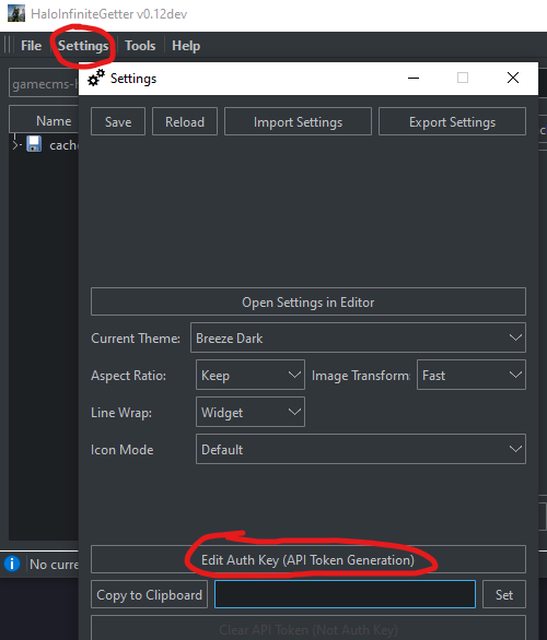
- Press the Set button, and you should now be authenticated!
Searching:
When you access a resource and are properly authenticated, it is cached to your
~/.cache/hi_getter/cached_requests directory.
By default, when you access an already-cached resource, HaloInfiniteGetter checks for a new
version of said resource on HaloWaypoint servers. The old version is stored in
~/.cache/hi_getter/old_files along with its version identifier.
- You can disable this behaviour by unchecking the Update Cached Resources checkbox in Settings.
Knowing Where to Search:

An example resource (Progression/file/Calendars/Seasons/SeasonCalendar.json) is pre-filled out in the
path input section.
You may omit progression/file/ and images/file/ from searches, so long as the file extension of the resource
indicates data or media (ex: json defaults as progression/file/, png and jpg defaults as images/file/).
GET:
Gets the singular resource from the given path and outputs it.
SCAN:
Warning: This may display various flashing images in quick succession.
Recursively scan a given JSON resource for paths to more resources, ignoring already scanned resources. This results in caching ALL resources that are referenced by any other resource with some tie to the original resource path.
If you want to scan your own json file(s) for resource paths, you can use the Scan Files... tool in the
Tools context menu.
Cache Explorer:
You can view all cached files using the Cache Explorer, which is on the left-hand side of the main window.
It has 1 setting:
- Icon Mode --- Changes how the file/folder icons are rendered
- No Icons --- Removes all icons in the view
- Default (Default) --- Renders icons normally (like explorer)
- Preview Images --- Use image previews as icons for images. This can use upwards of ~2GB of memory if you have a lot of image files
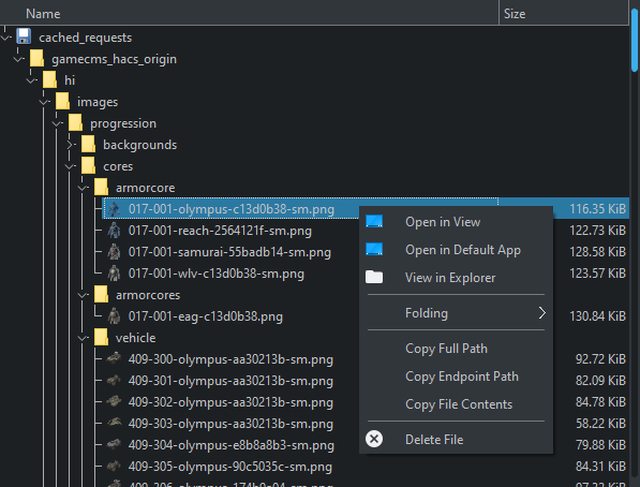
Context Menu actions:
- Open in View --- Open the cached file's contents in one of the output views
- Open in Default App --- Open the cached file in its extension's default app
- Folding
- Expand --- Expand the selected directory
- Expand Recursively --- Expand this directory and any subdirectories
- Expand All --- Expand all directories
- Collapse --- Collapse the selected directory
- Collapse All --- Collapse all directories
- Copy Full Path --- Copy the cached file's path
- Copy Endpoint Path --- Copy the path, translated into it's associated endpoint
- Copy File Contents --- Copy the contents of the file onto your clipboard.
Importing and Exporting Cached Requests
You can use the File context menu to easily import and export archive files containing cached requests.
Once imported, you can view the data in the Cache Explorer.
Supported archive types are:
- 7Zip Archives (
*.7z) - ZIP Files (
*.zip&*.piz) - TAR Files (
*.tar,*.tar.gz,*.tgz,*.tar.bz2,*.tbz2,*.tar.xz,*.txz)gzip,bzip2, andxzare the supported compression algorithms
Outputs:
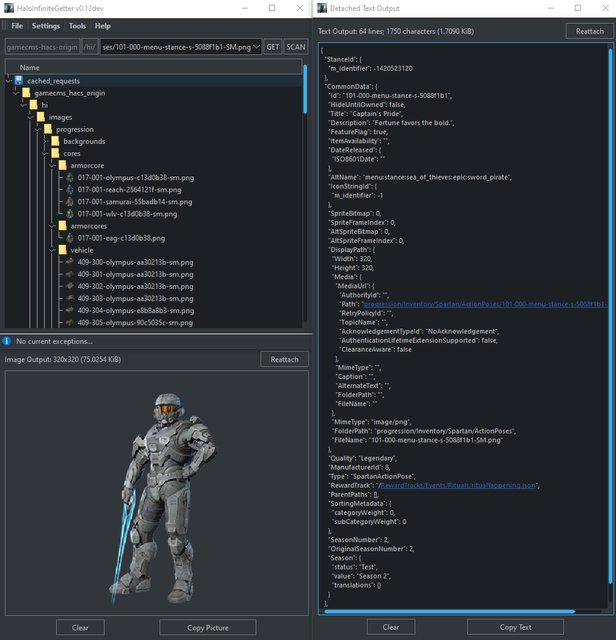
Both the media and the text output can be detached and reattached from the main window. This allows greater flexibility, like viewing only the image in fullscreen.
Media Output:
The media output shows the currently loaded image to the user, scaled to fit the current window.
It has two settings:
- Aspect Ratio Mode --- Changes how the aspect-ratio is transformed to fit the window
- Ignore --- Transform the aspect ratio to meet the output's dimensions
- Keep (Default) --- Keep the aspect ratio without expanding past the output's dimensions
- Expanding --- Expand the image's size to keep its aspect ratio
- Image Transform Mode --- Changes how the image is rendered to a different size
- Fast (Default) --- Faster, looks more jagged
- Smooth --- Smooths edges, looks better in some cases
Text Output:
The text output displays any text data loaded by the given path, or an error response from the server.
Path are automatically detected and hyperlinked for ease of use, which allows you to easily browse multiple paths in succession.
It has one setting:
- Line Wrap Mode --- Changes how lines are wrapped inside the text output
- No Wrap --- No line wrapping, use the horizontal scroll wheel instead
- Widgets (Default) --- Line wrap if a word does not fit the text output's dimensions
- Fixed Pixel --- Line wrap after every space/seperator
- Fixed Column --- Line wrap after every character (excluding spaces)
Themes:
Themes are a way to style already-existing elements (Think CSS). They are held in a directory with their resources and stylesheet in the same folder level.
Theme File Structure:
../
│
├───[theme_id]/
│       ├─── [icon1_name].svg
│       ├─── [icon2_name].svg
│       ├─── [icon3_name].svg
│       └─── stylesheet.qss
│
The current builtin themes are:
Breeze DarkBreeze LightLegacy (Default Qt)
While the current breeze themes are slightly modified versions, you can view the original themes at BreezeStyleSheets.
1 maintainer

Metadata
1 maintainer
Release files for hi-getter 0.13
For a detailed explanation of source distributions (sdists) and built distributions (wheels), please see the package formats documentation.
Source distribution (sdist)
| File | Size | Uploaded | Provenance | |
|---|---|---|---|---|
| hi-getter-0.13.tar.gz | 143.5 kB | Without provenance | Details |
Built distribution (wheel)
| File | Interpreter | ABI | Platform | Reset |
|---|---|---|---|---|
| hi_getter-0.13-py3-none-any.whl | Python 3 | none | any | Details |
Total release size: 345.9 kB
Release files / hi-getter-0.13.tar.gz
| Download URL | hi-getter-0.13.tar.gz |
|---|---|
| Size | 143.5 kB |
| Tags | Source |
|
SHA-256 checksum How to use checksums |
6bb1e40bfbbd9cbaa0585b78333274d206bf49fced0eb0032caab44e1a3bfea0
|
|
BLAKE2b-256 checksum How to use checksums |
3316956afc60663fc6b79b4827b91145f7314d7cadde488fbdb5554d72fd5e8b
|
| Upload date | |
|
Uploaded using Trusted Publishing? What is trusted publishing? |
No |
| Uploaded via |
twine/4.0.1 CPython/3.11.2
|
Release files / hi_getter-0.13-py3-none-any.whl
| Download URL | hi_getter-0.13-py3-none-any.whl |
|---|---|
| Size | 202.4 kB |
| Tags | Python 3 |
|
SHA-256 checksum How to use checksums |
73ede693c4e9ff6920c513489cc91c85d5feb211b71e7d587751c5949c5b695b
|
|
BLAKE2b-256 checksum How to use checksums |
f873e35f5c24597ea9e7be77c4f23446b0904f827bdadc1d2b9e79a53e0b81d5
|
| Upload date | |
|
Uploaded using Trusted Publishing? What is trusted publishing? |
No |
| Uploaded via |
twine/4.0.1 CPython/3.11.2
|
Security for hi-getter 0.13
Provenance
Provenance describes where a file came from. On PyPI, provenance is shared via attestations, which provide a verifiable record of the build or publishing details. View details, limitations and caveats.
No provenance found
None of the files in this release were uploaded with provenance metadata.
A note on package security
PyPI is a repository for distributing packages, not a service for auditing them. While third-party security researchers and our staff do their best to detect and remove malicious packages, PyPI cannot guarantee the quality, security or suitability of any given package.














