
Library to configure the dissecto hydralink

Project description
HydraLink
Python module to control dissecto HydraLink on Linux, MacOS and Windows
Can be either used as a standalone application, or as a module imported from another python program.
Installation
Windows
First, install python 3 from the Microsoft Store.
Next, open a terminal and install hydralink from pypi:
python -m pip install hydralink
MacOS
Install the LAN78xx driver from the Apple store
Also, install brew:
/bin/bash -c "$(curl -fsSL https://raw.githubusercontent.com/Homebrew/install/HEAD/install.sh)"
Ensure python 3 is installed, then install libusb and python-tk using brew:
brew install libusb
brew install python-tk
Finally, create a virtual environment and install pyusb and hydralink there:
python3 -m venv hydralink-venv
source hydralink-venv/bin/activate
python -m pip install pyusb hydralink
Linux
NOTE: on Linux, you can also use the hydralink kernel module to automatically configure HydraLink without additional software.
First, install python and libusb. The specific instructions to do this are different from distribution to distribution. For example, on Ubuntu you might do it like this:
sudo apt install libusb-1.0-0 python3
Finally, create a virtual environment and install pyusb and hydralink there:
python3 -m venv .venv
source .venv/bin/activate
python -m pip install pyusb
Usage
If you installed the hydralink module in a virtual environment, make sure to activate the virtual environment.
# Enable slave mode, 100 megabits speed
python -m hydralink

# Enable master mode, 100 megabits speed
python -m hydralink -m

# Enable slave mode, gigabit speed
python -m hydralink -g

# Enable master mode, gigabit speed
python -m hydralink -m -g

# Show the configuration gui. This requires the python tkinter module!
pyhton -m hydralink --gui
API
from hydralink import HydraLink
hl = HydraLink()
# master is True or False, speed is 100 or 1000.
hl.setup(master=True, speed=1000, promiscuous=True)
# If an option is not specified, the current value is not changed:
hl.setup(speed=100)  # does not change the master mode
Pinout
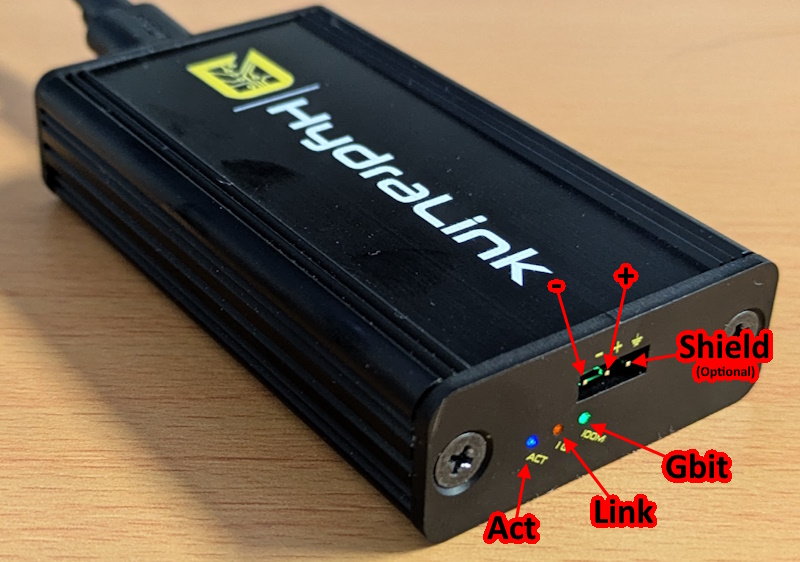
The following picture shows the pinout and the meaning of the LEDs of the hydralink:
LEDs
When HydraLink is powered, 4 LEDs should turn on: red, orange, green, blue.
The red LED indicates that the HydraLink is powered.
While the HydraLink is not configured, the orange, green and blue are all turned on.
Once the HydraLink is configured, the meaning of the LEDs is:
The orange LED indicates that a link is detected.
The green LED indicates that a 1 gb/s link is detected.
The blue LED indicated that there is activity on the link.
Release history Release notifications | RSS feed


Download files
Download the file for your platform. If you're not sure which to choose, learn more about installing packages.
Source Distribution
Built Distribution
Filter files by name, interpreter, ABI, and platform.
If you're not sure about the file name format, learn more about wheel file names.
Copy a direct link to the current filters
File details
Details for the file hydralink-0.2.9.tar.gz.
File metadata
- Download URL: hydralink-0.2.9.tar.gz
- Upload date:
- Size: 22.6 kB
- Tags: Source
- Uploaded using Trusted Publishing? Yes
- Uploaded via: twine/5.1.1 CPython/3.12.6
File hashes
| Algorithm | Hash digest | |
|---|---|---|
| SHA256 |
62abe6b974cfa97ec9e4fd19b768e2d100f62d8a62de2f453964181f66b3b60b
|
|
| MD5 |
dab2565be93683e2178eda9d12abc824
|
|
| BLAKE2b-256 |
6af976347307e76e565868915b608b6e10a72a731be3a1f134877174a0fb3f21
|
File details
Details for the file hydralink-0.2.9-py3-none-any.whl.
File metadata
- Download URL: hydralink-0.2.9-py3-none-any.whl
- Upload date:
- Size: 21.1 kB
- Tags: Python 3
- Uploaded using Trusted Publishing? Yes
- Uploaded via: twine/5.1.1 CPython/3.12.6
File hashes
| Algorithm | Hash digest | |
|---|---|---|
| SHA256 |
01a87d48324bdfe69cc9dee219cd048c80ed968be6d4bbbdb031311bad0796c2
|
|
| MD5 |
6268c472a15b84a9c78ba8e3919e588d
|
|
| BLAKE2b-256 |
2ad8d2315c8783862889515fb4466af24bb1eed0271ffcf06a6c53f0372d2c61
|






