
MCP LLMS-TXT Documentation Server
Overview
llms.txt is a website index for LLMs, providing background information, guidance, and links to detailed markdown files. IDEs like Cursor and Windsurf or apps like Claude Code/Desktop can use llms.txt to retrieve context for tasks. However, these apps use different built-in tools to read and process files like llms.txt. The retrieval process can be opaque, and there is not always a way to audit the tool calls or the context returned.
MCP offers a way for developers to have full control over tools used by these applications. Here, we create an open source MCP server to provide MCP host applications (e.g., Cursor, Windsurf, Claude Code/Desktop) with (1) a user-defined list of llms.txt files and (2) a simple fetch_docs tool read URLs within any of the provided llms.txt files. This allows the user to audit each tool call as well as the context returned.
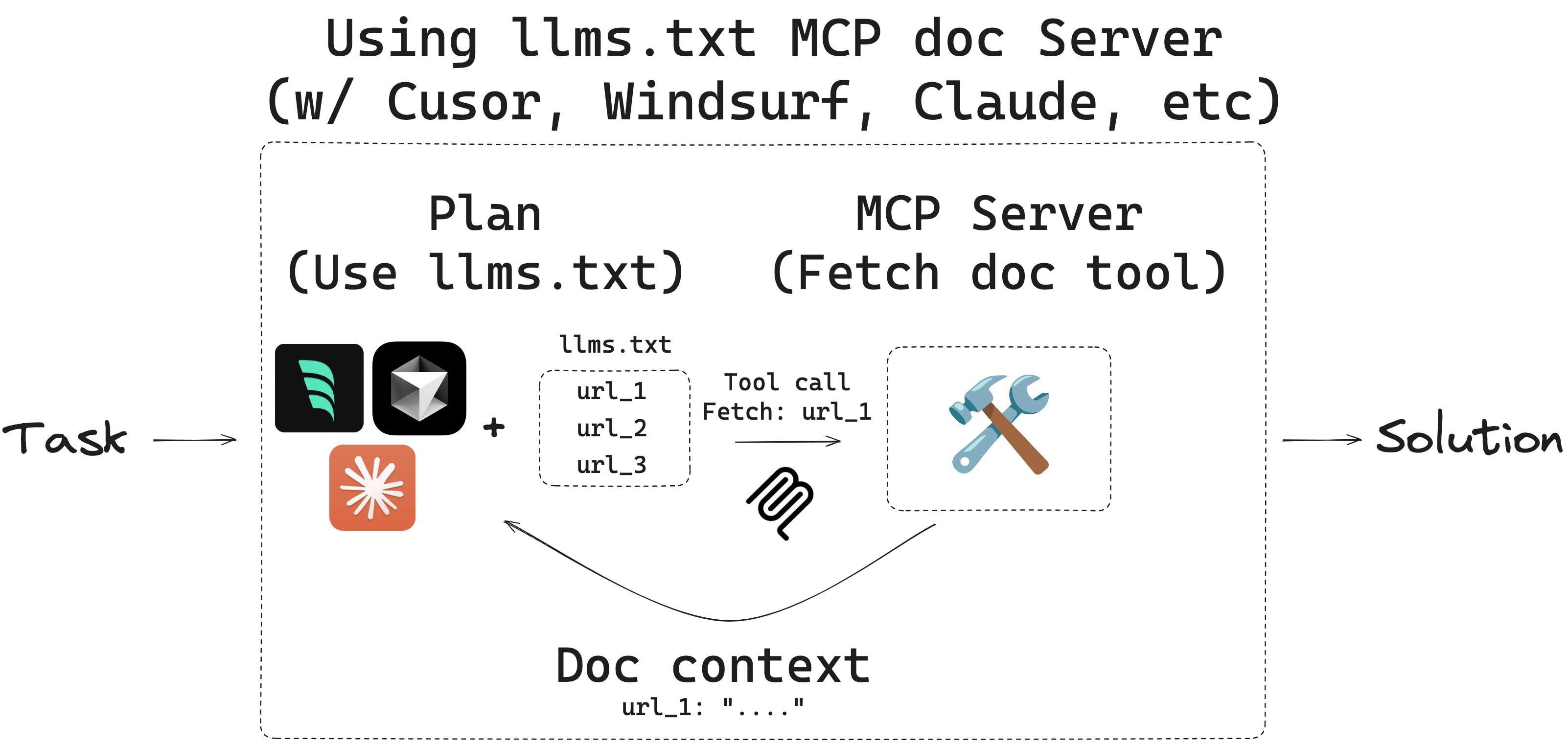
llms-txt
You can find llms.txt files for langgraph and langchain here:
| Library | llms.txt |
|---|---|
| LangGraph Python | https://langchain-ai.github.io/langgraph/llms.txt |
| LangGraph JS | https://langchain-ai.github.io/langgraphjs/llms.txt |
| LangChain Python | https://python.langchain.com/llms.txt |
| LangChain JS | https://js.langchain.com/llms.txt |
Quickstart
Install uv
- Please see official uv docs for other ways to install
uv.
curl -LsSf https://astral.sh/uv/install.sh | sh
Choose an llms.txt file to use.
- For example, here's the LangGraph
llms.txtfile.
Note: Security and Domain Access Control
For security reasons, mcpdoc implements strict domain access controls:
Remote llms.txt files: When you specify a remote llms.txt URL (e.g.,
https://langchain-ai.github.io/langgraph/llms.txt), mcpdoc automatically adds only that specific domain (langchain-ai.github.io) to the allowed domains list. This means the tool can only fetch documentation from URLs on that domain.Local llms.txt files: When using a local file, NO domains are automatically added to the allowed list. You MUST explicitly specify which domains to allow using the
--allowed-domainsparameter.Adding additional domains: To allow fetching from domains beyond those automatically included:
- Use
--allowed-domains domain1.com domain2.comto add specific domains- Use
--allowed-domains '*'to allow all domains (use with caution)This security measure prevents unauthorized access to domains not explicitly approved by the user, ensuring that documentation can only be retrieved from trusted sources.
(Optional) Test the MCP server locally with your llms.txt file(s) of choice:
uvx --from mcpdoc mcpdoc \
    --urls "LangGraph:https://langchain-ai.github.io/langgraph/llms.txt" "LangChain:https://python.langchain.com/llms.txt" \
    --transport sse \
    --port 8082 \
    --host localhost
- This should run at: http://localhost:8082
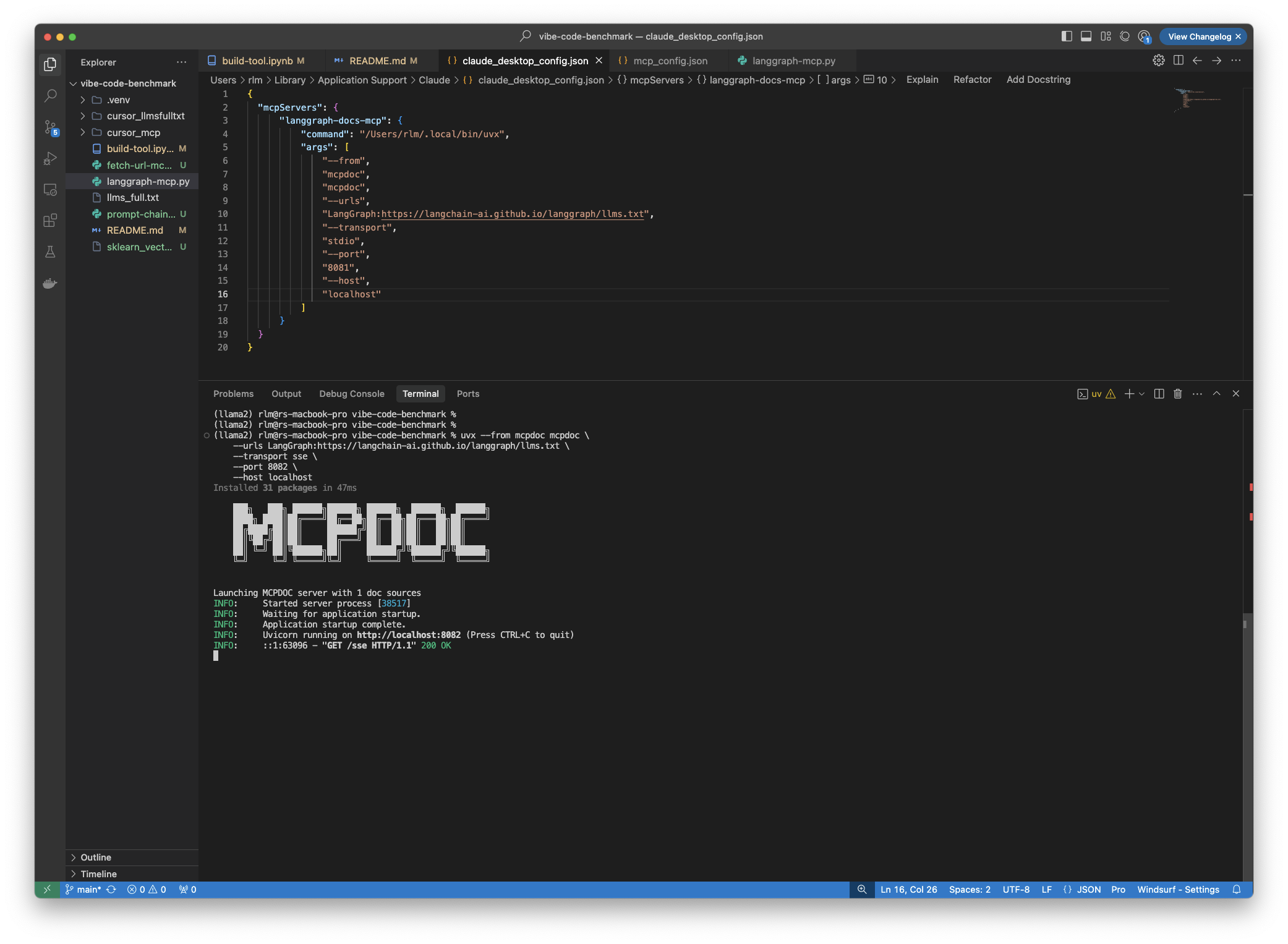
- Run MCP inspector and connect to the running server:
npx @modelcontextprotocol/inspector
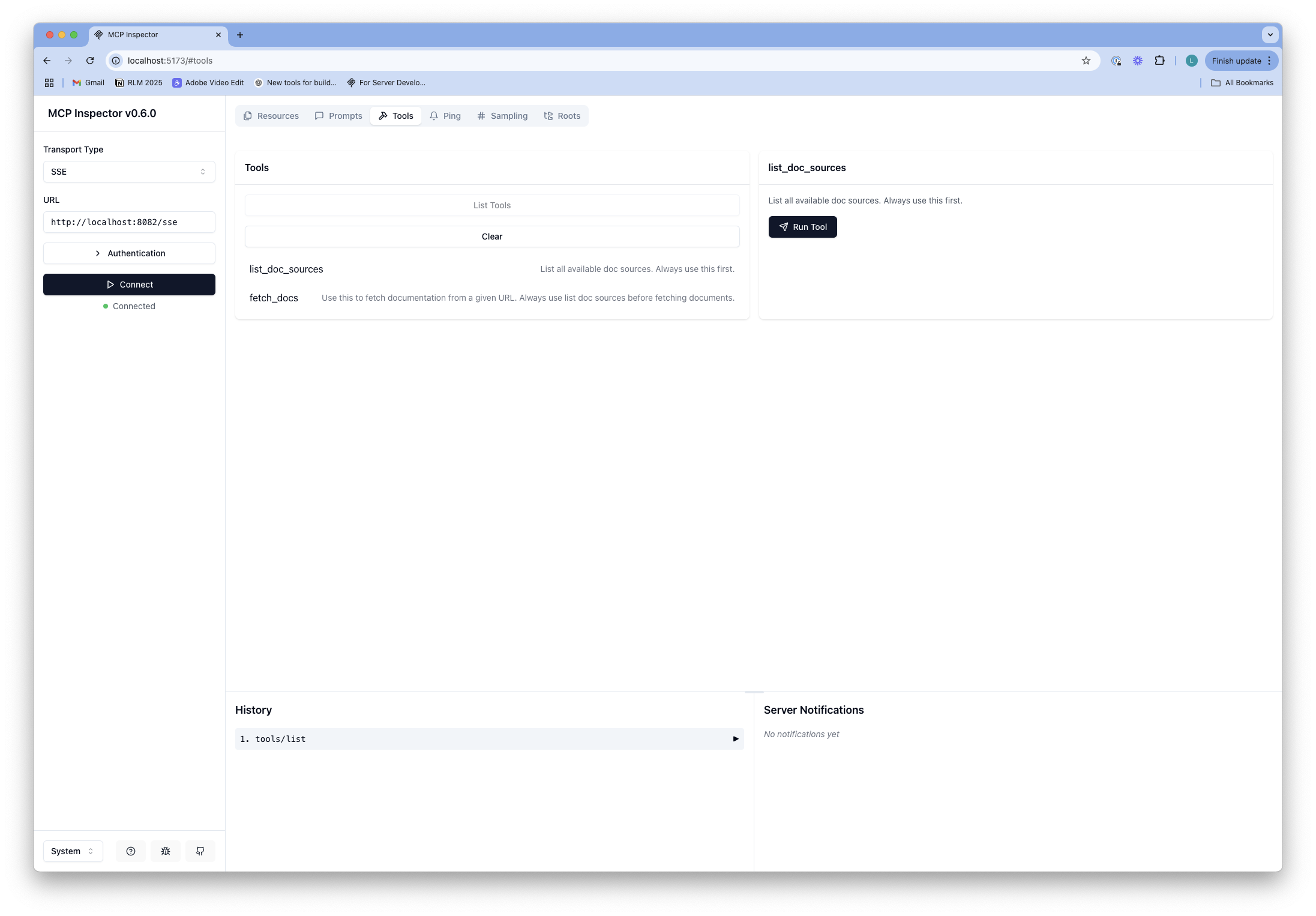
- Here, you can test the
toolcalls.
Connect to Cursor
- Open
Cursor SettingsandMCPtab. - This will open the
~/.cursor/mcp.jsonfile.
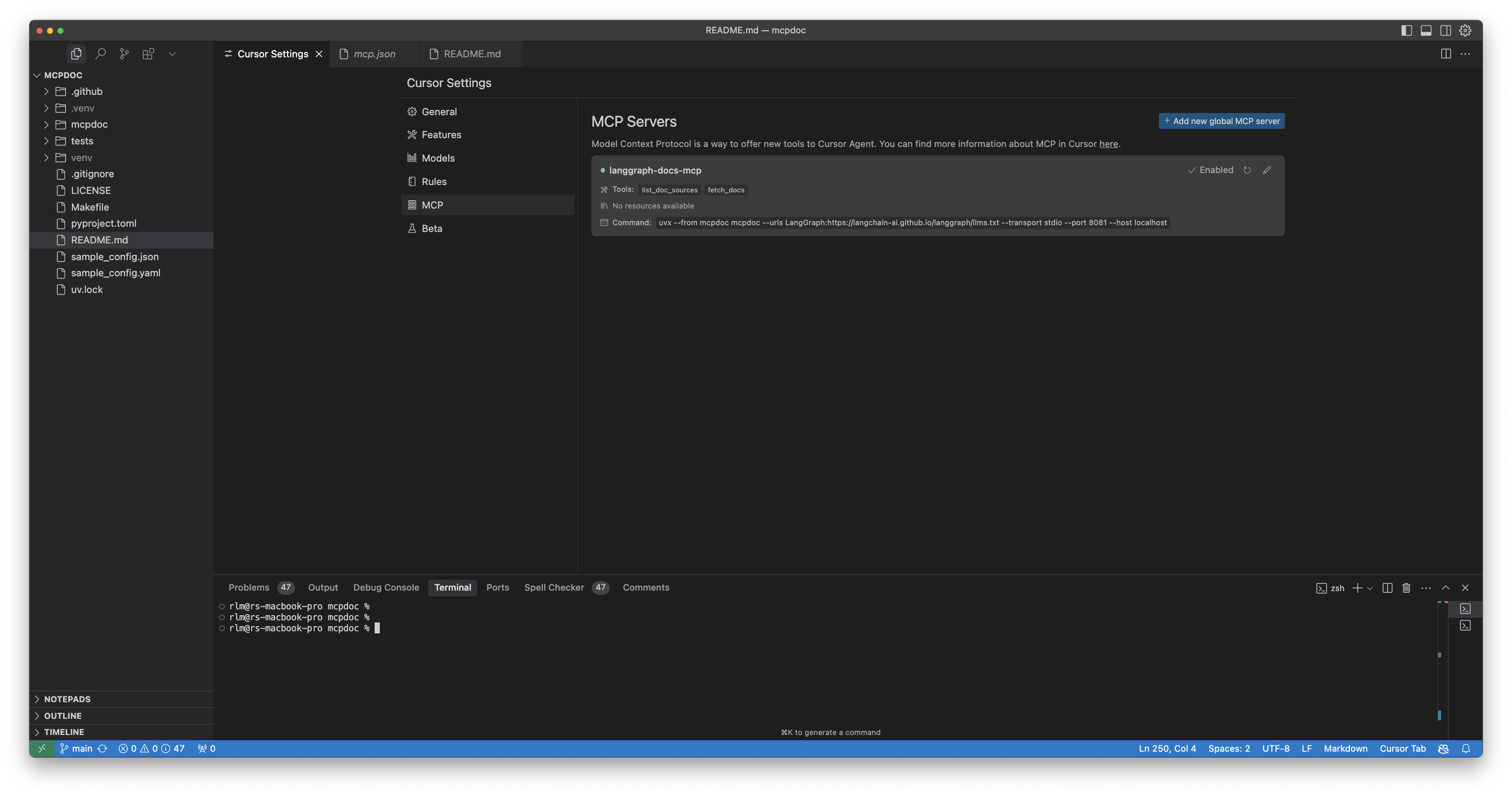
- Paste the following into the file (we use the
langgraph-docs-mcpname and link to the LangGraphllms.txt).
{
  "mcpServers": {
    "langgraph-docs-mcp": {
      "command": "uvx",
      "args": [
        "--from",
        "mcpdoc",
        "mcpdoc",
        "--urls",
        "LangGraph:https://langchain-ai.github.io/langgraph/llms.txt LangChain:https://python.langchain.com/llms.txt",
        "--transport",
        "stdio"
      ]
    }
  }
}
- Confirm that the server is running in your
Cursor Settings/MCPtab. - Best practice is to then update Cursor Global (User) rules.
- Open Cursor
Settings/Rulesand updateUser Ruleswith the following (or similar):
for ANY question about LangGraph, use the langgraph-docs-mcp server to help answer --
+ call list_doc_sources tool to get the available llms.txt file
+ call fetch_docs tool to read it
+ reflect on the urls in llms.txt
+ reflect on the input question
+ call fetch_docs on any urls relevant to the question
+ use this to answer the question
CMD+L(on Mac) to open chat.- Ensure
agentis selected.
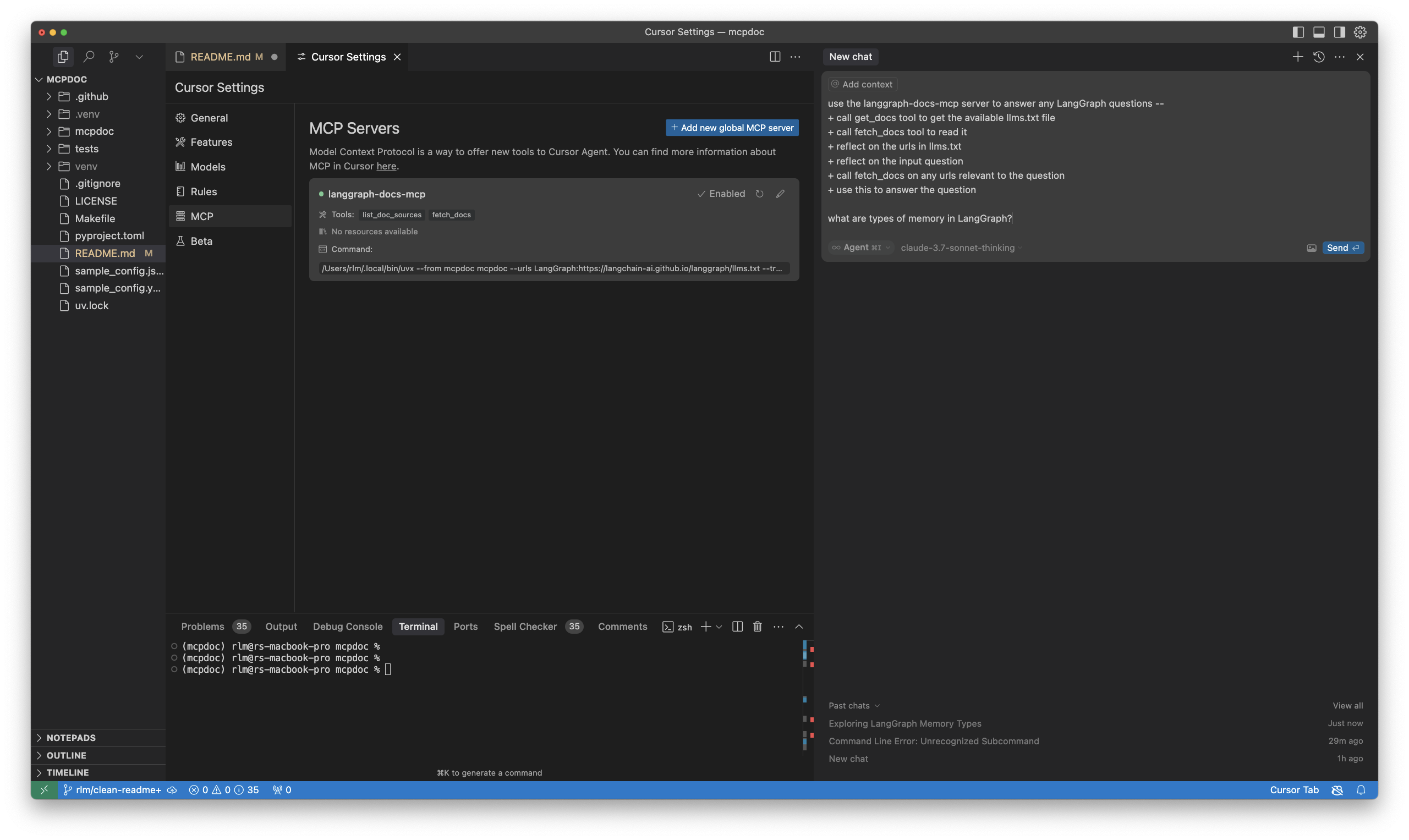
Then, try an example prompt, such as:
what are types of memory in LangGraph?
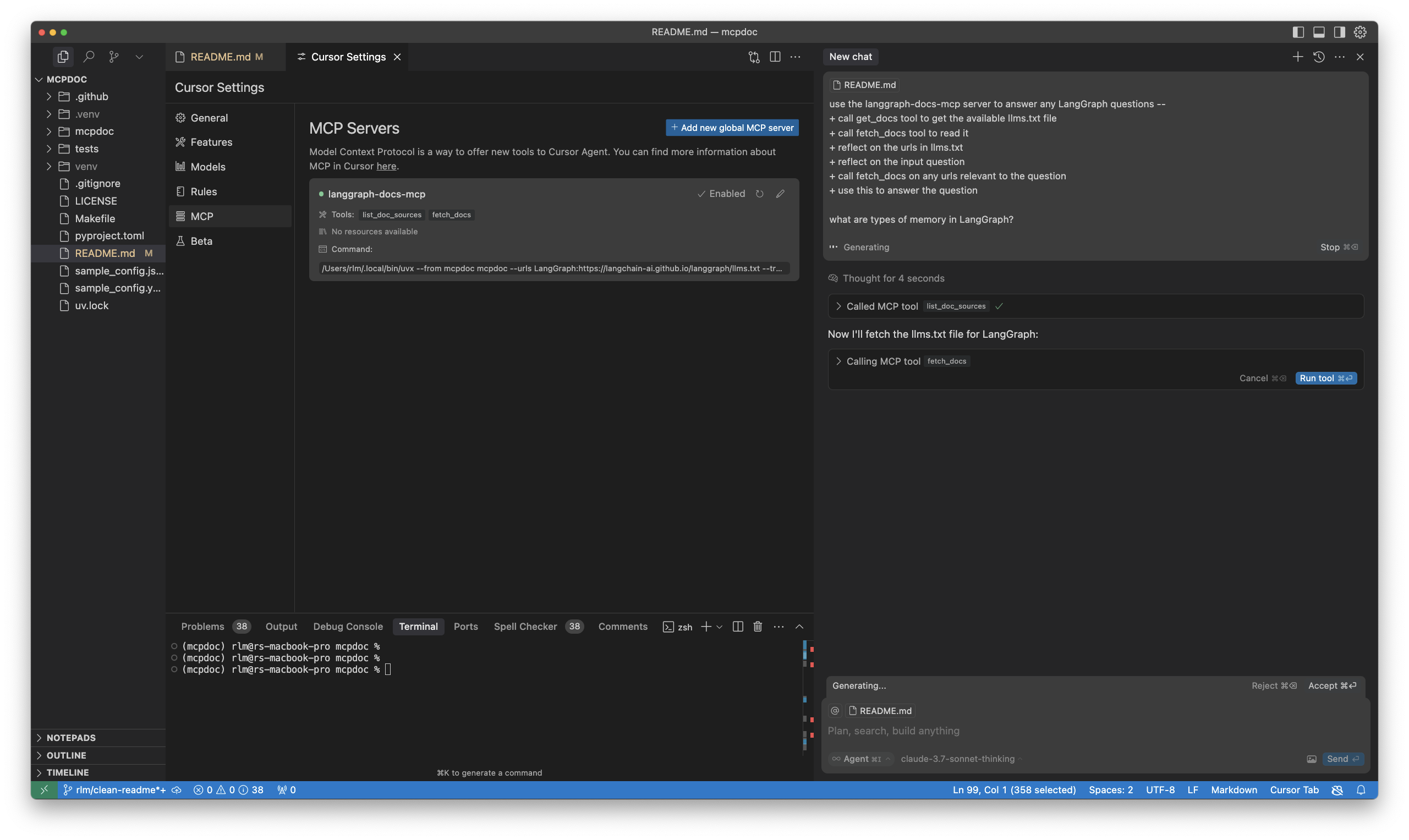
Connect to Windsurf
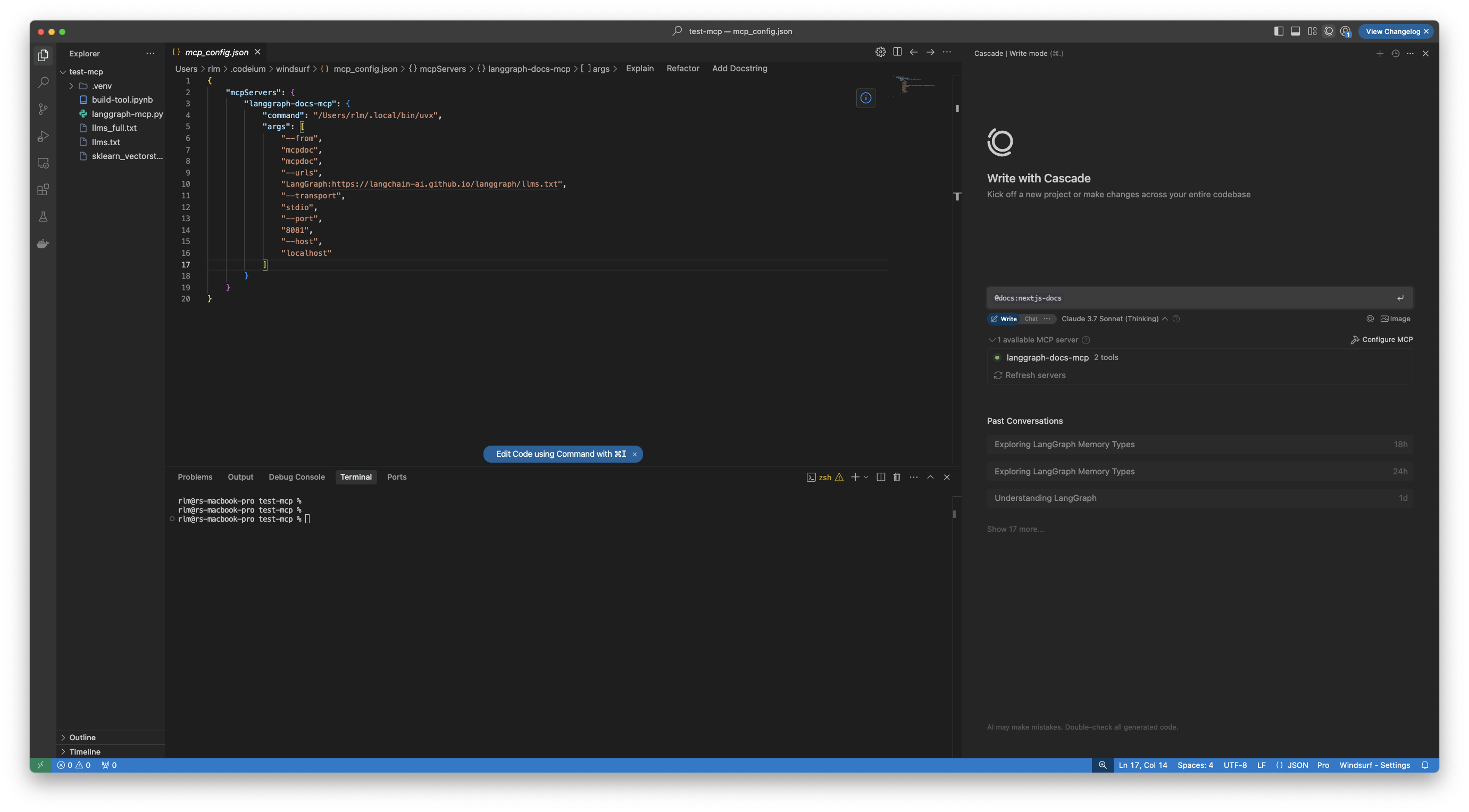
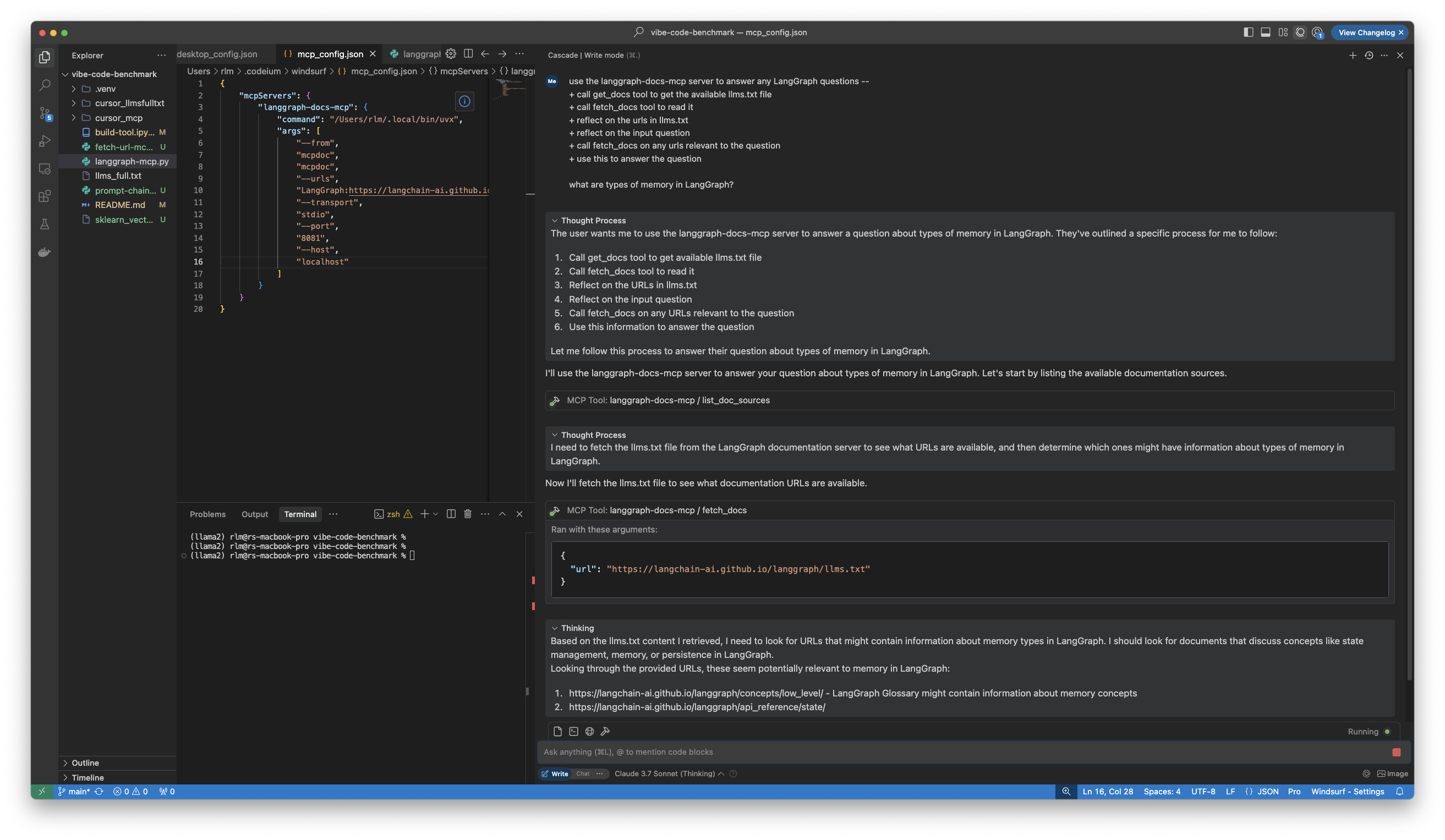
- Open Cascade with
CMD+L(on Mac). - Click
Configure MCPto open the config file,~/.codeium/windsurf/mcp_config.json. - Update with
langgraph-docs-mcpas noted above.
- Update
Windsurf Rules/Global ruleswith the following (or similar):
for ANY question about LangGraph, use the langgraph-docs-mcp server to help answer --
+ call list_doc_sources tool to get the available llms.txt file
+ call fetch_docs tool to read it
+ reflect on the urls in llms.txt
+ reflect on the input question
+ call fetch_docs on any urls relevant to the question
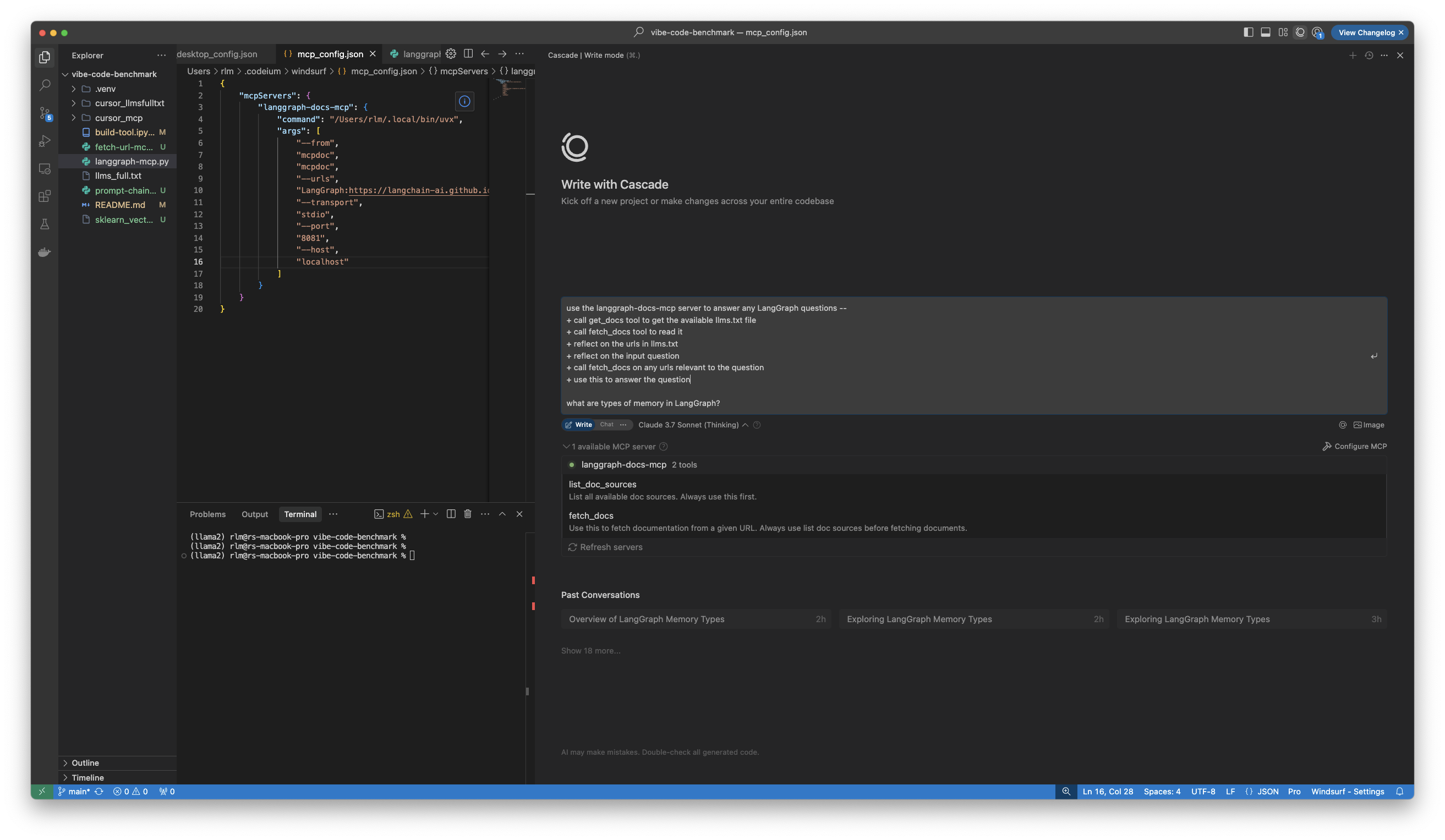
Then, try the example prompt:
- It will perform your tool calls.
Connect to Claude Desktop
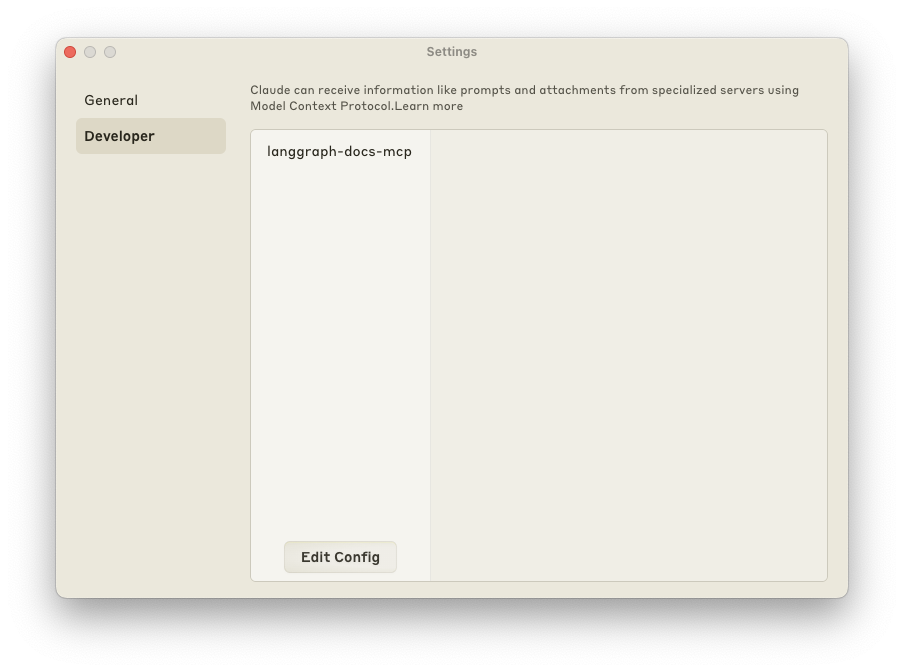
- Open
Settings/Developerto update~/Library/Application\ Support/Claude/claude_desktop_config.json. - Update with
langgraph-docs-mcpas noted above. - Restart Claude Desktop app.
<rules>
for ANY question about LangGraph, use the langgraph-docs-mcp server to help answer --
+ call list_doc_sources tool to get the available llms.txt file
+ call fetch_docs tool to read it
+ reflect on the urls in llms.txt
+ reflect on the input question
+ call fetch_docs on any urls relevant to the question
</rules>
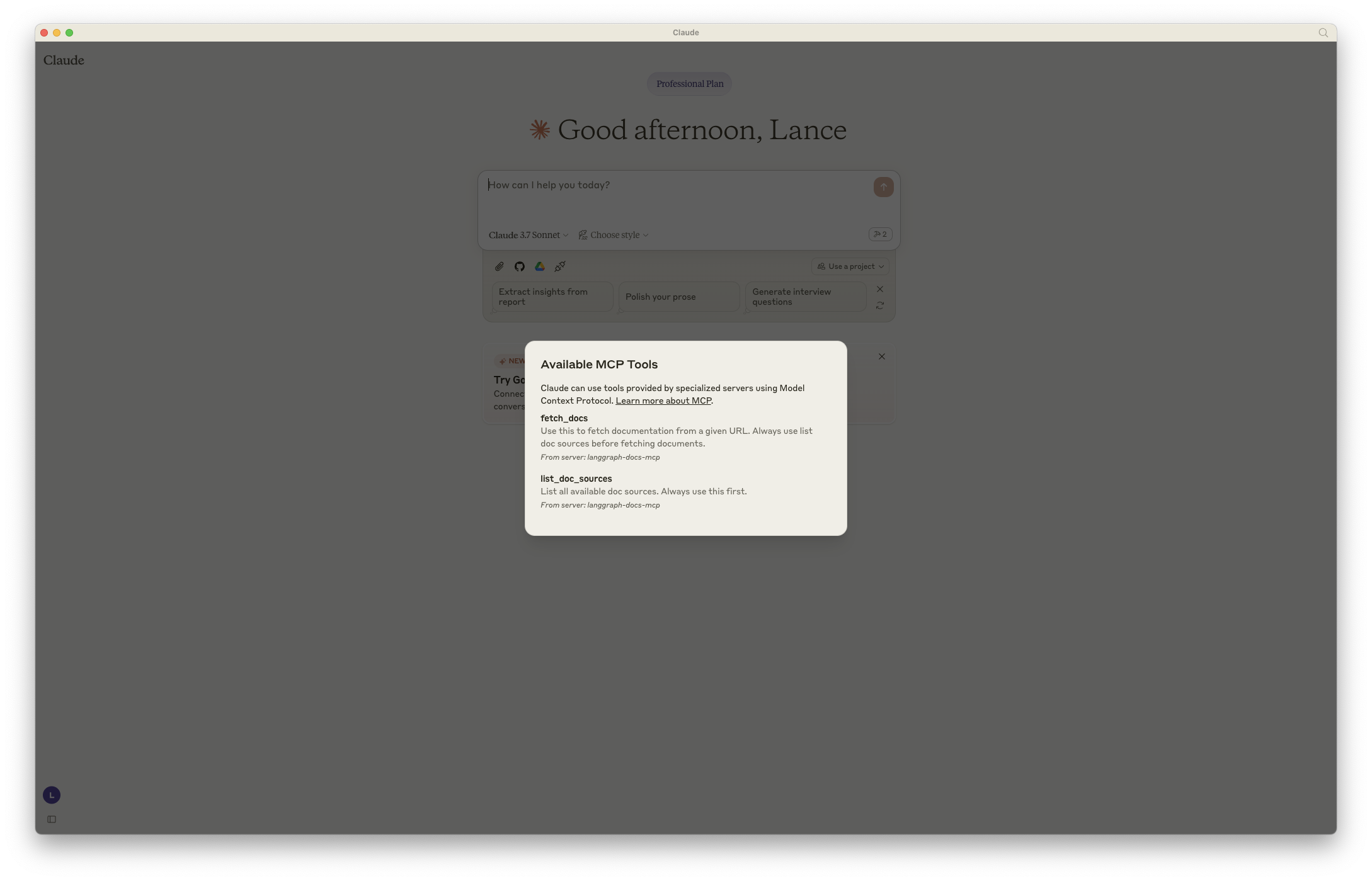
- You will see your tools visible in the bottom right of your chat input.
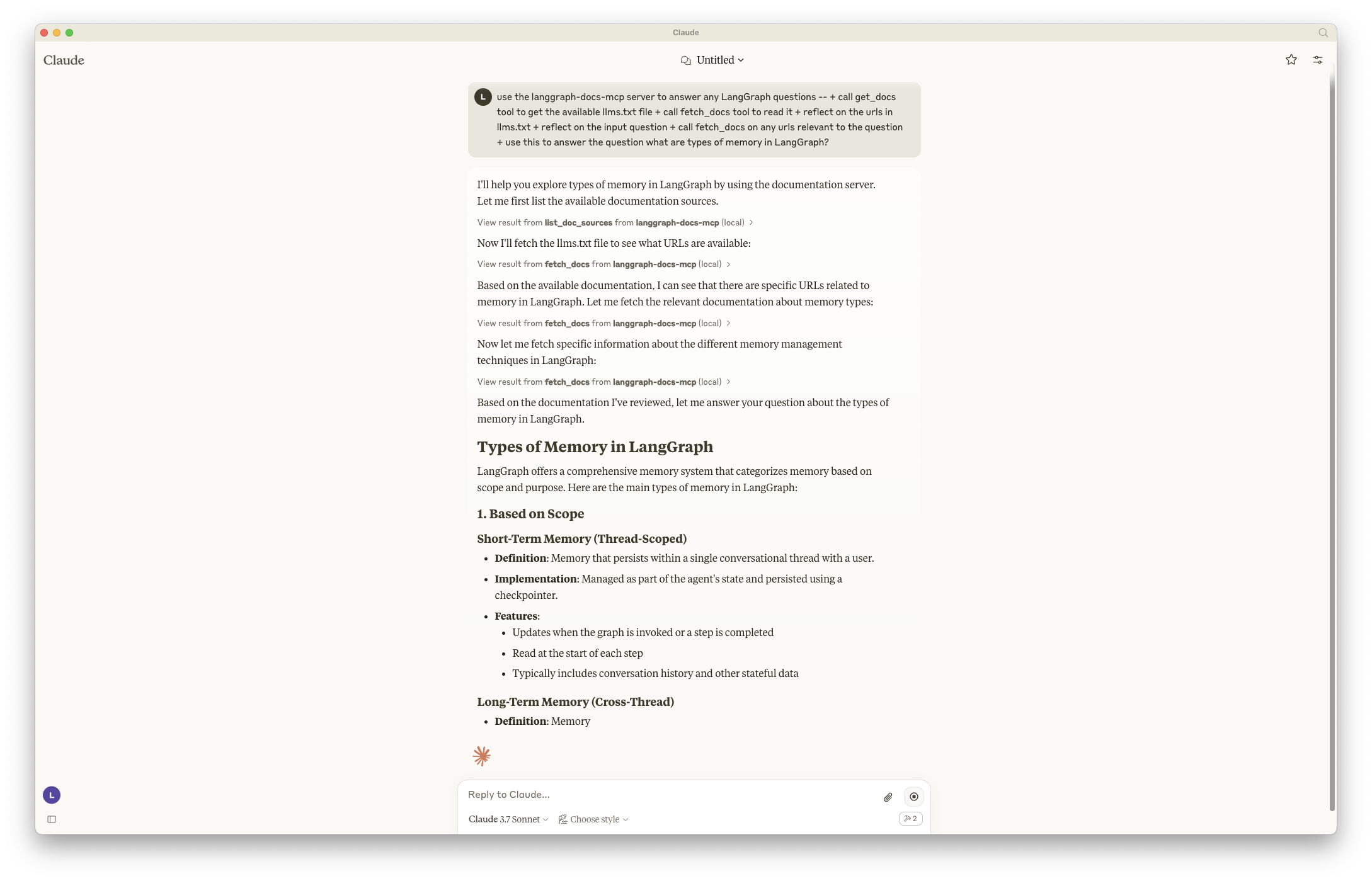
Then, try the example prompt:
- It will ask to approve tool calls as it processes your request.
Connect to Claude Code
- In a terminal after installing Claude Code, run this command to add the MCP server to your project:
claude mcp add-json langgraph-docs '{"type":"stdio","command":"uvx" ,"args":["--from", "mcpdoc", "mcpdoc", "--urls", "langgraph:https://langchain-ai.github.io/langgraph/llms.txt", "LangChain:https://python.langchain.com/llms.txt"]}' -s local
- You will see
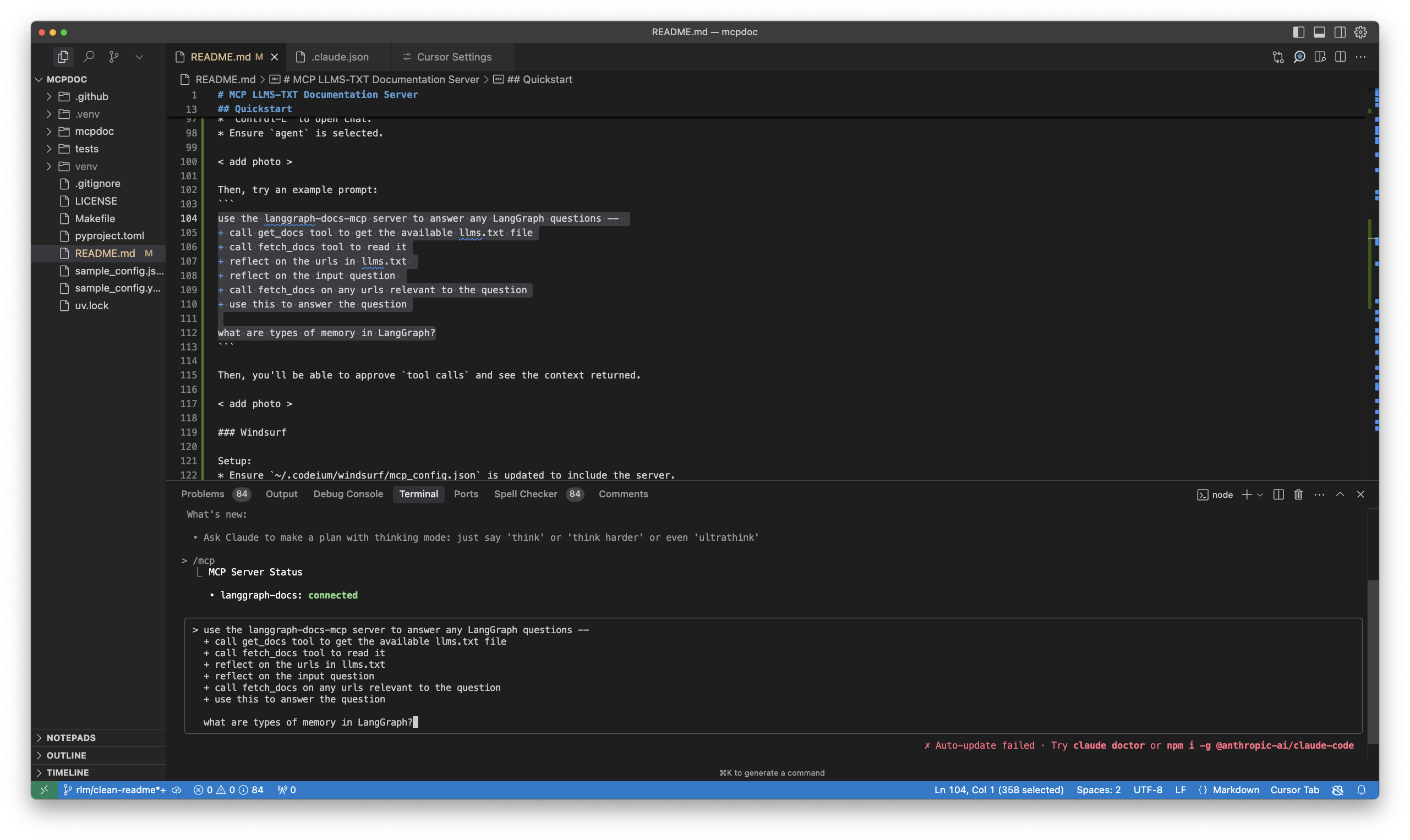
~/.claude.jsonupdated. - Test by launching Claude Code and running to view your tools:
$ Claude
$ /mcp
<rules>
for ANY question about LangGraph, use the langgraph-docs-mcp server to help answer --
+ call list_doc_sources tool to get the available llms.txt file
+ call fetch_docs tool to read it
+ reflect on the urls in llms.txt
+ reflect on the input question
+ call fetch_docs on any urls relevant to the question
</rules>
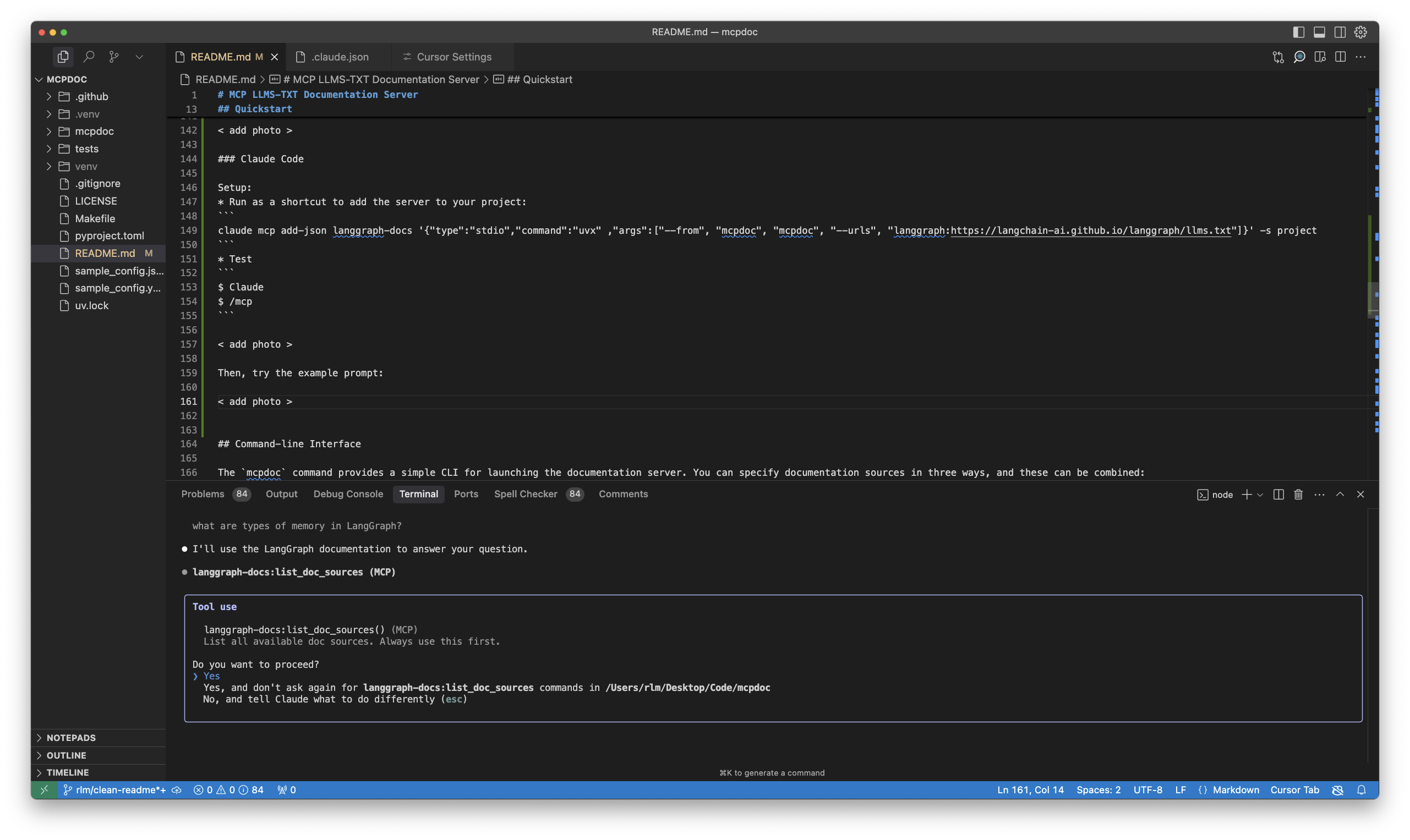
Then, try the example prompt:
- It will ask to approve tool calls.
Command-line Interface
The mcpdoc command provides a simple CLI for launching the documentation server.
You can specify documentation sources in three ways, and these can be combined:
- Using a YAML config file:
- This will load the LangGraph Python documentation from the
sample_config.yamlfile in this repo.
mcpdoc --yaml sample_config.yaml
- Using a JSON config file:
- This will load the LangGraph Python documentation from the
sample_config.jsonfile in this repo.
mcpdoc --json sample_config.json
- Directly specifying llms.txt URLs with optional names:
- URLs can be specified either as plain URLs or with optional names using the format
name:url. - You can specify multiple URLs by using the
--urlsparameter multiple times. - This is how we loaded
llms.txtfor the MCP server above.
mcpdoc --urls LangGraph:https://langchain-ai.github.io/langgraph/llms.txt --urls LangChain:https://python.langchain.com/llms.txt
You can also combine these methods to merge documentation sources:
mcpdoc --yaml sample_config.yaml --json sample_config.json --urls LangGraph:https://langchain-ai.github.io/langgraph/llms.txt --urls LangChain:https://python.langchain.com/llms.txt
Additional Options
--follow-redirects: Follow HTTP redirects (defaults to False)--timeout SECONDS: HTTP request timeout in seconds (defaults to 10.0)
Example with additional options:
mcpdoc --yaml sample_config.yaml --follow-redirects --timeout 15
This will load the LangGraph Python documentation with a 15-second timeout and follow any HTTP redirects if necessary.
Configuration Format
Both YAML and JSON configuration files should contain a list of documentation sources.
Each source must include an llms_txt URL and can optionally include a name:
YAML Configuration Example (sample_config.yaml)
# Sample configuration for mcp-mcpdoc server
# Each entry must have a llms_txt URL and optionally a name
- name: LangGraph Python
  llms_txt: https://langchain-ai.github.io/langgraph/llms.txt
JSON Configuration Example (sample_config.json)
[
  {
    "name": "LangGraph Python",
    "llms_txt": "https://langchain-ai.github.io/langgraph/llms.txt"
  }
]
Programmatic Usage
from mcpdoc.main import create_server

# Create a server with documentation sources
server = create_server(
    [
        {
            "name": "LangGraph Python",
            "llms_txt": "https://langchain-ai.github.io/langgraph/llms.txt",
        },
        # You can add multiple documentation sources
        # {
        #     "name": "Another Documentation",
        #     "llms_txt": "https://example.com/llms.txt",
        # },
    ],
    follow_redirects=True,
    timeout=15.0,
)

# Run the server
server.run(transport="stdio")
1 maintainer

Metadata
1 maintainer
Release files for iflow-mcp-mcpdoc-server 0.0.11
For a detailed explanation of source distributions (sdists) and built distributions (wheels), please see the package formats documentation.
Source distribution (sdist)
| File | Size | Uploaded | |
|---|---|---|---|
| iflow_mcp_mcpdoc_server-0.0.11.tar.gz | 46.1 kB | Details |
Built distribution (wheel)
| File | Interpreter | ABI | Platform | Reset |
|---|---|---|---|---|
| iflow_mcp_mcpdoc_server-0.0.11-py3-none-any.whl | Python 3 | none | any | Details |
Total release size: 59.8 kB
Release files / iflow_mcp_mcpdoc_server-0.0.11.tar.gz
| Download URL | iflow_mcp_mcpdoc_server-0.0.11.tar.gz |
|---|---|
| Size | 46.1 kB |
| Tags | Source |
|
SHA-256 checksum How to use checksums |
768679fb178d05fdb20724c1b0943c07c57e103397662e625714eb224f6f6ab8
|
|
BLAKE2b-256 checksum How to use checksums |
c8318892b7fabc866b8a6c1a1c25f55f262d00a422b7036f84e7a17f77c146a6
|
| Upload date | |
|
Uploaded using Trusted Publishing? What is trusted publishing? |
No |
| Uploaded via |
uv/0.6.9
|
Release files / iflow_mcp_mcpdoc_server-0.0.11-py3-none-any.whl
| Download URL | iflow_mcp_mcpdoc_server-0.0.11-py3-none-any.whl |
|---|---|
| Size | 13.6 kB |
| Tags | Python 3 |
|
SHA-256 checksum How to use checksums |
d940f14e40235cf775a3f4e1db5b68142941a22ff1c64abc3f0ea4cdc362bbbf
|
|
BLAKE2b-256 checksum How to use checksums |
c783ebbfc002e2933e55687d9f1d17554245d34bacbf950ba224a032ba9ba545
|
| Upload date | |
|
Uploaded using Trusted Publishing? What is trusted publishing? |
No |
| Uploaded via |
uv/0.6.9
|














