
flstudio MCP
This is an MCP server that connects Claude to FL Studio.
Made this in 3 days. We're open sourcing it to see what we can actually get out of it. The possibilities are endless.
If you're running to any issues, join our discord and we can setup it for you.
(also join if you interested in the future of music and AI or want to request features. we're building this with you)
Check out our AI-Powered DAW for musicians at www.veena.studio
All in browser. All for free.
Step 1: Download the Files
You should see two main items.
- A folder called Test Controller
- A python file called trigger.py The Test Controller folder has a file called device_test.py that receives information from the MCP server. trigger.py is the MCP server.
Place the Test Controller folder in Image-Line/FL Studio/Settings/Hardware (Don't change the name of this file or folder)
Step 2: Set up MCP for Claude
Follow this tutorial to see how to setup MCP servers in Claude by edyting the claude_desktop_config files.
https://modelcontextprotocol.io/quickstart/server
If you followed this process, make sure to change whatever mentions of weather.py to trigger.py
If the Hammer icon doesn't show up, open Task Manager and force close the Claude process.
It should then show up.
This is what my config file looks like
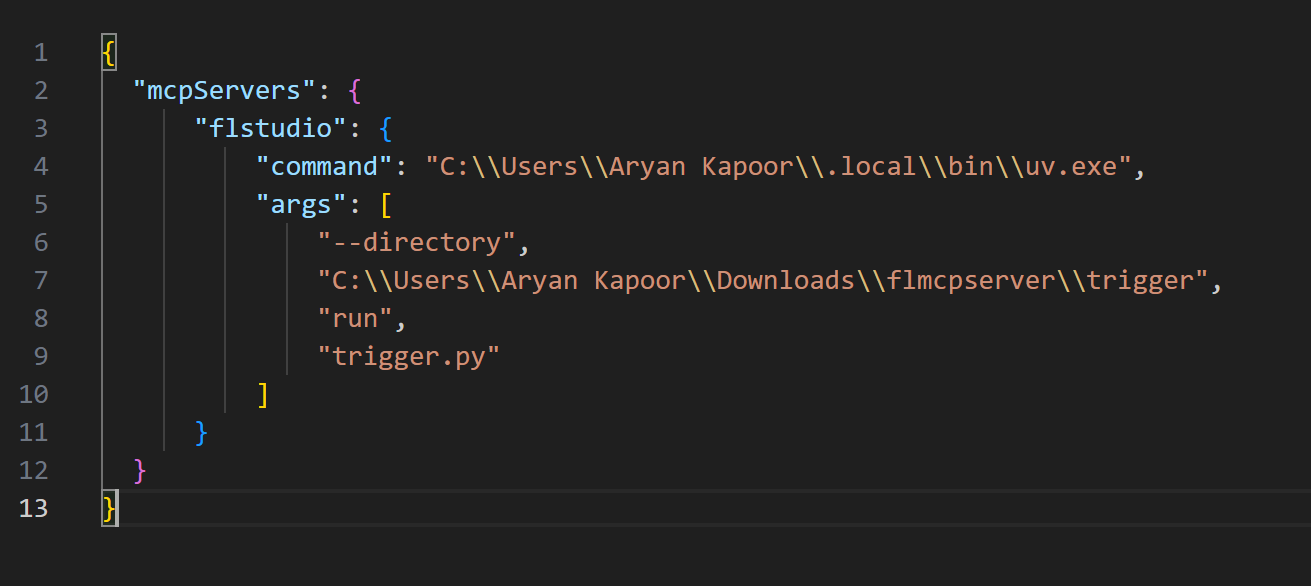
Step 3: Set Up Virtual MIDI Ports
For Windows
For Windows, download LoopMIDI from here.
https://www.tobias-erichsen.de/software/loopmidi.html
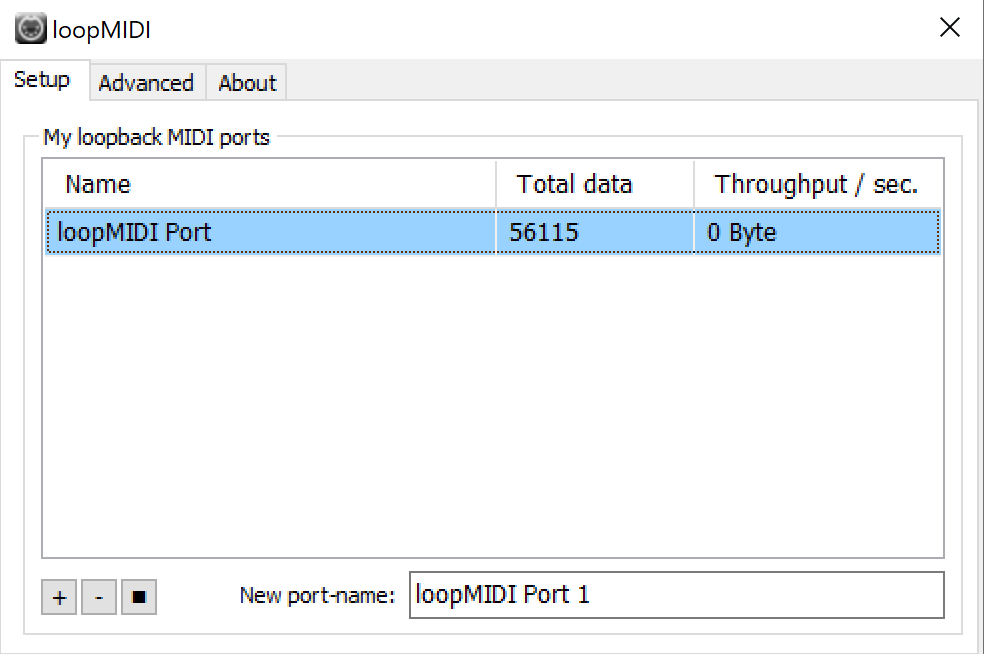
Install LoopMIDI and add a port using the + button.
This is what mine looks like:
For Mac
Your MIDI Ports would be automatically setup to receive data.
Step 4: Setup MIDI Controller
Open FL Studio.
Go To Options > MIDI Settings.
In the Input Tab, click the MIDI Input you just created with LoopMIDI.
Change controller type from (generic controller) to Test Controller.
Step 5: Download Packages
Go to the folder with the trigger.py file. (This is the MCP Server file)
Activate the conda environment (like you learned in the Claude MCP Setup Tutorial)
Run this command to download the necessary packages: uv pip install httpx mido python-rtmidi typing fastmcp FL-Studio-API-Stubs (uv should be installed from the Claude MCP setup)
Step 6: Verify MCP Connection
Tell Claude to get available MIDI ports.
This should use the MCP to get the ports from FL Studio.
If Windows, copy the port you created with LoopMIDI and the number in front of it.
If Mac, copy the default port.
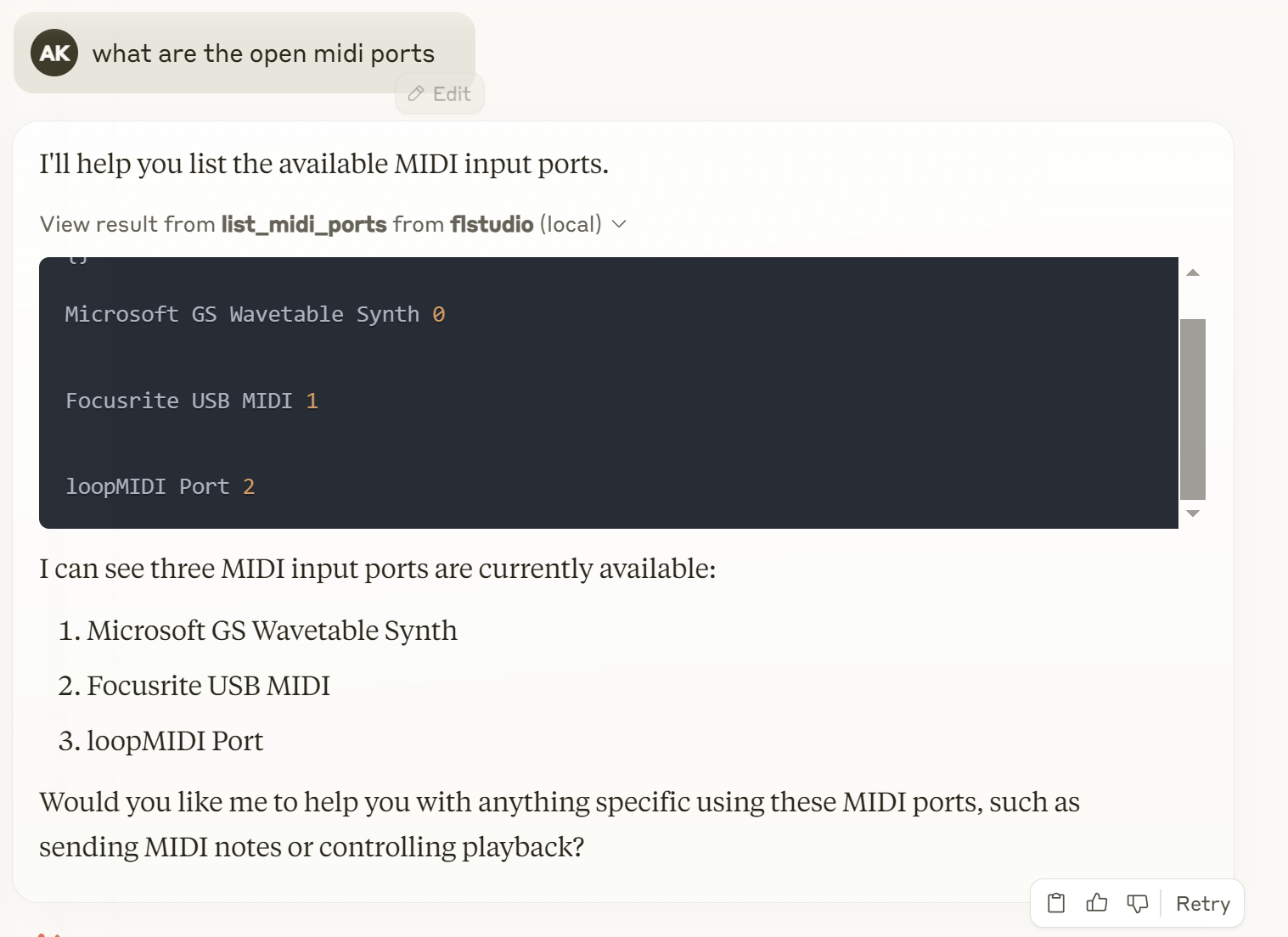
In my case, I copy loopMIDI Port 2
Open trigger.py in a text editor and replace the default port with the name of the port you just copied. output_port = mido.open_output('loopMIDI Port 2')
Step 7: Make Music
Use the MCP to send melodies, chords, drums, etc.
Click on the instrument you want to record to and it will live record to the piano roll of that instrument.
I tend to use this prompt when I start a new chat: Here is format for notes: note(0-127),velocity(0-100),length in beats(decimal),position in beats(decimal)
Step 8: Share what you made
Share what you made on our Discord: https://discord.gg/ZjG9TaEhvy
Credits
FL Studio API Stubs: https://github.com/IL-Group/FL-Studio-API-Stubs Ableton MCP: https://github.com/ahujasid/ableton-mcp
Nerd Stuff
If you want to contribute please go ahead.
The way this works is that device_test.py behaves as a virtual MIDI Controller. The MCP server (trigger.py) communicates with this MIDI Controller by opening a Virtual Port and sending MIDI messages through a library called MIDO.
The issue with MIDI messages is that its only 7 bits so we can only send in number from 0-127.
So we encrypt all of our MIDI data like note position, etc in multiple MIDI notes that the device knows how to read.
Hopefully, Image Line can give us more access to their DAW via their API so we don't have to do this MIDI nonsense.
1 maintainer

Metadata
1 maintainer
Release files for iflow-mcp-veenastudio-flstudio 0.1.0
For a detailed explanation of source distributions (sdists) and built distributions (wheels), please see the package formats documentation.
Source distribution (sdist)
| File | Size | Uploaded | |
|---|---|---|---|
| iflow_mcp_veenastudio_flstudio-0.1.0.tar.gz | 12.4 kB | Details |
Built distribution (wheel)
| File | Interpreter | ABI | Platform | Reset |
|---|---|---|---|---|
| iflow_mcp_veenastudio_flstudio-0.1.0-py3-none-any.whl | Python 3 | none | any | Details |
Total release size: 31.7 kB
Release files / iflow_mcp_veenastudio_flstudio-0.1.0.tar.gz
| Download URL | iflow_mcp_veenastudio_flstudio-0.1.0.tar.gz |
|---|---|
| Size | 12.4 kB |
| Tags | Source |
|
SHA-256 checksum How to use checksums |
b25cdfe1f2958cec92260e6906c53264a36fefec3370c359c3d726c02551486b
|
|
BLAKE2b-256 checksum How to use checksums |
e201902761e45f042717493547e7e8b469ecd25910102b5c594a80a35074a937
|
| Upload date | |
|
Uploaded using Trusted Publishing? What is trusted publishing? |
No |
| Uploaded via |
uv/0.9.26 {"installer":{"name":"uv","version":"0.9.26","subcommand":["publish"]},"python":null,"implementation":{"name":null,"version":null},"distro":{"name":"Debian GNU/Linux","version":"13","id":"trixie","libc":null},"system":{"name":null,"release":null},"cpu":null,"openssl_version":null,"setuptools_version":null,"rustc_version":null,"ci":null}
|
Release files / iflow_mcp_veenastudio_flstudio-0.1.0-py3-none-any.whl
| Download URL | iflow_mcp_veenastudio_flstudio-0.1.0-py3-none-any.whl |
|---|---|
| Size | 19.3 kB |
| Tags | Python 3 |
|
SHA-256 checksum How to use checksums |
aa331161f9412d5c53aee099a028dbcde662b2ed4ce096e8e2bbde316d3f5689
|
|
BLAKE2b-256 checksum How to use checksums |
08c91799db471aa67ec364a954724f4e76aa2971b46fdeecd2e94868e3f97b28
|
| Upload date | |
|
Uploaded using Trusted Publishing? What is trusted publishing? |
No |
| Uploaded via |
uv/0.9.26 {"installer":{"name":"uv","version":"0.9.26","subcommand":["publish"]},"python":null,"implementation":{"name":null,"version":null},"distro":{"name":"Debian GNU/Linux","version":"13","id":"trixie","libc":null},"system":{"name":null,"release":null},"cpu":null,"openssl_version":null,"setuptools_version":null,"rustc_version":null,"ci":null}
|













