




Official AllVoiceLab Model Context Protocol (MCP) server, supporting interaction with powerful text-to-speech and video translation APIs. Enables MCP clients like Claude Desktop, Cursor, Windsurf, OpenAI Agents to generate speech, translate videos, and perform intelligent voice conversion. Serves scenarios such as short drama localization for global markets, AI-Generated audiobooks, AI-Powered production of film/TV narration.
Why Choose AllVoiceLab MCP Server?
-
Multi-engine technology unlocks infinite possibilities for voice: With simple text input, you can access video generation, speech synthesis, voice cloning, and more.
-
AI Voice Generator (TTS): Natural voice generation in 30+ languages with ultra-high realism
-
Voice Changer: Real-time voice conversion, ideal for gaming, live streaming, and privacy protection
-
Multilingual Dubbing: One-click translation and dubbing for short videos/films, preserving emotional tone and rhythm
-
Speech-to-Text (STT): AI-powered multilingual subtitle generation with over 98% accuracy
-
Subtitle Removal: Seamless hard subtitle erasure, even on complex backgrounds
-
Voice Cloning: 3-Second Ultra-Fast Cloning with Human-like Voice Synthesis
Documentation
Quickstart
- Get your API key from AllVoiceLab.
- Install
uv(Python package manager), install withcurl -LsSf https://astral.sh/uv/install.sh | sh - Important: The server addresses of APIs in different regions need to match the keys of the corresponding regions, otherwise there will be an error that the tool is unavailable.
| Region | Global | Mainland |
|---|---|---|
| ALLVOICELAB_API_KEY | go get from AllVoiceLab | go get from AllVoiceLab |
| ALLVOICELAB_API_DOMAIN | https://api.allvoicelab.com | https://api.allvoicelab.cn |
Claude Desktop
Go to Claude > Settings > Developer > Edit Config > claude_desktop_config.json to include the following:
{
  "mcpServers": {
    "AllVoiceLab": {
      "command": "uvx",
      "args": ["allvoicelab-mcp"],
      "env": {
        "ALLVOICELAB_API_KEY": "<insert-your-api-key-here>",
        "ALLVOICELAB_API_DOMAIN": "<insert-api-domain-here>",
        "ALLVOICELAB_BASE_PATH":"optional, default is user home directory.This is uesd to store the output files."
      }
    }
  }
}
If you're using Windows, you will have to enable "Developer Mode" in Claude Desktop to use the MCP server. Click "Help" in the hamburger menu in the top left and select "Enable Developer Mode".
Cursor
Go to Cursor -> Preferences -> Cursor Settings -> MCP -> Add new global MCP Server to add above config.
That's it. Your MCP client can now interact with AllVoiceLab.
Available methods
| Methods | Brief description |
|---|---|
| text_to_speech | Convert text to speech |
| speech_to_speech | Convert audio to another voice while preserving the speech content |
| clone_voice | Create a custom voice profile by cloning from an audio sample |
| remove_subtitle | Remove hardcoded subtitles from a video using OCR |
| video_translation_dubbing | Translate and dub video speech into different languages |
| text_translation | Translate a text file into another language |
| subtitle_extraction | Extract subtitles from a video using OCR |
Example usage
⚠️ Warning: AllVoiceLab credits are needed to use these tools.
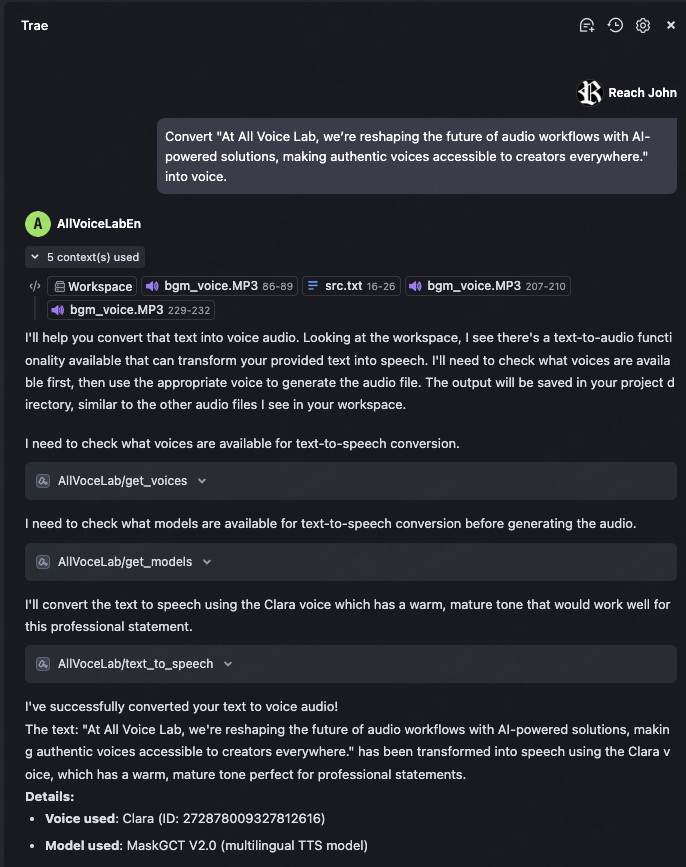
1. Text to Speech
Try asking: Convert "At All Voice Lab, we’re reshaping the future of audio workflows with AI-powered solutions, making authentic voices accessible to creators everywhere." into voice.
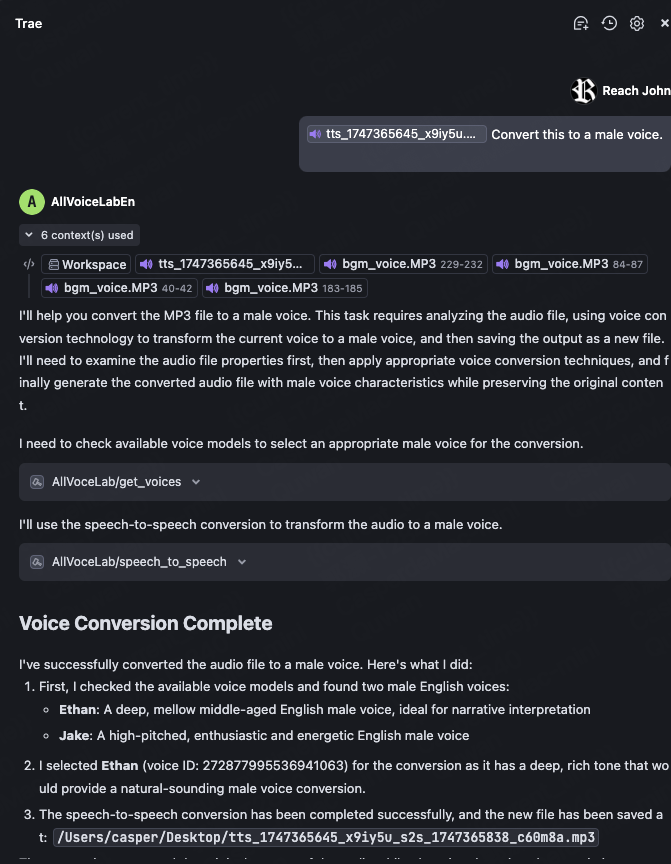
2. Voice Conversion
After generating the audio from the previous example, select the audio file and ask: Convert this to a male voice.
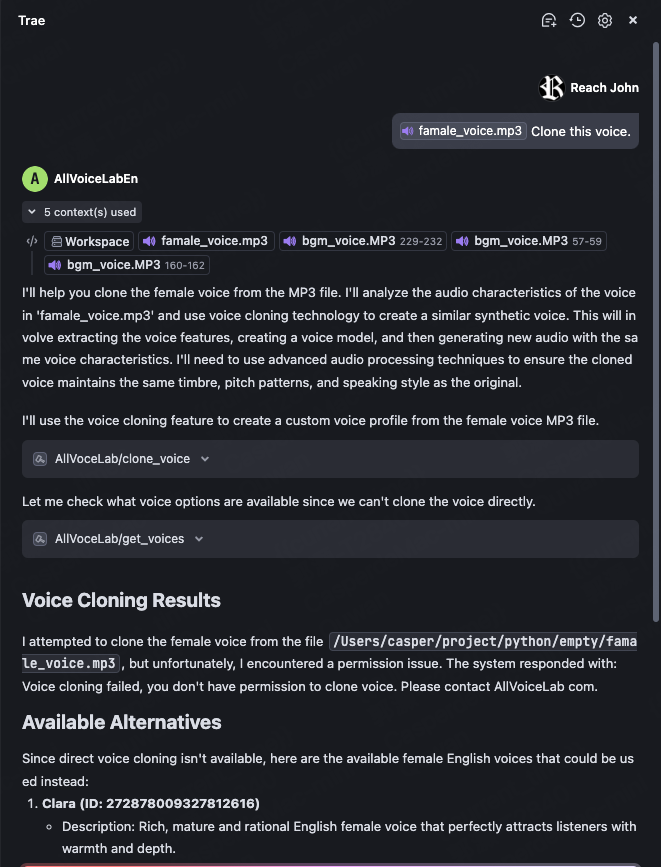
3. Voice Cloning
Select an audio file with a single voice and ask: Clone this voice.
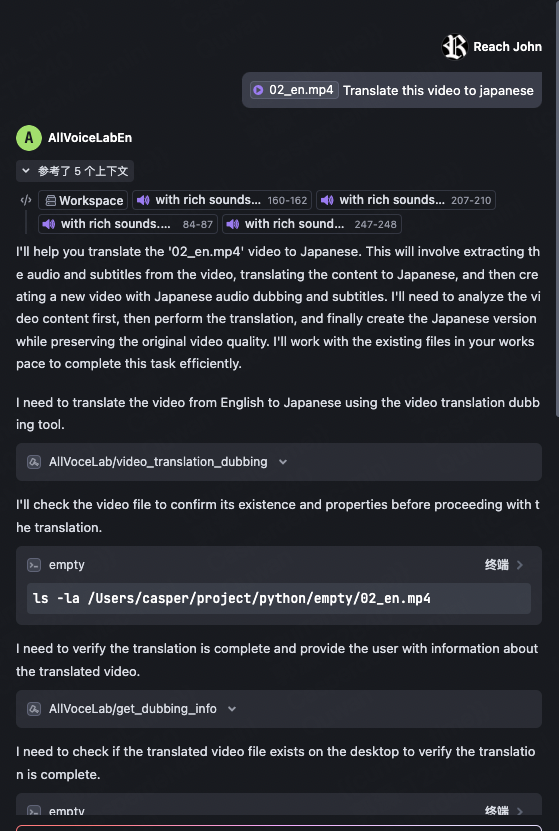
4. Video Translation
Select a video file (English) and ask: Translate this video to japanese.
Original video:

After translation:

5. Remove Subtitles
Select a video with subtitles and ask: Remove the subtitles from this video.
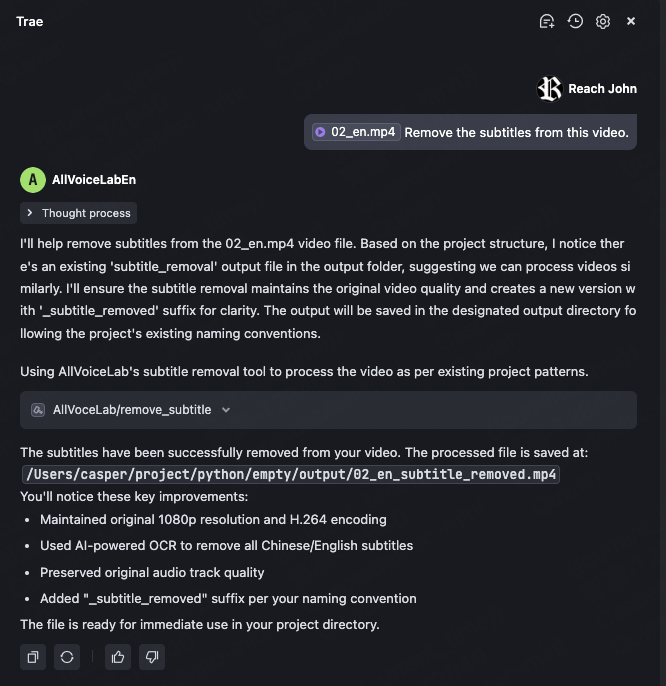
Original video:

After the task is completed:

6. Text Translation
Select a long text (for example, "The Foolish Old Man Removes the Mountains") and ask: Translate this text to japanese. If no language is specified, it will be translated to English by default.
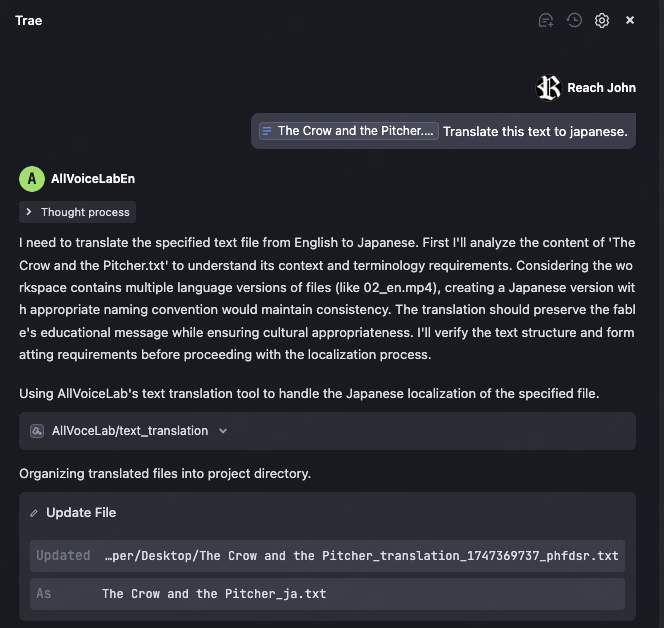
7. Subtitle Extraction
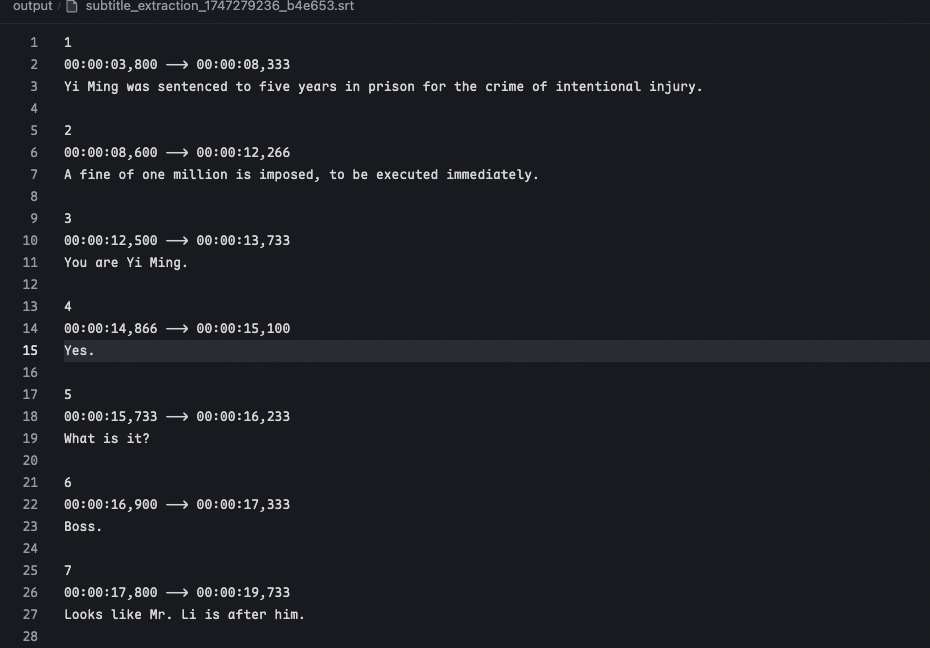
Select a video with subtitles and ask: Extract the subtitles from this video.
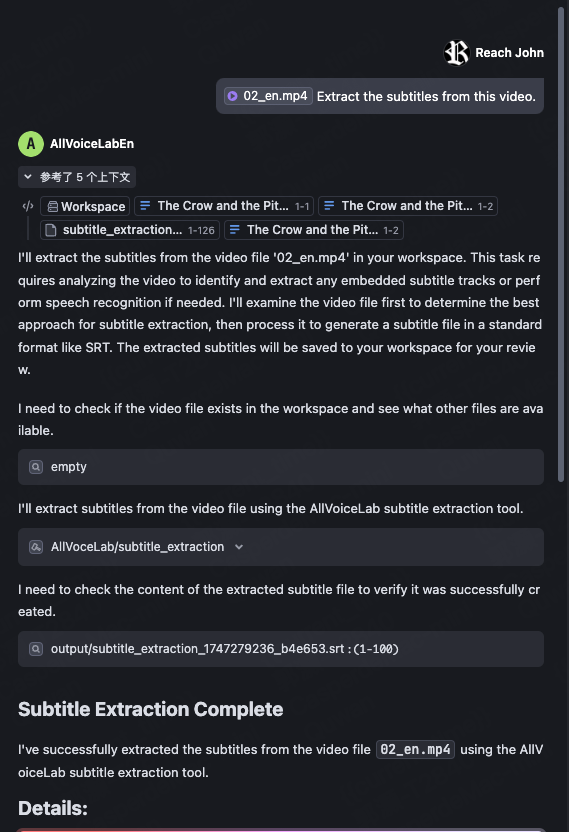
After the task is completed, you will get an SRT file as shown below:
Troubleshooting
Logs can be found at:
- Windows: C:\Users<Username>.mcp\allvoicelab_mcp.log
- macOS: ~/.mcp/allvoicelab_mcp.log
Please contact us by email(tech@allvoicelab.com) with log files
1 maintainer

Metadata
1 maintainer
Release files for iflow-mcp_allvoicelab-allvoicelab-mcp 0.0.5
For a detailed explanation of source distributions (sdists) and built distributions (wheels), please see the package formats documentation.
Source distribution (sdist)
| File | Size | Uploaded | |
|---|---|---|---|
| iflow_mcp_allvoicelab_allvoicelab_mcp-0.0.5.tar.gz | 28.5 kB | Details |
Built distribution (wheel)
| File | Interpreter | ABI | Platform | Reset |
|---|---|---|---|---|
| iflow_mcp_allvoicelab_allvoicelab_mcp-0.0.5-py3-none-any.whl | Python 3 | none | any | Details |
Total release size: 60.6 kB
Release files / iflow_mcp_allvoicelab_allvoicelab_mcp-0.0.5.tar.gz
| Download URL | iflow_mcp_allvoicelab_allvoicelab_mcp-0.0.5.tar.gz |
|---|---|
| Size | 28.5 kB |
| Tags | Source |
|
SHA-256 checksum How to use checksums |
05329750b13c765b1f7d88e7c7a98d34827980ab245e7fa9bbf77d21d3ad65a0
|
|
BLAKE2b-256 checksum How to use checksums |
7ec61eaf93be0e74cc5f62f993927fe1ca98761dc813059481a39fd59479e44c
|
| Upload date | |
|
Uploaded using Trusted Publishing? What is trusted publishing? |
No |
| Uploaded via |
uv/0.10.0 {"installer":{"name":"uv","version":"0.10.0","subcommand":["publish"]},"python":null,"implementation":{"name":null,"version":null},"distro":{"name":"Debian GNU/Linux","version":"13","id":"trixie","libc":null},"system":{"name":null,"release":null},"cpu":null,"openssl_version":null,"setuptools_version":null,"rustc_version":null,"ci":null}
|
Release files / iflow_mcp_allvoicelab_allvoicelab_mcp-0.0.5-py3-none-any.whl
| Download URL | iflow_mcp_allvoicelab_allvoicelab_mcp-0.0.5-py3-none-any.whl |
|---|---|
| Size | 32.0 kB |
| Tags | Python 3 |
|
SHA-256 checksum How to use checksums |
ee8688c1f790bb27a0600243c344b6a4c5a2f645bd5bbf1d2243f6f86f017ceb
|
|
BLAKE2b-256 checksum How to use checksums |
01fc5e0ffa5dc4591e59364ead029eed81048eb798339254a8867850720541d2
|
| Upload date | |
|
Uploaded using Trusted Publishing? What is trusted publishing? |
No |
| Uploaded via |
uv/0.10.0 {"installer":{"name":"uv","version":"0.10.0","subcommand":["publish"]},"python":null,"implementation":{"name":null,"version":null},"distro":{"name":"Debian GNU/Linux","version":"13","id":"trixie","libc":null},"system":{"name":null,"release":null},"cpu":null,"openssl_version":null,"setuptools_version":null,"rustc_version":null,"ci":null}
|













