






ghidraMCP
ghidraMCP is a Model Context Protocol server for allowing LLMs to autonomously reverse engineer applications. It exposes numerous tools from core Ghidra functionality to MCP clients.
https://github.com/user-attachments/assets/36080514-f227-44bd-af84-78e29ee1d7f9
Features
MCP Server + Ghidra Plugin
- Decompile and analyze binaries in Ghidra
- Automatically rename methods and data
- List methods, classes, imports, and exports
Installation
Installing via Smithery
To install GhidraMCP for Claude Desktop automatically via Smithery:
npx -y @smithery/cli install @DaCodeChick/GhidraMCP --client claude
Prerequisites
Ghidra
First, download the latest release from this repository. This contains the Ghidra plugin and Python MCP client. Then, you can directly import the plugin into Ghidra.
Plugin Installation
- Run Ghidra
- Select
File->Install Extensions - Click the
+button - Select the
GhidraMCP-1-2.zip(or your chosen version) from the downloaded release - Restart Ghidra
Plugin Configuration and Activation
Important: The GhidraMCP plugin operates within Ghidra's CodeBrowser tool, not the Project Manager.
- Create or open a Ghidra project in the Project Manager
- Import and open a binary for analysis (the plugin requires an active program)
- Open the CodeBrowser tool (double-click your imported program or use Tools → CodeBrowser)
- In the CodeBrowser, navigate to
File→Configure→Developer - Enable the GhidraMCPPlugin in the Developer tools list
- The HTTP server will start automatically when the plugin is enabled with an active program
Server Configuration
- Optional: Configure the server port in CodeBrowser via
Edit→Tool Options→GhidraMCP HTTP Server - Default server address:
http://127.0.0.1:8080/ - The HTTP server only runs when:
- CodeBrowser is open
- A program is loaded
- GhidraMCPPlugin is enabled
Understanding Ghidra's Architecture
Ghidra uses a multi-tool architecture:
- Project Manager: Manages projects and imports binaries
- CodeBrowser: The main analysis tool where most plugins operate
- Other Tools: Various specialized analysis tools
The GhidraMCP plugin specifically integrates with the CodeBrowser tool's analysis capabilities.
Troubleshooting
Plugin not visible in File → Configure → Developer:
- Ensure you've restarted Ghidra after installing the extension
- Verify you're in the CodeBrowser tool, not the Project Manager
- Check that a program is loaded and active
HTTP server not responding:
- Confirm the plugin is enabled in CodeBrowser's Developer tools
- Verify a binary program is loaded and analyzed
- Check the server port configuration in Tool Options
- Ensure no firewall is blocking localhost connections
"Connection refused" errors:
- The HTTP server only starts when CodeBrowser is open with the plugin enabled
- Close and reopen CodeBrowser if the server seems stuck
- Verify the port matches your MCP client configuration
Typical Workflow
- Start Ghidra Project Manager
- Import your target binary (File → Import File)
- Open CodeBrowser by double-clicking the imported program
- Enable GhidraMCP plugin (File → Configure → Developer)
- Start your MCP client (Claude Desktop, Cline, etc.)
- Begin reverse engineering with AI assistance
The HTTP server runs continuously while CodeBrowser remains open with the plugin enabled.
Documentation
Comprehensive API documentation is available via Doxygen. See DOCUMENTATION.md for the complete documentation guide.
Quick Access
- HTML Documentation: Open
docs/html/index.htmlin your web browser - Main Plugin Class: GhidraMCPPlugin Documentation
- Package Overview: com.lauriewired Package
Generating Updated Documentation
To regenerate documentation after code changes:
doxygen Doxyfile
The documentation includes:
- Complete API reference for all HTTP endpoints
- Method signatures and parameter descriptions
- Usage examples and code patterns
- Class hierarchy and relationships
- Thread safety and transaction information
- Integration examples and best practices
Video Installation Guide:
https://github.com/user-attachments/assets/75f0c176-6da1-48dc-ad96-c182eb4648c3
MCP Clients
Theoretically, any MCP client should work with ghidraMCP. Three examples are given below.
Example 1: Claude Desktop
To set up Claude Desktop as a Ghidra MCP client, go to Claude -> Settings -> Developer -> Edit Config -> claude_desktop_config.json and add the following:
{
  "mcpServers": {
    "ghidra": {
      "command": "python",
      "args": [
        "/ABSOLUTE_PATH_TO/bridge_mcp_ghidra.py",
        "--ghidra-server",
        "http://127.0.0.1:8080/"
      ]
    }
  }
}
Alternatively, edit this file directly:
/Users/YOUR_USER/Library/Application Support/Claude/claude_desktop_config.json
The server IP and port are configurable and should be set to point to the target Ghidra instance. If not set, both will default to localhost:8080.
Example 2: Cline
To use GhidraMCP with Cline, this requires manually running the MCP server as well. First run the following command:
python bridge_mcp_ghidra.py --transport sse --mcp-host 127.0.0.1 --mcp-port 8081 --ghidra-server http://127.0.0.1:8080/
The only required argument is the transport. If all other arguments are unspecified, they will default to the above. Once the MCP server is running, open up Cline and select MCP Servers at the top.
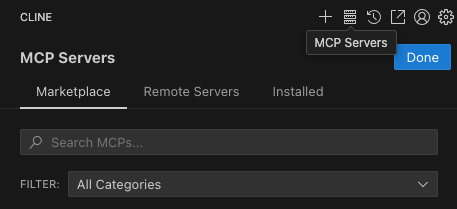
Then select Remote Servers and add the following, ensuring that the url matches the MCP host and port:
- Server Name: GhidraMCP
- Server URL:
http://127.0.0.1:8081/sse
Example 3: 5ire
Another MCP client that supports multiple models on the backend is 5ire. To set up GhidraMCP, open 5ire and go to Tools -> New and set the following configurations:
- Tool Key: ghidra
- Name: GhidraMCP
- Command:
python /ABSOLUTE_PATH_TO/bridge_mcp_ghidra.py
Example 4: VSCode (GitHub Copilot)
GitHub Copilot's agent mode can connect to MCP servers over both stdio and sse. To set up GhidraMCP as a "tool" in VSCode's Copilot chat, you need to first make sure you are in "Agent" mode. Then, click on the tools icon in the chat box:

In the drop down menu that appears, select "Add More Tools" and then "Add MCP Server"
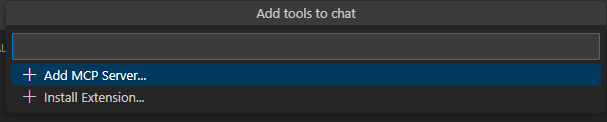
Select "Command (stdio)" and enter python3 C:\path\to\bridge_mcp_ghidra.py --ghidra-server http://localhost:8080/ as the command. Make sure to replace the path to the Python script with the actual path on your machine.
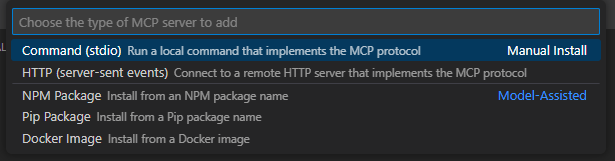

Lastly, give your MCP connection a name for VSCode.

Building from Source
Build with Gradle by simply running:
gradle
The generated zip file includes the built Ghidra plugin and its resources. These files are required for Ghidra to recognize the new extension.
1 maintainer

Metadata
1 maintainer
Release files for iflow-mcp_dacodechick-ghidramcp 1.2.0
For a detailed explanation of source distributions (sdists) and built distributions (wheels), please see the package formats documentation.
Source distribution (sdist)
| File | Size | Uploaded | |
|---|---|---|---|
| iflow_mcp_dacodechick_ghidramcp-1.2.0.tar.gz | 35.1 kB | Details |
Built distribution (wheel)
| File | Interpreter | ABI | Platform | Reset |
|---|---|---|---|---|
| iflow_mcp_dacodechick_ghidramcp-1.2.0-py3-none-any.whl | Python 3 | none | any | Details |
Total release size: 82.2 kB
Release files / iflow_mcp_dacodechick_ghidramcp-1.2.0.tar.gz
| Download URL | iflow_mcp_dacodechick_ghidramcp-1.2.0.tar.gz |
|---|---|
| Size | 35.1 kB |
| Tags | Source |
|
SHA-256 checksum How to use checksums |
046d6052b393e102242794aee5b85f2d46486f104b5b61631c696312a3505122
|
|
BLAKE2b-256 checksum How to use checksums |
d80df9645da013c5799594b63a38b3514b2f44a3fb8390e0cd21df2f8aa97b91
|
| Upload date | |
|
Uploaded using Trusted Publishing? What is trusted publishing? |
No |
| Uploaded via |
uv/0.10.0 {"installer":{"name":"uv","version":"0.10.0","subcommand":["publish"]},"python":null,"implementation":{"name":null,"version":null},"distro":{"name":"Debian GNU/Linux","version":"13","id":"trixie","libc":null},"system":{"name":null,"release":null},"cpu":null,"openssl_version":null,"setuptools_version":null,"rustc_version":null,"ci":null}
|
Release files / iflow_mcp_dacodechick_ghidramcp-1.2.0-py3-none-any.whl
| Download URL | iflow_mcp_dacodechick_ghidramcp-1.2.0-py3-none-any.whl |
|---|---|
| Size | 47.1 kB |
| Tags | Python 3 |
|
SHA-256 checksum How to use checksums |
cb7d92918f977d7641cee0fdfdf919375e9449a973ea6a453c00ed5ee0f4b95e
|
|
BLAKE2b-256 checksum How to use checksums |
f0d5647be2a95b2e200bdd5a07afdb9cb9082abe3f74f5c44674458b4dd02797
|
| Upload date | |
|
Uploaded using Trusted Publishing? What is trusted publishing? |
No |
| Uploaded via |
uv/0.10.0 {"installer":{"name":"uv","version":"0.10.0","subcommand":["publish"]},"python":null,"implementation":{"name":null,"version":null},"distro":{"name":"Debian GNU/Linux","version":"13","id":"trixie","libc":null},"system":{"name":null,"release":null},"cpu":null,"openssl_version":null,"setuptools_version":null,"rustc_version":null,"ci":null}
|













