
VLC MCP Server
An MCP (Model Context Protocol) Server to play and control movies using the VLC media player. Use any MCP client to control play videos remotely (e.g. awesome-mcp-clients)
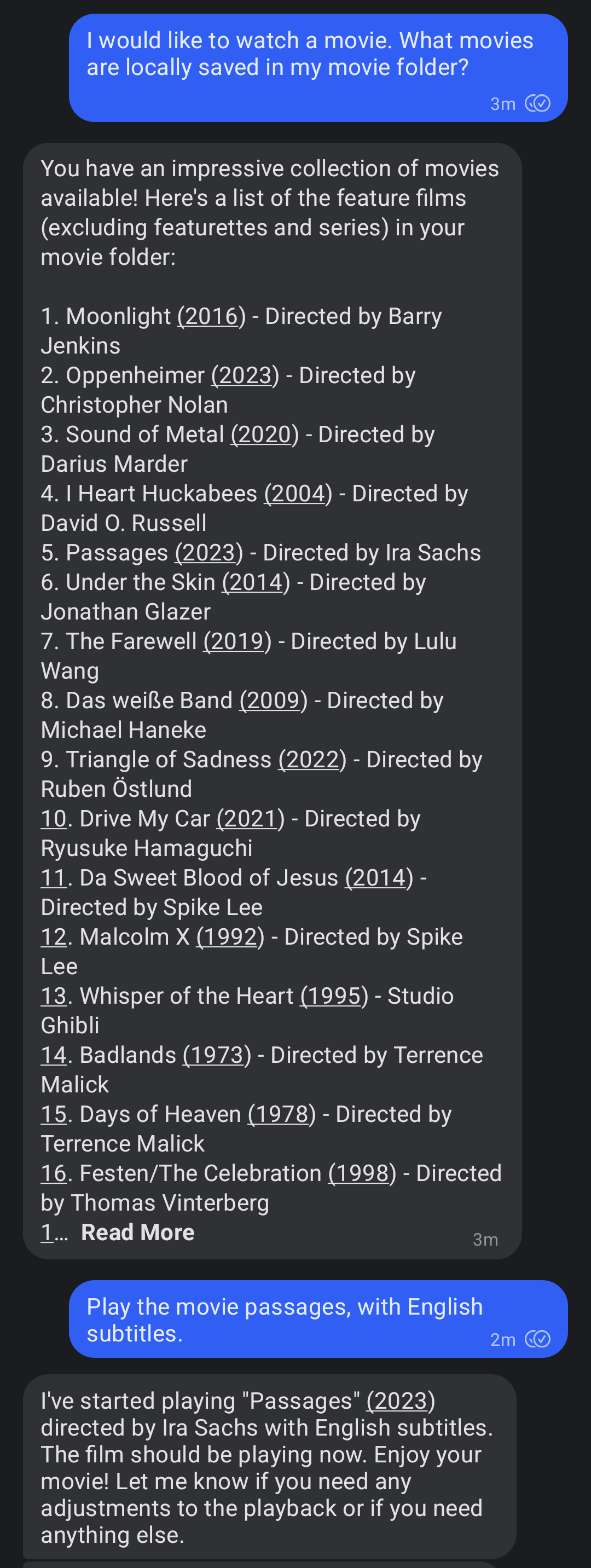
I use my signal-mcp-client running on an old laptop connected to my beamer. This way I can play a movie by sending a signal message. An example of how to use it is shown in the screenshot below.
Usage
This installation is for Linux systems running Ubuntu or a similar Debian-based system like Raspberry Pi OS. With a few modifications it should also work on other systems. Feel free to create a pull request if you get it working on another system.
-
Install VLC, mediainfo and uv.
sudo apt-get install vlc mediainfo
curl -LsSf https://astral.sh/uv/install.sh | sh
-
Start the VLC http server:
export DISPLAY=:0 # needed when running it remotely on a server
vlc --extraintf=http --http-host=localhost --http-port=8081 --http-password=your_password
-
Add the server to the MCP config file of your client (like signal-mcp-client or awesome-mcp-clients)
{
    "name": "vlc-mcp-server",
    "command": "uvx",
    "args": [
        "vlc-mcp-server"
    ],
    "env": {
        "ROOT_VIDEO_FOLDER": "path/to/your/video/folder",
        "VLC_HTTP_HOST": "localhost",
        "VLC_HTTP_PORT": "8081",
        "VLC_HTTP_PASSWORD": "your_password"
    }
}
or clone the repo and use
uvwith a directory:{ "name": "vlc-mcp-server", "command": "uv", "args": [ "--directory", "path/to/root/dir/", "run", "vlc_mcp_player/main.py" ], "env": { "the same as above" } }
Contributing
Contributions to this project are welcome. Feel free to report bugs, suggest ideas, or create merge requests.
Development
Clone repo and install dependencies:
git clone https://github.com/piebro/vlc-mcp-server.git
uv venv
uv sync --extra dev
uv run pre-commit install
Testing
Use mcp-client-for-testing to test the tools of the server using the json config using the local path.
uvx mcp-client-for-testing \
    --config '
    [
        "the json config from above"
    ]
    ' \
    --client_log_level "INFO" \
	--server_log_level "INFO" \
    --tool_call '{"name": "show_video", "arguments": {"video_title": "David Lynch - Dune", "subtitle_language_code": "en"}}'
Formatting and Linting
The code is formatted and linted with ruff:
uv run ruff format
uv run ruff check --fix
Building with uv
Build the package using uv:
uv build
Releasing a New Version
To release a new version of the package to PyPI, create and push a new Git tag:
-
Checkout the main branch and get the current version:
git checkout main
git pull origin main
git describe --tags
-
Create and push a new Git tag:
git tag v0.2.0
git push origin v0.2.0
The GitHub Actions workflow will automatically build and publish the package to PyPI when a new tag is pushed. The python package version number will be derived directly from the Git tag.
Running as a Systemd Service
To ensure the VLC HTTP interface runs automatically on boot and restarts if it fails (on Linux systems), you can set it up as a systemd user service. User services run under your specific user account.
This setup assumes that you have completed the setup steps.
-
Enable User Lingering to keep your user session active after logging out.
sudo loginctl enable-linger $USER
-
Create Systemd Service Directory
mkdir -p /home/$USER/.config/systemd/user/
-
Create Service File for VLC HTTP Server. Make sure vlc is installed using apt and not using snap or change the path to the vlc binary.
cat << EOF > "/home/$USER/.config/systemd/user/vlc-http.service"
[Unit]
Description=VLC Media Player with HTTP Interface
After=network.target sound.target

[Service]
Restart=on-failure
RestartSec=30
SyslogIdentifier=vlc-http
Environment="DISPLAY=:0"

ExecStart=/usr/bin/vlc --extraintf=http --http-host=localhost --http-port=8081 --http-password=your_password

ExecStop=/usr/bin/pkill -f '/usr/bin/vlc --extraintf=http --http-host=localhost --http-port=8080'

[Install]
WantedBy=default.target
EOF
-
Enable and Start the Services
systemctl --user daemon-reload
systemctl --user enable vlc-http.service
systemctl --user start vlc-http.service
-
Check Service Status and Logs
systemctl --user status vlc-http.service
journalctl --user -u vlc-http.service -f
License
This project is licensed under the MIT License. See the LICENSE file for details.
1 maintainer

Metadata
1 maintainer
Release files for iflow-mcp_piebro_vlc-mcp-server 0.2.0
For a detailed explanation of source distributions (sdists) and built distributions (wheels), please see the package formats documentation.
Source distribution (sdist)
| File | Size | Uploaded | |
|---|---|---|---|
| iflow_mcp_piebro_vlc_mcp_server-0.2.0.tar.gz | 456.7 kB | Details |
Built distribution (wheel)
| File | Interpreter | ABI | Platform | Reset |
|---|---|---|---|---|
| iflow_mcp_piebro_vlc_mcp_server-0.2.0-py3-none-any.whl | Python 3 | none | any | Details |
Total release size: 465.5 kB
Release files / iflow_mcp_piebro_vlc_mcp_server-0.2.0.tar.gz
| Download URL | iflow_mcp_piebro_vlc_mcp_server-0.2.0.tar.gz |
|---|---|
| Size | 456.7 kB |
| Tags | Source |
|
SHA-256 checksum How to use checksums |
396cbd374c06dff4e5054a8e4e20873dd167977b910002c5bb1fcb4804783f81
|
|
BLAKE2b-256 checksum How to use checksums |
fbf8eb31d19b3b5983fcdc2fed2eb11e88e7ae0e7a46356b252f9e650f07f00d
|
| Upload date | |
|
Uploaded using Trusted Publishing? What is trusted publishing? |
No |
| Uploaded via |
uv/0.9.8
|
Release files / iflow_mcp_piebro_vlc_mcp_server-0.2.0-py3-none-any.whl
| Download URL | iflow_mcp_piebro_vlc_mcp_server-0.2.0-py3-none-any.whl |
|---|---|
| Size | 8.8 kB |
| Tags | Python 3 |
|
SHA-256 checksum How to use checksums |
6cb0b0c59569fc76f68ffea8a48cbedea80bfa0a608dd916d726b0018f44f921
|
|
BLAKE2b-256 checksum How to use checksums |
6f8d7c5813f2efc21d47fd8f6ce56ab643c8438ee3bc61a0d30a906a20454bd7
|
| Upload date | |
|
Uploaded using Trusted Publishing? What is trusted publishing? |
No |
| Uploaded via |
uv/0.9.8
|














