
MCP Tool Server for Logo Generation
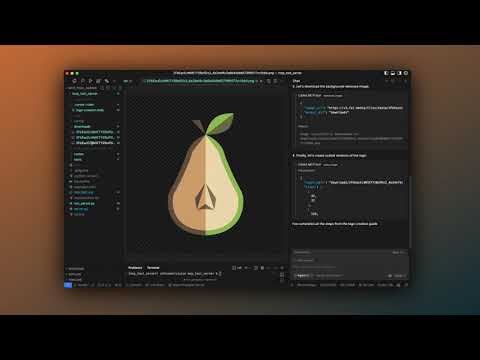
This server provides logo generation capabilities using FAL AI, with tools for image generation, background removal, and automatic scaling.
Demo
Installation
- Install
uv(Universal Virtualenv):
curl -LsSf https://astral.sh/uv/install.sh | sh
- Create and activate a virtual environment:
uv venv
source .venv/bin/activate  # On Unix/macOS
# or
.venv\Scripts\activate     # On Windows
- Install dependencies:
uv pip install -r requirements.txt
- Set up your environment variables:
- Create a
.envfile in the root directory - Add your FAL AI API key:
- Create a
FAL_KEY=your_fal_ai_key_here
Running the Server
Start the server with:
python run_server.py
The server will be available at http://127.0.0.1:7777
Troubleshooting
If you encounter a FileNotFoundError on Windows when running the server, make sure you're running the command from the root directory of the project. If the issue persists, try updating to the latest version of the repository which includes fixes for Windows compatibility.
For Windows users specifically:
- Make sure you've activated your virtual environment with
.venv\Scripts\activate - Run the server from the root directory of the project with
python run_server.py - If you see any path-related errors, please report them in the issues section of the repository
Cursor IDE Configuration
- Open Cursor Settings
- Navigate to the MCP section
- Add the following configuration:
- URL:
http://127.0.0.1:7777/sse - Connection Type:
SSE - Enable the connection
- URL:
Notes
- Always reference
@logo-creation.mdcin your Cursor Composer for consistent results - Steps are defined in
@logo-creation.mdcbut tools can be used independently - All generated logos will be saved in the
downloadsdirectory - Each logo is automatically generated in three sizes:
- Original size
- 32x32 pixels
- 128x128 pixels
- All logos maintain transparency in their final PNG format
- Prompts created by agent are informed by examples and prompt structure seen in server.py. You can customize the prompt structure by editing the server.py file.
- You can use the generate_image tool to generate any image you want, not just logos
Requirements
- Python 3.8+
- FAL AI API key (required for image generation)
- Active internet connection
References
If you find this tool helpful, you can buy me a coffee ☕️ to support development!
1 maintainer

Metadata
1 maintainer
Release files for iflow-mcp_sshtunnelvision_mcp-tool-server 0.1.0
For a detailed explanation of source distributions (sdists) and built distributions (wheels), please see the package formats documentation.
Source distribution (sdist)
| File | Size | Uploaded | |
|---|---|---|---|
| iflow_mcp_sshtunnelvision_mcp_tool_server-0.1.0.tar.gz | 18.2 kB | Details |
Built distribution (wheel)
| File | Interpreter | ABI | Platform | Reset |
|---|---|---|---|---|
| iflow_mcp_sshtunnelvision_mcp_tool_server-0.1.0-py3-none-any.whl | Python 3 | none | any | Details |
Total release size: 38.6 kB
Release files / iflow_mcp_sshtunnelvision_mcp_tool_server-0.1.0.tar.gz
| Download URL | iflow_mcp_sshtunnelvision_mcp_tool_server-0.1.0.tar.gz |
|---|---|
| Size | 18.2 kB |
| Tags | Source |
|
SHA-256 checksum How to use checksums |
d27dc94c1674f085bc0b82a5f2ab36c8b030628ac66bdbcf44860a6a7546dd83
|
|
BLAKE2b-256 checksum How to use checksums |
4c9d006ec65668c454ba0821fe1d28b141eb5107e1122b4ef035b22e220f26e2
|
| Upload date | |
|
Uploaded using Trusted Publishing? What is trusted publishing? |
No |
| Uploaded via |
uv/0.7.12
|
Release files / iflow_mcp_sshtunnelvision_mcp_tool_server-0.1.0-py3-none-any.whl
| Download URL | iflow_mcp_sshtunnelvision_mcp_tool_server-0.1.0-py3-none-any.whl |
|---|---|
| Size | 20.5 kB |
| Tags | Python 3 |
|
SHA-256 checksum How to use checksums |
d2cf37701f8d4c0da880063ffba5b2a62ea499e8445fa014431b88a75a0f95ce
|
|
BLAKE2b-256 checksum How to use checksums |
2eab89742c6a11765ee3414e9014be9ed93ad3b785ad8dbba5a54c0a1f618a9f
|
| Upload date | |
|
Uploaded using Trusted Publishing? What is trusted publishing? |
No |
| Uploaded via |
uv/0.7.12
|













