

IMAP Cleanup Tool
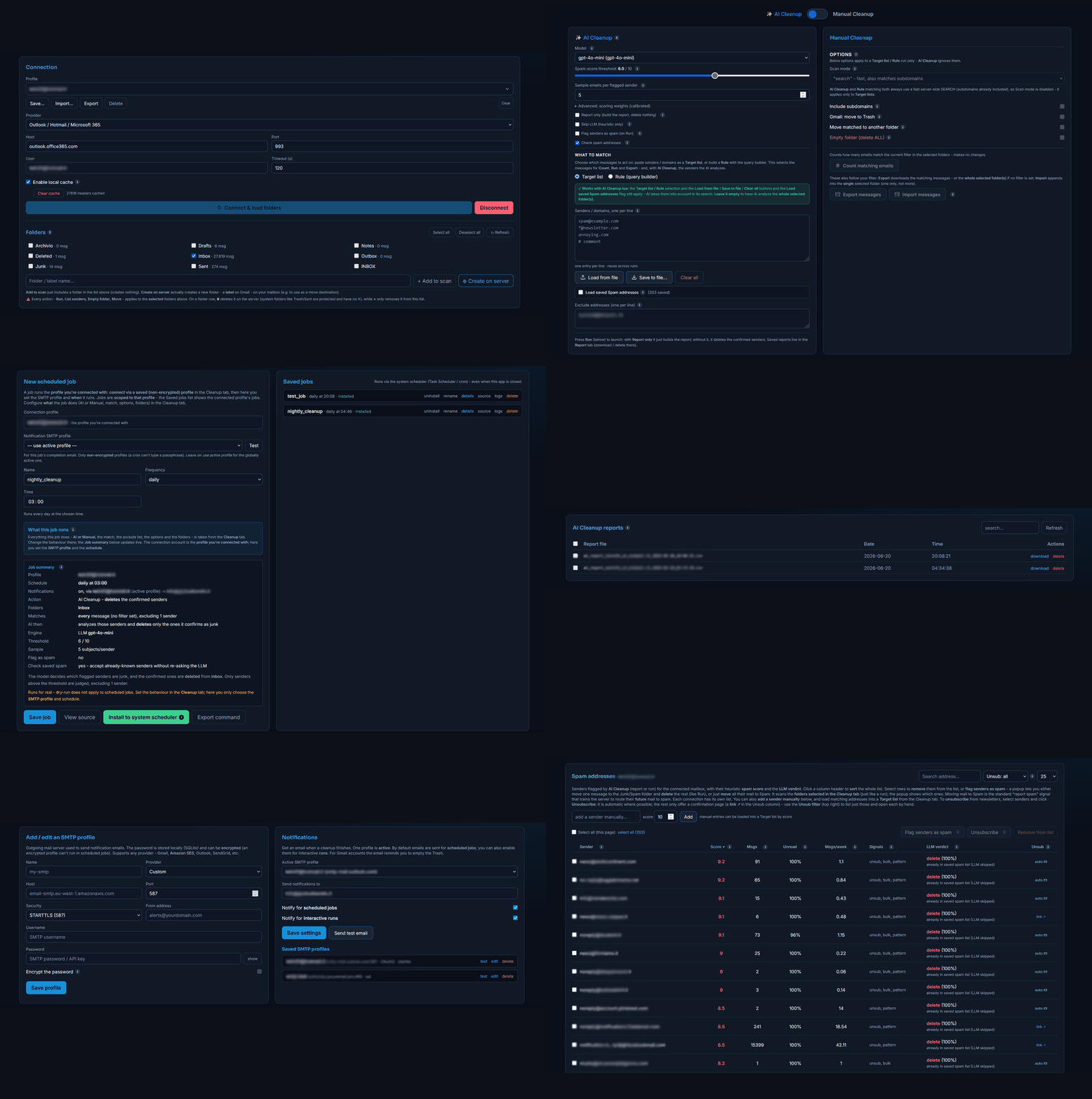



Clean your inbox with AI, by hand, or both. Let an LLM decide what is junk and delete it, with your choice of model:
- Free & private - run a local model via Ollama, so nothing ever leaves your machine; or
- BYOA (bring your own API key) - point it at any cloud model (OpenAI, OpenRouter, ...) using your own key.
Prefer to stay in control? Write precise sender / domain / nested-rule filters yourself. Or combine the two - aim the AI at a single noisy domain, or let it sweep a whole folder.
Bulk-delete or move IMAP emails from the command line and a local web interface. The CLI uses only the Python standard library; the web UI and the AI features are optional extras (see Install).
Windows and Linux ship as one-click installers (no Python needed - see
Download); macOS and any other setup install via pip.
💡 Friendly heads-up: this tool is a little tricky to get the hang of - because it has tons of features. The good news: everything is documented in tooltips. Hover the little ⓘ icons in the web UI and you'll find a plain-English explanation for every single option. So take a minute with this README, and when in doubt, read the tooltips - they've got your back. 🙂
- 🤖 AI Cleanup (the headline): a local heuristic scores every sender, then an LLM decides what is junk and deletes it - with a configurable threshold, a report-only mode, and per-model cost tracking. Pick your model: a free local one via Ollama (nothing leaves your machine), or BYOA (bring your own API key) for any remote/cloud model (OpenAI / OpenRouter / ...). Either way only sender subjects + stats are sent, never message bodies, and it works on a filter or a whole folder - just like Move. Even on a cloud model the cost is tiny: in testing it cleaned ~13,000 emails from a ~40k-message mailbox for about €0.03 (a local model is free). See AI Cleanup.
- Prefer manual control? Match by a target file (one sender/domain per line)
or by a rule expression like
sender contains amazon.com OR (subject is Invoice AND date starts 2025-01-01). - Fast server-side search for huge folders, or strict local matching.
- Count how many emails a filter matches before deleting anything.
- Export / import messages: download the matching messages (full content) -
or a whole folder - as a single
.mboxfile (read-only, never marks mail read), and import a.mbox/.emlback into a folder - optionally skipping duplicates already present (by Message-ID; cache-assisted). Handy for backups or moving mail between mailboxes. - Move matched emails to another folder instead of deleting them, and create new folders (or labels on Gmail) right from the app.
- Spam addresses: the senders AI flags are saved per account, and you can report them as spam to the server (train it so their future mail auto-routes to spam).
- Bulk unsubscribe from newsletters: from that same list, unsubscribe in one
go via each sender's
List-Unsubscribe- automatic formailto:(sent from your SMTP profile) and one-click links, open-the-page for the rest. See Bulk unsubscribe from newsletters. - Email notifications: get a mail when a cleanup/AI run finishes, with the AI report attached as CSV.
- Gmail mode: moves matches to Trash (the only way to truly delete on Gmail).
- Empty a whole folder (e.g. Trash) without scanning.
- List senders with counts (honoring the Target list / Rule filter when one is set) and export them to CSV (with timestamp).
- Stop button / cooperative cancellation for long runs.
- Scheduler: save jobs (including AI jobs) and install them into the system scheduler (Windows Task Scheduler / cron) - once, hourly, daily, weekly, monthly, or every N minutes - so they run even when the app is closed, with per-job logs.
⚠️ Deleting email is destructive. Always do a
--dry-runfirst. Without--expunge, messages are only flagged deleted (often hidden by the client but recoverable until expunged).
Download
One-click installers - no Python needed. Launch the app and the local web UI opens in your browser.
| Platform | Get it |
|---|---|
| Windows | Download the installer (.exe) - coming soon to the Microsoft Store |
| Linux | Download the AppImage - single file, no install |
| macOS / other | Install from source with pip - see Install |
The download links always serve the latest build (see all on the releases page). Rather use pip on any platform? See Install.
Table of contents
- Download
- Quick start - web interface (with AI)
- Quick start - command line
- AI Cleanup
- Install
- Command-line usage
- Rule expressions
- Target file format
- Web interface
- OAuth2 login (Microsoft modern auth)
- Folders vs labels, and moving
- Remote / headless server (SSH port forwarding)
- Scheduling
- Email notifications
- Spam addresses
- Bulk unsubscribe from newsletters
- Gmail notes
Quick start - web interface (with AI)
The web interface is the easiest way to use the tool - including the AI cleanup - and the recommended path for most users.
Prerequisite: Python 3.10 or newer. Check with python --version (or
python3 --version). If it is missing, download it from
python.org/downloads - on Windows, tick
"Add python.exe to PATH" in the installer. Linux/macOS usually ship Python, or
install it with the system package manager (sudo apt install python3 python3-pip,
brew install python, etc.).
Where do I type these? In a terminal: Command Prompt or PowerShell on Windows (press Win, type cmd or PowerShell), Terminal on macOS (Spotlight ▸ Terminal) or Linux. Run the commands below one line at a time; lines starting with
#are comments, don't type them.
Windows (PowerShell):
# 1. Create and activate a virtual environment (keeps the install isolated)
python -m venv .venv
.venv\Scripts\Activate.ps1

# 2. Install. [web,ai] installs the core CLI, the web UI, AND AI Cleanup
#    (it pulls in the base package automatically - no separate step needed).
pip install "imap-cleanup-tool[web,ai]"

# 3. Launch. Serves http://127.0.0.1:8765 and opens the default browser.
imap-cleanup-tool-web
macOS / Linux (bash/zsh):
# 1. Create and activate a virtual environment (keeps the install isolated)
python3 -m venv .venv
source .venv/bin/activate

# 2. Install (core CLI + web UI + AI Cleanup in one go)
pip install "imap-cleanup-tool[web,ai]"

# 3. Launch. Serves http://127.0.0.1:8765 and opens the default browser.
imap-cleanup-tool-web
The virtual environment is recommended but optional - you can skip step 1 and just
pip install "imap-cleanup-tool[web,ai]"globally. Either way, activate the same environment (.venv\Scripts\Activate.ps1/source .venv/bin/activate) in every new terminal before runningimap-cleanup-tool-web. Don't want the AI features? Use[web]instead of[web,ai].If
pipis not found, usepython -m pip ...(Windows) orpython3 -m pip ...(macOS/Linux); on some systems the command ispip3. On Windows, ifActivate.ps1is blocked, runSet-ExecutionPolicy -Scope Process RemoteSignedfirst, or use.venv\Scripts\activate.batfrom cmd.exe.
Then, in the browser:
- Connect - pick a provider preset (or type host/port), enter your username and password (for Gmail, an App Password - see Gmail notes), and click Connect. Optionally save it as a connection profile so you do not retype it next time.
- Pick folders - select one or more folders to scan (each shows its message count); use Select all / Deselect all as needed.
- 🤖 Let AI clean it (the easy path) - tick AI Cleanup, pick a model: a free local Ollama model keeps everything on your machine, or paste your own cloud API key in the LLM tab. Tick Report only and click Run to see exactly what it would delete (deletes nothing); untick Report only and Run again to clean for real. Only subjects + stats are ever sent to the model, never message bodies. Saved reports live in the Reports tab. See AI Cleanup.
- Or match it yourself - either paste a target list (one sender or domain per line) or build a rule visually (field ▸ operator ▸ value, with AND/OR groups). Click Count matching emails to see how many would be hit.
- Review, then run - dry-run is on by default, so the first run only reports. Watch the live log; use Stop to cancel. When the preview looks right, turn off dry-run (or pick an action - Move to another folder, Gmail: move to Trash, Expunge) and run for real.
- (Optional) Schedule it - in the Scheduling tab, turn the same settings (manual or AI) into a job and install it into the system scheduler. See Scheduling.
On a server with no desktop, the GUI is still usable from a local browser via SSH port forwarding - see Remote / headless server.
⚠️ Deleting email is destructive. Keep dry-run on until the count and log look right. Without Expunge, messages are only flagged deleted (often hidden by the client but recoverable until expunged).
Quick start - command line
# 0. Check the installed version (update with: pip install -U imap-cleanup-tool)
imap-cleanup-tool --version

# 1. Let AI build a report of what's junk (nothing is deleted), saved to CSV.
#    Heuristic-only here (no model) - works offline; needs the [ai] extra.
imap-cleanup-tool --host imap.gmail.com --user you@gmail.com \
    --ai-cleanup --ai-report-only --ai-report-csv report.csv

# 2. Run AI Cleanup for real with a configured model (omit --dry-run to delete).
#    Use a local Ollama model to keep everything on your machine.
imap-cleanup-tool --host imap.gmail.com --user you@gmail.com \
    --ai-cleanup --ai-model my-model --dry-run

# 3. Or do it by hand: see folders, preview a target/rule cleanup, then run.
imap-cleanup-tool --host imap.gmail.com --user you@gmail.com --list-folders
imap-cleanup-tool --host imap.gmail.com --user you@gmail.com \
    --targets targets.txt --dry-run
imap-cleanup-tool --host imap.gmail.com --user you@gmail.com \
    --targets targets.txt --gmail-trash
AI Cleanup needs the
[ai]extra:pip install "imap-cleanup-tool[ai]". Configure a model in the web LLM tab (or point at a local Ollama model). See AI Cleanup for the full set of--ai-*flags.
Credentials are read from flags, then environment variables
(IMAP_HOST, IMAP_USER, IMAP_PASSWORD, IMAP_PORT), then an interactive
prompt. Prefer the prompt or env vars over --password so the secret does not
land in your shell history.
AI Cleanup
Optional - install the AI extra: pip install "imap-cleanup-tool[ai]".
Local-first, and BYOA (bring your own API key). AI Cleanup runs great on a free local model (Ollama) so nothing ever leaves your machine - or use BYOA (bring your own API key) for any remote/cloud model (OpenAI, OpenRouter, ...). Your key, your model, your choice. Either way, only sender subjects + stats are sent to the model - never the message body.
AI Cleanup hands "which of these do I actually want?" to a model, safely - and efficiently. The key design choice: it works on aggregated per-sender statistics, never on your individual emails. It never feeds a whole mailbox to an LLM (that would be slow and make the token count explode); a local heuristic does the bulk of the work, and only a small shortlist of borderline senders (with a few sample subjects each) ever reaches the model.
- Heuristic pre-filter (local), per sender. It groups your mail by sender
(not per individual email) and gives each sender a 0-10 spam score from
signals read on your machine:
List-Unsubscribe, the share of unread messages, send frequency,Precedence: bulk, and sender patterns (noreply@,newsletter@...). Weights are calibrated and tunable. This local engine does most of the filtering, fast and for free. - LLM verdict. Only senders at or above your threshold (default 6) are sent to the model, with a few sample subjects each (never the body); it replies in strict JSON which to delete. The prompt has an explicit safeguard: it must KEEP anything that looks like online orders/receipts, appointments/bookings, medical/health, travel, banking/tax, security/2FA, or personal mail - only obvious bulk (newsletters, promotions, notifications) is marked deletable. The reply is validated with pydantic, and the model is retried up to 3 times before giving up.
- Verdict to action - press Run: with Report only it just saves the report, without it the confirmed senders are deleted (see below).
💸 Real-world cost & speed. In our testing, running AI Cleanup with
gpt-4o-miniover a ~40,000-message Gmail mailbox cost about €0.03 (a few cents) and cleaned roughly 13,000 emails in ~5 minutes. Cost scales with how many senders cross the threshold (only those go to the LLM, a few subjects each), so your mileage varies - and a local Ollama model costs nothing at all.📉 The more you run, the less it costs. Every run saves the flagged senders to your Spam addresses list, and Check spam addresses (on by default) skips those known senders from the LLM on later runs - so each cleanup sends fewer addresses to the model than the last. It gets cheaper the more you use it.
Run, with "Report only"
AI Cleanup has a single Run button; the Report only checkbox decides whether it actually deletes:
- Report only ON - Run builds the report and deletes nothing (this is what
a separate "Generate report" button used to do). It scores senders, asks the LLM
for a verdict on each flagged one, saves the CSV (and emails it if notifications
are on) and records flagged senders to your Spam list. CLI:
--ai-cleanup --ai-report-only. - Skip LLM (heuristic only) - build the report from the local heuristic score
only, no LLM call (free, fast, nothing leaves your machine; no per-sender AI
verdicts). The heuristic alone can't decide deletions, so it requires Report
only and ticking it auto-enables Report only. CLI:
--ai-report-onlywithout--ai-model. - Report only OFF - Run deletes the senders the LLM confirms (dry-run
simulates). This needs a model. With Flag senders as spam, one message per
confirmed sender is first moved to Junk (see below). CLI:
--ai-cleanup --ai-model NAME(omit--dry-runto actually delete).
Before a real Run (dry-run off), a confirmation popup recaps exactly what will happen - the action, folders, filter, engine and options - for both AI and manual runs. Dry-runs launch without it.
Every report (report-only or a real run) is auto-saved to disk as a
timestamped CSV in your config directory (ai_reports/), per account (the
account is in the file name), so they stay available after other runs or a
restart. They all live in the Reports tab - a table of every saved report with
its date and time, where you can download or delete one, or select several
(this page, or all pages across the list) and download them as a zip or delete
them in bulk (the CSV files only - never any email). If email notifications for
interactive runs are enabled (see Email notifications), a
report-only Run also emails you the CSV as an attachment.
Flag senders as spam (on Run). Optionally, when a real Run (Report only
off) deletes a confirmed sender, first move one of their messages to the
Junk/Spam folder - the standard "report spam" signal that trains the server to
route that sender's future mail to spam - then delete the rest. It is a
checkbox in the AI panel (disabled under Report only, since nothing is
deleted), so scheduled jobs pick it up from there too, and on the CLI it is
--ai-flag-spam. It needs a Junk/Spam folder on the server.
Check spam addresses (saves LLM tokens, on by default). Flagged senders that
are already in this account's Spam addresses list (from
earlier reports/runs) are accepted as spam without asking the model again, so
fewer addresses are sent to the LLM - real token savings on repeat runs. They are
treated as confirmed for deletion with a synthetic verdict ("already in saved spam
list"). It is a checkbox in the AI panel (scheduled jobs read it from there too;
CLI: --ai-no-check-spam to turn it off). Edge case: an important email from a
sender already on the list would be treated as spam - this is rare, and avoided by
running with the option off (then every flagged sender is re-evaluated by the
LLM).
AI Cleanup deletes the same way as a normal run: on a regular server the
messages are flagged \Deleted and, if you tick Expunge, immediately removed
for good (otherwise they linger until an expunge). On Gmail they are moved to
the Trash and are not permanently gone until the Trash is emptied (the UI
reminds you and offers to set that up - see Gmail notes). On the
CLI add --expunge for permanent removal.
Your own mailbox address is pre-filled in the Exclude box when you connect, so
self-sent mail is skipped by default. Remove that line if you want your own
address included too, and add any other senders to skip (one per line). On the CLI
the same default applies - pass --ai-include-self to include your own address,
or --ai-exclude ADDR to skip more.
Like Move, AI Cleanup honors the active filter (target list or rule) when one is set, or scans the whole folder when none is - so you can point it at a single noisy domain or let it sweep everything.
Models are configured in the LLM tab (powered by litellm). On first run
the tool seeds two ready-to-use defaults you can edit or delete: gpt-4o-mini
(cloud, no key stored - set OPENAI_API_KEY or paste a key) and
ollama-llama3 (free, local via Ollama). More options:
- Local & private (recommended): an Ollama model (e.g.
ollama/llama3) keeps everything on your machine. ⚠️ A remote model (OpenAI, OpenRouter, ...) sends the sample subjects to that provider - the app warns you, and only ever sends subjects + stats, never message bodies. - Edit a saved model from the list (the edit button loads it into the form). The key is never shown - leave the key field blank to keep the current one, or type a new one to replace it.
- API keys live in a local SQLite DB, optionally encrypted (encrypted = not usable in scheduling, like connection profiles). Keys are never committed.
- Prefer an environment variable? Leave the model's API-key field blank
and export the provider's standard variable instead - e.g.
OPENAI_API_KEY(OpenAI),OPENROUTER_API_KEY(OpenRouter). litellm picks it up automatically, so the key never touches disk. (PowerShell:$env:OPENAI_API_KEY = "sk-..."; bash:export OPENAI_API_KEY=sk-....) - Optional cost tracking: set the price per million tokens and get a per-model cost log.
AI Cleanup can also be scheduled: set it up here in the Cleanup tab (model,
threshold, Report only, Skip LLM, ...), then use the Scheduling tab to pick a
connection profile and a frequency - the job mirrors these settings. A
non-encrypted model is required to run unattended; the scheduled CLI runs
--ai-cleanup --ai-model NAME.
Everything the web panel offers is available on the CLI too - threshold, sample size, exclusions, heuristic weights, report-only, and CSV export:
pip install "imap-cleanup-tool[ai]"
# Configure a model + API key in the LLM tab (or a local Ollama model), then:
imap-cleanup-tool --host HOST --user USER \
    --ai-cleanup --ai-model my-model --dry-run

# Heuristic report only (no LLM, nothing deleted), saved to CSV:
imap-cleanup-tool --host HOST --user USER \
    --ai-cleanup --ai-report-only --ai-report-csv report.csv

# Tune threshold/weights and add exclusions, with an LLM, report only:
imap-cleanup-tool --host HOST --user USER \
    --ai-cleanup --ai-model my-model --ai-report-only \
    --ai-threshold 7 --ai-weight unread_ratio=4 --ai-weight bulk=2 \
    --ai-exclude boss@work.com --ai-report-csv report.csv
If you run an
--ai-cleanupcommand without the[ai]extra installed, the CLI stops with a clear message telling you topip install "imap-cleanup-tool[ai]".
Reports tab
Every AI report or run saves a timestamped CSV (per account, in ai_reports/).
The Reports tab lists them in a table - the file name, the date and the
time - newest first, with a search box to filter by name. For each row you can
Download the CSV or Delete it (this removes the file only, never any email).
Tick several rows - use the header checkbox to take the whole page, or Select all
N across pages - and Download as a zip or Delete them in bulk.
Local header cache (faster repeat reports)
Fetching message headers is the slow part of building a report - on a slow IMAP server it can take several seconds per 50 messages (a Gmail-class server does the same in 1-2s). Without a cache, every report's speed depends entirely on your IMAP server, so on a slow provider each report is slow again.
That is why Enable local cache (in the connection card) is on by default.
You can untick it; the setting is saved with the connection profile, and on
the CLI it is opt-in via --local-cache (or carried by a saved profile). With it
on, the tool caches the immutable header fields on your machine, keyed by
message UID: From, Date, Subject, the List-Unsubscribe /
List-Unsubscribe-Post info (so one-click unsubscribe data is cached too) and the
Precedence: bulk marker. No message bodies are ever stored, and the volatile
\Seen (read/unread) flag is not cached - it is always re-read fresh so unread
counts stay accurate. The next time, only the new messages are fetched, so
repeat reports are near-instant. The cache is per account.
The cache applies to every operation that downloads headers: AI reports/runs,
List senders, and matching with --scan-mode full (interactive and
scheduled jobs - they share the same cache). It does not apply to the default
server-side search mode (move / delete / count / list-senders in search
mode), because there the server does the filtering and no headers are
downloaded at all - so there is nothing to cache there.
First run on a new mailbox is the slow one. The first report on a mailbox still fetches every header (it can take a few minutes on a big, slow mailbox) - that's it filling the cache. Every report after that is fast.
The flag just controls whether this run reads/writes the cache. With it
off, headers are fetched fresh from the server every time and not stored
(the slow path), and an existing cache is simply left untouched and ignored -
nothing is deleted. Re-tick Enable local cache any time and it self-heals: it reuses
what's already cached and fetches only the messages that arrived in the meantime
(headers never change, so old entries stay valid; entries for deleted messages are
just never looked up). The CLI behaves the same (an existing cache is left intact
and ignored, with a note suggesting --local-cache).
To wipe the cache on purpose, use the Clear cache button - it appears under the checkbox when the connected account has cached headers and shows how many are stored.
It stays correct: headers never change, and the volatile \Seen flag is always
re-read fresh (a cheap fetch) so unread counts stay accurate. The cache is pinned
to each folder's UIDVALIDITY (the IMAP value that changes only if the server
renumbers messages - folder recreated, mailbox migrated, ...); if it changes, the
stale rows are dropped and headers are re-fetched. Stored locally in a small
SQLite file (header_cache.sqlite) in your config directory.
Install
Pick your platform. Windows and Linux have a one-click download that
bundles everything - you do not need Python installed. macOS (for now) and
any other setup use the Source install (pip). Either way, launching the app
starts the local web UI and opens it in your browser.
🇱 Windows — one-click installer (recommended)
- Download
imap-cleanup-tool-windows-setup.exe(always the latest release; also coming to the Microsoft Store). - Run it. During setup you can tick AI Cleanup (optional extra); the Web UI is always installed.
- Launch IMAP Cleanup Tool from the Start menu - it opens in your browser.
No Python required: the installer bundles its own, fully isolated from any Python
already on your PC. The imap-cleanup-tool command is also added to PATH for
CLI use.
On first run Windows may show "Windows protected your PC" (the app is not yet code-signed): click More info -> Run anyway.
🐧 Linux — AppImage (no install, no root)
-
Download
imap-cleanup-tool-x86_64.AppImage(always the latest release). -
After downloading, make it executable and run it (it starts the local web UI and opens your browser):
chmod +x imap-cleanup-tool-x86_64.AppImage
./imap-cleanup-tool-x86_64.AppImage
A single file, no system Python required, runs on most distributions.
Headless server (no desktop)? Download and run in one line, then reach the UI over an SSH tunnel:
curl -L -o imap-cleanup-tool.AppImage https://github.com/mrpickles007/imap-cleanup-tool/releases/latest/download/imap-cleanup-tool-x86_64.AppImage
chmod +x imap-cleanup-tool.AppImage
./imap-cleanup-tool.AppImage --no-browser            # add --appimage-extract-and-run if the server has no FUSE
# from your machine:  ssh -L 8765:127.0.0.1:8765 user@server   then open http://127.0.0.1:8765
🍎 macOS — install from source (native app coming later)
A native macOS build is on the roadmap. For now, use the Source install below
(pip install "imap-cleanup-tool[web,ai]"), then run imap-cleanup-tool-web.
🐍 Source / pip — any platform
Requires Python 3.10 or newer (python --version). See
python.org/downloads if you need it.
A virtual environment keeps the install isolated (optional but recommended):
python -m venv .venv
# Windows:      .venv\Scripts\activate
# macOS/Linux:  source .venv/bin/activate
Then install. The base package is the CLI only; the [web] extra adds the web UI
and [ai] adds AI Cleanup (each pulls in the base package automatically):
pip install imap-cleanup-tool             # core CLI only (no AI, no web UI)
pip install "imap-cleanup-tool[web]"      # core CLI + web UI (imap-cleanup-tool-web)
pip install "imap-cleanup-tool[ai]"       # core CLI + AI Cleanup (litellm)
pip install "imap-cleanup-tool[web,ai]"   # everything (recommended)
You do not need to install the base separately before an extra - it is included.
The CLI stays dependency-free; the [web] extra pulls in FastAPI/uvicorn (and
cryptography for encrypted profiles), and the [ai] extra pulls in
litellm for AI Cleanup (cloud models or a local Ollama one).
Want the AI features but not the web UI? pip install "imap-cleanup-tool[ai]".
From a clone (for development):
git clone https://github.com/mrpickles007/imap-cleanup-tool.git
cd imap-cleanup-tool

python -m venv .venv
source .venv/bin/activate        # Windows: .venv\Scripts\activate

pip install -e ".[dev,web,ai]"   # editable install + dev tools + web UI + AI
Native installers are published on the Releases page.
Running the tests
The test suite uses only the standard library (unittest) - nothing extra to
install:
python -m unittest discover -s tests -v
Command-line usage
| Option | Meaning |
|---|---|
-V, --version |
Print the installed version and exit. |
--host, --port, --user, --password |
Connection (port default 993). |
--timeout N |
Socket timeout in seconds (default 120). |
--folder NAME |
Folder to scan; repeat for several. Default INBOX. |
--targets FILE |
Match by a target list file. |
--rule "EXPR" |
Match by a rule expression (see below). |
--scan-mode search|full |
Server-side search (fast) or local match (strict). |
--include-subdomains |
In full mode, also match subdomains. |
--batch-size N |
Messages per IMAP request (default 500). |
--local-cache |
Cache message headers locally so repeat AI reports are faster (also enabled by a profile's setting). |
--list-folders |
Print folders and exit. |
--list-senders |
Print unique senders with counts and exit. |
--save-senders CSV |
With --list-senders, append to a CSV. |
--empty-folder |
Delete ALL messages in the folder(s); no filtering. |
--gmail-trash |
Move matches to Gmail Trash via labels. |
--move |
Move matches to --dest-folder (or all messages if no --targets/--rule). |
--dest-folder NAME |
Destination folder/label for --move. |
--create-folder NAME |
Create a folder (a label on Gmail) on the server, then exit. |
--delete-folder NAME |
Delete a non-system folder/label on the server, then exit. |
--ai-cleanup |
AI cleanup: heuristic score -> LLM verdict -> delete confirmed senders (needs [ai]). |
--ai-model NAME |
Saved (non-encrypted) LLM model config to use for --ai-cleanup. |
--ai-threshold N |
Heuristic spam-score threshold 0-10 (default 6). |
--ai-sample N |
Sample emails per flagged sender (default 5). |
--ai-exclude ADDR |
Extra sender to exclude from the report (repeatable). Your own address is excluded by default. |
--ai-include-self |
Include your own mailbox address in the report (by default it is excluded). |
--ai-weight KEY=VALUE |
Override a heuristic weight (repeatable): list_unsubscribe, unread_ratio, bulk, sender_pattern, frequency. |
--ai-report-only |
Build the report (and LLM verdicts if --ai-model is given) but delete nothing; a model is optional. |
--ai-report-csv PATH |
Write the report as CSV (Excel-friendly) to PATH. |
--ai-flag-spam |
On delete, first move one message per confirmed sender to Junk/Spam (trains the server), then delete the rest. Needs a Junk/Spam folder. |
--ai-no-check-spam |
Re-evaluate every flagged sender with the LLM. By default, senders already in the saved Spam list are accepted as spam without asking the model (saves tokens). |
--dry-run |
Report only; make no changes. |
--expunge |
Permanently remove after flagging. |
--yes |
Skip the confirmation prompt (for scripts/cron). |
--verbose, -v |
Debug logging with per-batch progress. |
--run-job NAME |
Run a saved scheduled job by name (used by the OS scheduler). |
--profile NAME |
Load host/user/password from a saved, non-encrypted profile. |
--notify-profile NAME |
Send the completion email from this saved (non-encrypted) SMTP profile instead of the active one. Used by scheduled jobs. |
Examples:
# Save a sender report (timestamp, account, folder, sender, count)
imap-cleanup-tool --host HOST --user USER --list-senders --save-senders senders.csv

# Empty the Trash, fast, no scan
imap-cleanup-tool --host HOST --user USER --folder Trash --empty-folder --dry-run
imap-cleanup-tool --host HOST --user USER --folder Trash --empty-folder

# Strict local matching including subdomains
imap-cleanup-tool --host HOST --user USER --targets targets.txt \
    --scan-mode full --include-subdomains --dry-run

# Create a folder/label, then MOVE matched mail into it (instead of deleting)
imap-cleanup-tool --host HOST --user USER --create-folder "Archive/2025"
imap-cleanup-tool --host HOST --user USER --targets targets.txt \
    --move --dest-folder "Archive/2025" --dry-run
Rule expressions
In the web UI you build rules visually with the query builder (no typing).
The text grammar below is what the CLI --rule flag accepts and what
scheduled jobs store - the visual builder produces exactly these expressions
under the hood.
Rules are an alternative to target files, evaluated server-side via IMAP
SEARCH. Fields and operators:
| Field | Operators | Maps to |
|---|---|---|
sender |
is, contains |
FROM |
subject |
is, contains |
SUBJECT |
date |
is, starts, ends |
ON, SINCE, BEFORE |
Combine conditions with AND / OR, and group with parentheses for nesting.
Dates accept YYYY-MM-DD. Quote values with spaces.
imap-cleanup-tool --host HOST --user USER --dry-run \
    --rule 'sender contains amazon.com OR (subject is "Black Friday" AND date starts 2025-11-01)'
isandcontainsboth map to IMAP substring matching on the header; IMAP has no exact-header match, so treatcontainsas the reliable operator and use the target-file--scan-mode fullpath when you need strict exactness.
Target file format
One entry per line; # starts a comment.
spam@example.com        # exact sender address
*@newsletter.com        # that domain EXACTLY - never subdomains
annoying.com            # that domain, plus subdomains if --include-subdomains
mail.annoying.com       # that specific (sub)domain
The *@domain form always matches the domain exactly; the bare domain form
also matches subdomains when --include-subdomains is given. This distinction
applies to local --scan-mode full; server-side search is a substring match
either way.
So in full mode *@paypal.com is the same as paypal.com without
--include-subdomains. The useful part is mixing them: with
--include-subdomains on, *@paypal.com stays exact while bare domains
expand to their subdomains - per-entry control in a single list. Example:
*@paypal.com      # exact, even with --include-subdomains
newsletter.com    # this one DOES include its subdomains
Web interface
A local web UI (FastAPI) is the tool's graphical interface. Install the extra and run:
pip install "imap-cleanup-tool[web,ai]"
imap-cleanup-tool-web        # serves http://127.0.0.1:8765 and opens your browser
Options: --host, --port, --no-browser. It runs only on your machine
(127.0.0.1) by default. The IMAP connection lives on the local server and is
reused across actions, surviving a page refresh; it is dropped automatically
after a period of inactivity. Your password is never stored.
Highlights:
- 🤖 AI Cleanup with a model dropdown (local Ollama, or BYOA (bring your own
API key) for any remote/cloud model),
a threshold slider, a single Run with a Report only checkbox, and per-model cost tracking - see
AI Cleanup. The LLM tab has a model picker (presets per
provider, an ✎ edit toggle to type any custom litellm id, and the option to
save or remove your own presets); the API key is optional - you can set the
provider's env var (
OPENAI_API_KEY, …) instead. When the[ai]extra is missing, the AI option is disabled with a banner explaining how to install it. - Many provider presets, connect-and-load-folders (with per-folder message counts), multi-folder selection, Select all / Deselect all.
- Connection profiles: save host / user / password to a local SQLite DB - optionally encrypted with a password, with a per-profile Enable local cache toggle (see AI Cleanup) - and pick one from a dropdown.
- Sign in with Microsoft (OAuth2 / modern auth) for accounts that no longer accept a password over IMAP/SMTP - see OAuth2 login.
- Match by a target list (paste or load from a file, with inline format help) or a visual nested query builder (field ▸ operator ▸ value, AND/OR groups).
- Count matching emails before deleting; dry-run is on by default.
- Export / import messages: download the matching messages (full content, headers
- body) - or the whole selected folder(s) when no filter is set - as a single
.mboxfile (read-only, never marks mail read); and import a.mbox(or single.eml) back into the one folder you have selected. Both follow the same Target list / Rule filter as Count.
- body) - or the whole selected folder(s) when no filter is set - as a single
- Move matches to another folder instead of deleting (pick the destination from a dropdown of your folders, or create a new one inline) - or every message if you leave the filter empty; plus create and delete folders/labels on the server (system folders are protected). The folder box distinguishes Add to scan (just lists a folder to scan, creates nothing) from Create on server (really creates a folder, a label on Gmail) - see Folders vs labels.
- Context-aware options with tooltips (e.g. Include subdomains only in
"full"scan mode; Gmail: move to Trash only for Gmail). - Background runs with a Stop button and a persistent, live log panel.
- List senders with counts (export to CSV), a Spam addresses tab, a Reports tab (a sortable table of every saved AI report - download/delete one, or bulk zip/delete a selection), an Email notifications tab, and a Scheduling tab to create jobs and install them into the OS scheduler.
- A light / dark theme toggle (top bar on desktop, in the menu on mobile); your choice is remembered. The brand colors stay the same in both.
OAuth2 login (Microsoft modern auth)
OAuth2 / XOAUTH2 sign-in is built in (Microsoft ready out of the box; any other XOAUTH2 provider is a JSON edit away - see below). Microsoft (Outlook / Office 365 / Hotmail) and some other providers have disabled password login for IMAP/SMTP in favor of OAuth2 / modern auth; for those accounts you sign in with OAuth2 instead of a password - over the same standard library, no extra dependency.
Most providers still use an app password - only Microsoft is OAuth-only here. Out of the box, Gmail, Yahoo, iCloud, Fastmail, AOL, Zoho, … all connect with a normal app password (not OAuth): pick the provider in the connection form and read its ⓘ tooltip on the User/Password fields - where present it explains exactly how to generate that provider's app password and enable IMAP. Only the Microsoft preset is flagged modern-auth-only and hides the password in favor of Sign in with Microsoft (Google can be switched to OAuth too, but only if you add its credentials - see below).
How it works: you sign in once in your browser (a device-code flow: open a URL, type a short code). The tool stores only a refresh token (never your password), encrypted like a profile password if you choose. From then on it mints short-lived access tokens silently, so reconnecting, and scheduled jobs, run unattended. Both IMAP (reading/cleanup) and SMTP (notification emails) use it.
Whose app are you signing in to? The tool ships a public client id for a Microsoft app, so Microsoft sign-in works with zero setup. A public client has no secret, and tokens are minted on your machine - nobody else ever sees your tokens or your mail. If you'd rather authenticate through your own OAuth app (recommended for organizations, or just for full independence), put your own credentials in
oauth_providers.json- see Using your own OAuth credentials below.
Web UI. In the Connection card click Sign in with Microsoft, enter your mailbox email, finish in the browser, and you are connected - the sign-in is saved as a connection profile you can reuse and schedule. For sending, the Notifications tab has the same Sign in with Microsoft button to create an OAuth2 SMTP profile. The refresh token stays on the local server; it is never sent to the browser.
Command line / headless. Sign in once, then connect with the saved profile:
imap-cleanup-tool --oauth-login microsoft --user you@outlook.com --oauth-profile outlook
# open the printed URL, type the code, finish in the browser, then:
imap-cleanup-tool --profile outlook --list-folders
The device-code prompt prints a URL and a code, so it works over SSH with no local browser (open them on any device). Scheduled jobs that use an OAuth profile just work - keep the profile un-encrypted so the refresh token is readable without a passphrase (the same rule as password profiles).
Other providers. OAuth is data-driven: providers live in
assets/oauth_providers.json
(endpoints, client id/secret, scope, default hosts). Microsoft ships ready to
use. Adding or enabling a provider is a JSON edit, not a code change - and the
whole UI follows it automatically: the button becomes "Sign in with <that
provider>", the banners/tooltips name it, and a provider whose credentials are
missing shows the sign-in disabled (you can't sign in until it's configured).
Enabling OAuth for a provider (example: Gmail / Google)
oauth_providers.json already ships a Google stub - you just add credentials:
-
Get OAuth credentials from the provider. For Google: in the Google Cloud console create an OAuth client ID (application type Desktop app / device), note the client id and client secret, and request the
https://mail.google.com/scope. (Google's restricted-scope verification applies before non-test users can consent - that's on Google's side.) -
Fill them into
oauth_providers.jsonunder thegoogleentry:"google": { "label": "Google", "client_id": "YOUR_CLIENT_ID.apps.googleusercontent.com", "client_secret": "YOUR_CLIENT_SECRET", "devicecode_endpoint": "https://oauth2.googleapis.com/device/code", "token_endpoint": "https://oauth2.googleapis.com/token", "scope": "https://mail.google.com/", "imap": { "host": "imap.gmail.com", "port": 993 }, "smtp": { "host": "smtp.gmail.com", "port": 587, "security": "starttls" } }
Microsoft is a public client (no secret); Google's installed/device apps need a
client_secret, so the field is there for providers that require one. -
(Optional) Point a mail provider at it. To make a provider in
assets/providers.json(IMAP) orassets/smtp_providers.json(SMTP) offer that sign-in, add"oauth_provider": "google". Add"pass_deprecated": trueas well if that provider has dropped password login, so the UI hides the password field and points to OAuth (Gmail still allows app passwords, so you'd leavepass_deprecatedoff and offer both).
That's it - restart the web UI and "Sign in with Google" works the same way as Microsoft (device-code sign-in, encrypted refresh token, silent renewal, scheduled jobs). The same recipe enables any XOAUTH2-capable provider.
Using your own OAuth credentials
The bundled Microsoft client id is what makes sign-in work with zero setup, but
you are free to use your own OAuth app instead - just replace the client_id
(and client_secret where the provider needs one) in
assets/oauth_providers.json.
Why you might:
- Enterprise / organizations (recommended there): route sign-in through your own tenant's app registration, so your admin controls consent, the app name and policy, and access stays governed by your company - instead of going through a third-party app. This is the setup to use for any business/enterprise deployment.
- Independence / trust: depend on no one else's app; your app's name is what appears on the consent screen.
Either way the tool never transmits your tokens or mail anywhere - the client id just identifies the app to the provider; the OAuth exchange happens directly between your machine and the provider.
Is shipping a client id safe? The Microsoft id is a public client (no
secret) - designed to be embedded in distributed apps; on its own it grants nothing
(no one reads a mailbox without that user signing in on their own machine) and costs
nothing. Google is shipped as a blank stub on purpose: a Google OAuth client
ties to your Cloud project's quota and verification, so rather than bundle one,
each deployment adds its own (especially enterprises). Self-hosting Microsoft too?
You can leave its client_id blank to force every user to bring their own - at
the cost of that one-time per-user setup.
Business / org accounts: a tenant that enforces admin consent (or has disabled IMAP OAuth) needs its administrator's approval - the same as any other mail client, nothing this tool configures.
Folders vs labels, and moving
Over IMAP a "folder" and a Gmail "label" are the same thing, so creating one works everywhere: on a normal mailbox you get a folder, on Gmail you get a label.
Two different actions in the app are easy to confuse, so they are kept distinct:
- Add to scan (the folder box) only adds a name to the list of folders you will scan. It does not create anything on the server - use it to scan a folder that was not auto-listed.
- Create on server actually creates a new folder/label on your mailbox (via
IMAP
CREATE). Use it to make a destination before moving. - Delete on server (the 🗑 on a folder row, or
--delete-folder) removes a folder/label from your mailbox. Only folders you created can be deleted; system folders are protected (see below).
How "system folders" are detected. The app does not use a hardcoded list
of names (that would break on Gmail and on non-English mailboxes). Instead it
reads each folder's IMAP attributes from the LIST response and protects any
folder the server marks as special-use (RFC 6154): \All, \Archive,
\Drafts, \Flagged, \Junk, \Sent, \Trash, \Important, or \Noselect
(a non-selectable container like [Gmail]) - plus INBOX, always. So
[Gmail]/Trash, the localized [Gmail]/Cestino, Sent Mail, Drafts, etc. are
recognized automatically by their flags, not their names. (Backstop: even if a
server failed to flag a special folder, its own DELETE would still refuse it.)
In the web UI those protected folders simply don't show the 🗑 button.
When you choose Move, the destination is a dropdown of your existing folders - pick one, or choose ➕ Create new… to make a new folder/label on the spot (no typing the name unless you are creating one).
Moving copies the matched messages into the destination and removes them from
the source. The tool uses the server's MOVE command when available, otherwise
COPY + delete + expunge. On Gmail a move relabels the messages (removes
the source label, adds the destination one); the message itself still lives in
All Mail. Move is mutually exclusive with delete / Gmail-trash / expunge; only
Empty folder overrides everything.
You cannot move a folder into itself: the web destination dropdown lists only
folders not selected as the source, and the core skips any move where source
== destination (with a warning) - so the CLI and scheduled jobs are protected
too. (IMAP does not guard this reliably: the COPY + delete fallback could even
duplicate the messages.)
Move everything. If you enable Move without a target list or rule, it
moves every message in the selected folders into the destination (handy to
clear out or reorganize a whole folder). From the CLI, just omit --targets and
--rule:
imap-cleanup-tool --host HOST --user USER --create-folder "Receipts"

# Move only matches
imap-cleanup-tool --host HOST --user USER --targets bills.txt \
    --move --dest-folder "Receipts" --dry-run

# Move EVERYTHING from INBOX into Archive (no filter)
imap-cleanup-tool --host HOST --user USER --folder INBOX \
    --move --dest-folder "Archive" --dry-run
Move jobs can be scheduled like any other job (the Scheduling tab carries the same Move setting and destination into the saved job).
Remote / headless server (SSH port forwarding)
The tool can be installed on a remote, desktop-less server (e.g. a VPS or a
home server reached over SSH) and still be driven through the web GUI in a
local browser. The web server binds to the server's loopback
(127.0.0.1:8765) and is not exposed to the network; the browser reaches it
through an encrypted SSH tunnel that maps a local port to that loopback port.
This is the same "local port forwarding" mechanism used by the VS Code Remote
extension and SSH clients such as Bitvise or PuTTY.
On the server (in the SSH session), start the web server without trying to open a browser it does not have:
pip install "imap-cleanup-tool[web]"
imap-cleanup-tool-web --no-browser          # listens on 127.0.0.1:8765
On the local machine, open an SSH tunnel that forwards a local port to the
server's 127.0.0.1:8765:
# Forward local 8765  ->  server's localhost:8765
ssh -N -L 8765:localhost:8765 user@your-server
Then open http://localhost:8765 in your local browser. Traffic travels inside the SSH connection; nothing is published on the server's public interface.
- VS Code Remote-SSH: open the folder on the server, run
imap-cleanup-tool-web --no-browserin its terminal - VS Code auto-forwards the port and offers to open it locally. (Add it manually in the Ports panel if needed.) - Bitvise / PuTTY: add a Local (C2S) forwarding rule - listen interface
127.0.0.1, listen port8765, destination hostlocalhost, destination port8765- then browse tohttp://localhost:8765. - Pick a different local port if 8765 is busy, e.g.
-L 9000:localhost:8765→ openhttp://localhost:9000. To run the server on another port, useimap-cleanup-tool-web --no-browser --port 8800and forward to that.
Keep it on loopback. Prefer the SSH tunnel over
--host 0.0.0.0(which would expose the unauthenticated UI to the whole network). The tunnel gives you SSH's authentication and encryption for free.
Keep it running after logout. A plain SSH session stops the server when you disconnect. To leave it running, start it under
tmux/screen, withnohup imap-cleanup-tool-web --no-browser &, or as asystemdservice. For unattended recurring cleanups you usually want a scheduled job instead of a long-lived server - see Scheduling.
Scheduling
Jobs are stored as JSON in your user config directory
(%APPDATA%\imap-cleanup-tool on Windows, ~/.config/imap-cleanup-tool elsewhere).
Scheduling is handled entirely by the operating system scheduler - there is
no background process to keep running.
Click Install to system scheduler to register a job directly (a schtasks
task on Windows, a crontab line on Linux/macOS) so it runs even when the app
is closed. Export command shows the equivalent line.
Frequency - pick one in the Scheduling tab; the form shows only the inputs that apply:
| Frequency | Inputs | Windows | Linux/macOS |
|---|---|---|---|
| Run once | date + time | schtasks /SC ONCE |
at (must be installed) |
| Every N minutes | minutes | /SC MINUTE /MO N |
*/N * * * * |
| Hourly | minute of hour | /SC HOURLY |
M * * * * |
| Daily | time | /SC DAILY |
MM HH * * * |
| Weekly | weekday + time | /SC WEEKLY /D |
MM HH * * <dow> |
| Monthly | day 1-28 + time | /SC MONTHLY /D |
MM HH <dom> * * |
The time/date pickers use your system locale; the one-time date is rendered in
the system's short-date format for schtasks. One-time jobs on Linux/macOS use
at: the tool records the at job number on install, so they show as
installed (via atq) and can be uninstalled from the panel (via atrm),
just like recurring cron jobs. A one-time job that has already fired drops back
to saved (it is no longer queued).
Linux/macOS one-time jobs need
at. Theat/atq/atrmcommands must be installed and theatddaemon must be running, otherwise the job will not fire. On many distributionsatis not installed by default:sudo apt install at(Debian/Ubuntu) orsudo dnf install at(Fedora), then enable the daemon withsudo systemctl enable --now atd. (macOS shipsat, butatrunis disabled by default - enable it withsudo launchctl load -w /System/Library/LaunchDaemons/com.apple.atrun.plist.) Recurring jobs use cron instead and have no such requirement.
Each job runs with the connection profile you are connected with - there is no
profile picker in the Scheduling tab. Connect via a saved, non-encrypted profile
in the Cleanup tab, and that profile is used for the job. Jobs are scoped to that
profile: the Saved jobs list shows the connected profile's jobs, so different
accounts keep their own jobs. Each saved job gets a unique internal id (your
name plus a short random suffix), so the same job name under two different profiles
stays independent (separate OS task, log and --run-job id); re-saving the same
name for the same profile updates that job. The scheduled task runs the job by its
id (imap-cleanup-tool --run-job NAME) via the current interpreter (so it works inside
your virtualenv without relying on PATH); at run time the CLI loads host / user /
password from the profile's local SQLite DB. Only non-encrypted profiles can be
scheduled - a cron has no way to type the password to decrypt an encrypted one (the
tab tells you and disables saving if you connected manually or with an encrypted
profile).
What a job runs is set in the Cleanup tab. The Scheduling tab only chooses the notification (SMTP) profile and the schedule - everything else (whether it's an AI or Manual job via the AI/Manual toggle, the Target list / Rule, the exclude list, the options, the folders, and the connection account itself) comes from the Cleanup tab, and the live Job summary shows exactly what will run. So to schedule an AI report-only job, connect via a saved profile, set up AI Cleanup with Report only (and optionally Skip LLM) in the Cleanup tab, then come here to pick the SMTP profile and frequency.
A non-report-only AI job needs a non-encrypted LLM model (to run
unattended); if the model selected in the Cleanup tab is encrypted or missing, the
Scheduling tab says so. On the CLI these map to --ai-cleanup --ai-report-only and
omitting --ai-model.
Saved jobs. Each saved-job row has: install / uninstall (register or remove the OS task), rename (change the display name in place - the job's id, OS task, log and history stay, so nothing is re-registered), details (a plain-English recap of exactly what the job does - its id, profile, schedule, folders, action, match and AI settings - the same view the Job summary showed when you saved it), source (the raw CLI + system command), logs (run history), and delete. If you delete a connection profile that one or more jobs use, the app warns you and lists them, and lets you either remove those now-orphaned jobs too or keep them (orphaned jobs fail at run time with "No profile named ...").
Logs - every scheduled run appends to a rolling log file under
<config dir>/logs/<profile>/<job>.log (tied to the job's connection profile). In
the Scheduling tab, click logs on any saved job to view (or download) its run
history. Deleting a job also deletes its log files (like removing a model
clears its cost log).
Email notifications
Get an email when a cleanup finishes. Configure it in the Notifications tab:
- SMTP profiles - save one or more outgoing-mail servers (host, port,
security, username, password, From address). Works with any provider - Gmail,
Amazon SES, Outlook/Microsoft 365, SendGrid, Mailgun, Postmark, Brevo, etc.
- the provider dropdown prefills host/port/security and shows per-provider tooltips on the username/password fields. The password is stored locally (SQLite) and can be encrypted with a passphrase, exactly like connection profiles - the passphrase needs a confirmation, a show/hide toggle, and meets strength criteria before you can save (an encrypted profile can't run in scheduled jobs). Each profile has a test connection button.
- Sign in with Microsoft (OAuth2) for sending, too - for hosts that dropped password login. The button creates an OAuth2 SMTP profile (no password, a stored refresh token); editing it shows a re-authenticate action, and a failed test offers to re-sign-in. See OAuth2 login.
- One active profile + a recipient address. Toggle notifications for scheduled jobs (default) and/or interactive runs. A Send test email button confirms it all works. With interactive runs on, you get an email when a cleanup or AI run finishes - and a report-only AI Run emails you the AI report CSV as an attachment.
- For a Gmail account, the email reminds you that the messages were moved to
the Trash and must be emptied to delete them for good (e.g. schedule an
Empty folder job on
[Gmail]/Trash).
Sending uses the Python standard library (smtplib), so notifications also fire
for scheduled CLI jobs.
Encrypted active profile - when the passphrase is asked. The passphrase is never stored, so an encrypted profile can only send when you are there to provide it:
- Send test email (and a
mailto:bulk unsubscribe) prompt for the passphrase at send time. - Interactive runs - a manual Run or an AI Run (including a Report only one) - with notifications for interactive runs enabled ask for the passphrase up front, before the run starts, with three choices: OK (the passphrase is required and verified - a wrong or empty one shows an error and asks again), Skip email (run the cleanup but send no email - you're asked again on the next run, it is never remembered), or Cancel run (stop). Only a verified passphrase is cached, in memory for that session only.
- Scheduled jobs can not use an encrypted profile (a cron has no one to type the passphrase). In the Scheduling tab each job has a Notification SMTP profile dropdown listing only the non-encrypted profiles (or use active), with a Test button to check the connection; if there are none, the job form says so and the job simply runs without the email even when notifications are enabled.
For an encrypted LLM model used in an interactive AI run, you enter its passphrase in the AI panel before running (the Password used to encrypt model field, with a show toggle). A missing or wrong model passphrase fails the run with a clear error (shown as a banner and in the log). Scheduled AI jobs likewise need a non-encrypted model.
Spam addresses
Every AI Cleanup report or run records the flagged senders (the potential spam) into a per-account list, shown in the Spam addresses tab. Each connected mailbox has its own list.
For every address you see the data the tool computed - the 0-10 heuristic spam
score, message count, unread ratio, weekly frequency, the signals
(List-Unsubscribe, bulk, sender pattern), and the LLM verdict (keep/delete +
reason + confidence) when a model was used.
- Browse with search and pagination (rows per page configurable). Click any column header to sort the whole list (score, msgs, unread, msgs/week, signals, verdict); pagination is kept.
- Select rows (or select all across pages) for bulk actions.
- Remove from list - drops them from this list only (does not touch the mailbox).
- Flag senders as spam - for each selected sender it scans the folders selected in the Cleanup tab (just like a run; the popup shows which), finds their mail and reports them to the server's spam filter (so future mail is auto-routed to spam). A popup lets you choose: move one message to Junk/Spam and delete the rest (same as Run), or move all to Spam and delete nothing. Moving mail to the Junk/Spam folder (found via its special-use flag, so it works with localized names) is the standard "report spam" training signal. It reports any addresses that had no mail (e.g. already deleted). You can also flag senders during cleanup (the Flag senders as spam option above).
- Add a sender manually - type an address (with an optional 0-10 score) and Add to put it on this account's list yourself, alongside the AI-flagged ones.
- Unsubscribe (newsletters) - select senders and click Unsubscribe to use
their
List-Unsubscribeheader. See how it works below.
Load saved spam into a Target list
The spam list doubles as a reusable blocklist. In the Cleanup tab, when
saved spam addresses exist for the connected account, a Load saved Spam
addresses box appears under the Target list. Pick a score condition
(is / <= / >= / < / >) and a threshold (default 6, step 0.1) and click
Load - every matching sender is appended to the target list (duplicates
skipped). From there you delete or move them with the normal tools (dry-run, move,
expunge...). This closes the loop: AI finds the junk -> you act on it precisely.
Bulk unsubscribe from newsletters
One of the most useful things you can do from the Spam addresses tab: stop the
newsletters at the source. Many bulk senders include a List-Unsubscribe header;
the tool captures it during an AI report and lets you unsubscribe from the
selected senders in one go - using the same row checkboxes / select all as the
other bulk actions. It is not a magic "100% one-click", because the standard
allows different mechanisms:
mailto:→ unsubscribe by sending an email to the listed address. Fully automatic (sent from your active SMTP profile in the Notifications tab).- HTTPS one-click (RFC 8058, the sender advertises
List-Unsubscribe-Post) → a single HTTPS POST (List-Unsubscribe=One-Click). Fully automatic. If the endpoint sits behind a redirect, the POST is re-issued to the new location (so the body isn't dropped), and success is an HTTP 2xx. - Plain HTTPS link (no one-click) → usually a confirmation page that can't be automated; you finish it by hand in the browser.
How the mailto: email works (and "is an empty email enough?"). The
List-Unsubscribe mailto: carries a unique token in the To address (e.g.
unsub+ab12cd@list.example); the sender identifies which subscription to cancel
from that token, not from the message content. So the body barely matters - an
empty email would usually work. The tool still sends a minimal, standards-friendly
message: Subject and Body are taken from the mailto:'s ?subject= /
?body= parameters, falling back to unsubscribe when the sender doesn't specify
them. The email is sent from your active SMTP profile's From address. Because
almost all senders rely on the To token, this works regardless of the From; a
few senders verify the From matches the originally-subscribed mailbox - for
those, use an SMTP profile for the same mailbox you are cleaning.
So the result is automatic for most, plus open-the-page for the rest. The Unsub column shows the state per sender:
✓ done- already unsubscribed; hover for the method, date and result of the request (this is recorded per sender once an automatic unsubscribe succeeds).auto ✉- automatic via amailto:(an email sent from your active SMTP profile).auto- automatic via a one-click HTTPS request (no SMTP needed).link ↗- a confirmation page you open by hand.rescan- aList-Unsubscribewas seen but no usable link is stored yet; just run a fresh AI report and it is normally captured. If it still persists, clear the local cache (connection card) and run the report again.none- noList-Unsubscribeat all, so the sender can't be unsubscribed from here (you can still flag or remove it). Only senders that actually have the header can be unsubscribed.
If your selection includes senders you already unsubscribed (✓ done), it first
asks whether to re-do them (e.g. if the first attempt didn't work) or skip
them. If any selected sender can only be unsubscribed by email but you have no
active SMTP profile, a banner points you to the Notifications tab to set one up.
After
the action you get a summary (N unsubscribed automatically, M need a manual page,
K failed). If a sender's email send errors, it falls back to the sender's
HTTPS link when there is one - so it becomes a manual row you can finish by
hand rather than a hard failure. (Senders that need email when you have no active
SMTP profile are flagged up front by the banner above the list and reported with a
reason, rather than quietly using another method.) The summary shows the
reason for any failures so you know what to fix. Rather than blasting dozens of browser tabs
(pop-up blockers eat them anyway), the list
then filters itself to the manual ones so they are the only rows left - open
each with its per-row link ↗. You can reach that view any time with the
Unsub filter at the top of the tab (all / auto / manual / none /
done = already unsubscribed).
Mail-server send limits. All the mailto: unsubscribes are sent over a
single reused SMTP connection (gentler on provider rate limits than a fresh
login per message), each retried on a transient error and paced slightly.
If your provider starts throttling (a 4xx "rate limit / too many messages /
quota"), the tool stops emailing and reports the rest as pending instead of
hammering the server - a toast tells you, so you just wait a bit and run it
again on the leftovers.
⚠️ This makes outbound requests (an email and/or web POST/GET), so it's a deliberate step. Use it for newsletters (legitimate senders with a
List-Unsubscribe), not for real spam - unsubscribing from actual spam just confirms your address is live.mailto:unsubscribes need an active SMTP profile configured in the Notifications tab.
Gmail notes
- Enable 2-Step Verification, then create an App Password and use it instead of your normal password.
- Enable IMAP in Gmail settings.
- Host is
imap.gmail.com. Folder names are special:[Gmail]/Trash,[Gmail]/All Mail,[Gmail]/Spam(localised, e.g.[Gmail]/Cestino). - Use
--gmail-trash: a plain delete inINBOXdoes not delete - it only removes theINBOXlabel, so Gmail archives the message to All Mail (it's still there, recoverable). To actually delete, move it to Trash (--gmail-trash/ the web UI's Gmail: move to Trash) and then empty the Trash. Target[Gmail]/All Mailto catch archived mail too.- Expunge is disabled on Gmail in the web UI (it has no effect there): Gmail auto-expunges deleted messages on its own, and expunging from a folder only archives to All Mail. The web UI also warns when you pick a plain delete on Gmail.
- Trash is not permanent deletion. On Gmail, deleting (including AI Cleanup)
moves mail to
[Gmail]/Trash; it stays there until the Trash is emptied. The web UI shows a reminder after any run that trashed mail and offers to select the Trash folder with Empty folder ticked - press Run to remove it for good. On the CLI, run--empty-folderagainst[Gmail]/Trash(or wait for Gmail's automatic 30-day purge).
Support
Questions, bugs, or feature ideas? Open an issue or email support@imapcleanuptool.com.
License
GNU Affero General Public License v3.0 or later (AGPL-3.0-or-later) - see LICENSE.
This is free, open-source software with a strong copyleft: you may use, study, modify, and redistribute it, but any derivative work - including software that reuses any part of this code, and modified versions offered over a network as a service - must also be released as open source under the AGPL-3.0. You cannot incorporate this code into a closed-source or proprietary product.
Contributions are welcome - see CONTRIBUTING.md.
1 maintainer

Download files
Download the file for your platform. If you're not sure which to choose, learn more about installing packages.
Source Distribution
Built Distribution
Filter files by name, interpreter, ABI, and platform.
If you're not sure about the file name format, learn more about wheel file names.
Copy a direct link to the current filters
File details
Details for the file imap_cleanup_tool-0.36.9.tar.gz.
File metadata
- Download URL: imap_cleanup_tool-0.36.9.tar.gz
- Upload date:
- Size: 1.2 MB
- Tags: Source
- Uploaded using Trusted Publishing? Yes
- Uploaded via:
twine/7.0.0 CPython/3.13.14
File hashes
| Algorithm | Hash digest | |
|---|---|---|
| SHA256 |
2caa03a13652909a839d3a1cabdfddfa5f5883e08639af646f1f8d5500e70981
|
|
| MD5 |
a1db2326d5afc6321dd590996d2a6d47
|
|
| BLAKE2b-256 |
63e7abb7bd6ba2e0c563c45e8bc4443ea970766f9fd627cf0b250e4f89061826
|
Provenance
The following attestation bundles were made for imap_cleanup_tool-0.36.9.tar.gz:
Publisher:
build-and-release.yml on mrpickles007/imap-cleanup-tool
-
Statement:
-
Statement type:
https://in-toto.io/Statement/v1 -
Predicate type:
https://docs.pypi.org/attestations/publish/v1 -
Subject name:
imap_cleanup_tool-0.36.9.tar.gz -
Subject digest:
2caa03a13652909a839d3a1cabdfddfa5f5883e08639af646f1f8d5500e70981 - Sigstore transparency entry: 2779257091
- Sigstore integration time:
-
Permalink:
mrpickles007/imap-cleanup-tool@4d4e6ca4f463207c3c5a53c1701492b8fcf6a763 -
Branch / Tag:
refs/tags/v0.36.9 - Owner: https://github.com/mrpickles007
-
Access:
public
-
Token Issuer:
https://token.actions.githubusercontent.com -
Runner Environment:
github-hosted -
Publication workflow:
build-and-release.yml@4d4e6ca4f463207c3c5a53c1701492b8fcf6a763 -
Trigger Event:
push
-
Statement type:
File details
Details for the file imap_cleanup_tool-0.36.9-py3-none-any.whl.
File metadata
- Download URL: imap_cleanup_tool-0.36.9-py3-none-any.whl
- Upload date:
- Size: 316.3 kB
- Tags: Python 3
- Uploaded using Trusted Publishing? Yes
- Uploaded via:
twine/7.0.0 CPython/3.13.14
File hashes
| Algorithm | Hash digest | |
|---|---|---|
| SHA256 |
8908196e3bf324080abb202410ead9ac0775da07e372d32c42c445ee88330c52
|
|
| MD5 |
4be117e63a1a0e00ac3c407cb05e5792
|
|
| BLAKE2b-256 |
ef30815461ae26b19a6cb3856ab9c2b94b955b20ea513ee171cfc1ec95946713
|
Provenance
The following attestation bundles were made for imap_cleanup_tool-0.36.9-py3-none-any.whl:
Publisher:
build-and-release.yml on mrpickles007/imap-cleanup-tool
-
Statement:
-
Statement type:
https://in-toto.io/Statement/v1 -
Predicate type:
https://docs.pypi.org/attestations/publish/v1 -
Subject name:
imap_cleanup_tool-0.36.9-py3-none-any.whl -
Subject digest:
8908196e3bf324080abb202410ead9ac0775da07e372d32c42c445ee88330c52 - Sigstore transparency entry: 2779257606
- Sigstore integration time:
-
Permalink:
mrpickles007/imap-cleanup-tool@4d4e6ca4f463207c3c5a53c1701492b8fcf6a763 -
Branch / Tag:
refs/tags/v0.36.9 - Owner: https://github.com/mrpickles007
-
Access:
public
-
Token Issuer:
https://token.actions.githubusercontent.com -
Runner Environment:
github-hosted -
Publication workflow:
build-and-release.yml@4d4e6ca4f463207c3c5a53c1701492b8fcf6a763 -
Trigger Event:
push
-
Statement type:














