
IntelliConnect MQTT Device SDK — a configurable MQTT client for IoT device telemetry, sensors, and actuator control

Project description
IntelliConnect MQTT Device SDK
The official Python SDK for connecting IoT devices to the IntelliConnect platform over MQTT. It handles the device side of the connection so your
firmware doesn't have to — built on paho-mqtt, it provides:
- Authentication and automatic reconnection with exponential backoff
- A structured topic schema for status, telemetry, sensors, and actuators
- A last-will
OFFLINEstatus, so the platform always knows the moment a device drops unexpectedly - A simple callback (
on_command) for incoming actuator commands
License note: this SDK is free for noncommercial use under the PolyForm Noncommercial License 1.0.0, plus an additional permission that extends commercial-use rights to paying Team/Enterprise subscribers of IntelliConnect. See LICENSE and the License section below for the full terms.
How To Use
To use this library you need have an IntelliConnect Maker, Team, or Enterprise account.
You can pre-register for the upcoming IntelliConnect Beta here.
Create A Project
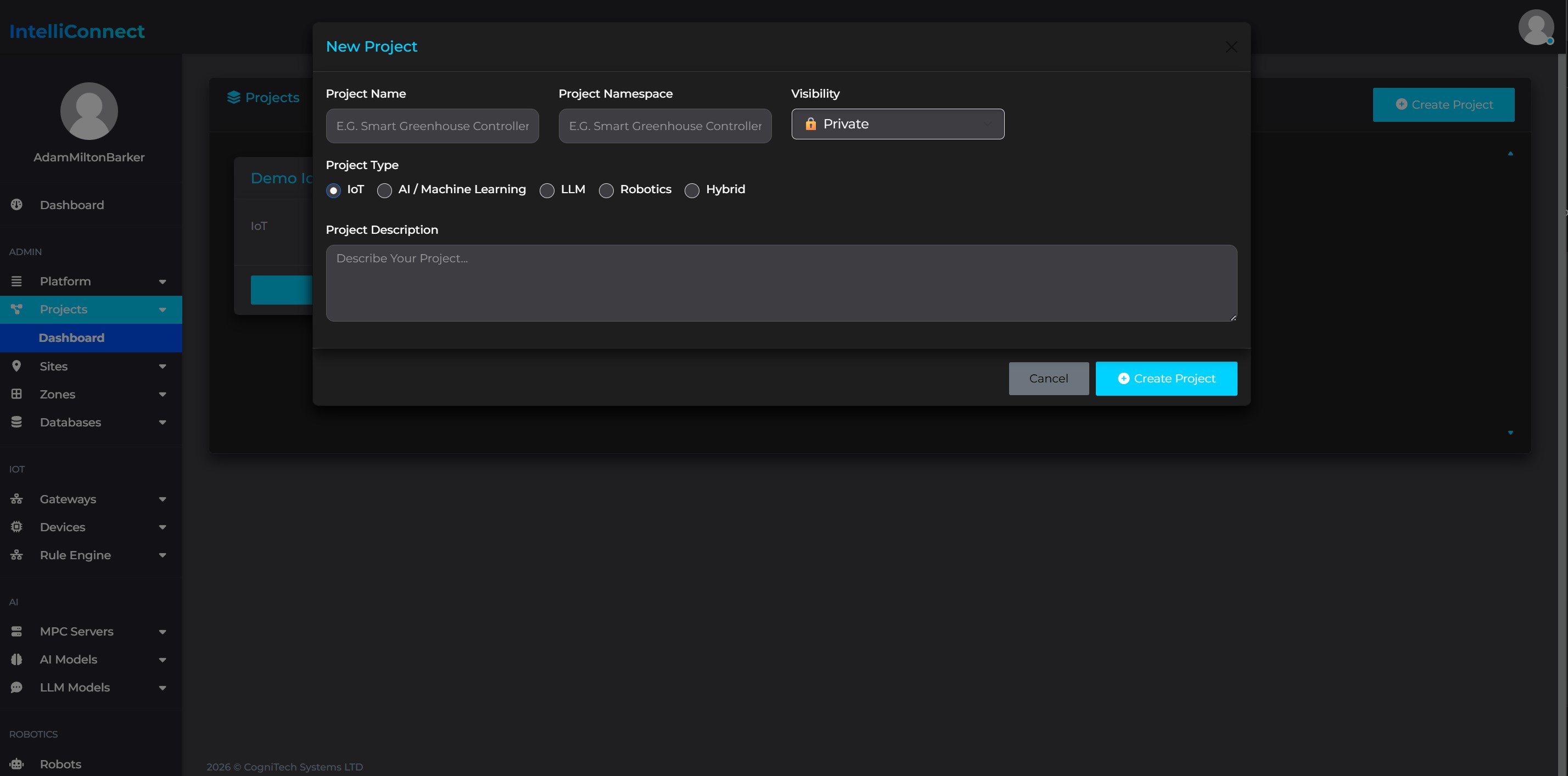
Once you have access to IntelliConnect Beta, you can log in to your account on IntelliConnect CORE. From there head to the Projects area. If you do not already have a project set up you can create one from this section of the platform.
Setup Your Location
Create A Site
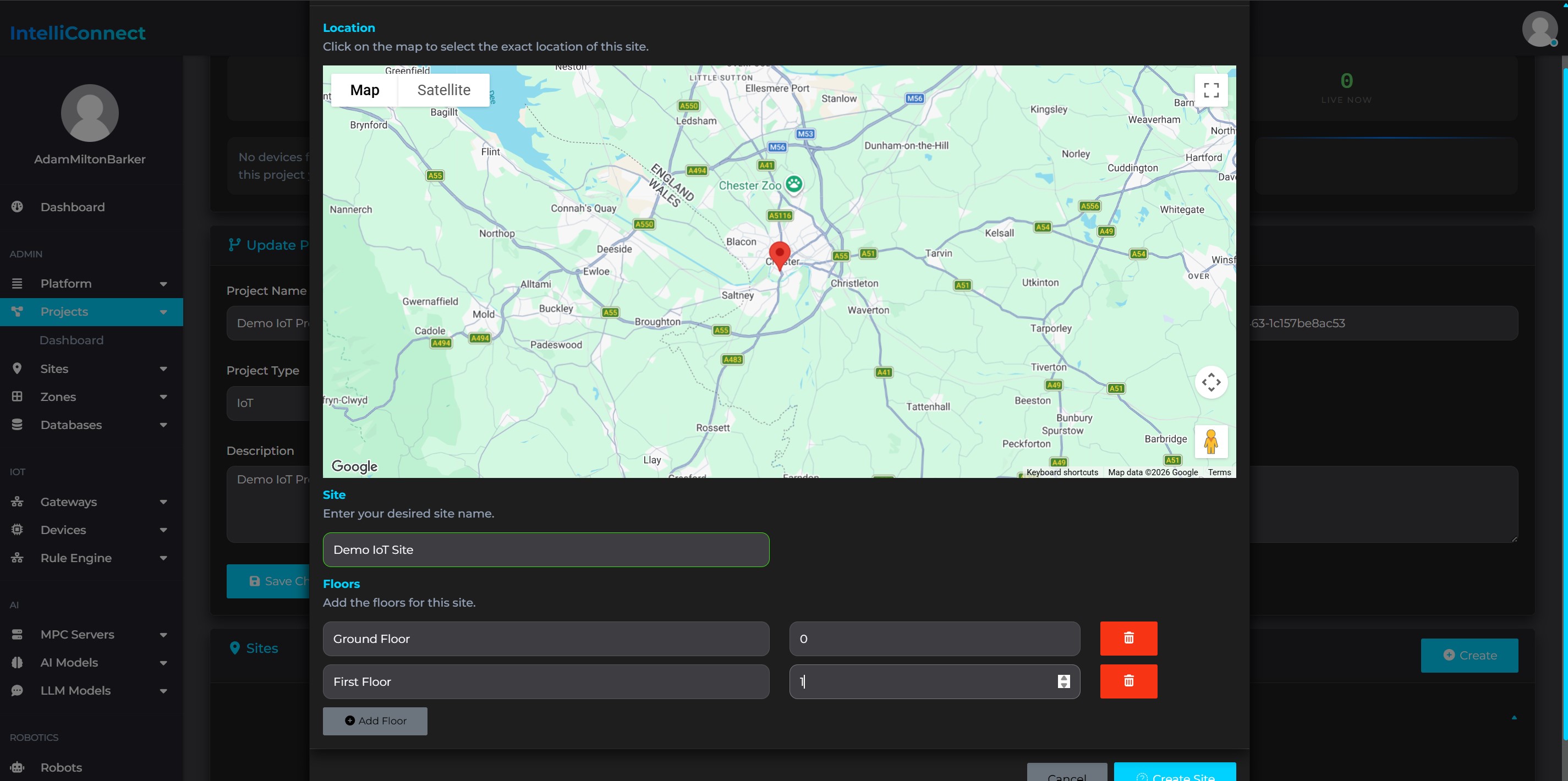
Next you can create a site within your project. Sites are the physical locations that your IntelliConnect network is located in, such as a building.
From the project dashboard click on Create in the sites area, fill out the information and click Create Site.
Create A Zone
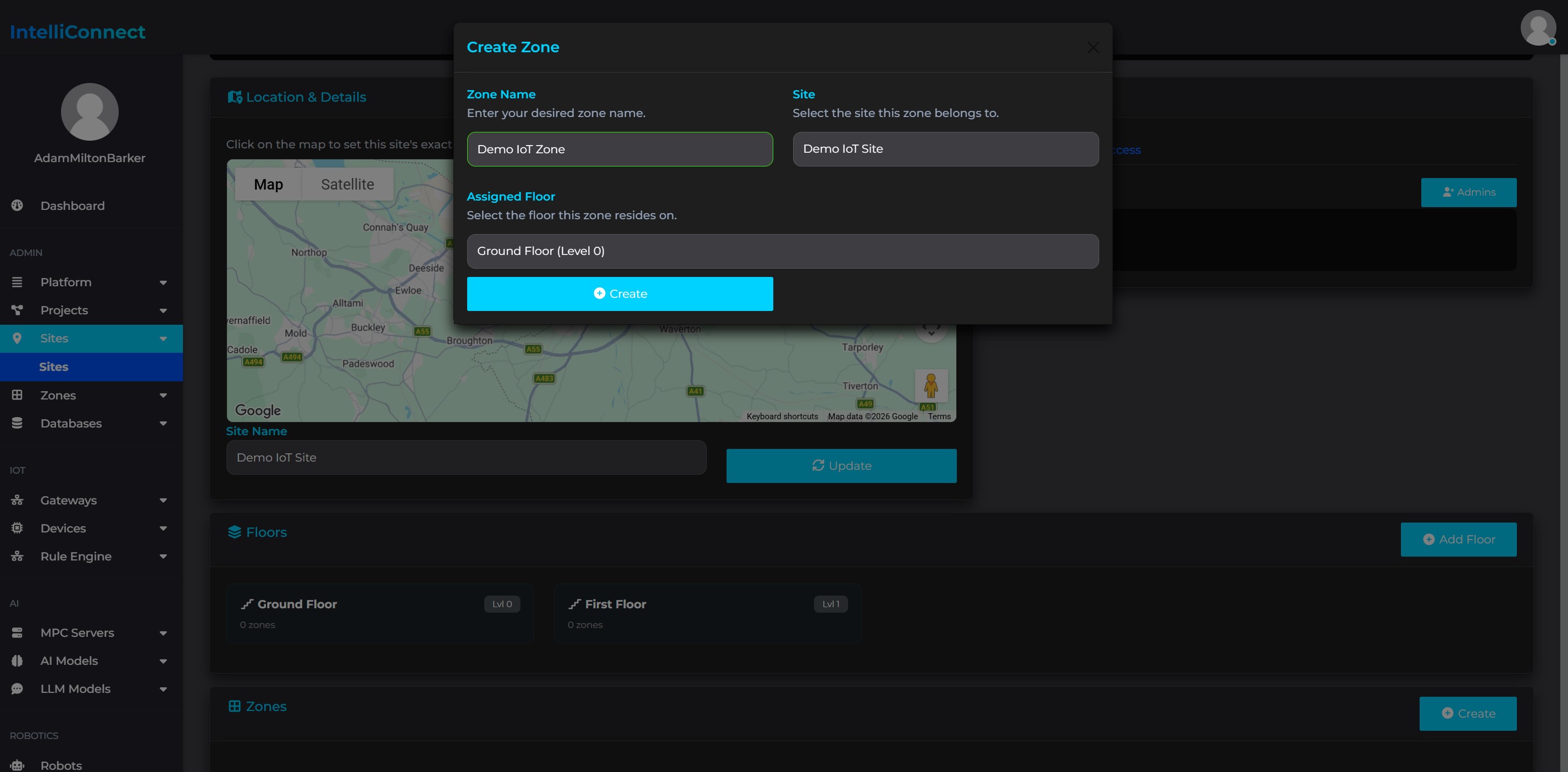
Next you can create a zone within your site. Zones represent rooms or areas within your site, for instance office or lab.
From the site dashboard click on Create in the zones area, fill out the information and click Create.
Create A Device Template
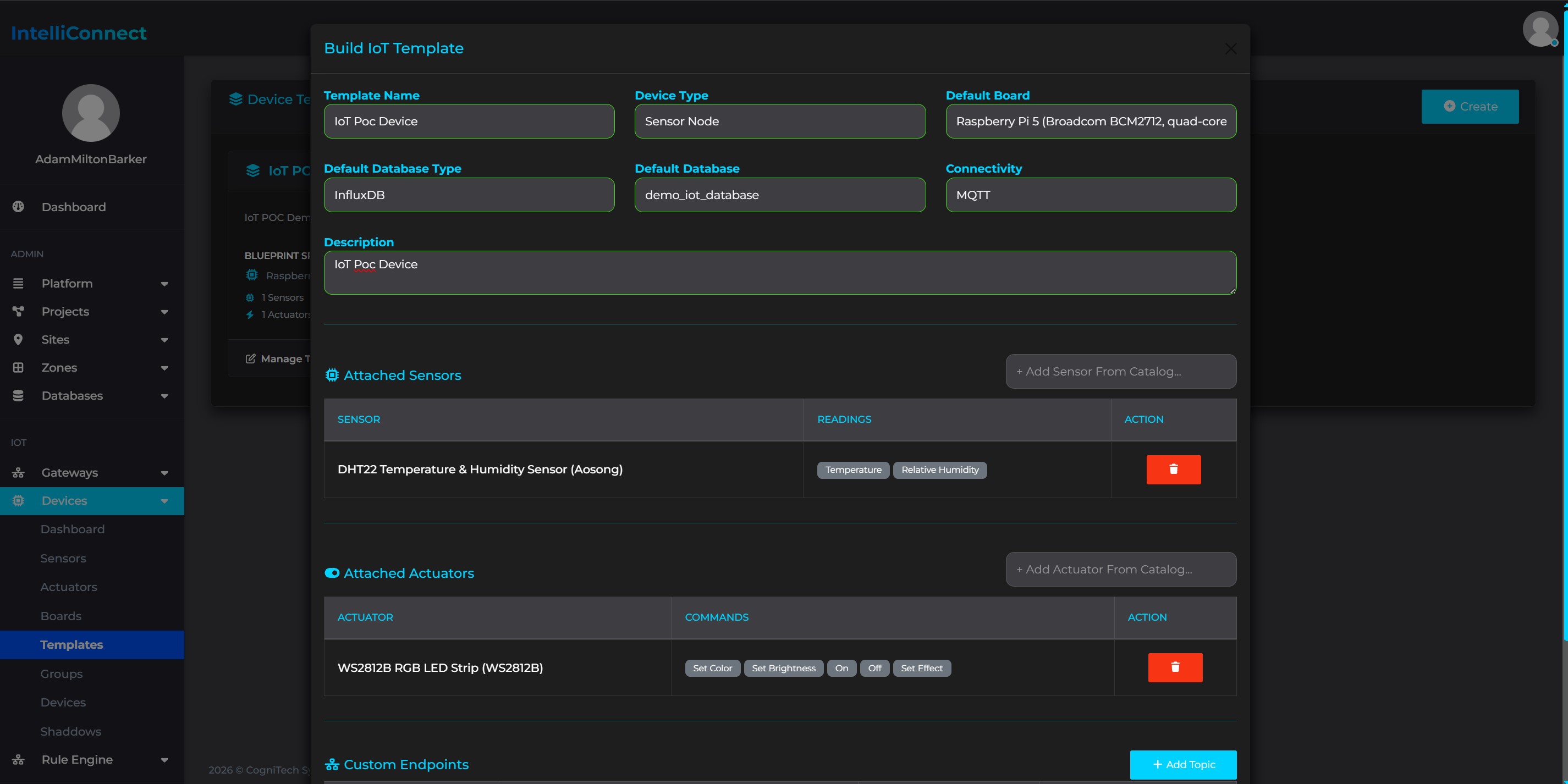
Next you can create a device template. Device templates allow you to create templates made up of IoT boards, sensors and actuators. These templates determine the components that make up your IoT connected device, allowing IntelliConnect to automatically generate 3D digital twins. Templates can be reuse to create multiple device of the type.
In this example we will use the DHT22 temperature and humidity sensor so that we can use the IntelliConnect Temperature and Humidty Demo.
From the Device Templates dashboard click on Create, fill out the information and click Save Template.
Create A Device & Shaddow
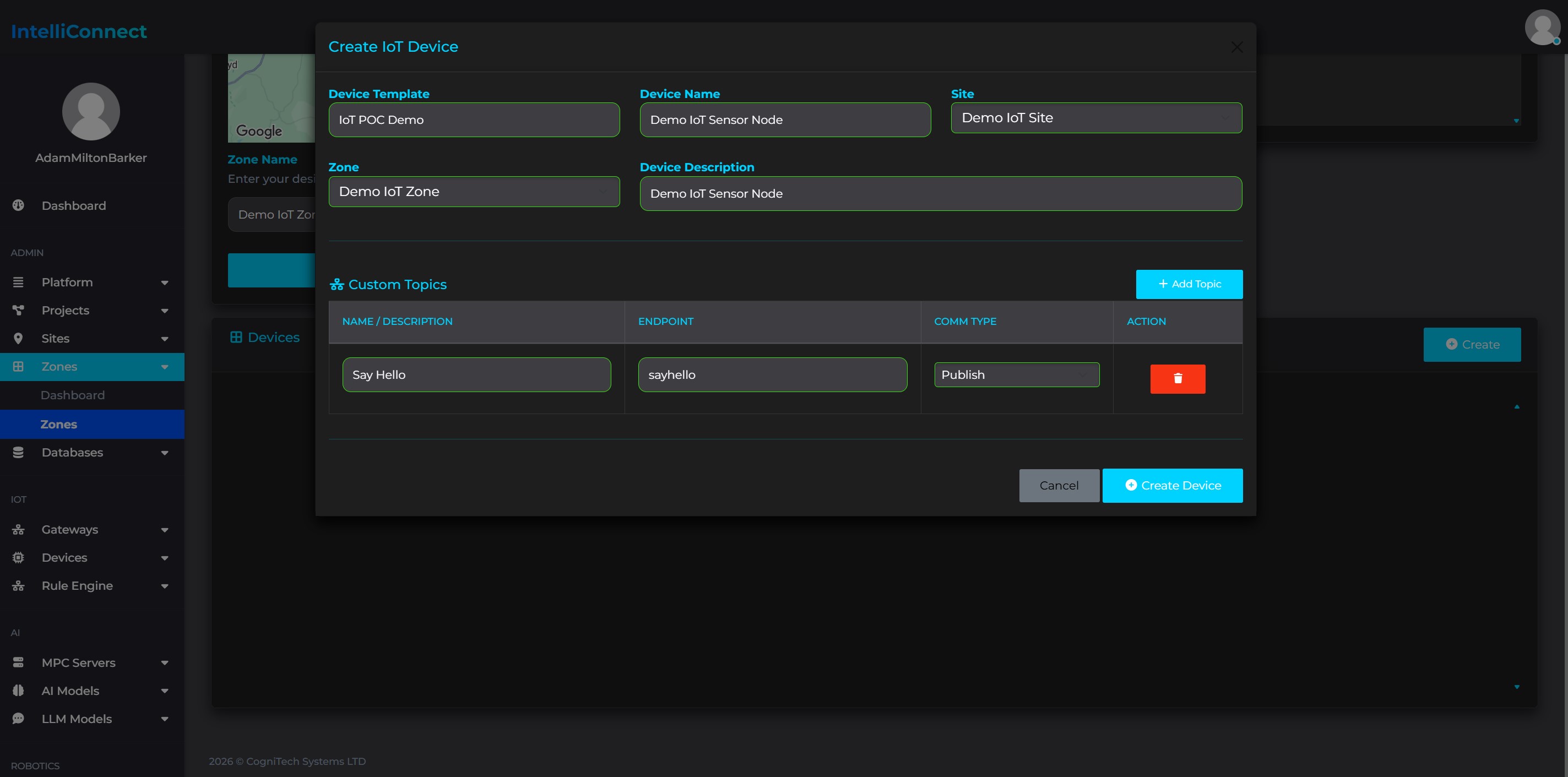
Finally, you can now create your device, from your zone dashboard or the devices page, click create, select your device template and fill out the rest of your details. You can also add custom topics to your device. Once you click create, your device and device shaddow will be ready.
Clone Project
Head over to the IntelliConnect Temperature and Humidty Demo repository and clone the code to your Raspberry Pi.
Digital Twin
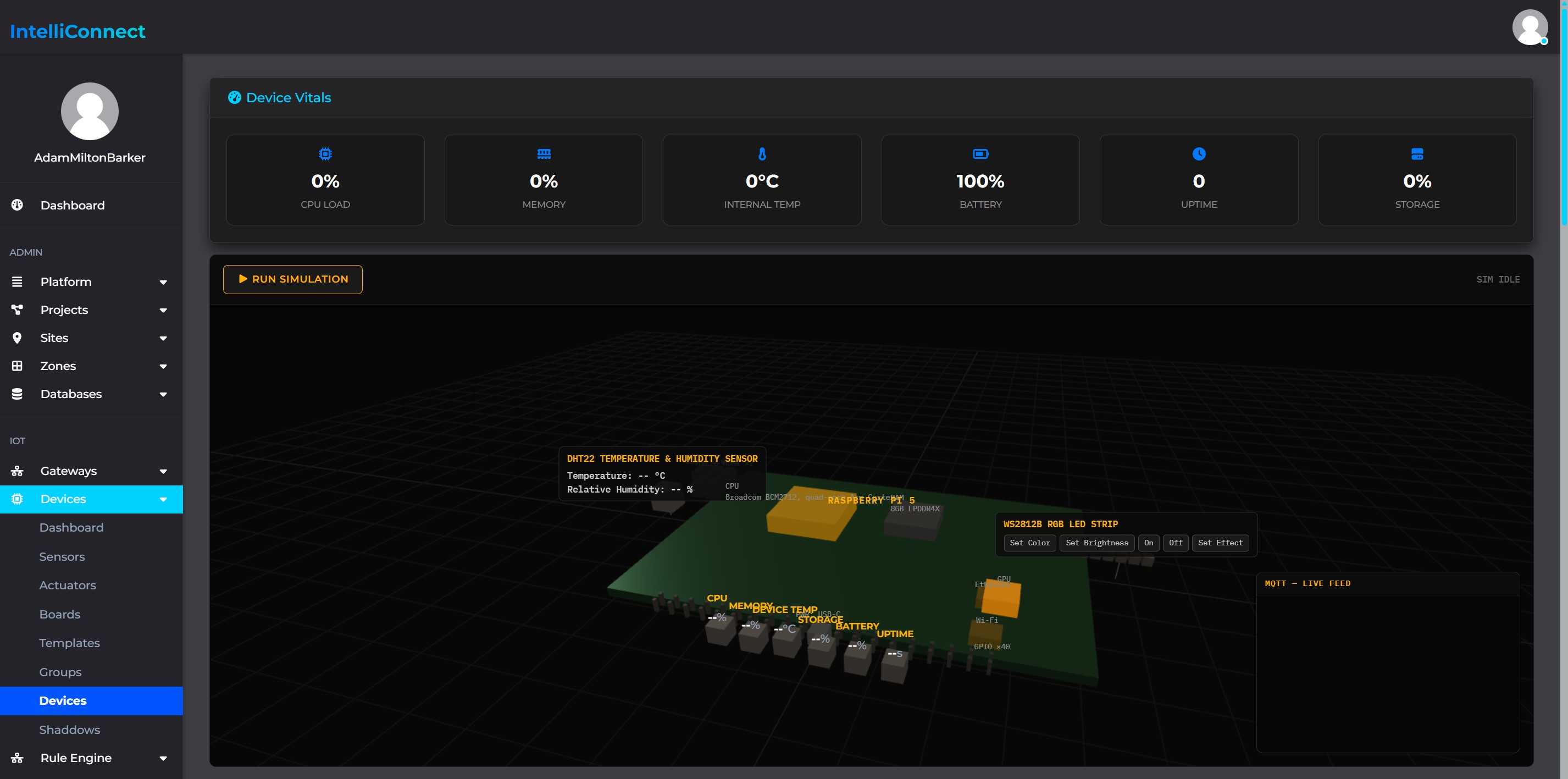
Head over to your device page and you will now see your digital twin.
Download Credentials
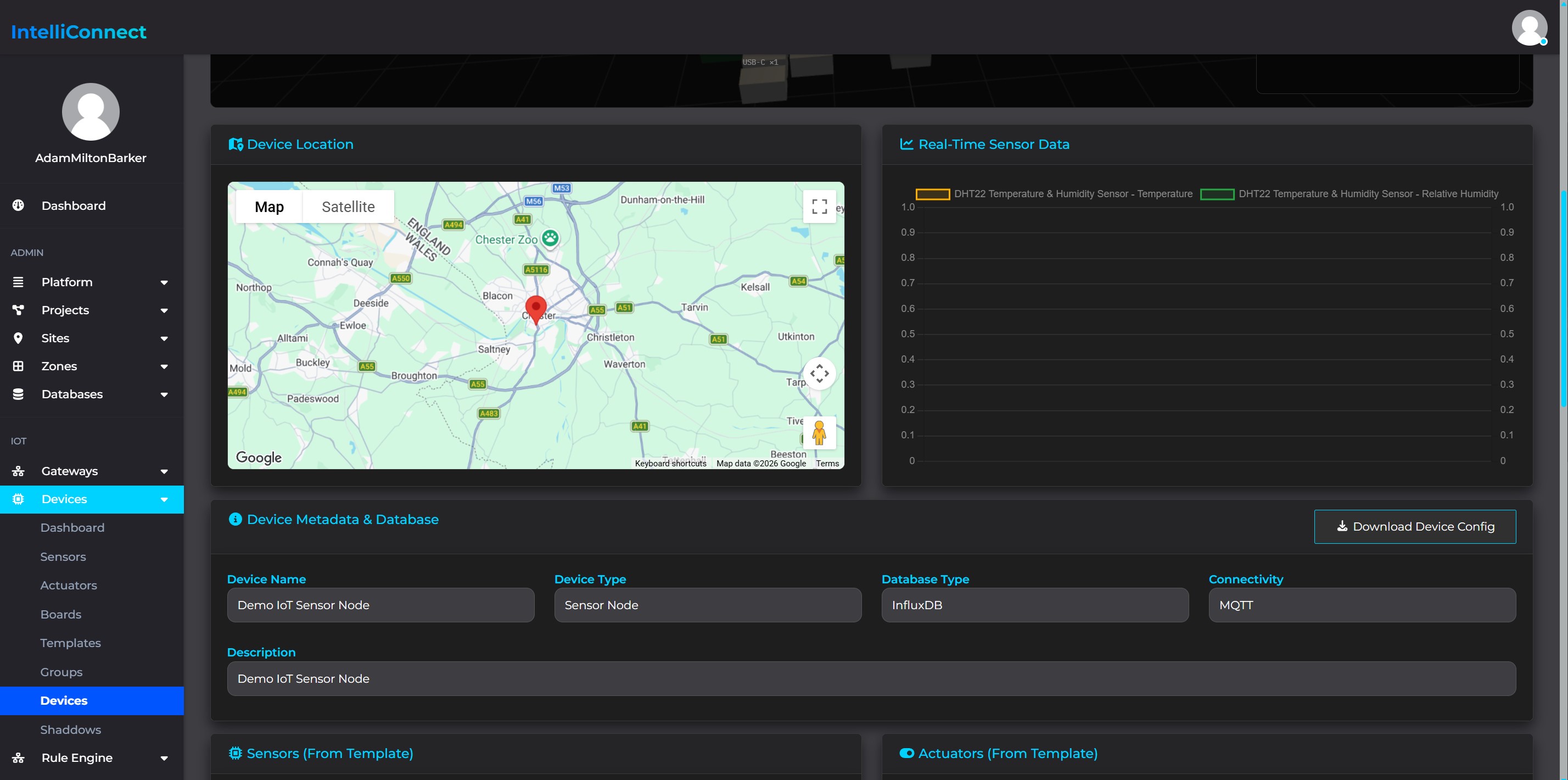
Scroll down on your device page until you see Download Device Config, click on that button, and save the file in the configuration folder in the IntelliConnect Temperature and Humidty Demo project root on your Raspberry Pi.
Assuming you have set up your Raspberry Pi by following the README for that project, you can now execute the following commands:
pip install intelliconnect-mqtt-device
python device.py
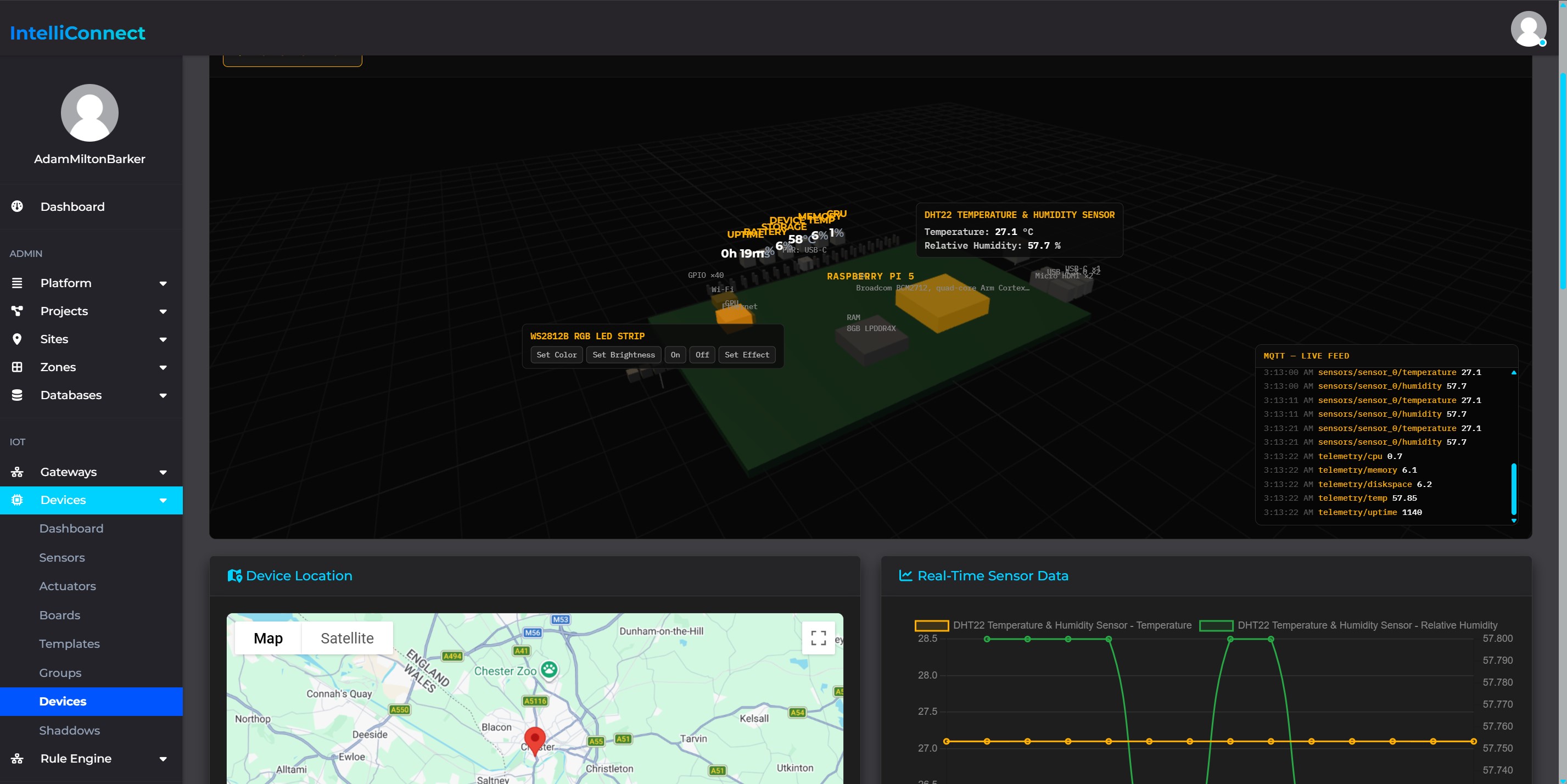
Head back over to your device page and you will now see your digital twin in action. If your CPU temperature or the values from the sensors get too high or low, their digital representations will turn yellow or red. When they do you can click on them to expand a details window where you can see more information about the warning or error.
Topic structure
All topics are derived from:
{platform}/{project}/{site}/{zone}/device/{device_id}
| Purpose | Topic |
|---|---|
Status (retained, last-will OFFLINE) |
.../device-status |
| Telemetry | .../telemetry/{cpu|memory|uptime|diskspace|battery|temp} |
| Sensor reading | .../sensors/{instance_key}/{slug} |
| Actuator command (subscribed) | .../actuators/{instance_key}/command |
| Actuator response (published) | .../actuators/{instance_key}/response |
Sensor and actuator topics can be overridden per-entry in config (see below).
Configuration reference
config = {
    # Required
    "host": "broker.example.com",
    "port": 1883,
    "username": "device-user",
    "password": "device-password",
    "platform": "acme",
    "project": "plant-a",
    "site": "north",
    "zone": "line-1",
    "device_id": "pump-01",

    "sensors": [
        {
            "instance_key": "tank-1",
            "readings": [
                {"slug": "level"},                                # default topic
                {"slug": "temperature", "topic": "custom/topic"},  # explicit override
            ],
        },
    ],

    "actuators": [
        {
            "instance_key": "valve-1",
            "command_topic_suffix": "command",   # default
            "response_topic_suffix": "response",  # default
            # or fully override both:
            # "command_topic": "custom/cmd",
            # "response_topic": "custom/resp",
        },
    ],

    # Optional
    "device": "pump-01",        # used only in log lines
    "name": "pump-01-client",   # MQTT client_id; defaults to device_id
    "security": True,           # enables TLS. CA bundle resolution:
                                 #   1. config["ca_certs"] if you set one (private CA / self-signed broker)
                                 #   2. the certifi package's bundle (installed by default, works
                                 #      identically on Windows/macOS/Linux/embedded devices)
                                 #   3. the OS's own trust store, if certifi isn't installed
    "ca_certs": "/path/to/ca.pem",   # optional override, see above
    "certfile": "/path/to/client.crt",  # optional, for brokers requiring mutual TLS
    "keyfile": "/path/to/client.key",   # optional, pairs with certfile
}
API
| Method | Description |
|---|---|
setup() |
Validates config and builds the topic tree. Raises MQTTConfigError if a required key is missing. |
connect() |
Creates the underlying client and connects (non-blocking; runs a background network loop). |
disconnect() |
Publishes OFFLINE and stops the client cleanly. |
publish_status(status) |
Publish "ONLINE"/"OFFLINE" (retained, QoS 1). |
publish_vital(key, value) |
Publish a telemetry value, e.g. publish_vital("cpu", 12.4). |
publish_sensor_reading(instance_key, slug, value) |
Publish a sensor reading. |
publish_actuator_response(instance_key, payload) |
Respond to a received actuator command. |
Callbacks you can assign: on_command(instance_key, payload) (fired when an actuator command arrives), on_status_change(status) (fired on connect/disconnect). on_sensor_data, on_actuator, on_telemetry, and on_notification are reserved for your own use and are not currently fired internally.
License
This software is licensed under two layers (see LICENSE for the full text):
- Free for noncommercial use — personal, educational, research, hobby, charitable, and government use are all permitted, under the PolyForm Noncommercial License 1.0.0.
- Free for commercial use only if you hold a Team or Enterprise IntelliConnect subscription — anyone with an active Team or Enterprise subscription to IntelliConnect is additionally granted the right to use this software commercially, for as long as that subscription stays active. No other IntelliConnect plan or tier qualifies.
If neither applies to you — i.e. you want to use this commercially without a
qualifying subscription — you'd need a separate commercial license; contact
the copyright holder (see the Required Notice: line in LICENSE).
Release history Release notifications | RSS feed

Download files
Download the file for your platform. If you're not sure which to choose, learn more about installing packages.
Source Distribution
Built Distribution
Filter files by name, interpreter, ABI, and platform.
If you're not sure about the file name format, learn more about wheel file names.
Copy a direct link to the current filters
File details
Details for the file intelliconnect_mqtt_device-0.2.0.tar.gz.
File metadata
- Download URL: intelliconnect_mqtt_device-0.2.0.tar.gz
- Upload date:
- Size: 17.6 kB
- Tags: Source
- Uploaded using Trusted Publishing? No
- Uploaded via: twine/6.2.0 CPython/3.13.5
File hashes
| Algorithm | Hash digest | |
|---|---|---|
| SHA256 |
1f37ee7e779ea95942a8ad00b37f4ced0605440dde7d12fe6e6170d223866d76
|
|
| MD5 |
81bb2c52d94848025e20e4856448ecc8
|
|
| BLAKE2b-256 |
e14431c8fae59b9c5b35f6ed25be1ecd9c2a25684cc41ff13cb2293cec6896c5
|
File details
Details for the file intelliconnect_mqtt_device-0.2.0-py3-none-any.whl.
File metadata
- Download URL: intelliconnect_mqtt_device-0.2.0-py3-none-any.whl
- Upload date:
- Size: 14.2 kB
- Tags: Python 3
- Uploaded using Trusted Publishing? No
- Uploaded via: twine/6.2.0 CPython/3.13.5
File hashes
| Algorithm | Hash digest | |
|---|---|---|
| SHA256 |
855dfb913c5c387ba26112272a8016f537e3eea77de64648f7bf82f5424a894b
|
|
| MD5 |
112c37d6a218d616f49b9513d598ab2c
|
|
| BLAKE2b-256 |
df236a72426bc7e5901666b5be2387514bc60df7dda612a7503751af86aca292
|






