
Keyboard-driven interactive button menus for Python terminal apps

Project description
interactive-buttons-v2
Keyboard-driven interactive button menus for your Python terminal apps.
Navigate with arrow keys, confirm with Enter. Three layout modes, 12 built-in style presets, and optional hotkey bindings. Works in any real terminal on Linux, Windows and macOS.
Installation
pip install interactive-buttons-v2
Requires Python 3.10+ and two lightweight dependencies:
| Package | Purpose |
|---|---|
colorama |
Cross-platform ANSI color codes |
readchar |
Raw single-keystroke input |
Quick example
from interactive_buttons import Button, Component

buttons = [
    Button(label="Continue", value="continue"),
    Button(label="Exit",     value="exit"),
]

comp   = Component(buttons, global_buttons_style=ButtonStyle(**HACKER_STYLE))
choice = comp.column_buttons()

# print(f"You chose: {choice}")
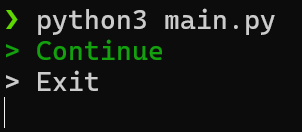
Use up / down to navigate and Enter to confirm.
Layout modes
Component exposes three layout methods. Each one blocks until the user confirms a selection and returns that button's value.
Column layout
Buttons are stacked vertically. Navigate with up / down, confirm with Enter.
from interactive_buttons import Button, Component, ButtonStyle, CORPORATE_STYLE

buttons = [
    Button(label="New file",  value="new"),
    Button(label="Open file", value="open"),
    Button(label="Save",      value="save"),
    Button(label="Quit",      value="quit"),
]

comp   = Component(buttons)
choice = comp.column_buttons()
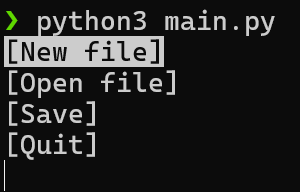
Linear (horizontal) layout
Buttons are placed side by side on a single line. Navigate with ← / →, confirm with Enter. Ideal for binary confirmations (Yes / No, OK / Cancel).
from interactive_buttons import Button, Component, ButtonStyle, MINIMAL_STYLE

buttons = [
    Button(label="Yes", value=True),
    Button(label="No",  value=False),
]

comp    = Component(buttons, global_buttons_style=ButtonStyle(**MINIMAL_STYLE))
confirm = comp.linear_buttons()
Matrix (grid) layout
Buttons are arranged in a square grid. Navigate with all four arrow keys, confirm with Enter. The grid side length is ceil(sqrt(len(buttons))).
from interactive_buttons import Button, Component, ButtonStyle, SUNSET_STYLE

buttons = [
    Button(label="Attack",  value="attack"),
    Button(label="Magic",   value="magic"),
    Button(label="Item",    value="item"),
    Button(label="Defend",  value="defend"),
    Button(label="Flee",    value="flee"),
    Button(label="Status",  value="status"),
    Button(label="Options", value="options"),
    Button(label="Save",    value="save"),
    Button(label="Quit",    value="quit"),
]

comp   = Component(buttons, global_buttons_style=ButtonStyle(**SUNSET_STYLE))
action = comp.matrix_buttons()
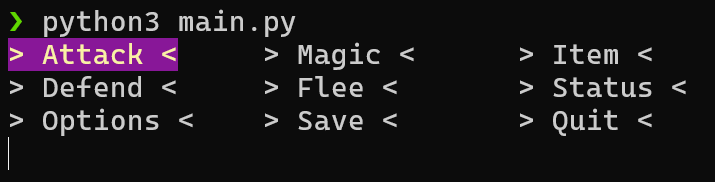
Component options
| Parameter | Type | Default | Description |
|---|---|---|---|
buttons |
list[Button] |
- | Ordered list of buttons |
global_buttons_style |
ButtonStyle |
DEFAULT_STYLE |
Style applied to buttons without a local override |
multi_select |
MultiSelectStyle | None |
None |
Enable multi-selection mode (see Multi-select) |
display_index |
bool |
False |
Auto-prefix each button with a digit shortcut (1, 2, …) |
index_begin |
int |
1 |
Starting digit when display_index is active |
auto_erase |
bool |
False |
Erase the rendered buttons automatically after selection |
Note:
display_index=Trueand per-buttonButtonKeyBindcannot be used at the same time. Doing so raisesKeyBindError.
Styles
Built-in presets
12 presets are exported from the top-level package as plain dict. Unpack with **:
from interactive_buttons import ButtonStyle, HACKER_STYLE

style = ButtonStyle(**HACKER_STYLE)
DEFAULT_STYLEHACKER_STYLEMINIMAL_STYLEMONOCHROME_STYLECORPORATE_STYLETERMINAL_RETRO_STYLEMATRIX_STYLECYBERPUNK_STYLEDANGER_STYLESUCCESS_STYLESUNSET_STYLEGHOST_STYLE
Custom style
from colorama import Fore, Back
from interactive_buttons import ButtonStyle, Button, Component

my_style = ButtonStyle(
    text_color=Fore.MAGENTA,
    highlight_color=Back.WHITE,
    spaces_count=4,
    left_decorator="* ",
    right_decorator=" *",
)

comp = Component(buttons, global_buttons_style=my_style)
| Parameter | Type | Description |
|---|---|---|
text_color |
str |
ANSI code for the label text color |
highlight_color |
str |
ANSI code applied to the selected button background |
spaces_count |
int |
Padding spaces on each side of the label (minimum 2) |
left_decorator |
str |
String prepended to the label |
right_decorator |
str |
String appended to the label |
Per-button style override
Each Button accepts a local_button_style that overrides the component-level style for that button only:
from interactive_buttons import Button, Component, ButtonStyle, SUCCESS_STYLE, DANGER_STYLE

buttons = [
    Button(label="Confirm", value="confirm", local_button_style=ButtonStyle(**SUCCESS_STYLE)),
    Button(label="Cancel",  value="cancel",  local_button_style=ButtonStyle(**DANGER_STYLE)),
]

comp   = Component(buttons)
choice = comp.linear_buttons()
Key bindings
ButtonKeyBind lets you assign one or more hotkeys to a button. Pressing a bound key moves the cursor to that button, or immediately confirms it if press_on_selection=True.
Basic binding
from interactive_buttons import Button, ButtonKeyBind, Component, ButtonStyle, HACKER_STYLE

save_bind = ButtonKeyBind(b_keys=["s", "1"])
quit_bind = ButtonKeyBind(b_keys=["q", "2"])

buttons = [
    Button(label="Save", value="save", key_bind=save_bind),
    Button(label="Quit", value="quit", key_bind=quit_bind),
]

comp   = Component(buttons, global_buttons_style=ButtonStyle(**HACKER_STYLE))
choice = comp.column_buttons()
Pressing s or 1 jumps to Save. The user still needs Enter to confirm.
Instant-confirm on key press
Set press_on_selection=True to confirm the button the moment its key is pressed, no Enter needed:
yes_bind = ButtonKeyBind(b_keys=["y"], press_on_selection=True)
no_bind  = ButtonKeyBind(b_keys=["n"], press_on_selection=True)

buttons = [
    Button(label="Yes", value=True,  key_bind=yes_bind),
    Button(label="No",  value=False, key_bind=no_bind),
]

comp    = Component(buttons)
confirm = comp.linear_buttons()
# Pressing "y" immediately returns True and pressing "n" immediately returns False.
Case-sensitive keys
By default, key matching is case-insensitive (a and A trigger the same binding). Set case_sensitive=True to distinguish them:
lower_bind = ButtonKeyBind(b_keys=["a"], case_sensitive=True)
upper_bind = ButtonKeyBind(b_keys=["A"], case_sensitive=True)
Accepted characters
Each entry in b_keys must be a single ASCII alphanumeric character (A-Z, a-z, 0-9) or a space (' '). Anything else raises KeyBindError at construction time. Each key must also be unique across all buttons in the same Component.
Multi-select
Pass a MultiSelectStyle to Component to let the user tick multiple buttons before confirming. SPACE (or a custom key) toggles the selection of the highlighted button and Enter confirms once the selection satisfies the configured bounds.
from interactive_buttons import Button, Component, MultiSelectStyle

toppings = [
    Button(label="Cheese",    value="cheese"),
    Button(label="Mushrooms", value="mushrooms"),
    Button(label="Peppers",   value="peppers"),
    Button(label="Olives",    value="olives"),
]

ms = MultiSelectStyle(
    tick_on="[x] ",  # Default
    tick_off="[ ] ",  # Default
    min_selected_amount=1,
    max_selected_amount=3,
    display_error="Pick between 1 and 3 toppings.",
)

comp    = Component(toppings, multi_select=ms)
choices = comp.column_buttons()   # returns the list of selected elements

print(f"Chosen: {choices}")
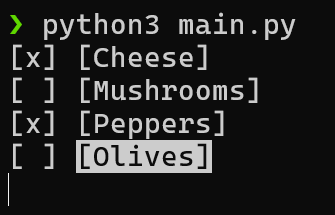
column_buttons, linear_buttons, and matrix_buttons all support multi-select. The return type changes from a single value to a list[Any].
MultiSelectStyle parameter |
Type | Default | Description |
|---|---|---|---|
tick_on |
str |
"[x] " |
Prefix shown on a selected button |
tick_off |
str |
"[ ] " |
Prefix shown on an unselected button |
min_selected_amount |
int |
0 |
Minimum ticked buttons before Enter is accepted |
max_selected_amount |
int |
-1 |
Maximum ticked buttons (-1 = unlimited) |
display_error |
str | None |
None |
Message shown when the user tries to confirm an invalid selection |
select_keys |
list[str] |
[SPACE] |
Keys that toggle the highlighted button's ticked state |
Documentation
Full documentation at interactive-buttons.mbinc.tech.
Release history Release notifications | RSS feed


Download files
Download the file for your platform. If you're not sure which to choose, learn more about installing packages.
Source Distribution
Built Distribution
Filter files by name, interpreter, ABI, and platform.
If you're not sure about the file name format, learn more about wheel file names.
Copy a direct link to the current filters






