
A command-line tool for managing Jira issues with FZF.

Project description

Jayrah
A simple CLI and TUI for working with Jira from your terminal.
Screenshot
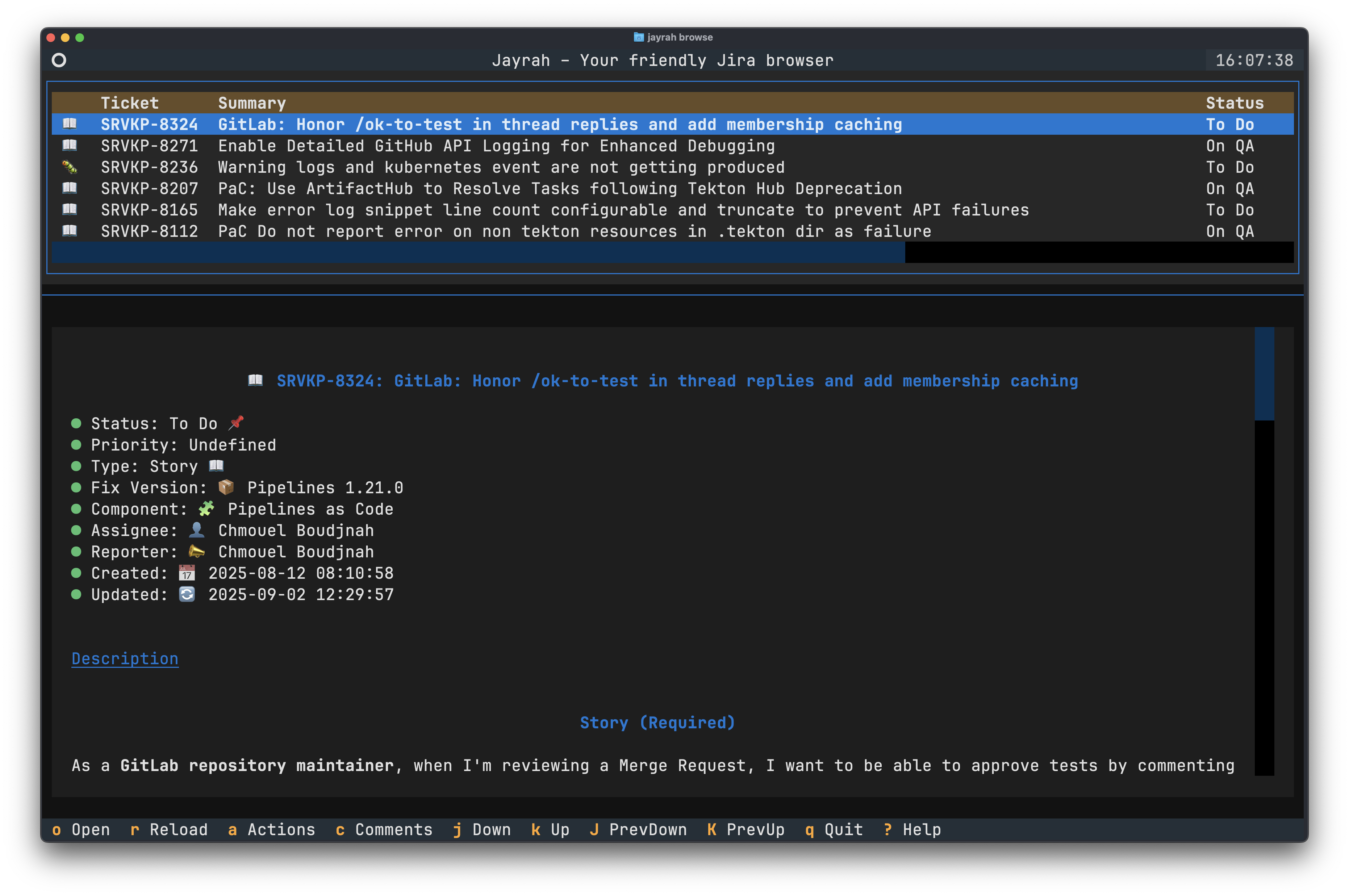
TUI Interface
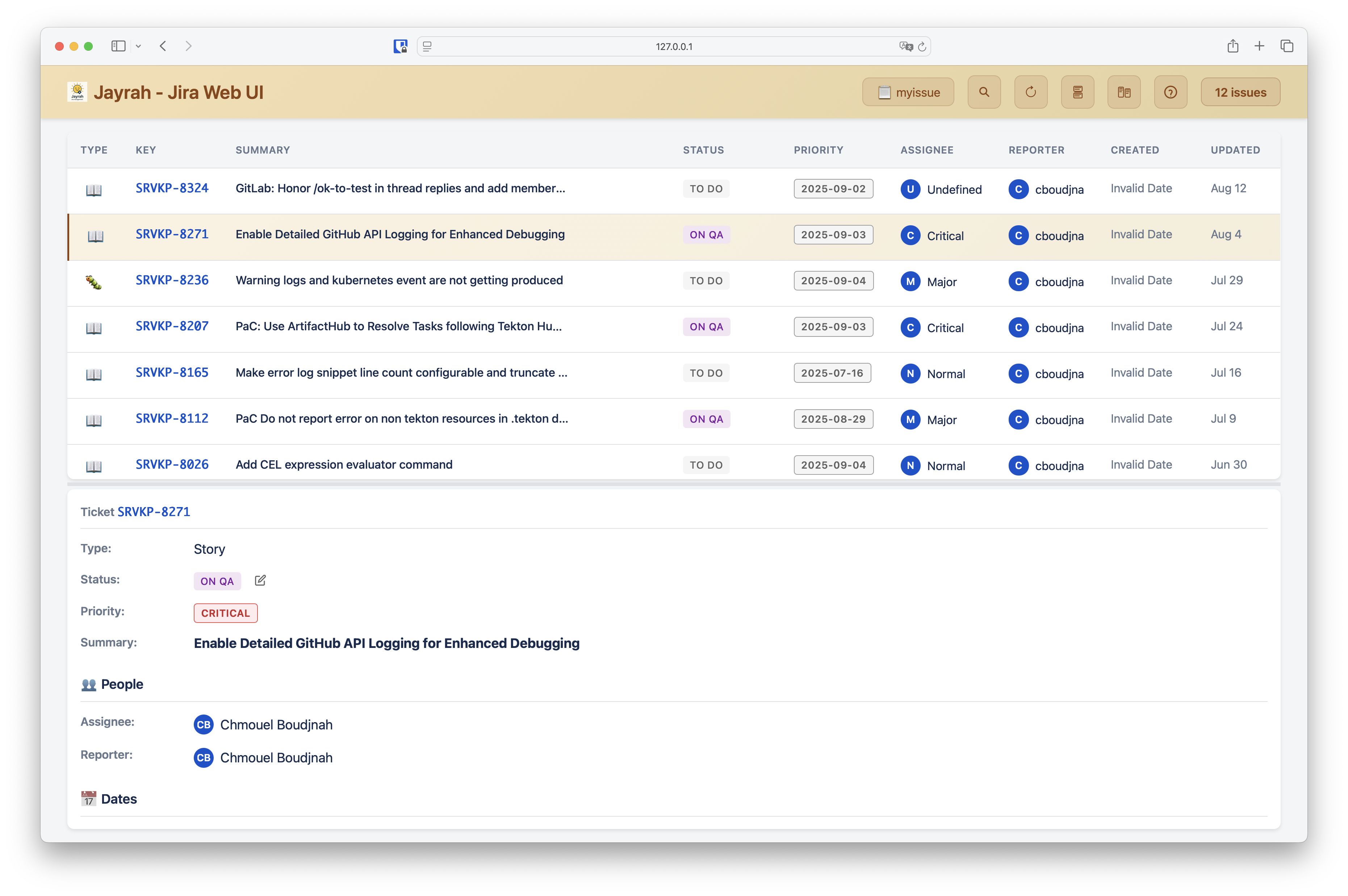
Web Interface
Install
uvx jayrah
Or from source:
git clone https://github.com/chmouel/jayrah.git
cd jayrah
uv run jayrah
Quick Setup
Create ~/.config/jayrah/config.yaml:
jira_server: "https://your-jira-id.atlassian.net" # or other Jira custom server URL
jira_user: "you@example.com"
jira_password: "your-api-token" # or you can use a pass path, with the pass:: prefix, for example pass::jira/token
jira_project: "PROJECT-KEY"
api_version: "2"  # Use "3" for Jira Cloud with the newer API
auth_method: "basic" # or "bearer" for operations Bearer authentication
Jayrah supports both Bearer token and Basic authentication:
- API v2 uses Bearer token authentication by default
- API v3 uses Basic authentication by default
For Basic authentication, make sure your configuration includes both jira_user and jira_password.
If you don't configure your config.yaml file, jayrah will prompt you for the required information when you run it for the first time.
Usage
Browse
Launch the issue browser with:
jayrah browse # or just `jayrah` will do the same
List all your boards with the -l/--list-boards option.
Filter issues by board with the -f/--filter option for example:
jayrah browse myissue --filter status=New
if you add words after the jayrah browse BOARD command, it will search for
issues that match those words.
jayrah browse myissue search1 search2
This by default will search for issues that match the words in the summary, you
can use the switch --or to instead do a or on the search terms.
- Create issue:
jayrah create
TUI (Terminal UI)
When you start browsing the issues of your board, you will be presented with a list of all the issues in that board. You can use your mouse or your keyboard:
- Navigate with arrow keys or
j/k - Move the preview pan up and down with
J/K - Press
qorEscapeto quit - Press
oto open the issue in your browser - Press
fto filter issues by status, assignee, or other fields. - Press
afor all actions you can do on the issue. - Press
cfor accessing or adding a comment. - Press
tto transition the issue to a new status. - Press
eto edit the title or description of the issue. (the editor emulates readline/emacs keys). - Use
F1for the command palette
Editing issue descriptions
Jayrah supports editing issue title and descriptions.
When editing a description:
- Press
eto access the edit menu - Select "description" from the options
- Edit your description in the text area
- You can navigate with emacs or readline keys.
- Press
Ctrl+Sto save your changes orEscapeto cancel
Custom Fields
You can display and edit custom Jira fields in the TUI by adding a section to your config:
custom_fields:
  - name: Git PR
    description: "URL to the git pull request"
    field: customfield_12310220
    type: url
  - name: Release Note
    description: "Release note for the issue"
    field: customfield_12317313
    type: text
  - name: Some Number Field
    description: "A numeric value"
    field: customfield_999999
    type: number
  - name: Some Other Custom Field
    field: customfield_45678
    type: string
typecan bestring(default),text,url, ornumber.urlfields are validated as URLs.textfields use a multi-line editor.numberfields require a valid number.stringfields use a single-line input.
descriptionis shown in the edit dialog if provided.
If a custom field is not empty, it will be shown in the issue details view. You can also edit these fields from the edit menu.
To find the correct custom field ID (e.g., customfield_12310), the easiest way is to use your web browser's developer tools while editing a field in Jira. Look at the network requests and see which field is being updated in the REST API call. Use that field ID in your config.
MCP Server for AI integration
Jayrah can run as an MCP server to work with AI tools like VS Code Copilot.
Start the server
jayrah mcp
This runs in stdio mode by default for VS Code.
Available actions
The server exposes these Jira operations:
- Browse issues (with pagination support)
limit- Control how many issues to display (default: 10)page- Select which page of results to view (starts at 1)page_size- Number of issues per page (default: 100)
- Create/view issues
- Add comments to issues
- Change issue status
- Get possible status changes
- Open issues in browser
- List your boards
VS Code setup
Follow these steps to set up Jayrah with VS Code:
- Clone the repo somewhere (e.g.,
/path/to/jayrah) - Make sure you have Copilot in VS Code
- Hit
F1and pickMCP: Add server - Choose
Command Stdio - Enter:
uv run --directory=/path/to/jayrah jayrah mcp - Save the config (e.g., to
.vscode/mcp.json):
{
    "servers": {
        "jayrah": {
            "type": "stdio",
            "command": "uv",
            "args": [
                "run",
                "--directory",
               "/path/to/jayrah",
               "jayrah",
               "mcp"
            ]
        }
    }
}
- In Copilot Chat, select the tools button (often a sparkle icon or similar) to see and use Jayrah's available actions.
Web UI Server
Jayrah includes a web-based UI that can be started with:
jayrah web
This will start a web UI server on http://localhost:8000 by default. You can open this URL in your web browser to use the Jayrah web interface to browse and manage Jira issues in a quick and user-friendly way.
Security Note:
The web server is intended for local development and use only. Do not expose it to the public internet, as it is not hardened for production or external access.
Jayrah CLI
jayrah also provides a command-line interface (CLI) for performing various Jira operations directly from the terminal. Here are some of the available commands:
jayrah cli open
open an issue in your web browser using the jira host from your config:
jayrah cli open ISSUE-123
jayrah cli view
view an issue details in the terminal:
jayrah cli view ISSUE-123
jayrah cli custom
Update a custom field as specified in your config:
jayrah cli custom git-pr ISSUE-123 "https://git.com/your/repo/pull/123"
jayrah cli gencontext
Generate comprehensive context files from board tickets for LLM consumption. This command exports all tickets from a specified board including descriptions, comments, and metadata in a format optimized for importing into NotebookLM, Gemini, or other LLM contexts.
jayrah cli gencontext my-board
Options:
--output,-o: Output file path (default: stdout)--include-comments,-c: Include all comments from tickets--include-metadata,-m: Include custom fields and metadata--format: Output format -markdown(default) orplain
Examples:
# Export all tickets from a board to stdout
jayrah cli gencontext my-board

# Export with comments and metadata to a file
jayrah cli gencontext my-board --include-comments --include-metadata --output context.md

# Export in plain text format
jayrah cli gencontext my-board --format plain
jayrah cli browse
show issues of a board ouptputting a CSV format that can be used with tools like fzf:
jayrah cli browse ${board} | sed '1d' | fzf --delimiter , --with-nth '{1} {5..} [{2}|{3}|{4}]' --accept-nth 1
License
Apache-2.0
Author
Chmouel Boudjnah
Release history Release notifications | RSS feed

Download files
Download the file for your platform. If you're not sure which to choose, learn more about installing packages.
Source Distribution
Built Distribution
Filter files by name, interpreter, ABI, and platform.
If you're not sure about the file name format, learn more about wheel file names.
Copy a direct link to the current filters
File details
Details for the file jayrah-0.1.0.tar.gz.
File metadata
- Download URL: jayrah-0.1.0.tar.gz
- Upload date:
- Size: 27.4 kB
- Tags: Source
- Uploaded using Trusted Publishing? No
- Uploaded via: uv/0.9.27 {"installer":{"name":"uv","version":"0.9.27","subcommand":["publish"]},"python":null,"implementation":{"name":null,"version":null},"distro":{"name":"Arch Linux","version":null,"id":null,"libc":null},"system":{"name":null,"release":null},"cpu":null,"openssl_version":null,"setuptools_version":null,"rustc_version":null,"ci":null}
File hashes
| Algorithm | Hash digest | |
|---|---|---|
| SHA256 |
0330036565ae5e71cacbfb74dbde44b439af376c8f8e827743ec2721bef0da58
|
|
| MD5 |
7959b2898301c0867497d6a5a8f5881d
|
|
| BLAKE2b-256 |
864cc1c355dd93d3952e3f20f937a7160b8ff5edaacb71729ee3e16c9970d21b
|
File details
Details for the file jayrah-0.1.0-py3-none-any.whl.
File metadata
- Download URL: jayrah-0.1.0-py3-none-any.whl
- Upload date:
- Size: 8.9 kB
- Tags: Python 3
- Uploaded using Trusted Publishing? No
- Uploaded via: uv/0.9.27 {"installer":{"name":"uv","version":"0.9.27","subcommand":["publish"]},"python":null,"implementation":{"name":null,"version":null},"distro":{"name":"Arch Linux","version":null,"id":null,"libc":null},"system":{"name":null,"release":null},"cpu":null,"openssl_version":null,"setuptools_version":null,"rustc_version":null,"ci":null}
File hashes
| Algorithm | Hash digest | |
|---|---|---|
| SHA256 |
9bba579dd28339e99412d296ba9f3d2777588673bfc535d6c759ddaf6e037565
|
|
| MD5 |
3218a1388f4b5e7a0c1927acf5d36546
|
|
| BLAKE2b-256 |
051110967a35d5a8ab023bc6fb8f57c39b7a3a1ba5a83477a7885f6bb19b30db
|






