
Generating model cards for models in Jupyter Notebook.

Project description
jlcards
Interactive documentation tool for machine learning code in JupyterLab.
Installation
The minimum Python version requirement is Python 3.7 and above.
The extension works best in Chrome, there might be few features missing if you are using any other browser. See Troubleshooting below if you are facing any issue with the usage.
Due to dependency on few npm packages, this library needs to have Node installed on the machine.
You can download Node by following the official page. Try to have the latest version; the plugin works on Node v16.12.0, but might have bugs in the previous versions.
Once Node is installed the package can be installed from PyPI.
pip install jlcards
Simply running this command installs all the python dependencies for the project. JupyterLab is the primary requirement that is installed.
Usage
Once the package is installed on the machine, you should get a Model Card button listed on the toolbar of your notebook.
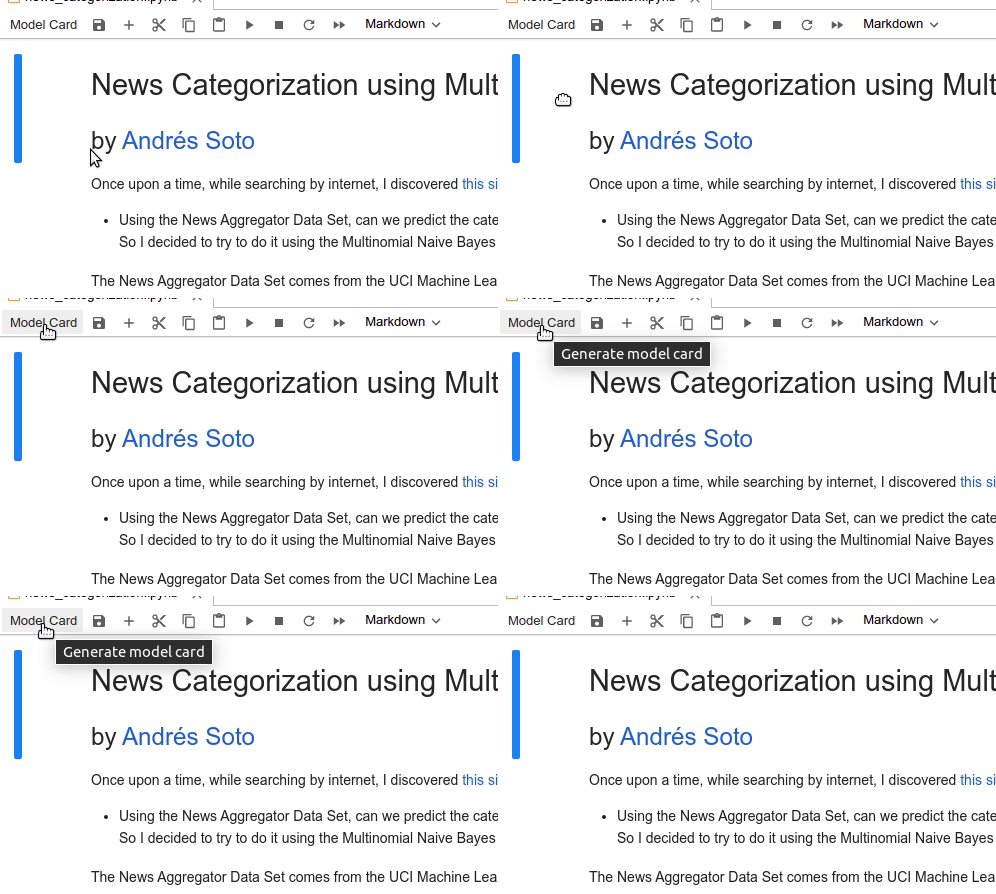
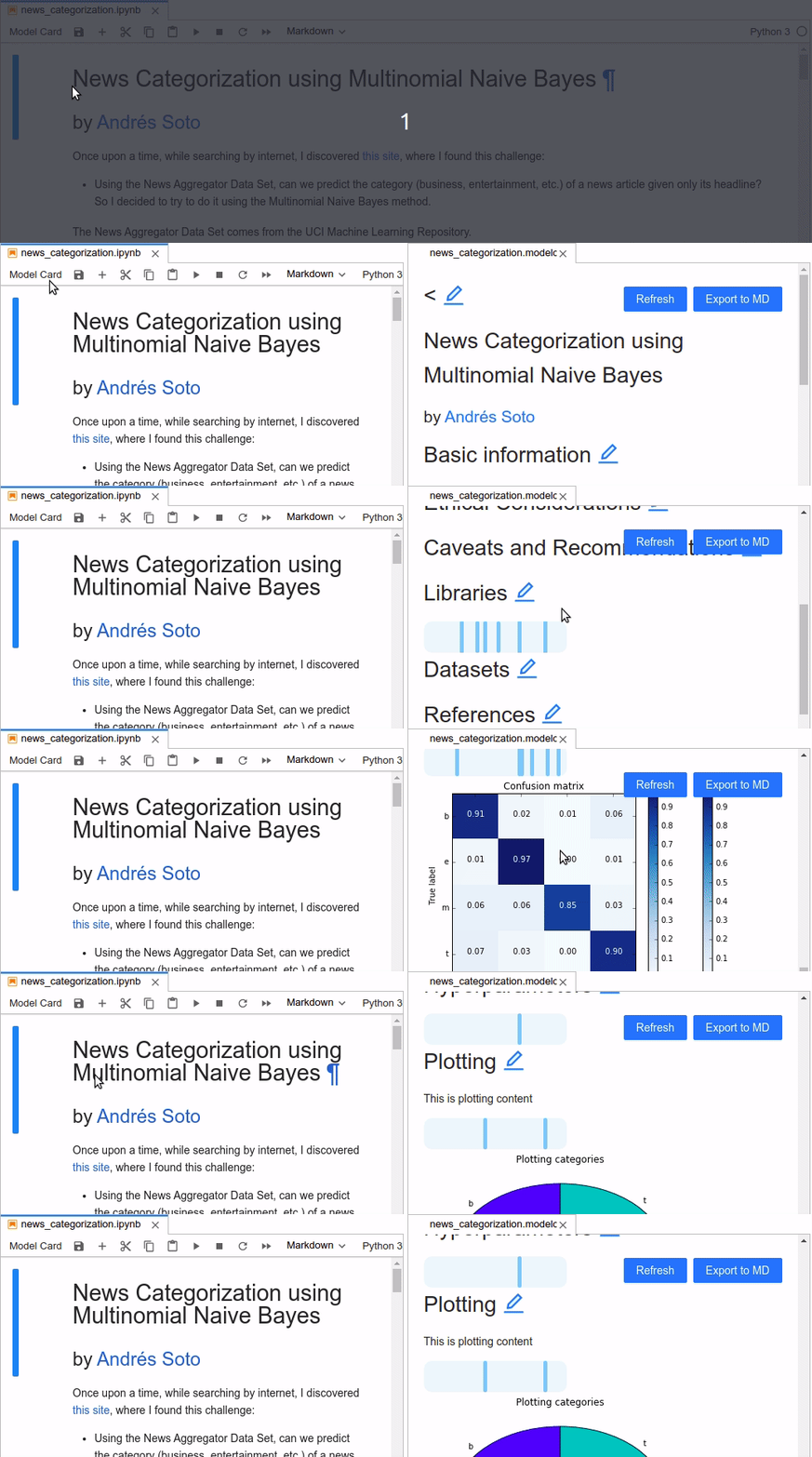
On clicking the Model Card button, a documentation panel will open on the right half of the Jupyterlab window. It will contain the default sections of the documentation, most of which are from the Model Cards for Model Reporting [1] paper. After editing, user can export the documentation into an markdown file by clicking the Export to MD button on the top right of the panel.
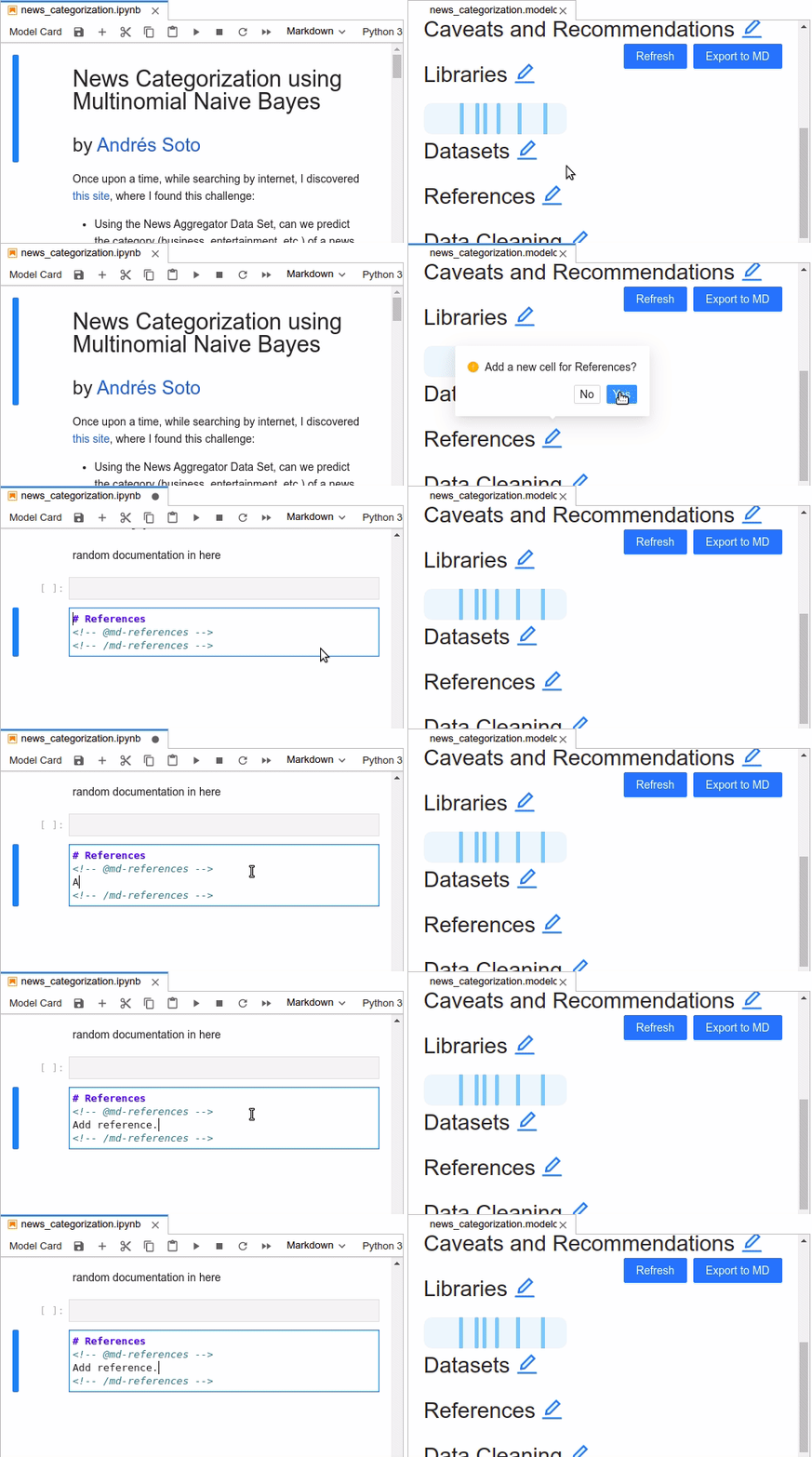
User can add or edit the content in each section by clicking the edit icon next to the section name. To maintain the consistency of the documentatin, the content is placed in the orignial notebook by creating a new markdown cell in the notebook or udpating the existing one. This cell will contain the html tag indicating the section name. Insert the content inside the html tags and the updated content will display on the right panel by refresh the model card, either by closing the panel and clicking on the model card button again or clicking on the refresh button on top of the panel.
You can also define your own sections for the model card by creating a modelcard.config file and put it within the same folder of the original notebook. The format of the fie should be as follows.
{
   "sections":[
      "Basic information",
      "Intended Use",
      "Factors",
      "Ethical Considerations",
      "Caveats and Recommendations",
      "Libraries",
      "Datasets",
      "References",
      "Data Cleaning",
      "Preprocessing",
      "Training Procedure and Data",
      "Evaluation Procedure and Data",
      "Hyperparameters",
      "Plotting",
      "Disaggregated Evaluation Result",
      "Miscellaneous"
   ]
}
Most of these sections are taken from the Model Cards for Model Reporting [1] paper. As mentioned in the paper, each of these sections are to be used as follows.
-
Basic information
Basic details about the model, including details like person or the organization developing the model, date, version, type, information about training algorithms, parameters, fairness constraints, features, citations, licences and contact information.
-
Intended Use
Use cases envisioned for the model during development, including primary intended uses and users, out of scope use cases
-
Factors
Demographic or phenotypic groups, environmental conditions, technical attributes.
-
Metrics/Evaluation Procedure and Data*
Real world impacts of the model including the performance measures, decison thresholds, variation approaches.
-
Evaluation Data/Evaluation Procedure and Data*
Datasets used by the model, motivation of the use case, preprocessing information.
-
Training Data/Training Procedure and Data*
Similar to evaluation data, the dataset used to train the model. Can contain the hyperparameters that are used while training the model as well.
-
Quantitative Analysis
Unitary results and the intersecctional results.
-
Ethical Considerations
-
Caveats and Recommendations
-
Libraries*
The libraries that are imported into the notebook.
-
Plotting*
Any plots present in the notebook.
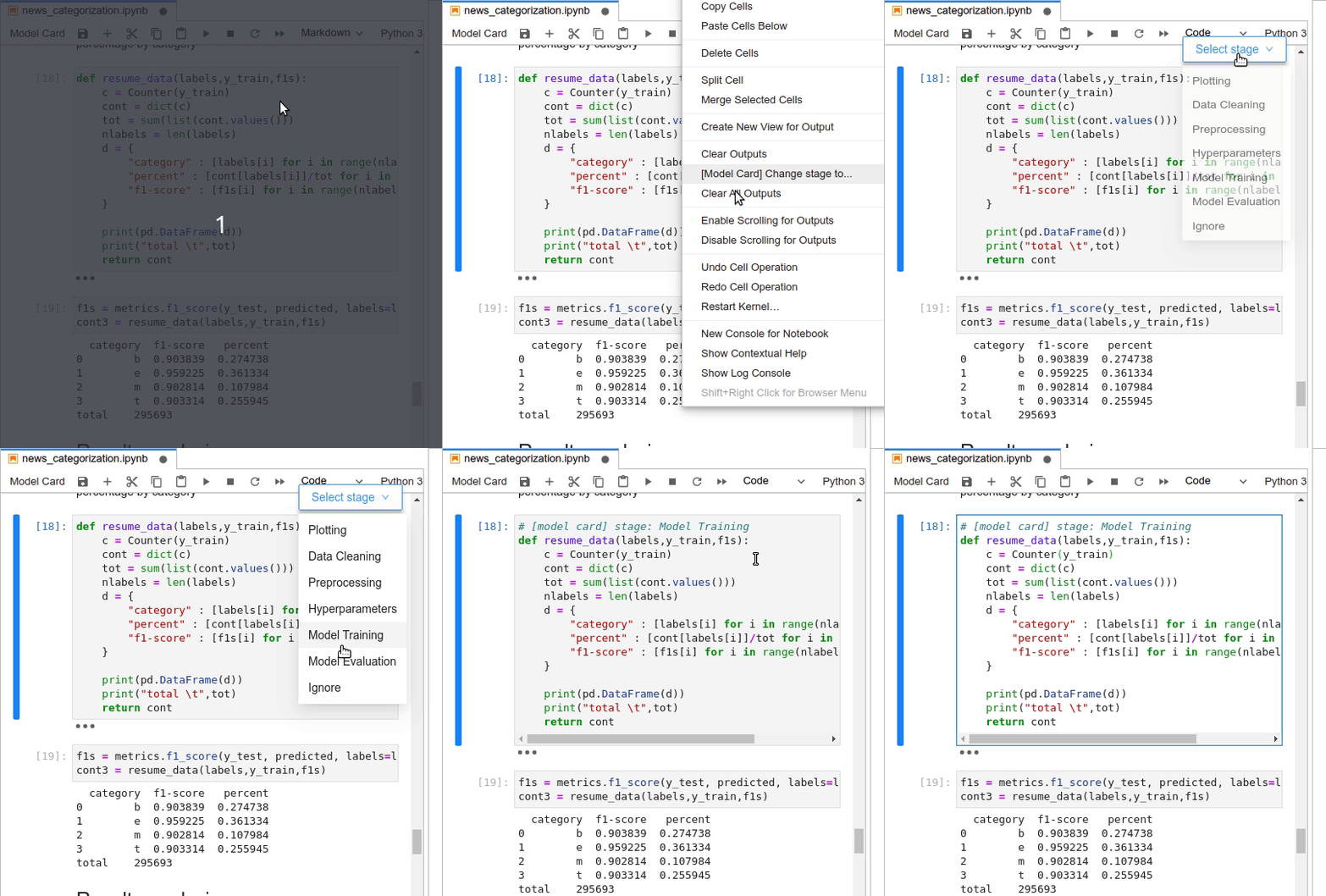
The sections with * superscript, such as Plotting*, contain contents mapped to the the source code cells. The mapping is automatically detected but the user can change the mapping of the source code cell for an existing notebook. Right click on the code cell, and select the [Model Card] Change stage to.. option which will list the available stages in a dropdown. On selecting the stage, a comment is added on to the cell indicating the type of the cell.
Caution
This package is still under development, and can have usage issues. Make sure to take frequent backups of your work. We recommend you to have a separate python environment created for installing the package in, not only because it is a good practise to do so, but also so that in case of any dependency issues it is easy to fix it. Check out venv for instructions on how to setup a python virtual environment.
Troubleshooting
-
Model card is blank.
Check if Node is installed on your machine. Check if your config file has the required sections listed. Make sure all the code cells are executable. Since the automated document marker functionality picks up all the code cells, all the code cells should be working.
-
Model card refresh is failing.
Close the model card. Click on the
model cardbutton in the panel. It should generate the model card.Note: The
Refreshtab currently only works on Chrome. If you are using Safari, you should close the modelcard panel and regenerate it to refresh the contents.
References
[1] Margaret Mitchell, Simone Wu, Andrew Zaldivar, Parker Barnes, Lucy Vasserman, Ben Hutchinson, Elena Spitzer, Inioluwa Deborah Raji, and Timnit Gebru. 2019. Model Cards for Model Reporting. In Proceedings of the Conference on Fairness, Accountability, and Transparency (FAT* '19). Association for Computing Machinery, New York, NY, USA, 220–229. DOI:https://doi.org/10.1145/3287560.3287596
Development Installation
If you want to contribute and make this extension better, here are the steps to install the extension locally to code on it.
Create a conda environment if you do not have an environment already.
conda create -n [environment-name] --override-channels --strict-channel-priority -c conda-forge -c anaconda jupyterlab cookiecutter nodejs git
Activate the environment.
conda activate [environment-name]
Since there is only one python dependeny, there is no environment.yml file. You can install the jupyterlab package.
# for JupyterLab 3.x
conda install -c conda-forge jupyterlab
Once you install jupyterlab, you can access jlpm which is JupyterLab's pinned version of yarn.
# Install dependencies
jlpm install
You can install the extension without building as well.
jupyter labextension install . --no-build
You can watch the source directory and run JupyterLab in watch mode to watch for changes in the extension's source and automatically rebuild the extension and application.
# Watch the source directory in another terminal tab
jlpm watch
# Run jupyterlab in watch mode in one terminal tab
jupyter lab --watch
Once you make any changes to the code, you can rebuild the extension.
jlpm run build


Download files
Download the file for your platform. If you're not sure which to choose, learn more about installing packages.
Source Distribution
Built Distribution
Filter files by name, interpreter, ABI, and platform.
If you're not sure about the file name format, learn more about wheel file names.
Copy a direct link to the current filters
File details
Details for the file jlcards-0.0.8.tar.gz.
File metadata
- Download URL: jlcards-0.0.8.tar.gz
- Upload date:
- Size: 1.0 MB
- Tags: Source
- Uploaded using Trusted Publishing? No
- Uploaded via: twine/3.7.0 importlib_metadata/4.8.1 pkginfo/1.8.2 requests/2.26.0 requests-toolbelt/0.9.1 tqdm/4.62.3 CPython/3.9.7
File hashes
| Algorithm | Hash digest | |
|---|---|---|
| SHA256 |
a930a1d265e3b9793326065942457741419a1b86ed074aaaaa300828506bec88
|
|
| MD5 |
63a47e98589d82c201086df32f0d6d23
|
|
| BLAKE2b-256 |
f21238842856456b98d0a922624c64ac3808c9ccef6c920fb17169fd8731eb74
|
File details
Details for the file jlcards-0.0.8-py3-none-any.whl.
File metadata
- Download URL: jlcards-0.0.8-py3-none-any.whl
- Upload date:
- Size: 2.0 MB
- Tags: Python 3
- Uploaded using Trusted Publishing? No
- Uploaded via: twine/3.7.0 importlib_metadata/4.8.1 pkginfo/1.8.2 requests/2.26.0 requests-toolbelt/0.9.1 tqdm/4.62.3 CPython/3.9.7
File hashes
| Algorithm | Hash digest | |
|---|---|---|
| SHA256 |
995b21952ea61fd33ff96a0a60f81c1917bab12a4f9041487aa0e2bac67133aa
|
|
| MD5 |
9d0c89759fb7993fcdf28f0855e38089
|
|
| BLAKE2b-256 |
a8b08868e31687c055a0d7f4c2c3294f9542d72abc5e93695c41c03925b1b553
|






