
No project description provided

Project description


🌎 ✨ Jupyter Earth MCP Server


🌍 Jupyter Earth MCP Server is a Model Context Protocol (MCP) server implementation that provides a set of tools for 🗺️ Geospatial analysis in 📓 Jupyter notebooks.
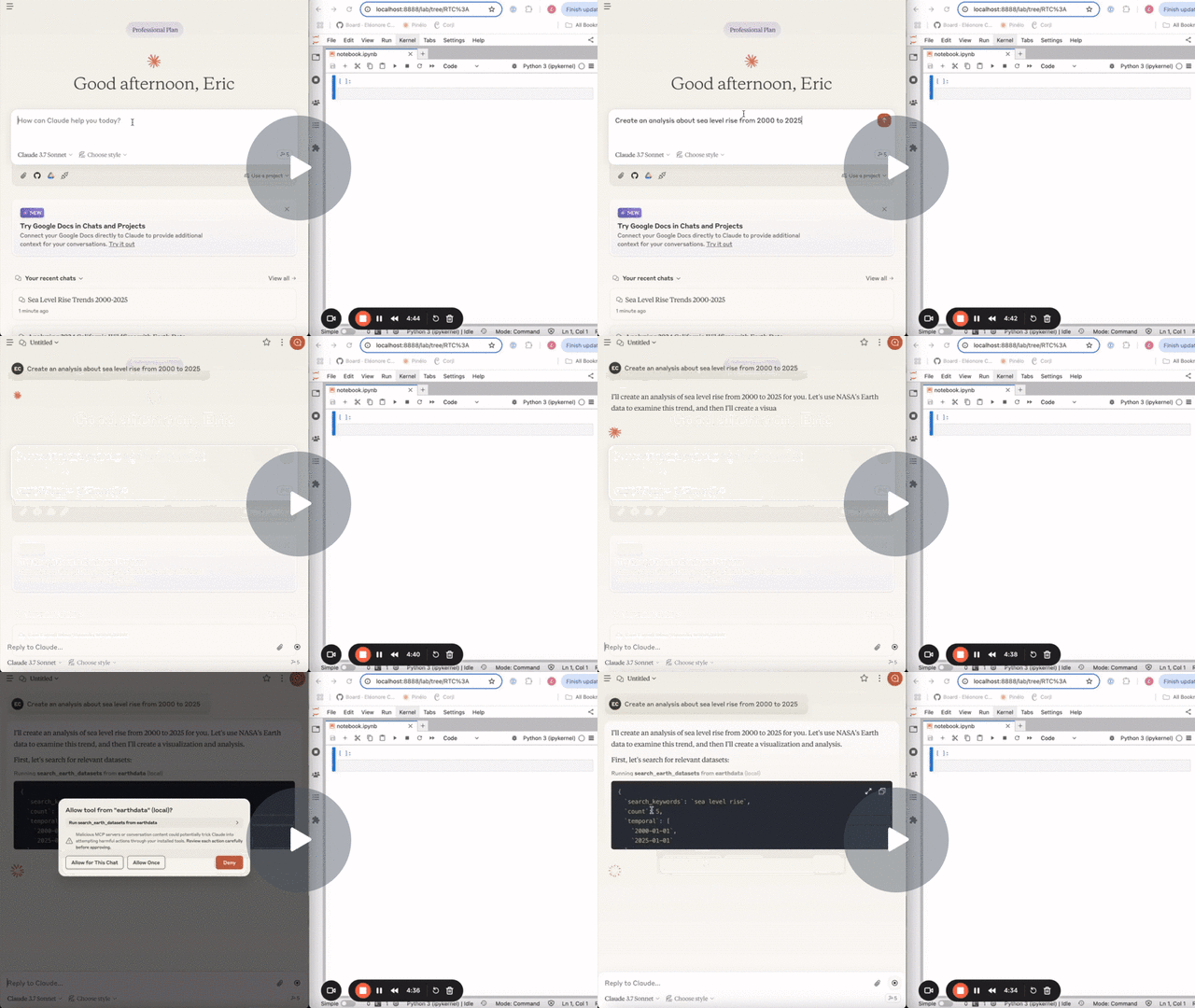
The following demo uses the Earthdata MCP server to search for datasets and data granules on NASA Earthdata, this MCP server to download the data in Jupyter and the jupyter-mcp-server to run further analysis.
Start JupyterLab
Make sure you have the following installed. The collaboration package is needed as the modifications made on the notebook can be seen thanks to Jupyter Real Time Collaboration.
pip install jupyterlab==4.4.1 jupyter-collaboration==4.0.2 ipykernel
pip uninstall -y pycrdt datalayer_pycrdt
pip install datalayer_pycrdt==0.12.15
Then, start JupyterLab with the following command.
jupyter lab --port 8888 --IdentityProvider.token MY_TOKEN --ip 0.0.0.0
You can also run make jupyterlab.
[!NOTE]
The
--ipis set to0.0.0.0to allow the MCP server running in a Docker container to access your local JupyterLab.
Use with Claude Desktop
Claude Desktop can be downloaded from this page for macOS and Windows.
For Linux, we had success using this UNOFFICIAL build script based on nix
# ⚠️ UNOFFICIAL
# You can also run `make claude-linux`
NIXPKGS_ALLOW_UNFREE=1 nix run github:k3d3/claude-desktop-linux-flake \
  --impure \
  --extra-experimental-features flakes \
  --extra-experimental-features nix-command
To use this with Claude Desktop, add the following to your claude_desktop_config.json (read more on the MCP documentation website).
[!IMPORTANT]
Ensure the port of the
SERVER_URLandTOKENmatch those used in thejupyter labcommand.The
NOTEBOOK_PATHshould be relative to the directory where JupyterLab was started.
Claude Configuration on macOS and Windows
{
  "mcpServers": {
    "jupyter-earth": {
      "command": "docker",
      "args": [
        "run",
        "-i",
        "--rm",
        "-e",
        "SERVER_URL",
        "-e",
        "TOKEN",
        "-e",
        "NOTEBOOK_PATH",
        "datalayer/jupyter-earth-mcp-server:latest"
      ],
      "env": {
        "SERVER_URL": "http://host.docker.internal:8888",
        "TOKEN": "MY_TOKEN",
        "NOTEBOOK_PATH": "notebook.ipynb"
      }
    }
  }
}
Claude Configuration on Linux
CLAUDE_CONFIG=${HOME}/.config/Claude/claude_desktop_config.json
cat <<EOF > $CLAUDE_CONFIG
{
  "mcpServers": {
    "jupyter-earth": {
      "command": "docker",
      "args": [
        "run",
        "-i",
        "--rm",
        "-e",
        "SERVER_URL",
        "-e",
        "TOKEN",
        "-e",
        "NOTEBOOK_PATH",
        "--network=host",
        "datalayer/jupyter-earth-mcp-server:latest"
      ],
      "env": {
        "SERVER_URL": "http://localhost:8888",
        "TOKEN": "MY_TOKEN",
        "NOTEBOOK_PATH": "notebook.ipynb"
      }
    }
  }
}
EOF
cat $CLAUDE_CONFIG
Components
Tools
The server currently offers 1 tool:
download_earth_data_granules
- Add a code cell in a Jupyter notebook to download Earth data granules from NASA Earth Data.
- Input:
folder_name(string): Local folder name to save the data.short_name(string): Short name of the Earth dataset to download.count(int): Number of data granules to download.temporal(tuple): (Optional) Temporal range in the format (date_from, date_to).bounding_box(tuple): (Optional) Bounding box in the format (lower_left_lon, lower_left_lat, upper_right_lon, upper_right_lat).
- Returns: Cell output.
Prompts
download_analyze_global_sea_level- To ask for downloading and analyzing global sea level data in Jupyter.
- Returns: Prompt correctly formatted.
Building
You can build the Docker image it from source.
make build-docker
Release history Release notifications | RSS feed


Download files
Download the file for your platform. If you're not sure which to choose, learn more about installing packages.
Source Distribution
Built Distribution
Filter files by name, interpreter, ABI, and platform.
If you're not sure about the file name format, learn more about wheel file names.
Copy a direct link to the current filters
File details
Details for the file jupyter_earth_mcp_server-0.0.3.tar.gz.
File metadata
- Download URL: jupyter_earth_mcp_server-0.0.3.tar.gz
- Upload date:
- Size: 8.2 kB
- Tags: Source
- Uploaded using Trusted Publishing? No
- Uploaded via: twine/6.1.0 CPython/3.11.12
File hashes
| Algorithm | Hash digest | |
|---|---|---|
| SHA256 |
10bc38868c354ca09157e58aae1648c1d720d47796569bf4d4b6037ce83f09ae
|
|
| MD5 |
b4af454a071d14aaff6ea16f96140dfa
|
|
| BLAKE2b-256 |
ad61b7c33e298d396e1d066ff9406f3993284b417aaa851f7450b6c6f4e0ae19
|
File details
Details for the file jupyter_earth_mcp_server-0.0.3-py3-none-any.whl.
File metadata
- Download URL: jupyter_earth_mcp_server-0.0.3-py3-none-any.whl
- Upload date:
- Size: 7.1 kB
- Tags: Python 3
- Uploaded using Trusted Publishing? No
- Uploaded via: twine/6.1.0 CPython/3.11.12
File hashes
| Algorithm | Hash digest | |
|---|---|---|
| SHA256 |
230e597aef7507e6d9ab2eb06d90cc39f3390ad49a64673ad6a93d9929b71942
|
|
| MD5 |
56584cfa58c657381a0f27e419efaba8
|
|
| BLAKE2b-256 |
d680fed9b377e866436d3f1ee29d904836e3dd6487d8ea8730a11d05bf6eca5a
|






