
Jupyter Mosaic
A Jupyter Lab extension to make notebooks more visual and usable.
About
Jupyter Mosaic is now on PyPI as jupyter-mosaic!
Install on the machine running the jupyter server with
pip install jupyter-mosaic
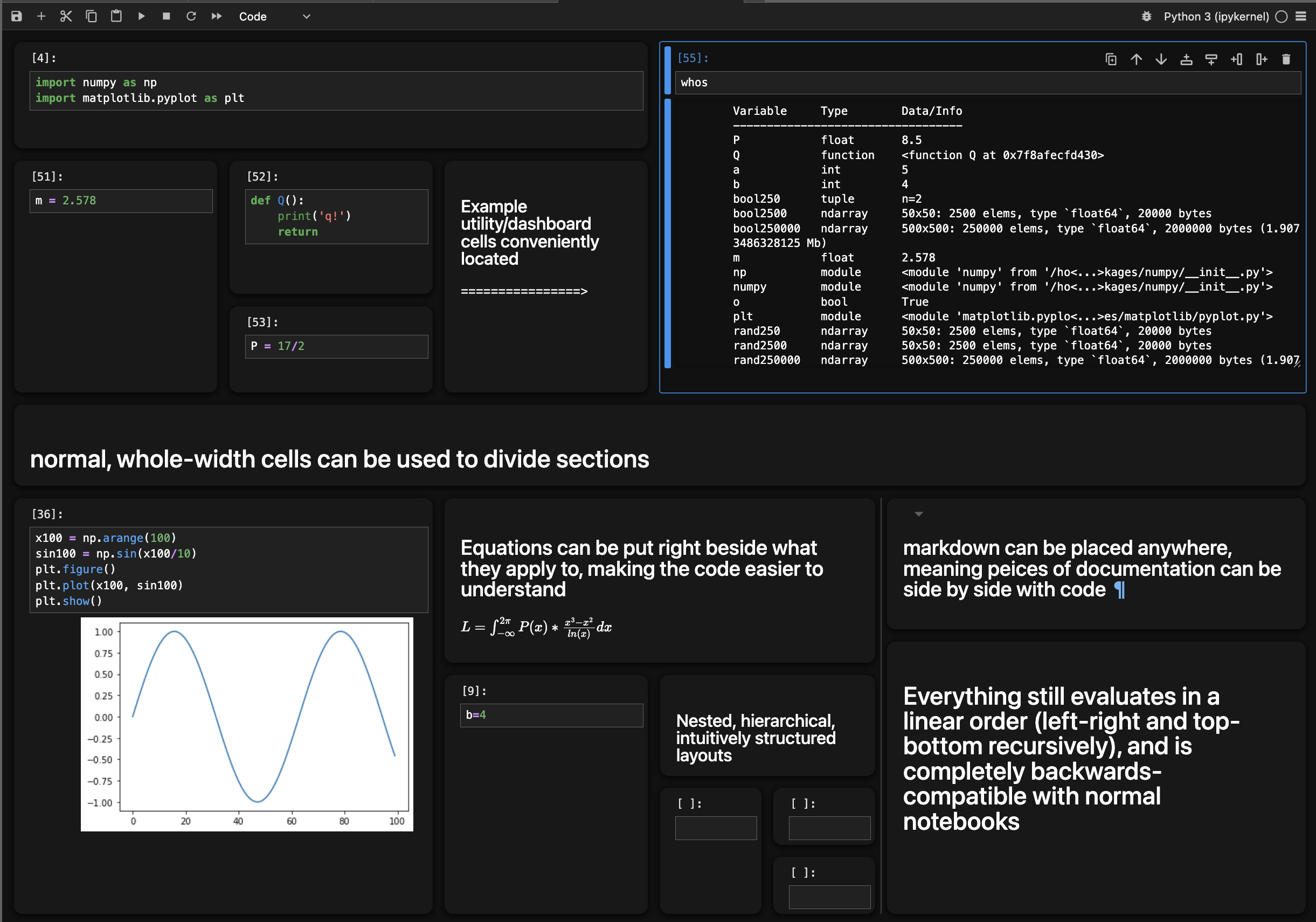
Jupyter Mosaic is an extension for Jupyter Lab that gives Jupyter Notebooks two-dimensional subdividable tiling grid layouts.
Drag-and-drop cells or use a, s, f, and b in command mode to subdivide, inserting a cell above, left, right, or below the selected cell, respectively.
Backwards Compatable! Notebooks still use the same file type and are completely usable without Mosaic; opened with vanilla Jupyter, the layout will be linear but execution will still flow the same way.
Uses of the Interface
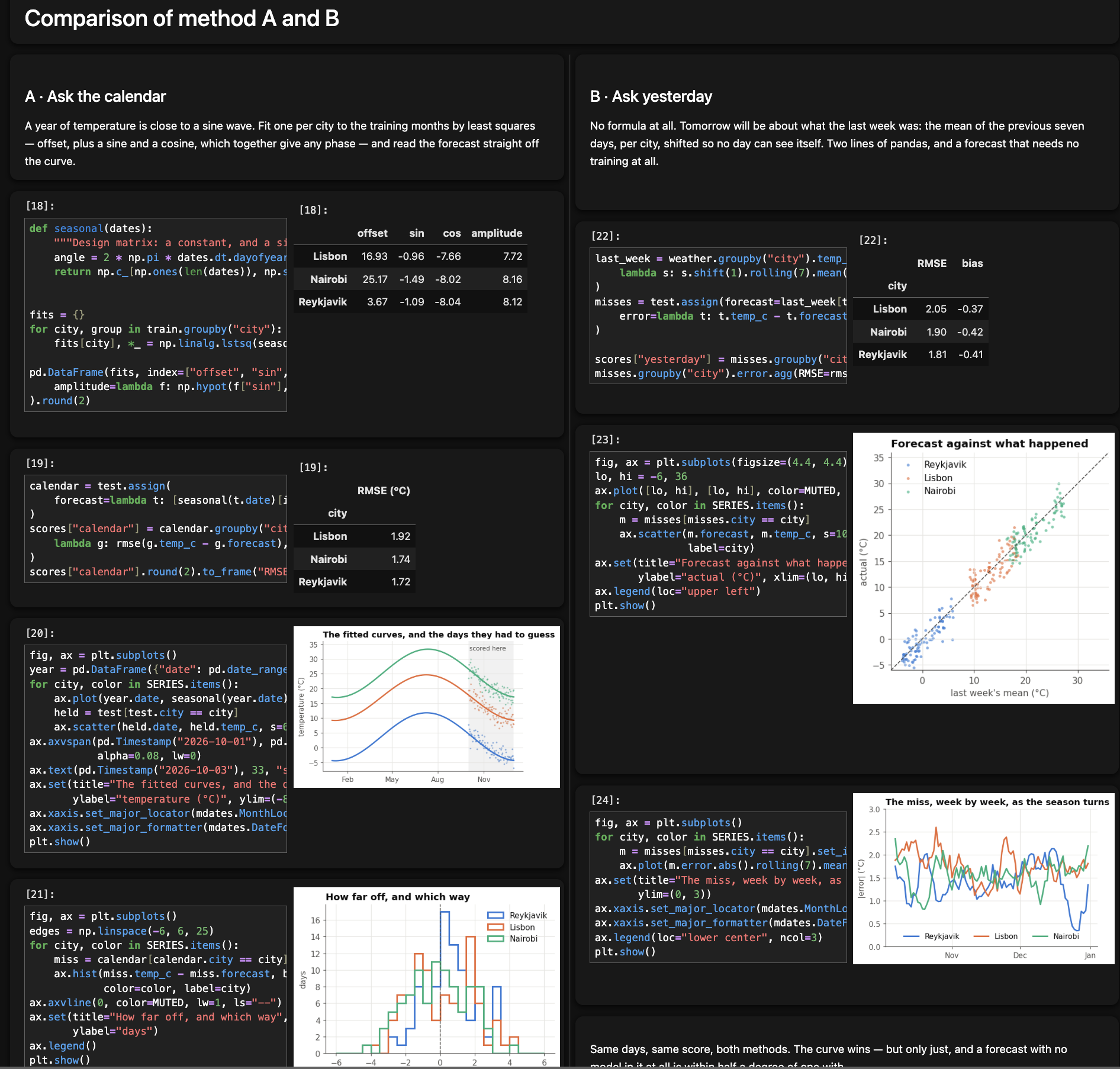
Parallel experiments in two columns.
Align your similarly structured experiment sequences and see the corresponding steps in line with each other.
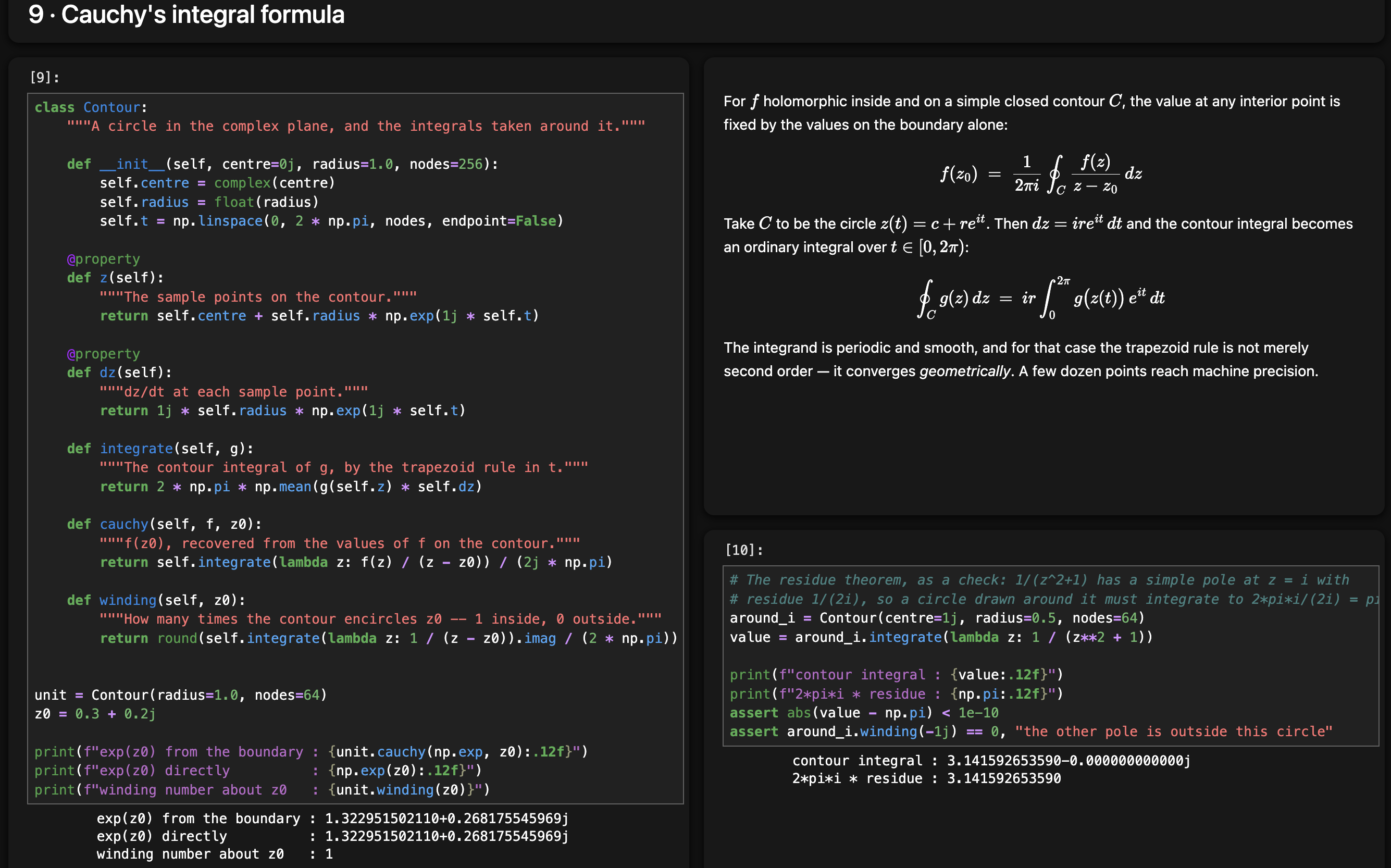
Structured, intuitive notebooks.
A really good notebook uses markdown documentation and latex to give an exact breakdown of what the code does, rather than leaving it up to a reader to decipher your esoteric functions. Plus,
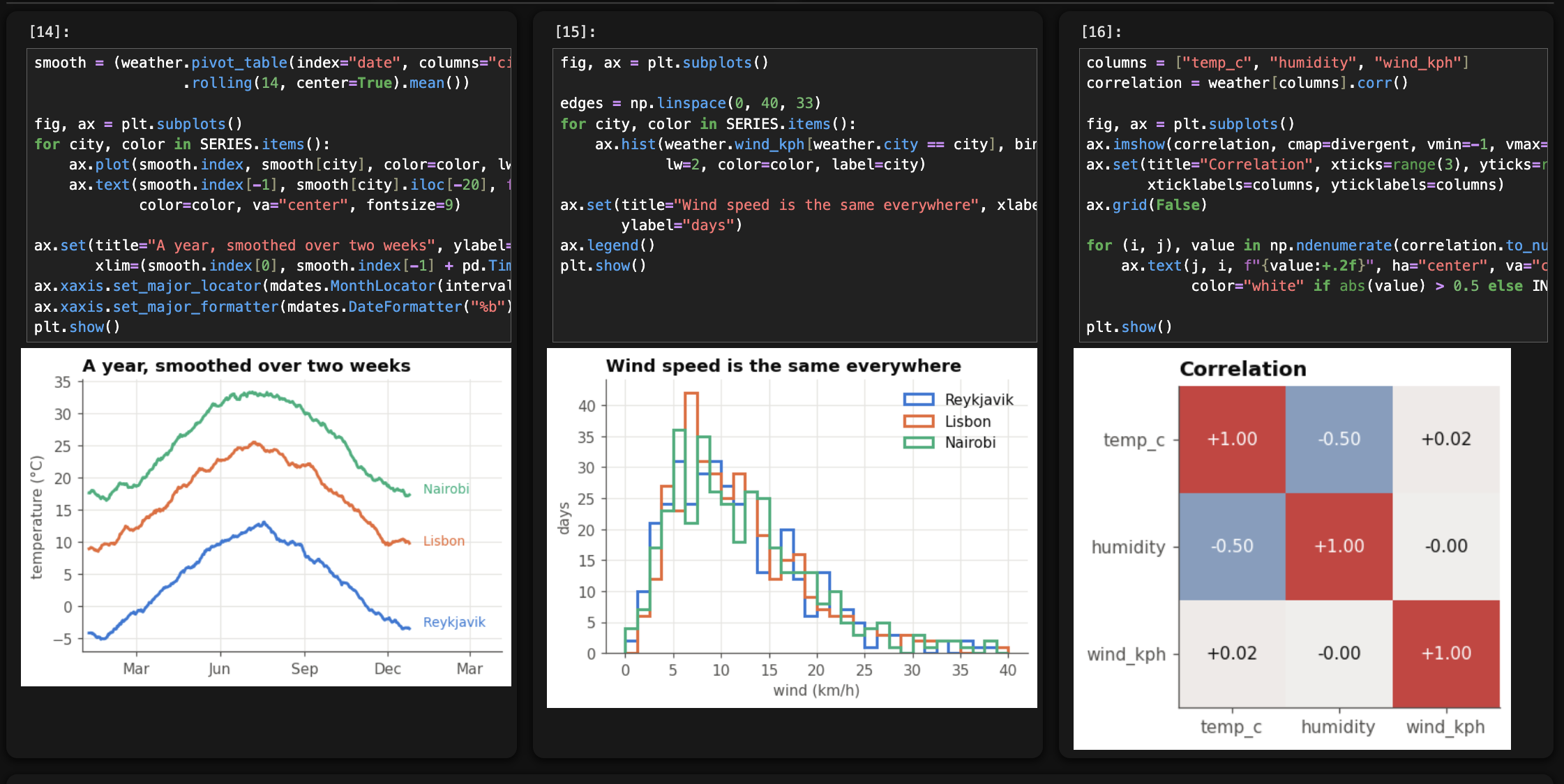
Easy visual plot comparison.
Drag and drop plots together rather than use plt.subplots. Faster, more intuitive, easily rearrangable, and self-documenting by showinge exactly what commands make which mosaic 'subplot'.
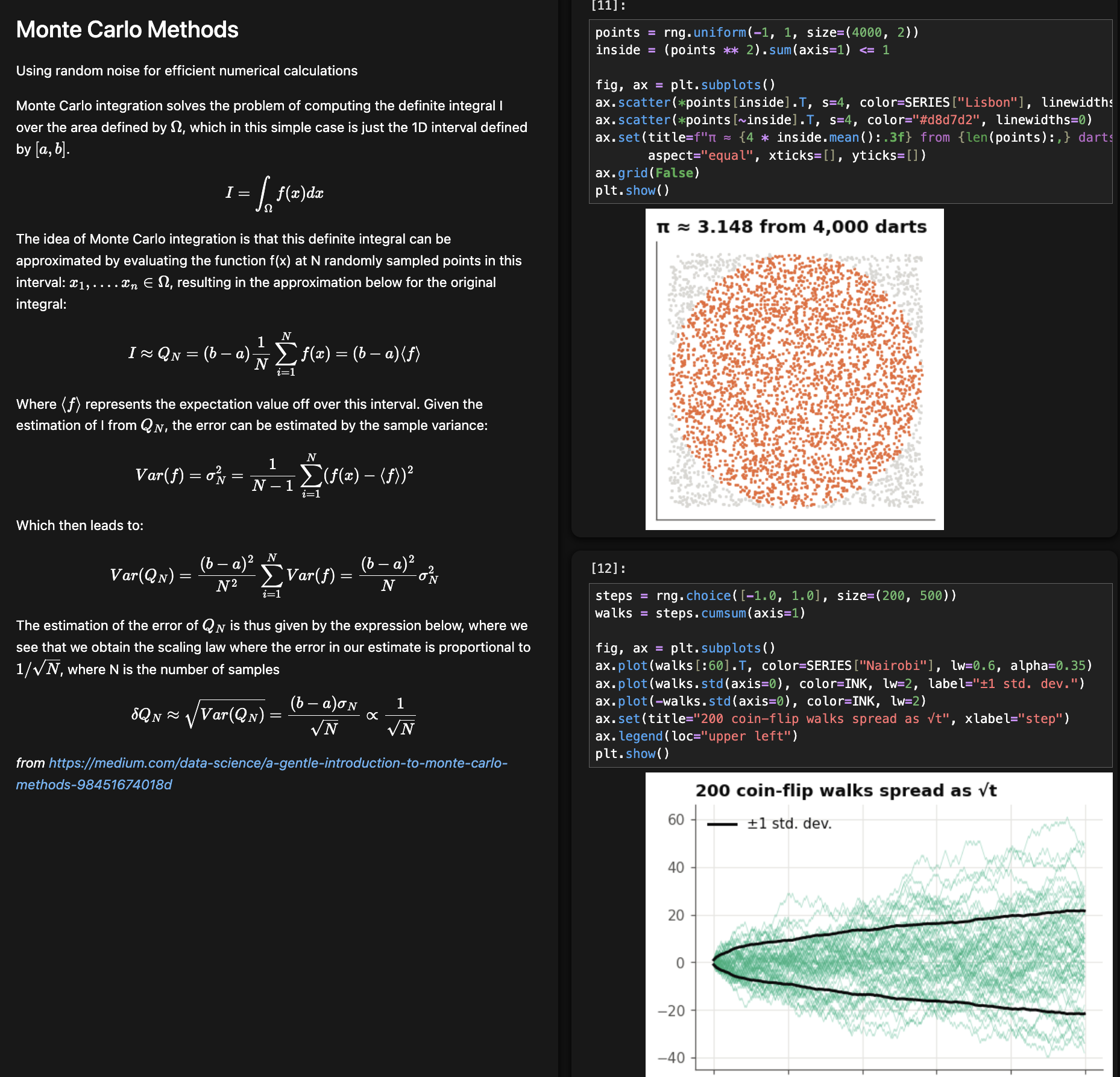
Create self-documenting research or tutorial notebooks.
Tile theoretical explanations in line with code, walking through concepts while implementing them right there.
Dashboard interface
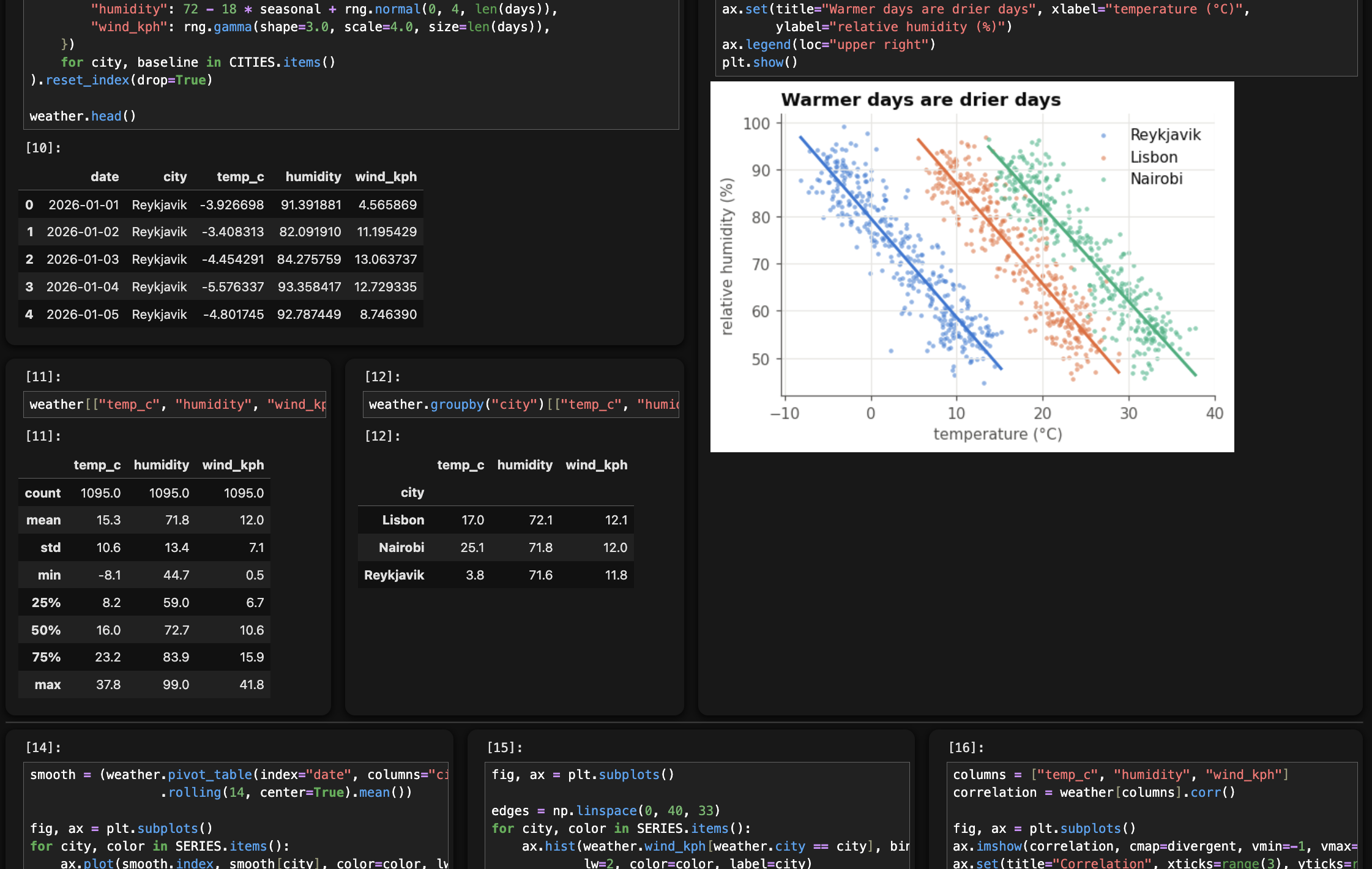
Use notebooks as interactive tools rather than scripts, now with a real layout instead of a long linear document.
Present your results compactly in video confrences.
Show relevant tables and plots together alongside generating code, without fussing with graphics tools or losing your audience by scrolling back and forth.
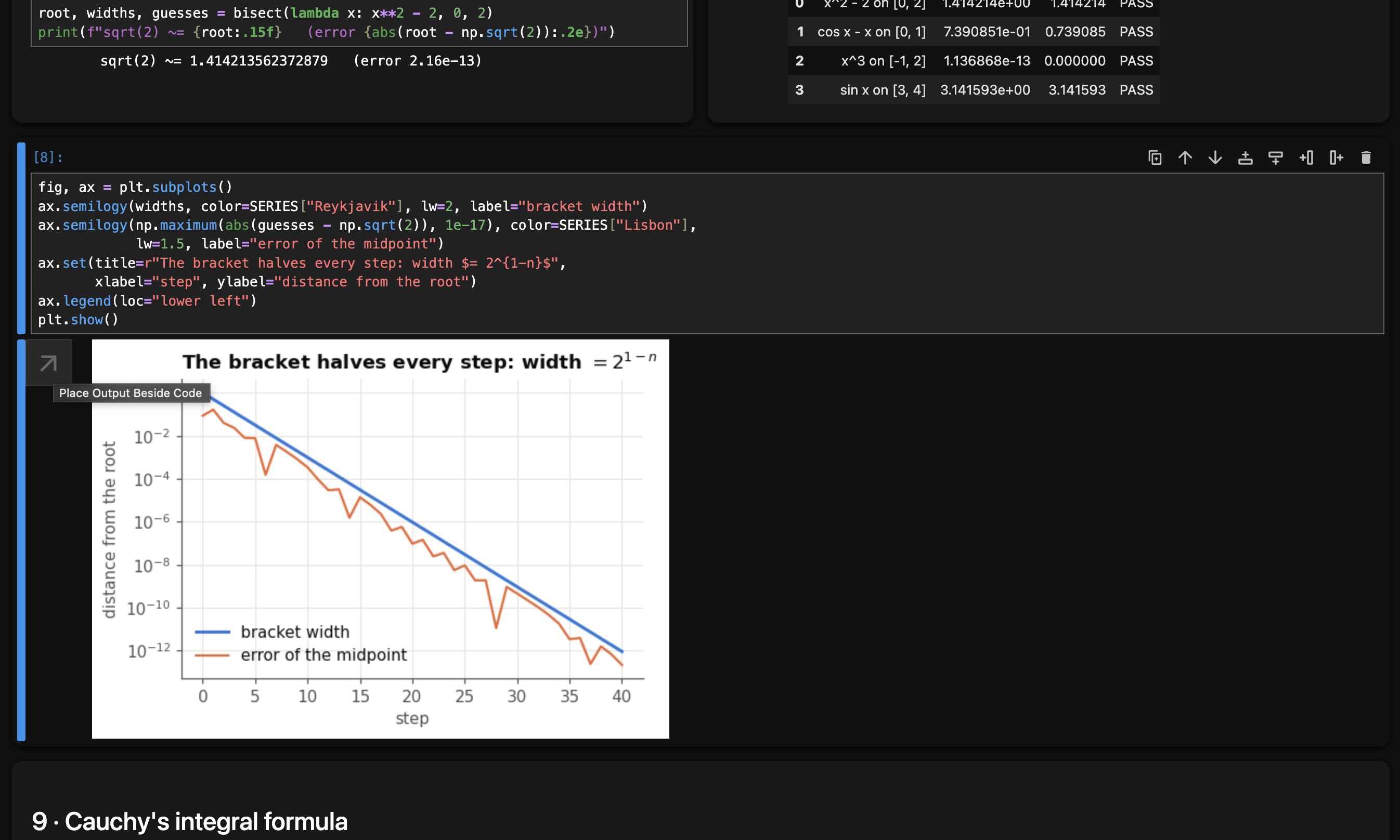
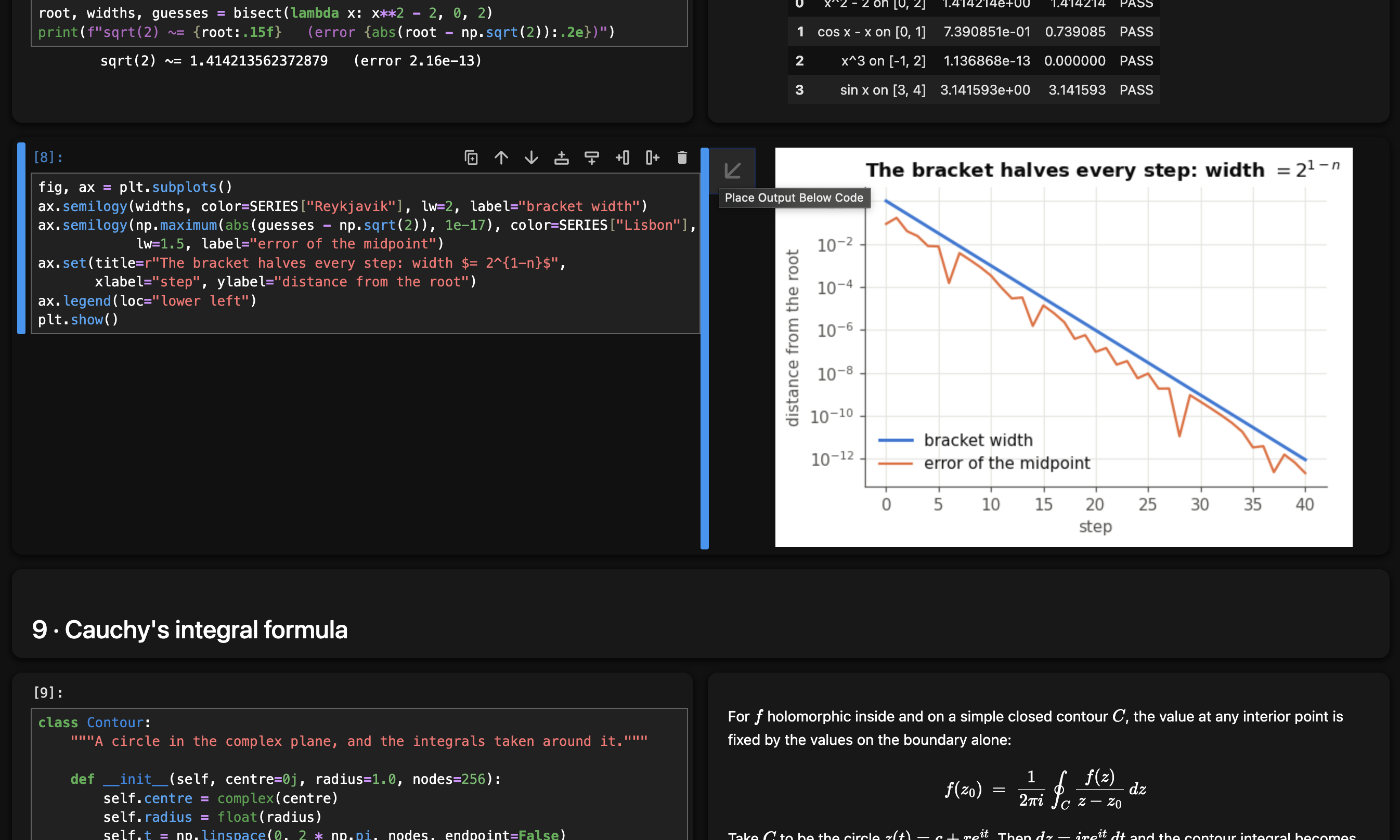
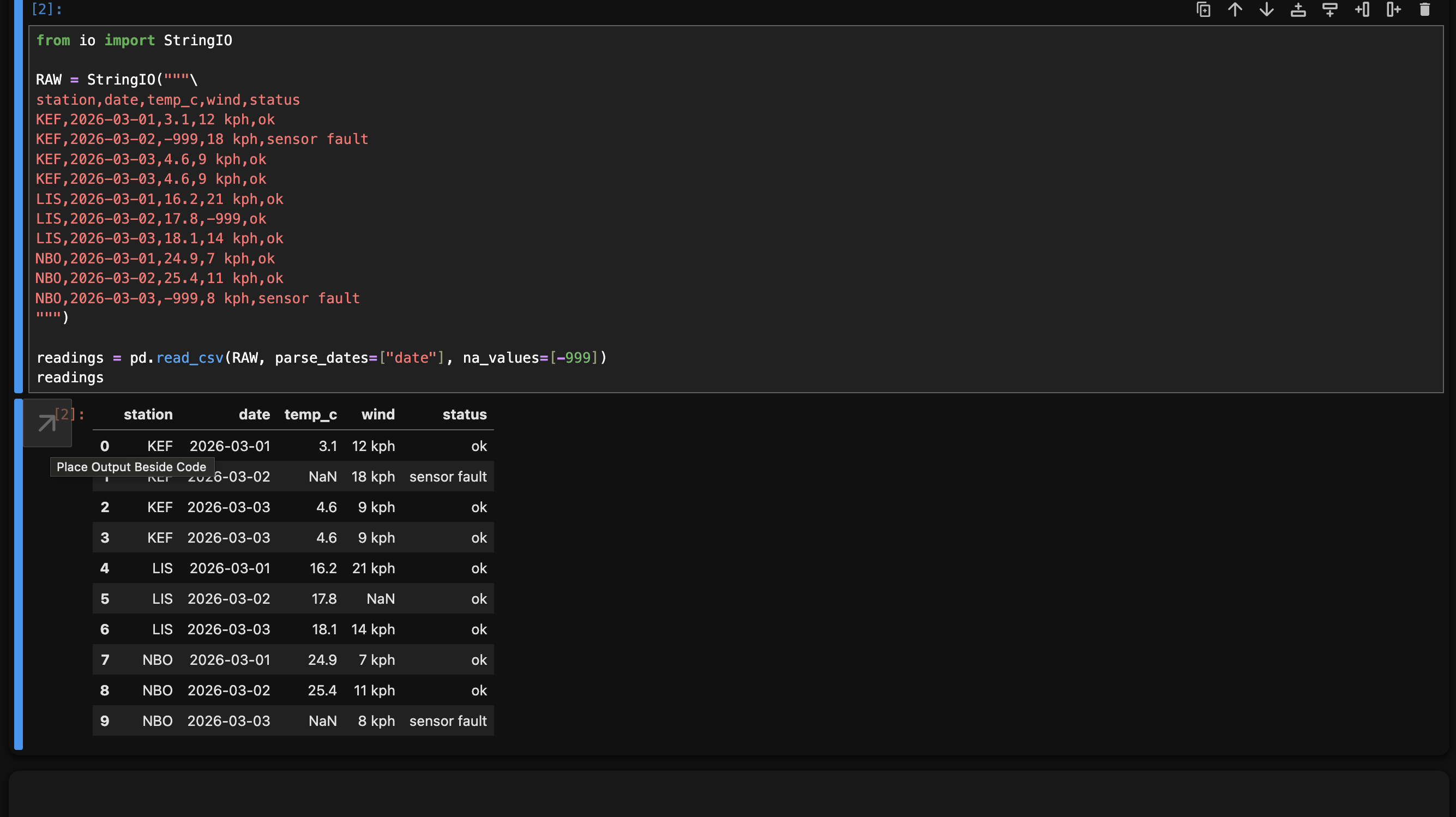
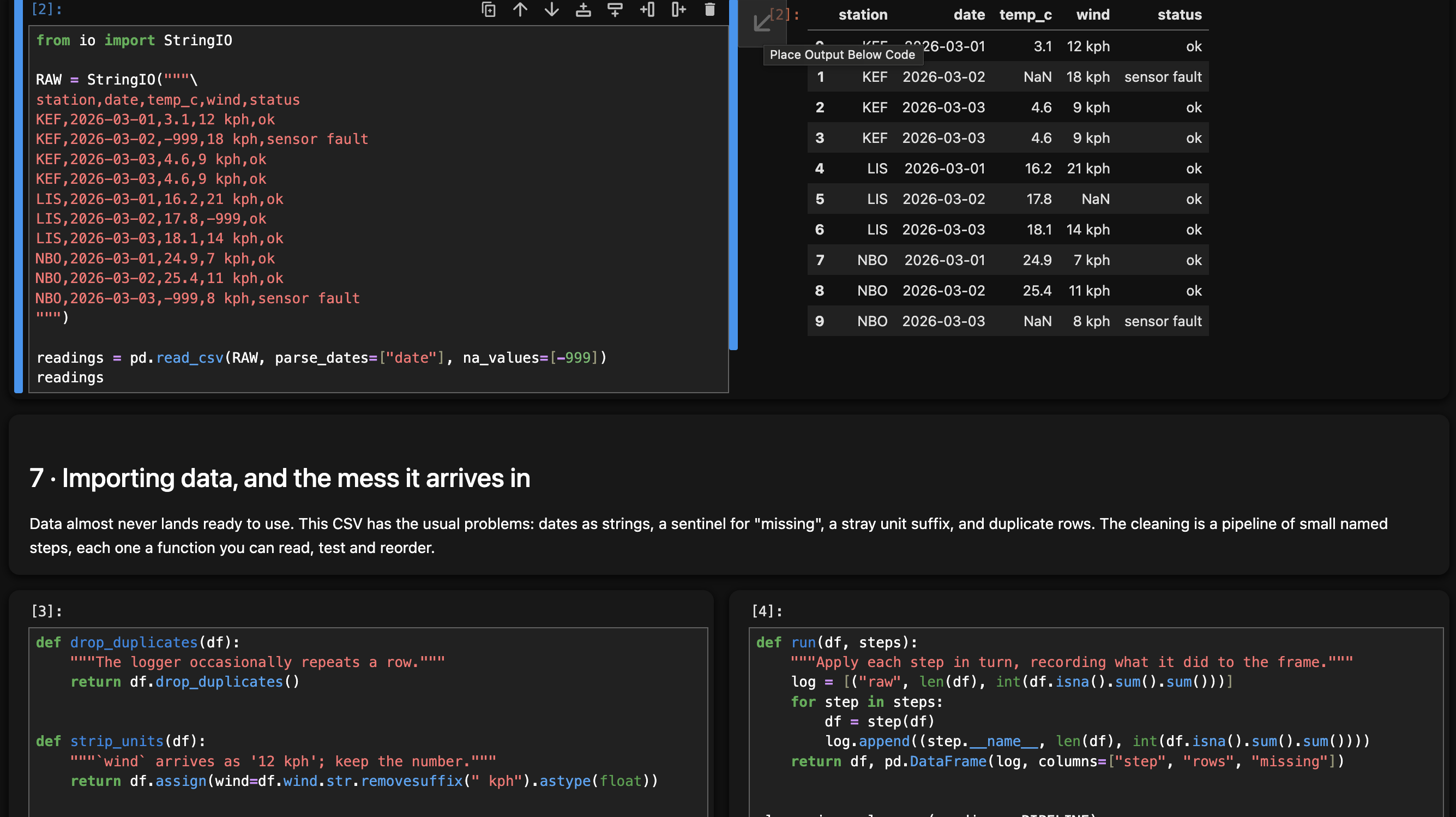
Output beside code
Mosaic also adds a button to move cell output to the right of code, a popular format for interactive development.
 -->
--> 
 -->
--> 
No Whitespace, No Waste.
Most lines of code barely reach halfway across the screen. All that blank space on the right half of the page is why you're always scrolling back and forth between related parts of your code that end up separated by an inconvenient vertical distance.
Backwards-Compatable (Still Just a Notebook!)
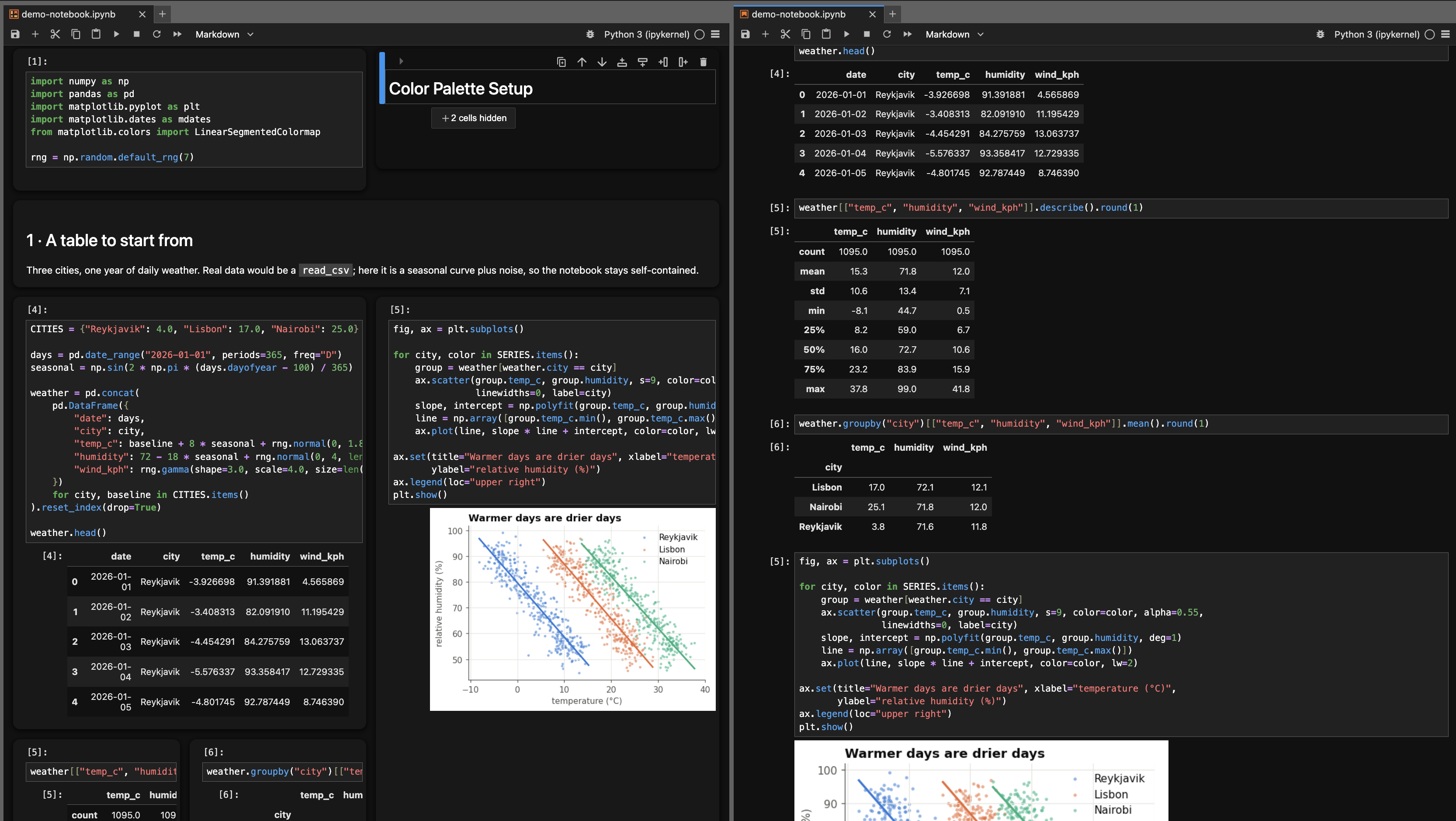
On the disk, your mosaic notebook still is just a normal linear Jupyter Notebook. It's exactly the same file type, so someone without the extension can still open and use your notebook and everything will execute correctly, just in a flattened one-dimensional layout. This does not change any of the core functionality of jupyter, just the UI.
You can even synchronously collaborate with non-Mosaic users and edit the same notebook; they see it linearly while you see a grid layout, but changes are shared instantly.
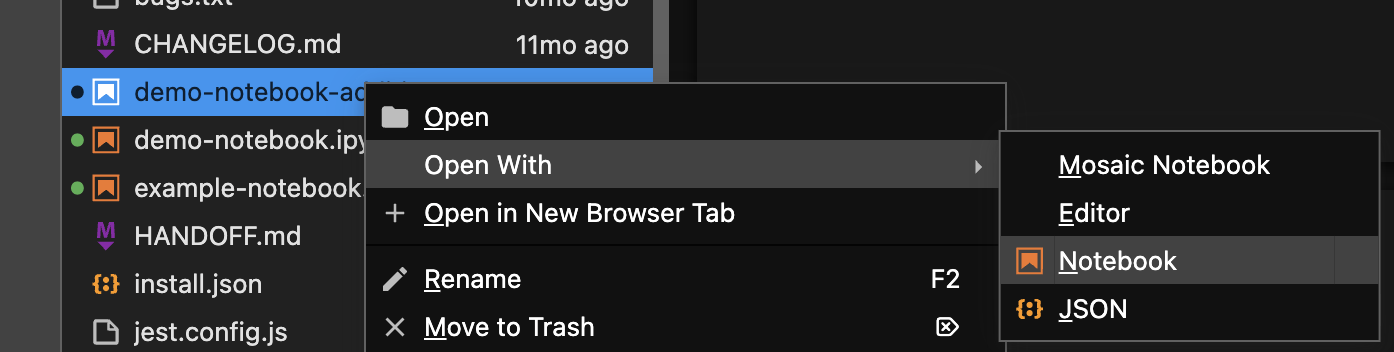
You can double-check how non-Mosaic users will see your notebook by right-clicing the file and selecting Open With > Notebook
Grid Structure and Execution Order (how is it linearized?)
The mosaic notebook is divided into rows, each of which may contain multiple cells and columns, which may be again divided into rows recursively, and so on and so on.
Each row is executed left-to-right. Each column is executed top-to-bottom. When a column is inside a row, the column is executed entirely before continuing to the right, and vice versa for rows inside columns.
This execution order is also how the cells are linearized when the notebook is opened without the Jupyter Mosaic extension.
New Features - v2.0
- Side-by-side output
A button moves cell output to the right of code, or puts it back below.
-
Synchronous mosaic/normal-notebook editing works
-
Markdown exand/collapse sections
Built-in jupyter expand/collapse functionality showing/hiding cells under markdown headers now works.
-
Collapse grid to normal column if too small
-
Grid navigation and division keybinds.
In command mode:
h - move left one cell
j - move down one cell
k - move up one cell
l - move right one cell
To create new cells in the grid layout:
a - create cell above (divide horizontally)
b - create cell below (divide horizontally)
s - create cell to the left (divide vertically)
f - create cell to the right (divide vertically)
Installation
Jupyter Mosaic is now on PyPI as jupyter-mosaic!
Install on the machine running the jupyter server with
pip install jupyter-mosaic
And you're done! Restart jupyterlab, and check its enabled in the extensions menu (left sidebar puzzle piece).
Manual/Development Install
Or, you can manually clone and install it. Clone it (or download and unpack the archive from the repository's Code button), then install in editable mode from inside the directory:
git clone https://github.com/robertstrauss/jupytermosaic.git
cd jupytermosaic
pip install -e .
Uninstall
pip uninstall jupyter-mosaic
NbClassic (Jupyter Notebook Version < 7)
DEPRECATED
Please Cite
Robert Strauss, "Jupyter Mosaic" 2020, https://github.com/robertstrauss/jupytermosaic
1 maintainer

Metadata
1 maintainer
Release files for jupyter-mosaic 2.0.0
For a detailed explanation of source distributions (sdists) and built distributions (wheels), please see the package formats documentation.
Source distribution (sdist)
| File | Size | Uploaded | Provenance | Actions |
|---|---|---|---|---|
| jupyter_mosaic-2.0.0.tar.gz | 343.5 kB | Without provenance | Details for jupyter_mosaic-2.0.0.tar.gz |
Built distribution (wheel)
| File | Interpreter | ABI | Platform | Actions Reset |
|---|---|---|---|---|
| jupyter_mosaic-2.0.0-py3-none-any.whl | Python 3 | none | any | Details for jupyter_mosaic-2.0.0-py3-none-any.whl |
Total release size: 427.8 kB
Release files / jupyter_mosaic-2.0.0.tar.gz
| Download URL | jupyter_mosaic-2.0.0.tar.gz |
|---|---|
| Size | 343.5 kB |
| Tags | Source |
|
SHA-256 checksum How to use checksums |
bc362d7061ab0a4d349af7d6d21a64a35e4b71bf54748bfc83b5500dead17316
|
|
BLAKE2b-256 checksum How to use checksums |
7124560de98d11468904c20f59785225de3635eb53671216259bbd56c38954a2
|
| Upload date | |
|
Uploaded using Trusted Publishing? What is trusted publishing? |
No |
| Uploaded via |
twine/7.0.0 CPython/3.14.0
|
Release files / jupyter_mosaic-2.0.0-py3-none-any.whl
| Download URL | jupyter_mosaic-2.0.0-py3-none-any.whl |
|---|---|
| Size | 84.3 kB |
| Tags | Python 3 |
|
SHA-256 checksum How to use checksums |
c54e06f52733cdcbc2d2b462b6e3ad148ec1f40c42fbc6ab22486df39e49ca05
|
|
BLAKE2b-256 checksum How to use checksums |
9d00c083df405fd236afa3cfbb072d90b0d081b25cada7ce5f99206c66c0a45a
|
| Upload date | |
|
Uploaded using Trusted Publishing? What is trusted publishing? |
No |
| Uploaded via |
twine/7.0.0 CPython/3.14.0
|
Security for jupyter-mosaic 2.0.0
Provenance
Provenance describes where a file came from. On PyPI, provenance is shared via attestations, which provide a verifiable record of the build or publishing details. View details, limitations and caveats.
No provenance found
None of the files in this release were uploaded with provenance metadata.
A note on package security
PyPI is a repository for distributing packages, not a service for auditing them. While third-party security researchers and our staff do their best to detect and remove malicious packages, PyPI cannot guarantee the quality, security or suitability of any given package.
To learn more about protecting yourself from malicious actors, visit our package security documentation.













