
Start tensorboard in Jupyter! Jupyter notebook integration for tensorboard.

Project description




Tensorboard Integration for Jupyter Notebook.
A jupyter server extension for jupyter notebook and tensorboard (a visualization tool for tensorflow) which provides graphical user interface for tensorboard start, manage and stop in jupyter interface.
Installation
Be sure that tensorflow(-gpu)>=1.3.0 has been installed. If not, you should install or upgrade your tensorflow>=1.3.0 first, and tensorboard is a dependency of tensorflow so that it is automatically installed. This package does not have a tensorflow dependency because there are several distributions of tensorflow, for example, tensorflow and tensorflow-gpu. Any way, you must be sure you have tensorflow(-gpu) installed before install this package.
Install the pip package. The python version must be the same as Jupyter: if you start jupyter notebook in python3, pip3 may be used to install the package
pip(3) install jupyter-tensorboard
NOTE:
The python version is important, you must be sure that your jupyter, jupyter_tensorboard, tensorflow have the same python version. If your tensorflow python and jupyter python versions are different, e.g., use tensorflow in py2 but jupyter starts in py3, both versions of tensorflow(py2 and py3) should be installed, and jupyter_tensorboard should install to py3, in accordance with jupyter.
Restart the jupyter notebook server.
Use jupyter-tensorboard in docker containers
Docker image for Jupyter Notebook Scientific Python Stack + Tensorflow + Tensorboard is available, just with the command:
docker pull lspvic/tensorboard-notebook
docker run -it --rm -p 8888:8888 lspvic/tensorboard-notebook
Jupyter notebook with tensorboard integrated is now available in http://localhost:8888 , details are in docker/README.md.
Usage
Once jupyter_tensorboard is installed and enabled, and your notebook server has been restarted, you should be able to find the interfaces to manage tensorboard instances.
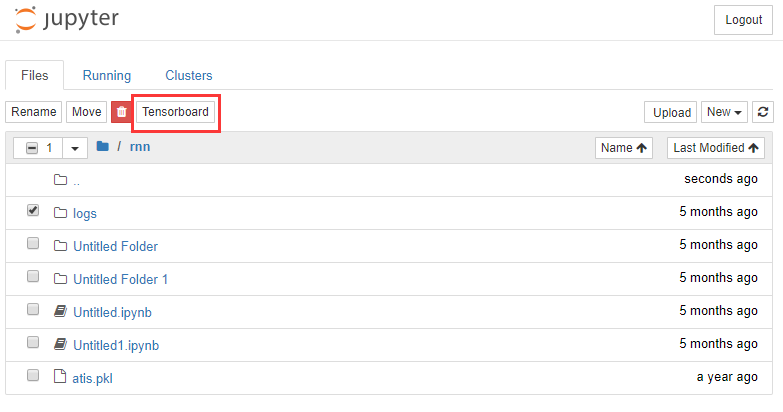
In notebook tree view, select a directory, a tensorboard button will be presented. Click the button, a new browser tab will be opened to show the tensorboard interface with the proposed directory as logdir.
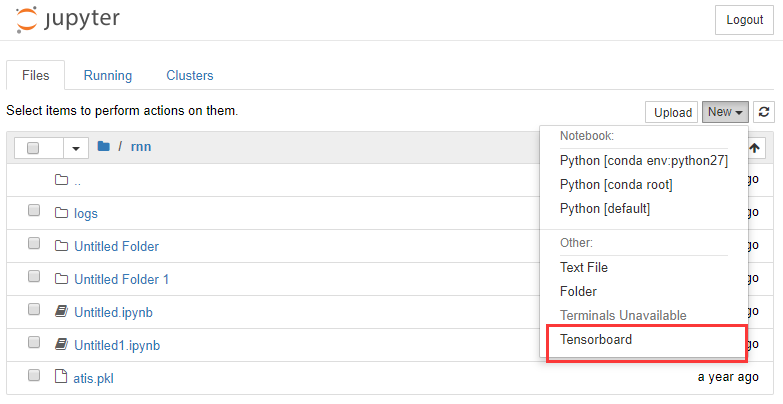
In notebook tree view, click the tensorboard menu in new and a new tensorboard instance is started with current directory as logdir.
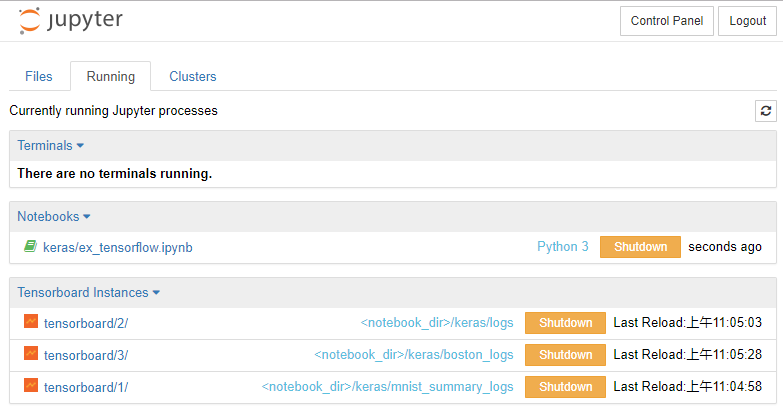
In notebook running tab, a list of tensorboard instances are showed. Managing operations such as browsing, navigating, shutdown can be found here.
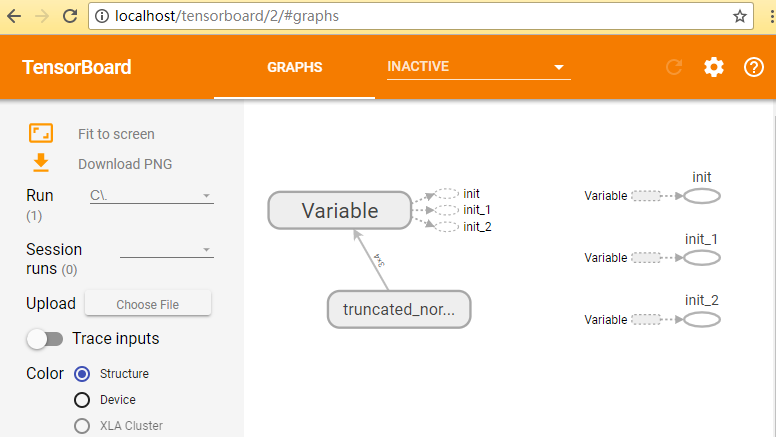
The tensorboard instance interface is in http://jupyter-host/tensorboard/<name>/ with the instance names increasing from 1.
Uninstall
To purge the installation of the extension, there are a few steps to execute:
jupyter tensorboard disable --user
pip uninstall jupyter-tensorboard
or if you have uninstall the pip package, but the extension seems to be not purged, you can execute:
jupyter serverextension disable --user
jupyter nbextension disable jupyter_tensorboard/tree --user
jupyter nbextension uninstall jupyter_tensorboard --user
The commands accept the same flags as the jupyter serverextension command provided by notebook versions, including --system to enable(or disable) in system-wide config, or --sys-prefix to enable(or disable) in config files inside python’s sys.prefix, such as for a virtual environment.
Troubleshooting
If you encounter problems with this server extension, you can:
Check that tensorflow(-gpu)>=1.3 is installed.
Check that jupyter-tensorboard is installed via pip list|grep jupyter-tensorboard.
Check that jupyter, tensorflow and jupyter_tensorboard have the same python version.
Check the issue page for this repository. If you can’t find one that fits your problem, please create a new one!
For debugging, useful information can (sometimes) be found by:
Checking for error messages in the browser’s Javascript console.
Checking for messages in the notebook server’s logs. This is particularly useful when the server is run with the –debug flag, to get as many logs as possible.
Release history Release notifications | RSS feed


Download files
Download the file for your platform. If you're not sure which to choose, learn more about installing packages.
Source Distribution
Built Distribution
Filter files by name, interpreter, ABI, and platform.
If you're not sure about the file name format, learn more about wheel file names.
Copy a direct link to the current filters
File details
Details for the file jupyter_tensorboard-0.1.2.dev2.tar.gz.
File metadata
- Download URL: jupyter_tensorboard-0.1.2.dev2.tar.gz
- Upload date:
- Size: 11.6 kB
- Tags: Source
- Uploaded using Trusted Publishing? No
File hashes
| Algorithm | Hash digest | |
|---|---|---|
| SHA256 |
bfe214d2204ff0e39f91114f8f731dc6797afd090bc841493a78e96c9fc61bce
|
|
| MD5 |
523f9422c3c5d89c746d1d1f664cfbdb
|
|
| BLAKE2b-256 |
876b7449503d378b4c1071ffda6e209ee43fee56964ba3900c97313b5245cb35
|
File details
Details for the file jupyter_tensorboard-0.1.2.dev2-py2.py3-none-any.whl.
File metadata
- Download URL: jupyter_tensorboard-0.1.2.dev2-py2.py3-none-any.whl
- Upload date:
- Size: 16.5 kB
- Tags: Python 2, Python 3
- Uploaded using Trusted Publishing? No
File hashes
| Algorithm | Hash digest | |
|---|---|---|
| SHA256 |
1bef41f235d07b6c29de21724964f64d4d1f8f80af954a24e7f1f6b3dfb9563b
|
|
| MD5 |
a2bf1711a7c5de836d5b2af378fbc95c
|
|
| BLAKE2b-256 |
98ad65de095836e8065ed1b7ee80eb616d231c1d4b2dadb12bdf0cfc27dbf1e8
|






