
jupyterexcel Package
This Jupyter Server extension exposes functions in Jupyter notebooks through a REST API, allowing Excel to call them as worksheet formulas or task pane actions accessed from the ribbon. This version supports Python and JavaScript notebooks. Python notebooks can specify which venv to run the functions. JavaScript functions in notebooks can run locally within the Excel add-in javascript runtime only or calling back to the Jupyter server.
When the JupyterExcel server extension starts, it scans every notebook visible
to the current Jupyter user. Functions decorated with jupyter_function are
published as Excel custom functions; functions decorated with
ribbon_function remain separate and are shown in the JupyterExcel task pane. The generated JavaScript files are referenced by the Excel web add-in’s manifest.xml.
from jupyterexcel import jupyter_function, ribbon_function

@jupyter_function(name="ADD", description="Add two numbers",
                  parameter_types={"a": "number", "b": "number"},
                  result_type="number")
def add(a, b=0):
    return a + b
Execution profiles select Python venvs and
JavaScript kernels using @execution_profile / @executionProfile, with separate
pool limits, validated kernelspec routing, and profile status.
JavaScript/Deno notebooks can export JSDoc-annotated functions with
@excelFunction or @ribbonFunction and @execution local|server.
See JavaScript notebook exports for setup,
generated input forms and help, supported types, and execution limits.
Example
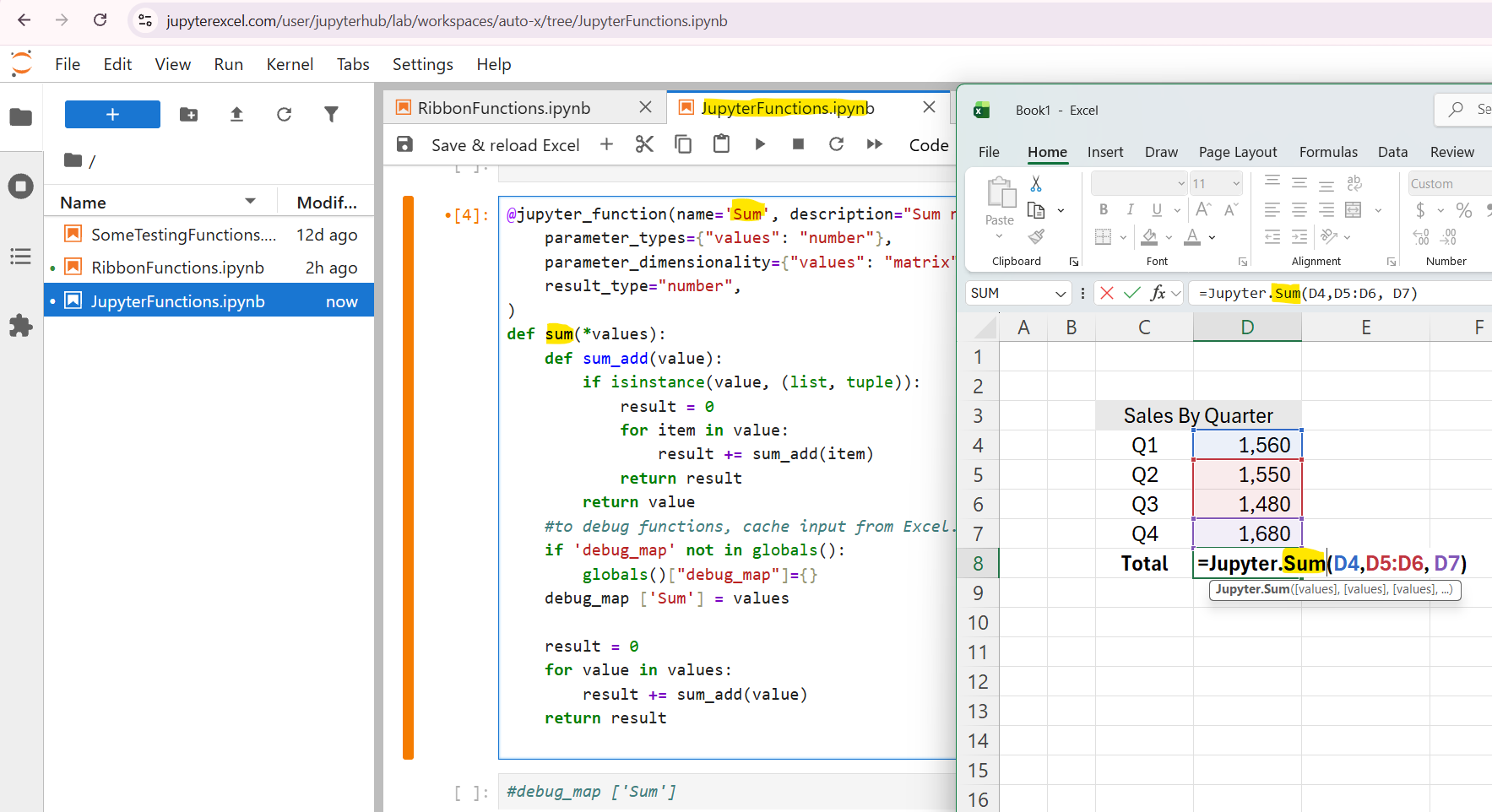
The example uses a sample notebook containing a Sum function. You can download JupyterFunctions.ipynb from this folder or create your own notebook.
The following screenshot shows how Excel formulas work.
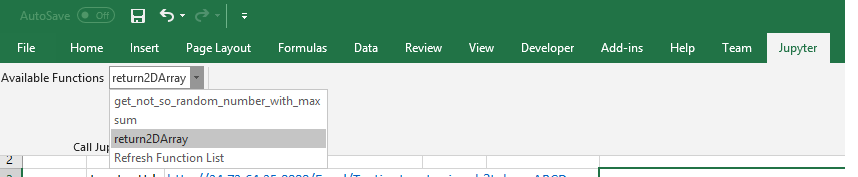
The following screenshot shows how a ribbon callback function works.
Installation
For Excel client setup, see the JupyterExcel add-in setup guide.
To set up the server:
Install Jupyter on the server by following the instructions at https://jupyter.org/install. Then install JupyterExcel:
pip install jupyterexcel
Then run the following command to check whether jupyterexcel is already enabled:
jupyter server extension list
# If it is not listed as enabled, use the following command to enable it:
jupyter server extension enable --py jupyterexcel --sys-prefix
Configuration
JupyterExcel reads all settings from one jupyterexcel-config.json file.
Use the Windows example or the Linux example and adjust its URLs and
asset directory to your deployment. See configuration details and How it works.
By default, the file is in the Jupyter server's notebook root. To use a central file regardless of the launch folder, set the only JupyterExcel environment variable:
$env:JUPYTEREXCEL_CONFIG_FILE = "C:/JupyterExcel/jupyterexcel-config.json"
The path must be absolute. An explicitly specified file that is missing or invalid causes an error;
there is no fallback or merging. Restart Jupyter after changing configuration.
The server starts and maintains execution.min_kernels service kernels
(default 1). There is no separate keep-ready switch.
import jupyterexcel
jupyterexcel.show_config()
Inspection prints the file path, selection source, and full effective settings. An ordinary Python session previews the file; a managed service kernel shows the loaded server snapshot and detects edits requiring a restart.
Server settings
The examples below use standalone JupyterLab on Windows and multi-user JupyterHub on Linux, so their configuration differs.
For Linux, no additional settings are required unless you need to boot a specific kernel to improve initial response times. See configure_autostart below.
For Windows, you will also need to complete the following configuration steps.
Follow the Jupyter server configuration guide, or generate a server configuration file with:
    jupyter server --generate-config
    # If the file already exists, do not overwrite it. Note the file path.
Configure deployment values in the selected JSON file. Jupyter authentication, TLS and reverse-proxy settings remain in their respective server configurations.
Adjust the following settings for your deployment.
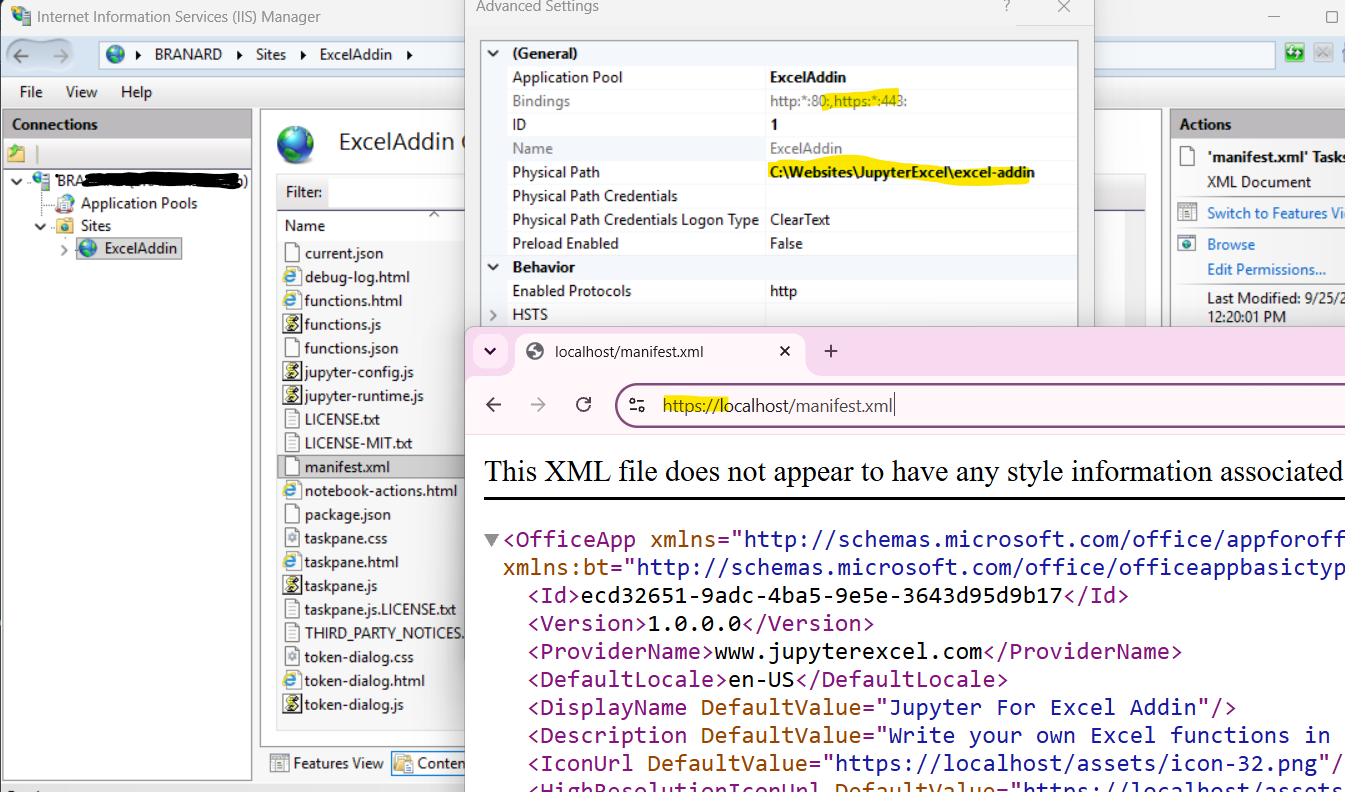
For the standalone Windows setup, you can use IIS to serve the manifest and related HTML and JavaScript files. If the add-in files and Jupyter API use different origins—for example, different ports on the same server—set allow_origin for CORS.
c.IdentityProvider.token = 'ABCD'   # Use token authentication; a redirect to a password login page will not work for Excel API calls.
c.ServerApp.allow_origin = 'https://your-addin-host'  # Use the exact origin hosting your add-in when it differs from Jupyter.
c.ServerApp.allow_remote_access = True  # Enable access from other computers.
For optional Hub user-server startup, set hub.auto_start_users in an
administrator-owned JSON file and call the helper in jupyterhub_config.py:
from jupyterexcel.hub_autostart import configure_autostart
configure_autostart(c, config_file="/etc/jupyterexcel/jupyterexcel-config.json")
On Linux, Nginx can serve the HTML, JavaScript, and manifest.xml files from the same origin as JupyterHub, so cross-origin API access (CORS) is unnecessary. A sample Nginx configuration follows:
server {
    server_name jupyterexcel.com www.jupyterexcel.com;

        # Public Excel add-in assets.
    #
    # URL:
    #   /excel-addin/user1/functions.js
    #
    # Filesystem:
    #   /var/www/jupyterexcel/excel-addin/user1/functions.js
    location ^~ /excel-addin/ {
        alias /var/www/jupyterexcel/excel-addin/;

        # Only permit reading static files.
        limit_except GET HEAD OPTIONS {
            deny all;
        }

        # Prevent directory listings.
        autoindex off;

        # Return correct content types.
        default_type application/octet-stream;

        types {
            application/javascript js;
            application/json       json;
            application/xml        xml;
            text/html              html htm;
            text/css               css;
            image/png              png;
            image/svg+xml          svg;
            image/x-icon           ico;
        }

        # Useful when the files are regenerated frequently.
        etag on;
        add_header Cache-Control "no-cache, no-store, must-revalidate" always;

        # Allow Excel's web runtime to request these assets.
        add_header Access-Control-Allow-Origin "*" always;
        add_header Access-Control-Allow-Methods "GET, HEAD, OPTIONS" always;
        add_header Access-Control-Allow-Headers "Content-Type" always;

        add_header X-Content-Type-Options "nosniff" always;

        # Do not serve hidden files such as .env or .git.
        location ~ (^|/)\. {
            deny all;
        }
    }

	    location / {
        proxy_pass http://localhost:8000;
        proxy_set_header Host $host;
        proxy_http_version 1.1;
        proxy_set_header Upgrade $http_upgrade;
        proxy_set_header Connection "upgrade";

        proxy_set_header X-Real-IP $remote_addr;
        proxy_set_header X-Forwarded-For $proxy_add_x_forwarded_for;
        proxy_set_header X-Forwarded-Proto $scheme;
    }

    location /api/kernels/ {
            proxy_pass http://localhost:8000/api/kernels/;
            proxy_set_header Upgrade $http_upgrade;
            proxy_set_header Connection "upgrade";
            proxy_set_header Host $host;
        }


    listen [::]:443 ssl ipv6only=on; # managed by Certbot
    listen 443 ssl; # managed by Certbot
    ssl_certificate /etc/letsencrypt/live/jupyterexcel.com/fullchain.pem; # managed by Certbot
    ssl_certificate_key /etc/letsencrypt/live/jupyterexcel.com/privkey.pem; # managed by Certbot
    include /etc/letsencrypt/options-ssl-nginx.conf; # managed by Certbot
    ssl_dhparam /etc/letsencrypt/ssl-dhparams.pem; # managed by Certbot
}
JupyterHub configuration selection
Each user server reads its own notebook-root JSON by default. Alternatively,
set JUPYTEREXCEL_CONFIG_FILE in that user's Spawner environment to select a
central file. Set server.public_url to that user's complete public API URL;
there is no automatic username substitution. The asset directory and URL still
receive an encoded username suffix on Hub. The Hub autostart helper reads its
own administrator-selected file and does not overwrite users' configuration.
Standalone Jupyter on Windows
Put jupyterexcel-config.json in the notebook root, or set the optional central
file path above, then start Jupyter with your existing HTTPS configuration.
The JSON example uses https://localhost:8888 for Jupyter and
https://localhost/excel-addin for static assets; adjust both to your setup.
Configure IIS to serve assets.directory at assets.url.
Formula names
Worksheet function names retain their original case, underscores, and periods.
Use @jupyter_function or @jupyter_function() to export the Python function
name, or @jupyter_function(name="My_Join") to provide an explicit Excel name.
For example, def underscore_join(...) becomes Jupyter.underscore_join(...).
string.join and string_join are distinct names; names differing only in case
are rejected as duplicates because Excel names are case-insensitive. Generated
IDs and names preserve spelling; Excel may display capitalization differently.
Unsupported characters are rejected instead of silently renamed.
Sample jupyter_function: https://jupyterexcel.com/excel-addin/jupyter_function.html Sample ribbon_function: https://jupyterexcel.com/excel-addin/ribbon_function.html
Formula namespace
Set addin.namespace in the JSON file to choose the formula prefix, such as
"MyCompany" for =MyCompany.ADD(1,2). The default is Jupyter.
Use 1-32 ASCII characters starting with a letter, followed by letters, digits,
periods or underscores. Blank or invalid values are rejected at startup.
Restart Jupyter and reload the updated manifest in Excel after changing it.
Function IDs and API endpoints remain unchanged; existing workbook formulas
are not automatically renamed.
How it works
The JupyterExcel Python package exposes Jupyter notebook functions through REST API endpoints, such as https://www.jupyterexcel.com/user/jupyterhub/Excel/SUM, with parameters sent as JSON in the POST body. The Excel add-in’s JavaScript runtime receives the function arguments, sends them to the Jupyter REST API using fetch, waits for the result, and sync it back to Excel. Ribbon actions and the task pane make similar calls.
There are two types of URLs: one points to files that Excel downloads when loading the add-in (such as manifest.xml), and the other points to API endpoints that process Excel function calls. Examples of these two types of URLs are https://jupyterexcel.com/excel-addin/jupyterhub/manifest.xml and https://www.jupyterexcel.com/user/jupyterhub/Excel/SUM. If you open https://jupyterexcel.com/excel-addin/jupyterhub/functions.json, you can see the description of the Sum function shown above. The functions.json file is one of the files generated from the notebook above by the JupyterExcel package.
In the Linux setup, these two types of URLs appear to belong to one website, but they are handled by two different services. In the Nginx configuration, excel-addin is mapped to the folder /var/www/jupyterexcel/excel-addin where JupyterExcel stores the generated Excel add-in files when notebooks are saved. All other requests are forwarded to JupyterHub for processing.
The Windows setup described here uses standalone, single-user JupyterLab, so the URL does not need the /user/jupyterhub segment. For example, the endpoint becomes https://www.jupyterexcel.com/Excel/SUM. This setup uses two sites: IIS serves the add-in files, such as https://localhost/functions.js or https://localhost/manifest.xml, and JupyterLab handles API requests at https://localhost:8888/. The URL https://localhost/functions.js does not need the excel-addin path segment because IIS serves these files as a separate website. In the Linux Nginx example, the excel-addin path distinguishes static-file requests from requests forwarded to JupyterHub. To allow the Excel add-in’s JavaScript runtime, which downloads and runs functions.js from https://localhost, to call the Jupyter service at https://localhost:8888/Excel, CORS configuration is required.
For your own setup, replace www.jupyterexcel.com, localhost, and the username jupyterhub as appropriate. These values are configured in the JSON configuration file described above.
Prerequisites
JupyterExcel requires Python 3.9 or later. Installing the package with pip also installs these runtime dependencies automatically:
| Package | Required version |
|---|---|
jupyter-server |
>=2,<3 |
jupyter-client |
>=8,<9 |
ipykernel |
>=6,<8 |
tornado |
>=6.3 |
For a working deployment, you also need:
- A Python kernel registered as
python3, which JupyterExcel currently uses. Check it withjupyter kernelspec list. - JupyterLab 4 if you want to edit notebooks in JupyterLab and use the bundled
JupyterExcel toolbar extension. Install it separately with
python -m pip install "jupyterlab>=4,<5". - JupyterHub only for a multi-user deployment; it is not required for standalone JupyterLab. Install JupyterExcel in each user's server environment.
- Any libraries imported by your notebooks, installed in the environment used
by the
python3kernel. Streamlit and pandas are not required by JupyterExcel itself. - Microsoft Excel with support for Office.js custom functions and SharedRuntime 1.1, and permission to load the add-in manifest.
- An HTTPS static web server, such as IIS or Nginx, to serve the generated add-in
files, with a certificate trusted by the computer running Excel. Configure
assets.directoryandassets.urlin the JSON file as described above, and make the Jupyter API reachable from Excel over HTTPS.
Install JupyterExcel in the Jupyter server environment. If your python3 kernel
uses a separate virtual environment, install JupyterExcel there too so notebook
imports of its decorators work.
The build and twine packages are release tools, not runtime dependencies.
Install them in a separate release environment when building or publishing the
package. Node.js is needed to rebuild the frontend, but not to install the
Python package with its prebuilt JupyterLab extension.
Sample command starts Jupyter
Excel addin required https in the url in manifest.xml. So, you need setup https access.
For linux, when you setup Nginx, please make sure https is enabled.
 #sample jupyterhub.service file
 [Unit]
  Description=JupyterHub
  After=syslog.target network.target

  [Service]
  Type=simple
  User=jupyterhub
  WorkingDirectory=/opt/jupyterhub/etc/jupyterhub

  ExecStart=/opt/jupyterhub/bin/jupyterhub -f /opt/jupyterhub/etc/jupyterhub/jupyterhub_config.py

  Restart=always
  RestartSec=10

  [Install]
  WantedBy=multi-user.target
For windows, plelase google and trust a pair of .key and .crt files. then
jupyter lab --ServerApp.certfile="C:\Users\xxxx\.office-addin-dev-certs\localhost.crt" --ServerApp.keyfile="C:\Users\xxxx\.office-addin-dev-certs\localhost.key" --ServerApp.port=8888 --ServerApp.port_retries=0 --ServerApp.allow_origin="https://localhost"
Documentation
- Development and testing
- Architecture
- Notebook actions
- Built-in functions
- Save and reload
- JupyterHub automatic startup
Future Development Plan
- Add support for JavaScript functions so calculations can run in the Excel add-in’s JavaScript runtime without calling the server.
- Improve kernel management, which currently starts a named kernel.
- Support the latest Python multithreading features.
- Support multi-user deployments with a shared folder while retaining individual user releases.
- Minify the JavaScript code.
- Save incoming data for future unit tests.
Reference
Some implementation ideas were informed by appmode.
License
Versions distributed with the current LICENSE use Business Source License 1.1 (SPDX: BUSL-1.1). BSL is source-available, not an open-source license before the Change Date. The full LICENSE controls; this is a summary.
| Use | Production-use permission |
|---|---|
| Individuals, for personal purposes | Free |
| Nonprofit organizations and nonprofit schools, for internal purposes | Free, regardless of user count |
| Government-operated public schools, for their own students and staff | Free, regardless of user count |
| Government-operated public universities, including hosting for anyone | Free for the university and all users of its hosted service, regardless of affiliation or user count |
| Other government organizations | Separate commercial license required |
| For-profit organizations, including for-profit schools, for internal purposes | Free for up to 20 distinct production users in any rolling 30-day period |
| Other providers offering JupyterExcel as a hosted service to third parties | Separate commercial license required, regardless of user count or organization type |
- Count people, including employees and contractors, across accounts and installations. Six people using one shared login still count as six.
- A for-profit organization has a one-time 60-calendar-day grace period beginning when it first exceeds 20 production users. Afterward, obtain a commercial license or return to the 20-user rolling 30-day limit. The grace period does not reset with a new installation, version, or later increase.
- The grace period does not permit excluded government or hosted-service use.
- Government-operated public universities may host JupyterExcel for anyone, including outside individuals and organizations. Both the university and users of that hosted service are exempt from commercial-license and user-count requirements. Outside organizations' independently operated deployments remain subject to the ordinary terms.
- Other qualifying schools and nonprofit universities may host internally for their own students and staff; hosting for outside organizations requires a commercial license. Using AWS or another cloud for internal purposes is not itself excluded.
- Non-production evaluation, development, and testing remain free under BSL.
- Each version converts to the MIT License four years after its first public distribution under BSL. A new version does not reset an earlier version's conversion date.
For commercial licensing, contact support@jupyterexcel.com.
Previously released MIT versions retain their MIT permissions. LICENSE-MIT also supplies the future Change License; it does not grant immediate MIT rights to new BSL-only project changes. Third-party licenses remain unchanged; see THIRD_PARTY_NOTICES.md. User-created notebooks and data are not automatically relicensed by installing JupyterExcel. No user tracking or license-enforcement service has been added.
Generated add-in assets include LICENSE.txt, LICENSE-MIT.txt and THIRD_PARTY_NOTICES.txt beside manifest.xml.
1 maintainer

Metadata
1 maintainer
Release files for jupyterexcel 0.1.1
For a detailed explanation of source distributions (sdists) and built distributions (wheels), please see the package formats documentation.
Source distribution (sdist)
| File | Size | Uploaded | |
|---|---|---|---|
| jupyterexcel-0.1.1.tar.gz | 374.6 kB | Details |
Built distribution (wheel)
| File | Interpreter | ABI | Platform | Reset |
|---|---|---|---|---|
| jupyterexcel-0.1.1-py3-none-any.whl | Python 3 | none | any | Details |
Total release size: 647.2 kB
Release files / jupyterexcel-0.1.1.tar.gz
| Download URL | jupyterexcel-0.1.1.tar.gz |
|---|---|
| Size | 374.6 kB |
| Tags | Source |
|
SHA-256 checksum How to use checksums |
21cae56d32d00b3862293328741b6d5596cab32cc6437fe1567cf1778c4e9869
|
|
BLAKE2b-256 checksum How to use checksums |
7eddc81a5047dd69890243135ec38815d6fd65dc472c5860378c60136e5b845f
|
| Upload date | |
|
Uploaded using Trusted Publishing? What is trusted publishing? |
No |
| Uploaded via |
twine/7.0.0 CPython/3.13.9
|
Release files / jupyterexcel-0.1.1-py3-none-any.whl
| Download URL | jupyterexcel-0.1.1-py3-none-any.whl |
|---|---|
| Size | 272.6 kB |
| Tags | Python 3 |
|
SHA-256 checksum How to use checksums |
596d33c51a2858212b65ef8f01f0673971e499740cdcd5adf44a29bee203ab21
|
|
BLAKE2b-256 checksum How to use checksums |
becb6683531a024ce3cc3fbd019743313a11acc33f271a6a27fefad872b7a632
|
| Upload date | |
|
Uploaded using Trusted Publishing? What is trusted publishing? |
No |
| Uploaded via |
twine/7.0.0 CPython/3.13.9
|














