
JupyterLab extension to notify cell completion

Project description
jupyterlab-notify




JupyterLab extension to notify cell completion
Usage
The jupyterlab-notify extension allows you to receive notifications about cell execution results in JupyterLab. Notifications are configured through cell metadata or the JupyterLab interface, providing seamless integration and easier management of notification preferences. Notifications can be sent via desktop pop-ups, Slack messages, or emails, depending on your configuration.
[!NOTE] JupyterLab Notify v2 supports
jupyter-server-nbmodel(>= v0.1.1a2), enabling notifications to work even after the browser has been closed. To enable browser-less notification support, install JupyterLab Notify with server-side execution dependencies using:pip install jupyterlab-notify[server-side-execution]JupyterLab Notify v2 requires execution timing data, so it automatically sets
record_timingto true in the notebook settings.
Configuration
To configure the jupyterlab-notify extension for Slack and email notifications, create a file named jupyter_notify_config.json and place it in a directory listed under the config section of jupyter --paths (e.g., ~/.jupyter/jupyter_notify_config.json). This file defines settings for the NotificationConfig class.
Sample Configuration File
Here’s an example configuration enabling Slack and email notifications:
{
  "NotificationConfig": {
    "email": "example@domain.com",
    "slack_token": "xoxb-abc123-your-slack-token",
    "slack_user_id": "U98765432"
  }
}
slack_token: A Slack bot token withchat:writepermissions, used to send notifications to your Slack workspace.- How to get it: See Slack API Quickstart to create a bot and obtain a token.
slack_channel_name: The name of the Slack channel (e.g.,"notifications") where messages will be posted.email: The email address to receive notifications.- Note: Requires an SMTP server. For setup help, see this SMTP guide.
Additional Configuration Options
Beyond the commonly used settings above, the following options are available for advanced use:
slack_user_id: A Slack user ID for sending direct messages instead of channel posts (e.g.,"U12345678").smtp_class: Fully qualified name of the SMTP class (default:"smtplib.SMTP").smtp_args: Arguments for the SMTP class constructor, as a string (default:["localhost"]).
These settings allow for customization, such as using a custom SMTP server or changing the SMTP port from the default 25 to others (e.g., ["localhost", 125]), or targeting a specific Slack channel or user.
Notification Modes
You can control when notifications are sent by setting a mode for each cell. Modes can be configured through the JupyterLab interface by clicking on the bell icon in the cell toolbar.
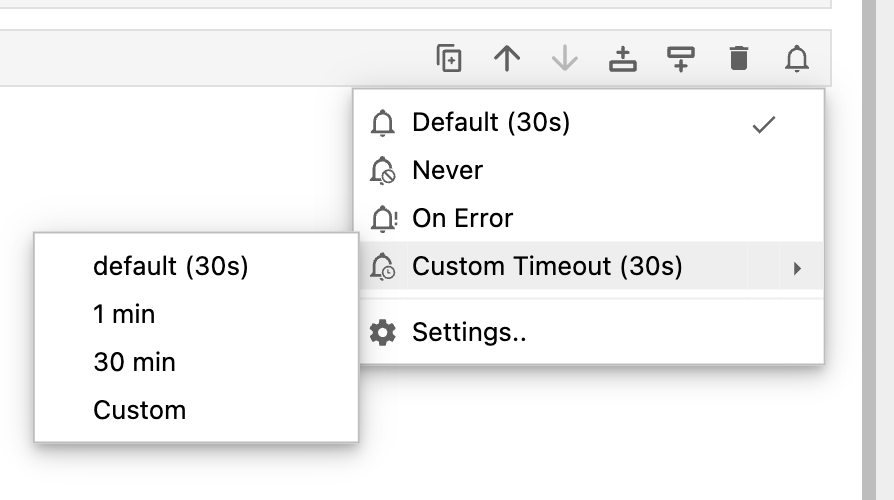
Supported modes include:
default: Notification is sent only if cell execution exceeds the threshold time (default: 30 seconds). No notification if execution time is below the threshold.never: Disables notifications for the cell.on-error: Sends a notification only if the cell execution fails with an error.custom-timeout: Sends a notification as soon as the cell-execution exceeds a timeout value specified for that cell. Users can either choose a pre-existing timeout value or set a custom one.
Default Threshold
Configure the default threshold value in JupyterLab’s settings:
- Go to Settings Editor.
- Select Execution Notifications.
- Set "Threshold for default notifications": 5 (in seconds) to apply to cells using the
defaultmode.
Desktop Notifications
Desktop notifications are enabled by default and appear as pop-up alerts on your system.
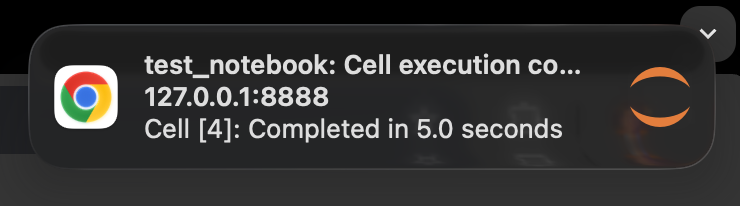
Slack Notifications
Slack notifications are sent to the configured channel, requiring the setup described in the Configuration section.
Email Notifications
Email notifications are sent to the configured email address, also requiring the setup from the Configuration section.
Configuration warning
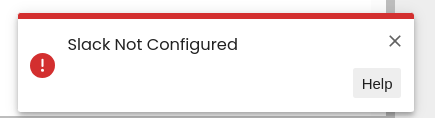
If your email or Slack notifications are not configured but you attempt to enable them through the settings editor, a warning will be displayed when you try to execute a cell in the JupyterLab interface.
Troubleshoot
If you notice that the desktop notifications are not showing up, check the below:
- Make sure JupyterLab is running in a secure context (i.e. either using HTTPS or localhost)
- If you've previously denied notification permissions for the site, update the browser settings accordingly. In Chrome, you can do so by navigating to
Setttings -> Privacy and security -> Site Settings -> Notificationsand updating the permissions against your JupyterLab URL. - Verify that notifications work for your browser. You may need to configure an OS setting first. You can test on this site.
Requirements
- JupyterLab >= 4.0
Install
To install this package with pip run
pip install jupyterlab_notify_v2_demo
To install with server-side execution dependencies run
pip install jupyterlab_notify_v2_demo[server-side-execution]
Contributing
Development install
Note: You will need NodeJS to build the extension package.
The jlpm command is JupyterLab's pinned version of
yarn that is installed with JupyterLab. You may use
yarn or npm in lieu of jlpm below.
# Clone the repo to your local environment
# Change directory to the jupyterlab_notify_v2_demo directory
# Install package in development mode
pip install -e .

# If you need server-side execution dependencies, install with:
pip install -e .[server-side-execution]

# If you want to install test dependencies as well, use:
pip install -e .[tests]

# Link your development version of the extension with JupyterLab
jupyter-labextension develop . --overwrite

# Rebuild extension Typescript source after making changes
jlpm run build
You can watch the source directory and run JupyterLab at the same time in different terminals to watch for changes in the extension's source and automatically rebuild the extension.
# Watch the source directory in one terminal, automatically rebuilding when needed
jlpm run watch
# Run JupyterLab in another terminal
jupyter lab
With the watch command running, every saved change will immediately be built locally and available in your running JupyterLab. Refresh JupyterLab to load the change in your browser (you may need to wait several seconds for the extension to be rebuilt).
By default, the jlpm run build command generates the source maps for this extension to make it easier to debug using the browser dev tools. To also generate source maps for the JupyterLab core extensions, you can run the following command:
jupyter lab build --minimize=False
Uninstall
pip uninstall jupyterlab_notify_v2_demo
Publishing
Before starting, you'll need to have run: pip install twine jupyter_packaging
- Update the version in
package.jsonand update the release date inCHANGELOG.md - Commit the change in step 1, tag it, then push it
git commit -am <msg>
git tag vX.Z.Y
git push && git push --tags
- Create the artifacts
rm -rf dist
python setup.py sdist bdist_wheel
- Test this against the test pypi. You can then install from here to test as well:
twine upload --repository-url https://test.pypi.org/legacy/ dist/*
# In a new venv
pip install --index-url https://test.pypi.org/simple/ jupyterlab_notify_v2_demo
- Upload this to pypi:
twine upload dist/*
Uninstall
pip uninstall jupyterlab_notify_v2_demo
History
The initial version of this extension was inspired by the notebook version here.
This plugin was contributed back to the community by the D. E. Shaw group.

License
This project is released under a BSD-3-Clause license.
We love contributions! Before you can contribute, please sign and submit this Contributor License Agreement (CLA). This CLA is in place to protect all users of this project.
"Jupyter" is a trademark of the NumFOCUS foundation, of which Project Jupyter is a part.


Download files
Download the file for your platform. If you're not sure which to choose, learn more about installing packages.
Source Distribution
Built Distribution
Filter files by name, interpreter, ABI, and platform.
If you're not sure about the file name format, learn more about wheel file names.
Copy a direct link to the current filters
File details
Details for the file jupyterlab_notify_v2_demo-2.0.3.tar.gz.
File metadata
- Download URL: jupyterlab_notify_v2_demo-2.0.3.tar.gz
- Upload date:
- Size: 266.6 kB
- Tags: Source
- Uploaded using Trusted Publishing? No
- Uploaded via: twine/6.2.0 CPython/3.14.0
File hashes
| Algorithm | Hash digest | |
|---|---|---|
| SHA256 |
54aee4895513f4dbab660b503e34b80c753071074c36fd14a836834e07655882
|
|
| MD5 |
640d86bd64eb8783443faff872ffe4c4
|
|
| BLAKE2b-256 |
74c022be4242bad1a4d7ac51dc9008b3a1e297ec97f75da01bd43d96552d83b2
|
File details
Details for the file jupyterlab_notify_v2_demo-2.0.3-py3-none-any.whl.
File metadata
- Download URL: jupyterlab_notify_v2_demo-2.0.3-py3-none-any.whl
- Upload date:
- Size: 166.5 kB
- Tags: Python 3
- Uploaded using Trusted Publishing? No
- Uploaded via: twine/6.2.0 CPython/3.14.0
File hashes
| Algorithm | Hash digest | |
|---|---|---|
| SHA256 |
f9628ae6ab37b0ff2f3715375605c804572242b476e5a10a37048924e6db2aa3
|
|
| MD5 |
36ee01d792c1b465fddae3af2bc5a479
|
|
| BLAKE2b-256 |
9560dec1e69d2fbbabe0c1f4f2adde6456ad9e2ea539d4c23c13b787e2f56c01
|






