

juxt





juxt is a fast desktop tool for visually comparing plots across multiple parameter axes. Define axes (model, date, data source, ...) and flip through the resulting image hypercube with keyboard navigation.
juxt comes from juxtapose — placing things side by side to compare. That's the whole idea: flip through congruent plots fast enough to visually identify differences.
To check out the concept, try the demo here, no install needed.
Install
Prebuilt binaries for Linux, Windows and macOS are on the latest release page. Download, unzip and run, no Python needed.
Alternatively, install from PyPI:
pip install juxt
This includes SSH support. The test and docs extras are for working on juxt itself, see the development install.
Quick start
juxt takes one of several forms as its first argument. The local examples run as they are from a clone of this repository, on the sample plots in examples/:
juxt examples/sample_plots/                                               # auto-detect axes from a directory of images
juxt examples/sample_plots/{sensor}_{date}_{overpass}_{source}.png        # explicit local template
juxt examples/sample_plots_nested/*.png                                   # wildcard match, recursing into subdirs
juxt examples/sample_config.yaml                                          # explicit config file
juxt myhost:/data/sample_plots/                                           # remote directory over SSH
juxt myhost:/data/sample_plots/{sensor}_{date}_{overpass}_{source}.png    # remote template over SSH
Run juxt with no argument and it opens a dialog instead: a Browse tab for picking a directory (auto-discover), and a Build path tab for typing a {placeholder} template by hand, with Tab completing real directories and files along the way.
Config
Auto-discovery
Point juxt at a directory and it figures out the axes from the filenames:
juxt examples/sample_plots/
For directories, filenames are split on separators (_ and os.sep by default, customize with --sep) and any position with more than one distinct value becomes an axis. You'll be prompted to name the axes; use -a/--auto to skip manual naming and assign dummy names.
All filenames must split into the same number of parts.
Explicit templates
Provide named axes via python-style placeholder strings and juxt will discover the values.
juxt "examples/sample_plots/{sensor}_{date}_{overpass}_{source}.png"                     # use all autodetected axis values
juxt "examples/sample_plots/{sensor}_{date}_{overpass}_{source}.png" --sensor ASCAT SMOS  # restrict to a subset
Each axis can be constrained by passing a custom subset via its axis name --NAME VALUE ....
juxt comes with tab-completion, type --sensor <TAB> to see possible values for the subset.
Remote access (SSH)
juxt loads images from a remote host over SSH, transferring them with SFTP.
They are downloaded at startup and cached locally, so the next session only fetches what changed; navigation afterwards is identical to local use.
You pay the one-time loading cost upfront and then compare as fast as locally even on a slow connection.
Auth uses your SSH agent or ~/.ssh/config key, with a password fallback.
Pass the remote path directly on the command line, and juxt detects the axes from the remote filenames:
juxt myhost:/data/sample_plots/
More in the remote docs.
Predefined configs
Instead of re-typing a long juxt command every time, common comparisons can be pre-configured via YAML.
# examples/sample_config.yaml
template: "examples/sample_plots/{sensor}_{date}_{overpass}_{source}.png"
axes:
  sensor:   [ASCAT, SMAP, SMOS]
  date:     [2024-03-15, 2024-03-16]
  overpass: [AM, PM]
  source:   [L2, L3]
keys:
  s: sensor
  d: date
  o: overpass
  r: source
The configs allow full control over pattern (auto-detection or template), axis and values, hotkeys, etc. See above example config which is equivalent to the above CLI call.
You can save a comparison to config from a running juxt window via the :write command.
See the configuration docs for all options.
For the remote case, add the remote property to the config.
remote: myhost               # or user@myhost, or user@myhost:port
template: "/data/sample_plots/{sensor}_{date}_{overpass}_{source}.png"
axes:
  sensor:   [ASCAT, SMAP]
    date:   [2024-03-15, 2024-03-16]
  overpass: [AM, PM]
  source:   [L2, L3]
Navigation of Images
Default mode is tap. Each axis is assigned one letter key — tap it to step forward, hold Shift to step backward. Every navigation is a single keypress, no modifiers, no menus.
| Key | Action |
|---|---|
← / → |
cycle the primary axis |
↑ / ↓ |
cycle the secondary axis |
| lowercase letter | navigate +1 on that axis |
| uppercase letter | navigate −1 on that axis |
Ctrl+letter |
open value picker for that axis |
(modifiers.swap: true exchanges the Ctrl and Shift roles) |
|
Space |
toggle between current and previous position |
Home / End |
jump to first / last value |
1–9 |
jump to the Nth value |
If these bindings seem unintuitive to you, juxt implements two more modes. Use command :mode tap|seek|pin to switch navigation modes. The navigation docs describe each mode in detail. Further modes are experimental.
Command mode
Press : to open the command bar (vim-style). Tab-completion narrows candidates as you type.
Matching is fuzzy: the characters you type only have to appear in order, so :fh reaches fit-height and smp finds SMAP in the value picker. Candidates are ranked best-first, prefix matches ahead of looser ones. Set seek.fuzzy: false in ~/.juxt/settings.yaml for strict prefix matching.
Path arguments complete with {placeholders} in place: :pattern examples/sample_plots_nested/{sensor}/⇥ lists what every sensor directory holds, so a template is built top-down instead of completing a concrete path and deleting the parts that should vary. { + Tab completes an existing axis name, and anonymous {} placeholders are numbered automatically.
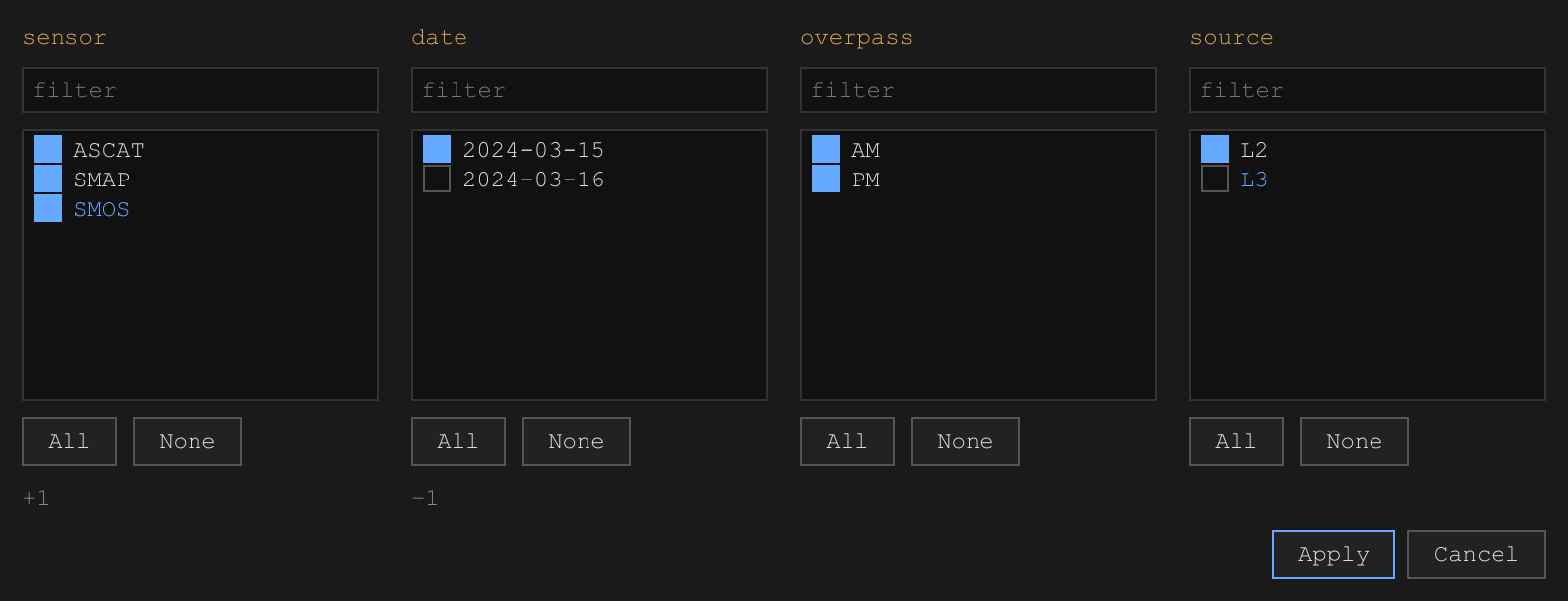
Adding and removing values
:subset-interactive opens a checklist of the values on disk for every axis, so a new run or sensor joins the session without restarting juxt.
Use command :values AXIS, or press the [+] next to an axis in the info sidebar.
juxt PATH --subset-interactive opens it at startup, before any image is read.
Shell completion
The same completion works at the shell prompt. Add one line to ~/.bashrc:
eval "$(juxt --bash-completion)"
zsh needs bashcompinit first:
autoload -U bashcompinit && bashcompinit
eval "$(juxt --bash-completion)"
Then juxt "examples/sample_plots_nested/{sensor}/⇥ completes at the prompt, as do the command-line options. Quote the template as shown if options follow it. An unquoted template runs fine, but bash 5.1 stops completing after an unquoted word with two or more placeholders, so the --NAME pins below would not complete. ble.sh is handled as well, through its own hook. Reload the shell (source ~/.bashrc, or open a new terminal) for it to take effect.
Point JUXT_COMPLETE at juxt-complete if juxt lives in a virtualenv you do not activate:
export JUXT_COMPLETE=~/env/juxt/bin/juxt-complete
Once the template is on the line, the options after it complete too. The placeholders become --NAME pin flags, and a pin's values are looked up on disk, narrowed by the pins already typed:
$ juxt "examples/sample_plots_nested/{sensor}/{overpass}/{date}_{source}.png" --sensor SMOS --source ⇥
L2  L3     # what exists under SMOS
Other parameters that are tab-completed:
--axis-h, --axis-v and --grid, --grid-values (the values of the --grid axis).
The lookup times out after half a second (JUXT_COMPLETE_TIMEOUT=SECONDS to change it) so a slow network share cannot freeze the prompt.
Shorthands
We pre-define useful shorthands for common path components
| Placeholder | Matches |
|---|---|
date |
yyyy-mm-dd, yyyy_mm_dd, yyyymmdd |
datetime |
yyyy-mm-ddThh:mm:ss, yyyy-mm-dd_hhmmss, yyyymmdd_hhmmss |
time |
hh:mm:ss, hh-mm-ss, hhmmss |
year |
yyyy |
month |
mm |
day |
dd |
doy |
ddd (day of year) |
Shorthands can be configured as placeholders: in ~/.juxt/settings.yaml.
Commands
The vim-style command mode can be triggered by typing : (i.e. the colon).
Some commands
| Command | Action |
|---|---|
:q |
quit |
:fit |
fit image to window |
:fit height / :fit width |
fit to height or width |
:fit-off |
stop fitting, keep the current zoom |
:zoom N |
set zoom to N% |
:fullscreen |
toggle fullscreen |
:version |
show the juxt version (juxt --version from the shell) |
:mode tap|seek|pin |
switch navigation mode |
:grid [AXIS] |
tile an axis into a grid of viewports |
:grid AXIS VAL … |
grid with a value subset |
:keys |
toggle the shortcut sidebar (Ctrl+Shift+K) |
:grid-dialog |
open the grid builder dialogue (Ctrl+Shift+G) |
:grid-layout NxM |
change grid layout without exiting |
:grid-off / :ungrid |
return to single-image view |
:grid-sharex / :grid-sharey |
toggle synchronized pan/zoom |
:subset-interactive |
add or remove values of every axis in a checklist |
:values AXIS |
the same checklist for one axis |
To see all available commands, press Ctrl+Shift+K or run :keys.
Controls
Zoom
| Key | Action |
|---|---|
| double-click | fit image to window |
0 |
reset zoom to 100% |
| scroll wheel | step forward / backward on the primary axis |
Shift + scroll wheel |
step forward / backward on the secondary axis |
Ctrl + scroll wheel |
zoom (anchored under cursor) |
| drag | pan |
View
| Key | Action |
|---|---|
Enter |
toggle fullscreen |
Ctrl+Shift+C |
copy the current image path to the clipboard |
| right-click | menu: copy image path / copy image |
Ctrl+Shift+H |
toggle status bar (start hidden with --no-status-bar) |
Ctrl+Shift+I |
toggle info sidebar (starts open; --no-info or sidebar.open: false to change) |
Ctrl+Shift+K |
toggle shortcut sidebar (start open with --keys) |
Ctrl+C |
copy the text selected in a sidebar (otherwise cancels a command / value picker) |
Ctrl+Shift+G |
open the grid builder dialogue |
Advanced CLI Features
A * in the path is matched recursively (unlike a shell glob, it reaches into nested subdirectories), and the matched files are split into axes the same way directory auto-detection is. Combine it with --NAME VALUE ... to pin a {placeholder} to a fixed set of directories and aggregate congruent files found under each:
juxt "{root}/*.png" --root examples/sample_plots_nested/ASCAT examples/sample_plots_nested/SMOS # pool the congruent files found under both
If you'd rather have one named axis for an arbitrarily deep (and possibly differently-shaped) subtree, instead of it being auto-split into several anonymous axes, write {**name} in place of a regular placeholder. It captures across /, and any leading path segments shared by every match are pruned out of the axis value and folded into the template as fixed text, so dir/AM/plot.png and dir/PM/plot.png become axis values AM/plot and PM/plot rather than the full dir/AM/plot:
juxt "{root}/{**plot}.png" --root examples/sample_plots_nested/ASCAT examples/sample_plots_nested/SMOS # one 'plot' axis (AM/2024-03-15_L2, ...), however deep it's nested
{**name} is limited to one per template (two independent /-crossing captures in one path would be ambiguous), and pass --full-path to see the whole matched path instead of the pruned suffix.
1 maintainer

Metadata
1 maintainer
Release files for juxt 1.6.0
For a detailed explanation of source distributions (sdists) and built distributions (wheels), please see the package formats documentation.
Source distribution (sdist)
| File | Size | Uploaded | Provenance | Actions |
|---|---|---|---|---|
| juxt-1.6.0.tar.gz | 123.3 kB | With provenance | Details for juxt-1.6.0.tar.gz |
Built distribution (wheel)
| File | Interpreter | ABI | Platform | Actions Reset |
|---|---|---|---|---|
| juxt-1.6.0-py3-none-any.whl | Python 3 | none | any | Details for juxt-1.6.0-py3-none-any.whl |
Total release size: 462.8 kB
Release files / juxt-1.6.0.tar.gz
| Download URL | juxt-1.6.0.tar.gz |
|---|---|
| Size | 123.3 kB |
| Tags | Source |
|
SHA-256 checksum How to use checksums |
f5aec9a0cb4d4e6c4d879309c7cbf1d448a5f356e01882af0ad5e54bb66fa385
|
|
BLAKE2b-256 checksum How to use checksums |
c568f40fda2e248078732ee50a11ac8ed69917d7dc09e2d467f155c3a0c38a49
|
| Upload date | |
|
Uploaded using Trusted Publishing? What is trusted publishing? |
Yes |
| Uploaded via |
twine/7.0.0 CPython/3.13.16
|
Provenance
Provenance describes where a file came from. On PyPI, provenance is shared via attestations, which provide a verifiable record of the build or publishing details. View details, limitations and caveats.


PyPI Publish Attestation
PyPI verified that this artifact, at this checksum, originated from the publisher listed below.
Signed by GitHub Actions, verified by PyPI on Nov 19, 2026.
Transparency logRelease files / juxt-1.6.0-py3-none-any.whl
| Download URL | juxt-1.6.0-py3-none-any.whl |
|---|---|
| Size | 339.4 kB |
| Tags | Python 3 |
|
SHA-256 checksum How to use checksums |
6470a8b7371a9452ca7e5bdc67b3f4c5a0b195ecf2945f7f9a76c84f08de814d
|
|
BLAKE2b-256 checksum How to use checksums |
4b92f3cadf4983937323e07c1ac1fb5c0a829606f6706d87c26a4125411297cb
|
| Upload date | |
|
Uploaded using Trusted Publishing? What is trusted publishing? |
Yes |
| Uploaded via |
twine/7.0.0 CPython/3.13.16
|
Provenance
Provenance describes where a file came from. On PyPI, provenance is shared via attestations, which provide a verifiable record of the build or publishing details. View details, limitations and caveats.
PyPI Publish Attestation
PyPI verified that this artifact, at this checksum, originated from the publisher listed below.
Signed by GitHub Actions, verified by PyPI on Nov 19, 2026.
Transparency logSecurity for juxt 1.6.0
Provenance
Provenance describes where a file came from. On PyPI, provenance is shared via attestations, which provide a verifiable record of the build or publishing details. View details, limitations and caveats.
Full provenance
Both files in this release have been uploaded with provenance metadata.
Attestation for juxt-1.6.0.tar.gz
PyPI Publish Attestation
PyPI verified that this artifact, at this checksum, originated from the publisher listed below.
Signed by GitHub Actions, verified by PyPI on Nov 19, 2026.
Transparency logA note on package security
PyPI is a repository for distributing packages, not a service for auditing them. While third-party security researchers and our staff do their best to detect and remove malicious packages, PyPI cannot guarantee the quality, security or suitability of any given package.
To learn more about protecting yourself from malicious actors, visit our package security documentation.














