
KitBash
A GUI application which you can use to create a new SFZ drumkit from pieces of other drumkits.
Intro
Got a drumkit SFZ that sounds pretty good, but there's just one instrument that doesn't quite cut it? Want to replace that one snare, or even that whole set of tom-toms?
That's what kitbash was written for!
Kitbash allows you to create projects in which you can import mutiple drumkits from SFZ files, select the pieces of each kit you want, then export the finished drumkit to a new SFZ.
Usage
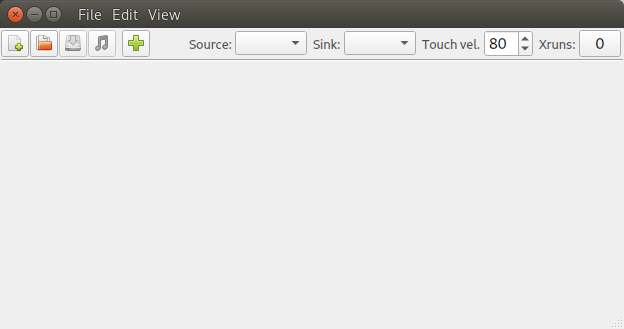
Starting with an empty project, use the "Edit" -> "Load Drumkit" menu, or click on the "plus" symbol in the toolbar. You'll see all the instruments defined in the drumkit you just loaded, grouped into categories, such as "Snares", "Tom toms", "Hi-hats", etc.
Audio preview
To listen to audio playback, you need to select an "Audio sink" from the dropdown list at the top-right of the window. You audio out devices should be listed there. Note that this is a JACK application, and your JACK audio connection kit server must be running to play audio.
To preview the sound of each instrument, click on the instrument name. Releasing the mouse stops the playback.
To preview the drumkit you are assembling, you need to send it MIDI note events. Choose the MIDI source from the dropdown list at the top-right area of the window, and send MIDI events. A MIDI source can be an external device, like a MIDI keyboard, or the MIDI output of another program, such as qtractor, MuseScore, or JackMIDILooper.
Instrument selection
The instruments selected to be included in your final drumkit are indicated by the check boxes next to the instrument and category names.
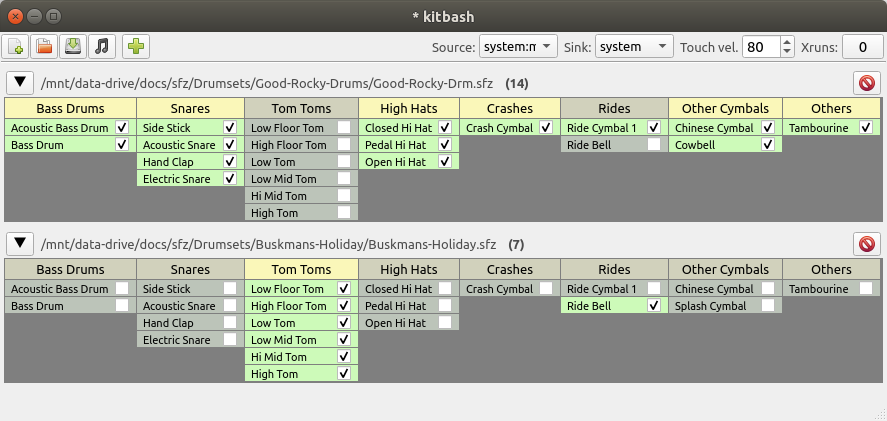
Check the box next to a category to select all the instruments in that category for inclusion in your new drumkit. Check the checkbox next to any individual instrument (i.e. "Ride Bell"), to include only that instrument.
When you load the first drumkit, all categories and instruments are selected. Load another drumkit in the same way as you did the first (using the menu or the toolbar). Selecting an instrument from one drumkit de-selects that instrument from all other loaded drumkits.
You can make changes while playing a loop from the incoming MIDI source, and the changes are (almost) immediately made to the "bashed" drumkit you are making.
Exporting an SFZ
When you're satisfied with what you've selected, you can save the "bashed" drumkit as an .sfz file in a new location. From the menu, select "File" -> "Save Bashed Kit As..." and choose the location. Or, click the corresponding icon in the toolbar.
Saving a project
A "project" is a list of the source SFZs and which groups and instruments from each them are selected. You can save a project for later, make whatever changes you desire, and then export the SFZ you created again. This way, you don't have to start from scratch every time you wish to make that one small change.
Install
Install in the usual way:
$ pip install kitbash
Requirements
You'll need both JACK audio connection kit and liquidsfz in order to have live previews. You can run the program without either, but you won't be able to listen to your changes as you are making them.
To install JACK:
$ sudo apt install jackd
...or...
$ sudo dnf install jackd
To install liquidsfz:
$ git clone https://github.com/swesterfeld/liquidsfz.git
... and follow the instructions found in the liquidsfz README to install it.
1 maintainer

Metadata
1 maintainer
Release files for kitbash 1.13.1
For a detailed explanation of source distributions (sdists) and built distributions (wheels), please see the package formats documentation.
Source distribution (sdist)
| File | Size | Uploaded | Provenance | |
|---|---|---|---|---|
| kitbash-1.13.1.tar.gz | 70.7 kB | Without provenance | Details |
Built distribution (wheel)
| File | Interpreter | ABI | Platform | Reset |
|---|---|---|---|---|
| kitbash-1.13.1-py2.py3-none-any.whl | Python 2, Python 3 | none | any | Details |
Total release size: 146.4 kB
Release files / kitbash-1.13.1.tar.gz
| Download URL | kitbash-1.13.1.tar.gz |
|---|---|
| Size | 70.7 kB |
| Tags | Source |
|
SHA-256 checksum How to use checksums |
55cdb430464c69ceaba7cce55b354f98ac0bfaab7d0b99de08624c2f283aa63f
|
|
BLAKE2b-256 checksum How to use checksums |
a5ec97bb509d343f7f466da1fef165c45efafd670ec25443ac88e7c89facb9c8
|
| Upload date | |
|
Uploaded using Trusted Publishing? What is trusted publishing? |
No |
| Uploaded via |
twine/6.2.0 CPython/3.14.4
|
Release files / kitbash-1.13.1-py2.py3-none-any.whl
| Download URL | kitbash-1.13.1-py2.py3-none-any.whl |
|---|---|
| Size | 75.7 kB |
| Tags | Python 2 Python 3 |
|
SHA-256 checksum How to use checksums |
770b4ec0404579faff9f8bdd36b2af65e9526e41545dbe55886716571f87f8fb
|
|
BLAKE2b-256 checksum How to use checksums |
974b39075a497f6f78d5e1798020747667559f66106525bfc9bd2dc71353b9be
|
| Upload date | |
|
Uploaded using Trusted Publishing? What is trusted publishing? |
No |
| Uploaded via |
twine/6.2.0 CPython/3.14.4
|
Security for kitbash 1.13.1
Provenance
Provenance describes where a file came from. On PyPI, provenance is shared via attestations, which provide a verifiable record of the build or publishing details. View details, limitations and caveats.
No provenance found
None of the files in this release were uploaded with provenance metadata.
A note on package security
PyPI is a repository for distributing packages, not a service for auditing them. While third-party security researchers and our staff do their best to detect and remove malicious packages, PyPI cannot guarantee the quality, security or suitability of any given package.
To learn more about protecting yourself from malicious actors, visit our package security documentation.














