
Terminal-based kubernetes operation platform

Project description




kop
kop is a terminal-based (TUI) Kubernetes operations platform. Its goal is to provide an interactive experience similar to desktop cluster management tools, but fully within the terminal command line, aiming to solve the problem of conveniently operating Kubernetes clusters when no desktop environment is available.
Installation
Here's how to install kop.
Install from PyPI
You can install kop via PyPI with the following command:
pip install kop-cli
After installation, you can run:
kop --version
Install from an offline binary package
If the target machine cannot access PyPI, download the offline binary package from the GitHub Releases page on another machine first.
- Open the release version you want to install.
- Download the binary package that matches your operating system and CPU architecture.
- Copy the package to the target machine.
- Extract the package and run the
kopbinary.
On Linux or macOS, you may need to grant execute permission before running it:
chmod +x kop
./kop --version
On Windows, run kop.exe from PowerShell or Command Prompt:
.\kop.exe --version
Usage
1. Startup
kop
By default, it will load:
~/.kube/config(if it exists)- kubeconfig files already synced under
~/.kop/
If no available cluster is found, you can import configuration from the startup page via Add or Sync.
2. Start with a Specified kubeconfig
kop --kubeconfig /path/to/kubeconfig.yaml
In this mode, the file path and kubeconfig validity are verified, and after validation it enters the resource view directly.
Operations and Shortcuts
See demo video:
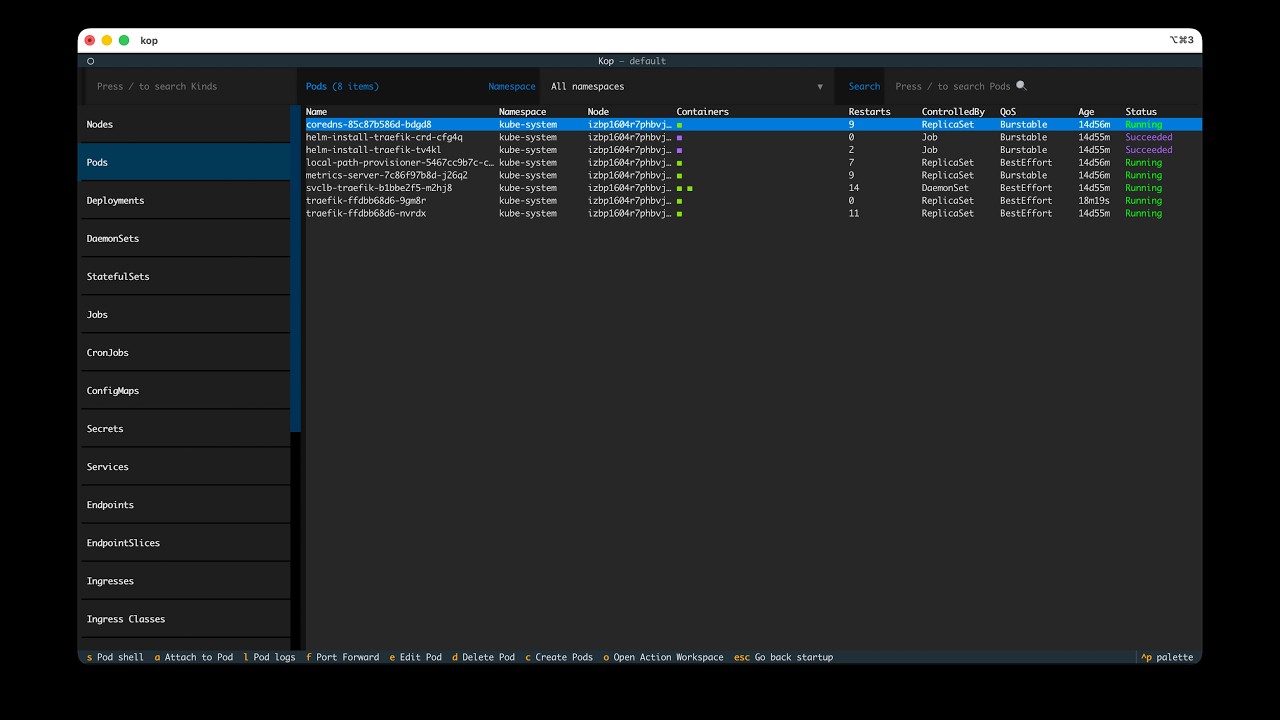
Please refer to the Documentation for more detailed usage instructions.
FAQ
Mouse click not working
When using iTerm2 on macOS to SSH into a remote host and run kop, mouse clicks may not work. This happens because in Linux environments, most command-line programs rely on the $TERM variable to determine terminal capabilities (such as colors and bold text). A common value is xterm-256color. While xterm-256color is a general standard, it does not cover all extensions of modern terminals (such as advanced mouse protocols or synchronized updates). Textual is a very advanced TUI (text user interface) framework. To provide the best experience, it tries to detect which terminal is actually running. For iTerm2, it supports many non-standard advanced features. Textual has internal optimization logic: when it detects TERM_PROGRAM=iTerm.app, it switches to an interaction mode optimized for iTerm2. If Textual does not see TERM_PROGRAM=iTerm.app, it may avoid enabling some advanced interaction features, or due to configuration conflicts, it may fail to properly fall back to a generic mouse mode.
Solutions:
- Manually run
export TERM_PROGRAM=iTerm.appon the remote host. After restartingkop, mouse clicks should work normally. - Update local SSH config on macOS:
~/.ssh/config, add:
Host *
    SendEnv TERM_PROGRAM
Update remote host sshd config: /etc/ssh/sshd_config, add:
AcceptEnv TERM_PROGRAM
After restarting the sshd service, disconnect and reconnect to the remote host, then run kop again. Mouse clicking should be restored.
Why doesn't kop look good on macOS?
kop is built with Textual for terminal UI. Please refer to the Textual FAQ section about display issues in the default macOS terminal for fixes: https://textual.textualize.io/FAQ/#why-doesnt-textual-look-good-on-macos
Abnormal display on Linux console
You may use kop on Linux console (a monitor connected to a server via a VGA cable) and find kop UI rendering issues or even crashes. This is because Linux kernel built-in virtual terminals (tty1~tty6):
- ❌ Do not support True Color (24-bit)
- ❌ Do not support 256 colors
- ✅ Only support 16 colors (sometimes even only 8)
- ✅ Rendering is controlled by the kernel (not by a terminal emulator)
There is currently no good solution. If you must use kop on a physical terminal, one compromise is kmscon.
Kmscon is a simple terminal emulator based on linux kernel mode setting (KMS). It is an attempt to replace the in-kernel VT implementation with a userspace console. See https://github.com/kmscon/kmscon
Roadmap
Features
- Upload local files to pod containers
- Download files from pod containers to local
- Multi-task workspace support
Release history Release notifications | RSS feed


Download files
Download the file for your platform. If you're not sure which to choose, learn more about installing packages.
Source Distribution
Built Distribution
Filter files by name, interpreter, ABI, and platform.
If you're not sure about the file name format, learn more about wheel file names.
Copy a direct link to the current filters
File details
Details for the file kop_cli-0.4.2.tar.gz.
File metadata
- Download URL: kop_cli-0.4.2.tar.gz
- Upload date:
- Size: 22.2 MB
- Tags: Source
- Uploaded using Trusted Publishing? Yes
- Uploaded via: twine/6.1.0 CPython/3.13.12
File hashes
| Algorithm | Hash digest | |
|---|---|---|
| SHA256 |
57c541b968bbf4cec29c10ceeefb5ce5e5b1b351502be3180848ae6277b864a9
|
|
| MD5 |
119b9f56c221c7195483e9cee3d75ddc
|
|
| BLAKE2b-256 |
ef92749ca92eff3664560a1e3a784b714c3287ae5b52ba050cecdcafdfcb0f39
|
Provenance
The following attestation bundles were made for kop_cli-0.4.2.tar.gz:
Publisher:
python-publish.yml on vegaoqiang/kop
-
Statement:
-
Statement type:
https://in-toto.io/Statement/v1 -
Predicate type:
https://docs.pypi.org/attestations/publish/v1 -
Subject name:
kop_cli-0.4.2.tar.gz -
Subject digest:
57c541b968bbf4cec29c10ceeefb5ce5e5b1b351502be3180848ae6277b864a9 - Sigstore transparency entry: 2092555618
- Sigstore integration time:
-
Permalink:
vegaoqiang/kop@a0b82ea6b6bd38f3feeda6e30aa060664259fa00 -
Branch / Tag:
refs/tags/v0.4.2 - Owner: https://github.com/vegaoqiang
-
Access:
public
-
Token Issuer:
https://token.actions.githubusercontent.com -
Runner Environment:
github-hosted -
Publication workflow:
python-publish.yml@a0b82ea6b6bd38f3feeda6e30aa060664259fa00 -
Trigger Event:
release
-
Statement type:
File details
Details for the file kop_cli-0.4.2-py3-none-any.whl.
File metadata
- Download URL: kop_cli-0.4.2-py3-none-any.whl
- Upload date:
- Size: 136.3 kB
- Tags: Python 3
- Uploaded using Trusted Publishing? Yes
- Uploaded via: twine/6.1.0 CPython/3.13.12
File hashes
| Algorithm | Hash digest | |
|---|---|---|
| SHA256 |
68c6e7f310c9def9a9b57fa0dd5fc1e00fa83b36971df930fd690dc008d7863a
|
|
| MD5 |
43e98c1dda43197945fa109cd36a6118
|
|
| BLAKE2b-256 |
2aa26def2982a35914fe31f8457ffa56df5ebff1be6f256de0f0db9fe7b5305f
|
Provenance
The following attestation bundles were made for kop_cli-0.4.2-py3-none-any.whl:
Publisher:
python-publish.yml on vegaoqiang/kop
-
Statement:
-
Statement type:
https://in-toto.io/Statement/v1 -
Predicate type:
https://docs.pypi.org/attestations/publish/v1 -
Subject name:
kop_cli-0.4.2-py3-none-any.whl -
Subject digest:
68c6e7f310c9def9a9b57fa0dd5fc1e00fa83b36971df930fd690dc008d7863a - Sigstore transparency entry: 2092555796
- Sigstore integration time:
-
Permalink:
vegaoqiang/kop@a0b82ea6b6bd38f3feeda6e30aa060664259fa00 -
Branch / Tag:
refs/tags/v0.4.2 - Owner: https://github.com/vegaoqiang
-
Access:
public
-
Token Issuer:
https://token.actions.githubusercontent.com -
Runner Environment:
github-hosted -
Publication workflow:
python-publish.yml@a0b82ea6b6bd38f3feeda6e30aa060664259fa00 -
Trigger Event:
release
-
Statement type:






