AI Pair Programming CLI for LeetCode — powered by Mistral Vibe
Project description
LeetVibe
AI Pair Programming CLI for LeetCode — powered by Mistral AI
LeetVibe is a terminal application that puts an AI pair programmer beside you while you practice coding challenges. Choose how much help you want — watch the AI teach from scratch, code alongside it with live feedback, or simulate a real technical interview. Every session runs entirely in your terminal with optional voice narration.
Demo
Full App Demo
Click the thumbnail to watch the full demo on YouTube.
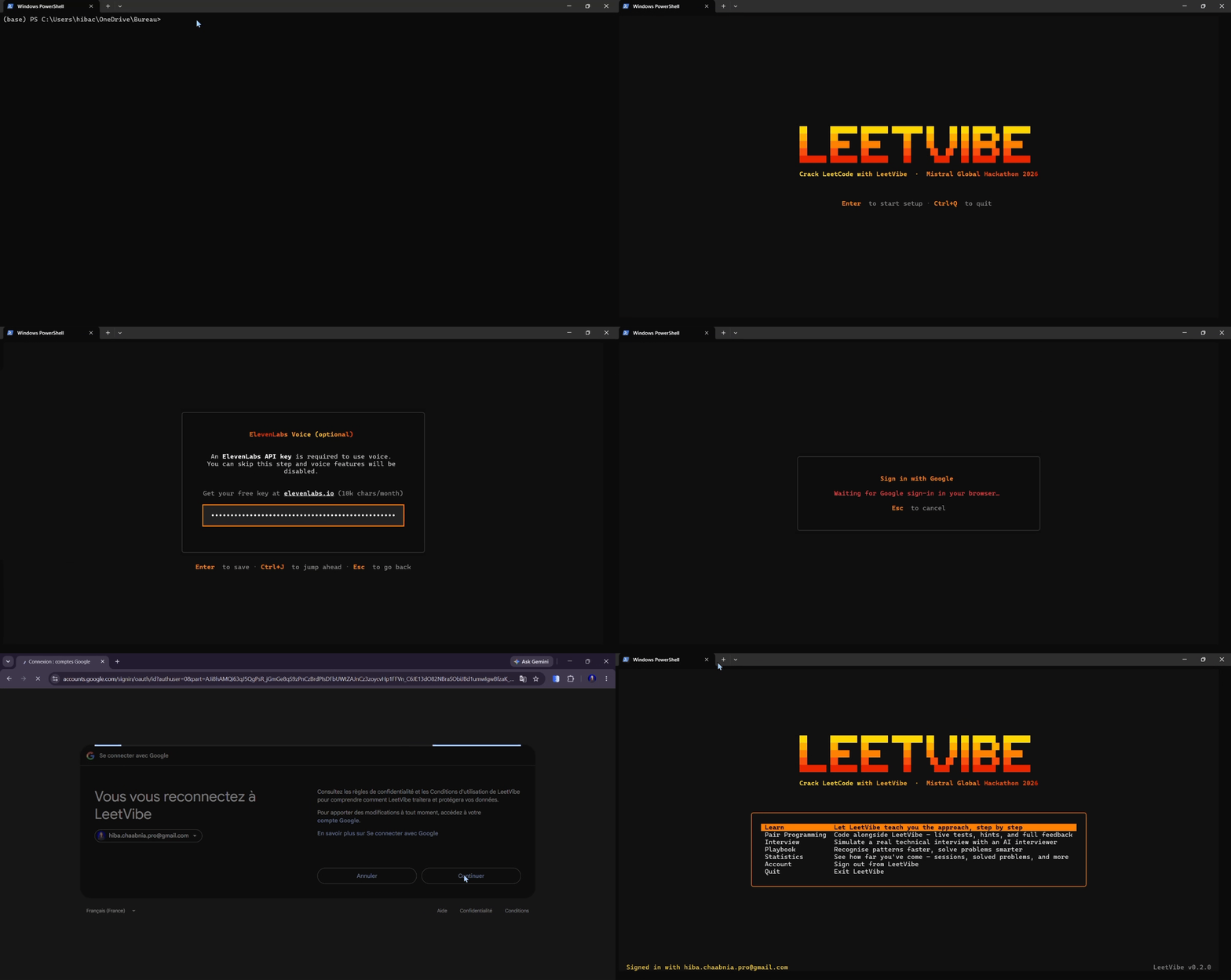
Onboarding Setup
What LeetVibe Offers
Three Learning Modes
Learn The AI walks through every LeetCode problem using a strict 7-step pedagogical workflow: restate the problem, write and test a brute-force solution, analyse its complexity, identify the key insight, write and test the optimal solution, analyse the improvement, and generate a structured walkthrough. You watch the reasoning unfold in real time as the agent calls tools, runs code, and explains every decision. Voice narration reads out each explanation aloud.
Pair Programming You write the first attempt. The AI tests your code, diagnoses every bug and inefficiency, analyses your complexity, gives you guided hints without revealing the answer, and only then shows the optimal solution with a side-by-side comparison. This mode is designed to coach you toward the answer rather than hand it to you.
Interview Mode A simulated 30-minute technical interview. "Alex", a senior software engineer, greets you, states the problem, and asks you to walk through your approach. He probes with follow-ups ("What's the time complexity?" / "Any edge cases?" / "Can you do better?"), gives a single small hint if you get stuck, and closes with brief feedback. He never writes code for you and never re-introduces himself. His opening monologue plays as speech so the session feels live.
Additional Features
- Challenge browser — filter by difficulty (Easy / Medium / Hard), topic, solved status, or free-text search across hundreds of LeetCode problems
- Inline code editor — write Python directly in the terminal with syntax highlighting; run your code against the problem's test cases without leaving the app
- Live test results — pass/fail output per test case shown immediately in the UI
- Solution tab — reference solutions available when they exist in the problem data
- Statistics screen — session counts, solved problem tracking, and progress metrics
- Cloud sync — optional account (email/password or Google OAuth via Supabase) to persist your progress across machines
- Onboarding wizard — first-run setup collects your API keys and account details with a guided TUI flow; nothing to configure by hand
Installation
From PyPI (published package)
Requires Python 3.11 or newer.
With uv (recommended):
uv tool install leetvibe
With pip:
pip install leetvibe
Then run:
leetvibe
On the first launch the onboarding wizard opens automatically. It will ask for your Mistral API key, optionally your ElevenLabs key for voice narration, and whether you want to create an account for cloud sync. Your keys are saved to ~/.leetvibe/.env and never touched again.
From Source (local development)
Requirements: Python 3.11+, uv
# 1. Clone the repository
git clone https://github.com/hibachaabnia/leetvibe.git
cd leetvibe
# 2. Install dependencies (uv reads pyproject.toml and uv.lock)
uv sync
# 3. Run the app
uv run leetvibe
Alternatively, activate a virtual environment first:
uv venv
source .venv/bin/activate # Windows: .venv\Scripts\activate
uv sync
leetvibe
API keys for local development:
Copy .env.exemple to .env and fill in your values:
MISTRAL_API_KEY=your_mistral_key_here
ELEVENLABS_API_KEY=your_elevenlabs_key_here # optional
The app loads .env at startup. The onboarding wizard is skipped if MISTRAL_API_KEY is already set in the environment.
Get API keys:
- Mistral AI: https://console.mistral.ai (required)
- ElevenLabs: https://elevenlabs.io (optional — voice narration only)
Usage
leetvibe
That's the only command. The full experience lives inside the TUI.
Navigation:
- Arrow keys or
j/kto move through lists Enterto selectEscapeto go backCtrl+Qto quit from anywhere- Number keys
1–6as shortcuts on the home screen
Inside a challenge session (Learn / Pair Programming):
Ctrl+D— toggle the description panel (shows the problem statement + Alex's opening in Interview mode)Ctrl+V— toggle voice narration on/offCtrl+C— copy the last code block from the AI's response- The text input at the bottom accepts follow-up questions; the full conversation context is preserved across turns
Inside the Challenge Detail screen (Pair Programming):
▶ Run— execute your code against the test cases↑ Submit— submit your attempt and launch a coaching session←/→— navigate to the previous or next problem without going back to the list- Tabs at the bottom switch between test cases, test results, and the reference solution
Architecture
leetvibe/
├── cli.py Entry point — checks for first-run setup, launches the TUI
├── config.py Loads config.yaml and .env; exposes a Config dataclass
├── vibe_agent.py Mistral AI streaming agent with a tool-calling loop
├── challenge_loader.py Reads problem JSON files from problems/; normalises two formats
├── code_runner.py Sandboxed Python execution engine for test cases
├── session_log.py Writes session records to logs/
├── cloud/
│ └── auth.py Supabase auth — email/password sign-in + Google OAuth
│ db.py Cloud database — solved slugs, session records
│
└── textual_ui/
├── app.py Root Textual App; registers all screens
├── theme.py Colour constants (FIRE orange, GREEN, RED, GOLD, DIM)
├── app.tcss Global stylesheet
├── screens/
│ ├── base.py BaseScreen — shared quit action
│ ├── home.py Main menu — mode selection and account status
│ ├── challenge_list.py Browse + filter + search challenges
│ ├── challenge_detail.py Two-panel code editor + problem description
│ ├── agent_session.py Streaming chat UI for Learn / Coach / Interview
│ ├── stats.py Progress statistics
│ └── login.py Login / sign-up overlay
└── widgets/
├── banner.py ASCII art logo
├── challenge_table.py DataTable with colour-coded difficulty rows
├── challenge_card.py Problem metadata card (title, difficulty, topics)
└── status_bar.py Footer bar with hints and counters
skills/ MCP skill servers (called directly by the agent)
├── test_runner/server.py Run Python code against test cases
├── complexity_analyzer/ AST-based time and space complexity analysis
├── teaching_mode/ Structured algorithm pattern explanations
└── voice_narrator/ ElevenLabs text-to-speech playback
problems/ Challenge JSON files
├── easy/
├── medium/
└── hard/
.vibe/config.toml Mistral Vibe MCP server configuration
config.yaml App configuration (model, voice ID, data source)
Component Overview
graph TD
User(["User"])
subgraph TUI["Textual TUI"]
Home["Home Screen"]
ChallengeList["Challenge List"]
Detail["Challenge Detail"]
AgentSession["Agent Session"]
Stats["Statistics"]
Login["Login / Sign Up"]
end
subgraph Agent["AI Agent"]
VibeAgent["VibeAgent\nstreaming loop"]
end
subgraph Skills["MCP Skills"]
TestRunner["test_runner\ncode execution"]
Complexity["complexity_analyzer\nAST analysis"]
Teaching["teaching_mode\nalgorithm explanations"]
Voice["voice_narrator\nElevenLabs TTS"]
end
subgraph External["External Services"]
MistralAPI["Mistral AI API\nmistral-large-latest"]
ElevenLabsAPI["ElevenLabs API\neleven_flash_v2_5"]
SupabaseDB["Supabase\nauth + cloud sync"]
end
Problems[("problems/\nJSON files")]
Audio["System Audio\nsounddevice"]
User --> Home
Home --> ChallengeList & Stats & Login
ChallengeList --> Detail & AgentSession
Detail --> AgentSession
AgentSession --> VibeAgent
VibeAgent --> MistralAPI
VibeAgent --> TestRunner & Complexity & Teaching & Voice
Voice --> ElevenLabsAPI --> Audio
Login & Stats & ChallengeList --> SupabaseDB
ChallengeList --> Problems
Screen Navigation
flowchart TD
Launch(["leetvibe"])
Launch --> Check{"MISTRAL_API_KEY\nset?"}
Check -- "No — first run" --> Onboard
Check -- "Yes" --> Home
subgraph Onboard["Onboarding Wizard"]
W["Welcome"] --> AK["Mistral API Key"]
AK --> EL["ElevenLabs Key\n(optional)"]
EL --> AC["Account Setup\n(optional)"]
end
Onboard --> Home["Home"]
Home -- "Learn" --> LL["Challenge List\nmode: learn"]
Home -- "Pair Programming" --> CL["Challenge List\nmode: coach"]
Home -- "Interview" --> IL["Challenge List\nmode: interview"]
Home -- "Statistics" --> Stats["Statistics"]
Home -- "Account" --> Login["Login / Sign Up"]
Login -- result --> Home
LL & CL --> Detail["Challenge Detail\ncode editor + tests"]
Detail -- "Submit" --> Session["Agent Session\nstreaming chat"]
IL --> Session
Session -- "Esc" --> ChallengeList["Challenge List"]
Detail -- "Esc" --> ChallengeList
ChallengeList -- "Esc" --> Home
Data Flow — Learn Session
sequenceDiagram
participant U as User
participant UI as AgentSessionScreen
participant A as VibeAgent
participant M as Mistral API
participant S as MCP Skills
participant EL as ElevenLabs
U->>UI: Select challenge (Learn mode)
UI->>A: solve_streaming(challenge, mode="learn")
A->>A: Build prompt — title, description,<br/>starter code, test cases
A->>M: chat.stream(messages, tools=_TOOLS)
loop Token stream
M-->>A: text chunk
A-->>UI: yield chunk (rendered live)
end
M-->>A: tool_call: run_code(code, snippet)
A->>S: test_runner.run_code()
S-->>A: {cases: [...], all_passed: true}
A->>M: append tool result → continue stream
M-->>A: tool_call: analyze_complexity(code)
A->>S: complexity_analyzer.analyze_complexity()
S-->>A: {time: "O(n)", space: "O(1)", ...}
A->>M: append tool result → continue stream
M-->>A: tool_call: explain_approach(...)
A->>S: teaching_mode.explain_approach()
S-->>A: structured walkthrough text
A->>M: append tool result → continue stream
M-->>A: final text response (no tool calls)
A->>A: append assistant message to history
A->>EL: narrate(explanation, voice_type="mentor")
EL-->>U: audio playback via sounddevice
How LeetVibe Uses Mistral AI
Model
All AI inference uses mistral-large-latest (configurable via config.yaml). The model is called through the official mistralai Python SDK using the streaming API (client.chat.stream()).
Agent Architecture
VibeAgent (leetvibe/vibe_agent.py) is a manual tool-calling loop built on top of Mistral's streaming API. It does not use LangChain, LlamaIndex, or any agent framework — the loop is implemented from scratch to give full control over streaming rendering.
The full message history is preserved across turns, so follow-up questions in the chat input have complete context.
flowchart TD
Start(["solve_streaming(challenge, mode)"])
Start --> SelectPrompt{mode?}
SelectPrompt -- "learn" --> SP["SYSTEM_PROMPT\n7-step workflow"]
SelectPrompt -- "coach" --> CP["COACH_PROMPT\nreview + guide"]
SelectPrompt -- "interview" --> IP["INTERVIEW_PROMPT\nmock interviewer"]
SP & CP --> BuildMsg["Build messages\nsystem + problem prompt\ntools enabled"]
IP --> BuildMsgNoTools["Build messages\nsystem + problem prompt\ntools disabled"]
BuildMsg & BuildMsgNoTools --> Stream
subgraph Loop["Tool-calling Loop — max 20 turns"]
Stream["client.chat.stream(messages, tools)"]
Collect["Collect response\ntext chunks → yield to TUI live\ntool_call deltas → accumulate"]
Stream --> Collect
Collect --> HasTools{"Tool calls\nin response?"}
HasTools -- "No" --> Save["Append assistant message\nto history → exit loop"]
HasTools -- "Yes" --> AppendAss["Append assistant turn\nwith tool_calls to history"]
AppendAss --> Exec["Execute each tool\ndirect Python import"]
Exec --> AppendResult["Append tool result to history"]
AppendResult --> Stream
end
Save --> Done(["Session complete"])
System Prompts
Three distinct prompts govern the three modes:
SYSTEM_PROMPT (Learn) — instructs Mistral to follow a strict 7-step workflow and never skip a step. Steps include validating every code block with run_code, measuring complexity with analyze_complexity, and concluding with explain_approach. The prompt uses Rich markup syntax ([bold], [dim]) which the Textual renderer interprets directly.
COACH_PROMPT (Pair Programming) — instructs Mistral to start by testing the user's code rather than solving from scratch, diagnose specific lines, give Socratic hints before revealing the answer, and frame all feedback as encouragement.
INTERVIEW_PROMPT (Interview) — instructs Mistral to behave as a realistic interviewer: greet once, speak in 2–4 sentences per turn, probe with complexity and edge-case questions, give one small hint when the candidate is stuck, and never write code. Tool calling is disabled entirely in this mode.
Tool Definitions
Three tools are registered with the agent (disabled in Interview mode):
| Tool | Description |
|---|---|
run_code |
Execute a Python solution against test cases. Returns pass/fail per case with output and error details. |
analyze_complexity |
AST-based static analysis of time and space complexity. Returns {time, space, explanation}. |
explain_approach |
Generate a structured 6-step algorithm walkthrough for a given pattern (two-pointer, DP, hash-map, etc.). |
MCP Configuration
The .vibe/config.toml registers the four skill servers as MCP servers, enabling the Mistral Vibe CLI to use them directly if invoked outside of LeetVibe. Inside the app the tools are called as direct Python function imports rather than over stdio, eliminating subprocess overhead.
How LeetVibe Uses ElevenLabs
Overview
Voice narration is handled by the voice_narrator skill (skills/voice_narrator/server.py). It uses the ElevenLabs Python SDK to convert text to PCM audio, then plays the audio with sounddevice directly — no ffmpeg or external audio tools required.
Voice Personas
Three ElevenLabs voices are mapped to roles:
| Persona | Voice ID | Used For |
|---|---|---|
mentor |
EXAVITQu4vr4xnSDxMaL |
Learn mode — calm, instructive explanations |
coach |
pNInz6obpgDQGcFmaJgB |
Pair Programming — encouraging feedback |
excited |
TxGEqnHWrfWFTfGW9XjX |
High-energy moments |
The default voice for all modes is mentor. The voice ID can be overridden in config.yaml under elevenlabs.voice_id.
Audio Pipeline
Using pcm_22050 format avoids the need for any audio decoding library — the raw bytes feed directly into sounddevice.
sequenceDiagram
participant Agent as VibeAgent
participant VN as voice_narrator
participant EL as ElevenLabs API
participant SD as sounddevice
Agent->>VN: narrate(text, voice_type="mentor")
VN->>EL: text_to_speech.convert()<br/>model=eleven_flash_v2_5 · format=pcm_22050
EL-->>VN: raw PCM bytes (22050 Hz, 16-bit)
VN->>VN: np.frombuffer(bytes, dtype=np.int16)
Note over VN: Acquire _AUDIO_LOCK<br/>serialises concurrent calls
VN->>SD: sd.play(audio_array, samplerate=22050)
SD-->>VN: sd.wait() — blocks until playback done
VN-->>Agent: "playing X.Xs of audio"
Note over VN,SD: stop_playback() → sd.stop()<br/>sd.wait() returns immediately → thread exits
Concurrency Model
A module-level threading.Lock (_AUDIO_LOCK) serialises all playback. Multiple narration calls from the agent's tool loop will queue up and play in order rather than overlapping.
Two public functions handle the two use cases:
narrate(text)— fires a daemon thread that acquires the lock and plays. Returns immediately with an estimated duration string. Used by the agent tool loop so the AI can continue while audio plays.narrate_blocking(text)— acquires the lock in the caller's thread and blocks until playback finishes. Used for Interview mode where the opening monologue must complete before the UI accepts input.stop_playback()— callssounddevice.stop(), which causes thesd.wait()call inside the daemon thread to return immediately. Called when the user navigates away from an Interview session.
When Voice Plays
| Event | Function | Mode |
|---|---|---|
Agent tool calls narrate |
narrate() (async) |
Learn, Pair Programming |
| Interview session starts — Alex's opening monologue | narrate_blocking() |
Interview |
| User navigates back from session screen | stop_playback() |
All |
Voice narration is silently skipped if ELEVENLABS_API_KEY is not set — all other features continue to work normally.
Authentication Flow
LeetVibe supports two sign-in methods via Supabase. Both persist a session token to ~/.leetvibe/session.json so the user stays logged in across launches.
sequenceDiagram
participant User
participant App as LeetVibe TUI
participant Auth as cloud/auth.py
participant Supabase
participant Browser
participant Pages as GitHub Pages<br/>(OAuth relay)
rect rgb(30, 30, 50)
Note over User,Supabase: Email / Password
User->>App: Enter email + password
App->>Auth: sign_in(email, password)
Auth->>Supabase: auth.sign_in_with_password()
Supabase-->>Auth: session {access_token, refresh_token}
Auth->>Auth: save → ~/.leetvibe/session.json
Auth-->>App: AuthResult(ok=True, email=...)
end
rect rgb(20, 40, 30)
Note over User,Pages: Google OAuth
User->>App: Click "Sign in with Google"
App->>Auth: start_google_auth()
Auth->>Auth: bind ephemeral port on 127.0.0.1
Auth->>Supabase: sign_in_with_oauth(provider="google")
Supabase-->>Auth: OAuth URL
Auth->>Auth: start one-shot HTTP callback server
Auth-->>App: GoogleAuthState(oauth_url, port)
App->>Browser: open OAuth URL in system browser
User->>Browser: complete Google sign-in
Browser->>Pages: redirect with tokens in URL
Pages->>Auth: POST → http://127.0.0.1:{port}/result
Auth->>Supabase: set_session(access_token, refresh_token)
Supabase-->>Auth: confirmed session
Auth->>Auth: save → ~/.leetvibe/session.json
Auth-->>App: AuthResult(ok=True, email=...)
end
Configuration Reference
config.yaml (project root — committed, no secrets):
mistral:
api_key: ${MISTRAL_API_KEY} # resolved from environment at runtime
model: "mistral-large-latest"
vibe_enabled: true
elevenlabs:
api_key: ${ELEVENLABS_API_KEY}
voice_id: "EXAVITQu4vr4xnSDxMaL" # default mentor voice
enabled: true
challenges:
data_source: "huggingface"
dataset_name: "greengerong/leetcode"
~/.leetvibe/.env (created by the onboarding wizard — never committed):
MISTRAL_API_KEY=your_key
ELEVENLABS_API_KEY=your_key
.env (project root — for local development, gitignored):
MISTRAL_API_KEY=your_key
ELEVENLABS_API_KEY=your_key
The config loader checks ~/.leetvibe/.env first, then the project-root .env, then raw environment variables.
Dependencies
| Package | Purpose |
|---|---|
mistralai |
Mistral AI SDK — streaming chat, tool calling |
elevenlabs |
ElevenLabs TTS SDK |
textual |
Terminal UI framework |
sounddevice |
Audio playback |
numpy |
PCM audio buffer handling |
supabase |
Auth and cloud database |
mcp |
Model Context Protocol — skill server infrastructure |
pydantic |
Data validation |
python-dotenv |
.env loading |
pyyaml |
config.yaml parsing |
click |
CLI entry point |
rich |
Terminal formatting inside Textual |
License
MIT © 2026 Hiba Chaabnia
Project details
Release history Release notifications | RSS feed
Download files
Download the file for your platform. If you're not sure which to choose, learn more about installing packages.
Source Distribution
Built Distribution
Filter files by name, interpreter, ABI, and platform.
If you're not sure about the file name format, learn more about wheel file names.
Copy a direct link to the current filters
File details
Details for the file leetvibe-0.1.1.tar.gz.
File metadata
- Download URL: leetvibe-0.1.1.tar.gz
- Upload date:
- Size: 2.4 MB
- Tags: Source
- Uploaded using Trusted Publishing? No
- Uploaded via: twine/6.2.0 CPython/3.13.11
File hashes
| Algorithm | Hash digest | |
|---|---|---|
| SHA256 |
4e5439f144e80baec7a7d39a4a4a6cf88b5af3a7f1e4f1ea19b6479021758977
|
|
| MD5 |
b13604c7c6fff963d35c4ef10063c219
|
|
| BLAKE2b-256 |
d11d423e527921ee379c18ae3c85b9d94502639d19d83d96e29fa6aa32f9b54b
|
File details
Details for the file leetvibe-0.1.1-py3-none-any.whl.
File metadata
- Download URL: leetvibe-0.1.1-py3-none-any.whl
- Upload date:
- Size: 4.3 MB
- Tags: Python 3
- Uploaded using Trusted Publishing? No
- Uploaded via: twine/6.2.0 CPython/3.13.11
File hashes
| Algorithm | Hash digest | |
|---|---|---|
| SHA256 |
20dd2ff9e681f0d9131e5ebfb0c775c56033c8aa7c9b81cb2b4fef6999076010
|
|
| MD5 |
7d5aaa2fd187a87e3d5e199872a0ba43
|
|
| BLAKE2b-256 |
a836be52afcf2c89733686d7ffe09c67617c178c1c6933233f2e20da00cae481
|