
lhtml-site
Write your talks and course websites as short text files: lhtml-site turns them into slides shown in the browser, a PDF of the slides, or a website with a menu. It is made for teachers and researchers; no web development is needed.
A slide is a text file in LHTML, a light markup over HTML:
{% set layout = 'side' %}

= A slide with an image

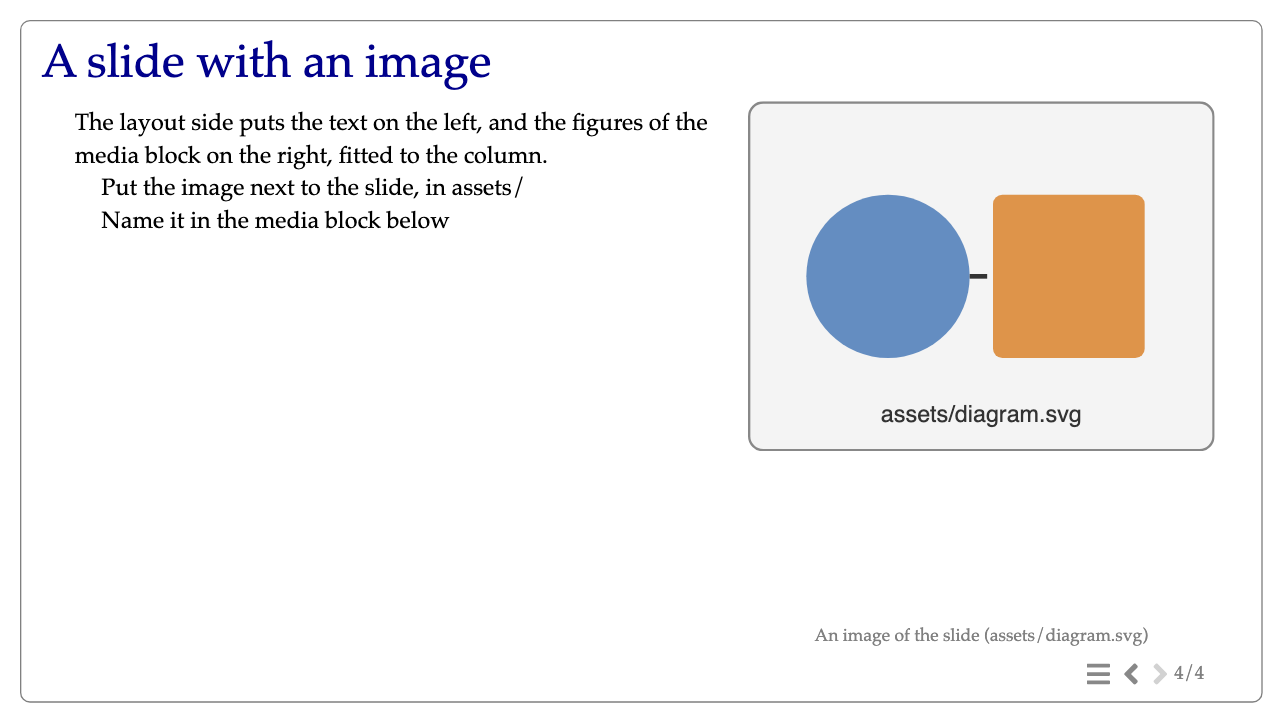
The layout side puts the text on the left, and the figures of the media block
on the right, fitted to the column.

* Put the image next to the slide, in assets/
* Name it in the media block below

media::
img::assets/diagram.svg
credit:: An image of the slide (assets/diagram.svg) ::
::
and lhtml-site shows it as:
Pages can also use Jinja2 templates and be written in Markdown. The output is a static site: open it from the disk, or copy it to any web host.
Getting started: your first slides
What you need: Python 3.11 or newer (python.org),
and pipx, which installs
commands written in Python: brew install pipx on macOS, sudo apt install pipx on Debian or Ubuntu, py -m pip install --user pipx on Windows; then
pipx ensurepath, and open a new terminal. (Without pipx, see
Installation.)
1. Install lhtml-site and create a talk. In a terminal:
pipx install lhtml-site
lhtml-site init my-talk --theme slides
cd my-talk
lhtml-site
init creates a directory my-talk/ with a configuration and four slides
to start from; lhtml-site builds them:
my-talk/
  configure.yaml                     the configuration
  src/
    01_title/index.html.j2           a title slide
    02_text/index.html.j2            a slide of text: lists, math, a link
    03_two_columns/index.html.j2     two columns
    04_image/index.html.j2           text, and an image on the right
2. Show it. lhtml-site has built the slides into .site/: open
.site/index.html in your browser, no server needed (in the terminal,
open .site/index.html on macOS, start .site\index.html on Windows,
xdg-open .site/index.html on Linux). Go from slide to slide with the
arrow keys, or with the arrows at the bottom right; the icon next to them
opens the list of the slides.
After a change, run lhtml-site again and refresh the browser. To rebuild
without retyping it, run lhtml-site --watch instead: it rebuilds the
slides each time you save a file. Keep that terminal open while you
work, refresh the browser to see the change, and press Ctrl+C in the
terminal to stop. lhtml-site --serve --watch does the same and also shows
the slides at http://127.0.0.1:8000/, which only a few features need, such
as the comments on the render.
3. Add a slide. A slide is a directory of src/ with a file
index.html.j2 in it. Duplicate src/02_text (in your file explorer, or
cp -r src/02_text src/05_my_slide in the terminal, from my-talk/) and
name the copy 05_my_slide. The slides follow the order of their
directories, hence the numbers: 05_my_slide comes last; name it
02b_my_slide to put it after 02_text.
4. Write it. Open src/05_my_slide/index.html.j2 in a text editor, and
replace its content with:
= My first slide

* A first idea
* An **important** point
* A conclusion
Save, rebuild (lhtml-site, unless lhtml-site --watch is running), and
refresh the browser.
- A line starting with
=is the title of the slide, and its name in the list of the slides. - A line starting with
*is an item of a list;**at the start of a line, a sub-item. Theslidestheme shows no bullet before them. **word**is bold,__word__italic.
5. Put an image in it. Copy your image (PNG, JPEG or SVG), say
photo.png, into src/04_image/assets/ (the directory is already there);
then, in src/04_image/index.html.j2, replace img::assets/diagram.svg
with img::assets/photo.png, and the caption on the line credit:: with
yours. Save and rebuild: the image is on the right of the slide, fitted to
its column. An image belongs to the directory of its slide, in assets/.
The four starter slides also show, each in a few lines: math
(\(e^{i\pi} + 1 = 0\)), a link, a space (gap::) and small text in
02_text, two columns (cols:: and col::) in 03_two_columns. All the
macros and layouts of the slides are in
Design,
and the markup in LHTML.
6. Come back to it later. Open a terminal, go into the talk's directory, and rebuild (or let it rebuild as you save):
cd my-talk
lhtml-site --watch
7. Share it. Your talk is configure.yaml and src/: keep them (a
backup, or a git repository). The slides are built into .site/, which
lhtml-site rebuilds from them at any time. To show the slides on another
computer, copy .site/ and open its index.html; to put them online, copy
.site/ to any web host (GitHub Pages, the server of your university).
.site/ is hidden, as any name starting with a dot: Cmd+Shift+. shows it in
the macOS Finder, View > Hidden items in the Windows explorer. Next to it,
.structure/ and .verification/ are working files of the build: leave
them.
To order the slides without renaming them, or to reuse a slide, list them in a deck.
Your talk as a PDF
Install the PDF export once (see PDF export): when
lhtml-site doctor says ready on its line PDF export,
replace the line theme: 'slides' of the talk's configure.yaml with:
theme: 'slides-pdf'
and build, in the talk's directory:
lhtml-site
It writes slides.pdf, and images/ with an image of each slide, next to
configure.yaml (a few seconds for a few slides). With this theme the HTML
of the slides is only a step towards the PDF, and is not kept; put
theme: 'slides' back to work on the slides in the browser. To get both at
each build, the slides in the browser and the PDF, declare two targets:
Decks and targets.
Websites and themes
- A website (documentation, a course) rather than slides:
lhtml-site init my-site(thewebpage-frametheme, two pages to start from). - You already have your pages in a directory
src/: in the directory that containssrc/, runlhtml-site init --theme slides. It writes onlyconfigure.yamlthere; nothing else is created or changed.
The theme is the --theme of init, or the key theme: of
configure.yaml:
| Theme | For | Needs |
|---|---|---|
webpage-frame (default) |
Web pages: documentation, a course website, with a navigation menu | nothing more |
slides |
Slides shown in the browser, 1920x1080, one page per slide | nothing more |
slides-pdf |
The same slides, exported to a PDF, with an image of each slide | Playwright and its Chromium: see PDF export |
Change the theme at any time by editing theme:; it also takes the
directory of a theme of your own. To publish the same slides both in the
browser and as a PDF, see
Decks and targets.
Installation
pipx install lhtml-site                  # the command lhtml-site, in an environment of its own
pipx upgrade lhtml-site                  # later, to update it
Without pipx, in a virtual environment (Homebrew and recent system Pythons
refuse a pip install outside one). On macOS and Linux:
python3 -m venv ~/.venvs/lhtml-site
source ~/.venvs/lhtml-site/bin/activate     # fish: activate.fish
python -m pip install lhtml-site
On Windows, in PowerShell:
py -m venv $HOME\.venvs\lhtml-site
& $HOME\.venvs\lhtml-site\Scripts\Activate.ps1
python -m pip install lhtml-site
The command lhtml-site is then there while that environment is active
(the source or Activate.ps1 line again, in a new terminal).
lhtml-site --version prints the installed version and the version of
LHTML it runs. Development version:
pipx install git+https://github.com/drohmer/lhtml-site.
Requirements: Python 3.11 or newer, on Linux, macOS or Windows.
Installed with it: lhtml-markup (LHTML 3), Jinja2, jinja-markdown,
markdown-it-py, pytidylib, pyyaml, rich. That is all a site of HTML
pages or slides needs: no Node, no browser, no other program.
Optional features
Each optional feature needs its own tools. lhtml-site doctor says, for
each feature, what it finds and the command that installs what is missing,
for the way lhtml-site is installed:
| Feature | Needs |
|---|---|
PDF export (slides-pdf) |
playwright and pypdf (Python, the extra lhtml-site[pdf]) and Playwright's Chromium: see PDF export |
Layout report (--layout, --render) |
the same playwright and Chromium |
Videos in several codecs (cache_video_directory:) |
ffmpeg, and ffpb (Python) |
SASS (.sass files) |
libsass (Python) |
Figures in code (*.svg.py, *.svg.tex) |
the libraries their scripts import, such as matplotlib, numpy (Python); latex and dvisvgm (TeX Live) |
Code of other repositories (code_include.py) |
git |
HTML cleaned by tidy (use_tidy: true) |
the library libtidy |
Python packages after pipx. pipx installs lhtml-site in an environment
of its own: pip install matplotlib puts the package into another Python,
where lhtml-site does not find it. Inject the packages into its environment
instead:
pipx inject lhtml-site matplotlib numpy          # figures in code
pipx inject lhtml-site libsass                   # SASS
pipx inject --include-apps lhtml-site ffpb       # videos (a command: --include-apps)
In a virtual environment or a checkout, pip install matplotlib numpy (and
libsass, ffpb) in the Python that runs lhtml-site does the same.
PDF export
The PDF export, and the layout report, run Chromium through Playwright for
Python: two Python packages and a browser, no Node.js. After
pipx install lhtml-site:
pipx inject lhtml-site pypdf
pipx inject --include-apps lhtml-site playwright
playwright install --only-shell chromium         # Playwright's Chromium, about 200 MB, once
lhtml-site doctor                                # PDF export (...): ready
--include-apps puts the playwright command of lhtml-site's environment
on your PATH, so that the browser downloaded is the one its Playwright
expects. If pipx warns that another playwright is already on your PATH,
run the command that lhtml-site doctor gives instead. In a virtual
environment or a checkout: pip install "lhtml-site[pdf]", then
python -m playwright install --only-shell chromium. On Linux, Playwright
may also ask for the system libraries of Chromium:
playwright install-deps chromium. The configuration key chrome names a
Chromium or Chrome already installed, to use instead of the download.
How the export waits for each slide is in the reference.
From a checkout
A clone, or a submodule of a project:
git clone https://github.com/drohmer/lhtml-site.git
cd lhtml-site
pip install -r requirements.txt
python generate.py ...            # the same as lhtml-site ...
generate.py at the root of the repository runs the lhtml-site of the
checkout (its code is in src/lhtml_site/), so the projects that include it
as a submodule call python <submodule>/generate.py, and keep naming its
files as <submodule>/themes/slides/ or <submodule>/plugins/pre_include.py
(they are found in src/lhtml_site/). pip install -e . in a checkout
installs the command from it.
The checkout also holds a complete demo, a course website with its videos,
in src/lhtml_site/example/ (not installed by pip: too heavy). To build it:
mkdir demo
cp -r src/lhtml_site/example demo/src
python generate.py init demo
cd demo
python ../generate.py --serve --watch
The tests, the locked dependencies and the layout of the repository are in Development.
Documentation
- Reference: the command line, the preview server and the comments on the render, the configuration, decks and targets, Markdown pages, template variables, the order of the slides, themes, the PDF export, the design (tokens, macros, layouts), credits and figures in code, plugins, the layout report, error reporting, and migrating from static_website_lhtml.
- Writing slides with an AI agent:
the procedure an agent follows (each build copies it into
.structure/agents.md). - LHTML: the markup of the pages.
Help and changes
- Questions and bugs: GitHub issues.
- What changed in each version: CHANGELOG.
License
MIT, see LICENSE.md. By Damien Rohmer.
1 maintainer

Metadata
1 maintainer
Release files for lhtml-site 1.0.0
For a detailed explanation of source distributions (sdists) and built distributions (wheels), please see the package formats documentation.
Source distribution (sdist)
| File | Size | Uploaded | Provenance | Actions |
|---|---|---|---|---|
| lhtml_site-1.0.0.tar.gz | 8.3 MB | Without provenance | Details for lhtml_site-1.0.0.tar.gz |
Built distribution (wheel)
| File | Interpreter | ABI | Platform | Actions Reset |
|---|---|---|---|---|
| lhtml_site-1.0.0-py3-none-any.whl | Python 3 | none | any | Details for lhtml_site-1.0.0-py3-none-any.whl |
Total release size: 16.6 MB
Release files / lhtml_site-1.0.0.tar.gz
| Download URL | lhtml_site-1.0.0.tar.gz |
|---|---|
| Size | 8.3 MB |
| Tags | Source |
|
SHA-256 checksum How to use checksums |
056c67a01a17a9a72caec83b3d511a9b21a014219517b4bd0e468ed4746b3075
|
|
BLAKE2b-256 checksum How to use checksums |
dadacbb8d55a8d4ae820aedb3627f53a9f272b1c4791dd6f333d17a70fd9d286
|
| Upload date | |
|
Uploaded using Trusted Publishing? What is trusted publishing? |
No |
| Uploaded via |
twine/7.0.0 CPython/3.14.6
|
Release files / lhtml_site-1.0.0-py3-none-any.whl
| Download URL | lhtml_site-1.0.0-py3-none-any.whl |
|---|---|
| Size | 8.3 MB |
| Tags | Python 3 |
|
SHA-256 checksum How to use checksums |
54e2b872013bd580e81017aec8bd2430bccd0d2db190fc0efc8eda7191fee71d
|
|
BLAKE2b-256 checksum How to use checksums |
a2cea12e7ec1edc8f8f4f392b0f79ff1975b89aee350322a45f39481e3dd0abe
|
| Upload date | |
|
Uploaded using Trusted Publishing? What is trusted publishing? |
No |
| Uploaded via |
twine/7.0.0 CPython/3.14.6
|
Security for lhtml-site 1.0.0
Provenance
Provenance describes where a file came from. On PyPI, provenance is shared via attestations, which provide a verifiable record of the build or publishing details. View details, limitations and caveats.
No provenance found
None of the files in this release were uploaded with provenance metadata.
A note on package security
PyPI is a repository for distributing packages, not a service for auditing them. While third-party security researchers and our staff do their best to detect and remove malicious packages, PyPI cannot guarantee the quality, security or suitability of any given package.
To learn more about protecting yourself from malicious actors, visit our package security documentation.














