
LinuxMole
Safe maintenance for Linux + Docker, inspired by Mole for macOS, a wonderful project.





Overview
LinuxMole is a Mole-inspired CLI for Linux servers with Docker. It focuses on safe, transparent maintenance with previews, structured output, and explicit confirmation.
Project Status
Note: LinuxMole is under active development. Core functionality is complete and tested, with additional features being implemented.
| Aspect | Status |
|---|---|
| Version | 1.3.1 |
| Tests | 142 passing (100%) |
| Coverage | 19.82% |
| Architecture | Modular (28 modules) |
| CI/CD | ✅ GitHub Actions (Python 3.8-3.12) |
| Completion | 10/11 tasks (90.9%) |
Implemented Features ✅
- ✅ Interactive menu with all 14 commands (redesigned in v1.2.0)
- ✅ ncdu-style Disk Analyzer TUI (new in v1.3.0) - flat list navigation with Enter/Backspace
- ✅ Complete system and Docker status monitoring
- ✅ Safe cleanup operations (system + Docker)
- ✅ Application uninstaller (apt/snap/flatpak)
- ✅ System optimization (databases, network, services)
- ✅ Whitelist management and config file support
- ✅ Automated testing and CI/CD pipeline
- ✅ Python 3.8-3.12 compatibility
- ✅ Logging and error handling
- ✅ Modular architecture
In Progress 🚧
- TUI launcher integration (low priority)
Coming Soon 🔜
- Comprehensive documentation (commands, configuration, examples)
- Additional test coverage
- Performance optimizations
Features
🎯 Interactive Menu (Redesigned in v1.2.0)
Run lm without arguments to access a modernized interactive menu with all 14 commands organized in 5 color-coded categories:
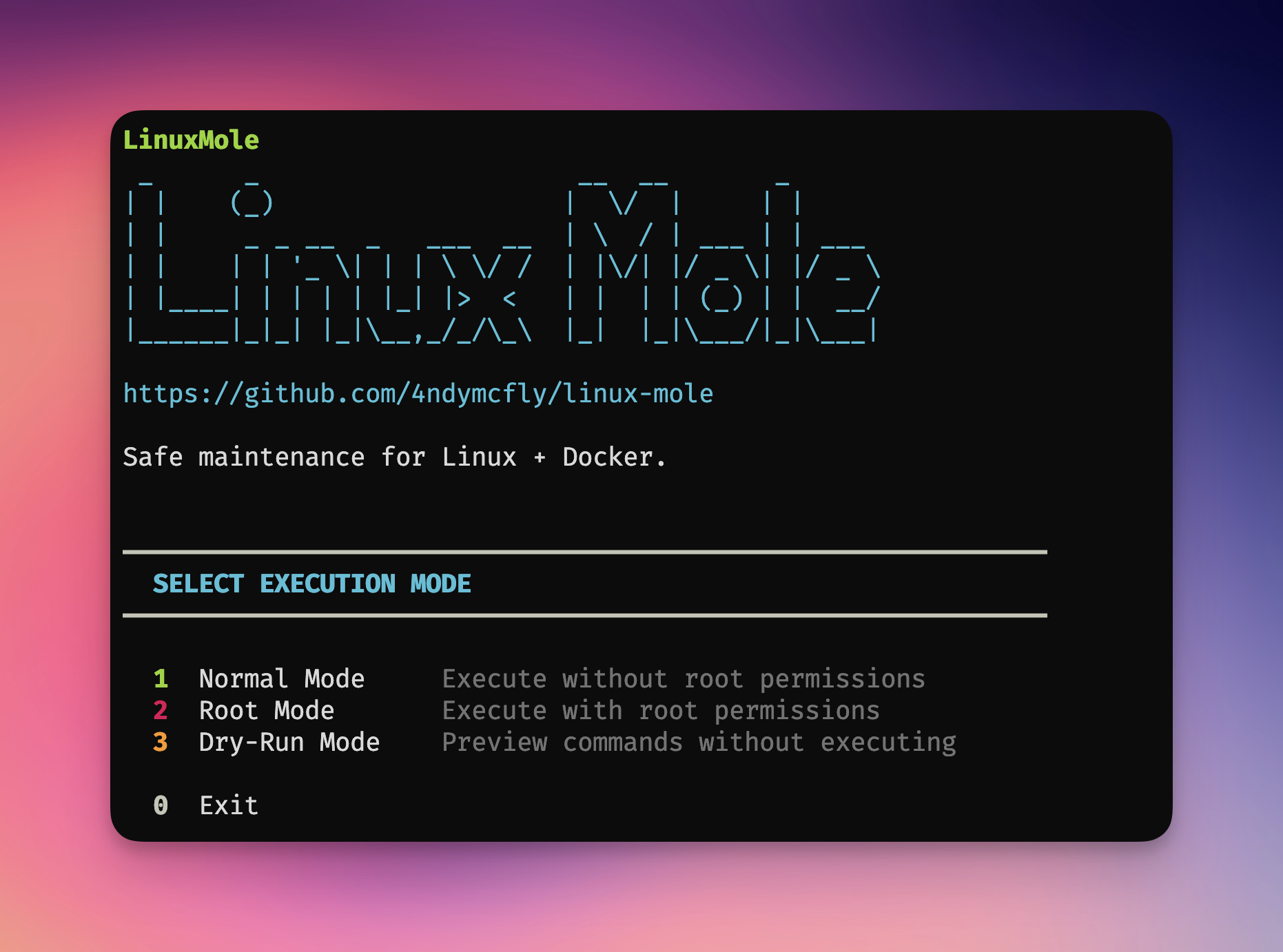
Execution Modes
Choose your preferred execution mode at startup:
- 🟢 Normal Mode - Execute without root permissions (limited features)
- 🔴 Root Mode - Execute with full system access (all features)
- 🟡 Dry-Run Mode - Preview commands without executing (safe testing)
Color-Coded Categories
Menu items use intuitive color coding for quick identification:
- 🔵 Blue - Monitoring & Analysis (status checks, disk usage)
- 🟢 Green - Cleanup & Maintenance (safe operations)
- 🟡 Yellow - System Operations (requires caution)
- 🟠 Orange - Configuration (settings management)
- 🔴 Red - LinuxMole System (updates, self-uninstall)
Benefits:
- ✅ No need to memorize CLI commands
- ✅ Clear visual hierarchy with color coding
- ✅ Mode selection prevents accidental privilege escalation
- ✅ Interactive wizards with smart defaults
- ✅ Return to mode selection with 'm' (Normal Mode only)
Core Features
- Mole-like console UX with structured sections and previews
- Safe-by-default cleanup with explicit confirmation
- Docker-aware maintenance (images, networks, volumes, logs)
- System maintenance (journald, tmpfiles, apt, caches)
- Whitelist support and detailed preview logs
📊 Disk Analyzer TUI (New in v1.3.0)
The lm analyze --tui command now features a complete ncdu-style redesign for better disk usage analysis:
Key Features:
- Flat List Navigation - View and navigate one directory level at a time (like ncdu)
- Intuitive Controls -
Enterto dive into directories,Backspaceto go back - Smart Sorting - Items automatically sorted by size (largest first)
- Visual Bars - Proportional usage bars relative to the largest item in current view
- Better Performance - Loads only current directory (not entire tree)
- Improved Diagnostics - Clear error messages if Textual library is missing
Keybindings:
↑/↓- Navigate itemsEnter/→- Enter directoryBackspace/←/Esc- Go to parentR- Refresh viewQ- Quit
Usage:
lm analyze --tui           # Interactive TUI in current directory
lm analyze /var --tui      # Interactive TUI for specific path
Screenshots
Mode Selection
Interactive Menus
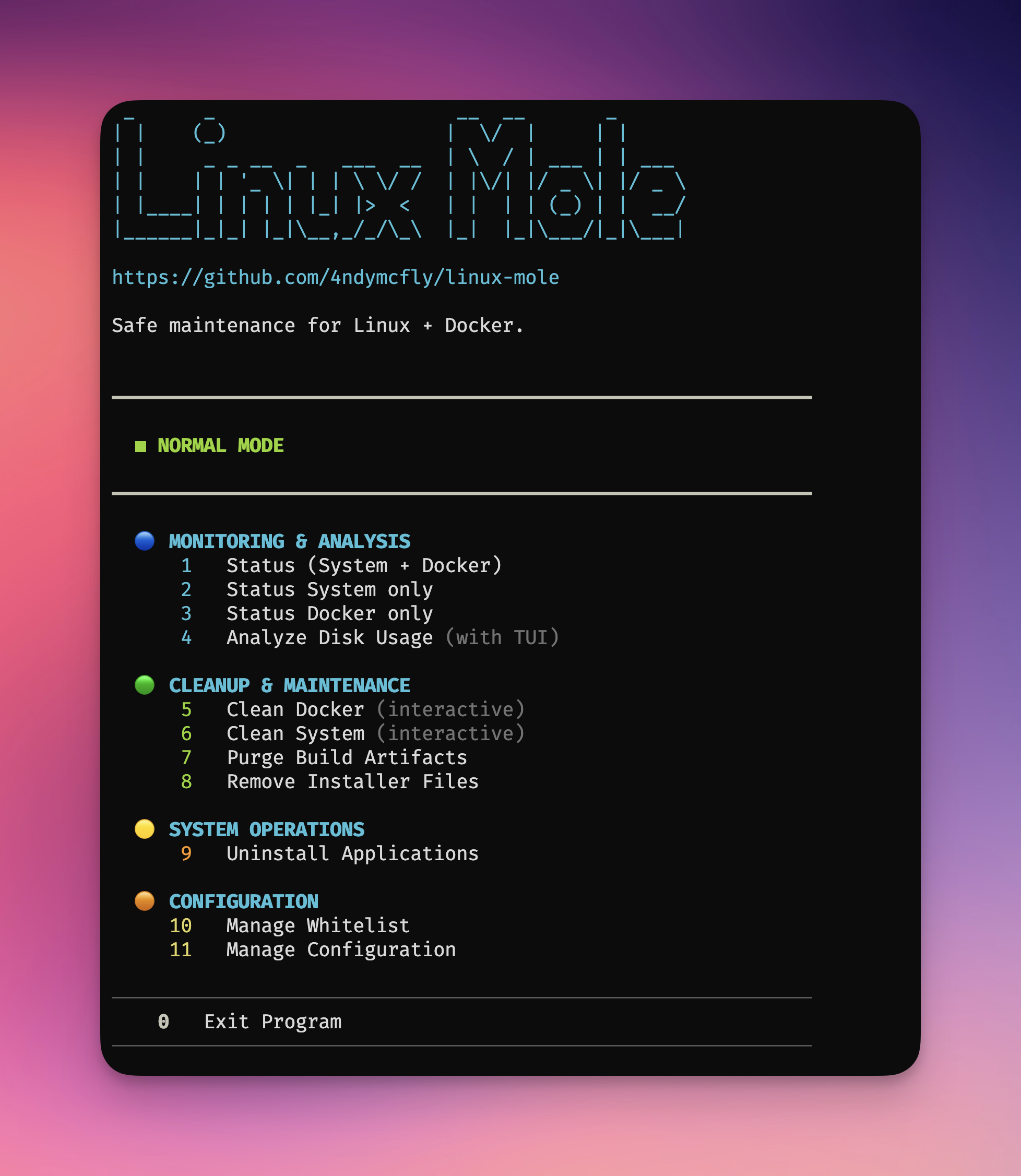
Normal Mode |
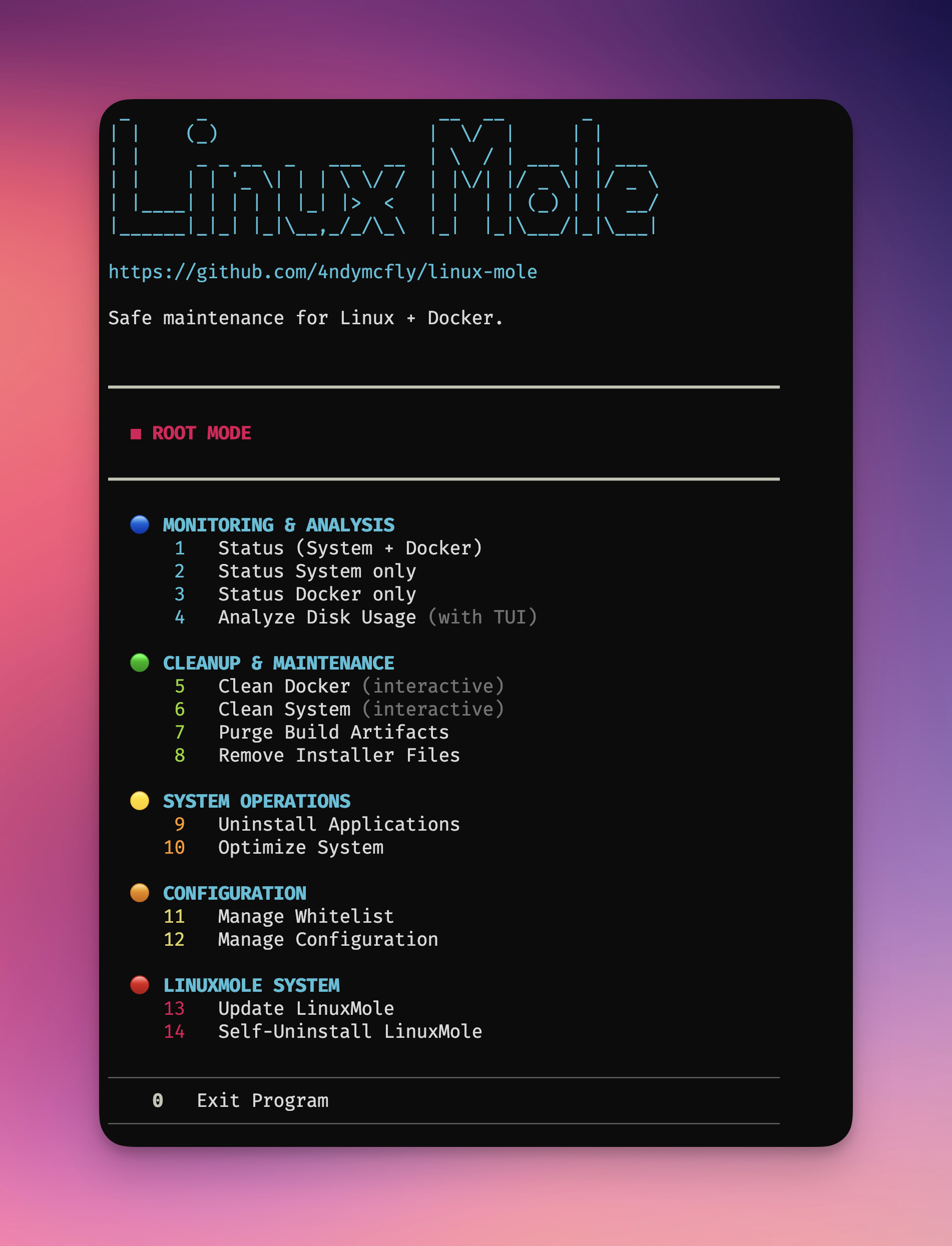
Root Mode |
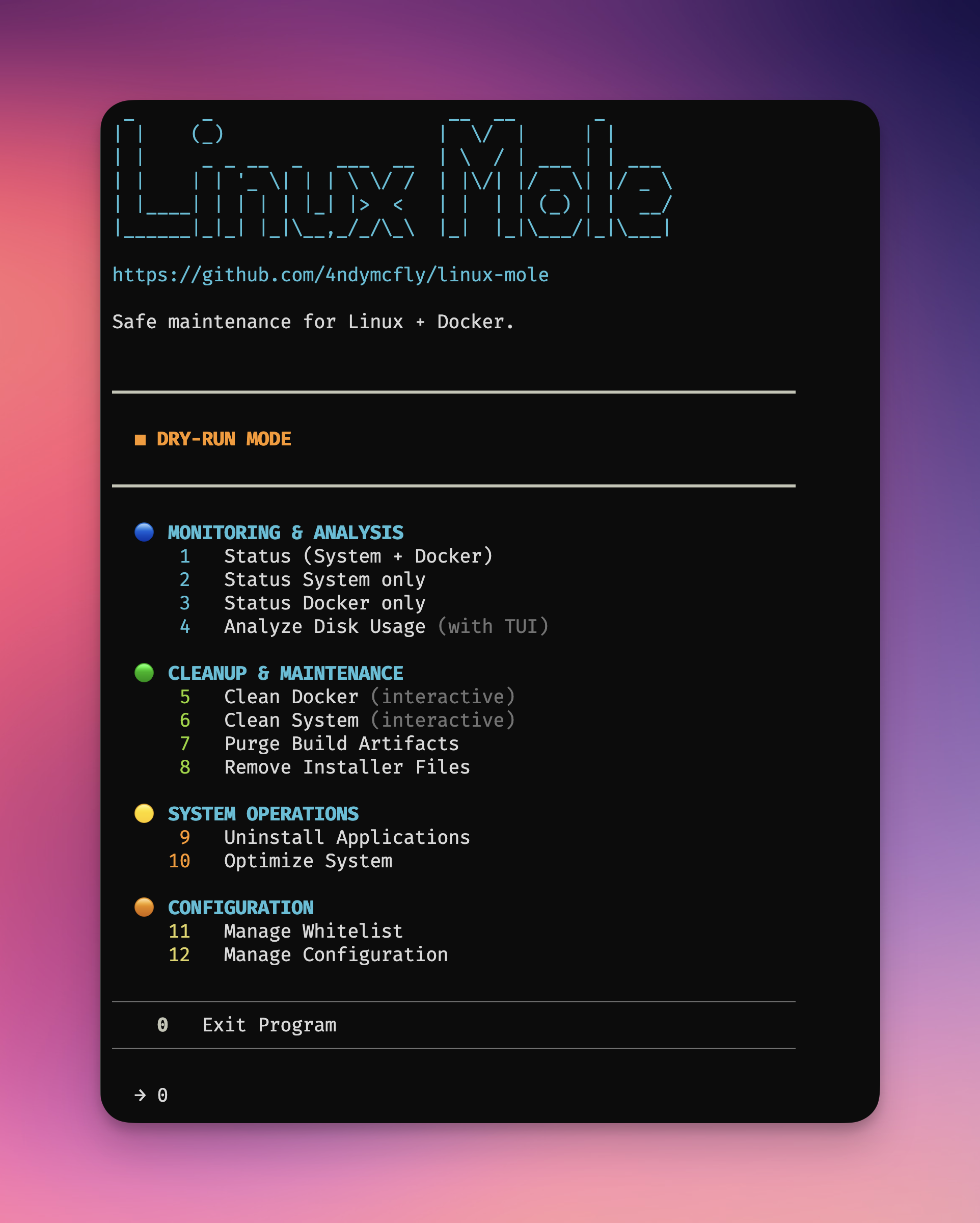
Dry-Run Mode |
Status & Monitoring
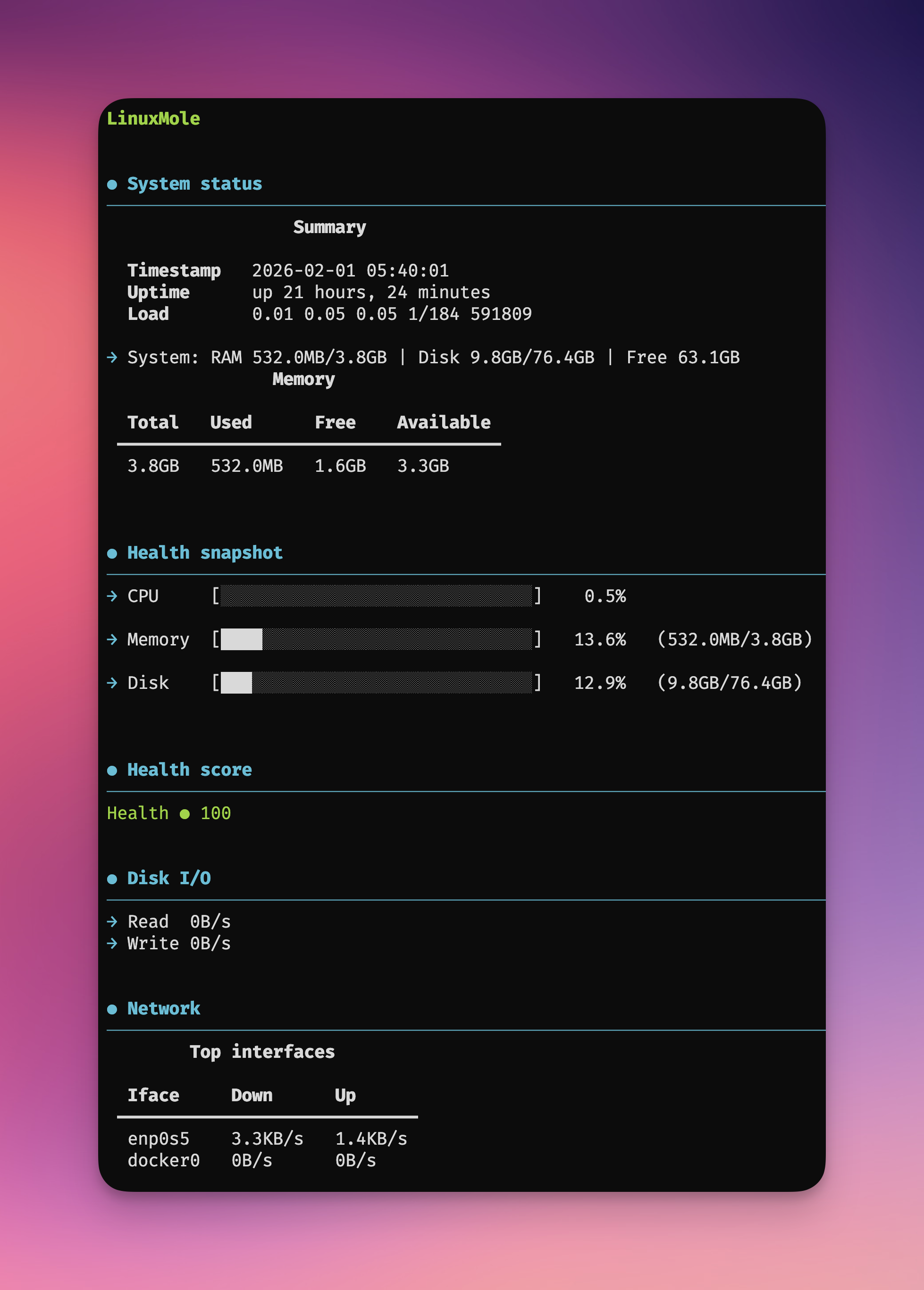
System Status |
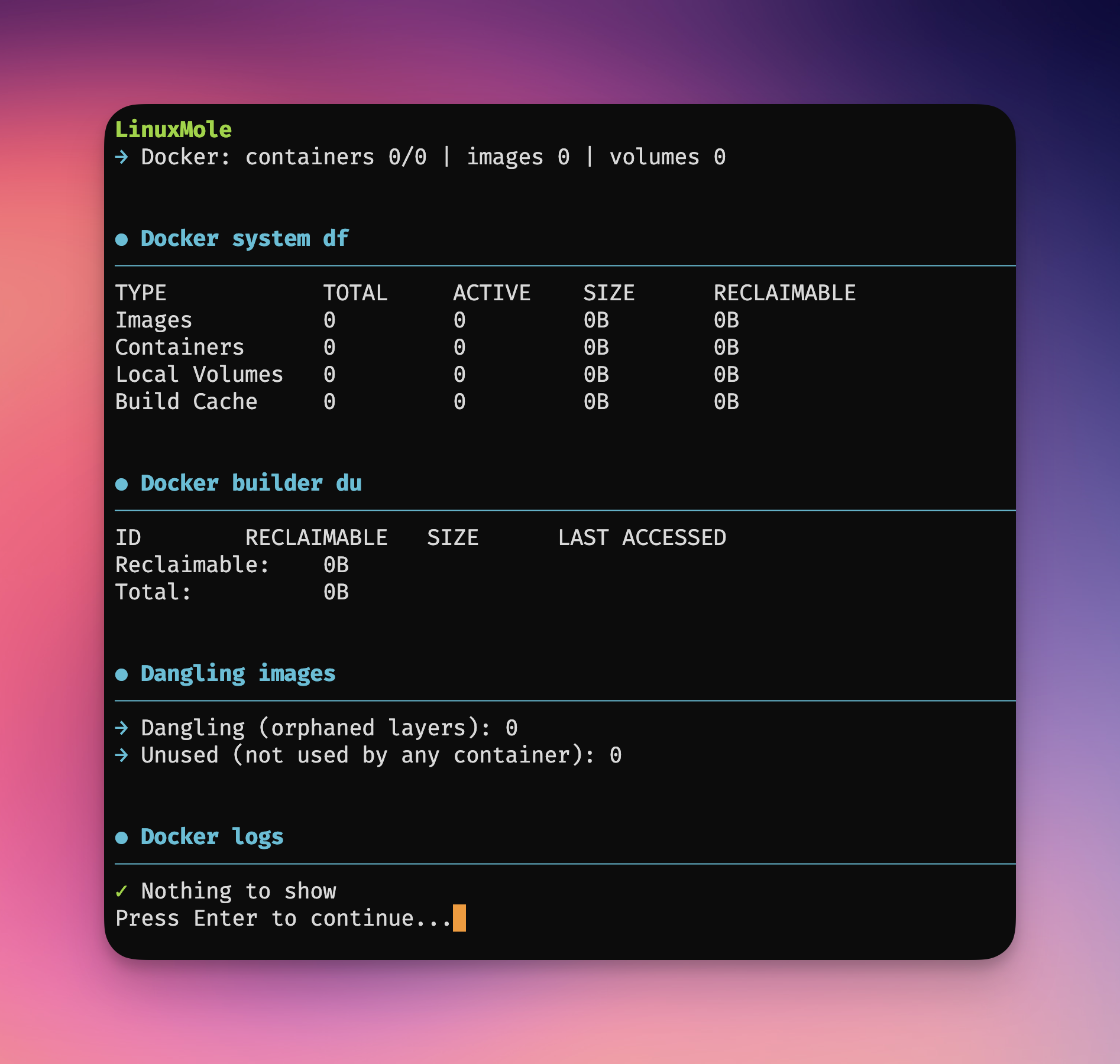
Docker Status |
Help Output
 _      _                     __  __       _
| |    (_)                   |  \/  |     | |
| |     _ _ __  _   ___  __  | \  / | ___ | | ___
| |    | | '_ \| | | \ \/ /  | |\/| |/ _ \| |/ _ \
| |____| | | | | |_| |>  <   | |  | | (_) | |  __/
|______|_|_| |_|\__,_/_/\_\  |_|  |_|\___/|_|\___|

https://github.com/4ndymcfly/linux-mole

Safe maintenance for Linux + Docker.


COMMANDS
lm                      Main menu
lm status               Full status (system + docker)
lm status system        System status only
lm status docker        Docker status only
lm clean                Full cleanup (system + docker)
lm clean system         System cleanup only
lm clean docker         Docker cleanup only
lm uninstall            Uninstall apps (APT/Snap/Flatpak)
lm optimize             Optimize system (DBs, network, services)
lm analyze              Analyze disk usage
lm purge                Clean project build artifacts
lm installer            Find and remove installer files
lm whitelist            Manage whitelist (add/remove/test/edit)
lm config               Manage configuration
lm self-uninstall       Remove LinuxMole from this system
lm --version            Show version
lm update               Update LinuxMole (pipx)


OPTIONS
--dry-run               Preview only (clean, uninstall, optimize)
--yes                   Assume 'yes' for confirmations (clean, uninstall, optimize)
-v, --verbose           Enable verbose logging
--log-file PATH         Write logs to file
-h, --help              Show help


EXAMPLES
  lm status
  lm status --paths
  lm status docker --top-logs 50
  lm clean --containers --networks --images dangling --dry-run
  lm clean docker --images unused --yes
  lm clean docker --truncate-logs-mb 500 --dry-run
  lm clean system --journal --tmpfiles --apt --dry-run
  lm clean system --logs --logs-days 14 --dry-run
  lm clean system --kernels --kernels-keep 2 --dry-run
  lm uninstall firefox --purge --dry-run
  lm uninstall --list-orphans
  lm optimize --all --dry-run
  lm optimize --database --network
  lm analyze --path /var --top 15
  lm analyze --tui
  lm purge
  lm installer
  lm whitelist --add "/home/*/projects/*"
  lm whitelist --edit
  lm config --edit
  lm --version
  lm update
Installation
✅ Recommended: pipx (Isolated Installation)
pipx is the recommended way to install LinuxMole. It provides:
- ✅ Isolated environment - No dependency conflicts
- ✅ Clean installation - Doesn't pollute system Python
- ✅ Easy updates -
pipx upgrade linuxmole - ✅ Automatic PATH - Command available globally
Install pipx:
sudo apt update && sudo apt install -y pipx
pipx ensurepath
Install LinuxMole:
pipx install linuxmole
Run:
lm status
Development version (latest from main):
pipx install "git+https://github.com/4ndymcfly/linux-mole.git"
⚠️ Alternative: pip (Not Recommended)
Using pip directly can cause dependency conflicts with system packages:
# NOT recommended - can conflict with system packages
pip install --user linuxmole

# If you must use pip, at least use a virtual environment
python3 -m venv ~/linuxmole-env
source ~/linuxmole-env/bin/activate
pip install linuxmole
Why pipx is better:
- pip installs in user/system Python → conflicts possible
- pipx creates isolated environments → no conflicts
- pipx manages PATH automatically → easier to use
🗂️ Alternative: Manual Installation Script
The install-linuxmole.sh script provides a manual installation option for systems without pipx. However, pipx is still strongly recommended for better dependency management and easier updates.
When to use the script:
- Systems where pipx is not available or cannot be installed
- Offline installations or restricted environments
- Manual control over installation location
Note: The script installs to /opt/linuxmole and requires root access. Updates must be done manually by re-running the script.
Commands
lm statusFull status (system + docker)lm status systemSystem status onlylm status dockerDocker status onlylm cleanFull cleanup (system + docker)lm clean systemSystem cleanup onlylm clean dockerDocker cleanup onlylm uninstallUninstall apps (APT/Snap/Flatpak)lm optimizeOptimize system (DBs, network, services)lm analyzeAnalyze disk usagelm purgeClean project build artifactslm installerFind and remove installer fileslm whitelistManage whitelist (add/remove/test/edit)lm configManage configurationlm self-uninstallRemove LinuxMole from this systemlm --versionShow versionlm updateUpdate LinuxMole (pipx)
Clean Examples
lm clean --containers --networks --images dangling --dry-run
lm clean system --journal --tmpfiles --apt --dry-run
lm clean system --logs --logs-days 14 --dry-run
lm clean system --pip-cache --npm-cache --cargo-cache --go-cache --dry-run
lm clean system --snap --flatpak --logrotate --dry-run
lm clean system --kernels --kernels-keep 2 --dry-run
Analyze / Purge / Installer
lm analyze --path /var --top 15
lm analyze --tui
lm purge
lm installer
Uninstall / Optimize / Config
# Uninstall apps with all configs
lm uninstall firefox --purge --dry-run
lm uninstall docker-compose --yes
lm uninstall --list-orphans
lm uninstall --autoremove

# Optimize system
lm optimize --all --dry-run
lm optimize --database --network
lm optimize --services

# Manage configuration
lm config --edit
lm config --reset
Whitelist / Config
- Whitelist file:
~/.config/linuxmole/whitelist.txt - Purge paths file:
~/.config/linuxmole/purge_paths - Edit whitelist:
lm whitelist --edit
Contributing
See CONTRIBUTING.md for guidelines.
Release
See PUBLISHING.md for the PyPI/pipx release workflow.
- Update version in
pyproject.tomlandlm.py - Tag and push:
git tag vX.Y.Z && git push --tags - Users upgrade:
pipx upgrade linuxmole
Acknowledgements
Thanks to the original Mole project for inspiration: https://github.com/tw93/mole
1 maintainer

Metadata
1 maintainer
Release files for linuxmole 1.3.1
For a detailed explanation of source distributions (sdists) and built distributions (wheels), please see the package formats documentation.
Source distribution (sdist)
| File | Size | Uploaded | |
|---|---|---|---|
| linuxmole-1.3.1.tar.gz | 69.3 kB | Details |
Built distribution (wheel)
| File | Interpreter | ABI | Platform | Reset |
|---|---|---|---|---|
| linuxmole-1.3.1-py3-none-any.whl | Python 3 | none | any | Details |
Total release size: 135.2 kB
Release files / linuxmole-1.3.1.tar.gz
| Download URL | linuxmole-1.3.1.tar.gz |
|---|---|
| Size | 69.3 kB |
| Tags | Source |
|
SHA-256 checksum How to use checksums |
50e93a169afaa0642bdb24b9b588ddb1fcad4ce94580a427825b597f1c55a7c3
|
|
BLAKE2b-256 checksum How to use checksums |
a0e3d2c3d577cfcf0f88d54ba72b8885f53f37744acf3a69a7d04201a14e5bdb
|
| Upload date | |
|
Uploaded using Trusted Publishing? What is trusted publishing? |
No |
| Uploaded via |
twine/6.2.0 CPython/3.11.14
|
Release files / linuxmole-1.3.1-py3-none-any.whl
| Download URL | linuxmole-1.3.1-py3-none-any.whl |
|---|---|
| Size | 65.9 kB |
| Tags | Python 3 |
|
SHA-256 checksum How to use checksums |
b513097062eef3e94d091fec1a414f92a1954b9dbf85feaec1b495d98143e1cd
|
|
BLAKE2b-256 checksum How to use checksums |
61839058b9888916d7b1c6542a266e1f92f03b1aaee799423deeda02599eda2b
|
| Upload date | |
|
Uploaded using Trusted Publishing? What is trusted publishing? |
No |
| Uploaded via |
twine/6.2.0 CPython/3.11.14
|














