
Lium — Python SDK & CLI
lium.io is a Python package that provides both a command-line interface and a Python SDK for managing GPU pods on the Lium platform. Install it once — use whichever interface fits the job.

Lium
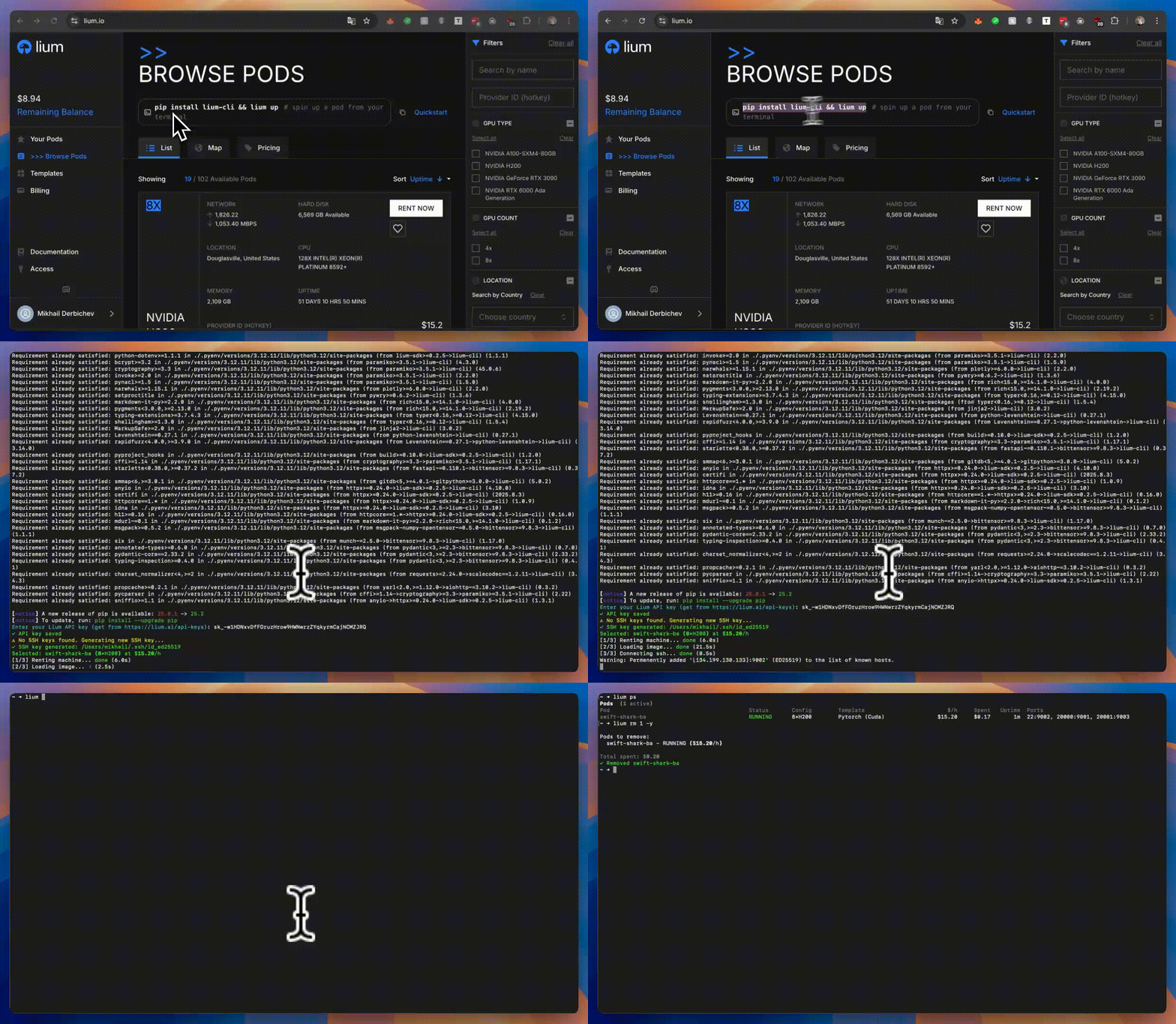
Installation
Python package
pip install lium.io
Binary install (macOS amd64/arm64 / Linux amd64/arm64)
curl -fsSL https://lium.io/install.sh | bash
Fresh binary installs place a managed symlink at ~/.lium/bin/lium that points to a
versioned binary under ~/.lium/versions/<version>/lium.
Quick Start
CLI
# First-time setup: create an account (mints and stores an API key) …
lium signup --email you@example.com
# … or link an existing account (opens a browser). Headless (agents, CI, containers): pass the key
# instead — lium init --api-key sk_...   (keys: https://lium.io/api-keys), or export LIUM_API_KEY and skip init.
lium init
lium balance

# List available nodes (GPU machines)
lium ls

# Create a pod using node index
lium up 1  # Use node #1 from previous ls

# Or create a pod using filters
lium up --gpu A100  # Auto-select best A100 node

# List your pods
lium ps
lium ps --filter status=RUNNING --sort spent   # running pods, most expensive so far first
lium spend                                     # burn per hour, spend per pod, runway

# Copy files to pod
lium scp 1 ./my_script.py

# SSH into a pod
lium ssh <pod-name>

# Stop a pod — billing is per second and runs until you do this
lium rm <pod-name>
First hour on a pod
A few things that save time on a freshly rented pod (full version in docs/getting-started.rst):
- Always pass
--ttl(or--until) tolium up; a pod bills until it is removed. - The pod's local volume (
/rooton the standard templates;pod.volume_pathin the SDK) is the only pathlium bkcan back up and the one encryption covers; an attached Volume is under/mnt; everything else (/workspace,/tmp) is plain container filesystem, neither encrypted nor backup-able. Keep weights, datasets and the Hugging Face cache on the volume:mkdir -p /root/hf /root/logs; export HF_HOME=/root/hf HF_HUB_ENABLE_HF_TRANSFER=1. - Ubuntu 24.04 images: use a venv (
python -m venv /root/venv) orexport PIP_BREAK_SYSTEM_PACKAGES=1beforepip install. - Blackwell GPUs (B200, B300, RTX PRO 6000, RTX 5090) need a cu128+ PyTorch build:
pip install torch --index-url https://download.pytorch.org/whl/cu130. FlashAttention-3 is Hopper-only; use FlashAttention-4 or cuDNN attention on Blackwell. - Missing tools:
apt-get update && apt-get install -y ffmpeg rsync. - Background jobs:
nohup setsid cmd > /root/logs/x.log 2>&1 < /dev/null &. - Check utilisation:
nvidia-smi --query-gpu=timestamp,index,utilization.gpu,memory.used --format=csv -l 5 > /root/logs/gpu.csv &.
SDK
The SDK mirrors the CLI's capabilities for programmatic use. Two entry points: the @lium.machine decorator for quickly offloading isolated functions, and the Lium() client for long-lived orchestration code.
High-level decorator — annotate a function and offload work to a GPU pod. machine is "<count>x<gpu>" or "<gpu>" ("1xH200", "A100", "2xRTX4090"; count defaults to 1; the GPU is named as lium ls --gpu takes it and matched whole, so "A100" never rents an RTX A1000) and the cheapest matching node is rented; timeout= (default 1 h) bounds the run and the pod's lifetime. Arguments travel as a pickle (your own bytes, loaded on your own pod); the result comes back as a JSON envelope plus an .npz sidecar for numpy arrays read with allow_pickle=False, so nothing the pod writes is unpickled on your machine. What round-trips: None/bool/int/float/str/bytes, list/tuple/set/frozenset/dict of those, datetime/date/time/timedelta, Decimal, pathlib.Path, uuid.UUID, numpy.ndarray (any dtype without Python objects) and numpy scalars — anything else is a lium.ResultEncodingError on the pod naming the type (return .tolist(), dict(x), x.value instead). Only the function's own def is sent, so import inside it and pass everything else as arguments. A remote exception is re-raised with its type when that type is a builtin (except ValueError works; other types arrive as lium.RemoteExecutionError with the name), with lium.RemoteExecutionError (remote traceback, exit code, output) as its cause:
import lium

@lium.machine(machine="A100", requirements=["torch", "transformers", "accelerate"])
def infer(prompt: str) -> str:
    from transformers import AutoTokenizer, AutoModelForCausalLM
    tokenizer = AutoTokenizer.from_pretrained("sshleifer/tiny-gpt2")
    model = AutoModelForCausalLM.from_pretrained("sshleifer/tiny-gpt2", device_map="cuda")
    tokens = tokenizer(prompt, return_tensors="pt").to("cuda")
    out = model.generate(**tokens, max_new_tokens=50)
    return tokenizer.decode(out[0], skip_special_tokens=True)

print(infer("Who discovered penicillin?"))
keep_warm=300 keeps the pod five minutes for the next call or the next run of the script; infer.map(prompts) runs every item on one pod; infer.local(...) runs the function here (local=True / LIUM_MACHINE_LOCAL=1 does so for every call); infer.close() removes a warm pod. Progress goes to stderr (quiet=True to silence):
[lium] infer: renting 1xA100 $1.20/h (swift-fox-c8, US), removal in 1.2h
[lium] infer: pod ready in 48s
[lium] infer: preparing environment (3 package(s): torch, transformers, accelerate)
[lium] infer: environment ready in 21s
[lium] infer: running
[lium] infer: done in 96s (~$0.0320)
[lium] infer: pod removed
Direct SDK usage follows the same pattern:
from lium.sdk import Lium

lium = Lium()
# the cheapest available 1×A100 with at least 32 CPUs, chosen and rented in one call
rented = lium.rent(gpu_type="A100", min_cpus=32, name="demo")
print(f"{rented.executor.huid} at ${rented.price_per_hour:.2f}/h")
ready = lium.wait_ready(rented.pod, timeout=600)   # None only if still starting after 600 s
print(lium.exec(ready, command="nvidia-smi")["stdout"])
lium.down(ready)
wait_ready() raises PodStartError — with .pod, .status, .history and .cause (what the backend recorded, e.g. Container creation failed due to ... (failure_step: ssh_connect)) — when the pod reaches FAILED/CREATION_FAILED/STOPPED/BROKEN or disappears from the pod list, so a dead pod is not mistaken for a slow one. Pass on_poll=lambda pod, status, elapsed: ... to be told about every poll. lium up is bounded by --timeout SECONDS (default 900) for the whole rent, prints waiting for <pod>… <STATUS> (<n> s) while it waits, and exits 1 naming the pod when the budget runs out; --ready-timeout caps only the wait.
Multi-node clusters — N whole nodes on one InfiniBand/RoCE fabric, rented as one order, each with a private overlay address:
offer = lium.clusters()[0]                                   # fabrics with free nodes
cluster = lium.up_cluster([n.id for n in offer.cheapest(2)], name="train", wait=True)
print(cluster.master_addr)                                   # 10.42.0.1 — MASTER_ADDR for torchrun
for pod in cluster.pods:
    lium.exec(pod, command=f"torchrun {cluster.torchrun_args(pod)} --nproc_per_node 8 train.py")
open("hostfile", "w").write(cluster.hostfile())              # mpirun / DeepSpeed
lium.rm_cluster(cluster)                                     # one DELETE /clusters/{id}; one result per member
up_cluster() raises ClusterNotListedError when the nodes are, or may be, rented but the pod list did not show a whole cluster (.confirmed says whether the API confirmed the order, .pod_ids and .listed what it named and what was listed): do not rent again, list the pods to find the cluster. wait_cluster_ready() raises PodStartError at once when a member fails or is missing from the pod list. rm_cluster() sends one DELETE /clusters/{cluster_id}: the API removes every member and answers one row per member (pod, huid, name, node_rank, success, message, error); a member that failed is reported and the rest are still removed, so call again to retry it. A 404 (the cluster is gone, or the API has no such route) raises LiumNotFoundError and nothing is removed; there is no per-pod fallback.
Full API reference: https://docs.lium.io/developers/sdk/reference
lium.ssh(pod) returns the pod's ssh command with -i <key> and the pinned host-key options
described under Configuration; pass refresh=True to rebuild it from the pod's current host and port
after a restart (lium.refresh_pod(pod) re-reads one pod by id or huid; LiumNotFoundError when it
is gone). lium ps --format json and lium describe (table and --json) show the same command
without -i as ssh_command (the key path lives in the SDK config, not in the pod record); the
JSON keeps the API's raw value as ssh_cmd.
Documentation
- CLI docs: https://docs.lium.io/developers/cli/overview
- SDK docs: https://docs.lium.io/developers/sdk
- Exit codes and the JSON error envelope: docs/exit-codes.md — what a script or agent gets back when a command fails (
--format json,LIUM_OUTPUT=json). - Agents and scripts: docs/agents.md — the non-interactive path end to end (env-var auth, JSON output, exit codes,
up → exec → rsync → rm, pod gotchas).
Binary Releases
- Supported binary targets:
darwin-amd64,darwin-arm64,linux-amd64,linux-arm64 - Maintainers can build locally with
bash scripts/build.sh [macos|linux|all](Linux builds go throughDockerfile.build) - A release is a GitHub release published on a
vX.Y.Ztag (.github/workflows/release.yml): the version is the tag (hatch-vcs; nothing in the tree is bumped), the workflow builds the four binaries with.sha256checksums, uploads them (plusinstall.sh, a combinedchecksums.txtand the sdist/wheel) to the release and then clears the pre-release flag; a separate job publishes the sdist/wheel to PyPI as soon as the Python build passes, independent of the binaries. Create the release with--prereleasesolatestdoes not point at it before the assets are uploaded. - Changes are recorded as fragments in
changelog.d/(one file per PR, named after its ticket; seechangelog.d/README.md) and folded intoCHANGELOG.mdbyscripts/changelog.pyat release time.
CLI Reference
The lium CLI exposes the full pod lifecycle. Run lium --help to see everything, or browse the reference below.
Core Commands
lium signup- Create an account from the terminal and store its API keylium init- Initialize configuration for an existing account (API key, SSH keys);--api-key <key>for machines without a browserlium completion [bash|zsh|fish] [--install]- Print or install shell tab completionlium balance- Show the account balance (add--format jsonfor machine-readable output)lium whoami- Show which API key is in use, where it came from, and the account it belongs tolium ls [--gpu TYPE] [--count N] [--country CODE] [--min-vram GB] [--max-price USD] [--tier spot|secure] [--format json]- List available nodeslium up [NODE_ID]- Create a pod (NODE_ID is the HUID or UUID fromlium ls, or its row number; or use filters like--gpu,--count,--country; cap it with--ttl 6hor--budget 12.50;--jsonprints the ready pod as JSON instead of opening SSH)lium ps [--sort KEY] [--filter KEY=VALUE] [--watch N] [--wide] [--format json]- List active pods; the#column is the row numberrm/ssh/exec/scpaccept in the same shell, for 10 minutes, and only while the pod shown on that row is still listed — the rows of the last listing, in the order shown (sorted or filtered). Use the huid in scripts.lium spend [--format json]- Hourly burn, estimated spend per pod, balance and runwaylium describe <POD>- Full manifest of one pod: ports, GPU, template, billing, last lifecycle event (why it is REBOOT_FAILED/BROKEN) and the node's disk health (add--jsonfor machine-readable output). A deleted pod can still be described by its id: you get the events the backend kept for it and the reason it went away.lium ssh <POD>- SSH into a podlium exec <POD> <COMMAND>- Execute command on pod (--jsonfor stdout/stderr/exit_code)lium logs <POD>- Stream a pod's container logslium port-forward <POD> <PORT>- Forward a local port to a pod portlium scp <POD> <LOCAL_FILE> [REMOTE_PATH]- Copy files to pods (add-dto download from pods)lium rsync <POD> <LOCAL_DIR> [REMOTE_PATH]- Sync directories to pods (--bwlimit,--exclude,--delete,--progress; resumes on re-run)lium cp <SRC_POD>:<PATH> <DST_POD>:<PATH>- Copy files from one pod to another over SSHlium rm <POD>- Remove/stop a pod (--name-onlyto refuselium psrow numbers in scripts;--format jsonprints what was removed with its estimated spend)lium reboot <POD>- Reboot a podlium audit [--pod POD] [--since 24h] [--key ID]- Who did what to the account's pods, and when: every rent, reboot, edit and delete with the session or API key that requested it (add--jsonfor machine-readable output)lium audit --account [--action pod.] [--source cli] [--since 7d] [--cursor <next_cursor>]- The account audit log: every request that changed something (pods, keys, logins, balance, settings, team members) with the client and IP it came from; your own IPs only, 90 days (--jsonprints the page withnext_cursor)lium update <POD> --jupyter <PORT>- Install Jupyter Notebook on a pod, served on that internal port (--jupyteris the only update; without it the command printsNo updates specified)lium templates [SEARCH] [--arch hopper|blackwell] [--format json]- List Docker templates with the CUDA build and the GPU generations it runs onlium fund- Fund account with TAO from Bittensor walletlium topup create -a <USD> -c <COIN> -n <NETWORK>- Top up with a stablecoin (lium topup currencieslists them)lium ssh-keys list|sync- SSH public keys registered on the account
ls, ps, spend, templates, balance and describe all accept --format json (and --json); rm accepts --format json; up accepts --json. All of them print a JSON error envelope on stderr when the command fails, so the same flag works across commands in scripts.
Volume Commands
lium volumes list- List all volumeslium volumes new <NAME>- Create a new volumelium volumes rm <VOLUME>- Remove a volume
Cluster Commands
lium clusters- Fabrics (InfiniBand/RoCE) with free nodes that can be rented as one multi-node clusterlium clusters up <FABRIC> --nodes N -n <NAME>- Rent N whole nodes of one fabric as a single all-or-nothing clusterlium clusters ps- Your clusterslium clusters show <CLUSTER> [--hostfile | --torchrun RANK]- Members with rank, overlay IP and SSH; launcher materiallium clusters rm <CLUSTER>- Remove every member in one API call (exit 5 when the cluster is gone)
Backup Commands
lium bk show <POD>- Show backup configuration for a podlium bk set <POD> --path <PATH>- Configure automatic backupslium bk logs <POD>- View backup logslium bk now <POD>- Trigger immediate backuplium bk cancel --id <BACKUP_ID>- Cancel an active backup and retain its historylium bk delete --id <BACKUP_ID>- Delete stored data for a completed backuplium bk restore <POD> --id <BACKUP_ID>- Restore from backuplium bk restore-cancel --id <RESTORE_ID>- Cancel an active restorelium bk rm <POD>- Remove backup configuration
Schedule Commands
lium schedules list- List scheduled terminationslium schedules rm <POD>- Cancel scheduled termination
Workspace Commands
Teams share a workspace whose billing owner pays (lium-platform DAH-1992). An API key is bound to one workspace, so --workspace NAME on any command means "use the key saved for NAME" and nothing else. On a server without workspaces these commands say so (exit 3) and every other command behaves as today.
lium workspaces [list]- The workspace this key acts in (the role shown is the account's the key runs as — the billing owner's for a team key); every workspace you belong to, with your own role, afterlium workspaces loginlium workspaces members [WORKSPACE]- Members, roles and who payslium workspaces use <WORKSPACE>- Default workspace for every command (~/.lium/config.ini); run it asLIUM_API_KEY=<a key bound to it> lium workspaces use <WORKSPACE>to save that key for--workspacelium workspaces login- Sign in once (e-mail + password) for the session-only subcommands belowlium workspaces create <NAME> [--use]- Create a workspace; you are its owner and billing ownerlium workspaces invite <EMAIL> [WORKSPACE] [--role member|admin|owner]- E-mail an invitation (no account needed yet)lium workspaces remove <USER_ID_OR_EMAIL> [WORKSPACE] [--yes]- Remove a member, asks first (owners and the billing owner cannot be; the server says so)lium workspaces transfer-billing <USER_ID_OR_EMAIL> [WORKSPACE] [--yes]- Hand the bill to another member (asks first)lium workspaces delete [WORKSPACE] [--yes]- Delete a workspace, asks first (owners; refused while pods run or volumes exist); drops its config sectionlium keys list [--workspace W]/lium keys create <NAME> [--workspace W] [--save]- API keys per workspace;--savekeeps the key for--workspacelium --workspace NAME <command>/LIUM_WORKSPACE=NAME- Run one command with the key saved for NAME (refused, exit 2, when none is saved);ps,ls,up,rmprint the workspace they act in, and when that key turns out to act elsewhereup/rmrefuse (exit 2) whileps/lswarn.lium workspaces …andlium keys …themselves run withLIUM_API_KEY, else NAME's saved key, else the stored default's saved key, else[api] api_key, so they can mint or save the missing key
Configuration Commands
lium config show- Show all configurationlium config get <KEY>- Get configuration valuelium config set <KEY> <VALUE>- Set configuration valuelium config unset <KEY>- Remove configuration keylium config edit- Edit configuration filelium config path- Show configuration file pathlium config reset- Reset all configuration
Provider Commands
lium provider … is the provider-side CLI for Bittensor Subnet 51 — full automation parity with the portal frontend at lium.io/portal: portal authentication, node lifecycle, central-miner-server configuration, batch sync, billing, and machine-request queries. Hotkey registration is still handled separately via btcli subnet register.
Group-level flags inherited by every subcommand: -w/--coldkey, -k/--hotkey, --portal-url, --json, --debug, -y/--yes, --dry-run. Persist wallet identity once with lium config set provider.coldkey <NAME> and lium config set provider.hotkey <NAME>. Spend-affecting subcommands run a persona prompt unless --yes or LIUM_PROVIDER_ACK=1 is set.
lium provider portal {login,logout,whoami}- Manage the cached portal JWTlium provider status [--netuid 51]- Aggregated provider snapshot (registration, portal session, nodes, validator weights)lium provider node list|get|add|rm|update-price|update-gpu- Node lifecycle on the portal;node list [--all | --miner-hotkey HK]shows the active hotkey's nodes by default,--allevery provider'slium provider node min-gpu set|unset <NODE_ID> [COUNT]- Min GPU count for rental matchmakinglium provider node pods <NODE_ID>- Pods currently rented on a nodelium provider node machine-requests <NODE_ID>- Pending tenant requests on a nodelium provider node notice-period set|unset <NODE_ID>- Open/close a maintenance notice periodlium provider node notify-added <NODE_ID> --request-id <REQ>- Mark a tenant machine request fulfilledlium provider config show|opt-in|opt-out|set-email|set-subscriptions- Portal-account configuration (incl. lium.io central miner server toggle)lium provider sync from-miner-server|to-miner-server- Batch node-state sync between portal and the central miner serverlium provider billing list [--all | --miner-hotkey HK] [--page N] [--limit N]- Paginated billing history (active hotkey by default;--allfor every provider's)lium provider machine-request list|get- Pending tenant machine requests (the portal shows per-request detail once one of your nodes is verified by a validator — lium-platform#248, not deployed; until thenlistreturns counts per GPU class and hourly budget band, andgetexits 2 withPORTAL_FORBIDDEN)lium provider machine list|estimate- Machine catalogue + reward estimates
Full reference with every flag and runnable examples: https://docs.lium.io/developers/cli/reference/provider.
Other Commands
lium theme dark|light- Set the CLI colour theme (the argument is required; there is noauto; the value is stored as[ui] theme—lium config get ui.themereads it back)lium mine- Set up a compute subnet node/minerlium mine --register <TOKEN>- Same, then add the node to your portal account from what the host reports and wait until it is listed (token from the portal's Add Node page; the account, and what the node reports under, come from the token — no-k)sudo lium gpu-splitting setup [--device /dev/...] [--yes]- Prepare Docker storage for LIUM GPU splittinglium gpu-splitting check [--device /dev/...]- Inspect the host and print the GPU-splitting planlium gpu-splitting verify- Verify Docker storage matches LIUM GPU-splitting requirements
Command Examples
# Filter nodes
lium ls --gpu H100
lium ls --gpu H100 --count 8 --country US,NL --max-price 2.50
lium ls --min-vram 80 --min-cuda 12.8 --tier secure
lium ls --format json          # machine-readable

# Multi-GPU jobs: only nodes whose GPUs are all on NVLink (Link column NV#), and a floor on
# the Download (Mbps) column — tensor parallelism and 700 GB checkpoints behave very
# differently on a PCIe box or a slow link that the price does not reveal
lium ls --gpu H200 --nvlink --min-download 2000

# Create pod with node index
lium up 1 --name my-pod --yes

# Create pod with filters (auto-selects best node)
lium up --gpu A100 --count 8 --name my-pod --yes
lium up --gpu H200 --country US

# Create pod with specific template
lium up 1 --template_id <TEMPLATE_ID> --yes

# Set up node bootstrap flow
lium mine --auto --hotkey <HOTKEY>

# One command from a bare host to a listed node: the portal's Add Node page prints this line with a
# one-hour token; GPU model/count, port and address are read from the host, the price is the portal base price for the model
curl -fsSL https://lium.io/mine.sh | bash -s -- --register <TOKEN>
lium mine --register <TOKEN> --wait 0          # add the node, do not wait for the validator

# Provider-portal automation (same surface as the portal frontend)
lium config set provider.coldkey miner-prod        # one-time: persist wallet identity
lium config set provider.hotkey  miner-1
lium provider portal login                         # JWT exchange via hotkey signature
lium provider status                               # registration, portal session, nodes, weights
lium provider node list --limit 50
lium provider node add --gpu-type "NVIDIA H200 NVL" --gpu-count 8 \
    --ip 203.0.113.42 --port 8080 --price 1.85 --yes
lium provider node update-price <NODE_ID> --price 2.10 --yes
lium provider config opt-in --yes                  # use lium.io's central miner server
lium provider machine estimate --gpu-type "NVIDIA H200 NVL" --gpu-count 8
lium provider --json status                        # JSON envelope for scripts/agents

# Inspect or configure Docker storage for GPU splitting (Ubuntu/Debian + systemd, run setup as root)
lium gpu-splitting check
sudo lium gpu-splitting setup --yes
lium gpu-splitting verify

# Create pod with volume
lium up 1 --volume id:<VOLUME_HUID>
lium up 1 --volume new:name=mydata,desc="My dataset"

# Create pod with auto-termination
lium up 1 --ttl 6h                    # Terminate after 6 hours
lium up 1 --budget 12.50              # Terminate once $12.50 has been spent
lium up 1 --until "today 23:00"       # Terminate at 11 PM today

# Create pod with Jupyter
lium up 1 --jupyter --yes

# Fail (non-zero exit) if the pod exposes a different GPU count than requested or billed
lium up --gpu H200 --count 8 --verify-gpus --yes          # also counts GPUs with nvidia-smi over SSH
lium up --gpu H200 --count 8 --verify-gpus --strict-gpus  # ...and remove the pod on mismatch

# Execute commands
lium exec my-pod "nvidia-smi"
lium exec my-pod "python train.py"

# Copy files to and from pods
lium scp my-pod ./script.py                    # Copy to /root/script.py
lium scp 1 ./data.csv /root/data/             # Copy to specific directory
lium scp all ./config.json                    # Copy to all pods
lium scp 1,2,3 ./model.py /root/models/       # Copy to multiple pods
lium scp my-pod /root/output.log ./downloads -d  # Download into ./downloads directory

# Reboot pods
lium reboot my-pod                           # Reboot a single pod
lium reboot 1,2                              # Reboot pods 1 and 2 (no confirmation prompt)
lium reboot all                              # Reboot all active pods
lium reboot my-pod --volume-id <VOLUME_ID>   # Reboot with a specific volume ID

# Sync directories to pods
lium rsync my-pod ./project                    # Sync to /root/project
lium rsync 1 ./data /root/datasets/           # Sync to specific directory
lium rsync all ./models                       # Sync to all pods
lium rsync 1,2,3 ./code /root/workspace/      # Sync to multiple pods
lium rsync my-pod ./ckpt /workspace/ckpt --bwlimit 20000 --exclude '*.tmp' --progress
                                              # Throttled, filtered, with progress; re-run to resume

# Copy between pods directly (data never passes through your machine)
lium cp dev-pod:/workspace/src train-pod:/workspace/
lium cp 1:/workspace/ckpt/ 2:/workspace/ckpt/ --exclude '*.tmp'

# Remove multiple pods
lium rm my-pod-1 my-pod-2
lium rm all  # Remove all pods

# Install Jupyter on existing pod (internal port 8888)
lium update my-pod --jupyter 8888

# Manage volumes
lium volumes list
lium volumes new mydata --desc "My dataset"
lium volumes rm <VOLUME_HUID>

# Multi-node clusters
lium clusters                                  # fabrics with free nodes
lium clusters up 1 --nodes 2 -n train --ttl 6h # 2 whole nodes of fabric #1, one order
lium clusters show train --hostfile            # 10.42.0.1 slots=8 / 10.42.0.2 slots=8
lium clusters show train --torchrun 1          # --nnodes 2 --node_rank 1 --master_addr 10.42.0.1 --master_port 29500
lium clusters rm train -y

# Manage backups
lium bk show my-pod
lium bk set my-pod --path /root/data --every 24h --keep 7d
lium bk logs my-pod
lium bk now my-pod --name manual-backup
lium bk cancel --id <BACKUP_ID>
lium bk delete --id <BACKUP_ID>
lium bk restore my-pod --id <BACKUP_ID> --to /root/restore
lium bk restore-cancel --id <RESTORE_ID>
lium bk rm my-pod

# Manage schedules
lium schedules list
lium schedules rm my-pod

# Configuration management
lium config show
lium config get api.api_key
lium config set ssh.key_path /path/to/key
lium config edit

# Theme management
lium theme dark     # Set to dark theme
lium theme light    # Set to light theme

# Fund account with TAO
lium fund                           # Interactive mode
lium fund -w default -a 1.5        # Fund with specific wallet and amount
lium fund -w mywal -a 0.5 -y       # Skip confirmation
lium ls --format json fields
One object per node, sorted as the table is; the names are stable and pinned by test/test_ls_speed.py:
| field | meaning |
|---|---|
index |
row number, what lium up <index> takes |
id, huid |
node UUID (what the API wants) and its human id (lium up <huid>) |
config, gpu_type, gpu_count, machine_name |
8×H100, H100, 8, NVIDIA H100 80GB HBM3 |
price_per_gpu_hour, price_per_hour |
USD per GPU-hour and for the whole node |
country, country_code, city |
country name, ISO code, city |
vram_gb, ram_gb, cpu_count |
per-GPU VRAM (GiB), host RAM (GiB), CPU threads |
disk_gb, disk_total_gb |
free and total host disk (GiB) |
upload_mbps, download_mbps |
the backend's effective speeds |
available_ports |
ports free for --ports |
docker_in_docker |
sysbox runtime, i.e. docker run works inside the pod |
is_pareto |
the ★ mark |
max_cuda_version |
highest CUDA the driver supports |
tier |
secure or spot (reclaimable) |
link, nvlink, p2p |
the Link column (NV18 = NVLink with 18 links per GPU, PCIe/SYS = the worst PCIe class), true when every GPU pair is on NVLink, true when every pair passed the P2P check; null until the node's validator has reported its topology |
interconnect |
the validator's topology object: pair and link counts, pcie_class, p2p; on the listing it has no matrix (the GPU x GPU table is in lium describe <pod>) |
The listing asks for GET /executors?view=summary, about 1 KB per node instead of about 8.6 KB. link, nvlink, p2p and interconnect need lium-platform#522 deployed; until then the summary view carries neither key and the four fields are null. Lium.ls(view="full") returns the whole validator scrape in ExecutorInfo.specs.
Features
- Dual Interface: Same package ships both the
liumCLI and a Python SDK (lium.sdk.Lium+@lium.machinedecorator) - Pareto Optimization:
lscommand shows optimal nodes with ★ indicator - Flexible Pod Creation: Use node index or auto-select with filters (GPU type, count, country)
- Index Selection: Use numbers from
lsoutput in commands - Full-Width Tables: Clean, readable terminal output
- Cost Tracking: See spending and hourly rates in
ps - Interactive Setup:
initcommand for easy onboarding - Volume Management: Create and attach persistent storage volumes
- Backup & Restore: Automated backups with configurable frequency and retention
- Auto-Termination: Schedule pods to terminate after duration or at specific time
- Jupyter Integration: One-command Jupyter installation on pods
- Theme Support: Light, dark, or auto-detect themes for better visibility
Configuration
Configuration is stored in ~/.lium/config.ini:
[api]
api_key = your-api-key-here

[ssh]
key_path = /home/user/.ssh/id_ed25519
You can also use environment variables:
export LIUM_API_KEY=your-api-key-here
LIUM_API_KEY takes precedence over the config file. To see which key a shell is using, run lium whoami (or lium balance / lium config get api.api_key): they print the key's fingerprint and source (env:LIUM_API_KEY or config:~/.lium/config.ini [api] api_key), and authentication errors name the same key.
With workspaces, lium workspaces use (when the key it runs with acts there) and lium keys create --save add:
[workspaces]
active = research

[workspace.research]
id = 9d8c7b6a-…
api_key = the-key-bound-to-that-workspace

# from `lium workspaces login`; LIUM_SESSION_TOKEN overrides it
[session]
token = …
Key resolution: an explicit --workspace / LIUM_WORKSPACE uses the key saved for it and nothing else (exit 2 when none is saved). Otherwise, first match wins: LIUM_API_API_KEY / LIUM_API_KEY (the env key, in the CLI's order), the key saved for [workspaces] active, [api] api_key. The [workspace.<name>] section is written when a key is saved (lium keys create --save, or lium workspaces use run with a key that acts there); lium workspaces delete drops it. Sections are keyed by the lower-cased name, so a save into a section that already holds another workspace's id (two workspaces with one name) is refused (exit 2) rather than overwriting the first one's key — drop that section or rename one of the workspaces first.
For a machine with no browser — an agent's sandbox, CI, a container — lium init --api-key <key> checks the
key against /users/me, saves it to the file with mode 600 and sets up the SSH key, without opening anything or
asking anything; --json prints {"ok", "api_key_source", "saved_from", "env_key", "active_workspace", "config_path", "ssh_key_path"} — api_key_source is the same value lium whoami --json prints: where the next
command reads the key by the Key resolution order above (env:LIUM_API_KEY, config:<path> [api] api_key, or a
[workspace.<name>] key when lium workspaces use selected one — then active_workspace names it and the text
output warns that it wins over the key just saved), saved_from how this run got it (flag, env, config,
session, browser). --json needs --api-key or an exported key; the browser flows print for a person. A
refused key exits 3 (invalid_api_key), an API that cannot be reached exits 3 (api_unreachable), an empty value
exits 2 (empty_api_key); none of them saves anything, and the hint says so. With LIUM_WORKSPACE / -w set,
lium init exits 2: commands then run with the key saved for that workspace, which init does not write — use
lium keys create <name> --workspace <ws> --save. With LIUM_API_KEY (or LIUM_API_API_KEY) already exported,
lium init skips the browser, sets up the SSH key and says the key is coming from the environment — the SSH path
is written to the file, the key is not; --api-key warns when a key is also exported (env_key in the JSON).
SSH host keys of pods are pinned on first use under ~/.lium/known_hosts/<pod-id>
(lium ssh, lium up, and the SDK's exec, stream_exec, rsync). reboot, edit,
switch_template and rm drop the pin themselves (the container, and its key, are replaced).
A pod that later presents a different key is rejected — the SDK raises LiumHostKeyError,
lium ssh stops with OpenSSH's own "host identification has changed" message — after a
reboot the platform did on its own, or an interception; delete that file if the pod was
legitimately re-provisioned. Fingerprints are SHA256:…, as ssh-keygen -lf prints them.
LIUM_SSH_INSECURE=1 restores the old accept-anything behaviour (each accepted key is
reported with its fingerprint). lium ssh runs OpenSSH with an argument list built from the
pod's user, address and port; the API's connection string is never handed to a shell.
Scripts and agents (non-interactive use)
The CLI never waits on a prompt it cannot show. When stdin is not a terminal, or
LIUM_NONINTERACTIVE=1 is set, a command that would have asked a question either
takes its documented default or fails immediately (exit code 2) with a hint naming
the flag to pass:
export LIUM_API_KEY=...            # no browser login is attempted without a terminal
lium init --api-key $KEY           # or save the key once, without a browser
lium up --gpu H100 -y --no-ssh     # -y: rent without the confirmation prompt
lium rm my-pod -y                  # -y on every destructive command
lium fund -w default -a 1.5 -y     # values that would be prompted for must be passed as options
Crash reporting (opt-in, off by default)
The CLI never sends telemetry unless you turn it on:
lium config set telemetry.enabled true    # or: export LIUM_TELEMETRY=1
lium config set telemetry.enabled false   # off again
When on, an unexpected error (a bug, shown as Unexpected error: …) is reported once with the
exception, its stack trace, the command name (lium up), the CLI version, the Python version,
the OS and the API host the CLI is configured for (lium.io, or your LIUM_BASE_URL). API errors,
usage errors, arguments, option values and local variables are never sent; the exception message is
sent with the values you passed on the command line (a pod name, a path), home-directory paths
(macOS, Linux and Windows), e-mails and API keys cut out of it. Reports go to Lium's Sentry project;
LIUM_SENTRY_DSN points them somewhere else (a self-hosted GlitchTip, for example) and
LIUM_SENTRY_DSN= (empty) keeps them off even when enabled. A value that is not a DSN prints one
warning on stderr and keeps reporting off; the command itself still runs.
Requirements
- Python 3.10 – 3.14 (
requires-python = ">=3.10, <3.15") - The chain commands (
lium provider …,lium fund) need theproviderextra —pip install 'lium.io[provider]'— whose chain libraries build only on Python < 3.14; on 3.14 the install stays quiet and the CLI explains the gap when a provider command runs
Development
# Clone repository
git clone https://github.com/datura-ai/lium.git
cd lium

# Install in development mode
pip install -e .
The repository is a uv project (uv.lock); CI installs with uv sync --frozen --extra dev --extra provider
and runs the unit tests on Python 3.10 and 3.12:
uv sync --frozen --extra dev --extra provider
uv run pytest test/ -q
.github/workflows/ci.yml (CI - Build Verification) runs on every PR: the unit tests, the packaging-inputs
check, an sdist/wheel build, the binary-target matrix check (test/test_release_binary_targets.py) and the
Linux amd64 binary build. The Linux arm64 and macOS builds run only when a packaging input changes
(pyproject.toml, uv.lock, lium.spec, lium_entry.py, Dockerfile.build, scripts/install.sh,
scripts/linux_bundle_report.py, ci.yml, release.yml) or on a manual dispatch. The live e2e
(./e2e/run.sh, see e2e/README.md) runs when lium/, e2e/, pyproject.toml, uv.lock or ci.yml
changes, on a manual dispatch, and once a day on a schedule. ci-ok (the aggregate of the test, packaging,
wheel and target-matrix jobs) and e2e-live are the two status checks the main ruleset requires.
License
MIT License - see LICENSE file for details.
4 maintainers


Release files for lium.io 0.6.0
For a detailed explanation of source distributions (sdists) and built distributions (wheels), please see the package formats documentation.
Source distribution (sdist)
| File | Size | Uploaded | |
|---|---|---|---|
| lium_io-0.6.0.tar.gz | 1.1 MB | Details |
Built distribution (wheel)
| File | Interpreter | ABI | Platform | Reset |
|---|---|---|---|---|
| lium_io-0.6.0-py3-none-any.whl | Python 3 | none | any | Details |
Total release size: 1.5 MB
Release files / lium_io-0.6.0.tar.gz
| Download URL | lium_io-0.6.0.tar.gz |
|---|---|
| Size | 1.1 MB |
| Tags | Source |
|
SHA-256 checksum How to use checksums |
3b6e7aa68ae91764daa5fa153e292c05f232e9b50b8961fa3ec1fb4feb960e0d
|
|
BLAKE2b-256 checksum How to use checksums |
d1ba70d580d406f867b286e4c81350493d580d7851a497fc54e910e9df4d9509
|
| Upload date | |
|
Uploaded using Trusted Publishing? What is trusted publishing? |
Yes |
| Uploaded via |
twine/7.0.0 CPython/3.13.14
|
Provenance
Provenance describes where a file came from. On PyPI, provenance is shared via attestations, which provide a verifiable record of the build or publishing details. View details, limitations and caveats.


PyPI Publish Attestation
PyPI verified that this artifact, at this checksum, originated from the publisher listed below.
Signed by GitHub Actions, verified by PyPI on Sep 18, 2026.
Transparency logRelease files / lium_io-0.6.0-py3-none-any.whl
| Download URL | lium_io-0.6.0-py3-none-any.whl |
|---|---|
| Size | 454.0 kB |
| Tags | Python 3 |
|
SHA-256 checksum How to use checksums |
4b0462cd023f729cd68935ea694cc6e135c41a0d2cc25144ed2e955c5d84907d
|
|
BLAKE2b-256 checksum How to use checksums |
aefde81f2af0eb1bea2f7044228cf56b4fea1bc0527673372b1268c8c2ec2240
|
| Upload date | |
|
Uploaded using Trusted Publishing? What is trusted publishing? |
Yes |
| Uploaded via |
twine/7.0.0 CPython/3.13.14
|
Provenance
Provenance describes where a file came from. On PyPI, provenance is shared via attestations, which provide a verifiable record of the build or publishing details. View details, limitations and caveats.
PyPI Publish Attestation
PyPI verified that this artifact, at this checksum, originated from the publisher listed below.
Signed by GitHub Actions, verified by PyPI on Sep 18, 2026.
Transparency log













