
A custom CLI tool for Lium. Lium CLI provides tools for interacting with the Lium ecosystem from the command line.

Project description
Lium — Python SDK & CLI
lium.io is a Python package that provides both a command-line interface and a Python SDK for managing GPU pods on the Lium platform. Install it once — use whichever interface fits the job.

Lium
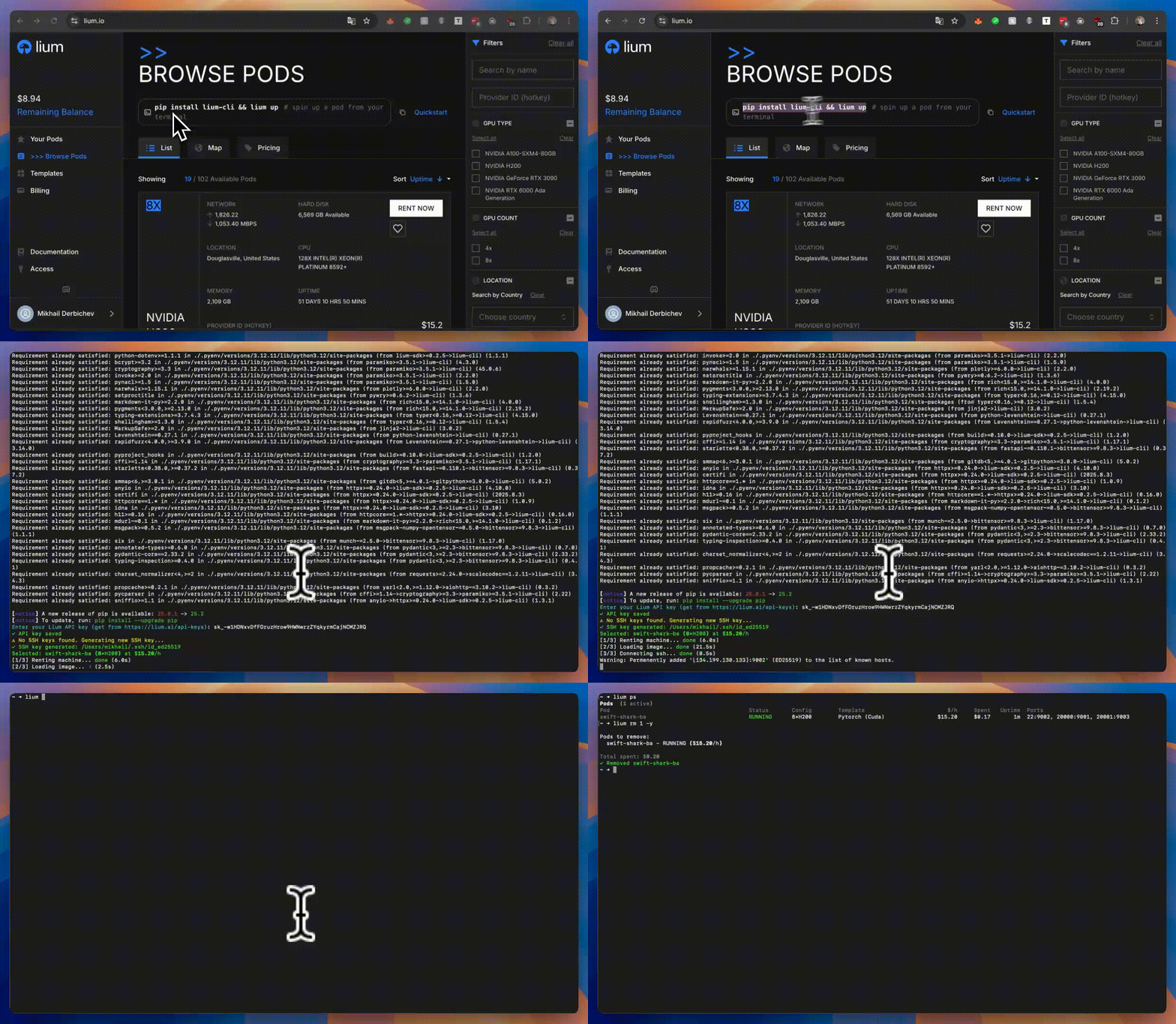
Installation
Python package
pip install lium.io
Binary install (macOS amd64/arm64 / Linux amd64/arm64)
curl -fsSL https://github.com/Datura-ai/lium-cli/releases/latest/download/install.sh | bash
Fresh binary installs place a managed symlink at ~/.lium/bin/lium that points to a
versioned binary under ~/.lium/versions/<version>/lium.
Quick Start
CLI
# First-time setup
lium init

# List available executors (GPU machines)
lium ls

# Create a pod using executor index
lium up 1  # Use executor #1 from previous ls

# Or create a pod using filters
lium up --gpu A100  # Auto-select best A100 executor

# List your pods
lium ps

# Copy files to pod
lium scp 1 ./my_script.py

# SSH into a pod
lium ssh <pod-name>

# Stop a pod
lium rm <pod-name>
SDK
The SDK mirrors the CLI's capabilities for programmatic use. Two entry points: the @lium.machine decorator for quickly offloading isolated functions, and the Lium() client for long-lived orchestration code.
High-level decorator — annotate a function and offload work to a GPU pod:
import lium

@lium.machine(machine="A100", requirements=["torch", "transformers", "accelerate"])
def infer(prompt: str) -> str:
    from transformers import AutoTokenizer, AutoModelForCausalLM
    tokenizer = AutoTokenizer.from_pretrained("sshleifer/tiny-gpt2")
    model = AutoModelForCausalLM.from_pretrained("sshleifer/tiny-gpt2", device_map="cuda")
    tokens = tokenizer(prompt, return_tensors="pt").to("cuda")
    out = model.generate(**tokens, max_new_tokens=50)
    return tokenizer.decode(out[0], skip_special_tokens=True)

print(infer("Who discovered penicillin?"))
Direct SDK usage follows the same pattern:
from lium.sdk import Lium

lium = Lium()
executor = lium.ls(gpu_type="A100")[0]
pod = lium.up(executor=executor.id, name="demo")
ready = lium.wait_ready(pod, timeout=600)
print(lium.exec(ready, command="nvidia-smi")["stdout"])
lium.down(ready)
Full API reference: https://lium-docs.readthedocs.io/en/latest/index.html
Documentation
- CLI docs: https://docs.lium.io/category/cli
- SDK docs: https://lium-docs.readthedocs.io/en/latest/index.html
Binary Releases
- Supported binary targets:
darwin-amd64,darwin-arm64,linux-amd64,linux-arm64 - Maintainers can build locally with
bash scripts/build.sh [macos|linux|all] - Release artifacts publish through GitHub Releases with matching checksums
CLI Reference
The lium CLI exposes the full pod lifecycle. Run lium --help to see everything, or browse the reference below.
Core Commands
lium init- Initialize configuration (API key, SSH keys)lium ls [GPU_TYPE]- List available executorslium up [EXECUTOR_ID]- Create a pod (use executor ID or filters like--gpu,--count,--country)lium ps- List active podslium ssh <POD>- SSH into a podlium exec <POD> <COMMAND>- Execute command on podlium scp <POD> <LOCAL_FILE> [REMOTE_PATH]- Copy files to pods (add-dto download from pods)lium rsync <POD> <LOCAL_DIR> [REMOTE_PATH]- Sync directories to podslium rm <POD>- Remove/stop a podlium reboot <POD>- Reboot a podlium update <POD>- Install Jupyter on a podlium templates [SEARCH]- List available Docker templateslium fund- Fund account with TAO from Bittensor wallet
Volume Commands
lium volumes list- List all volumeslium volumes new <NAME>- Create a new volumelium volumes rm <VOLUME>- Remove a volume
Backup Commands
lium bk show <POD>- Show backup configuration for a podlium bk set <POD> <PATH>- Configure automatic backupslium bk logs <POD>- View backup logslium bk now <POD>- Trigger immediate backuplium bk restore <POD> <BACKUP_ID>- Restore from backuplium bk rm <POD>- Remove backup configuration
Schedule Commands
lium schedules list- List scheduled terminationslium schedules rm <POD>- Cancel scheduled termination
Configuration Commands
lium config show- Show all configurationlium config get <KEY>- Get configuration valuelium config set <KEY> <VALUE>- Set configuration valuelium config unset <KEY>- Remove configuration keylium config edit- Edit configuration filelium config path- Show configuration file pathlium config reset- Reset all configuration
Other Commands
lium theme [THEME]- Get or set UI theme (light/dark/auto)lium mine- Set up a compute subnet executor/minersudo lium gpu-splitting setup [--device /dev/...] [--yes]- Prepare Docker storage for LIUM GPU splittinglium gpu-splitting check [--device /dev/...]- Inspect the host and print the GPU-splitting planlium gpu-splitting verify- Verify Docker storage matches LIUM GPU-splitting requirements
Command Examples
# Filter executors by GPU type
lium ls H100
lium ls A100

# Create pod with executor index
lium up 1 --name my-pod --yes

# Create pod with filters (auto-selects best executor)
lium up --gpu A100 --count 8 --name my-pod --yes
lium up --gpu H200 --country US

# Create pod with specific template
lium up 1 --template_id <TEMPLATE_ID> --yes

# Set up executor bootstrap flow
lium mine --auto --hotkey <HOTKEY>

# Inspect or configure Docker storage for GPU splitting (Ubuntu/Debian + systemd, run setup as root)
lium gpu-splitting check
sudo lium gpu-splitting setup --yes
lium gpu-splitting verify

# Create pod with volume
lium up 1 --volume id:<VOLUME_HUID>
lium up 1 --volume new:name=mydata,desc="My dataset"

# Create pod with auto-termination
lium up 1 --ttl 6h                    # Terminate after 6 hours
lium up 1 --until "today 23:00"       # Terminate at 11 PM today

# Create pod with Jupyter
lium up 1 --jupyter --yes

# Execute commands
lium exec my-pod "nvidia-smi"
lium exec my-pod "python train.py"

# Copy files to and from pods
lium scp my-pod ./script.py                    # Copy to /root/script.py
lium scp 1 ./data.csv /root/data/             # Copy to specific directory
lium scp all ./config.json                    # Copy to all pods
lium scp 1,2,3 ./model.py /root/models/       # Copy to multiple pods
lium scp my-pod /root/output.log ./downloads -d  # Download into ./downloads directory

# Reboot pods
lium reboot my-pod                           # Reboot a single pod
lium reboot 1,2 --yes                        # Reboot pods 1 and 2 without confirmation
lium reboot all                              # Reboot all active pods
lium reboot my-pod --volume-id <VOLUME_ID>   # Reboot with a specific volume ID

# Sync directories to pods
lium rsync my-pod ./project                    # Sync to /root/project
lium rsync 1 ./data /root/datasets/           # Sync to specific directory
lium rsync all ./models                       # Sync to all pods
lium rsync 1,2,3 ./code /root/workspace/      # Sync to multiple pods

# Remove multiple pods
lium rm my-pod-1 my-pod-2
lium rm all  # Remove all pods

# Install Jupyter on existing pod
lium update my-pod

# Manage volumes
lium volumes list
lium volumes new mydata --description "My dataset"
lium volumes rm <VOLUME_HUID>

# Manage backups
lium bk show my-pod
lium bk set my-pod /root/data --frequency 24 --retention 7
lium bk logs my-pod
lium bk now my-pod --name manual-backup
lium bk restore my-pod <BACKUP_ID> /root/restore
lium bk rm my-pod

# Manage schedules
lium schedules list
lium schedules rm my-pod

# Configuration management
lium config show
lium config get api.api_key
lium config set ssh.key_path /path/to/key
lium config edit

# Theme management
lium theme          # Show current theme
lium theme dark     # Set to dark theme
lium theme auto     # Auto-detect based on system

# Fund account with TAO
lium fund                           # Interactive mode
lium fund -w default -a 1.5        # Fund with specific wallet and amount
lium fund -w mywal -a 0.5 -y       # Skip confirmation
Features
- Dual Interface: Same package ships both the
liumCLI and a Python SDK (lium.sdk.Lium+@lium.machinedecorator) - Pareto Optimization:
lscommand shows optimal executors with ★ indicator - Flexible Pod Creation: Use executor index or auto-select with filters (GPU type, count, country)
- Index Selection: Use numbers from
lsoutput in commands - Full-Width Tables: Clean, readable terminal output
- Cost Tracking: See spending and hourly rates in
ps - Interactive Setup:
initcommand for easy onboarding - Volume Management: Create and attach persistent storage volumes
- Backup & Restore: Automated backups with configurable frequency and retention
- Auto-Termination: Schedule pods to terminate after duration or at specific time
- Jupyter Integration: One-command Jupyter installation on pods
- Theme Support: Light, dark, or auto-detect themes for better visibility
Configuration
Configuration is stored in ~/.lium/config.ini:
[api]
api_key = your-api-key-here

[ssh]
key_path = /home/user/.ssh/id_ed25519
You can also use environment variables:
export LIUM_API_KEY=your-api-key-here
Requirements
- Python 3.9+
Development
# Clone repository
git clone https://github.com/datura-ai/lium.git
cd lium

# Install in development mode
pip install -e .
Building the SDK docs
The SDK and decorator API ship with Sphinx-powered docs that are ready for Read the Docs. Build them locally with:
pip install -e .[docs]
sphinx-build -b html docs docs/_build/html
The generated HTML lives in docs/_build/html. Publishing to Read the Docs only requires connecting this repository; the .readthedocs.yaml file points RTD at docs/conf.py.
License
MIT License - see LICENSE file for details.
Release history Release notifications | RSS feed


Download files
Download the file for your platform. If you're not sure which to choose, learn more about installing packages.
Source Distribution
Built Distribution
Filter files by name, interpreter, ABI, and platform.
If you're not sure about the file name format, learn more about wheel file names.
Copy a direct link to the current filters
File details
Details for the file lium_io-0.0.10.tar.gz.
File metadata
- Download URL: lium_io-0.0.10.tar.gz
- Upload date:
- Size: 434.0 kB
- Tags: Source
- Uploaded using Trusted Publishing? Yes
- Uploaded via: twine/6.1.0 CPython/3.13.12
File hashes
| Algorithm | Hash digest | |
|---|---|---|
| SHA256 |
eaf6eaaa0c1544cc95d46725f5b88f2a3c1db5d4f4a2f1bfcf5a5a1bb1cc9051
|
|
| MD5 |
185112974922dc0d7fd9a37ee18e5c2c
|
|
| BLAKE2b-256 |
6024f1fd40761bd8230a938abbc773c078db7c2b4e9e71ce4c8c53ff6550b650
|
Provenance
The following attestation bundles were made for lium_io-0.0.10.tar.gz:
Publisher:
release.yml on Datura-ai/lium
-
Statement:
-
Statement type:
https://in-toto.io/Statement/v1 -
Predicate type:
https://docs.pypi.org/attestations/publish/v1 -
Subject name:
lium_io-0.0.10.tar.gz -
Subject digest:
eaf6eaaa0c1544cc95d46725f5b88f2a3c1db5d4f4a2f1bfcf5a5a1bb1cc9051 - Sigstore transparency entry: 1409777509
- Sigstore integration time:
-
Permalink:
Datura-ai/lium@d171f3445d7cc3f5b9b464986402f4cc5da84935 -
Branch / Tag:
refs/heads/main - Owner: https://github.com/Datura-ai
-
Access:
public
-
Token Issuer:
https://token.actions.githubusercontent.com -
Runner Environment:
github-hosted -
Publication workflow:
release.yml@d171f3445d7cc3f5b9b464986402f4cc5da84935 -
Trigger Event:
workflow_dispatch
-
Statement type:
File details
Details for the file lium_io-0.0.10-py3-none-any.whl.
File metadata
- Download URL: lium_io-0.0.10-py3-none-any.whl
- Upload date:
- Size: 167.3 kB
- Tags: Python 3
- Uploaded using Trusted Publishing? Yes
- Uploaded via: twine/6.1.0 CPython/3.13.12
File hashes
| Algorithm | Hash digest | |
|---|---|---|
| SHA256 |
e88d7a52b42fb31889d319d233be016eaa9cf61b84870272acefc44d9eea3e94
|
|
| MD5 |
ab558ddc01a9441bc46baddccf0495e8
|
|
| BLAKE2b-256 |
86969f90eaa75431547dc44196169e339acf39e8fde13871f8af05d86bd082e8
|
Provenance
The following attestation bundles were made for lium_io-0.0.10-py3-none-any.whl:
Publisher:
release.yml on Datura-ai/lium
-
Statement:
-
Statement type:
https://in-toto.io/Statement/v1 -
Predicate type:
https://docs.pypi.org/attestations/publish/v1 -
Subject name:
lium_io-0.0.10-py3-none-any.whl -
Subject digest:
e88d7a52b42fb31889d319d233be016eaa9cf61b84870272acefc44d9eea3e94 - Sigstore transparency entry: 1409777512
- Sigstore integration time:
-
Permalink:
Datura-ai/lium@d171f3445d7cc3f5b9b464986402f4cc5da84935 -
Branch / Tag:
refs/heads/main - Owner: https://github.com/Datura-ai
-
Access:
public
-
Token Issuer:
https://token.actions.githubusercontent.com -
Runner Environment:
github-hosted -
Publication workflow:
release.yml@d171f3445d7cc3f5b9b464986402f4cc5da84935 -
Trigger Event:
workflow_dispatch
-
Statement type:






