
CI/CD load testing runner and regression analyzer for Locust

Project description
Locomotive — CI Load Testing Library




A Python library and CLI for integrating load testing into CI/CD pipelines. Powered by Locust under the hood, but lets you define tests declaratively in JSON/YAML config — no Python code required. Generates HTML reports with charts, regression analysis and baseline comparison, with full theming and branding support.
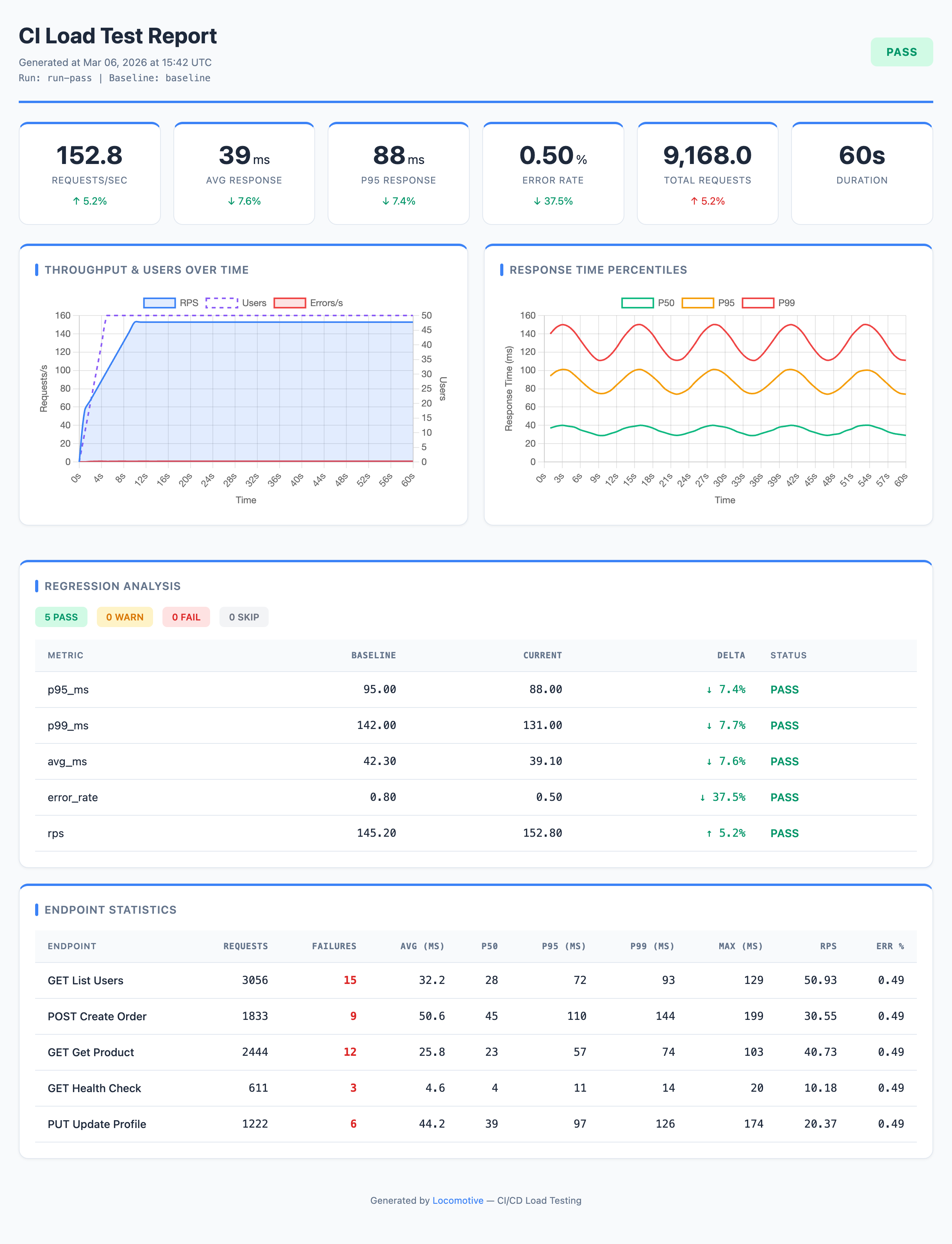
Features
- OpenAPI generation —
loco init --openapi openapi.jsonscaffolds a config from your API spec - Baseline comparison — regression analysis of performance metrics across runs
- Gate checks — threshold-based metric validation (error rate, latency, RPS)
- HTML reports — visual results with charts, deltas, and customizable themes
- GitHub Actions ready — built-in Action for CI/CD integration, PR comments, artifact uploads, and pipeline gating
- YAML & JSON configs — both formats supported (
.json,.yml,.yaml)
Installation
pip install locomotive
Locust is installed automatically as a dependency.
Quick Start
1. Create a config
# Basic template
loco init

# Generate from OpenAPI spec (creates requests from endpoints)
loco init --openapi openapi.json

# Also generate a GitHub Actions workflow
loco init --github-workflow
| Flag | Description |
|---|---|
--openapi FILE |
Path to OpenAPI spec — endpoints will be converted to requests |
--host URL |
Service URL (default: http://localhost:8000) |
--output FILE / -o |
Output file path (default: loconfig.json) |
--github-workflow |
Also create .github/workflows/loadtest.yml |
--force / -f |
Overwrite existing files |
2. Configure
Edit loconfig.json to match your service:
{
  "load": {
    "host": "https://staging.myapp.com",     // target service URL
    "users": 500,                             // number of virtual users
    "spawn_rate": 50,                         // user spawn rate (per second)
    "run_time": "3m"                          // test duration (s/m/h)
  },
  "scenario": {
    "think_time": {"min": 0.5, "max": 2.0},  // pause between requests (simulates real users)
    "headers": {
      "Accept": "application/json"
    },
    "requests": [
      {
        "name": "Get Users",
        "method": "GET",
        "path": "/api/users",
        "weight": 5                           // relative call frequency (higher = more frequent)
      },
      {
        "name": "Create Order",
        "method": "POST",
        "path": "/api/orders",
        "weight": 2,
        "json": {"product_id": 1, "quantity": "${random}"}
      }
    ]
  }
}
3. Run
# Full CI pipeline: test → analyze → report
loco --config loconfig.json ci

# Save baseline for future comparisons
loco --config loconfig.json ci --set-baseline
Configuration
load section
Load test parameters. Fields host, users, spawn_rate, and run_time are required.
{
  "load": {
    "host": "https://staging.myapp.com",     // required: target service URL
    "users": 500,                             // required: number of virtual users
    "spawn_rate": 50,                         // required: users/sec ramp-up rate
    "run_time": "3m",                         // required: duration ("30s", "2m", "1h")
    "stop_timeout": 10,                       // graceful shutdown timeout in seconds
    "tags": ["api"],                          // only run requests tagged "api"
    "exclude_tags": ["slow"]                  // skip requests tagged "slow"
  }
}
scenario section
User scenario definition: headers, auth, and requests.
{
  "scenario": {
    "think_time": {"min": 0.5, "max": 2.0},  // pause between requests (or a number: "think_time": 1.0)
    "headers": {                               // global headers for all requests
      "Accept": "application/json",
      "Content-Type": "application/json"
    },
    "auth": {                                  // authentication (see section below)
      "type": "bearer",
      "token": "${API_TOKEN}"                  // environment variable
    },
    "on_start": [                              // runs once per user at startup
      {
        "name": "Login",
        "method": "POST",
        "path": "/auth/login",
        "json": {"username": "${USER}", "password": "${PASS}"},
        "capture": {"auth_token": "data.token"}
      }
    ],
    "requests": [...]                          // request array (see below)
  }
}
Request format
Each request in the requests array describes a single HTTP call:
{
  "name": "Create Resource",                   // display name for reports (default: "METHOD /path")
  "method": "POST",                            // HTTP method: GET, POST, PUT, PATCH, DELETE
  "path": "/api/resources",                    // path (appended to host)
  "weight": 3,                                 // relative call frequency (default: 1)
  "headers": {"X-Custom": "value"},            // per-request headers
  "query": {"filter": "active"},               // query parameters (?filter=active)
  "json": {"field": "value"},                  // JSON request body
  "data": {"field": "value"},                  // form-encoded request body (alternative to json)
  "timeout": 30,                               // timeout in seconds
  "tags": ["api", "write"]                     // tags for filtering
}
Tags
Tags let you run a subset of requests. Assign "tags": ["api", "write"] to a request, then use --tags api to only run requests tagged api. Or --exclude-tags slow to run everything except requests tagged slow. Tags can also be set in the config: "load": {"tags": ["api"]}.
Dynamic values
String values in the config support runtime placeholders — resolved at request time:
| Placeholder | Description |
|---|---|
${ENV_VAR} |
Environment variable |
$ENV_VAR |
Environment variable (short syntax) |
${ENV_VAR:-default} |
Environment variable with fallback |
${timestamp} |
Current timestamp in milliseconds |
${random} |
Random alphanumeric string (8 chars) |
${iteration} |
Request counter across the run: 1, 2, 3, ... — increments on every call by any virtual user. Useful for unique data: "name": "user-${iteration}" |
Authentication
The auth section in scenario adds an auth header to all requests:
// Bearer token — adds Authorization: Bearer <token> header
"auth": {"type": "bearer", "token": "${API_TOKEN}"}

// API Key — adds a custom header with the key
"auth": {"type": "api_key", "header": "X-API-Key", "key": "${API_KEY}"}

// Basic Auth — adds Authorization: Basic <user>:<password> header
"auth": {"type": "basic", "username": "${USER}", "password": "${PASS}"}
Capture (response data extraction)
In on_start requests, you can extract values from JSON responses and use them in subsequent requests. A typical use case is login: each virtual user POSTs to /login at startup, receives a token, and Locomotive automatically injects it into headers for all further requests.
Everything is configured declaratively — no need to edit the generated locustfile:
{
  "scenario": {
    "on_start": [
      {
        "name": "Login",
        "method": "POST",
        "path": "/auth/login",
        "json": {"username": "${USER}", "password": "${PASS}"},
        "capture": {
          "auth_token": "data.token"     // extracts response.json()["data"]["token"]
        }
      }
    ],
    "headers": {
      "Authorization": "Bearer ${auth_token}"  // injected automatically
    },
    "requests": [...]
  }
}
capture is a {"variable_name": "json.path"} dict. The path is dot-separated: "data.token" means response["data"]["token"].
Rules vs Gates
Locomotive provides two mechanisms for validating metrics:
| Rules (regression analysis) | Gates (threshold checks) | |
|---|---|---|
| Compares | Current run vs baseline (a run marked with --set-baseline) |
Current run vs fixed thresholds |
| Needs baseline | Yes — requires a previous run with --set-baseline (otherwise SKIP) |
No |
| Use case | Catch degradation: "p95 got 15% worse" | Enforce SLAs: "p95 must stay under 500ms" |
| Example | "metric": "p95_ms", "mode": "relative", "fail": 25 |
"p95_ms": {"fail": 500} |
Both can be used together — results are merged, and the overall status is the worst of the two.
Baseline & Regression Analysis
Baseline is a saved result from a previous run used for comparison.
Baseline is saved when you pass --set-baseline (in the built-in Action this happens automatically — set_baseline defaults to true). Only successful runs (PASS or WARNING) are saved.
On the first run there is no baseline — regression analysis is skipped (but gate checks still work). Starting from the second successful run, the report shows deltas: how much latency, RPS, and error rate changed compared to the previous run.
Branch-aware baselines
When using the built-in GitHub Action, baselines are branch-aware:
| Scenario | Baseline source | Why |
|---|---|---|
| Push to branch | Latest baseline from the same branch | Track regressions within the branch |
| Pull request | Latest baseline from the target branch | Show what the PR would change in the target |
| First run on a new branch | Falls back to main branch baseline | New branches start from the main baseline |
Each branch listed in push.branches maintains its own baseline. PRs always compare against the target branch (e.g., a PR into main uses main's baseline, a PR into release uses release's baseline).
You can change the fallback branch via the fallback_branch input (default: main).
Analysis rules
Rules compare current metrics against baseline and produce a status:
{
  "analysis": {
    "rules": [
      {
        "metric": "p95_ms",        // metric to check
        "mode": "relative",        // "relative" (% change) or "absolute" (raw value)
        "direction": "increase",   // p95 increase = degradation
        "warn": 10,                // WARNING if p95 increased by 10%
        "fail": 25                 // DEGRADATION if p95 increased by 25%
      },
      {
        "metric": "error_rate",
        "mode": "absolute",        // checks the raw error_rate value (not delta)
        "direction": "increase",   // error_rate increase = degradation
        "warn": 1,                 // WARNING if error_rate >= 1%
        "fail": 5                  // DEGRADATION if error_rate >= 5%
      },
      {
        "metric": "rps",
        "mode": "relative",
        "direction": "decrease",   // RPS drop = degradation
        "warn": 10,                // WARNING if RPS dropped by 10%
        "fail": 20                 // DEGRADATION if RPS dropped by 20%
      }
    ],
    "fail_on": "DEGRADATION"       // exit code 1 on this status ("WARNING" = stricter)
  }
}
Rules can be extracted to a separate file:
{
  "analysis": {
    "rules_file": "rules.json"     // path to a file with a rules array
  }
}
| Parameter | Description | Values |
|---|---|---|
metric |
Metric to check | p95_ms, p99_ms, avg_ms, median_ms, rps, error_rate |
mode |
Comparison type | relative — % change from baseline; absolute — raw metric value compared to threshold |
direction |
Which direction is degradation | increase — degradation on growth (latency, errors); decrease — degradation on drop (rps) |
warn / fail |
Thresholds | Exceeding warn → WARNING, fail → DEGRADATION |
fail_on |
When CI should fail | "DEGRADATION" (default) or "WARNING" (stricter) |
Statuses
| Status | Meaning | Exit code |
|---|---|---|
| PASS | Metric is within acceptable range | 0 |
| WARNING | Minor deviation (exceeded warn) |
0 (or 1 if fail_on: "WARNING") |
| DEGRADATION | Significant degradation (exceeded fail) |
1 |
| SKIP | Insufficient data: no baseline or request count below gate.min_requests |
0 |
Gate Checks
Gate checks work without a baseline — they validate absolute metric values against fixed thresholds. Use them to enforce SLAs: "error rate under 5%", "p95 under 500ms".
Thresholds define boundaries: if a metric exceeds warn — WARNING, fail — DEGRADATION.
Each threshold has a direction — which way is bad. Default is "increase" (higher = worse), for rps use "decrease" (lower = worse). Example: "rps": {"fail": 100, "direction": "decrease"} — fails if RPS drops below 100.
For error metrics (error_rate, failures, etc.) warn: 0 is set automatically — any errors below fail result in WARNING instead of PASS.
{
  "analysis": {
    "gate": {
      "min_requests": 200,                     // minimum requests for check (otherwise SKIP)
      "warmup_seconds": 10,                    // first N seconds are excluded
      "thresholds": {
        "error_rate": {"fail": 5},             // total error rate < 5% (warn = 0 auto)
        "error_rate_503": {"fail": 2},         // 503 errors < 2%
        "p95_ms": {"warn": 300, "fail": 500},  // p95 latency
        "rps": {"fail": 100, "direction": "decrease"}  // RPS not below 100
      }
    }
  }
}
Available metrics for threshold checks
Thresholds can be specified as objects {"warn": N, "fail": M} or shorthand numbers — "error_rate": 5 is equivalent to "error_rate": {"fail": 5}.
Error rates:
| Metric | Description |
|---|---|
error_rate |
Total error percentage |
error_rate_4xx |
4xx error percentage |
error_rate_5xx |
5xx error percentage |
error_rate_503 |
503 error percentage |
error_rate_non_503 |
Non-503 error percentage (graceful degradation) |
Absolute error counts:
| Metric | Description |
|---|---|
failures |
Total failure count |
failures_4xx |
4xx failure count |
failures_5xx |
5xx failure count |
failures_503 |
503 failure count |
failures_non_503 |
Non-503 failure count |
Latency & throughput:
| Metric | Description |
|---|---|
avg_ms |
Average response time |
median_ms |
Median response time |
p95_ms |
95th percentile |
p99_ms |
99th percentile |
rps |
Requests per second (use "direction": "decrease") |
artifacts section
Result storage settings:
{
  "artifacts": {
    "storage": "artifacts",              // artifact storage directory (default: "artifacts")
    "run_id": "${GITHUB_SHA:-local}",    // run ID; in CI resolves to commit SHA, locally — "local"
    "history": 30                        // number of recent runs to keep for trend charts (0 = disabled)
  }
}
| Parameter | Default | Description |
|---|---|---|
storage |
"artifacts" |
Artifact directory path |
run_id |
timestamp | Run ID; defaults to run-<timestamp>, in CI resolves to GITHUB_SHA / GITHUB_RUN_ID / CI_PIPELINE_ID |
history |
0 (disabled) |
Number of runs in history.json for trend charts; 0 disables history tracking |
GitHub Actions
Recommended approach (pip install)
Locomotive is available on the public PyPI registry.
name: Load Test

on:
  push:
    branches: [main]
  pull_request:

jobs:
  loadtest:
    runs-on: ubuntu-latest
    steps:
      - uses: actions/checkout@v4

      - name: Set up Python
        uses: actions/setup-python@v5
        with:
          python-version: '3.12'

      - name: Install
        run: pip install locomotive

      - name: Start service
        run: docker-compose up -d
        # or however you start your service

      - name: Run load test
        run: loco --config loconfig.json ci --set-baseline
        env:
          API_TOKEN: ${{ secrets.API_TOKEN }}  # if auth is needed

      - name: Upload results
        uses: actions/upload-artifact@v4
        if: always()
        with:
          name: loadtest-results
          path: artifacts/
Built-in Action (with HTML reports, PR comments, and artifacts)
Locomotive ships with a GitHub Action that handles everything: installation, test execution, HTML report generation, baseline management, and artifact uploads.
name: Load Test

on:
  push:
    branches: [main]
  pull_request:

jobs:
  loadtest:
    runs-on: ubuntu-latest
    steps:
      - uses: actions/checkout@v4

      - name: Set up Python
        uses: actions/setup-python@v5
        with:
          python-version: '3.12'

      - name: Run load test
        uses: locomotive-lib/locomotive/.github/actions/loadtest@master
        with:
          config: loconfig.json
The Action automatically:
- Installs
locomotivefrom PyPI - Downloads branch-aware baseline — on PR uses the target branch's baseline, on push uses the current branch's baseline, with fallback to
main - Runs tests, analysis, and generates the HTML report
- Uploads the HTML report and all artifacts (metrics, analysis, CSV) to GitHub Actions Artifacts
- Saves baseline on successful runs (
set_baseline: trueby default) - Posts a summary with metrics as a PR comment
Action parameters:
| Parameter | Default | Description |
|---|---|---|
config |
loconfig.json |
Config file path |
users |
from config | Override user count |
run_time |
from config | Override test duration |
set_baseline |
true |
Save run as baseline on success |
post_pr_comment |
true |
Post results as a PR comment |
baseline_artifact |
loadtest-baseline |
Artifact name for baseline storage |
results_artifact |
loadtest-results |
Artifact name for results |
workflow |
(empty) | Workflow file name to search for baseline artifacts (empty = search all workflows) |
fallback_branch |
main |
Fallback branch when no branch-specific baseline exists |
github_token |
github.token |
Token for PR comments. Uses the built-in github.token by default — no need to create a separate token |
Action outputs:
| Output | Description |
|---|---|
metrics_path |
Path to metrics.json |
report_path |
Path to report.html |
status |
Run status: PASS, WARNING, or DEGRADATION |
Report Customization
The report section in the config lets you customize the HTML report: theme, colors, branding, KPI cards, charts, endpoint table, and trends.
Presets
The quickest way — pick a preset. A preset defines a set of KPI cards, charts, and trends. You can override any preset settings — your overrides take priority.
{
  "report": {
    "preset": "default"    // "default" | "latency" | "throughput" | "errors"
  }
}
| Preset | Focus | KPI cards | Charts |
|---|---|---|---|
default |
Balanced overview | rps, avg_ms, p95_ms, error_rate, requests, duration | throughput + response_time |
latency |
Response time | avg, median, p95, p99, max, duration | response_time |
throughput |
Throughput | rps, requests, error_rate, duration | throughput |
errors |
Errors | error_rate, 4xx, 5xx, 503, failures, duration | throughput (titled "Errors Over Time", shows errors/s and RPS) |
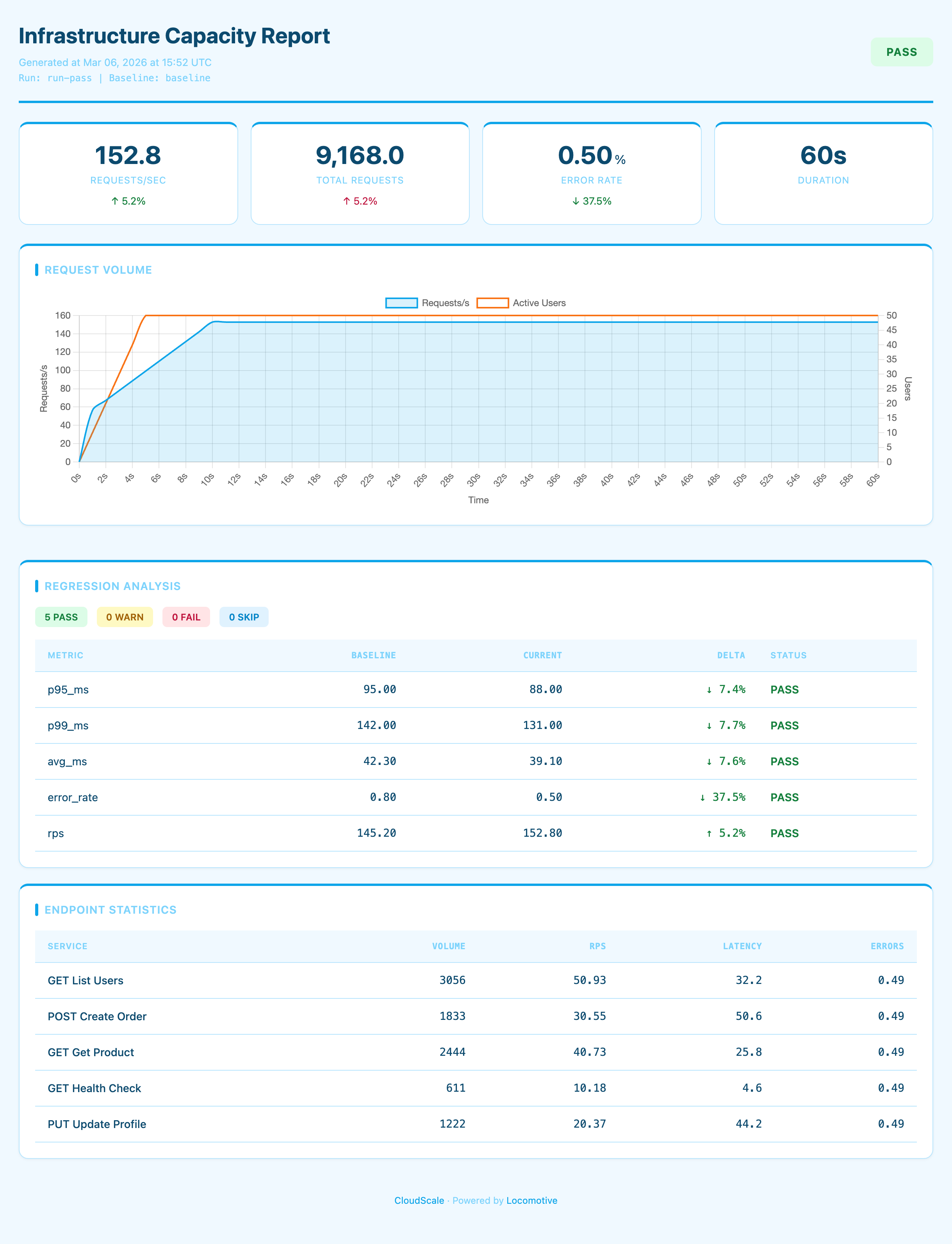
Throughput — throughput preset + custom pastel theme + branding
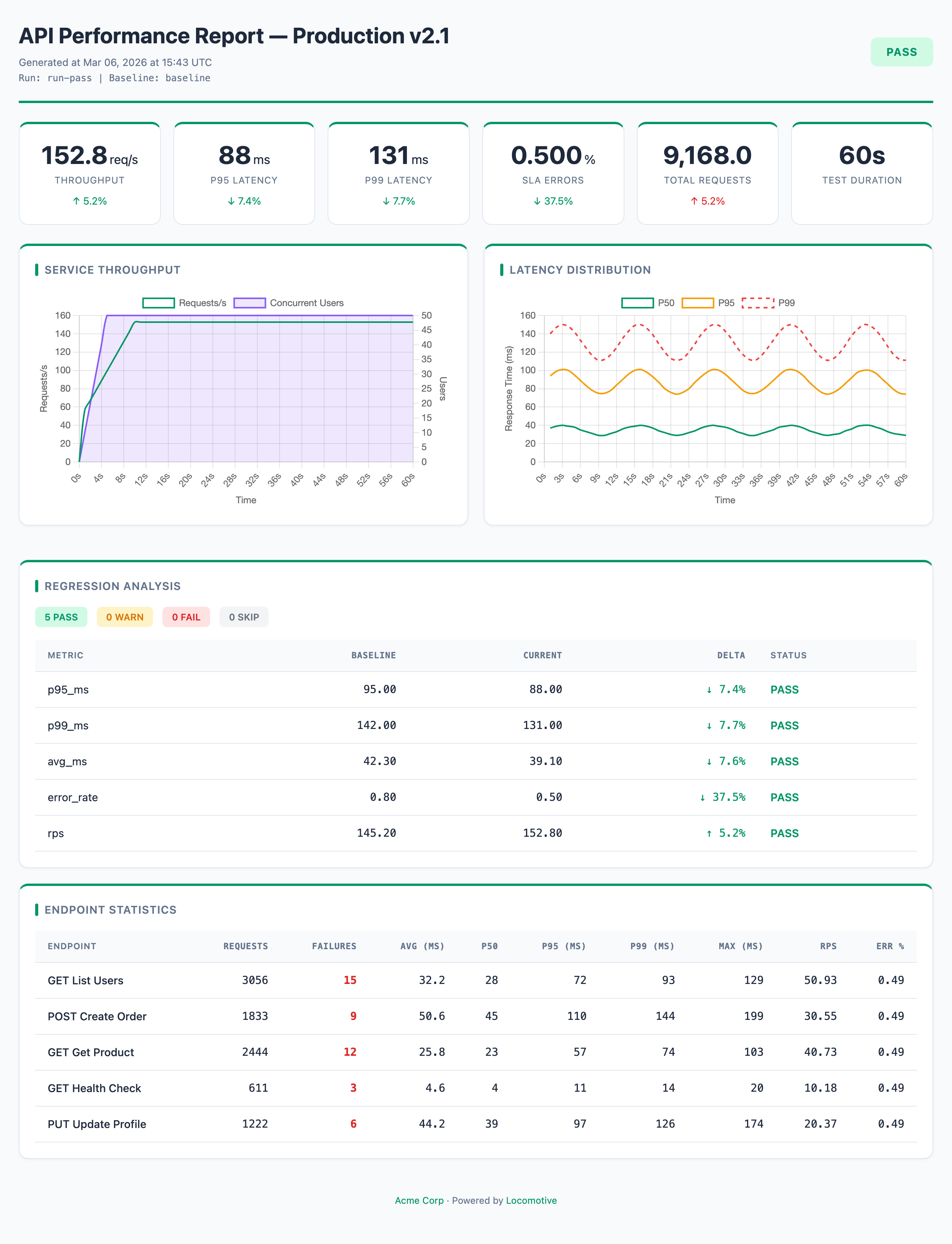
Branded — default preset + custom KPI cards + branding + accent #059669
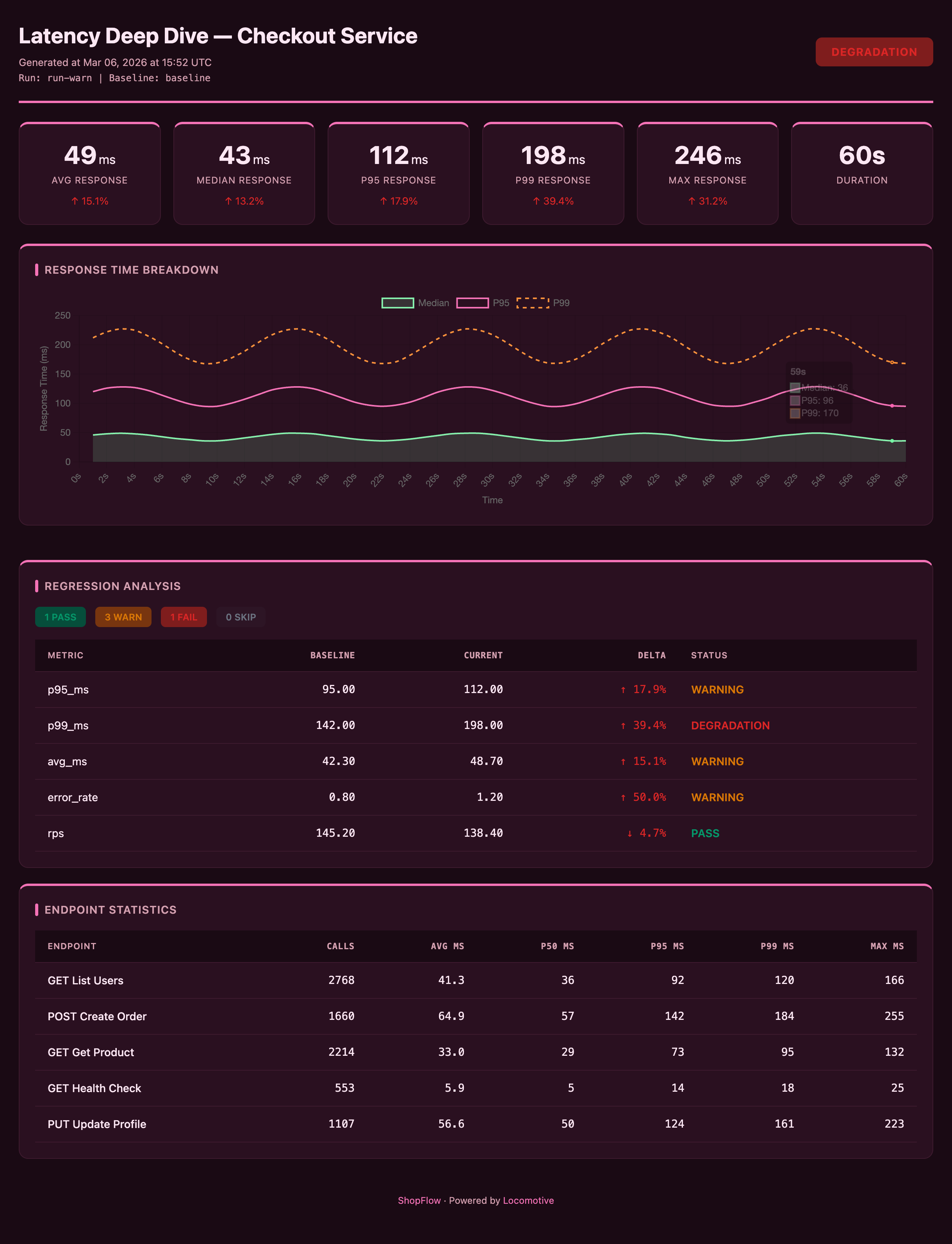
Latency — latency preset + custom dark theme + branding
Errors — errors preset + dark theme, accent #ef4444
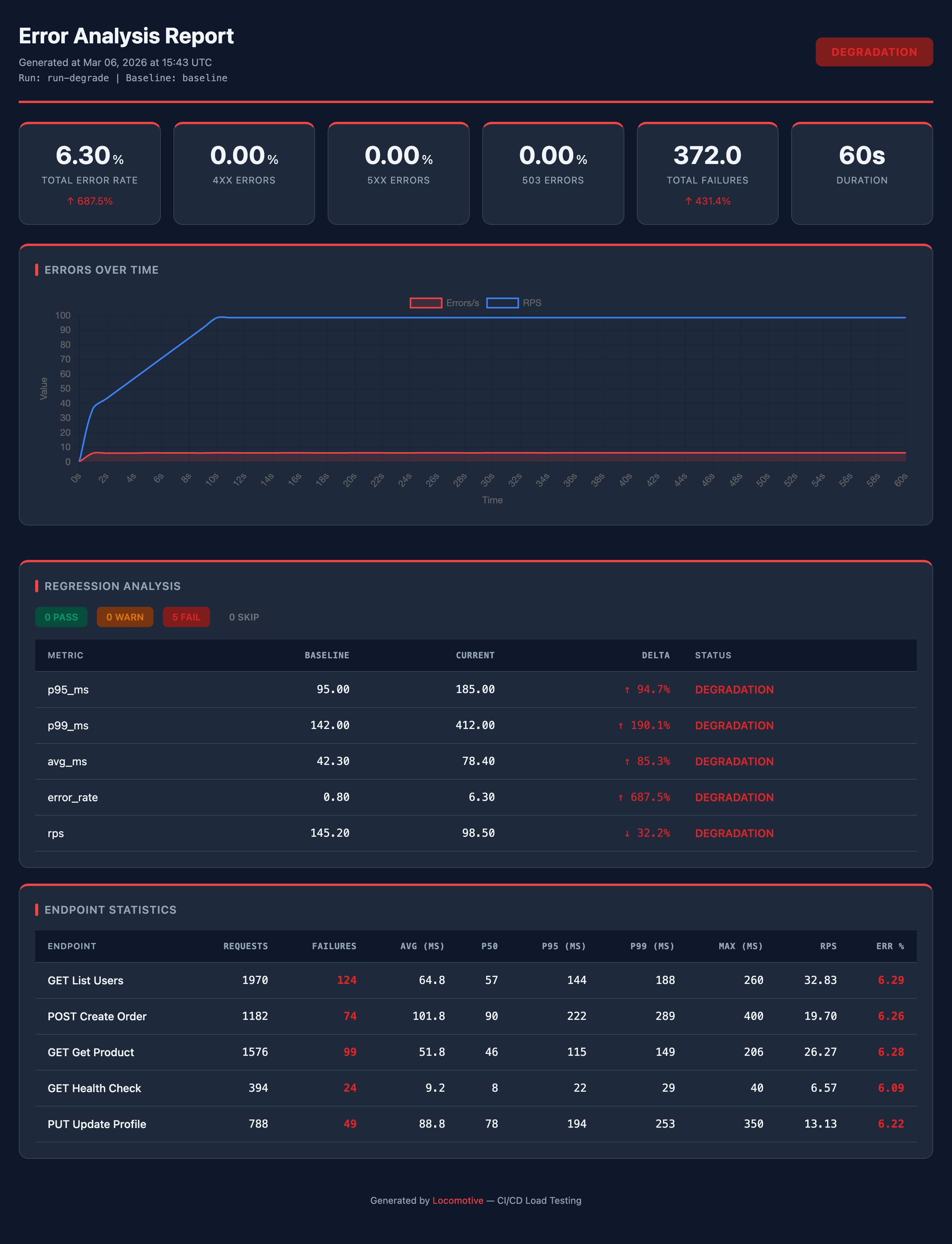
All reports above are examples of customization on top of presets: theme, colors, branding, and card layout are configured in the report section.
Theme & colors
By default, the report uses a light theme. To switch to dark mode, just set "mode": "dark" — no additional configuration needed:
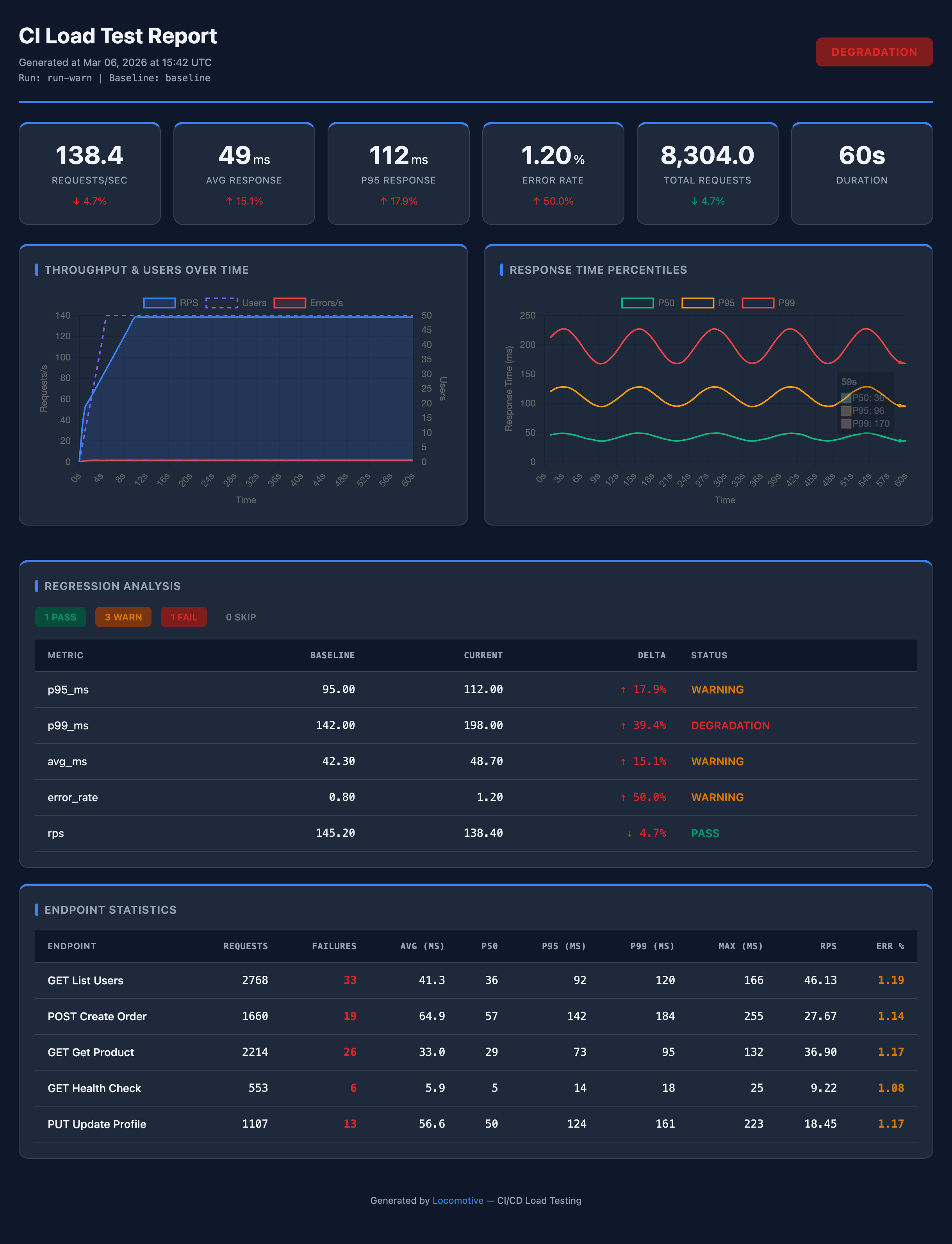
"theme": {"mode": "dark"}
{
  "report": {
    "title": "Load Test Report — My Service",  // report title
    "output": "artifacts/report.html",          // HTML report path (default: inside run dir)
    "timezone": "UTC+3",                        // timezone: "UTC", "UTC+3", "UTC-5:30"
    "theme": {
      "mode": "light",                          // "light" or "dark"
      "color": "#6366f1"                        // accent color (shortcut for primary)
    }
  }
}
Branding
Display your company or project name in the report footer:
{
  "report": {
    "branding": {
      "name": "CompanyName",              // name shown in the report footer
      "color": "#ffffff"                  // footer text color
    }
  }
}
Full color control
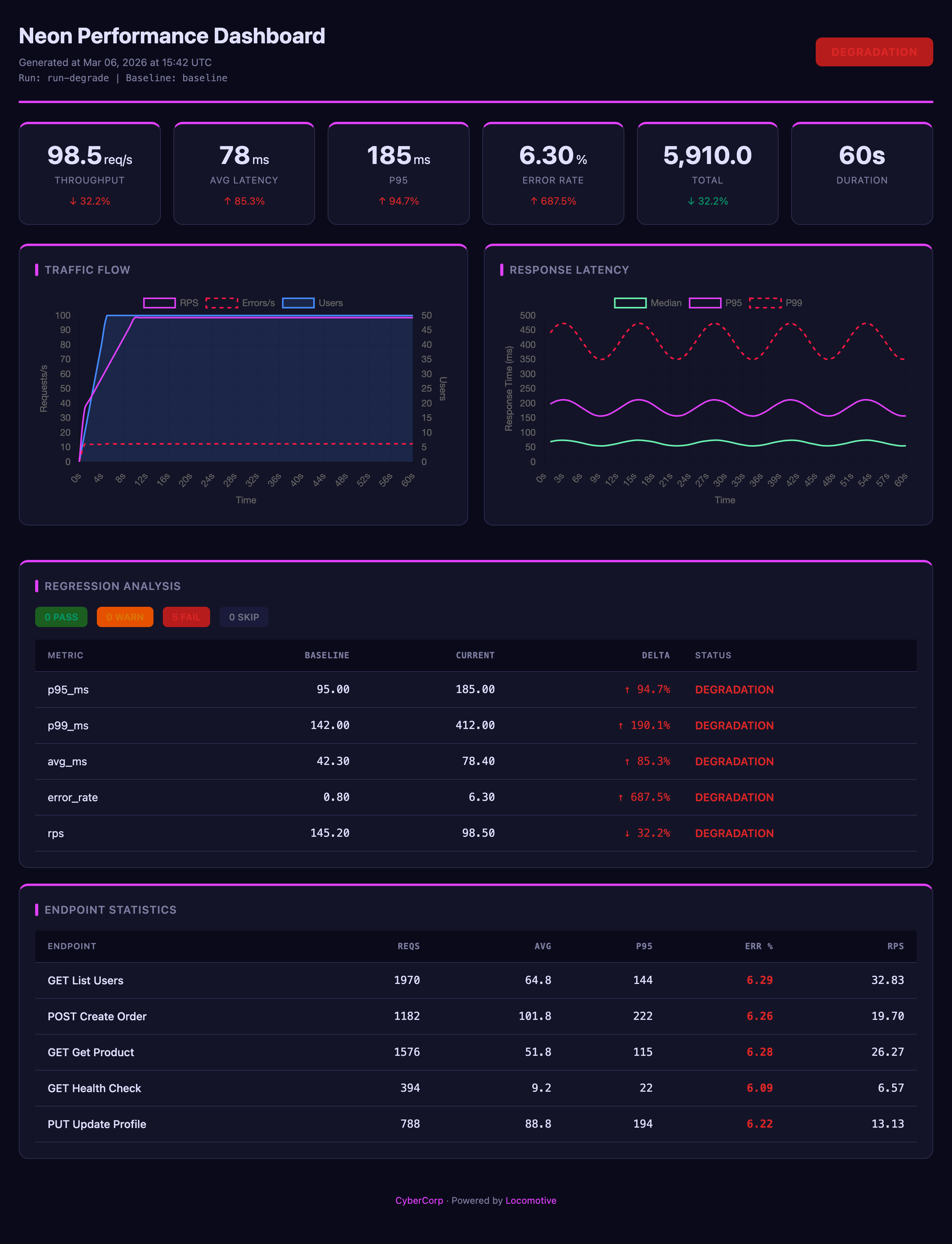
All theme CSS variables can be overridden:
{
  "report": {
    "theme": {
      "mode": "dark",
      "colors": {
        "primary": "#6366f1",       // accent color (card borders, header)
        "primary-light": "#818cf8", // lighter accent variant
        "bg": "#0f172a",            // page background
        "card": "#1e293b",          // card background
        "text": "#f8fafc",          // primary text
        "text-muted": "#94a3b8",    // secondary text
        "line": "#334155",          // lines and borders
        "pass-bg": "#166534",       // PASS status background
        "warn-bg": "#854d0e",       // WARNING status background
        "fail-bg": "#991b1b",       // DEGRADATION status background
        "skip-bg": "#374151"        // SKIP status background
      }
    }
  }
}
KPI cards
Cards at the top of the report with key run metrics. Each card shows a metric value and delta against baseline (if available). You can customize which metrics to show, labels, number formatting, and units:
{
  "report": {
    "kpi": {
      "cards": [
        {"metric": "rps", "label": "Requests/sec", "format": "{value:.1f}"},
        {"metric": "p95_ms", "label": "P95 Latency", "format": "{value:.0f}", "unit": "ms"},
        {"metric": "error_rate", "label": "Errors", "format": "{value:.2f}", "unit": "%"},
        {"metric": "requests", "label": "Total", "format": "{value:,}"},
        {"metric": "duration", "label": "Duration", "format": "duration"}
      ]
    }
  }
}
| Field | Description |
|---|---|
metric |
Metric key (rps, avg_ms, p95_ms, p99_ms, error_rate, requests, duration, etc.) |
label |
Card label |
format |
Python format string ("{value:.2f}") or "duration" for auto time formatting |
unit |
Unit of measure ("ms", "%") |
multiplier |
Value multiplier before display (default: 1.0) |
Charts
Two built-in charts: throughput (RPS, errors, users over time) and response_time (percentiles over time). You can enable/disable charts, change titles, and configure datasets (which lines to show, colors, axes):
{
  "report": {
    "charts": {
      "throughput": {
        "enabled": true,                // show chart (default: true)
        "title": "Throughput",          // chart title
        "datasets": [
          {"key": "rps", "label": "RPS", "color": "#3b82f6", "y_axis": "left"},
          {"key": "errors", "label": "Errors/s", "color": "#ef4444", "y_axis": "right", "dash": [5, 5]},
          {"key": "users", "label": "Users", "color": "#a855f7", "y_axis": "right", "fill": true}
        ]
      },
      "response_time": {
        "enabled": true,
        "title": "Response Time",
        "datasets": [
          {"key": "p50", "label": "Median", "color": "#22c55e"},
          {"key": "p95", "label": "P95", "color": "#f59e0b"},
          {"key": "p99", "label": "P99", "color": "#ef4444", "dash": [5, 5]}
        ]
      }
    }
  }
}
| Dataset field | Description |
|---|---|
key |
Data key: rps, users, errors, p50, p95, p99 |
label |
Legend label |
color |
Line color (hex) |
y_axis |
Axis: "left" or "right" for dual scale |
fill |
true — fill area under the line |
dash |
Dashed line: [length, gap], e.g. [5, 5] |
In the
errorspreset, thethroughputchart is titled "Errors Over Time" and configured to show errors/s and RPS. There is no separate "errors over time" chart type — it's a customizedthroughput.
Endpoint table
Table at the bottom of the report with per-endpoint metrics (one row per name in requests). You can configure columns and set thresholds for cell highlighting — yellow for warn, red for fail:
{
  "report": {
    "endpoint_table": {
      "columns": [
        {"key": "name", "label": "Endpoint"},
        {"key": "requests", "label": "Requests"},
        {"key": "p95", "label": "P95", "highlight": {"warn": 300, "fail": 500}},
        {"key": "error_rate", "label": "Error %", "highlight": {"fail": 5}}
      ]
    }
  }
}
Available column keys: name, requests, failures, avg, p50, p95, p99, max, rps, error_rate.
Sections & trends
Control which sections appear in the report and in what order:
{
  "report": {
    "sections": ["kpi", "charts", "regression", "endpoints", "trends"]
  }
}
By default: kpi, charts, regression, endpoints. The trends section is not included by default — it must be added explicitly.
Trends are additional charts showing how selected metrics changed across runs. For example, you can see that p95 latency has been gradually increasing over the last 20 runs. Requirements:
- Add
"trends"tosections - Set
artifacts.history> 0 (how many runs to keep) - At least 2 runs in history
Configure which metrics to show on trend charts (each metric gets its own chart):
{
  "report": {
    "trends": {
      "metrics": ["p95_ms", "rps", "error_rate"]
    }
  }
}
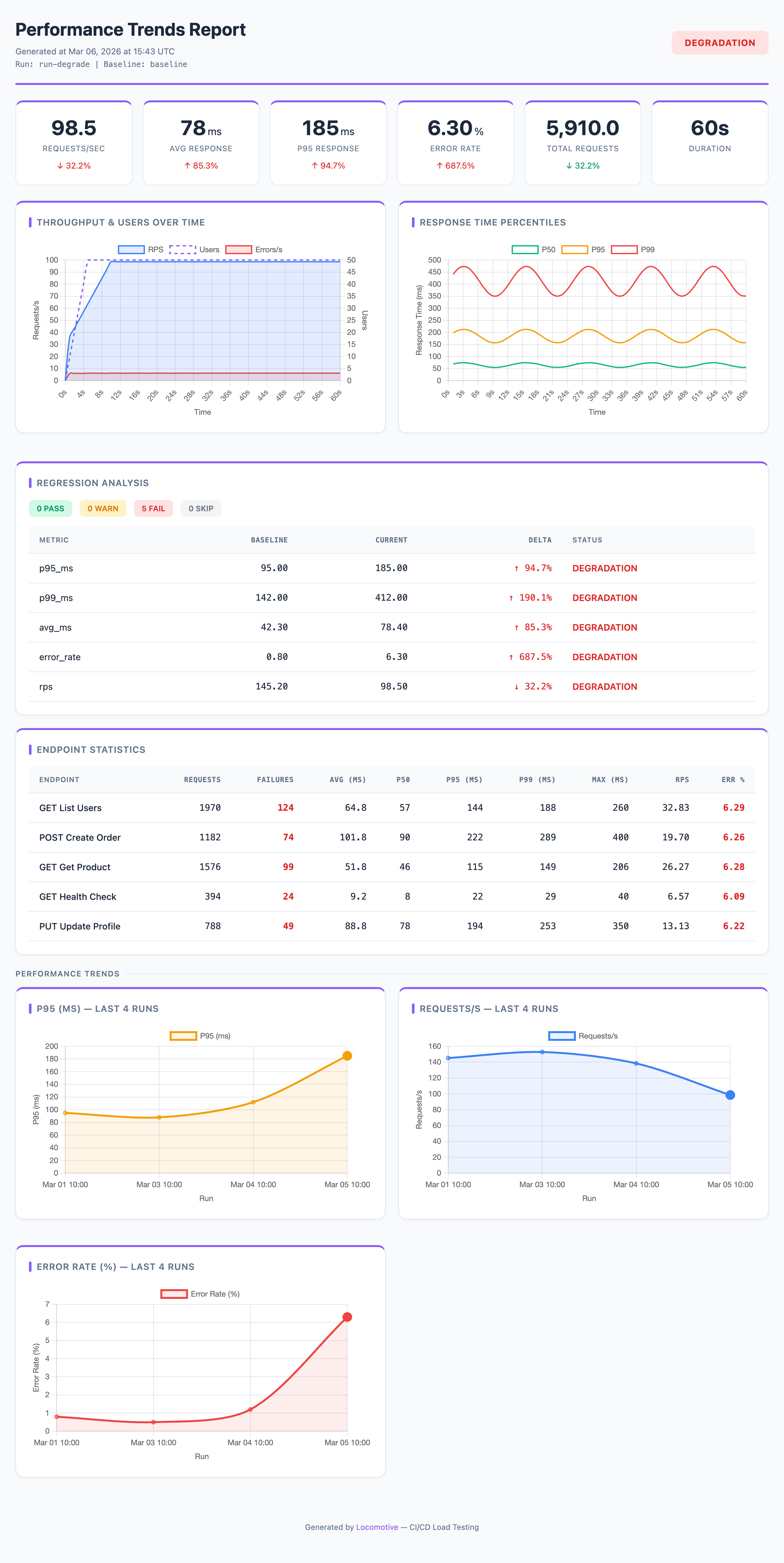
#8b5cf6
Available trend metrics: rps, avg_ms, median_ms, p95_ms, p99_ms, max_ms, error_rate, error_rate_4xx, error_rate_5xx, error_rate_503, requests, failures.
CLI Reference
loco init — create config
loco init [--openapi spec.json] [--host URL] [--github-workflow] [--output FILE] [--force]
| Flag | Description |
|---|---|
--openapi FILE |
Path to OpenAPI spec — endpoints will be converted to requests |
--host URL |
Service URL (default: http://localhost:8000) |
--output FILE / -o |
Output config path (default: loconfig.json) |
--github-workflow |
Also create .github/workflows/loadtest.yml |
--force / -f |
Overwrite existing files |
loco ci — full pipeline
loco --config loconfig.json ci [--set-baseline] [--users N] [--run-time 3m] ...
Runs test → analysis → report. Accepts all flags from run, analyze, and report.
loco run — run tests only
loco --config loconfig.json run [--storage DIR] [--run-id ID] [--set-baseline] [--users N] [--run-time 3m] ...
loco analyze — run analysis only
loco --config loconfig.json analyze --storage DIR --run-id ID [--baseline <run_id>] [--fail-on DEGRADATION]
loco report — generate report only
loco --config loconfig.json report --storage DIR --run-id ID [--baseline <run_id>] [--title "Title"] [--output report.html]
Common flags
Flags available for all subcommands (run, analyze, report, ci):
| Flag | Description |
|---|---|
--storage |
Artifact directory |
--run-id |
Run ID |
--baseline |
Baseline run ID for comparison |
Additional run and ci flags:
| Flag | Description |
|---|---|
--host |
Override host URL |
--users |
Override user count |
--spawn-rate |
Override spawn rate |
--run-time |
Override test duration |
--tags |
Only run requests with specified tags (comma-separated) |
--exclude-tags |
Exclude requests with specified tags |
--locustfile |
Path to locustfile (instead of scenario) |
--set-baseline |
Save as baseline |
--extra-arg |
Extra Locust argument (can be specified multiple times) |
--locust-cmd |
Path to locust binary |
Additional analyze and ci flags:
| Flag | Description |
|---|---|
--rules |
Path to external analysis rules file |
--fail-on |
Exit code 1 threshold: WARNING or DEGRADATION |
Additional report and ci flags:
| Flag | Description |
|---|---|
--title |
HTML report title |
--output |
HTML report output path |
Using an existing locustfile
If you have an existing locustfile, you can use it instead of scenario:
{
  "load": {
    "locustfile": "tests/locustfile.py",       // path to your locustfile
    "host": "https://staging.myapp.com",
    "users": 500,
    "spawn_rate": 50,
    "run_time": "3m"
  }
}
In this case, the scenario section is not needed — Locomotive uses your locustfile and adds analysis, reports, and gate checks on top.
Artifacts
artifacts/
├── baseline.json           # current baseline run ID
├── history.json             # run history (for report trends)
└── runs/
    └── <run_id>/
        ├── run.json         # run metadata (time, config, commit)
        ├── metrics.json     # aggregated metrics
        ├── analysis.json    # analysis results (statuses, deltas)
        ├── report.html      # HTML report
        ├── generated/       # generated locustfile
        └── raw/             # raw Locust CSV files
Requirements
- Python 3.9+
License
MIT
Release history Release notifications | RSS feed


Download files
Download the file for your platform. If you're not sure which to choose, learn more about installing packages.
Source Distribution
Built Distribution
Filter files by name, interpreter, ABI, and platform.
If you're not sure about the file name format, learn more about wheel file names.
Copy a direct link to the current filters
File details
Details for the file locomotive-0.1.3.tar.gz.
File metadata
- Download URL: locomotive-0.1.3.tar.gz
- Upload date:
- Size: 68.8 kB
- Tags: Source
- Uploaded using Trusted Publishing? No
- Uploaded via: twine/6.2.0 CPython/3.14.1
File hashes
| Algorithm | Hash digest | |
|---|---|---|
| SHA256 |
68caf1c329845d1ff1f18ccc26d30d83d835d70e4b07228c9229b5f3d7921026
|
|
| MD5 |
4c3324d8461ac84363f9bd473fb18b91
|
|
| BLAKE2b-256 |
8ddbd68c488b2f0df355f61a3e5e86dc4c7dc140975b09c4a45d50fe66772a0c
|
File details
Details for the file locomotive-0.1.3-py3-none-any.whl.
File metadata
- Download URL: locomotive-0.1.3-py3-none-any.whl
- Upload date:
- Size: 47.1 kB
- Tags: Python 3
- Uploaded using Trusted Publishing? No
- Uploaded via: twine/6.2.0 CPython/3.14.1
File hashes
| Algorithm | Hash digest | |
|---|---|---|
| SHA256 |
64a51ff61701c4cc3e594ed5142bb241095e064bcc297b8e93d039ba0cbef638
|
|
| MD5 |
30c2b65ca9959c20d834ba0514bb300c
|
|
| BLAKE2b-256 |
e6f7bb49f697cfc68ac83481798593051a06f25fe4219f5d10aac8cd107f1aec
|






