
locum
Desktop automation for Python that understands the screen. One library for mouse/keyboard input, screenshots and template matching, accessibility selectors, RPA robots, and LLM-agent control. Every push runs a real-desktop self-test on Windows, macOS and Linux/X11, and a failure fails the build (see below). Native Wayland support (through xdg-desktop-portal) is experimental and not yet validated on a real compositor. Changes are in CHANGELOG.md; the stability promise is in docs/API.md.
| Platform | Backend | How it is tested today |
|---|---|---|
| Windows 10/11 | SendInput + UI Automation | unit tests; blocking real-desktop self-test and focus-steal tests on the GitHub Windows runner on every push; validated on a real Windows 11 machine |
| macOS 12+ | Quartz events + AX API | unit tests; blocking real-desktop self-test on the GitHub macOS runner (Quartz, AX, TextEdit); passed on a real Apple Silicon Mac (0.1.1) |
| Linux (X11 / XWayland) | XTEST + AT-SPI | unit tests plus X11 tests under Xvfb; blocking self-test on Xvfb + openbox with a real D-Bus/AT-SPI registry and a GTK editor (not a full desktop session) |
| Linux (Wayland) | xdg-desktop-portal + AT-SPI | unit tests against a fake D-Bus portal only: experimental, not yet validated on a real compositor |
- Selectors, not coordinates.
d.click('button "Save"')finds the element through UI Automation / AX / AT-SPI, survives window moves, DPI and theme changes, and falls back to the native invoke action when the control is covered. UiPath-style XML selectors work too. - Vision when there is no accessibility tree. FFT-based normalized cross-correlation, multi-scale, multi-monitor, alpha channel = mask, OCR hooks, wait-for-change / wait-until-stable.
- Input that behaves like a person (optional): Fitts's-law timing, Bézier mouse paths with overshoot, Unicode keystroke injection that does not depend on the keyboard layout (with read-back verification for text fields, see below), clipboard paste, stuck-modifier-proof hotkeys, a corner fail-safe and a kill hotkey.
- RPA built in. Robots with steps/retries/evidence screenshots and HTML reports, resumable file-backed work queues with business exceptions that several worker processes on one machine can drain together (locked, leased, fsynced), YAML flows, and a recorder that writes selectors instead of raw coordinates.
- LLM-native. Set-of-marks observations; a Claude (Anthropic) agent loop and computer-use adapter; tool schemas exportable in Anthropic, OpenAI and MCP formats (locum ships no OpenAI agent runtime — bring your own loop); a zero-dependency MCP server; and a safety policy with human confirmation, dry-run and audit logs.
- A drop-in PyAutoGUI layer (
import locum.compat.pyautogui as pyautogui) so existing scripts move over with one line.
Status: 0.1 alpha — usable, tested, but APIs may still change between releases. The design is in
docs/ARCHITECTURE.md. Seedocs/COMPARISON.mdanddocs/LLM.md.
Install
pip install locum                 # core: pillow, numpy, mss (+ python-xlib / comtypes / pyobjc per OS)
pip install "locum[llm]"          # + anthropic SDK for the Agent
pip install "locum[ocr]"          # + pytesseract only (install the Tesseract binary too)
pip install "locum[record]"       # + pynput: live recorder and global kill hotkey
pip install "locum[yaml]"         # + PyYAML for YAML flows (JSON flows need nothing)
pip install "locum[all]"          # everything above
From a checkout: pip install -e ".[dev]" and python -m pytest -q. Tests that start a
real headless Edge/Chrome run on CI and with LOCUM_TEST_BROWSER=1; locally they are
skipped by default.
Platform notes: on Linux the clipboard works out of the box (native X11
selection handling; xclip/xsel are used if present) and, for
accessibility selectors, install PyGObject with AT-SPI (python3-gi gir1.2-atspi-2.0
on Debian/Ubuntu). On macOS grant your terminal/IDE Accessibility and
Screen Recording permission (System Settings → Privacy & Security).
Check it on your machine
Before automating real work, run the self-test. It opens a fresh, empty editor tab (Notepad / TextEdit / gedit), types into it, uses the clipboard and moves that window, then cleans up and restores your clipboard and mouse. It refuses to type into an editor that already contains text:
python -m locum.selftest # report in ./locum_selftest_<timestamp>/
Don't touch the mouse or keyboard while it runs (about a minute); slam the mouse into a screen corner to abort.
60-second quickstart
locum ships with a simulated desktop (an ERP form, a spreadsheet and a text editor), so you can try everything without touching your real screen:
from locum import Desktop
from locum.cli import DemoBackend

d = Desktop(DemoBackend())          # Desktop() drives your real screen instead

form = d.window("Invoice Entry*")   # exact title, substring, glob or regex
form.find("edit#vendor").set_text("ACME Corp")       # native set-value, falls back to typing;
                                                     # read back: refused/truncated input raises
form.find('edit "Invoice No"').set_text("INV-42")
form.find("edit#amount").set_text("1250.00")
d.click('button "Save"')                             # selector -> element -> click
print(d.find("text#status").text)                    # Saved invoice INV-42
The same from the shell (--backend mock = the demo desktop):
locum --backend mock windows
locum --backend mock tree --window "Invoice Entry"
locum --backend mock click 'button "Save"'
locum --backend mock observe                       # what an LLM agent sees
locum --backend mock run examples/excel_report_flow.yaml
On your real desktop the same calls work against real applications — e.g.
locum inspect prints a robust selector for the element under the mouse.
Feature tour
The snippets below continue the quickstart (d is the demo desktop) and are
executed by the test-suite, so they stay correct.
Selectors: CSS-like, UiPath XML or dicts
d.find('window[name%="Invoice*"] button:has-text("save")')    # glob, case-insensitive text
d.find("<wnd app='erp' title='Invoice Entry*' /><ctrl automationid='amount' role='editable text' />")
d.find({"role": "button", "name": "Clear", "within": {"role": "window", "name": "Invoice Entry - ERP"}})
d.find('window "Book1 - Excel" > edit "Name Box"')             # child combinator
d.find('window "Invoice Entry - ERP" text "Amount:" + edit')   # adjacent sibling: the edit right after the label
d.find('checkbox "Urgent" ~ button "Submit Payment"')           # general sibling: any later sibling
cells = d.find_all('edit[name~="^[A-E]1$"]')                    # regex attribute match
assert [c.name for c in cells] == ["A1", "B1", "C1", "D1", "E1"]

from locum import selector_for
el = d.element_at(370, 171)                                     # what is under this point?
print(selector_for(el.node, roots=d.roots()))                   # window "Invoice Entry - ERP" edit#amount
print(d.tree(window="Invoice Entry*", interactive_only=True))   # readable tree dump
Combinators: descendant (space), child >, adjacent sibling +, general
sibling ~ (same parent, accessibility-tree order; top-level windows have no
siblings). Operators: = != *= ^= $= ~= (regex) %= (glob), i flag for
case-insensitive; pseudo-classes :enabled :visible :focused :checked :unchecked :mixed :has-text() :has() :not() :nth() :first :last. Every lookup waits up to
default_timeout and failures say what was there:
No element matching 'button "Sav"'; did you mean: button "Save" #save.
Elements and windows
amount = d.find("edit#amount")
amount.set_text("99.90").press("tab")                # actions chain
d.find("checkbox#urgent").check()
assert d.find("checkbox#urgent").is_checked
d.wait('button "Save"', state="enabled", timeout=5)

excel = d.window("Book1*")
excel.activate()
print(excel.rect, excel.app, excel.is_active)
d.window("Invoice Entry*").activate()

img = excel.screenshot()                        # its own content, even when other windows cover it
img = excel.screenshot(restore_minimized=True)  # minimized: shown without focus, captured, re-minimized
Window.screenshot() captures from the window itself (PrintWindow on Windows,
CGWindowListCreateImage on macOS, Composite on X11 with a compositing manager)
when the window is covered or off-screen, and grabs the screen otherwise.
mode="screen" or mode="window" forces one. CLI: locum screenshot --window "Invoice*" -o inv.png.
SAP GUI, Java and Citrix
UI Automation can't see inside SAP GUI, Swing apps or remote sessions, so locum ships bridges (docs/BRIDGES.md). They are tested against fakes of the COM/DLL APIs; real SAP GUI and JVM runs are still to come.
from locum.bridges import sap                       # pip install locum[sap]
s = sap.attach(system="PRD", client="100")
s.start_transaction("SE16N")
s.find("wnd[0]/usr/ctxtGD-TAB").text = "T001"
s.send_vkey(0)
s.check_status()                                    # raises SapError on an error message

from locum.bridges.java import JavaBridge           # jabswitch -enable, then restart the app
with JavaBridge() as jab:
    jab.window("Order Entry*").find('button "Save"').click()

from locum.bridges.remote import ImageSession       # Citrix / RDP: pixels + OCR, bound to the window
ImageSession(d.window(app="wfica32")).click_text("Purchase Orders")
Every bridge action goes through the same Policy as the rest of locum.
Vision: template matching with alpha masks
needle = d.screenshot((180, 268, 100, 32))           # a crop of the Save button
match = d.locate(needle, confidence=0.95)
print(match.rect, round(match.confidence, 3))         # Rect(left=180, top=268, ...) 1.0

masked = needle.convert("RGBA")
masked.paste((255, 0, 255, 0), (0, 0, 100, 8))         # transparent pixels are ignored when matching
assert d.locate(masked, region=(0, 0, 700, 600)).center == match.center
d.click_image(needle, timeout=2)                      # wait for it, then click its center
locate_all (non-max suppression), scales=(0.8, 1.0, 1.25) for DPI
differences, grayscale=True, region=, d.wait_until_stable() and
d.wait_for_change() are all there. With an OCR engine installed,
d.find_text("Total"), d.click_text("Submit") and d.read_text(region) work
on any pixels. locum[ocr] installs only pytesseract (plus the Tesseract
binary from your OS); RapidOCR (pip install rapidocr-onnxruntime) and EasyOCR
(pip install easyocr) are optional, separate installs that locum picks up
when present.
Humanized, layout-independent input
d.move('button "Clear"', humanize=True, duration=0.2)    # Bezier path with jitter and overshoot
d.click("edit#vendor")
d.type("Café Zoë ✓")                                     # Unicode injection, no keymap needed
d.hotkey("mod+a")                                        # ctrl+a, or cmd+a on macOS
d.press("backspace")
with d.hold("shift"):
    d.press("tab")
How reliable is typing? d.type() injects Unicode keystrokes (no keymap
lookup, so the keyboard layout does not matter), paced per character. That
does not make it infallible: some applications drop or garble synthesized
keystrokes while busy — seen intermittently with Windows 11 Notepad. For text
fields, d.find("edit#vendor").type("…") (Element.type, verify=True by
default) reads the field back afterwards and repairs a garbled result, or
raises instead of reporting success; set_text() sets the value natively and
verifies it; d.type(text, mode="clipboard") pastes instead of typing. Use one
of those when the exact text matters.
Financial fields: say how strict. set_text/type take verify=:
True (normalised: case, white space and unambiguous number formatting such as
1250 → 1,250.00), "exact" (character for character — document numbers,
vendor ids: 0001234 is not 1234) or "amount" (both sides parsed with one
decimal separator, decimal="."/"," or Desktop(decimal_separator=...),
compared as Decimal; SAP's 1.250,00- is understood). A read-back that reads
as a different number per locale — 1,000 is 1000 or 1.000 — never passes as a
number without a known separator. A field that cannot be read back (no value,
a password) is never reported as verified: el.last_verification.status is
"unverified", and the strict modes raise VerificationUnavailable instead.
One input owner at a time. Every mouse/keyboard action — and a whole
Element action such as focus → select all → type → read back — holds the
desktop input lock, shared by all locum processes of your session. Workers can
process in parallel (native set-value/invoke need no lock) but never interleave
their input; with locum.desktop_input(d): holds it around a sequence of your
own, locum.try_desktop_input(d) takes it only if free (for an idle "keep
awake" nudger), and a wait beyond Desktop(input_lock_timeout=30) raises
DesktopBusy naming the holder.
Desktop(humanize=True) (or Humanize(speed=..., jitter=..., seed=...)) makes
every move human-like; pause= mirrors PyAutoGUI's PAUSE. Moving the mouse
into a screen corner raises FailSafeTriggered; locum.install_kill_hotkey()
(needs pynput) aborts from anywhere.
RPA: robots, work queues, flows, recorder
import re
from locum import FailSafeTriggered
from locum.rpa import BusinessException, Robot, WorkQueue

robot = Robot(d, name="invoices", run_dir="locum_runs")
queue = WorkQueue("invoices", path="locum_runs/invoices.queue.json")   # persistent: runs resume
queue.add({"vendor": "Initech", "invoice_no": "INV-43", "amount": "75"}, reference="Initech|INV-43")
queue.add({"vendor": "Umbrella", "invoice_no": "INV-44", "amount": "-1"}, reference="Umbrella|INV-44")

def enter_invoice(item):
    if not re.fullmatch(r"\d+(\.\d{1,2})?", item["amount"]) or float(item["amount"]) <= 0:
        raise BusinessException(f"invalid amount {item['amount']!r}")   # recorded, never retried
    d.click('button "Clear"')                               # known state: status "Cleared"
    d.find("edit#vendor").set_text(item["vendor"])          # errors up to here are retried
    d.find("edit#invoice_no").set_text(item["invoice_no"], verify="exact")
    d.find("edit#amount").set_text(item["amount"], verify="amount", decimal=".")

    def answered():                                         # the old status is still on screen
        status = d.find("text#status").text
        return status if status not in ("", "Cleared") else None

    d.click('button "Save"')
    try:                                                    # after Save, a retry could post twice
        status = d.wait_until(answered, timeout=10)
    except FailSafeTriggered:
        raise                                               # the operator stopped the robot
    except Exception as exc:
        raise BusinessException(f"needs review: no answer after Save ({exc})") from exc
    if status.lower().startswith("error"):
        raise BusinessException(status)                     # rejected by the app: never "success"
    return {"status": status}

@robot.task(retries=1)
def process():
    with robot.step("enter invoices"):
        robot.vars["stats"] = queue.process(enter_invoice, retries=2)

report = robot.run()          # timings, logs, error screenshots, report.json + report.html
print(report.summary(), robot.vars["stats"]["success"], robot.vars["stats"]["business_exception"])
Keep the live queue file on a local disk (locum.rpa.default_queue_dir()
is %LOCALAPPDATA%\locum\queues on Windows): a WorkQueue path inside
OneDrive, Dropbox, Google Drive, iCloud or a network share is refused
(allow_synced=True overrides), because a sync client replaces and locks files
behind the queue's file lock and atomic rename. Workers on several machines
sharing one queue file are not supported. Copy finished state into a synced
vault with queue.export(path) (and report.save_json/save_html(path)).
Declarative flows (YAML/JSON) cover the same ground without Python —
click, type, set_text, wait, if_exists, for_each (csv/json/items), try/catch, repeat, call, read_value, assert_exists, ... with ${var} interpolation; see
examples/excel_report_flow.yaml:
from locum.rpa import run_flow

report = run_flow({"steps": [
    {"set_text": {"target": "edit#vendor", "text": "${vendor}"}},
    {"assert_exists": {"target": "edit#vendor", "equals": "Hooli"}},
]}, d, variables={"vendor": "Hooli"})
assert report.ok
The Recorder turns live input (or anything locum itself does) into flows
or Python with selectors instead of coordinates:
from locum.rpa import Recorder

rec = Recorder(d).start(source="backend")       # "auto" = global hooks via pynput
d.click("edit#due_date")
d.type("2026-12-31")
rec.stop()
print(rec.to_python())                          # d.click('window "Invoice Entry - ERP" edit#due_date') ...
LLM control: tools, computer use, MCP, agents
from locum.llm import DesktopToolkit, Policy

kit = DesktopToolkit(d, policy=Policy())        # every call is policy-checked and audited
tools = kit.to_anthropic()                      # also .to_openai() / .to_mcp()
obs = kit.call("observe", {"include_screenshot": False})
print(obs.text.splitlines()[-1])                # [N] ... numbered elements (set-of-marks)
print(kit.call("set_value", {"selector": "edit#vendor", "value": "Pied Piper"}).text)
print(kit.call("click", {"selector": 'button "Submit Payment"'}).is_error)   # True: needs confirmation
from locum import Desktop
from locum.llm import Agent, AuditLog, Policy, console_confirm

agent = Agent(Desktop(), policy=Policy(confirm=console_confirm), audit=AuditLog("audit.jsonl"))
result = agent.run("Open the Q3 report in Excel and e-mail the totals to Dana")
print(result.success, result.final_text)
mode="tools"(default) gives Claude the toolkit above: element ids, selectors, OCR, keyboard/mouse, windows, apps, clipboard, and adonetool.mode="computer_use"uses Claude's computer-use toolset, executed byComputerUseAdapter(screenshot scaling and coordinate mapping included).locum mcpexposes the same tools to Claude Desktop, Claude Code or any MCP client — config inexamples/mcp_config.json:
{"mcpServers": {"locum": {"command": "locum", "args": ["mcp", "--policy", "default"]}}}
or claude mcp add locum -- locum mcp --policy default for Claude Code
(locum-mcp and python -m locum.mcp start the same server). Setup for
Claude Code / Claude Desktop, options and timeouts:
docs/MCP.md.
Prompting tips and the safety model: docs/LLM.md.
Web pages in Edge / Chrome are read and driven over the DevTools protocol
(browser_launch, browser_observe, browser_click, browser_type, ... or
locum.browser.Browser in Python), with a separate locum-managed browser
profile, instead of the browser's huge accessibility tree. After an action,
observe(changes_only=true) returns only what changed, with a cropped
screenshot.
Safety policy
from locum.llm import CARD_NUMBER, Policy

policy = Policy(
    allowed_apps=["erp", "excel"],              # act (and launch) only inside these apps
    deny_text_patterns=[CARD_NUMBER],           # never type card numbers (Luhn-checked; IBANs pass)
    confirm=lambda description, details: input(f"Allow {description}? [y/N] ") == "y",
    max_actions=200, max_actions_per_minute=30,
    region=(0, 0, 1920, 1080),                  # pointer must stay in this rectangle
    dry_run=False,                              # True: describe instead of act
)
strict = Policy.strict()                        # no launching/clipboard, shells blocked, broad confirmations
authorized = Policy.strict(allow=[              # default-deny: only these run without a human
    'window "Invoice Entry - ERP" edit',
    'window "Invoice Entry - ERP" button "Save"',
])
The default policy is a heuristic tripwire, not authorization. A human
confirm is needed (and without a callback the action is blocked) when the
target looks like a commit — pay, transfer, wire, submit, send, delete, approve,
post, purchase, release, … in English, German, French, Spanish, Portuguese,
Italian and Dutch, accents ignored (Buchen, Überweisen, Supprimer,
Eliminar, Verwijderen) — when Ctrl/Cmd+Enter or Ctrl/Cmd+S is pressed, or when a click,
Enter or field entry reaches a control that cannot be identified (nothing under
the pointer, or no name, automation id, value or named child: an icon-only
button). Keyword matching misses other languages, "Continue"/"Apply"-style
commits and shortcuts it was not told about.
For money and data actions use allow-list mode: with Policy(allow=[...]) /
Policy.strict(allow=[...]) every consequential action (clicks, text entry,
invoke, launching, clipboard writes, non-navigation keys) needs a human unless one
of your rules — a selector, "window=...", "app=...", "launch=...",
"keys=..." or "tool=..." — matches what really receives it: the control the
mouse actually presses (not the container around it), or the default button that
Enter presses. A rule without keys= covers only typing, editing and navigation
keys and Enter/Space on the control it names; application shortcuts such as
Escape, F-keys or Alt+F4 need a keys= rule.
Robots, flows and locum run are gated by default with Policy.default()
(since 0.3). They run unattended, so a flagged action is blocked, not asked
about, and the error says how to allow it:
from locum.llm import Policy
from locum.rpa import Robot

robot = Robot(policy=Policy.default(exempt=['button "Delete row"']))  # let this target through
robot = Robot(confirm=lambda what, details: input(f"{what}? ") == "y")  # or ask a human
robot = Robot(policy=Policy.off())                                        # or opt out, explicitly
A flow declares the commits it intends with a top-level exempt: list
(- {window: "*Excel*", keys: "mod+s"}). On the CLI, locum run flow.yaml --exempt 'button "Delete row"', --confirm and --no-policy do the same. Text typed into password fields is masked in audit
logs and recordings. Details: docs/LLM.md.
Credentials
from locum.rpa.credentials import get_credential
cred = get_credential("erp")            # stored with: locum credential set erp --username robot01
d.find('edit "User"').set_text(cred.username)
d.find('edit "Password"').type(cred.password)   # a Secret: typed, but *** in traces, logs and reports
In a flow: - type: {text: "${credential:erp.password}", into: 'edit "Password"'}.
Windows uses Credential Manager; macOS/Linux need pip install locum[credentials].
PyAutoGUI compatibility
import locum.compat.pyautogui as pyautogui    # was: import pyautogui

pyautogui.moveTo(100, 200, duration=0.5, tween=pyautogui.easeInOutQuad)
pyautogui.write("Hello!\n", interval=0.05)
box = pyautogui.locateOnScreen("button.png", confidence=0.9)
pyautogui.click(pyautogui.center(box))
See examples/pyautogui_migration.py for
the before/after.
How it compares
| PyAutoGUI | UiPath | locum | |
|---|---|---|---|
| Mouse/keyboard/screenshots | ✓ | ✓ | ✓ |
| Accessibility selectors (UIA/AX/AT-SPI) | — | ✓ (Windows-first) | ✓ |
| UiPath-style XML selectors | — | ✓ | ✓ (compatible subset) |
| Template matching w/ alpha masks, multi-scale | confidence needs OpenCV | ✓ | ✓ (numpy; OpenCV optional) |
| OCR | — | ✓ | pluggable: Tesseract via locum[ocr]; RapidOCR / EasyOCR as separate installs |
| Native invoke / set-value (works when covered) | — | ✓ | ✓ |
| Humanized motion, Unicode typing | partial | — | ✓ |
| Robots, retries, evidence reports | — | ✓ | ✓ (code-first) |
| Transaction queues | — | ✓ (Orchestrator: central, multi-machine) | ✓ (local JSON file: resumable, multi-process on one machine, leases; no network shares or multi-machine) |
| Recorder | — | ✓ (Studio) | ✓ (emits Python/YAML with selectors) |
| Visual designer, Orchestrator, enterprise governance, support | — | ✓ | — |
| LLM tools, MCP server, computer-use adapter, agent loop | — | add-ons | ✓ built in |
| Price / license | free, BSD-3 | commercial (free Community tier) | free, MIT |
UiPath is a full enterprise platform — Studio's visual designer, Orchestrator
scheduling and credential vaults, Action Center, governance and vendor
support. locum does not replace that; it is a code-first, free,
LLM-native library for developers who want UiPath-grade robustness inside
plain Python. Full write-up: docs/COMPARISON.md.
Platform details
How each platform is tested is in the table at the top; this is what each backend uses.
| Platform | Input | Screenshots | Windows | Accessibility | Notes |
|---|---|---|---|---|---|
| Windows 10/11 | SendInput (Unicode, DPI-aware, multi-monitor) | mss / GDI | Win32 | UI Automation (comtypes) | run as the same integrity level as the target app (UAC); text locum puts on the clipboard is kept out of Clipboard History (Win+V) and cloud sync (WindowsBackend(clipboard_history=True) allows it) |
| macOS 12+ | Quartz events | Quartz (Retina-aware) | Quartz / AppKit | AX API | needs Accessibility + Screen Recording permission |
| Linux X11 | XTEST (Unicode via spare keycodes) | mss / XGetImage | EWMH | AT-SPI (PyGObject) | native X11 clipboard (xclip/xsel optional) |
| Linux Wayland (experimental) | RemoteDesktop portal (keysyms on the active layout; absolute pointer per ScreenCast stream) | Screenshot portal (slow; may prompt) | list only (AT-SPI): no activate/move/close | AT-SPI (element bounds hidden by default) | pip install locum[wayland], LOCUM_BACKEND=wayland; GNOME/KDE portals; not yet validated on a real compositor |
| Any (tests, CI, evals) | MockBackend / DemoBackend |
✓ | ✓ | ✓ | deterministic, no display |
Wayland (experimental): Wayland deliberately prevents applications from
injecting input into, or capturing, other applications. The sanctioned route
is xdg-desktop-portal. With pip install locum[wayland] and
LOCUM_BACKEND=wayland, locum uses three portal channels:
RemoteDesktop + ScreenCast for keyboard and pointer (the compositor asks for
approval once; the restore token is kept in
$XDG_STATE_HOME/locum/wayland-portal.json), the Screenshot portal for capture
(it may ask for permission and is much slower than X11), and AT-SPI for
windows and elements. It is picked automatically only in a Wayland session
with no X server. With XWayland present, the tested x11 backend stays the
default.
What Wayland does not allow is refused, not faked:
- windows cannot be activated, moved, resized or closed;
- window positions and stacking order are unknown, so input bound to a window is refused when its destination cannot be verified;
- element bounds are hidden by default, because toolkits report window-relative extents, so elements are driven with native actions;
- the corner fail-safe cannot see you move the mouse, so use the kill hotkey;
- typing is limited to characters on the active keyboard layout; others are pasted when wl-clipboard is installed.
GNOME and KDE implement the needed portals. xdg-desktop-portal-wlr (Sway and
other wlroots compositors) has no RemoteDesktop, so only screenshots work
there. locum info lists these limitations. For full-desktop automation, an
X11 session ("GNOME on Xorg") remains the tested path.
Safety notes for LLM control
- An agent with desktop access can do anything you can: send e-mail, move money, delete files. Run unattended agents in a VM or a dedicated user account, never on a machine with privileged sessions open.
- Keep the default policy (or
Policy.strict()): consequential actions need a humanconfirm; without one they are blocked. Useallowed_appsto fence the agent into the applications the task needs, anddry_run=Trueto rehearse. - Keep the fail-safe on (mouse to a corner aborts) and arm the kill hotkey
(
locum --kill-hotkey agent ...orinstall_kill_hotkey()). - Treat on-screen text as untrusted: a web page or document can contain instructions aimed at the model (prompt injection). The policy enforces limits regardless of what the model was told.
- Keep the audit log (
AuditLog(path)/--audit FILE): every tool call, its arguments, the policy decision and the result are recorded as JSON lines.
CLI
locum [--backend NAME] [--timeout S] [--json] [--no-failsafe] [--humanize] [--kill-hotkey] COMMAND
  info | screenshot [-o PNG] [--region L,T,W,H] [--monitor N] | windows | tree [--window T] [--depth N] [--all]
  find SELECTOR [--all] | click TARGET [--window T | --anywhere] | move TARGET
  type TEXT [-e] (--into SEL | --window T | --focused) | hotkey COMBO (--window T | --focused)
  press KEY... (--window T | --focused) | scroll DY [--at TARGET] | wait SELECTOR [--state S]
  locate IMAGE [--confidence C] [--click --anywhere] | observe [--json] [--window T] [--screenshot PNG] | inspect [X,Y]
  mcp [--policy strict|default|permissive] [--dry-run] [--audit FILE]
  agent TASK [--model M] [--max-steps N] [--dry-run] [--mode tools|computer_use] [--replay FILE]
  run FLOW.yaml [--var k=v] [--report-dir DIR] [--validate] | record [-o out.py|out.yaml] [--duration S]
Exit codes: 0 ok · 1 failed (not found, timeout, policy, failed flow/agent, target lost) · 2 usage/invalid input · 3 unavailable (backend, capability, missing extra) · 4 fail-safe abort · 130 interrupted.
Input goes to a named target. Keystrokes go wherever the focus is, and a click
lands on whatever window is at the point. So type, press and hotkey need
--window TITLE (or --into SELECTOR for type), and a click on coordinates or
an image needs --window TITLE. The window is brought to the front, and every
key press, typed text chunk and click is checked against it right before it is
sent: if another window takes the focus (a chat, a notification, another app's
dialog) or covers the click point, nothing more is sent and the command exits
with 1 (TargetLost). --focused / --anywhere send to whatever has the focus
or is under the point now, and still stop if another window takes the focus
while typing. Selectors (click 'button "Save"', --into) are always bound to
their element's window. Library calls work the same way: Element.type,
click, press and set_text are bound to the element's window and focus,
and the LLM tools bind each input to the window the policy judged.
Desktop.type() without an element goes to the focus, as documented.
--json is a contract. stdout carries exactly one JSON document, also on
failure ({"ok": false, "error": {"type", "message", "exit_code"}}); diagnostics
go to stderr; the exit code is non-zero on failure. Non-ASCII text is escaped
(\u280b) unless stdout is UTF-8, and text output never fails on a legacy
console code page (characters it cannot show become ?).
observe --window T shows that window only: no other window's title, and the
parts of it covered by other windows are blanked out of the screenshot.
Examples
| File | What it shows |
|---|---|
basic_automation.py |
windows, selectors, typing, screenshots, template matching |
sap_style_data_entry.py |
robot + CSV work queue entering invoices via selectors, business exceptions, reports |
excel_report_flow.yaml |
YAML flow filling a spreadsheet from CSV |
llm_agent.py |
Claude agent with a policy, confirmation callback and audit log |
mcp_config.json |
Claude Desktop / Claude Code MCP configuration |
pyautogui_migration.py |
one-line PyAutoGUI switch, then the upgrade |
All of them run on the demo desktop: LOCUM_BACKEND=mock python examples/<file>.
Demos
Two short scripts drive real Windows 11 apps through accessibility selectors and mouse drags. Run them on a Windows desktop (moving the mouse into a screen corner aborts):
python examples/calculator_selectors.py --expr "12+30"   # clicks button#num1Button, "Plus"... reads #CalculatorResults
python examples/paint_drawing.py                           # draws a star and a spiral on the Paint canvas
Both ship a mock version of their app, so they run anywhere without touching your screen:
python examples/calculator_selectors.py --backend mock
python examples/paint_drawing.py --backend mock
python tools/make_demo_gif.py                              # a GIF of the mock runs
python tools/make_demo_gif.py --real                       # re-records docs/demo.gif on the real desktop
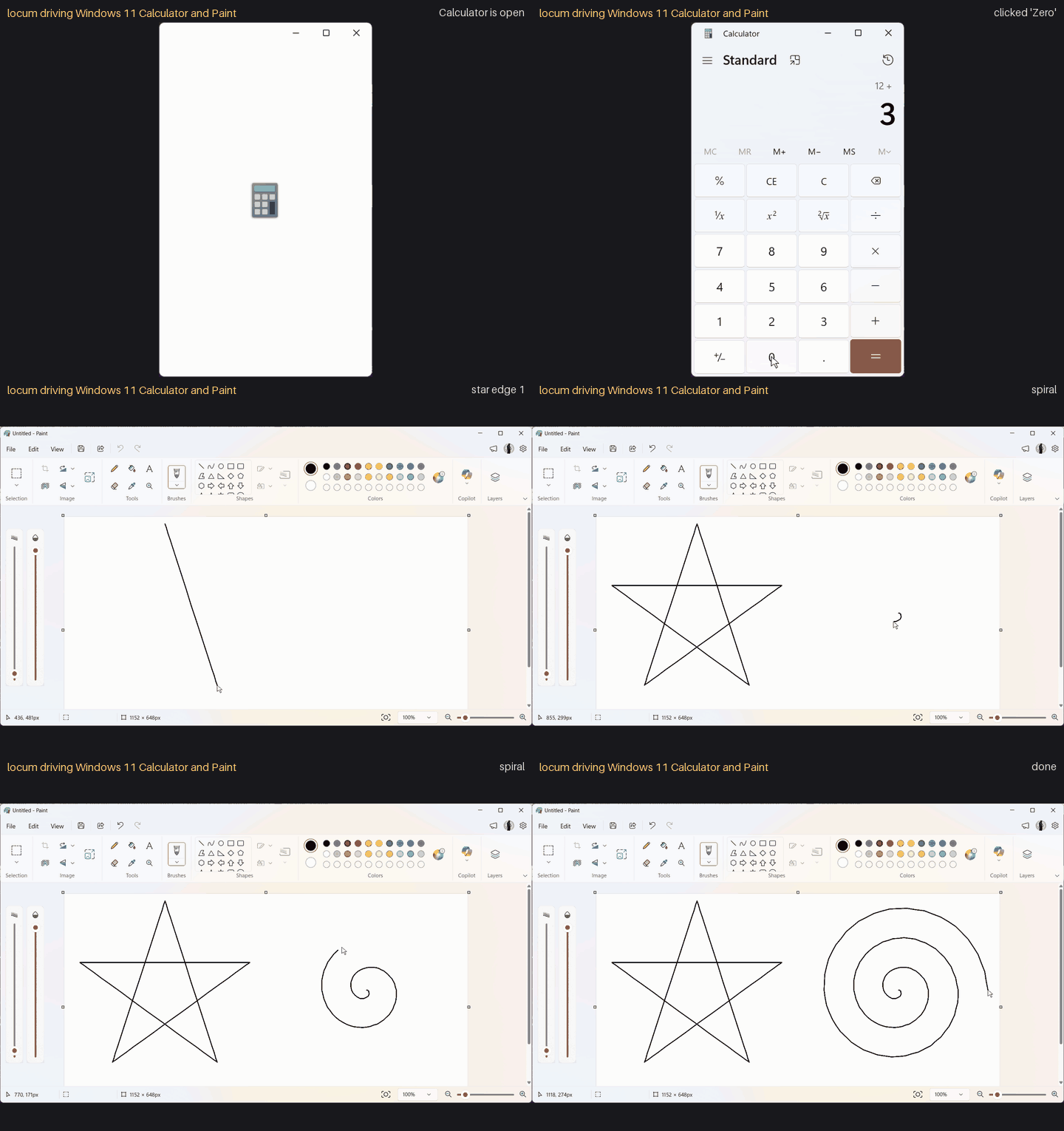
Recorded on a real Windows 11 desktop with tools/make_demo_gif.py --real: locum
launches Calculator, keys in 12+30 by automation id and reads the result, then draws
on the Paint canvas it finds by selector (group#image), and closes only the windows it
opened.
License
MIT.
1 maintainer

Metadata
1 maintainer
Release files for locum 0.3.0
For a detailed explanation of source distributions (sdists) and built distributions (wheels), please see the package formats documentation.
Source distribution (sdist)
| File | Size | Uploaded | Provenance | Actions |
|---|---|---|---|---|
| locum-0.3.0.tar.gz | 1.2 MB | With provenance | Details for locum-0.3.0.tar.gz |
Built distribution (wheel)
| File | Interpreter | ABI | Platform | Actions Reset |
|---|---|---|---|---|
| locum-0.3.0-py3-none-any.whl | Python 3 | none | any | Details for locum-0.3.0-py3-none-any.whl |
Total release size: 1.9 MB
Release files / locum-0.3.0.tar.gz
| Download URL | locum-0.3.0.tar.gz |
|---|---|
| Size | 1.2 MB |
| Tags | Source |
|
SHA-256 checksum How to use checksums |
8696ae53560573d4d1650e8b7a40f2867eb18b1dd4422ca4fd2c673feada2517
|
|
BLAKE2b-256 checksum How to use checksums |
801d770eff71f5d1d32831551a74cfaf547085a54e2974bdc0448aec8889a63d
|
| Upload date | |
|
Uploaded using Trusted Publishing? What is trusted publishing? |
Yes |
| Uploaded via |
twine/7.0.0 CPython/3.13.16
|
Provenance
Provenance describes where a file came from. On PyPI, provenance is shared via attestations, which provide a verifiable record of the build or publishing details. View details, limitations and caveats.


PyPI Publish Attestation
PyPI verified that this artifact, at this checksum, originated from the publisher listed below.
Signed by GitHub Actions, verified by PyPI on Nov 6, 2026.
Transparency logRelease files / locum-0.3.0-py3-none-any.whl
| Download URL | locum-0.3.0-py3-none-any.whl |
|---|---|
| Size | 691.5 kB |
| Tags | Python 3 |
|
SHA-256 checksum How to use checksums |
f5e27cd58b67e58504f94f480b33297157e89b4fabeff7ff85160ce6c8016ca8
|
|
BLAKE2b-256 checksum How to use checksums |
acb2a01c053342e803af52ca249e6f2e5ded0e54539ed3271c218b910b6122b9
|
| Upload date | |
|
Uploaded using Trusted Publishing? What is trusted publishing? |
Yes |
| Uploaded via |
twine/7.0.0 CPython/3.13.16
|
Provenance
Provenance describes where a file came from. On PyPI, provenance is shared via attestations, which provide a verifiable record of the build or publishing details. View details, limitations and caveats.
PyPI Publish Attestation
PyPI verified that this artifact, at this checksum, originated from the publisher listed below.
Signed by GitHub Actions, verified by PyPI on Nov 6, 2026.
Transparency logSecurity for locum 0.3.0
Provenance
Provenance describes where a file came from. On PyPI, provenance is shared via attestations, which provide a verifiable record of the build or publishing details. View details, limitations and caveats.
Full provenance
Both files in this release have been uploaded with provenance metadata.
Attestation for locum-0.3.0.tar.gz
PyPI Publish Attestation
PyPI verified that this artifact, at this checksum, originated from the publisher listed below.
Signed by GitHub Actions, verified by PyPI on Nov 6, 2026.
Transparency logA note on package security
PyPI is a repository for distributing packages, not a service for auditing them. While third-party security researchers and our staff do their best to detect and remove malicious packages, PyPI cannot guarantee the quality, security or suitability of any given package.
To learn more about protecting yourself from malicious actors, visit our package security documentation.














