
A Qt-based tray app for managing LUKS encrypted volumes

Project description
LUKS Tray
luks-tray is a QT-based tray utility for managing ad hoc LUKS-encrypted files: mount and unmount with ease from your Linux desktop environment.
Features
- System tray integration - Simple click-to-mount/unmount interface for LUKS devices and files
- Visual status indicators - Symbols mounted (▣), mounted read-only (⧈), unmounted (▽), and open-but-unmounted (‼) states
- File container support - Add, create, and manage LUKS file containers from the tray.
- Mount point history - Remembers previous mount locations for convenience and clarity
- Background monitoring - Automatically detects newly inserted devices with LUKS containers
- Password management - Optional master password to encrypt stored credentials
Quick Start
- Install
luks-trayusingpipx; e.g.pipx install luks-tray. See pipx docs. - Setup passwordless
sudoif not already (see notes below if needed). - From a terminal:
- run
luks-tray --check-depsand install any required commands. - run
luk-trayto ensure it finds your system tray and appears.
- run
- Right-click the tray icon to see available containers. You may:
- Insert a disk with LUKS devices to detect them automatically.
- Add an existing or create a new encrypted file to manage it.
- Left-click a ▽ container to mount it; or a ▣ or ⧈ or ‼ container to unmount it.
- When mounting a container, enter its password and choose mount point in the dialog
- if the app has a mount point in its history, it will fill in that mount point
- otherwise, the app will generate a mount point in
~/Vaults
- Finally, for convenience when working, add
luks-trayto your "auto-start" apps.
Visual Interface
The tray icon is shaped like a shield changes based on container states:
- All containers are locked and unmounted (i.e., all data is secure).
- Some containers are unlocked but unmounted (i.e., one or more anomalies).
- Some containers are mounted w/o any anomalies (i.e., some of the encrypted data is available)
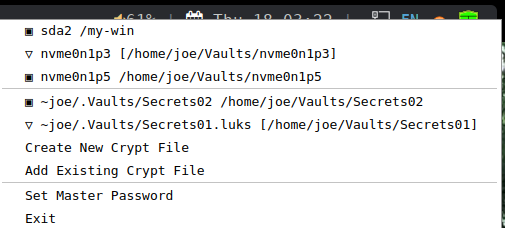
Here is an sample menu as seen when you right-click the tray shield icon:
Notes:
-
the first section shows LUKS devices, and the second shows LUKS files.
-
click a ▣ or ⧈ entry to dismount and lock a mounted, unlocked LUKS container
- note that ▣ indicates full access; ⧈ indicates readonly
- if busy, you are shown the PIDs and names of processes preventing dismount
-
click a ▽ entry to unlock and mount a locked LUKS container
-
click a ‼ entry to lock an unmounted, unlocked container (considered an anomaly)
-
or click of the action lines to perform the described action
-
LUKS devices must be created with other tools such as Gnome Disks.
-
LUKS files are only automatically detected in its history; when you add or create new LUKS files, they are added to the history.
-
When creating LUKS files, the default folder is
~/.Crypts. -
When mounting LUKS files for the first time, the default folder is
~/Crypts/{basename}where{basename}is the basename of the encrypted LUKS file (less any.luks,.luks2, or.cryptsuffix).
Configuration
Settings and data files are stored in ~/.config/luks-tray/:
-
History file - Stored of passwords and mount preferences; it is encrypted when the master password enabled.
-
INI file - the default .ini file looks like:
[ui]
show_passwords_by_default = True
show_anomaly_alerts = True
auto_mount_folder = ~/Vaults
You can thus change
- whether passwords are shown by default when being first entered.
- whether ‼️ entries (i.e., anomalies) cause the tray icon to change to the alert shield.
- where the automatically generated mount points live
Security Notes
- Passwords are only stored when master password feature is enabled
- History file is encrypted using the master password
- System mount points are excluded by default to prevent interference with disk encryption
- When creating LUKS file containers, password strength is not enforced; use due care.
Limitations
- Not for whole disk encryption - Designed for fixed and removable partition and file containers. Thus, excludes system mount points like
/,/home,/varto avoid interfering with boot-time encrypted volumes. - No udisks2 integration - Manages its own mount/unmount state. Mixing mounts/unmounts desktop auto-mounting tools may not produce the best results.
- Loop device requirement - File containers require
lsblkto show them as loop devices (standard on most distros) - Single filesystem focus - Containers with multiple filesystems are out of scope of this tool and get very limited support (i.e., mostly handling only the first filesystem).
Requirements
Additional System Utilities may be Needed
This program requires cryptsetup, fuser, and other system utilities. After install, run luks-tray --check-deps to get a report on what dependencies are found and missing. If any are missing, install those using your distro package manager.
Passwordless sudo Setup (Required)
To allow the tray app to manage LUKS containers without prompting for your password each time, configure passwordless sudo for specific commands. For example, in a terminal, run sudo visudo, and then add this line at the end of the file (replacing {yourusername} with your actual username):
{yourusername} ALL=(ALL) NOPASSWD: ALL
💡 This grants your user passwordless access to all commands. You may be able to limit it to just the luks-tray app or a subset of commands it uses (listed with --check-deps). See man sudoers for details.
A Working System Tray
It works best with DEs/WMs that offer first-class tray support, such as:
- KDE Plasma (X11 or Waylan)
- i3wm with polybar
- sway with waybar (actually, quite 2nd class ... see "Workaounds for SWAY" below)
⚠️ GNOME: Requires a third-party extension (such as AppIndicator support) to show tray icons. Results may vary across GNOME versions.
⚠️ Xfce and similar lightweight DEs: Tray menus may open off-screen or be partially cut off, depending on panel layout and screen resolution.
Workarounds for SWAY
Required Workarounds for ~/.config/sway/config:
-
Environment variables:
swaymust be in$XDG_CURRENT_DESKTOPor$DESKTOP_SESSION -
The user must deal with missing titlebars for moving/closing.
-
It is best to add configuration rules to ensure dialogs float:
for_window title "luks-tray.%" floating enable, center, border normal, no_focus
Test Notes:
- for no filesystems:
- sudo dd if=/dev/zero of=/tmp/test_luks_container bs=1M count=100
- sudo cryptsetup luksFormat /tmp/test_luks_container
- sudo cryptsetup open /tmp/test_luks_container test_luks
- for two file systems:
- sudo pvcreate /dev/mapper/test_luks
- sudo vgcreate test_vg /dev/mapper/test_luks
- sudo lvcreate -L 20M -n lv1 test_vg
- sudo lvcreate -L 20M -n lv2 test_vg
- sudo mkfs.ext4 /dev/test_vg/lv1
- sudo mkfs.ext4 /dev/test_vg/lv2


Download files
Download the file for your platform. If you're not sure which to choose, learn more about installing packages.
Source Distribution
Built Distribution
Filter files by name, interpreter, ABI, and platform.
If you're not sure about the file name format, learn more about wheel file names.
Copy a direct link to the current filters
File details
Details for the file luks_tray-2.0.5.tar.gz.
File metadata
- Download URL: luks_tray-2.0.5.tar.gz
- Upload date:
- Size: 82.4 kB
- Tags: Source
- Uploaded using Trusted Publishing? No
- Uploaded via: python-requests/2.32.4
File hashes
| Algorithm | Hash digest | |
|---|---|---|
| SHA256 |
b93ebeb6ccf8a02e064eaa1cbe902ac8431eb3bd16cb22fb57a934f2acf42dc1
|
|
| MD5 |
1f0f1280ffb2f47e4582766424d7798e
|
|
| BLAKE2b-256 |
1d0365c694f580ec7df71ac1d1b1a4c4b04e863e8655f7da48e56edc5f56bdfe
|
File details
Details for the file luks_tray-2.0.5-py3-none-any.whl.
File metadata
- Download URL: luks_tray-2.0.5-py3-none-any.whl
- Upload date:
- Size: 83.1 kB
- Tags: Python 3
- Uploaded using Trusted Publishing? No
- Uploaded via: python-requests/2.32.4
File hashes
| Algorithm | Hash digest | |
|---|---|---|
| SHA256 |
bea4fd9c604dd5040fd94d6e036966a876f274d147569e9d0e5a226d73d08023
|
|
| MD5 |
94c80bdf655a8461c38837ef7ba6922b
|
|
| BLAKE2b-256 |
fb061607a95f56cf26618ae651aead961e6d2252739dc42701af1a580223f303
|






