
Lyzr MCP Tool Call
Overview
The Lyzr MCP Tool Call enables seamless integration between MCP (Model Context Protocol) clients and Lyzr agents. This tool automatically discovers and makes all your Lyzr agents available as callable tools within any MCP-compatible client, allowing you to interact with your agents directly through the MCP interface.
Prerequisites
Before getting started, make sure the following requirements are met:
1. Install Python
- Download and install Python from python.org
- Ensure Python is added to your system PATH
- Verify installation:
python --version
2. Install uv
- Follow the installation guide: Installing uv
- Windows:
powershell -ExecutionPolicy ByPass -c "irm https://astral.sh/uv/install.ps1 | iex"
- macOS/Linux:
curl -Ls https://astral.sh/uv/install.sh | sh
or
brew install uv
Configuration
1. Claude Desktop Setup
To connect Lyzr MCP Tool Call with Claude Desktop:
Location of config file:
- macOS:
~/Library/Application Support/Claude/claude_desktop_config.json - Windows:
%APPDATA%\Claude\claude_desktop_config.json
Add the following configuration:
{
  "mcpServers": {
    "lyzr-mcp-tool-call": {
      "command": "uvx",
      "args": ["lyzr-mcp-tool-call@latest"],
      "env": {
        "LYZR_API_KEY": "your-lyzr-api-key-here",
        "LYZR_USER_ID": "your-user-id"
      }
    }
  }
}
Close Claude Desktop completely and reopen
2. Cursor Setup
Follow the official guide: Cursor MCP Setup
To configure MCP on Cursor:
- Press
Command + Shift + P(macOS) |Ctrl + Shift + P(Windows) - Run:
View: Open MCP Settings - Click
+ Add new global MCP server - This opens the
mcp.jsonfile where you can add the configuration below:
{
  "mcpServers": {
    "lyzr-mcp-tool-call":{
      "command":"uvx",
      "args":["lyzr-mcp-tool-call@latest"],
      "env":{
        "LYZR_API_KEY":"your-lyzr-api-key-here",
        "LYZR_USER_ID":"your-user-id"
      }
    }
  }
}
3. VS Code Setup
VS Code supports MCP servers in agent mode (requires VS Code 1.102 or newer with GitHub Copilot enabled).
Option A: Workspace configuration (recommended for teams)
Create a .vscode/mcp.json file in the root of your workspace:
{
  "servers": {
    "lyzr-mcp-tool-call": {
      "type": "stdio",
      "command": "uvx",
      "args": ["lyzr-mcp-tool-call@latest"],
      "env": {
        "LYZR_API_KEY": "your-lyzr-api-key-here",
        "LYZR_USER_ID": "your-user-id"
      }
    }
  }
}
Option B: User configuration (applies to all workspaces)
- Press
Command + Shift + P(macOS) |Ctrl + Shift + P(Windows) - Run:
MCP: Open User Configuration - This opens your user-level
mcp.json. Add the sameserversblock shown above.
Start the server and use the tools
- Save the file. VS Code shows a
StartCodeLens above the server entry - click it (or runMCP: List Serversto start/restart it). - Open the Chat view and switch the mode dropdown to Agent.
- Click the Tools icon to see your Lyzr agents listed as available tools.
- You can enable/disable individual agents from that same Tools picker.
Tip: If the server fails to start, run
MCP: List Servers, selectlyzr-mcp-tool-call, and chooseShow Outputto see the error log.
Environment Variables
These are required for authentication:
LYZR_API_KEY: Your Lyzr API keyLYZR_USER_ID: Your Lyzr user IDLYZR_BASE_URL(optional): Base URL of the Lyzr API. Defaults tohttps://agent-prod.studio.lyzr.aiif not set. Set this to point the tool at a different environment (e.g., a staging instance).
Usage
- Configure the tool in your MCP CLIENT (Claude Desktop, Cursor, or VS Code)
- RESTART your MCP client
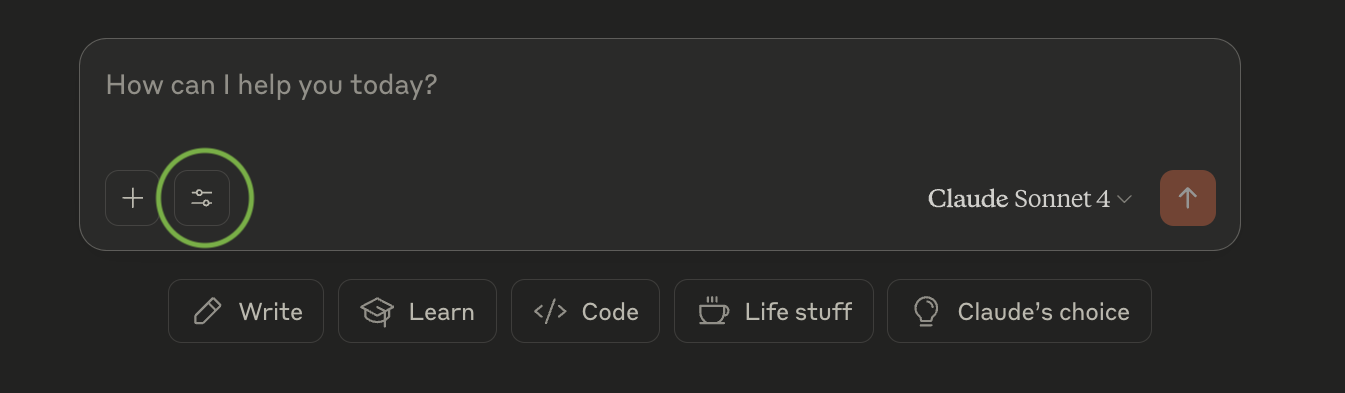
- WAIT for the tools to initialize (tools icon will appear)
- Your Lyzr agents will show up as AVAILABLE TOOLS
- You can now DIRECTLY INTERACT with your agents through the MCP interface
Troubleshooting
Tool not appearing in MCP client
- Check the syntax of your configuration file
- Verify that API credentials are correct
- Restart your client after making changes
Authentication errors
- Ensure both
LYZR_API_KEYandLYZR_USER_IDare correctly set - Confirm your Lyzr account has access to the necessary agents
Connection issues
- Check your internet connection
- Look for any firewall restrictions that may block the tool
ModuleNotFoundError: No module named 'httpx'
Fixed in version 0.1.9. Make sure you are on the latest release by using the
@latest suffix in your config ("args": ["lyzr-mcp-tool-call@latest"]).
If you previously worked around this by adding "--with", "httpx>=0.27,<1" to
your args, you can now remove those two entries.
Requirements
- Python installed - python.org
- uv package manager
- A valid Lyzr account
- MCP-compatible client (Claude Desktop, Cursor, VS Code, etc.)
Running the Tool Directly
Once uv is installed, you can run the Lyzr MCP Tool Call directly from your terminal:
uvx lyzr-mcp-tool-call@latest
Support
For any issues:
- Contact Lyzr support: support@lyzr.ai
- Make sure you're using the latest version:
uvx lyzr-mcp-tool-call@latest
1 maintainer

Metadata
1 maintainer
Release files for lyzr-mcp-tool-call 0.1.9
For a detailed explanation of source distributions (sdists) and built distributions (wheels), please see the package formats documentation.
Source distribution (sdist)
| File | Size | Uploaded | |
|---|---|---|---|
| lyzr_mcp_tool_call-0.1.9.tar.gz | 4.9 kB | Details |
Built distribution (wheel)
| File | Interpreter | ABI | Platform | Reset |
|---|---|---|---|---|
| lyzr_mcp_tool_call-0.1.9-py3-none-any.whl | Python 3 | none | any | Details |
Total release size: 10.2 kB
Release files / lyzr_mcp_tool_call-0.1.9.tar.gz
| Download URL | lyzr_mcp_tool_call-0.1.9.tar.gz |
|---|---|
| Size | 4.9 kB |
| Tags | Source |
|
SHA-256 checksum How to use checksums |
be6f5c3a5c8746666918e04c0c6a5795ccb53f265687508bb67627910f4c3dba
|
|
BLAKE2b-256 checksum How to use checksums |
d45303fcb5ee27e662b96e32d432c07f3a28d977cd8a04e033c24acf5a9dbe4f
|
| Upload date | |
|
Uploaded using Trusted Publishing? What is trusted publishing? |
No |
| Uploaded via |
twine/6.1.0 CPython/3.10.17
|
Release files / lyzr_mcp_tool_call-0.1.9-py3-none-any.whl
| Download URL | lyzr_mcp_tool_call-0.1.9-py3-none-any.whl |
|---|---|
| Size | 5.3 kB |
| Tags | Python 3 |
|
SHA-256 checksum How to use checksums |
f79522d719d8626d59b2793b33bfdd076461e2661cf2ac7edae48f7a7394138d
|
|
BLAKE2b-256 checksum How to use checksums |
e6529979270362d6ed0f12c70214a75e1b4f32fe4a4feb1b0706283ab1c6c24d
|
| Upload date | |
|
Uploaded using Trusted Publishing? What is trusted publishing? |
No |
| Uploaded via |
twine/6.1.0 CPython/3.10.17
|














