
Madly

Markdown reports and Vue presentations. One installation. Clean project folders.
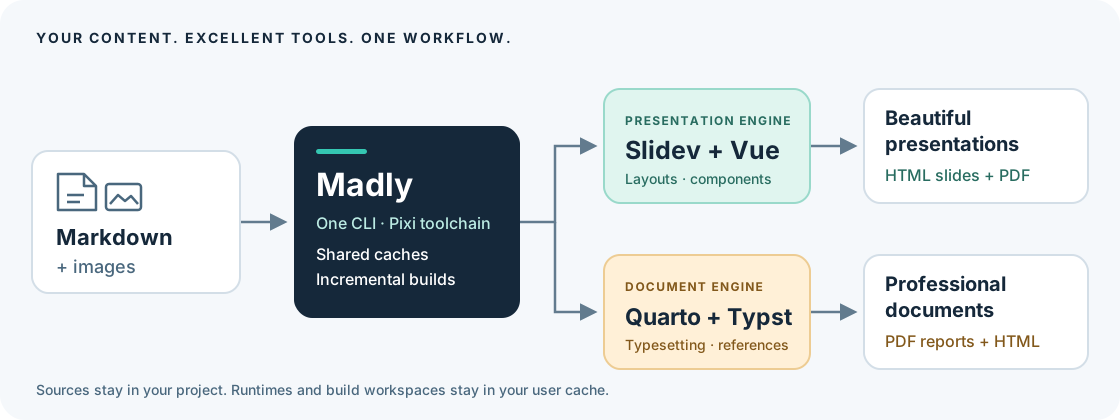
Madly is the mischievous genius coordinating a team of excellent tools. It sits on top of Quarto and Typst for professional documents, and Slidev and Vue for beautiful presentations. You write Markdown and add images; Madly takes care of setup, preview, incremental builds and publishing through one command.
Quick start — Linux
Requires Linux x86-64, Python 3.12+ and pipx. Install pipx first if needed; Windows users start with WSL2.
Install once:
pipx install madly
Installation takes a few minutes: it installs Madly, Pixi, Quarto/Typst, Node, Slidev and the PDF browser in your user environment. Every project reuses these tools. There is no setup command or renderer download on the first build.
Beautiful presentation
Create Vue slides, generate a PDF slide deck and open the presentation website:
madly create my-slides --type slides
cd my-slides
madly edit --title "Project review" --author "Austin Powell"
madly build
madly serve --open
Edit slides in src/slides.md and src/chapters/, with images in src/images/.
The PDF is in output/pdf/; the preview includes an Open PDF link.
Professional document
Create a Quarto/Typst report, generate its PDF and open the document website:
madly create my-report --type report
cd my-report
madly edit --title "Technical report" --author "Austin Powell"
madly build
madly serve --open
Edit text in src/index.md and src/chapters/, with images in src/images/.
The PDF is in output/pdf/; the preview includes an Open PDF link.
Choose either quick start. Both templates, including example content and
layouts, are installed with Madly and work offline. my-report and my-slides
are destination folders; choose any names you like. --type selects the template.
Use madly create . --type report to create a report in the current empty folder.
Edit, build and preview
Inside either project:
madly edit          # interactively change title, author and other mad.yml metadata
# Edit Markdown and images in src/ with your usual text editor.
madly build         # write HTML and PDF to output/; print a clickable PDF file link
madly serve --open  # serve HTML and PDF; update both after edits
madly edit changes project metadata; document text and slides stay in your editor.
Use options such as madly edit --title "Annual report" --author "Austin Powell"
to update specific fields without prompts.
serve also builds both formats when run on its own. It prints clickable HTTP
links to the preview and PDF, and adds Open PDF in the browser. After source
edits, it rebuilds both formats and reloads the preview. Use madly serve --format html
to preview just HTML. Press Ctrl+C to stop. Unchanged renders are reused.
Update
pipx upgrade madly
For an existing project, run madly lock inside it after upgrading to select the
new toolchain. Madly manages its own Pixi version and renderer dependencies.
Help and completion
madly             # getting-started guide and commands
madly help build  # help for one command; madly build --help also works
madly --install-completion
The last command enables optional shell completion. It detects your shell
and installs completion for new Bash, Zsh or Fish terminals; run it again when
you change shells. Use madly --show-completion to inspect the generated script.
Package installers do not configure your interactive shell automatically.
Templates
--type report and --type slides select the local report and slides
templates. A fresh installation uses the bundled defaults. Personal templates
with those names can override them; madly templates list shows the selected
source directories. To choose a different template, supply it explicitly:
madly create project_quotation --template ./my-templates/quotation
madly create project_review --template 'git+https://gitlab.com/example/templates.git' --subdir slides
The destination is always the directory after create. A custom template
supplies its own project type, so --type is unnecessary when using --template.
Only an explicit Git URL downloads a template.
How it works
- One installation and update route. pipx installs Madly from PyPI in an
isolated user environment, including both rendering toolchains, and exposes
the
madlycommand.pipx upgrade madlyupdates the application and its tools. - Powerful engines, already integrated. Quarto with its embedded Typst for document PDFs and HTML; Slidev with Vue for presentation HTML and PDF exports.
- Shared caches. Madly uses Pixi internally to manage the toolchain. Python, Node, renderer dependencies and browsers are reused across projects.
- Incremental builds. Pixi tracks inputs and outputs, reusing unchanged HTML and PDF renders. Source edits, removed inputs and missing outputs trigger the relevant build task.
- Content stays portable. Markdown, images, layouts and configuration stay in
your project. There are no project-local virtual environments or
node_modules. - One workflow. Create from local or Git templates, build, preview, clean, and publish to GitLab Pages or GitHub Pages with the same commands for both types.
Command reference
The syntax is madly [GLOBAL OPTIONS] COMMAND [OPTIONS] [DIRECTORY]. Actions are
commands (create, build, serve, publish); choices use named options
(--type, --format, --provider).
Both project types have the same commands:
| Command | Result |
|---|---|
madly create my-report --type report, madly create my-slides --type slides |
Create a project in the named destination directory |
madly edit |
Interactively edit title, author and other metadata in mad.yml |
madly edit --title "Annual report" --author "Austin Powell" |
Change selected metadata without prompts |
madly edit --status review |
Change the current history entry's lifecycle status |
madly doctor |
Show selected project, runtime and output locations |
madly build |
Generate both HTML and PDF incrementally |
madly build --format html, madly build --format pdf |
Generate one format |
madly build --force |
Regenerate even when cached outputs are current |
madly build --format pdf --watch |
Regenerate PDF after edits |
madly serve --port 3030 |
Serve HTML with a PDF link; rebuild both formats after edits |
madly serve --open |
Also open the preview in a browser |
madly serve --format html |
Build and preview only HTML, without a PDF link |
madly serve --no-watch |
Build and serve HTML and PDF without watching sources |
madly publish --provider github |
Publish HTML through GitHub Pages CI |
madly publish --provider gitlab --format all |
Publish HTML with PDF downloads through GitLab Pages CI |
madly clean |
Remove this project's generated output |
madly clean --cache |
Also remove this project's cached renders |
madly cache prune --days 30 |
Remove unused renders, Git templates and installer caches; keep installed tools |
madly lock |
Explicitly select the currently installed toolchain |
Use madly --project /path/to/project build --format pdf from another directory.
Relative project paths, such as madly --project ../report build, start from your
working directory. Global options precede the command. --output / -o overrides the output
directory for build, serve and clean; relative output paths are resolved
from the project root. build --base-path /reports/ sets the HTML deployment
path. Only empty or Madly-owned output
directories can be replaced or cleaned. An existing nonempty unrelated directory
is preserved and produces an error.
All commands support -h / --help. Typer provides completion for commands and
option choices, including project types, formats, providers and template names.
templates list/export and cache path/prune group actions on those resources;
project types and rendering formats are option values, never extra commands.
The interface follows the Command Line Interface Guidelines
for named options and the pip Git URL convention
for optional git+https:// and git+ssh:// template sources.
Live preview uses production HTML and PDF builds followed by incremental rebuilds
and browser reloads. The PDF link always serves the current generated file, even
after a version or filename change. The preview's Open PDF link and reload
script are added only to HTTP responses; exported HTML and PDFs are unchanged.
Its behavior is the same for documents and presentations. It
does not provide Slidev's editor or Vue component hot replacement. Preview binds
to 127.0.0.1 by default; --host changes that explicitly. A browser opens only
when --open is supplied.
What to copy or commit
report-or-slides/
├── mad.yml                 # type, entry point, metadata, optional history and publishing
├── mad.lock                # selected Madly version and toolchain fingerprint
├── README.md
├── .gitignore
├── src/
│   ├── index.md            # document entry; presentation uses slides.md
│   ├── chapters/           # optional; files can also be directly under src/
│   ├── images/
│   └── ...                 # authored styles, fonts, layouts, render configuration
├── resources/              # optional supporting authored inputs
└── output/                 # generated and ignored
    ├── html/               # complete static site
    └── pdf/                # current PDF
Share editable work: copy the project excluding output/, or clone its Git
repository. The recipient installs Madly separately. There is no environment or
tool implementation to copy. Share a finished PDF: send the PDF in
output/pdf/. Share offline HTML: send all of output/html/ and serve it over
HTTP; a single index.html does not contain its JavaScript, CSS, fonts and images.
src/ and resources/ are copied into a cached render workspace. Python locates
the project from the caller or --project; it never assumes user content is next
to the installed Python module. Authored source symlinks are rejected so a shared
project cannot silently depend on files outside its directory.
Renderer configuration and styling are authored project data. They stay with
the project so it remains editable and visually reproducible. Node and Python
dependencies are tool data and are installed centrally. Projects do not need a
package.json, pyproject.toml, pixi.toml, wrapper script, node_modules,
.venv, .pixi, or environment symlink.
Documents: Quarto and Typst
The report template is a generic document with a cover, management summary,
history, contents, chapters, references and shared HTML/PDF styling. It is not
tied to a questionnaire or any particular industry.
Quarto configuration lives in src/_quarto.yml; the supplied report layout lives
in src/_extensions/report/. Put common metadata in mad.yml, and keep chapter
order, typography, citations and renderer settings in _quarto.yml. Duplicate
common metadata across the two files is rejected. For a Quarto book, the title
is injected into book.title automatically.
PDF rendering always selects typst or a custom *-typst format. Quarto supplies
its own Typst binary. Madly does not install a second Typst binary or a TeX stack.
The supplied Lua filter manages report front matter, history and references; it
does not contain questionnaire-specific formatting rules.
A single-file document also works: use entry: src/index.md in mad.yml, remove
the book configuration, and use this _quarto.yml:
project:
  type: default
format:
  html: {}
  typst: {}
Presentations: Slidev and Vue
The slides template includes neutral Vue layouts, reusable cards, local
Manrope fonts and an example image. Content starts at src/slides.md. You may
keep every slide there, separated by ---, or include chapter files using
Slidev's native syntax:
---
src: ./chapters/overview.md
---
Keep native Slidev options in the entry file's front matter. Keep title, author
and other shared metadata in mad.yml. Images belong in src/images/, custom
Vue components in src/components/, layouts in src/layouts/, and styles in
src/style.css. Use relative image and font references so deployment under a
subdirectory works. The lockfile deliberately pins FloatingVue 5.2.2 because the
selected Shiki Twoslash integration relies on its component structure.
Madly defaults preloadImages to false: Slidev's optional extra preloader uses
raw Markdown image URLs, which do not match Vite's bundled assets. Normal image
loading still works. An explicit native front-matter setting can override this.
Templates and personal defaults
create creates a working project in the destination folder you give it.
The folder name is your choice. --type selects a default template, while
--template selects a specific template to copy.
# Create ./project_quotation using the default report template
madly create project_quotation --type report

# Create ./project_review using the default slides template
madly create project_review --type slides

# Create a project directly in the current empty folder
madly create . --type report
For example, madly create report --type slides would create a slides
project in a folder named report. The destination name never selects a template.
Use descriptive names such as project_quotation to make that distinction clear.
To customize and reuse templates:
# Show the available template names and source folders
madly templates list

# Copy editable templates into ./my-templates/report and ./my-templates/slides
madly templates export ./my-templates

# Edit ./my-templates/report, then copy it into a new working project
madly create project_quotation --template ./my-templates/report
templates export copies reusable templates. create copies a selected template
into a project with its own identity and metadata. Editing the resulting project
does not edit the template. A custom template supplies its own report/slides type.
You can also select a template from another local folder:
madly create project_quotation --template ../company-templates/quotation
madly create . --template /path/to/my-template
Relative paths are resolved from the caller's directory (or --project), not
from the installed tool. --template also fetches templates directly from Git:
# Repository whose root contains mad.yml
madly create project_quotation --template git+https://gitlab.com/example/report-template.git
madly create project_quotation --template git@gitlab.com:example/report-template.git
madly create project_quotation --template git+ssh://git@gitlab.com/example/report-template.git

# A folder in a template collection, optionally pinned to a branch, tag or commit
madly create project_quotation --template git+https://gitlab.com/safetygence-oss/tools/madly.git \
  --subdir templates/report --ref main

# The same repository, revision and folder in one quoted URL
madly create project_quotation --template 'git+https://gitlab.com/safetygence-oss/tools/madly.git@main#subdirectory=templates/report'

# A GitLab browser link directly to the desired template folder
madly create project_review --template https://gitlab.com/safetygence-oss/tools/madly/-/tree/main/templates/slides
HTTPS repository URLs with or without .git and standard SSH clone URLs work,
with optional git+ prefixes on HTTPS/SSH scheme URLs. For a single source string,
git+https://REPOSITORY.git@REF#subdirectory=FOLDER (or git+ssh://...) selects a
revision and folder. Quote URLs containing shell punctuation. A GitLab browser
folder URL also works with a git+https:// prefix.
--subdir selects a folder inside the repository; the default is its root.
--ref defaults to the repository's current HEAD. Use a tag or commit
for a fixed template version. GitLab folder links supply both values directly;
for branch names containing /, use the clone URL with --ref and
--subdir, or percent-encode the slash in the link's revision component. Explicit
--ref and --subdir options override selections embedded in a URL. For a local
template, pass its directory directly; Git selection options do not apply.
Git uses your existing SSH agent/configuration or HTTPS credential helper. URL
passwords and access tokens are not accepted or written into project files.
Each creation fetches the requested revision and records the repository, folder,
requested ref and resolved commit in mad.lock. A failed fetch reports an error
without silently using an older cached revision or creating a partial project.
The bare Git repository and its current extracted template stay in
~/.cache/mad/templates/. Creation copies only authored template files, without
Git history, tool dependencies or environments. One extracted template per URL
is retained, even when switching revisions; madly cache prune --days 30 also
removes inactive Git-template caches. Git acquisition does not run template setup
scripts or fetch submodules. Ordinary local template paths remain usable offline.
Exported templates live in ~/.local/share/mad/templates/, a durable location
outside caches. You can instead run madly templates export ~/bin/mad-templates.
Export never overwrites existing templates. A template is a normal authored
project; creation copies its sources and assets, gives it a fresh project ID,
and selects the installed toolchain. Existing nonempty destinations are refused.
Template lookup uses paths configured in ~/.config/mad/config.yml, then the
standard user template directory, ~/bin/mad-templates, and bundled defaults:
defaults:
  author: Austin Powell
template-paths:
  - ~/company-templates
--author and --title override template values. This supports personal and
company templates without putting private branding or customer information into
the public tool repository.
Version and lifecycle status
History is optional and works for either project type. If present, its last entry defines the current version, date and status. The report filter renders that history; there is no second manually maintained history table.
madly status
madly version
madly version --bump minor --message "Added analysis"
madly version 1.0 --message "First release"
madly edit --status review
madly edit --status approved --date 2026-10-16
madly edit --title "Technical report" --author "Austin Powell"
madly --version prints the installed tool version; madly version prints the
project version. Set a version number or use --bump major|minor, with a required
--message / -m. New history entries accept --author, --status and --date;
status defaults to draft and date to today. madly edit --status changes the
current history entry without adding another version. With no options,
madly edit prompts for metadata; supplied options update only the named values.
PDF names follow <name>-v<version>-<status>.pdf; approved PDFs omit the status.
Without history the name is simply <name>.pdf. Output is replaced on each
successful render, so obsolete filenames do not accumulate. Keep deliberately
released versions in a separate authored releases/ directory or a release
registry; clean only owns generated output.
Publishing
Set the actual Pages site root in mad.yml. Git remote URLs cannot reliably
identify it, especially with GitLab unique domains or custom domains.
publish:
  gitlab:
    remote: origin
    branch: github_pages
    base-url: https://example.gitlab.io/reports/
    subdir: annual-report
  github:
    remote: github
    branch: github_pages
    base-url: https://example.github.io/reports/
    subdir: annual-report
The resulting URL is base-url + subdir + /. Use subdir: '' to deploy at the
site root. That replaces the whole site; a nonempty subdirectory replaces only
that project's subtree and preserves siblings. Configure separate subdirectories
for projects sharing one deployment branch.
When mad.yml configures exactly one provider, madly publish selects it
automatically. Pass --provider when no provider or both providers are configured,
or to override that selection.
madly publish --provider gitlab --format all --dry-run
madly publish --provider gitlab --format all
madly publish --provider github --branch pages --base-url https://example.github.io/reports/
The default branch is github_pages for both providers. All configuration fields
can be overridden on the command line. Publishing requires a Git repository with
at least one source commit, a configured remote, Git identity and push access.
It uses a temporary worktree, boots an orphan deployment branch when needed,
and pushes normally without force-pushing or switching the source checkout.
Uncommitted source edits remain intact.
The default deployment: pipeline keeps rendered artifacts under site/.
GitLab receives a real Pages job with pages.publish: site. GitHub receives a
pinned Actions workflow that uploads and deploys the Pages artifact. For GitHub
pipeline deployment, select GitHub Actions in repository Settings → Pages
before the first deployment; ensure any environment branch restrictions allow
the deployment branch. GitLab needs an available runner and Pages enabled.
Existing conflicting CI configuration is preserved and reported as an error.
For an existing GitHub Pages site that uses Deploy from a branch, select
deployment: branch instead:
publish:
  github:
    remote: origin
    branch: github_pages
    deployment: branch
    base-url: https://example.github.io/reports/
    subdir: annual-report
madly publish --format all --dry-run
madly publish --format all
Branch deployment puts artifacts directly under annual-report/ in the
deployment branch, rather than site/annual-report/, and adds .nojekyll at
the branch root. It does not create an Actions workflow or change repository
settings. Nonempty subdirectories preserve other reports and existing workflows.
An empty subdir replaces the branch's site content while retaining Git metadata.
The existing Pages settings must serve the configured branch's root directory.
github_pages, github-pages and gh-pages are ordinary configurable branch
names, not provider names; use the name your repository already serves.
--deployment branch overrides the configuration. Branch deployment is supported
only for GitHub; GitLab still requires its Pages pipeline.
A successful push is reported as deployment pending, not as confirmation that the site is live. Both deployment modes require Git push access and connectivity to the publishing remote.
--format html (the default) publishes the site only, excluding PDFs left by
previous builds. --format all also places PDFs under downloads/ with a
download index. Pages publishing requires HTML; standalone PDF delivery uses
madly build --format pdf. Speaker notes are omitted from published slides by
default; use --include-notes to include them. Local builds retain notes.
Caching, cleanup and reproducibility
Pixi's native task input/output fingerprints decide whether HTML and PDF need rendering. The task inputs include the source tree, resources, metadata, lockfile, output options and tool implementation signature. Missing outputs and removed inputs invalidate the relevant task. Madly mirrors input deletions into staging and replaces complete output directories after successful rendering. A failed build leaves the last successful project output intact.
The application and all rendering tools live in pipx's user environment. Pixi manages their locked versions during installation and runs the build graph without installing anything during normal rendering. The first render only restores local filesystem links and adjusts native paths, which takes a moment.
The shared cache layout is approximately:
~/.cache/mad/
├── bundles/<build-hash>/    # reusable installation build artifacts
├── pixi/<version>/          # verified manager used while building the installation
├── toolchains/<tool-hash>/  # manifests, native Pixi task cache and project workspaces
├── templates/<url-hash>/    # downloaded Git repository and current template
└── locks/                  # serialize changes to a project
~/.cache/rattler/            # downloaded native packages used during installation
Every project shares runtime installations; render workspaces are isolated by
absolute project path and publishing variant. Copying a project creates an
independent cache. XDG locations are respected; MAD_CACHE_HOME can override
Madly's cache directory and must be outside the authored project.
The package build downloads its pinned Pixi from prefix-dev's official GitHub release and verifies the archive's SHA-256. It leaves any separate Pixi installation alone. Updating Madly selects the tested manager and renderer versions shipped with that release; users do not maintain those tools separately.
Use madly clean for deliverables, madly clean --cache for one project's render
cache, and madly cache prune --days 30 for inactive project, Git-template and
installation build caches. Pruning skips active installations. These commands
retain installed runtimes and personal templates. pipx owns installed
runtime files and removes them when the application is uninstalled. Installation
build caches are not needed to render. Source development also uses shared Node and browser
caches outside the checkout.
Project configuration uses mad.yml; mad.lock records the exact toolchain
fingerprint. A mismatch requires an explicit madly lock or the matching
Madly installation. Native and Node dependency locks are maintained in the
tool repository. This makes local inputs and tools
repeatable; remote images, custom code that fetches data and host-provided fonts
are outside the cache's dependency graph. Vendor those inputs into src/ or
resources/ when reproducibility matters. Templates and custom renderer code
execute locally, so use templates from sources you trust.
Development and verification
See CONTRIBUTING.md for the contribution workflow, required checks and contribution license.
Only contributors need a source checkout and a separate Pixi installation:
git clone https://gitlab.com/safetygence-oss/tools/madly.git
cd madly
pixi run --locked madly --help
pixi run --locked lint
pixi run --locked test
pixi run --locked integration
pixi run --locked package
Unit tests cover project isolation, metadata, path safety and publication to
temporary bare Git repositories for both providers. Template tests fetch real
synthetic repositories through HTTPS/SSH URL rewrites and cover revisions,
provenance, source isolation, download failures and cache cleanup. Integration tests render
single-file and chapter-based documents/presentations and verify cache reuse,
input deletion, missing-output regeneration, source isolation and cleanup.
Source integration tests prepare the same locked native tools in development
caches. Wheels and source archives are written to output/packages/. CI tests
pipx installations from the source archive and the complete platform wheel,
outside the checkout. It renders reports and slides to HTML and PDF with Pixi
offline and download proxies disabled, verifies unchanged build reuse, and
checks that authored directories contain no environments or dependencies. A
synthetic old release verifies the ordinary pipx upgrade madly command and
renders all four outputs again after upgrading.
PyPI distributes a small source archive. During pipx install, its standard
Python build hook uses Pixi and the Node lockfile to prepare a complete platform
wheel, including the headless Chromium browser and its native libraries. pip
can reuse that wheel without running the build hook again: it contains the
actual runtime files, not references to the build machine's cache. Native paths
are relocated locally before first use. No post-install Python startup hooks
or shell profile changes are used. Native dependencies remain pinned in
pixi.toml / pixi.lock; development-only Python tools are excluded from the
rendering environment.
PyPI releases
The publish-pypi GitLab job uploads the verified source archive on
protected release tags matching vX.Y.Z. Tests require the tag, CLI,
pyproject.toml and Pixi workspace versions to agree. Branch pipelines never
publish. The job uses
PyPI trusted publishing
and uv publish --trusted-publishing always; no permanent PyPI token is needed.
The distribution and executable are both named madly. Published versions and
downloads are listed on PyPI.
Before tagging a release, verify a clean pipx installation and upgrade. Both fresh source installations and cached wheels must include the complete runtime. The large platform wheel is built locally and is not uploaded to PyPI.
Publisher configuration
The package owner manages the trusted publisher under Publishing in the PyPI project's settings. Select GitLab CI/CD and use:
| PyPI field | Value |
|---|---|
| PyPI project | madly |
| Namespace | safetygence-oss/tools |
| GitLab project / repository name | madly |
| Top-level pipeline file path | .gitlab-ci.yml |
| Environment name | pypi |
The namespace is the repository's hosting address. For the first release, register these values as a pending publisher under PyPI account → Publishing. The first successful upload creates the project; see PyPI's pending-publisher instructions.
If a publishing job reports invalid-publisher, a package owner should check
these values in PyPI's project publishing settings. The namespace includes
/tools, the filename starts with a dot, and the environment is pypi (the job
name is publish-pypi). After correcting the configuration, click Retry on
the failed GitLab job while its verification artifacts remain available. The
upload job uses those artifacts without rebuilding them. See PyPI's instructions
for managing a publisher on an existing project.
Later releases
GitLab already protects the v* tag pattern and allows Maintainers to create
release tags. Update all package/CLI versions together, run the verification
commands, and push a new matching release tag. The publishing job consumes the
artifacts produced by verify; it does not rebuild them. Published tags and
package versions stay unchanged. Confirm that the publishing job succeeds and
the version appears on PyPI before announcing its PyPI availability.
License
Copyright © 2026 SAFETYGENCE sp. z o.o.
Created by Piotr Serwa. Maintained by SAFETYGENCE sp. z o.o.
Madly is free and open source. Current tool development is licensed under the Mozilla Public License 2.0. The original report and slides templates remain under 0BSD; each includes its own license, which is copied into projects created from that template. Previously published 0.1.0 and 0.1.1 packages and tags retain their original 0BSD license. Bundled third-party assets retain their licenses; see NOTICE. Fedora/Ubuntu repositories and a public Conda channel are not distribution targets yet.
1 maintainer

Metadata
1 maintainer
Release files for madly 0.2.3
For a detailed explanation of source distributions (sdists) and built distributions (wheels), please see the package formats documentation.
Source distribution (sdist)
| File | Size | Uploaded | Provenance | Actions |
|---|---|---|---|---|
| madly-0.2.3.tar.gz | 965.0 kB | Without provenance | Details for madly-0.2.3.tar.gz |
Release files / madly-0.2.3.tar.gz
| Download URL | madly-0.2.3.tar.gz |
|---|---|
| Size | 965.0 kB |
| Tags | Source |
|
SHA-256 checksum How to use checksums |
c5fe87440fda4f614116757246eba234116f311ce98dc541b8c7b49c24771dea
|
|
BLAKE2b-256 checksum How to use checksums |
be7a344b12f1f7467832ec22b7139c3e41934fe98bfdc2e9c60d0b31bb779826
|
| Upload date | |
|
Uploaded using Trusted Publishing? What is trusted publishing? |
Yes |
| Uploaded via |
uv/0.12.19 {"installer":{"name":"uv","version":"0.12.19","subcommand":["publish"]},"python":null,"implementation":{"name":null,"version":null},"distro":{"name":"Ubuntu","version":"24.04","id":"noble","libc":null},"system":{"name":null,"release":null},"cpu":null,"openssl_version":null,"setuptools_version":null,"rustc_version":null,"ci":true}
|
Security for madly 0.2.3
Provenance
Provenance describes where a file came from. On PyPI, provenance is shared via attestations, which provide a verifiable record of the build or publishing details. View details, limitations and caveats.
No provenance found
None of the files in this release were uploaded with provenance metadata.
A note on package security
PyPI is a repository for distributing packages, not a service for auditing them. While third-party security researchers and our staff do their best to detect and remove malicious packages, PyPI cannot guarantee the quality, security or suitability of any given package.
To learn more about protecting yourself from malicious actors, visit our package security documentation.














