
magma-multigas
Python package for multigas sensor.
Installation
Make sure you have at least Python 3.10 installed. You can install the package using pip
pip install magma-multigas
How to use
Import the package first:
from magma_multigas import MultiGas
Then lets add all the required files. Please change the files location with your multi gas data. At the moment we are excluding the span data files. Will add later in future development.
two_seconds = 'D:\\Projects\\magma-multigas\\input\\TANG_RTU_ChemData_Sec2.dat'
six_hours = 'D:\\Projects\\magma-multigas\\input\\TANG_RTU_Data_6Hr.dat'
one_minute = 'D:\\Projects\\magma-multigas\\input\\TANG_RTU_Wx_Min1.dat'
zero = 'D:\\Projects\\magma-multigas\\input\\TANG_RTU_Zero_Data.dat'
Initiate MultiGas module with the code below. This code will correct "NAN" data, and create a new file into your current poject directory. The default location is <your project directory>/output/normalize .
multigas = MultiGas(
    two_seconds=two_seconds,
    six_hours=six_hours,
    one_minute=one_minute,
    zero=zero
)
By initiating the module, we can check the output after run the code.
💾 New file saved to D:\Projects\magma-multigas\output\normalize\TANG_RTU_ChemData_Sec2.dat
💾 New file saved to D:\Projects\magma-multigas\output\normalize\TANG_RTU_Data_6Hr.dat
💾 New file saved to D:\Projects\magma-multigas\output\normalize\TANG_RTU_Wx_Min1.dat
💾 New file saved to D:\Projects\magma-multigas\output\normalize\TANG_RTU_Zero_Data.dat
Slicing and export for specific time
We can filter the data we have by using the code below. At this example we will select data between start_date = 2024-05-17 and end_date = 2024-06-18.
data_filtered = multigas.where_date_between(start_date='2024-05-17', end_date='2024-06-18').save(file_type='excel')
We can also save the filtering results. Only excel,xls,xlsx and csv are supported.
data_filtered.save(file_type='excel')
All files would be saved into <your project directory>/output/<file_type>. You can also check the save location after run the save() command.
✅ Data saved to: D:\Projects\magma-multigas\output\excel\two_seconds_2024-05-17_2024-06-18_TANG_RTU_ChemData_Sec2.xlsx
✅ Data saved to: D:\Projects\magma-multigas\output\excel\six_hours_2024-05-17_2024-06-18_TANG_RTU_Data_6Hr.xlsx
✅ Data saved to: D:\Projects\magma-multigas\output\excel\one_minute_2024-05-17_2024-06-18_TANG_RTU_Wx_Min1.xlsx
✅ Data saved to: D:\Projects\magma-multigas\output\excel\zero_2024-05-17_2024-06-18_TANG_RTU_Zero_Data.xlsx
Selecting Data
For now, this package only support 4 type of data.
two_secondssix_hoursone_minutezero
To working on specific dataset, we can do it like this. To choose two_seconds data:
two_seconds_data = multigas.two_seconds
or:
two_seconds_data = multigas.select('two_seconds').get()
Both method will result the same. You can change the two_seconds parameter with the available type of data.
Data Preview
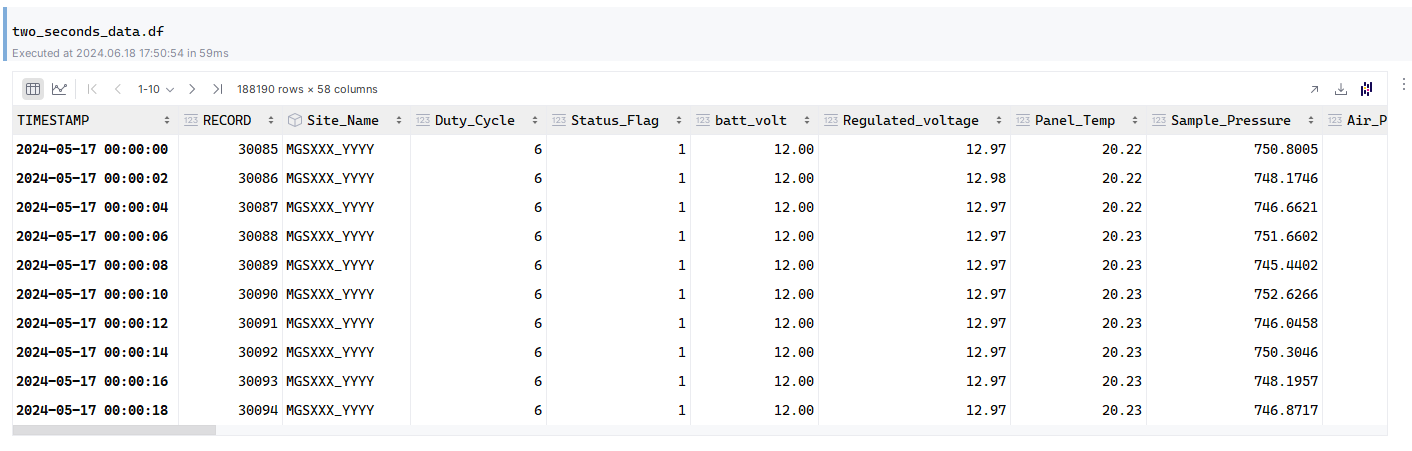
After selecting, we can do a quick review by calling df parameter:
two_seconds_data.df
For anyone not familiar with df abbreviation, it's stand for dataframe. Just imagine it as an excel with header, but it is in python.
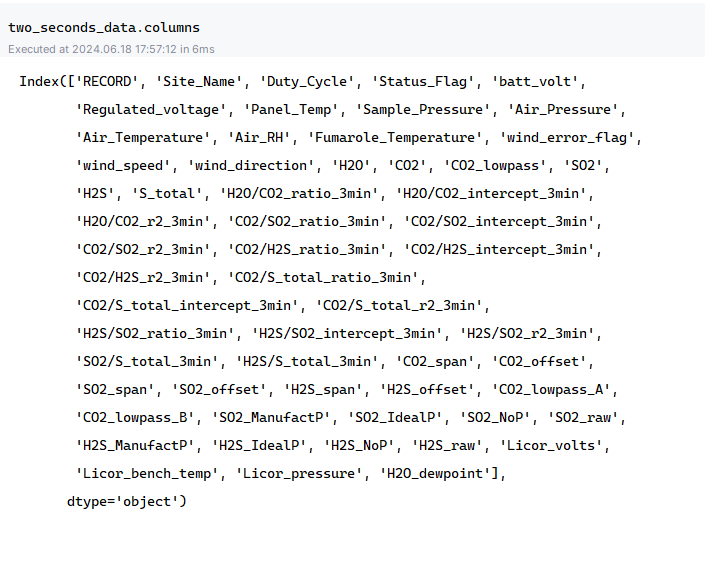
You can also see the columns name:
two_seconds_data.columns
It will show all the columns name:
Filtering
We can do fluent filtering data by using this code below. And it also supports chaining filtering.
filtered_two_seconds = (two_seconds_data
                        .select_columns(column_names=['H2O','CO2','SO2','H2S','S_total'])
                        .where_date_between(start_date='2024-06-12', end_date='2024-06-18')
                        .where('Status_Flag', '==', 0)
                        .where_values_between(column_name='SO2', start_value=-0.129, end_value=-0.127)
                        .where_values_between(column_name='H2O', start_value=-260, end_value=-228)
                       )
We can read the above code as is:
By using
two_seconds_data, let's select specific columns, such as:H2O, CO2, SO2, S_Totalwhere theStatus_Flagshould have a0value. And theSO2columns must be between-0.129and-0.127. In additionH2Ovalues would be filtered between-260and-228.
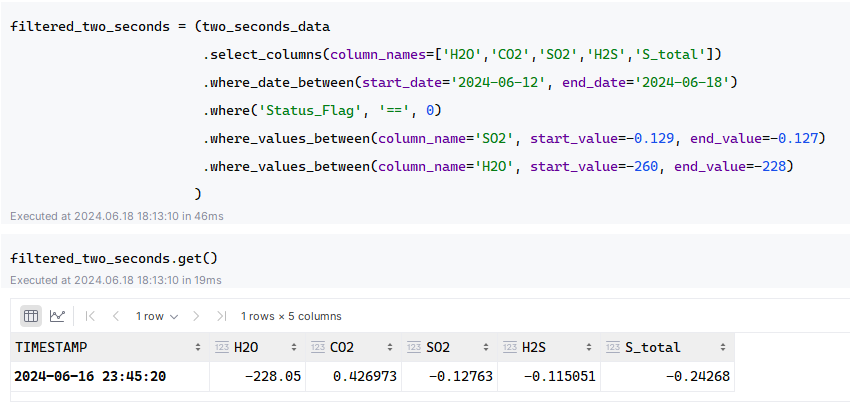
To see the results, please run the get() method:
filtered_two_seconds.get()
You can see the example of the results below. Here we only found 1 result based on our query filtering.
To check and count the results:
filtered_two_seconds.count()
Save Filtering Results
We can save it, using save_as() method. You can change the file_type parameter between excel,xls,xlsx, or csv.
filtered_two_seconds.save_as(file_type='excel')
You will get the information where your file is saved. By default, it should be in your output\<file_type> directory. Here is the example of the output:
✅ Data saved to: D:\Projects\magma-multigas\output\excel\two_seconds_2024-06-16_2024-06-16_TANG_RTU_ChemData_Sec2.xlsx
Plot
This package provide some basic functionality to plot some data. For the simplicity, we will use six_hours data as an example. We will do all the basic things above, from extracting, selecting, and filtering.
Selecting Six Hours
six_hours_data = multigas.select('six_hours').get()
Date Filtering
filtered_six_hours = six_hours_data.where_date_between(start_date='2024-05-17', end_date='2024-06-18')
Plot Initiating
Using plot() method to initiate
plot_six_hours = filtered_six_hours.plot()
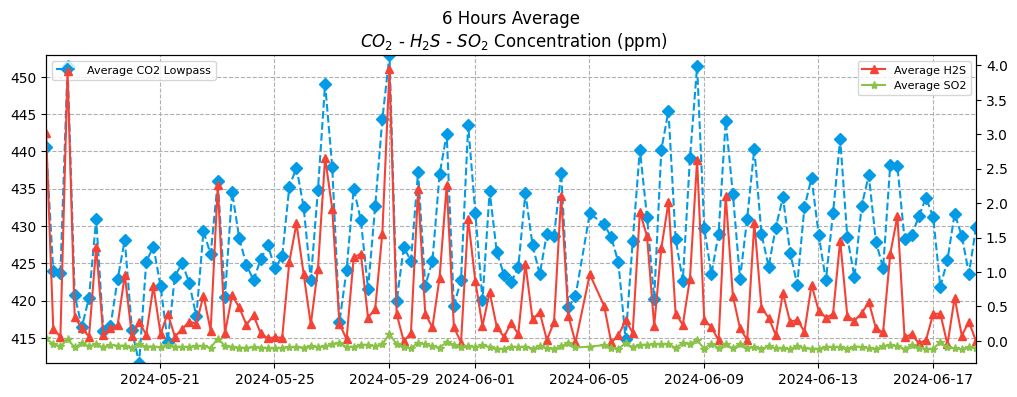
Plot Avg. CO2, H2S, and SO2
This package has some default plotting method. We will use plot_co2_so2_h2s() as an example:
plot_six_hours.plot_co2_so2_h2s()
You can see the result here:
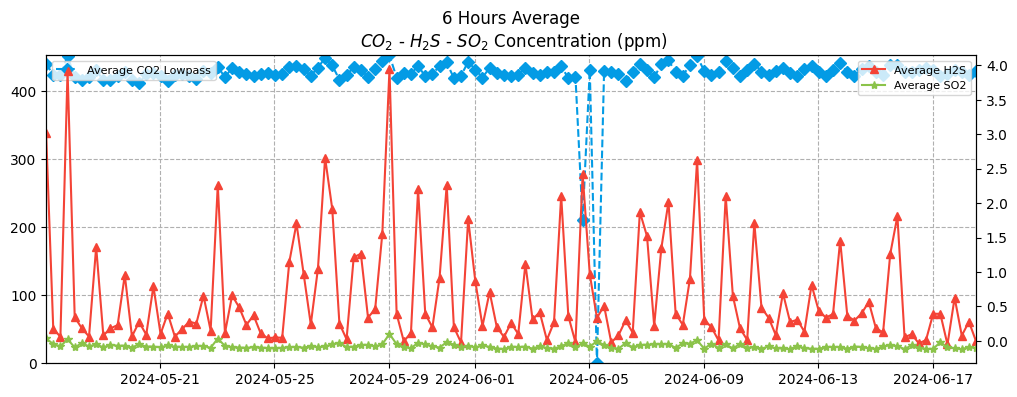
From the plot above we can see there ae some anomaly values (below 400 for Av. CO2 Lowpass). We can re-filter it once again to optimize the result. In this case we will select column Avg_CO2_lowpass which value greater than or equal to 250
filtered_six_hours = filtered_six_hours.where('Avg_CO2_lowpass', '>=', 250)
Then plot it:
filtered_six_hours.plot().plot_co2_so2_h2s()
Result:
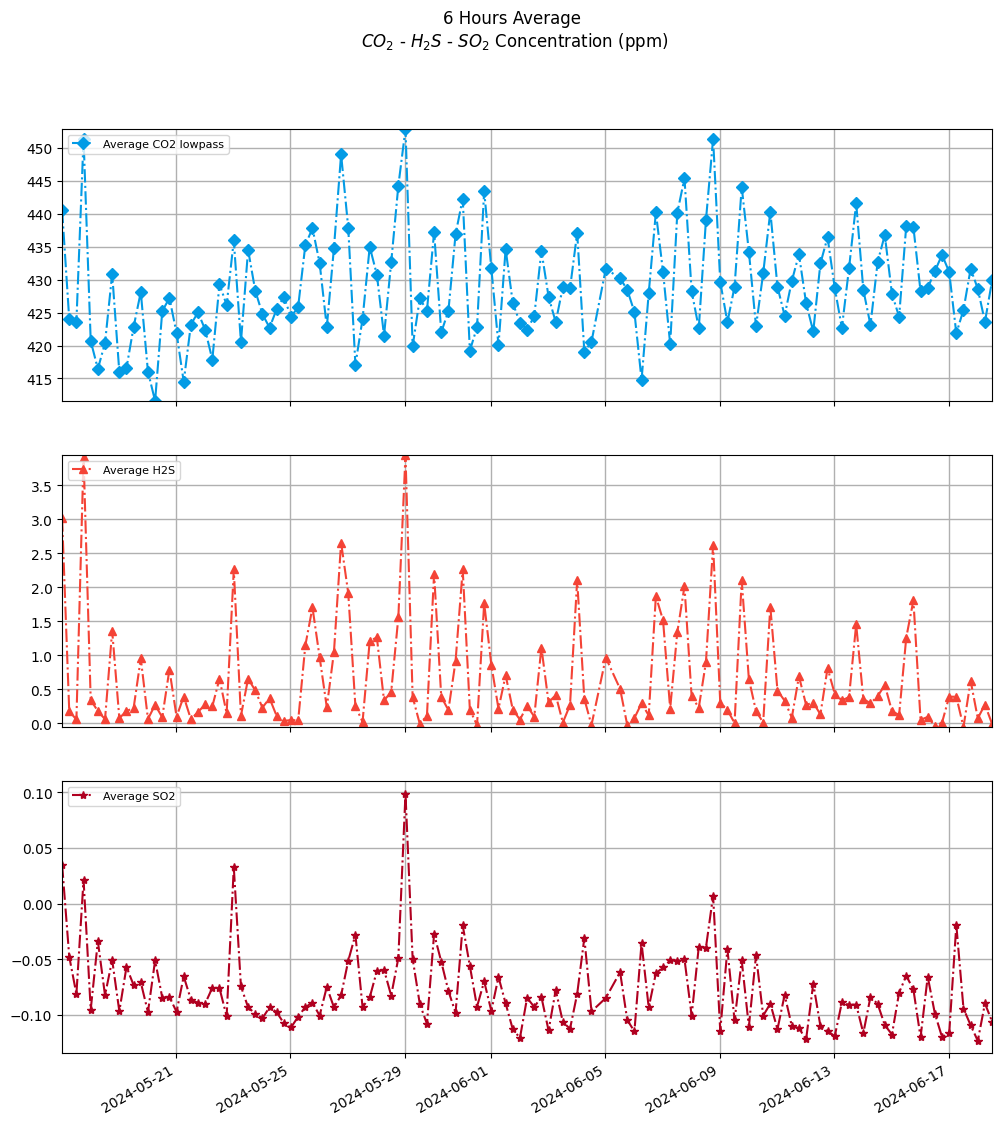
We can also plot as an individual by adding parameter plot_as_individual=True
filtered_six_hours.plot().plot_co2_so2_h2s(
    plot_as_individual=True
)
And the result:
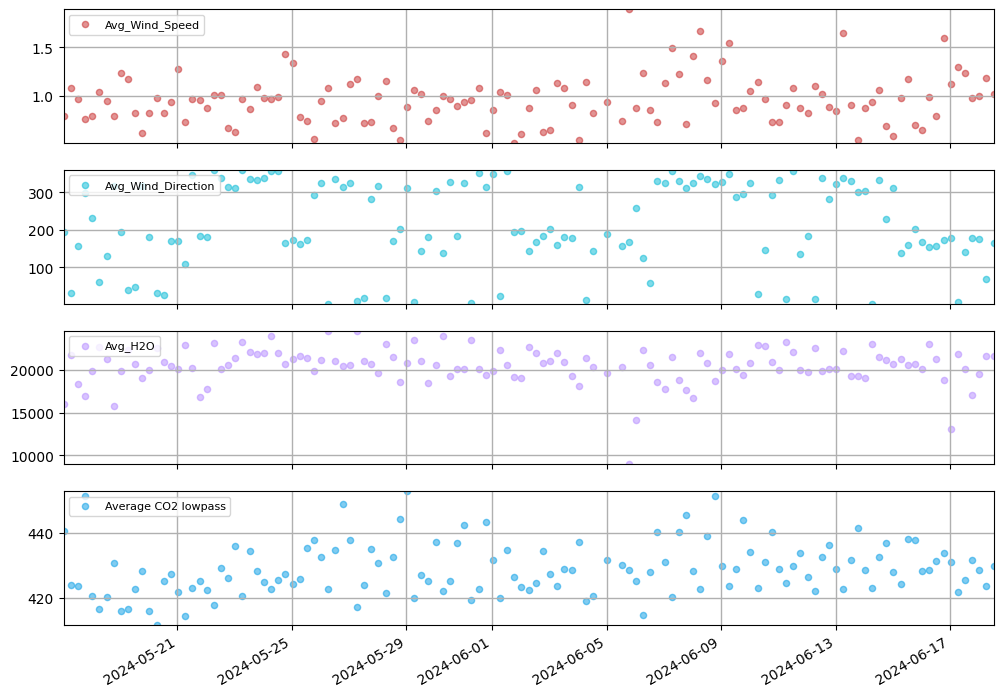
Plot Specific Column(s)
Select columns to plot:
columns_to_plot = ['Avg_Wind_Speed', 'Avg_Wind_Direction', 'Avg_H2O', 'Avg_CO2_lowpass']
Then plot it:
filtered_six_hours.plot(height=2).plot_columns(columns_to_plot)
Results:
1 maintainer

Metadata
1 maintainer
Release files for magma-multigas 1.5.0
For a detailed explanation of source distributions (sdists) and built distributions (wheels), please see the package formats documentation.
Source distribution (sdist)
| File | Size | Uploaded | |
|---|---|---|---|
| magma_multigas-1.5.0.tar.gz | 42.0 kB | Details |
Built distribution (wheel)
| File | Interpreter | ABI | Platform | Reset |
|---|---|---|---|---|
| magma_multigas-1.5.0-py3-none-any.whl | Python 3 | none | any | Details |
Total release size: 91.7 kB
Release files / magma_multigas-1.5.0.tar.gz
| Download URL | magma_multigas-1.5.0.tar.gz |
|---|---|
| Size | 42.0 kB |
| Tags | Source |
|
SHA-256 checksum How to use checksums |
15cb913ba0d315494376f68d63b95fc83119df38adbbe749a54fb7ecd34feb46
|
|
BLAKE2b-256 checksum How to use checksums |
55cd3473251550b3d7a99e45c5360fc4356ec90719032191bb85d4c5aa4cff80
|
| Upload date | |
|
Uploaded using Trusted Publishing? What is trusted publishing? |
No |
| Uploaded via |
twine/6.0.1 CPython/3.12.7
|
Release files / magma_multigas-1.5.0-py3-none-any.whl
| Download URL | magma_multigas-1.5.0-py3-none-any.whl |
|---|---|
| Size | 49.7 kB |
| Tags | Python 3 |
|
SHA-256 checksum How to use checksums |
4aa5c27cb0ad7b10268ab70fe00dc8be92c1ba017e9b8bfd749f75f5e13ce54f
|
|
BLAKE2b-256 checksum How to use checksums |
69bcf5cb967cde13486c71243b9166ba53788bcaa1e052a860e944be054d1f86
|
| Upload date | |
|
Uploaded using Trusted Publishing? What is trusted publishing? |
No |
| Uploaded via |
twine/6.0.1 CPython/3.12.7
|














