









News
We are back with marvelous news! Linux, and Windows version of Mapilio Uploader released as beta, and MacOS version will be available soon.
To use Linux, and Windows Version please visit: Mapilio Linux Uploader (BETA)

Mapilio Kit
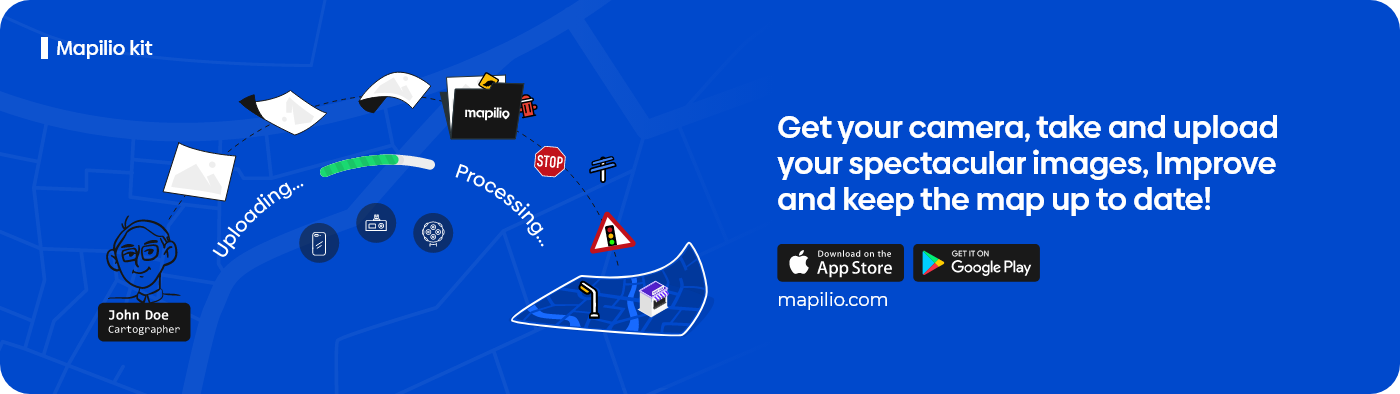
Mapilio Kit is a library for processing and uploading images to Mapilio.
Kit Contents
Documentation
- CLI command reference — every subcommand with examples
- Configuration & environment variables — telemetry, .env setup
- Architecture overview — how the codebase is organised
- Contributing guide — dev setup, tests, PR workflow
- Docker usage
- GoPro 360 Max workflow
Introduction
Our Image Uploader with GPS Metadata is a powerful tool designed to simplify the process of uploading and managing images, while also preserving and utilizing valuable location-based information embedded in photos. With the increasing popularity of geotagging in modern cameras and smartphones, GPS metadata in images can provide valuable context and enhance the user experience. Whether you're a photographer, a traveler, or simply someone who values the story behind each image, our uploader has you covered.
Getting Started
These instructions will help contributors get a copy of your project up and running on their local machine for development and testing purposes.
- Prerequisites:
To upload images to Mapilio, an account is required and can be created here. When using the kits for the first time, user authentication is required. You will be prompted to enter your account credentials.
- Installation:
To install Mapilio Kit Pip and Python (3.6 and above) is required. If you have them already, then simply run this command below:
pip install mapilio_kit - Necessary tools:
To process images or videos, you will also need to install
ffmpegandexiftool.You can download
ffmpegfrom here. Make sure it is executable and put the downloaded binaries in your$PATH. You can also installffmpegwith your favorite package manager. For example:On Windows:
Open PowerShell as administrator: (Recommended)
Set-ExecutionPolicy Bypass -Scope Process -Force; [System.Net.ServicePointManager]::SecurityProtocol = [System.Net.ServicePointManager]::SecurityProtocol -bor 3072; iex ((New-Object System.Net.WebClient).DownloadString('https://community.chocolatey.org/install.ps1'))
choco install ffmpeg
choco install exiftool
or you could follow the ffmpeg and exiftool installation guides.
On macOS, use Homebrew:
brew install ffmpeg
brew install exiftool
On Debian/Ubuntu:
sudo apt install ffmpeg
sudo apt install exiftool
Note:In case you're using Windows, and if python's path wasn't already added to system environment variables you need to add it right after python installation, to be able to run the packages which are installed with Pip. You may do that manually or you may run the command prompt as Administrator and then copy the command below, modify it (according to your python's version and path) and lastly run it. This will be set your python's path automatically after rebooting your computer.
setx PATH %"PATH%;C:\Users\User\AppData\Local\Packages\Python\Python3XX\Scripts" /MMagic Usage
To use magic usage simply run this command below:
mapilio_kit run

Health-check & preflight
Two commands help you catch problems before they bite:
mapilio_kit doctor                  # check ffmpeg / exiftool / creds / disk
mapilio_kit validate /path/to/imgs  # scan EXIF/GPS without uploading
See docs/CLI.md for full options (JSON output, custom thresholds, strict mode).
Advanced Usage
Getting Started
These instructions will help contributors get a copy of your project up and running on their local machine for development and testing purposes.
- Prerequisites:
To upload images to Mapilio, an account is required and can be created here. When using the kits for the first time, user authentication is required. You will be prompted to enter your account credentials.
- Installation:
-
via Pip on Windows and Python (3.8 and above) and git are required:
-
via Pip on Ubuntu + 18.04 and Python (3.8 and above) and git are required:
-
via Pip on macOS and Python (3.8 and above) and git are required. In addition, commands for ubuntu can also be used for macOS, however, in case using Mac Terminal instead of using iTerm for installation you need to re-activate the virtual env. Otherwise, you're not going to be able to run the kit.
-
Necessary tools:
To process images or videos, you will also need to install
ffmpegandexiftool.You can download
ffmpegfrom here. Make sure it is executable and put the downloaded binaries in your$PATH. You can also installffmpegwith your favorite package manager. For example:On Windows:
Follow the ffmpeg and exiftool installation guides.
or
Open PowerShell:
Set-ExecutionPolicy Bypass -Scope Process -Force; [System.Net.ServicePointManager]::SecurityProtocol = [System.Net.ServicePointManager]::SecurityProtocol -bor 3072; iex ((New-Object System.Net.WebClient).DownloadString('https://community.chocolatey.org/install.ps1')) choco install ffmpeg choco install exiftoolOn macOS, use Homebrew:
brew install ffmpeg brew install exiftool
On Debian/Ubuntu:
sudo apt install ffmpeg sudo apt install exiftool
Note: In case you're using PowerShell to run these commands below, you need to re-activate virtual env after installation is done, however, if you're using Command Prompt you don't need to re-activate it.
# Installation commands
git clone https://github.com/mapilio/mapilio-kit-v2.git
cd mapilio-kit-v2
win_installer.cmd
# Installation commands
git clone https://github.com/mapilio/mapilio-kit-v2.git
cd mapilio-kit-v2
chmod +x install.sh
source ./install.sh
User Authentication
To upload images to mapilio, an account is required and can be created here. When using the tools for the first time, user authentication is required. You will be prompted to enter your account credentials.
Authenticate new user:
mapilio_kit authenticate
If the user is already authenticated earlier, it will update the credentials in the config:
mapilio_kit authenticate --user_name "mapilio_user_name" --user_email "mapilio_user_email" --user_password "mapilio_user_password"
Images upload
Upload command also works for timelapse images.If you haven't processed your images, please use this command below
mapilio_kit upload "path/to/images"
If you have processed your images already, use this one instead
mapilio_kit upload "path/to/images" --processed
Video Images upload
Video Support Devices: GoPro Hero 9-8-7 Black and 360, and other devices that support GPS metadata.
- Sample GoPro videos in directory path/to/videos/ into import path (must be created before starting)path/to/sample_images/ at a sampling rate 1 seconds, i.e. two frames every second, reading geotag data from the GoPro videos in path/to/videos/
- Checking path/to/sample_images/ images and mapilio_image_description.json then run under command
mapilio_kit video_upload "path/to/videos/" "path/to/sample_images/" \
    --geotag_source "gopro_videos" \
    --interpolate_directions \
    --video_sample_interval 1
mapilio_kit video_upload "path/to/sample_images/" --desc_path "mapilio_image_description.json" --processedGoPro Max .360 videos
Must be installed with this method ./max_extractor_install.sh
- First, create equirectangular convert script such as below
python script config
- --video-file {video file path}
- --output-folder {output frames path}
- --bin-dir {equirectanguler bin path}
mapilio_kit gopro360max_process --video-file ~/Desktop/GS017111.360 --output-folder ~/Desktop/OutputData/ --bin-dir bin
- Now we can upload frames
mapilio_kit upload ~/Desktop/OutputData/frames --user_name="username@mapilio.com" \
                    --geotag_source "gpx" \
                    --geotag_source_path "~Desktop/gps_track.gpx"
Decompose Images
The decompose command geotags images in the given directory. It extracts the required and optional metadata from image EXIF (or the other supported geotag sources), and writes all the metadata (or process errors) in an image description file, which will be read during upload.
mapilio_kit decompose "path/to/images"
360 panorama image upload

Note that the heading angle and the center of the image must be overlapped for calculation purposes. You may see an example above.
Check the CSV format panoramic image description schema.
mapilio_kit image_and_csv_upload path/to/images --csv_path path/to/test.csv
Zip and upload
mapilio_kit zip  "path/to/images"  "path/to/zipfolder"
mapiio_kit upload "path/to/zipfolder" --proccessed
Docker Support
For docker support please visit; Docker.md
For 360 Upload with docker take a look at here; GoPro360Max.md
Configuration
Mapilio Kit reads optional settings from environment variables. Sentry-based
error reporting is disabled by default — provide MAPILIO_KIT_SENTRY_DSN
to opt in, or set MAPILIO_KIT_DISABLE_TELEMETRY=1 to force-disable. Copy
.env.example to .env and tweak as needed. See
docs/CONFIGURATION.md for the full reference.
Development
# Install dev dependencies
pip install -r requirements.txt
pip install pytest pytest-cov ruff black pre-commit
pre-commit install

# Run tests
pytest

# Lint & format
ruff check mapilio_kit tests
black mapilio_kit tests
See CONTRIBUTING.md for the full contributor workflow.
License
This project is licensed under the MIT LICENSE - see the LICENSE.md file for details.
Contact
For Mapilio Kit bug reports and feature requests please visit GitHub Issues, and join our Discord community for questions and discussions!


1 maintainer

Metadata
1 maintainer
Release files for mapilio-kit 3.0.6
For a detailed explanation of source distributions (sdists) and built distributions (wheels), please see the package formats documentation.
Source distribution (sdist)
| File | Size | Uploaded | |
|---|---|---|---|
| mapilio_kit-3.0.6.tar.gz | 102.6 kB | Details |
Built distribution (wheel)
| File | Interpreter | ABI | Platform | Reset |
|---|---|---|---|---|
| mapilio_kit-3.0.6-py2.py3-none-any.whl | Python 3, Python 2 | none | any | Details |
Total release size: 213.5 kB
Release files / mapilio_kit-3.0.6.tar.gz
| Download URL | mapilio_kit-3.0.6.tar.gz |
|---|---|
| Size | 102.6 kB |
| Tags | Source |
|
SHA-256 checksum How to use checksums |
105c1df29fbd680e9cbb493d1f76f9f4b2ce23441de7b81db3f1497800478878
|
|
BLAKE2b-256 checksum How to use checksums |
a7975bd2b5383a8b3c175fa635298e88d0b2ee444347db19d2b654fddcc93bdb
|
| Upload date | |
|
Uploaded using Trusted Publishing? What is trusted publishing? |
No |
| Uploaded via |
twine/6.1.0 CPython/3.13.12
|
Release files / mapilio_kit-3.0.6-py2.py3-none-any.whl
| Download URL | mapilio_kit-3.0.6-py2.py3-none-any.whl |
|---|---|
| Size | 110.9 kB |
| Tags | Python 2 Python 3 |
|
SHA-256 checksum How to use checksums |
15859ee5c6c7d6b307ebb90fe0edfe114b714988dc3f3361c0ffcd93fe72b1da
|
|
BLAKE2b-256 checksum How to use checksums |
1158cc7fcf1452a058fbc4bce20120aab0e03c9b8024c7922f73740713ffee31
|
| Upload date | |
|
Uploaded using Trusted Publishing? What is trusted publishing? |
No |
| Uploaded via |
twine/6.1.0 CPython/3.13.12
|














