
markdown-pptx
markdown-pptx is a Markdown-to-PowerPoint CLI for both people and agents. You can use it directly from the terminal, but the format and CLI are intentionally designed to be easy for coding agents to use reliably, and this extends their natural strength with Markdown into generating real, editable PowerPoint slides instead of plain text outlines or ad hoc exports.
It converts constrained Markdown slide decks into editable PowerPoint .pptx presentations using real PowerPoint layouts and placeholders. The format is intentionally strict: each # H1 starts a slide, YAML front matter controls document and slide behavior, and the tool exposes inspection-friendly modes like --syntax, --list-masters, --list-layouts, and --list-color-schemes while failing on ambiguous mappings instead of inventing free-positioned text boxes.
What it does
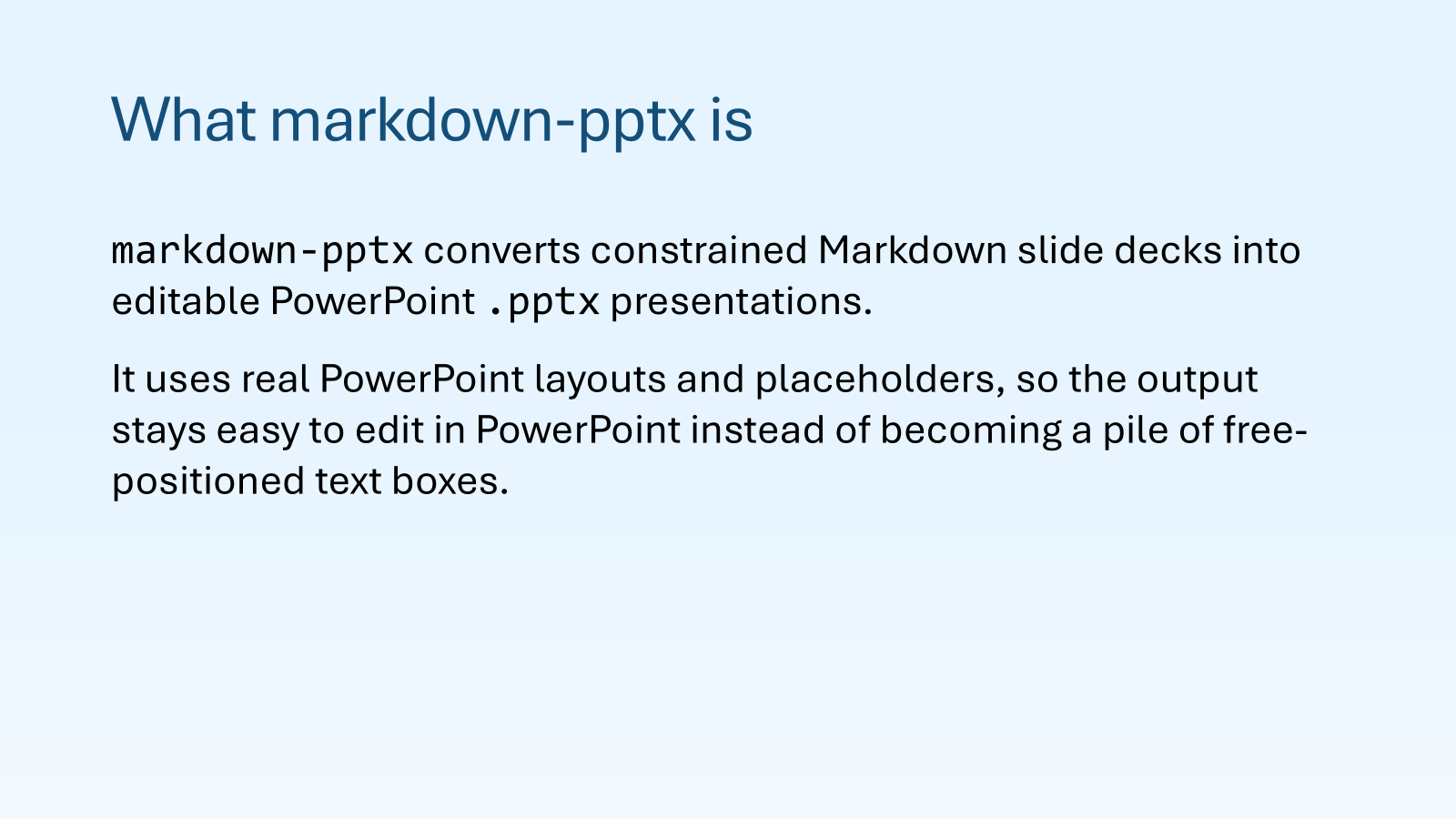
Convert markdown like this:
# What markdown-pptx is

`markdown-pptx` converts constrained Markdown slide decks into editable PowerPoint `.pptx` presentations.

It uses real PowerPoint layouts and placeholders, so the output stays easy to edit in PowerPoint instead of becoming a pile of free-positioned text boxes.
Into this:
Install
Run directly with uvx
uvx markdown-pptx --help
Install as a tool
uv tool install markdown-pptx
Install the agent skill
Install a managed, agent-neutral skill into the shared ~/.agents/skills convention:
uvx markdown-pptx skill install
uvx markdown-pptx skill remove
Use --skills-dir DIR to target another skill root. Removal is idempotent and refuses to delete an unmarked, user-managed skill unless --force is explicitly supplied.
CLI
markdown-pptx deck.md
markdown-pptx deck.md out.pptx
markdown-pptx deck.md --ignore-document-colors
markdown-pptx deck.md --ignore-document-colors --ignore-slide-colors
markdown-pptx --list-masters --template theme.pptx
markdown-pptx --list-layouts
markdown-pptx --list-layouts --template theme.pptx --master 2
markdown-pptx deck.md out.pptx --template theme.pptx --master 2
markdown-pptx --list-color-schemes
markdown-pptx --syntax
markdown-pptx --about
Running markdown-pptx with no arguments prints the same concise quick reference as --help. Inspection commands accept --json and reject unrelated render flags so automation cannot accidentally invoke an ambiguous mode.
Export slide images with desktop PowerPoint on Windows
On Windows, markdown-pptx can ask the installed desktop PowerPoint application to export the completed presentation as PNG or JPEG images. The .pptx remains the canonical output; this is an optional PowerPoint-backed post-render step, not a built-in PPTX renderer.
# Export every slide as PNG at 1920 pixels wide
uvx markdown-pptx deck.md --export-images png

# Export selected slides with an explicit destination and width
uvx markdown-pptx deck.md deck.pptx --export-images jpeg --slides 1,3-5 --image-dir deck-previews --image-width 1600
The default directory is <pptx-name>-images, and files use stable names such as slide-001.png. --slides is a strict, 1-based comma/range selector; descending ranges, duplicates, zero, and out-of-range slides are rejected. Image height is inferred from the PowerPoint page size so the slide is not distorted. PNG is recommended for text, diagrams, and other presentation graphics.
Image export requires Windows, an interactive signed-in desktop session, and a locally installed, licensed, initialized copy of Microsoft PowerPoint. The image options appear in --help only on Windows. They remain parseable elsewhere so a copied command receives the stable powerpoint_export_unavailable error instead of an unrecognized-argument failure. If PowerPoint image export fails, the successfully generated .pptx is retained and identified in JSON error details.
Exports are staged before publication, so a PowerPoint failure does not leave partial images. Existing generated image files require --force; unrelated files in the image directory are preserved.
When you use --template, every embedded slide master is retained in the output. This keeps all of the template's layout groups available in PowerPoint, so a slide can be reassigned later from PowerPoint's Layout gallery without rebuilding the deck. The template's existing theme colors and theme fonts are kept unless the Markdown explicitly sets color_scheme or fonts.
The first master is the default. Use --list-masters --template theme.pptx to inspect the available masters and --master 2 (or an exact unique master/theme name) to choose another default. Use --list-layouts --template theme.pptx --master 2 --json to inspect the layouts, placeholders, and compatibility results for that master. Numeric master selectors are 1-based and are the most reliable choice because PowerPoint templates can contain blank or duplicate names.
A slide-level master value overrides the CLI default for that slide. Selection precedence is slide master, then CLI --master, then the first embedded master. Layout lookup and duplicate-name checks are scoped to the selected master. Selecting a master never removes the others from the output.
Document-level backgrounds are applied to every retained master. Explicit document color_scheme and fonts overrides update every theme referenced by the retained masters; without those overrides, template themes are preserved.
--ignore-document-colors ignores document-level markdown color settings (color_scheme, title_color, body_color, and non-image document backgrounds). --ignore-slide-colors ignores slide-level title_color, body_color, and non-image slide backgrounds. Use both flags together to let the template provide all colors while still keeping the markdown content and layouts.
Remote HTTP(S) images are enabled by default. Downloads are streamed, cached per URL during a render, limited to 25 MiB, checked for an image content type when the server supplies one, decoded with Pillow, and limited to 50 million pixels. Use --no-remote-images for offline builds or untrusted Markdown. For reproducible builds, download assets ahead of time and reference local files.
Format
Document structure
- An optional document front matter block may appear only at the top of the file.
- Each
# H1starts a new slide. - An optional slide front matter block may appear only immediately after an
# H1. - Everything until the next
# H1is that slide's body content.
Example deck
---
aspect_ratio: "16:9"
fonts:
  body: Aptos
  headings: Aptos Display
color_scheme:
  preset: Office
title_color: "var(--dark-1)"
body_color: "var(--dark-1)"
background: "linear-gradient(90deg, var(--light-1) 0%, var(--light-2) 100%)"
---

# Title slide
---
layout: Title Slide
notes: |
  Introduce the deck.
---

Markdown in. Editable PowerPoint out.

# Overview
---
master: 1
layout: Title and Content
background: "linear-gradient(90deg, var(--accent-1) 0%, var(--accent-2) 100%)"
---

## Goals
- Keep the markdown readable
- Use real PowerPoint placeholders
- Fail on ambiguous mappings
Document-level front matter
These keys are valid only in the opening front matter block at the top of the document:
aspect_ratio"16:9"or"4:3"
fontsbodyheadings
color_schemepreset: Office- or explicit overrides for the 12 PowerPoint theme colors
background- solid color
linear-gradient(...)radial-gradient(...)url(...)none
title_color- default color for title placeholders across the deck
body_color- default color for body/subtitle placeholders across the deck
Document front matter example
---
aspect_ratio: "16:9"
fonts:
  body: Aptos
  headings: Aptos Display
color_scheme:
  preset: Office
title_color: "var(--dark-1)"
body_color: "var(--accent-4)"
background: "linear-gradient(90deg, var(--light-1) 0%, var(--light-2) 100%)"
---
Slide-level front matter
These keys are valid only immediately after a slide # H1:
master- a positive 1-based index, such as
1or2 - or an exact unique slide-master/theme name reported by
--list-masters - overrides the CLI
--masterdefault for that slide
- a positive 1-based index, such as
layoutTitle SlideTitle and ContentSection HeaderTitle OnlyBlank
background- overrides the document background for that slide
title_color- overrides the document title color for that slide
body_color- overrides the document body color for that slide
hide_background_graphics- hides inherited master graphics on that slide
notes- speaker notes stored in the PPTX notes pane
table- PowerPoint table-style options for a slide containing exactly one pipe table
header_row,total_row,first_column,last_column,banded_rows, andbanded_columns- every option must be
trueorfalse
Slide front matter example
# Section break
---
master: 1
layout: Section Header
background: "linear-gradient(90deg, var(--accent-1) 0%, var(--accent-2) 100%)"
title_color: "var(--light-1)"
body_color: "var(--light-1)"
notes: |
  Introduce the next section.
---

This subtitle is rendered into the Section Header body/subtitle placeholder.
color_scheme can start from a built-in preset and override only selected slots. This is useful when a template already has the right layouts but needs a bespoke palette:
color_scheme:
  preset: Office
  dark_1: "#10263F"
  light_1: "#F9F9F9"
  accent_1: "#1D6FA8"
  accent_2: "#5AA9E6"
  accent_3: "#FFB347"
For a completely custom PowerPoint theme, set preset: null and provide all 12 slots: dark_1, light_1, dark_2, light_2, accent_1 through accent_6, hyperlink, and followed_hyperlink. Theme-aware template objects and var(--...) references follow the resulting palette; hard-coded RGB colors and images do not.
Table styling is also slide metadata, leaving the pipe table itself as standard Markdown:
# Quarterly summary
---
layout: Title and Content
table:
  header_row: true
  total_row: true
  first_column: true
  last_column: false
  banded_rows: true
  banded_columns: false
---

| Region | Revenue |
| --- | ---: |
| North | $50,000 |
| Total | $50,000 |
total_row, first_column, and last_column apply PowerPoint styling only; they do not calculate totals or change table semantics. Setting header_row: false removes the special PowerPoint header styling, but the first Markdown row remains the syntactic table header.
Supported color syntax
For title_color, body_color, and color-bearing backgrounds/gradient stops:
- Hex:
#0E2841 - RGB:
rgb(14, 40, 65) - HSL:
hsl(210, 65%, 15%) - Theme references:
var(--dark-1)var(--light-1)var(--dark-2)var(--light-2)var(--accent-1)throughvar(--accent-6)var(--hyperlink)var(--followed-hyperlink)
Supported markdown
- Paragraphs
- Bullet lists
- Ordered lists
- Nested lists up to three levels
##through######headings inside a slide- Emphasis, strong, inline code, links
- Fenced code blocks
- Blockquotes
- Pipe tables
- Local images
- Remote images
Fenced code blocks follow CommonMark fence rules: backticks or tildes, a run of at least three markers, and a closing run using the same marker with at least the opening length.
Pipe tables treat the first Markdown row as the table header. The PowerPoint output uses the Medium Style 1 - Accent 1 table style. Defaults are Header Row and Banded Rows enabled, with Total Row, First Column, Last Column, and Banded Columns disabled. Override those native PowerPoint flags with slide-level table metadata.
Layout and rendering rules
- All embedded template masters are retained in the output.
- Master selection precedence is slide
master, CLI--master, then master1. - Master and theme names are accepted only when they resolve uniquely; 1-based numeric selectors are canonical.
- Layout lookup is scoped to the effective master for each slide.
Blankrequires an empty title and empty body.Title Onlyallows no body content.Title SlideandSection Headerrender slide body text into the subtitle/body placeholder.Title and Contentsupports either text flow, one image, or one table.- Missing required placeholders are treated as errors.
- Duplicate layout names and multiple matching required placeholders are treated as errors.
- The renderer uses real PowerPoint placeholders rather than synthesized text boxes for title/body content.
- Linear and radial gradients preserve every declared color stop.
Unsupported markdown/features
- Setext headings
- Indented code blocks
- Horizontal rules
- Raw HTML
- Task lists
- Footnotes
- Arbitrary positioning
- Layered backgrounds
- Animations
Exit codes
0: success2: usage or input error3: Markdown or front-matter parse error4: template or layout error5: image or other asset error6: unsupported Markdown content7: PowerPoint rendering error8: unexpected internal error
With --json, failures are written as structured JSON with a stable error code and relevant input, line, slide, and partial-output context. Successful render JSON includes the default master, retained-master count, masters actually used by generated slides, and exported image paths when PowerPoint image export is enabled.
Examples
- Sample source deck:
sample/showcase.md - Sample rendered deck:
sample/showcase.pptx - Sample multi-master template:
sample/showcase-template.pptx - Sample local image:
sample/showcase-local.png
Regenerate the showcase with the local source and its two-master template:
uvx --refresh --from . markdown-pptx sample/showcase.md sample/showcase.pptx --template sample/showcase-template.pptx --force
Development
Run tests:
uv sync --locked --all-groups
uv run pytest
uv run ruff check .
uv run ruff format --check .
The real PowerPoint export smoke test is opt-in and requires desktop PowerPoint:
$env:MARKDOWN_PPTX_TEST_POWERPOINT="1"
uv run pytest tests/test_powerpoint_integration.py
Build distributables:
uv build
uv run twine check dist/*
CI tests Python 3.11 through 3.14 on Windows and Linux, checks Ruff lint/format, builds both distributions, validates metadata, and smoke-tests the built wheel. PyPI publishing repeats the release gates and verifies that release tags match the package version.
1 maintainer

Release files for markdown-pptx 1.2.0
For a detailed explanation of source distributions (sdists) and built distributions (wheels), please see the package formats documentation.
Source distribution (sdist)
| File | Size | Uploaded | |
|---|---|---|---|
| markdown_pptx-1.2.0.tar.gz | 353.7 kB | Details |
Built distribution (wheel)
| File | Interpreter | ABI | Platform | Reset |
|---|---|---|---|---|
| markdown_pptx-1.2.0-py3-none-any.whl | Python 3 | none | any | Details |
Total release size: 444.1 kB
Release files / markdown_pptx-1.2.0.tar.gz
| Download URL | markdown_pptx-1.2.0.tar.gz |
|---|---|
| Size | 353.7 kB |
| Tags | Source |
|
SHA-256 checksum How to use checksums |
ba0a593d67070df3e58f874bbd2f6dd7e95ef6659ceed7b31478a4972efc57a4
|
|
BLAKE2b-256 checksum How to use checksums |
89cbae4bf5c841b230297414b92fc9fe3a4c988f231ac771ba6254e486c71999
|
| Upload date | |
|
Uploaded using Trusted Publishing? What is trusted publishing? |
Yes |
| Uploaded via |
twine/7.0.0 CPython/3.13.14
|
Provenance
Provenance describes where a file came from. On PyPI, provenance is shared via attestations, which provide a verifiable record of the build or publishing details. View details, limitations and caveats.


PyPI Publish Attestation
PyPI verified that this artifact, at this checksum, originated from the publisher listed below.
Signed by GitHub Actions, verified by PyPI on Sep 1, 2026.
Transparency logRelease files / markdown_pptx-1.2.0-py3-none-any.whl
| Download URL | markdown_pptx-1.2.0-py3-none-any.whl |
|---|---|
| Size | 90.4 kB |
| Tags | Python 3 |
|
SHA-256 checksum How to use checksums |
ca4e666a0d15ac9a620d76864149b429cbddea5bdb41afb2e3b3c7b35705d60a
|
|
BLAKE2b-256 checksum How to use checksums |
a4f3c61f57092fd19a9566894ff72e9e568cce23e41e1e3350859d7371a5b7a4
|
| Upload date | |
|
Uploaded using Trusted Publishing? What is trusted publishing? |
Yes |
| Uploaded via |
twine/7.0.0 CPython/3.13.14
|
Provenance
Provenance describes where a file came from. On PyPI, provenance is shared via attestations, which provide a verifiable record of the build or publishing details. View details, limitations and caveats.
PyPI Publish Attestation
PyPI verified that this artifact, at this checksum, originated from the publisher listed below.
Signed by GitHub Actions, verified by PyPI on Sep 1, 2026.
Transparency log













