
This release is a pre-release and may not be stable for production use.

mcp-gee-sweet
A Google Workspace MCP server built for depth.

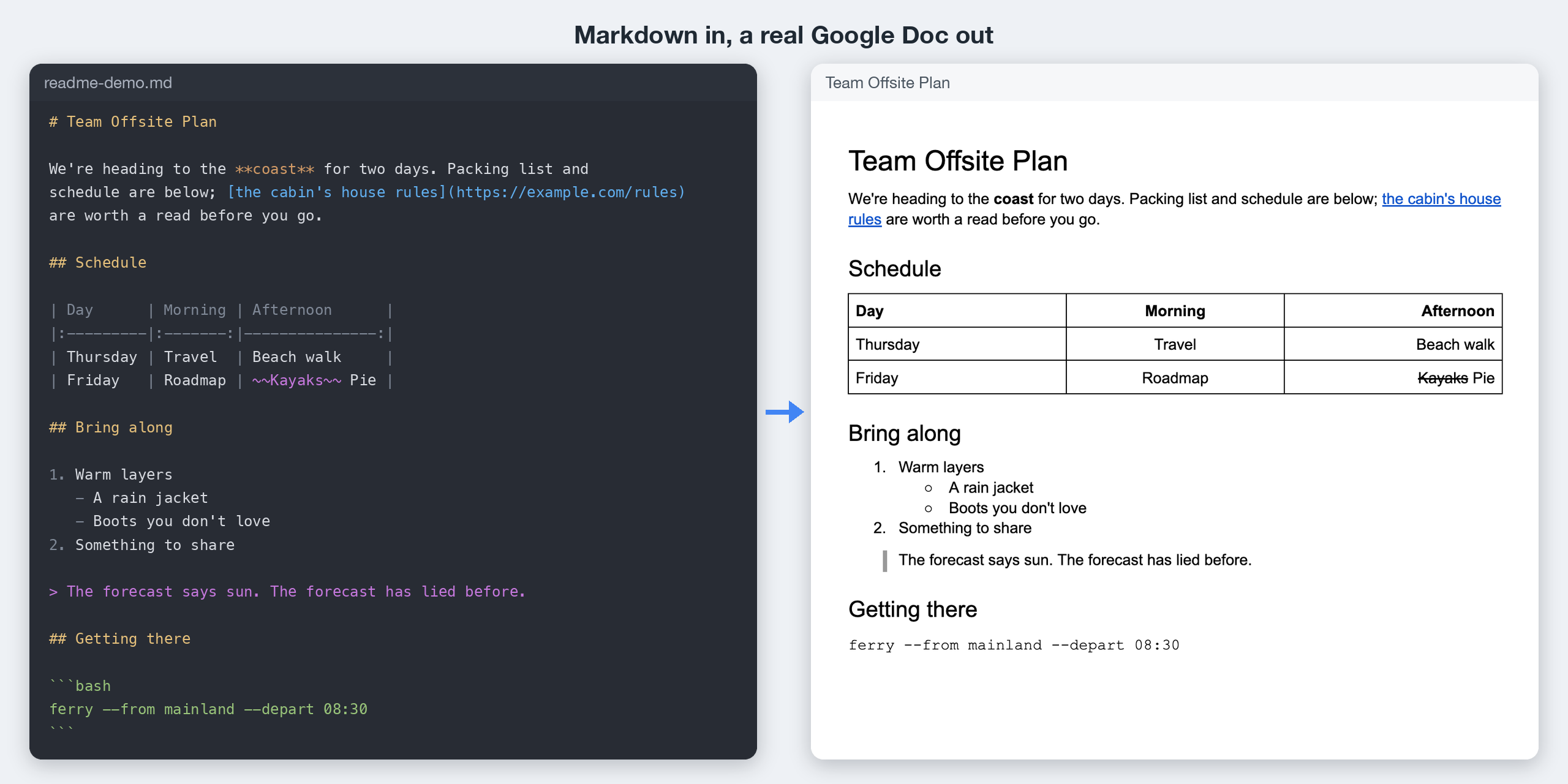
mcp-gee-sweet gives AI clients deep, direct access to Google Sheets, Docs, Drive, Calendar, and Gmail. It reads raw formulas like =VLOOKUP(), builds Docs structurally (colspan/rowspan tables, themes, named styles, an HTML/Markdown→AST→Docs pipeline), and covers Drive files, sharing, and sync alongside Calendar events and Gmail messages, threads, and drafts.
A few highlights:
- Caching — repeated reads return in ~2ms from a local cache instead of a round-trip API call every time.
- Formula access — reads raw
=VLOOKUP(),=SUM(), and=IF()expressions, not just the values they produce. - Local sync — two-way sync between a local folder and Google Drive.
Install (stable):
uvx mcp-gee-sweet
Install (bleeding edge — every code change on develop):
uvx --prerelease=allow mcp-gee-sweet
What's covered
| Service | Tools | Highlights |
|---|---|---|
| Google Sheets | 36 | Formula access, batch read/write, 8 chart types, structural ops |
| Google Drive | 38 | File ops, sharing/permissions, local sync, revision history |
| Google Docs | 34 | Full HTML→Doc pipeline, tables, range styling, themes, Markdown export |
| Google Calendar | 17 | Event CRUD, free-slot finder across multiple calendars |
| Gmail | 15 | Search and read messages and threads, send and reply, drafts you can review, edit, or discard before sending, labels (OAuth only). By default nothing is sent until the user confirms it; a client that can't ask leaves the email as a draft. See Gmail sending |
Quick start
Option A: uvx in Claude Desktop — the fastest way in
This path goes from nothing to a first tool call in Claude Desktop on macOS. It runs the published package with uvx, so there's nothing to clone.
1. Install uv. It provides the uvx command. In a terminal:
curl -LsSf https://astral.sh/uv/install.sh | sh
(or brew install uv; other methods are in uv's installation guide). Open a new terminal afterward so uvx is on your PATH, then check it with uvx --version.
2. Create a Google OAuth client. Follow Method B in Authentication, steps 1–4: they create a Google Cloud project, turn on the APIs, set up the consent screen, and download your OAuth client file. Then move the file to a folder of its own:
mkdir -p ~/mcp-gee-sweet
mv ~/Downloads/client_secret_*.json ~/mcp-gee-sweet/credentials.json
3. Sign in to Google once. This opens your browser to Google's consent page and saves a token next to the client file:
CREDENTIALS_PATH=$HOME/mcp-gee-sweet/credentials.json \
TOKEN_PATH=$HOME/mcp-gee-sweet/token.json \
uvx mcp-gee-sweet auth
For a develop build, use uvx --prerelease=allow mcp-gee-sweet auth instead. If Google says it hasn't verified the app, see step 6 of Method B.
4. Find uvx's full path. Claude Desktop doesn't use your shell's PATH, so its config needs the full path:
command -v uvx # e.g. /Users/you/.local/bin/uvx
5. Add the server to Claude Desktop. In Claude Desktop, open Settings → Developer → Edit Config. That shows you the config file, ~/Library/Application Support/Claude/claude_desktop_config.json; open it in a text editor. Add this, using the path from step 4 and your own home folder in place of /Users/you:
{
  "mcpServers": {
    "mcp-gee-sweet": {
      "command": "/Users/you/.local/bin/uvx",
      "args": ["mcp-gee-sweet"],
      "env": {
        "CREDENTIALS_PATH": "/Users/you/mcp-gee-sweet/credentials.json",
        "TOKEN_PATH": "/Users/you/mcp-gee-sweet/token.json"
      }
    }
  }
}
If the file already has an mcpServers block, add the "mcp-gee-sweet" entry inside it instead of adding a second block. Write full paths: the server doesn't expand ~. For a develop build, use "args": ["--prerelease=allow", "mcp-gee-sweet"].
6. Restart Claude Desktop and try it. Quit Claude Desktop completely (⌘Q, not just closing the window), reopen it, and ask something like "List my most recently modified Google Drive files."
Without step 3's token, the server still starts, and its first tool call returns a Google consent link instead: open it, approve, and ask again.
Running
uvx mcp-gee-sweetby itself in a terminal starts a stdio server. It logs a version line (and, with no token, a warning) and then waits silently for an MCP client to talk to it over stdin. Nothing else will happen, so press Ctrl+C: the server is meant to be started by your MCP client, as in step 5. With no credentials at all, it exits instead, withAll authentication methods failed. Please configure credentials.
On Windows, the config file is %APPDATA%\Claude\claude_desktop_config.json and where uvx gives uvx's path, but Windows isn't tested yet.
Option B: uv with a cloned repo — local development
To work on the server's code or run your own changes, clone the repo. This needs uv too (step 1 above). No Docker required.
git clone https://github.com/khuisman/mcp-gee-sweet.git
cd mcp-gee-sweet
uv sync
Then point your MCP client at it using stdio transport (see MCP client config below). The client spawns the server as a subprocess on demand — each session gets its own isolated process, so restarting the server for a code change or config update doesn't affect other open sessions.
Option C: Docker — persistent shared server (SSE)
Use Docker when you want a single long-running server that multiple clients connect to over SSE — for example, Claude Desktop talking to the same instance as Claude Code.
git clone https://github.com/khuisman/mcp-gee-sweet.git
cd mcp-gee-sweet
echo "MCP_SERVER_TOKEN=$(python3 -c 'import secrets; print(secrets.token_urlsafe(32))')" >> .env
make build   # build the container image
make start   # start the server (SSE on port 47000)
make logs    # tail logs
Point your MCP client at http://localhost:47000/sse, sending the token from .env as an Authorization: Bearer <token> header (see the SSE config below). The server rejects any request without it. Without Docker, --transport sse and --transport streamable-http listen on 127.0.0.1 only, and need MCP_SERVER_TOKEN to serve on any other address; see HTTP transport authentication.
Note: when using SSE, all clients share one server process. After a code change or restart (
make restart), you must also restart each MCP client to reconnect.
Configuration
The server tries auth methods in a waterfall by default, OAuth first — it authenticates as you and has full personal Drive access, which is what local use (Options A and B above) needs. For OAuth, download an OAuth Client ID JSON from Google Cloud (how) and point the server at it. Then sign in once, with the command that matches how you run the server:
export CREDENTIALS_PATH="/path/to/credentials.json"
export TOKEN_PATH="/path/to/token.json"

uvx mcp-gee-sweet auth                      # PyPI install, stable
uvx --prerelease=allow mcp-gee-sweet auth   # PyPI install, develop builds
uv run mcp-gee-sweet auth                   # cloned repo, run from its folder
uvx doesn't put an mcp-gee-sweet command on your PATH, so a bare mcp-gee-sweet auth works only if you installed the package some other way (for example uv tool install mcp-gee-sweet).
Pass the same CREDENTIALS_PATH and TOKEN_PATH in your MCP client's env. A stdio server with no token doesn't open a browser itself. Instead its first tool call offers you the Google consent link (or you run the auth command above), and you retry the call. A token revoked mid-session is handled the same way, with no restart.
Service accounts (recommended for headless server deployments, see Option C above), base64 credential injection, and Application Default Credentials are also supported. Gmail tools need OAuth. See Authentication for all options.
MCP client config
Claude Desktop — one-click bundle (new in v0.9.6; on 0.9.5, see its docs): download mcp-gee-sweet-<version>.mcpb from the latest GitHub Release, then double-click it, or install it from Claude Desktop's Settings → Extensions. It needs uv installed first (step 1 of Quick start's Option A). It asks for your OAuth client file and needs no config editing (details).
Claude Desktop — stdio (PyPI install): see step 5 of Quick start's Option A.
Claude Desktop — stdio (cloned repo):
{
  "mcpServers": {
    "mcp-gee-sweet": {
      "command": "uv",
      "args": ["run", "--directory", "/path/to/mcp-gee-sweet", "mcp-gee-sweet"],
      "env": {
        "CREDENTIALS_PATH": "/path/to/credentials.json",
        "TOKEN_PATH": "/path/to/token.json"
      }
    }
  }
}
Claude Code — stdio (cloned repo):
claude mcp add mcp-gee-sweet \
  -e ENABLED_TOOLS=all \
  -e CREDENTIALS_PATH=/path/to/credentials.json \
  -e TOKEN_PATH=/path/to/token.json \
  -- uv run --directory /path/to/mcp-gee-sweet mcp-gee-sweet
ENABLED_TOOLS=all keeps every tool when an upcoming release loads a smaller default set (all is new in v0.9.6; on 0.9.5, see its docs). For a PyPI install, replace everything after -- with uvx mcp-gee-sweet. Run the auth command from Configuration above with the same ENABLED_TOOLS, since it decides the scopes.
Claude Desktop — SSE (Docker):
{
  "mcpServers": {
    "mcp-gee-sweet": {
      "transport": "sse",
      "url": "http://localhost:47000/sse",
      "headers": {
        "Authorization": "Bearer <token>"
      }
    }
  }
}
See Client Setup for more options including tool filtering.
Using a client with a tool limit
Some MCP clients cap how many tools they accept, and with every tool registered this server is over each cap:
| Client | Limit |
|---|---|
| VS Code + GitHub Copilot (agent mode) | 128 tools per request, built-in tools included. In our November 2026 test, Copilot looked tools up on demand and handled the full set; a build that sends every tool fails with "Cannot have more than 128 tools per request" |
| Windsurf | 100 tools in total, across all servers |
| Cursor | Depends on the model ("Too many MCP tools are enabled for this mode") |
| Google Antigravity | 100 tools per server (user report) |
On Windsurf, Cursor and Antigravity, or on VS Code if you see that error, set ENABLED_TOOLS in the server's env to one of the suggested subsets, each under 100 tools, e.g. all Docs tools, or Docs + Drive combined. Clients with a tool limit has a ready-to-paste config for VS Code, Cursor, and Windsurf.
Upcoming change: an upcoming release loads a smaller default tool set when
ENABLED_TOOLSis unset. To keep every tool, setENABLED_TOOLS=all, which registers every tool today as well.allis new in v0.9.6; on 0.9.5, see its docs.
Docs
- Tools — full tool reference, grouped by domain
- Authentication — all four auth methods
- Configuration — env vars, caching, tool filtering
- Client Setup — MCP client config examples
- Design Principles — tool inclusion policy, composite tool decisions
- Roadmap — planned features and known gaps
Contributing
See CONTRIBUTING.md for setup, QA workflows, and PR guidelines. A signed-off docs/qa/runs/vX.Y.Z.md record is required before any stable PyPI release — see docs/qa/README.md for the QA workflow.
License
MIT — see LICENSE.
Credits
- xing5/mcp-google-sheets — upstream this project was forked from
- FastMCP
- freema/mcp-gsheets and piotr-agier/google-drive-mcp — roadmap inspiration
1 maintainer

Metadata
1 maintainer
Release files for mcp-gee-sweet 0.9.7.dev20
For a detailed explanation of source distributions (sdists) and built distributions (wheels), please see the package formats documentation.
Source distribution (sdist)
| File | Size | Uploaded | Provenance | Actions |
|---|---|---|---|---|
| mcp_gee_sweet-0.9.7.dev20.tar.gz | 4.2 MB | With provenance | Details for mcp_gee_sweet-0.9.7.dev20.tar.gz |
Built distribution (wheel)
| File | Interpreter | ABI | Platform | Actions Reset |
|---|---|---|---|---|
| mcp_gee_sweet-0.9.7.dev20-py3-none-any.whl | Python 3 | none | any | Details for mcp_gee_sweet-0.9.7.dev20-py3-none-any.whl |
Total release size: 4.7 MB
Release files / mcp_gee_sweet-0.9.7.dev20.tar.gz
| Download URL | mcp_gee_sweet-0.9.7.dev20.tar.gz |
|---|---|
| Size | 4.2 MB |
| Tags | Source |
|
SHA-256 checksum How to use checksums |
e3f1efdba804274d335271eb6ab9359da651e19656eefcf1aa93f2984a28ec37
|
|
BLAKE2b-256 checksum How to use checksums |
0090398da55fd02ba9e537276be53483bcc41fd24b4ea5bd7302fbfb66f5db95
|
| Upload date | |
|
Uploaded using Trusted Publishing? What is trusted publishing? |
Yes |
| Uploaded via |
twine/7.0.0 CPython/3.13.16
|
Provenance
Provenance describes where a file came from. On PyPI, provenance is shared via attestations, which provide a verifiable record of the build or publishing details. View details, limitations and caveats.


PyPI Publish Attestation
PyPI verified that this artifact, at this checksum, originated from the publisher listed below.
Signed by GitHub Actions, verified by PyPI on Nov 14, 2026.
Transparency logRelease files / mcp_gee_sweet-0.9.7.dev20-py3-none-any.whl
| Download URL | mcp_gee_sweet-0.9.7.dev20-py3-none-any.whl |
|---|---|
| Size | 448.2 kB |
| Tags | Python 3 |
|
SHA-256 checksum How to use checksums |
f5470cb715102a6041746381b3f3884025b5e4aeb672c933eeb837f856126e84
|
|
BLAKE2b-256 checksum How to use checksums |
06622e2231d681708fc85aeb64108e778e1d07bade3354053b7bd7178544f1aa
|
| Upload date | |
|
Uploaded using Trusted Publishing? What is trusted publishing? |
Yes |
| Uploaded via |
twine/7.0.0 CPython/3.13.16
|
Provenance
Provenance describes where a file came from. On PyPI, provenance is shared via attestations, which provide a verifiable record of the build or publishing details. View details, limitations and caveats.
PyPI Publish Attestation
PyPI verified that this artifact, at this checksum, originated from the publisher listed below.
Signed by GitHub Actions, verified by PyPI on Nov 14, 2026.
Transparency logSecurity for mcp-gee-sweet 0.9.7.dev20
Provenance
Provenance describes where a file came from. On PyPI, provenance is shared via attestations, which provide a verifiable record of the build or publishing details. View details, limitations and caveats.
Full provenance
Both files in this release have been uploaded with provenance metadata.
Attestation for mcp_gee_sweet-0.9.7.dev20.tar.gz
PyPI Publish Attestation
PyPI verified that this artifact, at this checksum, originated from the publisher listed below.
Signed by GitHub Actions, verified by PyPI on Nov 14, 2026.
Transparency logA note on package security
PyPI is a repository for distributing packages, not a service for auditing them. While third-party security researchers and our staff do their best to detect and remove malicious packages, PyPI cannot guarantee the quality, security or suitability of any given package.
To learn more about protecting yourself from malicious actors, visit our package security documentation.














