
MCP Image2Text Server
A Model Context Protocol (MCP) server for AceDataCloud's Image2Text captcha-solving APIs.
Features
- Recognize text from base64-encoded captcha or challenge images.
- Bearer-token authentication through AceDataCloud
Connect locally
Use the local stdio package and an AceDataCloud API token. The public hosted HTTPS endpoint could not be verified, so this README does not offer it as a connection option. The local MCP process still calls AceDataCloud's API; it does not run the underlying service offline.
- Open Ace Data Cloud → Applications. Sign in, or register an account first.
- Find General application. If it has not been created, choose Initialize General Application. A general key can use the services available to your account; a dedicated application's key is limited to its service. Check the required service/model access and current pricing.
- Copy the API Key from the application card, or open Keys / Manage Keys → Create to create a separate key for this integration. Give it a recognizable name so you can revoke or rotate it independently.
- When creating a key, review Expiration Time, Set Usage Limitation, and Allowed APIs. Enable only the restrictions you need, allow the operations you will call, then click Create and copy the token from the key list. Task lookup does not grant permission to submit a generation. Confirm the application's balance can cover your first request; any trial allowance is whatever your account currently displays.
- Copy only the token value, without quotation marks, spaces, or
Bearer. An API Key / API Token field expects this raw value; only a manually configured HTTPAuthorizationheader needs theBearerprefix. Aplatform-...account-management token cannot replace a generation API key.
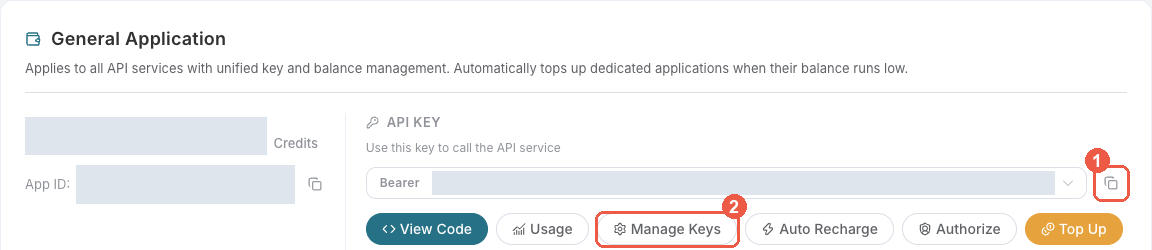
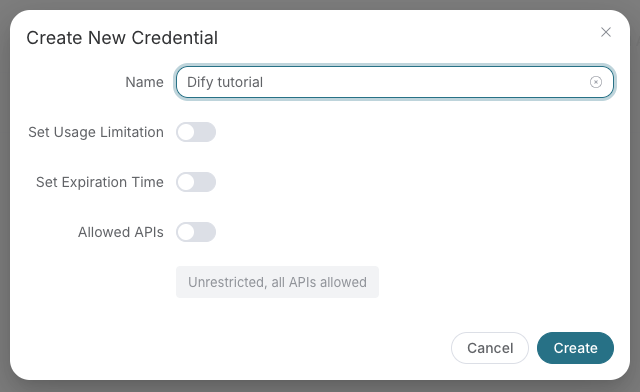
Save the key in the client's credential store or the environment variable shown below. Never put it in a prompt, shared workflow, screenshot, or Git commit. If authentication fails, check the full copied value, application/service access, expiration, usage limit, and balance before creating another key.
Local stdio
Install the package and give the local process an API token:
python -m pip install mcp-image2text
export ACEDATACLOUD_API_TOKEN='YOUR_API_TOKEN'
mcp-image2text
For Claude Desktop local MCP, merge this entry into the file opened by its developer settings (~/Library/Application Support/Claude/claude_desktop_config.json on macOS). uvx requires uv on PATH:
{
  "mcpServers": {
    "image2text": {
      "command": "uvx",
      "args": ["mcp-image2text"],
      "env": {"ACEDATACLOUD_API_TOKEN": "YOUR_API_TOKEN"}
    }
  }
}
Keep this user-level file private. Self-hosted HTTP uses mcp-image2text --transport http --port 8000; expose it only with suitable network and TLS controls. Local execution still calls the AceDataCloud API.
Check the connection
Confirm that the MCP client loads its tools. image2text_get_usage_guide returns reference information; it does not prove downstream API access or balance. A real service request can be billed. If it returns 401, check the API token; if it returns 403 or an account/balance error, read that response before retrying.
Tools
image2text_get_task— Retrieve an asynchronous result or terminal errorimage2text_recognize— Recognize text from an imageimage2text_get_usage_guide— Get image2text usage guideimage2text_get_api_info— Get image2text API information
Service details
Asynchronous results
Set async: true to submit without waiting. If the response includes task_id, use
image2text_get_task with that ID every 3–5 seconds until it returns status: ready
or a terminal error. A task ID is an acceptance receipt, not a completed result.
The query preserves terminal timeout details; do not create a replacement task while
the original is processing. Some recognition requests return a ready result inline.
1 maintainer

Metadata
1 maintainer
Release files for mcp-image2text 2026.11.1.0
For a detailed explanation of source distributions (sdists) and built distributions (wheels), please see the package formats documentation.
Source distribution (sdist)
| File | Size | Uploaded | Provenance | Actions |
|---|---|---|---|---|
| mcp_image2text-2026.11.1.0.tar.gz | 18.9 kB | Without provenance | Details for mcp_image2text-2026.11.1.0.tar.gz |
Built distribution (wheel)
| File | Interpreter | ABI | Platform | Actions Reset |
|---|---|---|---|---|
| mcp_image2text-2026.11.1.0-py3-none-any.whl | Python 3 | none | any | Details for mcp_image2text-2026.11.1.0-py3-none-any.whl |
Total release size: 39.1 kB
Release files / mcp_image2text-2026.11.1.0.tar.gz
| Download URL | mcp_image2text-2026.11.1.0.tar.gz |
|---|---|
| Size | 18.9 kB |
| Tags | Source |
|
SHA-256 checksum How to use checksums |
5668b856c04a62a51bc90394fe7b89b7dd6e5ff28093d918092914478ba911bd
|
|
BLAKE2b-256 checksum How to use checksums |
7633761edeaf06591eb23d179afd8fa42a2b989cb63c3087cd04c7bbf039649a
|
| Upload date | |
|
Uploaded using Trusted Publishing? What is trusted publishing? |
No |
| Uploaded via |
twine/7.0.0 CPython/3.14.4
|
Release files / mcp_image2text-2026.11.1.0-py3-none-any.whl
| Download URL | mcp_image2text-2026.11.1.0-py3-none-any.whl |
|---|---|
| Size | 20.2 kB |
| Tags | Python 3 |
|
SHA-256 checksum How to use checksums |
7e007dc8b92d57866b060d1ced7ff1c74fda6d0c9ba7a2f47a42a92e4ab09750
|
|
BLAKE2b-256 checksum How to use checksums |
2c88f605398214671115b6ce1429d8d30c18dfc38e99e344da91073bf24c44d8
|
| Upload date | |
|
Uploaded using Trusted Publishing? What is trusted publishing? |
No |
| Uploaded via |
twine/7.0.0 CPython/3.14.4
|
Security for mcp-image2text 2026.11.1.0
Provenance
Provenance describes where a file came from. On PyPI, provenance is shared via attestations, which provide a verifiable record of the build or publishing details. View details, limitations and caveats.
No provenance found
None of the files in this release were uploaded with provenance metadata.
A note on package security
PyPI is a repository for distributing packages, not a service for auditing them. While third-party security researchers and our staff do their best to detect and remove malicious packages, PyPI cannot guarantee the quality, security or suitability of any given package.
To learn more about protecting yourself from malicious actors, visit our package security documentation.














