
MCP Redmine
Status: Works great and is in daily use without any known bugs.
Status2: I just added the package to PyPI and updated the usage instructions. Please report any issues :)
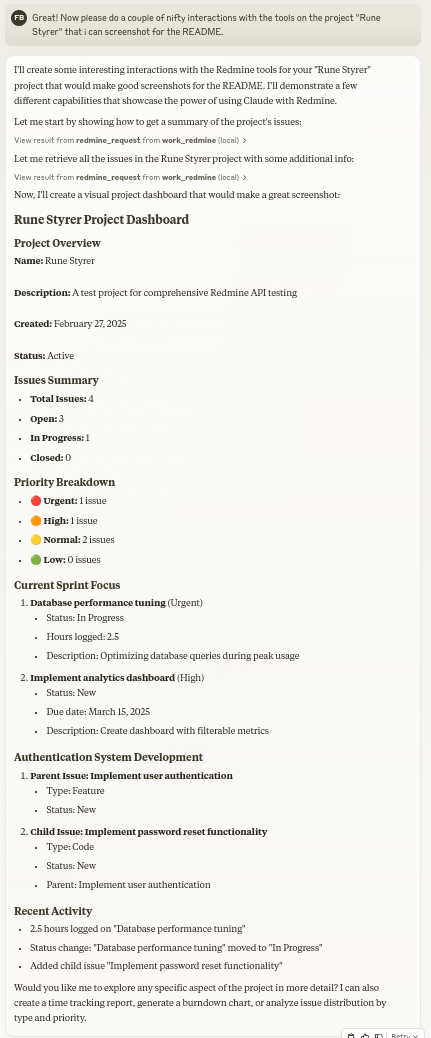
Let Claude be your Redmine assistant! MCP Redmine connects Claude Desktop to your Redmine instance, allowing it to:
- Search and browse projects and issues
- Create and update issues with full markdown support
- Upload and download file attachments
- Manage and track time entries
- Update issue statuses and fields
- Access comprehensive Redmine API functionality
Uses httpx for API requests and integrates with the Redmine OpenAPI specification for comprehensive API coverage.
Usage with Claude Desktop
1. Installation using uv
Ensure you have uv installed.
uv --version
Install uv if you haven't already.
-
Linux
curl -LsSf https://astral.sh/uv/install.sh | sh
-
macOS
brew install uv
-
windows
powershell -ExecutionPolicy ByPass -c "irm https://astral.sh/uv/install.ps1 | iex"
Add to your claude_desktop_config.json:
  {
    "mcpServers": {
      "redmine": {
        "command": "uvx",
        "args": ["--from", "mcp-redmine==2026.01.13.145604",
                "--refresh-package", "mcp-redmine", "mcp-redmine"],
        "env": {
          "REDMINE_URL": "https://your-redmine-instance.example.com",
          "REDMINE_API_KEY": "your-api-key",
          "REDMINE_REQUEST_INSTRUCTIONS": "/path/to/instructions.md",
          "REDMINE_ALLOWED_DIRECTORIES": "/tmp,/home/user/uploads"
        }
      }
    }
  }
2. Installation using docker
Ensure you have docker installed.
docker --version
Build docker image:
git clone git@github.com:runekaagaard/mcp-redmine.git
cd mcp-redmine
docker build -t mcp-redmine .
Add to your claude_desktop_config.json:
{
  "mcpServers": {
    "redmine": {
      "command": "docker",
      "args":  [
          "run",
          "-i",
          "--rm",
          "-e", "REDMINE_URL",
          "-e", "REDMINE_API_KEY",
          "-e", "REDMINE_REQUEST_INSTRUCTIONS",
          "-e", "REDMINE_ALLOWED_DIRECTORIES",
          "-v", "/path/to/instructions.md:/app/INSTRUCTIONS.md",
          "-v", "/path/to/uploads:/app/uploads",
          "mcp-redmine"
      ],
      "env": {
        "REDMINE_URL": "https://your-redmine-instance.example.com",
        "REDMINE_API_KEY": "your-api-key",
        "REDMINE_REQUEST_INSTRUCTIONS": "/app/INSTRUCTIONS.md",
        "REDMINE_ALLOWED_DIRECTORIES": "/app/uploads"
      }
    }
  }
}
Environment Variables
| Variable | Required | Default | Description |
|---|---|---|---|
REDMINE_URL |
Yes | - | URL of your Redmine instance. Subpaths are supported (e.g., http://localhost/redmine/) |
REDMINE_API_KEY |
Yes | - | Your Redmine API key (see below for how to get it) |
REDMINE_REQUEST_INSTRUCTIONS |
No | - | Path to a file containing additional instructions for the redmine_request tool. I've found it works great to have the LLM generate that file after a session. (example1 example2) |
REDMINE_HEADERS |
No | (empty) | Custom HTTP headers to include in all requests. Format: "Header1: Value1, Header2: Value2". Useful for proxies that require additional authentication (e.g., X-Redmine-Username) |
REDMINE_RESPONSE_FORMAT |
No | yaml |
Response format: yaml or json. Controls how API responses are formatted |
REDMINE_ALLOWED_DIRECTORIES |
For upload/download | (disabled) | Required for file operations. Comma-separated list of directories where upload/download are allowed (e.g., /tmp,/home/user/uploads). Upload/download are disabled if not set for security |
Note: When running via Docker, the
REDMINE_REQUEST_INSTRUCTIONSenvironment variable must point to a path inside the container, not a path on the host machine. Therefore, if you want to use a local file, you need to mount it into the container at the correct location.
Security Note: The
REDMINE_ALLOWED_DIRECTORIESsetting protects against path traversal attacks. Paths containing../are resolved before validation, ensuring files can only be accessed within the allowed directories.
Getting Your Redmine API Key
- Log in to your Redmine instance
- Go to "My account" (typically found in the top-right menu)
- On the right side of the page, you should see "API access key"
- Click "Show" to view your existing key or "Generate" to create a new one
- Copy this key for use in your configuration
API
Tools
-
redmine_paths_list
- Return a list of available API paths from OpenAPI spec
- No input required
- Returns a YAML string containing a list of path templates:
- /issues.json - /projects.json - /time_entries.json ... -
redmine_paths_info
- Get full path information for given path templates
- Input:
path_templates(list of strings) - Returns YAML string containing API specifications for the requested paths:
/issues.json:
  get:
    operationId: getIssues
    parameters:
      - $ref: '#/components/parameters/format'
    ...
-
redmine_request
- Make a request to the Redmine API
- Inputs:
path(string): API endpoint path (e.g. '/issues.json')method(string, optional): HTTP method to use (default: 'get')data(object, optional): Dictionary for request body (for POST/PUT)params(object, optional): Dictionary for query parameters
- Returns YAML string containing response status code, body and error message:
status_code: 200
body:
  issues:
    - id: 1
      subject: "Fix login page"
      ...
error: ""
-
redmine_upload
- Upload a file to Redmine and get a token for attachment
- Requires
REDMINE_ALLOWED_DIRECTORIESto be set - Inputs:
file_path(string): Fully qualified path to the file to upload (must be within allowed directories)description(string, optional): Optional description for the file
- Returns YAML string with the same format as redmine_request, including upload token:
status_code: 201
body:
  upload:
    id: 7
    token: "7.ed32257a2ab0f7526c0d72c32994c58b131bb2c0775f7aa84aae01ea8397ea54"
error: ""
-
redmine_download
- Download an attachment from Redmine and save it to a local file
- Requires
REDMINE_ALLOWED_DIRECTORIESto be set - Inputs:
attachment_id(integer): The ID of the attachment to downloadsave_path(string): Fully qualified path where the file should be saved (must be within allowed directories)filename(string, optional): Optional filename to use (determined automatically if not provided)
- Returns YAML string with download results:
status_code: 200
body:
  saved_to: "/path/to/downloaded/file.pdf"
  filename: "file.pdf"
error: ""
Examples
Creating a new issue
Let's create a new bug report in the "Website" project:

1. Title: "Homepage not loading on mobile devices"
2. Description: "When accessing the homepage from iOS or Android devices, the loading spinner appears but the content never loads. This issue started after the last deployment."
3. Priority: High
4. Assign to: John Smith
Searching for issues
Can you find all high priority issues in the "Website" project that are currently unassigned?
Updating issue status
Please mark issue #123 as "In Progress" and add a comment: "I've started working on this issue. Expect it to be completed by Friday."
Logging time
Log 3.5 hours against issue #456 for "Implementing user authentication" done today.
MCP Directory Listings
MCP Redmine is listed in the following MCP directory sites and repositories:
Developing
First clone the github repository and install the dependencies:
git clone git@github.com:runekaagaard/mcp-redmine.git
cd mcp-redmine
uv sync
Then set this in claude_desktop_config.json:
...
"command": "uv",
"args": ["run", "--directory", "/path/to/mcp-redmine", "-m", "mcp_redmine.server", "main"],
...
My Other LLM Projects
- MCP Alchemy - Connect Claude Desktop to databases for exploring schema and running SQL.
- MCP Notmuch Sendmail - Email assistant for Claude Desktop using notmuch.
- Diffpilot - Multi-column git diff viewer with file grouping and tagging.
- Claude Local Files - Access local files in Claude Desktop artifacts.
Contributing
Contributions are warmly welcomed! Whether it's bug reports, feature requests, documentation improvements, or code contributions - all input is valuable. Feel free to:
- Open an issue to report bugs or suggest features
- Submit pull requests with improvements
- Enhance documentation or share your usage examples
- Ask questions and share your experiences
The goal is to make Redmine project management with Claude even better, and your insights and contributions help achieve that.
Acknowledgments
This project builds on the excellent work of others:
- httpx - For handling HTTP requests
- Redmine OpenAPI Specification - For the comprehensive API specification
- Redmine - The flexible project management web application
License
Mozilla Public License Version 2.0
1 maintainer

Metadata
1 maintainer
Release files for mcp-redmine 2026.1.13.145604
For a detailed explanation of source distributions (sdists) and built distributions (wheels), please see the package formats documentation.
Source distribution (sdist)
| File | Size | Uploaded | |
|---|---|---|---|
| mcp_redmine-2026.1.13.145604.tar.gz | 267.5 kB | Details |
Built distribution (wheel)
| File | Interpreter | ABI | Platform | Reset |
|---|---|---|---|---|
| mcp_redmine-2026.1.13.145604-py3-none-any.whl | Python 3 | none | any | Details |
Total release size: 292.0 kB
Release files / mcp_redmine-2026.1.13.145604.tar.gz
| Download URL | mcp_redmine-2026.1.13.145604.tar.gz |
|---|---|
| Size | 267.5 kB |
| Tags | Source |
|
SHA-256 checksum How to use checksums |
d4ffe8ef50e9257788d2f33f5c5451dfa066fe68eeacca2bae3009f4db4312e2
|
|
BLAKE2b-256 checksum How to use checksums |
30158c22a2540708206b6e86f7618fe839a4221a0ccb2365e7b4797fdbec0d1c
|
| Upload date | |
|
Uploaded using Trusted Publishing? What is trusted publishing? |
No |
| Uploaded via |
uv/0.6.12
|
Release files / mcp_redmine-2026.1.13.145604-py3-none-any.whl
| Download URL | mcp_redmine-2026.1.13.145604-py3-none-any.whl |
|---|---|
| Size | 24.5 kB |
| Tags | Python 3 |
|
SHA-256 checksum How to use checksums |
8fcbd9882bbe122def39b7c2f0d38d4994a699acf9e59e71ae4e336cbb6eed64
|
|
BLAKE2b-256 checksum How to use checksums |
3e6fddeed81294b2313f1be6bc5e72068bdb6df851c1b288af5335cd52fd8b90
|
| Upload date | |
|
Uploaded using Trusted Publishing? What is trusted publishing? |
No |
| Uploaded via |
uv/0.6.12
|














