
Universal MCP Client with multi-transport support and LLM-powered tool routing

Project description
🚀 MCPOmni Connect - Universal Gateway to MCP Servers







MCPOmni Connect is a powerful, universal command-line interface (CLI) that serves as your gateway to the Model Context Protocol (MCP) ecosystem. It seamlessly integrates multiple MCP servers, AI models, and various transport protocols into a unified, intelligent interface.
✨ Key Features
🔌 Universal Connectivity
- Multi-Protocol Support
- Native support for stdio transport
- Server-Sent Events (SSE) for real-time communication
- Docker container integration
- NPX package execution
- Extensible transport layer for future protocols
- ReAct Agentic Mode
- Autonomous task execution without human intervention
- Advanced reasoning and decision-making capabilities
- Seamless switching between chat and agentic modes
- Self-guided tool selection and execution
- Complex task decomposition and handling
- Orchestrator Agent Mode
- Advanced planning for complex multi-step tasks
- Intelligent task delegation across multiple MCP servers
- Dynamic agent coordination and communication
- Automated subtask management and execution
🧠 AI-Powered Intelligence
- Advanced LLM Integration
- Seamless OpenAI models integration
- Seamless OpenRouter models integration
- Seamless Groq models integration
- Seamless Gemini models integration
- Seamless DeepSeek models integration
- Dynamic system prompts based on available capabilities
- Intelligent context management
- Automatic tool selection and chaining
- Universal model support through custom ReAct Agent
- Handles models without native function calling
- Dynamic function execution based on user requests
- Intelligent tool orchestration
🔒 Security & Privacy
- Explicit User Control
- All tool executions require explicit user approval in chat mode
- Clear explanation of tool actions before execution
- Transparent disclosure of data access and usage
- Data Protection
- Strict data access controls
- Server-specific data isolation
- No unauthorized data exposure
- Privacy-First Approach
- Minimal data collection
- User data remains on specified servers
- No cross-server data sharing without consent
- Secure Communication
- Encrypted transport protocols
- Secure API key management
- Environment variable protection
💾 Memory Management
- Redis-Powered Persistence
- Long-term conversation memory storage
- Session persistence across restarts
- Configurable memory retention
- Easy memory toggle with commands
- Chat History File Storage
- Save complete chat conversations to files
- Load previous conversations from saved files
- Continue conversations from where you left off
- Persistent chat history across sessions
- File-based backup and restoration of conversations
- Intelligent Context Management
- Automatic context pruning
- Relevant information retrieval
- Memory-aware responses
- Cross-session context maintenance
💬 Prompt Management
- Advanced Prompt Handling
- Dynamic prompt discovery across servers
- Flexible argument parsing (JSON and key-value formats)
- Cross-server prompt coordination
- Intelligent prompt validation
- Context-aware prompt execution
- Real-time prompt responses
- Support for complex nested arguments
- Automatic type conversion and validation
- Client-Side Sampling Support
- Dynamic sampling configuration from client
- Flexible LLM response generation
- Customizable sampling parameters
- Real-time sampling adjustments
🛠️ Tool Orchestration
- Dynamic Tool Discovery & Management
- Automatic tool capability detection
- Cross-server tool coordination
- Intelligent tool selection based on context
- Real-time tool availability updates
📦 Resource Management
- Universal Resource Access
- Cross-server resource discovery
- Unified resource addressing
- Automatic resource type detection
- Smart content summarization
🔄 Server Management
- Advanced Server Handling
- Multiple simultaneous server connections
- Automatic server health monitoring
- Graceful connection management
- Dynamic capability updates
🏗️ Architecture
Core Components
MCPOmni Connect
├── Transport Layer
│   ├── Stdio Transport
│   ├── SSE Transport
│   └── Docker Integration
├── Session Management
│   ├── Multi-Server Orchestration
│   └── Connection Lifecycle Management
├── Tool Management
│   ├── Dynamic Tool Discovery
│   ├── Cross-Server Tool Routing
│   └── Tool Execution Engine
└── AI Integration
    ├── LLM Processing
    ├── Context Management
    └── Response Generation
🚀 Getting Started
Prerequisites
- Python 3.10+
- LLM API key
- UV package manager (recommended)
- Redis server (optional, for persistent memory)
Install using package manager
# with uv recommended
uv add mcpomni-connect
# using pip
pip install mcpomni-connect
Configuration
# Set up environment variables
echo "LLM_API_KEY=your_key_here" > .env
# Optional: Configure Redis connection
echo "REDIS_HOST=localhost" >> .env
echo "REDIS_PORT=6379" >> .env
echo "REDIS_DB=0" >> .env"
# Configure your servers in servers_config.json
Environment Variables
| Variable | Description | Example |
|---|---|---|
| LLM_API_KEY | API key for LLM provider | sk-... |
| REDIS_HOST | Redis server hostname (optional) | localhost |
| REDIS_PORT | Redis server port (optional) | 6379 |
| REDIS_DB | Redis database number (optional) | 0 |
Start CLI
# start the cli running the command ensure your api key is exported or create .env
mcpomni_connect
🧪 Testing
Running Tests
# Run all tests with verbose output
pytest tests/ -v

# Run specific test file
pytest tests/test_specific_file.py -v

# Run tests with coverage report
pytest tests/ --cov=src --cov-report=term-missing
Test Structure
tests/
├── unit/           # Unit tests for individual components
Development Quick Start
-
Installation
# Clone the repository
git clone https://github.com/Abiorh001/mcp_omni_connect.git
cd mcp_omni_connect

# Create and activate virtual environment
uv venv
source .venv/bin/activate

# Install dependencies
uv sync
-
Configuration
# Set up environment variables
echo "LLM_API_KEY=your_key_here" > .env

# Configure your servers in servers_config.json
-
** Start Client**
# Start the client
uv run run.py
# or
python run.py
🧑💻 Examples
Basic CLI Example
You can run the basic CLI example to interact with MCPOmni Connect directly from the terminal.
Using uv (recommended):
uv run examples/basic.py
Or using Python directly:
python examples/basic.py
FastAPI Server Example
You can also run MCPOmni Connect as a FastAPI server for web or API-based interaction.
Using uv:
uv run examples/fast_api_iml.py
Or using Python directly:
python examples/fast_api_iml.py
Web Client
A simple web client is provided in examples/index.html.
- Open it in your browser after starting the FastAPI server.
- It connects to
http://localhost:8000and provides a chat interface. - The FastAPI server will start on
http://localhost:8000by default. - You can interact with the API (see
examples/index.htmlfor a simple web client).
FastAPI API Endpoints
/chat/agent_chat (POST)
- Description: Send a chat query to the agent and receive a streamed response.
- Request:
{
  "query": "Your question here",
  "chat_id": "unique-chat-id"
}
- Response: Streamed JSON lines, each like:
{
  "message_id": "...",
  "usid": "...",
  "role": "assistant",
  "content": "Response text",
  "meta": [],
  "likeordislike": null,
  "time": "2024-06-10 12:34:56"
}
🛠️ Developer Integration
MCPOmni Connect is not just a CLI tool—it's also a powerful Python library that you can use to build your own backend services, custom clients, or API servers.
Build Your Own MCP Client
You can import MCPOmni Connect in your Python project to:
- Connect to one or more MCP servers
- Choose between ReAct Agent mode (autonomous tool use) or Orchestrator Agent mode (multi-step, multi-server planning)
- Manage memory, context, and tool orchestration
- Expose your own API endpoints (e.g., with FastAPI, Flask, etc.)
Example: Custom Backend with FastAPI
See examples/fast_api_iml.py for a full-featured example.
Minimal Example:
from mcpomni_connect.client import Configuration, MCPClient
from mcpomni_connect.llm import LLMConnection
from mcpomni_connect.agents.react_agent import ReactAgent
from mcpomni_connect.agents.orchestrator import OrchestratorAgent

config = Configuration()
client = MCPClient(config)
llm_connection = LLMConnection(config)

# Choose agent mode
agent = ReactAgent(...)  # or OrchestratorAgent(...)

# Use in your API endpoint
response = await agent.run(
    query="Your user query",
    sessions=client.sessions,
    llm_connection=llm_connection,
    # ...other arguments...
)
FastAPI Integration
You can easily expose your MCP client as an API using FastAPI.
See the FastAPI example for:
- Async server startup and shutdown
- Handling chat requests with different agent modes
- Streaming responses to clients
Key Features for Developers:
- Full control over agent configuration and limits
- Support for both chat and autonomous agentic modes
- Easy integration with any Python web framework
Server Configuration Examples
{
    "AgentConfig": {
        "tool_call_timeout": 30, // tool call timeout
        "max_steps": 15, // number of steps before it terminates
        "request_limit": 1000, // number of request limits
        "total_tokens_limit": 100000 // max number of token usage
    },
    "LLM": {
        "provider": "openai",  // Supports: "openai", "openrouter", "groq"
        "model": "gpt-4",      // Any model from supported providers
        "temperature": 0.5,
        "max_tokens": 5000,
        "max_context_length": 30000, // Maximum of the model context length
        "top_p": 0
    },
    "mcpServers": {
        "filesystem-server": {
            "command": "npx",
            "args": [
                "@modelcontextprotocol/server-filesystem",
                "/path/to/files"
            ]
        },
        "sse-server": {
            "type": "sse",
            "url": "http://localhost:3000/mcp",
            "headers": {
                "Authorization": "Bearer token"
            },
        },
        "docker-server": {
            "command": "docker",
            "args": ["run", "-i", "--rm", "mcp/server"]
        }
    }
}
🎯 Usage
Interactive Commands
/tools- List all available tools across servers/prompts- View available prompts/prompt:<name>/<args>- Execute a prompt with arguments/resources- List available resources/resource:<uri>- Access and analyze a resource/debug- Toggle debug mode/refresh- Update server capabilities/memory- Toggle Redis memory persistence (on/off)/mode:auto- Switch to autonomous agentic mode/mode:chat- Switch back to interactive chat mode
Memory and Chat History
# Enable Redis memory persistence
/memory

# Check memory status
Memory persistence is now ENABLED using Redis

# Disable memory persistence
/memory

# Check memory status
Memory persistence is now DISABLED
Operation Modes
# Switch to autonomous mode
/mode:auto

# System confirms mode change
Now operating in AUTONOMOUS mode. I will execute tasks independently.

# Switch back to chat mode
/mode:chat

# System confirms mode change
Now operating in CHAT mode. I will ask for approval before executing tasks.
Mode Differences
-
Chat Mode (Default)
- Requires explicit approval for tool execution
- Interactive conversation style
- Step-by-step task execution
- Detailed explanations of actions
-
Autonomous Mode
- Independent task execution
- Self-guided decision making
- Automatic tool selection and chaining
- Progress updates and final results
- Complex task decomposition
- Error handling and recovery
-
Orchestrator Mode
- Advanced planning for complex multi-step tasks
- Strategic delegation across multiple MCP servers
- Intelligent agent coordination and communication
- Parallel task execution when possible
- Dynamic resource allocation
- Sophisticated workflow management
- Real-time progress monitoring across agents
- Adaptive task prioritization
Prompt Management
# List all available prompts
/prompts

# Basic prompt usage
/prompt:weather/location=tokyo

# Prompt with multiple arguments depends on the server prompt arguments requirements
/prompt:travel-planner/from=london/to=paris/date=2024-03-25

# JSON format for complex arguments
/prompt:analyze-data/{
    "dataset": "sales_2024",
    "metrics": ["revenue", "growth"],
    "filters": {
        "region": "europe",
        "period": "q1"
    }
}

# Nested argument structures
/prompt:market-research/target=smartphones/criteria={
    "price_range": {"min": 500, "max": 1000},
    "features": ["5G", "wireless-charging"],
    "markets": ["US", "EU", "Asia"]
}
Advanced Prompt Features
- Argument Validation: Automatic type checking and validation
- Default Values: Smart handling of optional arguments
- Context Awareness: Prompts can access previous conversation context
- Cross-Server Execution: Seamless execution across multiple MCP servers
- Error Handling: Graceful handling of invalid arguments with helpful messages
- Dynamic Help: Detailed usage information for each prompt
AI-Powered Interactions
The client intelligently:
- Chains multiple tools together
- Provides context-aware responses
- Automatically selects appropriate tools
- Handles errors gracefully
- Maintains conversation context
Model Support
- OpenAI Models
- Full support for all OpenAI models
- Native function calling for compatible models
- ReAct Agent fallback for older models
- OpenRouter Models
- Access to all OpenRouter-hosted models
- Unified interface for model interaction
- Automatic capability detection
- Groq Models
- Support for all Groq models
- Ultra-fast inference capabilities
- Seamless integration with tool system
- Universal Model Support
- Custom ReAct Agent for models without function calling
- Dynamic tool execution based on model capabilities
- Intelligent fallback mechanisms
Token & Usage Management
MCPOmni Connect now provides advanced controls and visibility over your API usage and resource limits.
View API Usage Stats
Use the /api_stats command to see your current usage:
/api_stats
This will display:
- Total tokens used
- Total requests made
- Total response tokens
- Number of requests
Set Usage Limits
You can set limits to automatically stop execution when thresholds are reached:
- Total Request Limit:
Set the maximum number of requests allowed in a session. - Total Token Usage Limit:
Set the maximum number of tokens that can be used. - Tool Call Timeout:
Set the maximum time (in seconds) a tool call can take before being terminated. - Max Steps:
Set the maximum number of steps the agent can take before stopping.
You can configure these in your servers_config.json under the AgentConfig section:
"AgentConfig": {
    "tool_call_timeout": 30,        // Tool call timeout in seconds
    "max_steps": 15,                // Max number of steps before termination
    "request_limit": 1000,          // Max number of requests allowed
    "total_tokens_limit": 100000    // Max number of tokens allowed
}
- When any of these limits are reached, the agent will automatically stop running and notify you.
Example Commands
# Check your current API usage and limits
/api_stats

# Set a new request limit (example)
# (This can be done by editing servers_config.json or via future CLI commands)
🔧 Advanced Features
Tool Orchestration
# Example of automatic tool chaining if the tool is available in the servers connected
User: "Find charging stations near Silicon Valley and check their current status"

# Client automatically:
1. Uses Google Maps API to locate Silicon Valley
2. Searches for charging stations in the area
3. Checks station status through EV network API
4. Formats and presents results
Resource Analysis
# Automatic resource processing
User: "Analyze the contents of /path/to/document.pdf"

# Client automatically:
1. Identifies resource type
2. Extracts content
3. Processes through LLM
4. Provides intelligent summary
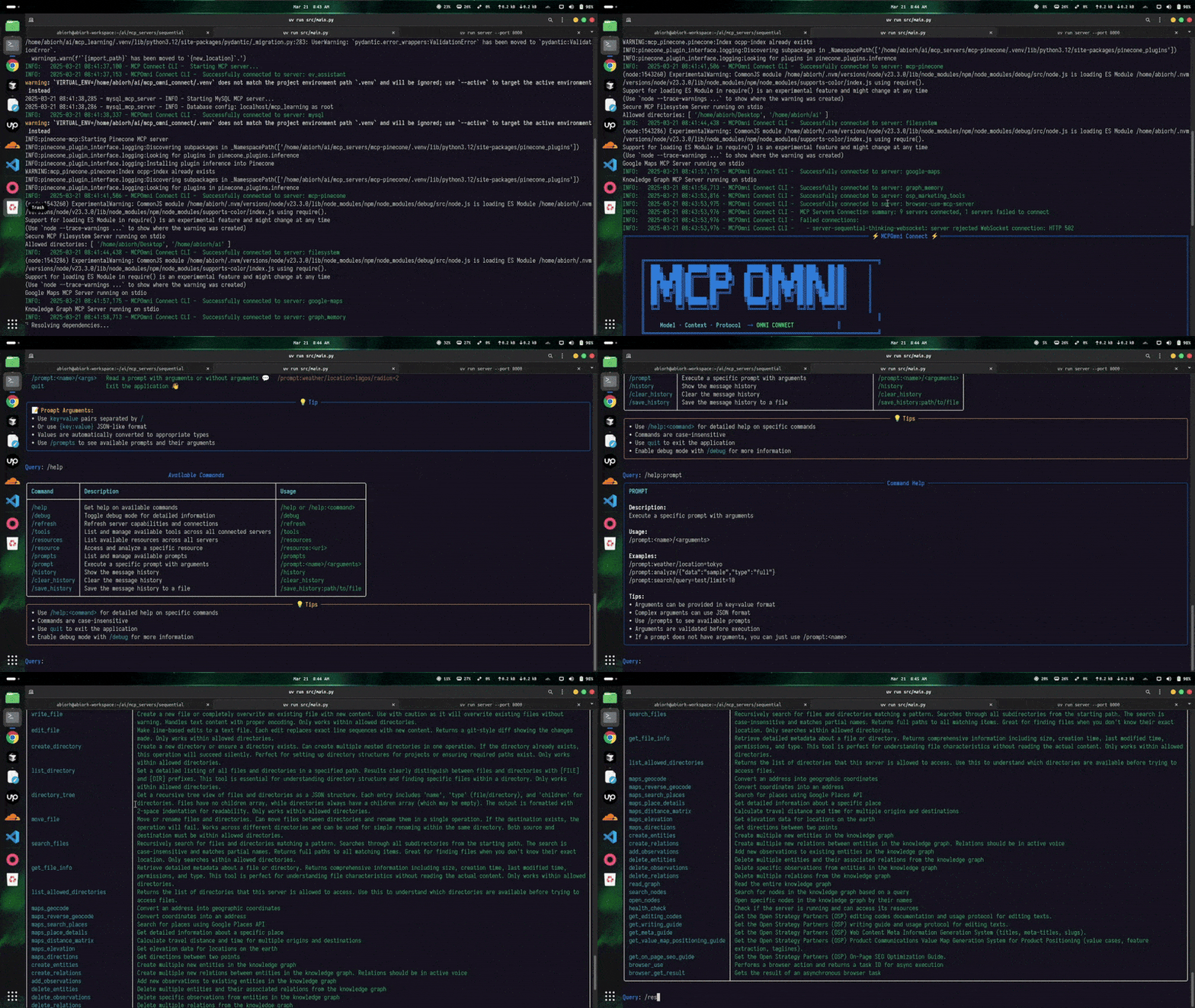
Demo
🔍 Troubleshooting
Common Issues and Solutions
-
Connection Issues
Error: Could not connect to MCP server
- Check if the server is running
- Verify server configuration in
servers_config.json - Ensure network connectivity
- Check server logs for errors
-
API Key Issues
Error: Invalid API key
- Verify API key is correctly set in
.env - Check if API key has required permissions
- Ensure API key is for correct environment (production/development)
- Verify API key is correctly set in
-
Redis Connection
Error: Could not connect to Redis
- Verify Redis server is running
- Check Redis connection settings in
.env - Ensure Redis password is correct (if configured)
-
Tool Execution Failures
Error: Tool execution failed
- Check tool availability on connected servers
- Verify tool permissions
- Review tool arguments for correctness
Debug Mode
Enable debug mode for detailed logging:
/debug
For additional support, please:
- Check the Issues page
- Review closed issues for similar problems
- Open a new issue with detailed information if needed
🤝 Contributing
We welcome contributions! See our Contributing Guide for details.
📄 License
This project is licensed under the MIT License - see the LICENSE file for details.
📬 Contact & Support
- Author: Abiola Adeshina
- Email: abiolaadedayo1993@gmail.com
- GitHub Issues: Report a bug
Built with ❤️ by the MCPOmni Connect Team
Release history Release notifications | RSS feed


Download files
Download the file for your platform. If you're not sure which to choose, learn more about installing packages.
Source Distribution
Built Distribution
Filter files by name, interpreter, ABI, and platform.
If you're not sure about the file name format, learn more about wheel file names.
Copy a direct link to the current filters
File details
Details for the file mcpomni_connect-0.1.15.tar.gz.
File metadata
- Download URL: mcpomni_connect-0.1.15.tar.gz
- Upload date:
- Size: 71.7 kB
- Tags: Source
- Uploaded using Trusted Publishing? No
- Uploaded via: twine/6.1.0 CPython/3.12.3
File hashes
| Algorithm | Hash digest | |
|---|---|---|
| SHA256 |
adcd1082cf22c2bf049acc687f85ad97c90b6effd3c76cc4ff8ebecd0d29007a
|
|
| MD5 |
3ba7a2d320824ef03a73f4b0b5c5310c
|
|
| BLAKE2b-256 |
bf6c7188ec69da7e4602cbd2849b1c4b1140a760df3dd300961ed7770675a269
|
File details
Details for the file mcpomni_connect-0.1.15-py3-none-any.whl.
File metadata
- Download URL: mcpomni_connect-0.1.15-py3-none-any.whl
- Upload date:
- Size: 85.8 kB
- Tags: Python 3
- Uploaded using Trusted Publishing? No
- Uploaded via: twine/6.1.0 CPython/3.12.3
File hashes
| Algorithm | Hash digest | |
|---|---|---|
| SHA256 |
015e830973122f860d7b20e65c1f081f362713fdbf2fd1c6c5b79dbd5530bb3e
|
|
| MD5 |
6531508b376550c7bfa7a82346d467d4
|
|
| BLAKE2b-256 |
a055e2f96f93b9612e0d4af31e69d040070ada697f59a3dd6de1dbbe68809a4b
|






